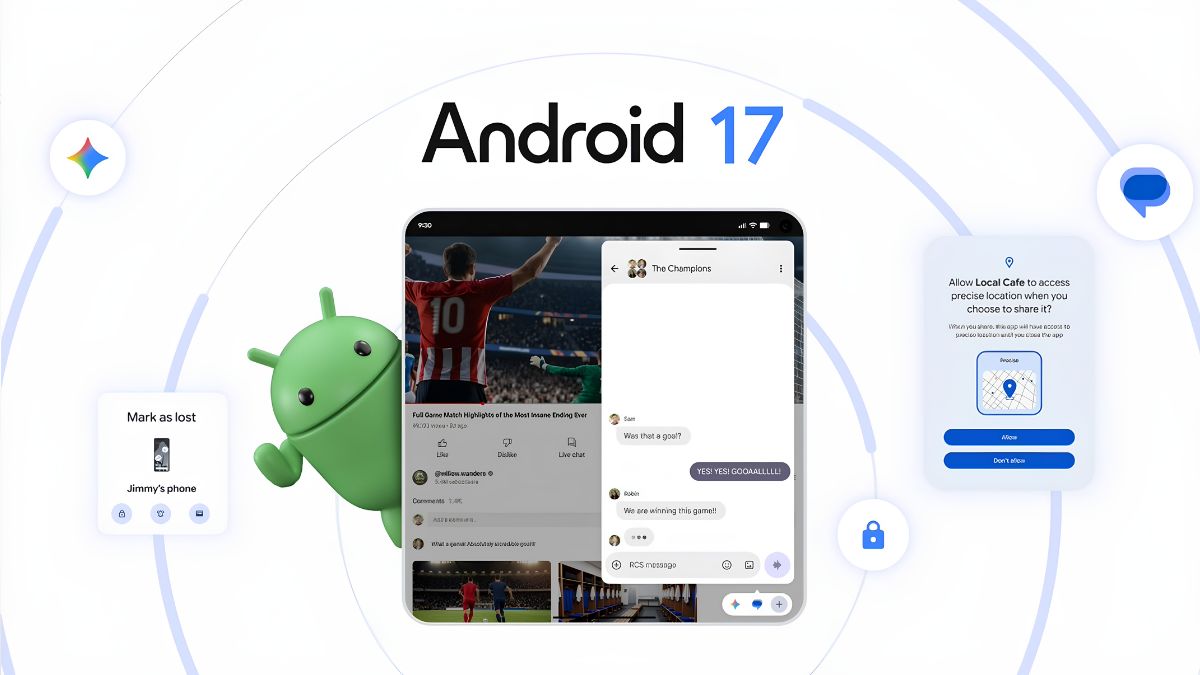
After months of beta builds, the wait is finally over. Android 17 is now officially rolling out to supported Google Pixel devices, with Google pushing the stable build starting June 16, 2026. If you’ve spent the last few months installing beta after beta just to see what changed, today is the actual finish line.
The timing isn’t an accident. This release lands alongside the June 2026 Pixel Feature Drop, so Pixel owners aren’t just getting a new Android version, they’re picking up a stack of Pixel-only extras on top of it, things Google tends to save specifically for its own hardware rather than handing to every Android phone at once.
Don’t go in expecting a dramatic visual overhaul, though. Google has been upfront that this release is about refinement rather than reinvention. The focus is multitasking, privacy and security, gaming performance (with foldables getting particular attention), and a handful of AI-driven conveniences, not a redesign you’ll notice the moment you unlock your phone. Google spent more than three months running this through beta testing before landing on a version stable enough to ship, which tracks with how methodical the company has gotten about platform releases since shifting its major-version timeline to the middle of the year.
We’ll cover the highlights below, but if you want the full feature-by-feature rundown, our deeper guide on what’s new in Android 17 walks through everything Google has shipped since the first beta.
Stable Android 17 Arrives for Pixel Devices: Here’s Who Gets It First
Android 17 stable is rolling out now to Pixel 6 and later devices, which covers essentially every Pixel phone and tablet Google has released since late 2021. If your device falls anywhere on this list, it’s eligible:
- Pixel 6, 6 Pro, 6a
- Pixel 7, 7 Pro, 7a
- Pixel 8, 8 Pro, 8a
- Pixel 9, 9 Pro, 9 Pro XL, 9 Pro Fold, 9a
- Pixel 10, 10 Pro, 10 Pro XL, 10 Pro Fold, 10a
- Pixel Tablet and Pixel Fold
As with every Pixel software rollout, this one is staggered rather than instant. Google ties the schedule to carrier, region, and device model, so it’s entirely normal for two people with the same exact phone to see it appear days apart. If your update hasn’t shown up yet, that doesn’t mean anything’s wrong with your device, it just hasn’t reached your batch.
Multitasking Finally Gets Treated Like a Real Feature
The headline change in Android 17 is Bubbles, and it’s easily the most noticeable thing about this update once you start using it. Android already had split screen, floating windows, and picture-in-picture, but Bubbles is the first multitasking tool on Pixel that actually behaves the way you’d want it to.
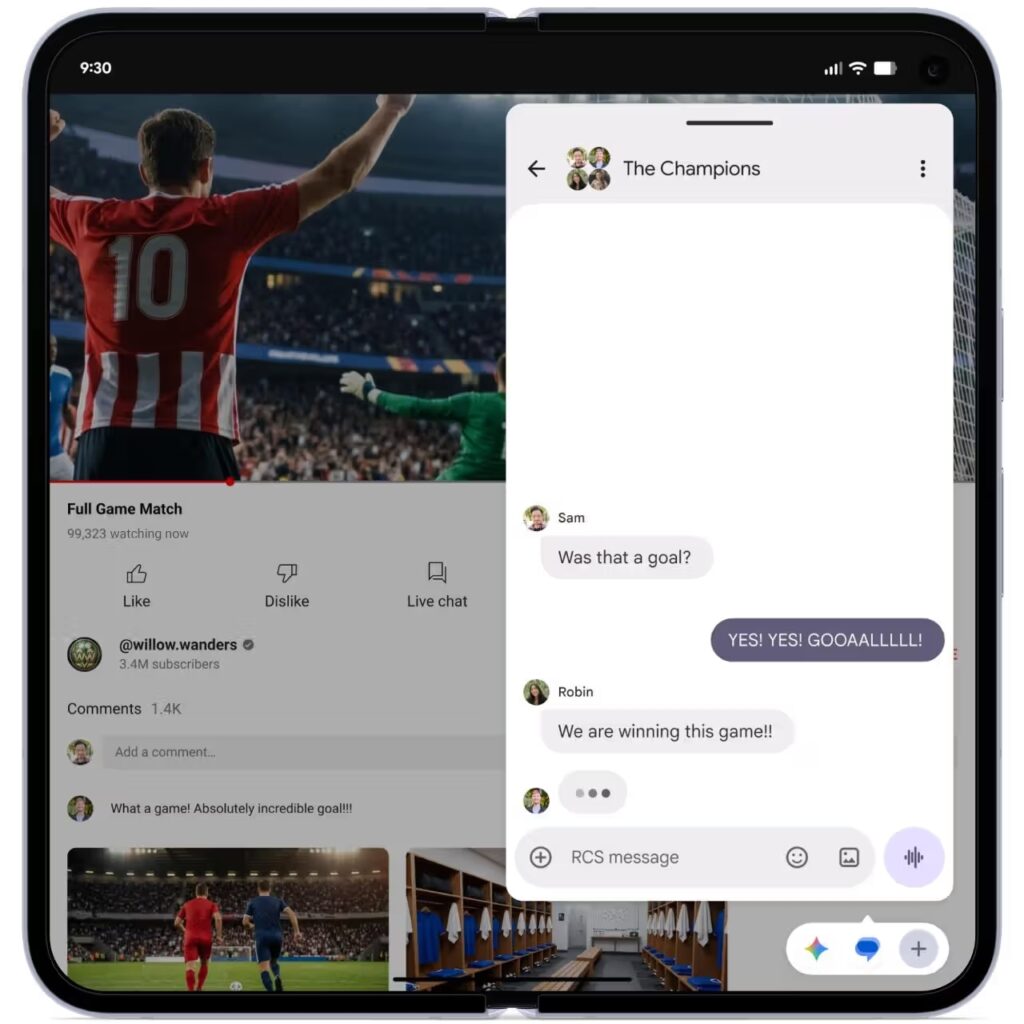
Think of how Facebook Messenger lets a conversation collapse into a small floating icon you can drag around and reopen later, except now that same behavior works across apps system-wide. You can summon more than one app at a time and stack their icons along the edge of the screen, which makes it genuinely useful for the kind of multitasking people actually do: replying to a message while watching a video, checking a map while texting someone your ETA, or keeping a timer running while you finish an email.
It’s a small interaction shift, but it solves a real annoyance. Floating windows on Android have always felt like a workaround. Bubbles feels like the feature was built for how people actually use their phones.
Alongside it, Google quietly fixed something that’s bothered anyone using a Pixel with an external display. Widgets used to look inconsistent when mirrored or extended onto a second screen. Android 17 now resizes widgets based on the connected display’s pixel density, so they look proportionate and sharp instead of oddly oversized or cramped.
Privacy and Security Take a Noticeably Bigger Step
This is the section that’s easy to skim past but probably matters most day to day. Android 17 introduces a System Contact Picker, which lets you hand an app access to specific contacts instead of your entire address book. If you’ve ever installed a social or dating app and felt uneasy granting it blanket access to everyone you know, this closes that gap.
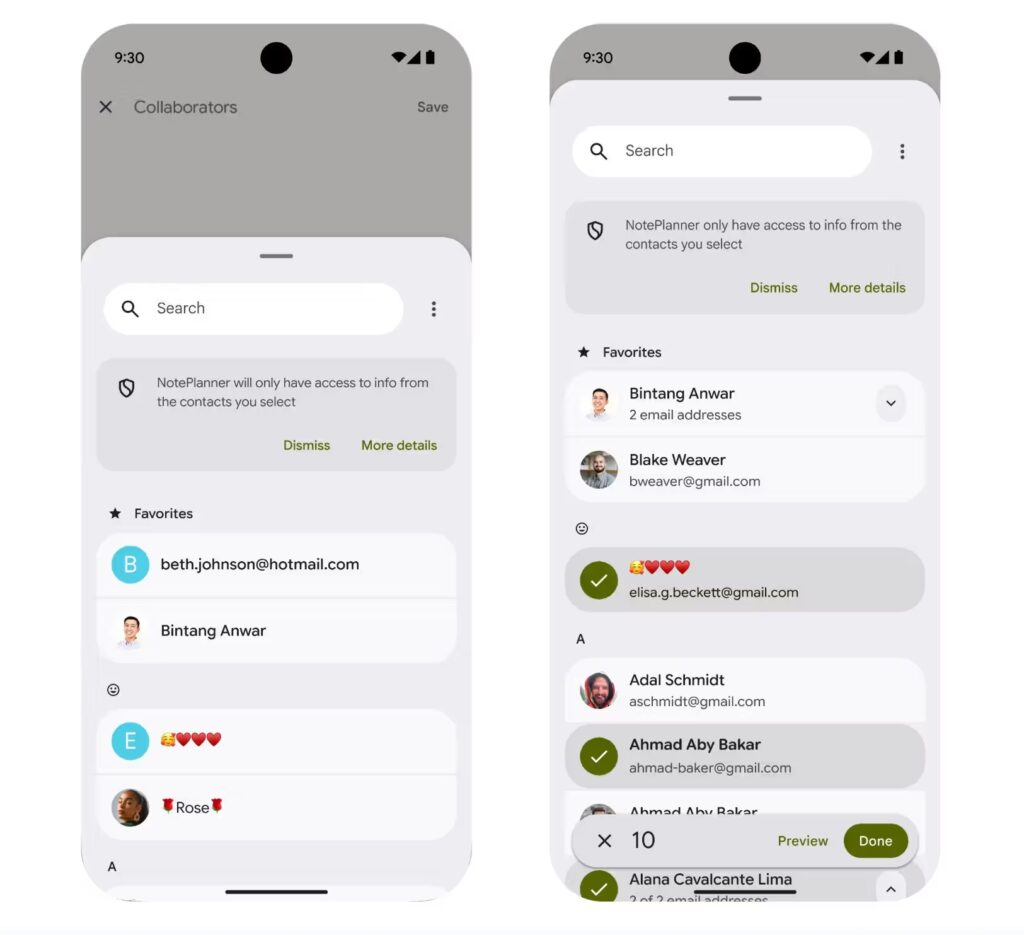
Location permissions get the same treatment. Apps can now be granted temporary, precise location access that expires after the session ends rather than sticking around indefinitely. That’s particularly useful for one-off apps, the parking app you only open twice a year, or a delivery service you’re trying for the first time, where you want accuracy in the moment but don’t want it tracking you afterward.
Google also beefed up anti-theft protection meaningfully in this release, adding offline device lock and remote wipe options that work even without an active connection, plus expanded biometric authentication choices for unlocking sensitive actions. Phone theft has become enough of a problem in some regions that Google has been treating it as a security priority rather than an afterthought, and these tools reflect that.
If your phone is ever lost or stolen, the gap between “someone has my unlocked phone” and “someone has an expensive paperweight” just got noticeably wider.
Related: Android 17 Security and Privacy Features: What’s New
A Cleaner Look, Plus Smarter Screen Recording
Visually, Android 17 leans into the same Material 3 Expressive direction Google introduced through Android 16’s QPR updates, but it adds a few touches Pixel owners have been asking for.
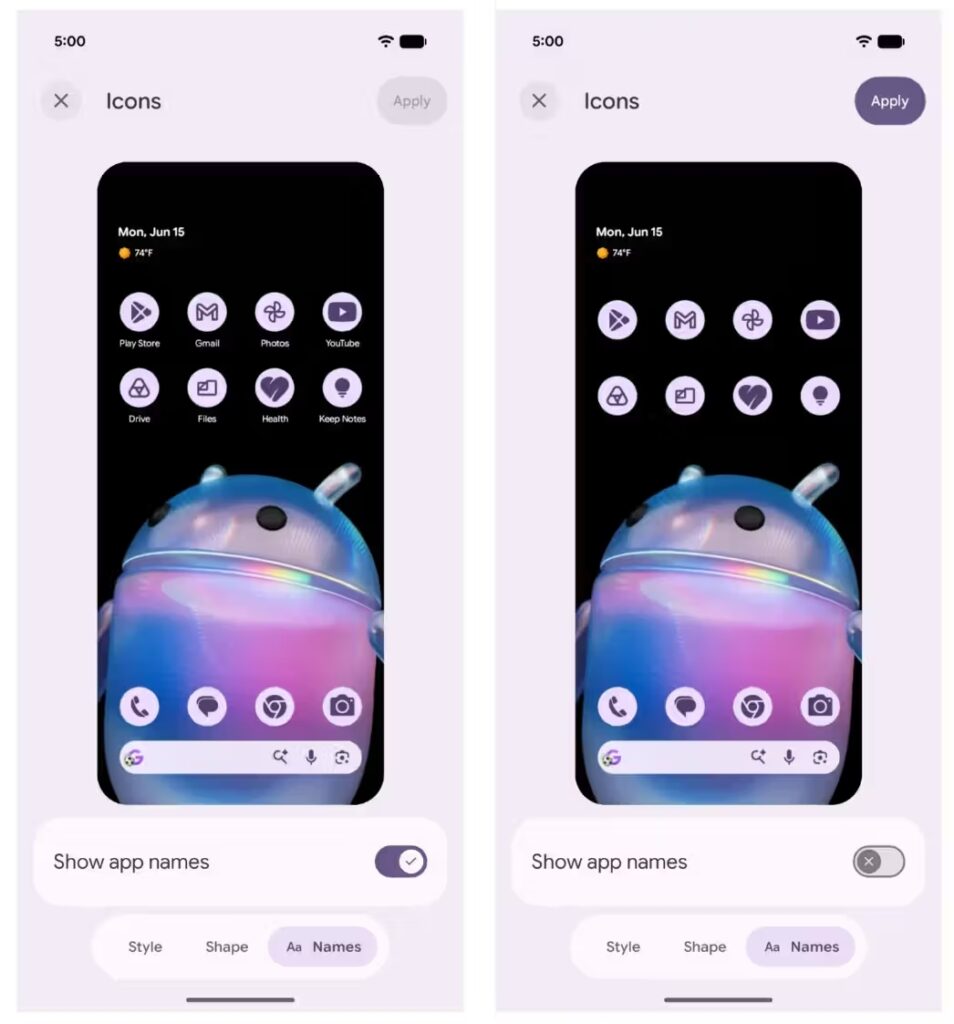
You can finally hide app names on the Home Screen, something most other Android skins have offered for years, which gives icon-only layouts a noticeably cleaner look for anyone who prefers minimalism over labels.
Blur effects, which Google started using in the Quick Settings panel on Android 16, now extend to the widget picker, the volume panel, and the power-off menu, giving the whole system a more cohesive feel.
Inside Settings, menus have also been trimmed down to be more compact, which doesn’t add new functionality but does mean less scrolling to find what you need.
Screen recording gets a genuinely useful upgrade too, in the form of Screen Reactions. While recording your screen, you can now show your face in a floating window using the front camera, and Google automatically removes the background without needing a green screen, unlike the circular or square camera cutouts you’ll find on other Android skins.
For anyone making tutorials, reacting to gameplay, or recording themselves while testing the new wallpaper feature, it’s a small addition that makes screen recordings feel a lot less sterile.
Live Updates, also introduced last year, now show up more prominently across the notification shade, lock screen, and status bar, so ongoing activities like delivery tracking or a timer are harder to miss.
Gaming and Foldables Get Some Real Attention
This is one area where Android 17 quietly does more than the changelog suggests. Google added optimized performance modes specifically aimed at foldable devices, addressing a problem that’s been around since the first folding phones launched: games rarely handle the transition between folded and unfolded states gracefully, often forcing a restart or rendering at the wrong aspect ratio.
Android 17 improves how the system manages GPU scheduling and display continuity during that switch, along with general performance tuning that benefits gaming across the board, not just on foldables.
If you own a Pixel Fold or Pixel 9/10 Pro Fold and game on it regularly, this is one of the more practical changes in the whole release, even if it won’t show up in a feature-list screenshot.
Pixel-Only Extras From the June Feature Drop
Because this release coincides with the June 2026 Feature Drop, Pixel owners get a layer of software on top of stock Android 17 that won’t show up on other brands’ phones.
That includes expanded Gemini AI tools baked deeper into system features, along with smarter, more context-aware reply suggestions in messaging apps. These additions sit outside the core Android 17 codebase, which is part of why Google can keep shipping them to Pixels every few months rather than waiting for the next full platform release.
How to Install Android 17 on Your Pixel
For most people, this is the easy part.
Go to Settings > System > System Update and check for the update. If it’s reached your device, it’ll show up there.
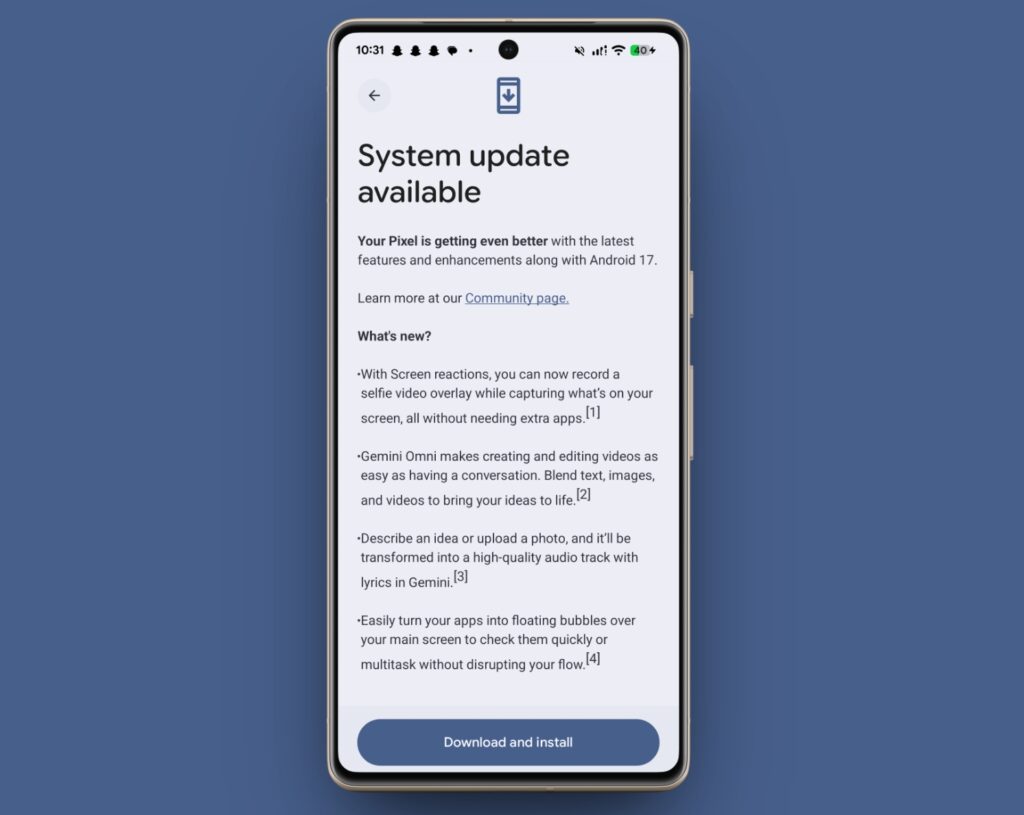
If you’re currently running the final Android 17 beta (Beta 4), you’ll need to opt out of the beta program first before the stable OTA will offer itself. It’s a quick toggle, and the good news is that moving from beta to stable generally doesn’t require a full data wipe for most users, so you shouldn’t need to back everything up and start from scratch the way you would with some major version jumps.
If you’d rather not wait for the staged rollout to reach your specific device, factory images and OTA files are available on Google’s developer site for manual installation, though that route is best suited to people comfortable with ADB and Fastboot rather than the average user just checking for updates.
When Will Other Android Phones Get It?
Pixel always gets first access since Google controls both the hardware and software end to end. Samsung, OnePlus, Xiaomi, Honor, and the rest of the Android ecosystem will roll out their own Android 17-based updates later in 2026, once each manufacturer finishes layering its custom skin, camera tweaks, and pre-installed apps on top of the new platform.
Don’t expect those updates to look identical to what’s described here either. Features like Bubbles or Screen Reactions may show up reskinned, renamed, or replaced with each brand’s own version of the same idea.
If you’ve already got Android 17 running, it’s worth spending a few minutes in Settings just poking around. A lot of these changes are easy to miss until you stumble into them.
And if your Pixel hasn’t seen the update yet, it’s likely just a matter of days. The rollout is moving quickly enough that most eligible devices should be covered well before the month is out.
You might also like: