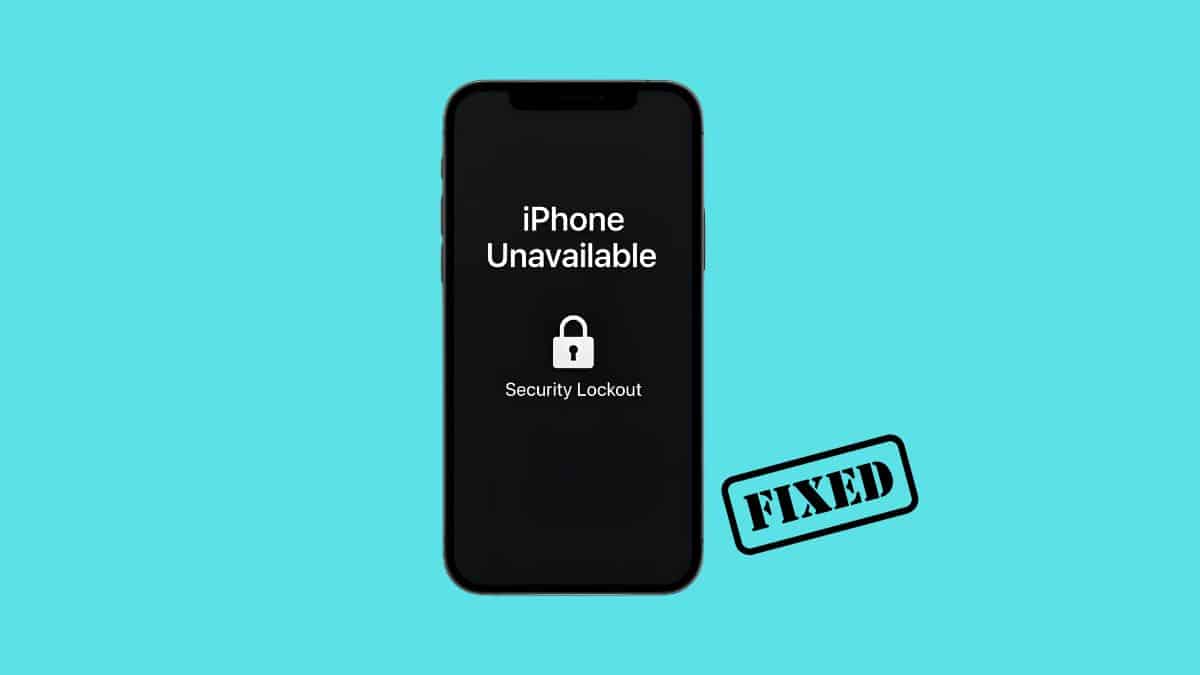
If you forgot your iPhone passcode, seeing “iPhone Unavailable” on the Lock Screen is a stomach-drop moment. A few wrong attempts can quickly turn into a countdown timer, leaving your photos, messages, and apps temporarily out of reach.
The good news is that Apple gives you several official recovery options. The best one depends on whether you recently changed the passcode, whether Find My was enabled, and whether you have access to a Mac or Windows PC.
One important thing has changed in recent iOS versions: if you changed your passcode within the last 72 hours, you may be able to use your previous passcode and avoid erasing the iPhone entirely.
Here is the order I would try the available methods.
Before You Start
Before resetting anything, check three things:
- Did you change your passcode within the last 72 hours?
- Do you know your Apple Account password?
- Was Find My enabled on the iPhone?
If you changed the passcode recently, try your old one first. If that does not work, the on-device Forgot Passcode option may let you erase and reset the iPhone without a computer.
If neither option is available, Recovery Mode from a Mac or PC is the reliable fallback. Apple confirms that resetting a forgotten passcode this way erases the iPhone so you can set it up again.
Method 1: Use Your Previous Passcode Within 72 Hours
This is the method most people should try first if they recently changed their iPhone passcode.
Starting with iOS 17, Apple gives you a 72-hour window during which your previous passcode can still be used to regain access. If it works, you can create a new passcode without erasing the iPhone.
Follow these steps:
- Enter the new passcode incorrectly until Forgot Passcode? appears.
- Tap Forgot Passcode?
- Tap Enter Previous Passcode or the Passcode Reset option shown on your iPhone.
- Enter the passcode you were using before you changed it.
- Follow the prompts to create another new passcode.
Apple says the previous passcode remains available for up to 72 hours unless you manually expire it earlier from Settings.
This is the only method in this guide that can recover access without erasing your current data, so try it before moving to the reset options below.
Method 2: Reset Your iPhone From the Lock Screen
If the 72-hour old-passcode option does not apply, the next easiest method is Apple’s built-in Lock Screen reset.
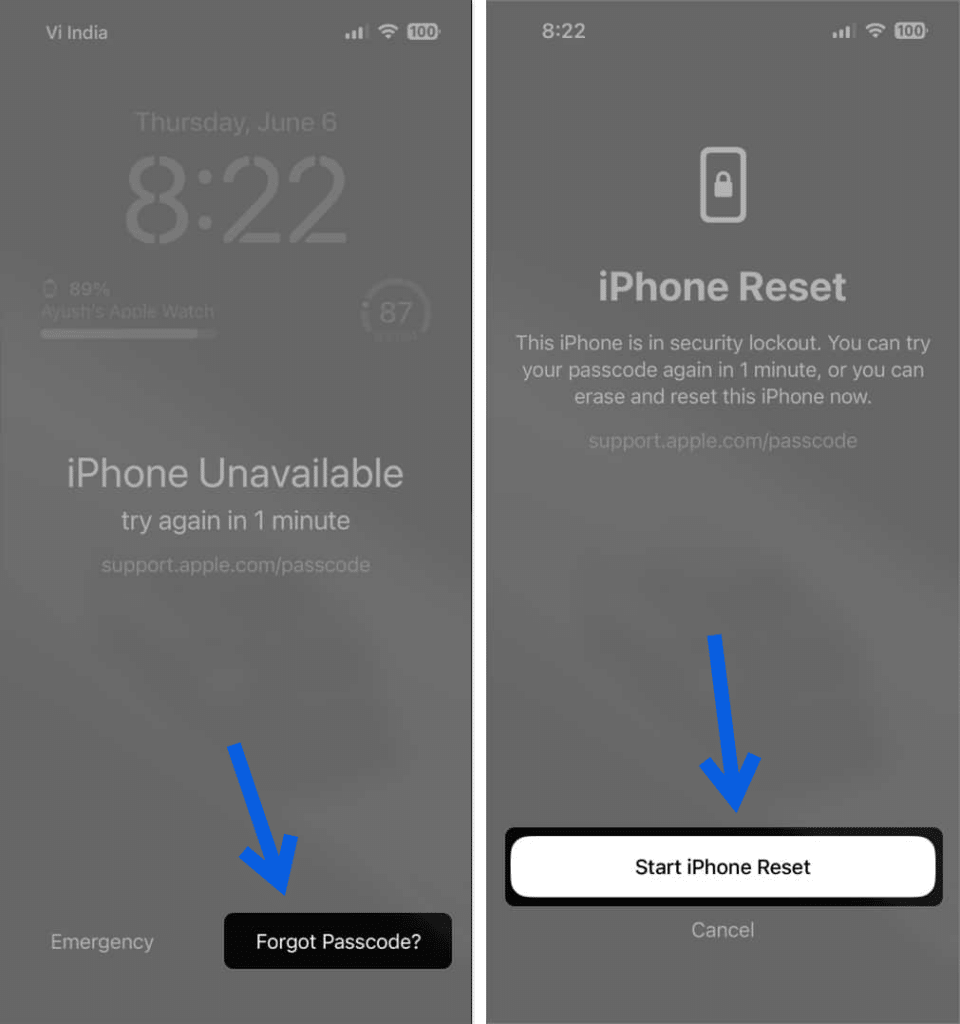
On iOS 17 and later, the Forgot Passcode? option can appear after enough failed attempts. From there, Apple lets you reset the iPhone directly without connecting it to a computer.
To use it:
- Enter an incorrect passcode until you reach the iPhone Unavailable screen.
- When available, tap Forgot Passcode?
- Tap Start iPhone Reset.
- Enter your Apple Account password to sign out of your account on the device.
- Tap Erase iPhone to confirm.
- Wait for the iPhone to erase and restart.
- Set it up again and restore from an iCloud or computer backup if you have one.
This process deletes the data currently stored on the iPhone. Anything already synced to iCloud or included in your latest backup can be restored during setup.
The Lock Screen reset option requires an active Wi-Fi or cellular connection and Find My to have been enabled before you were locked out.
If you do not see the option, move to Recovery Mode.
Why Your iPhone Says “iPhone Unavailable”
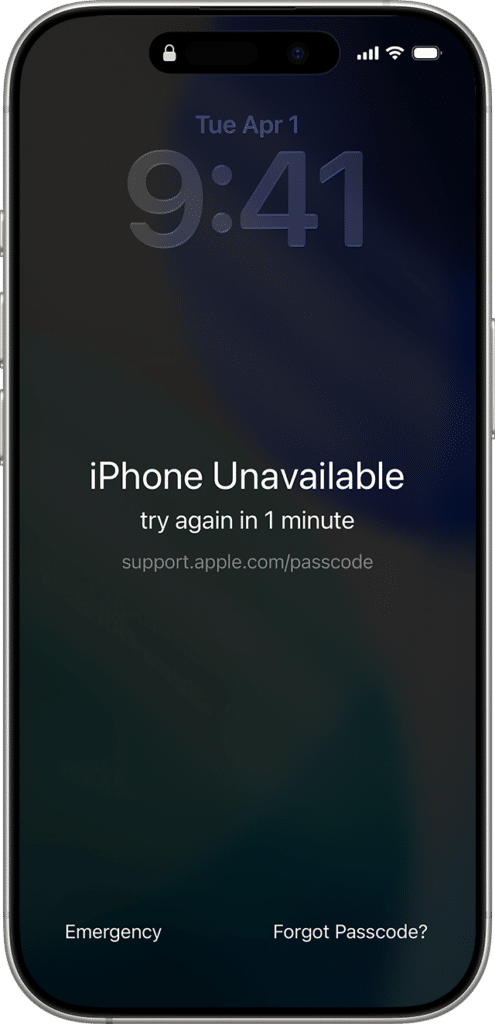
Apple deliberately delays additional passcode attempts after repeated failures to make brute-force guessing harder.
The more incorrect passcodes you enter, the longer the iPhone makes you wait before trying again. If you continue entering incorrect codes, you eventually reach a Security Lockout or unavailable state where waiting alone will not help if you genuinely cannot remember the passcode.
Restarting the iPhone, removing the SIM, or switching off Wi-Fi does not bypass the passcode.
If you recently changed the code, the 72-hour Passcode Reset feature is still worth checking before erasing anything. Otherwise, you will need one of Apple’s reset methods.
Method 3: Use Recovery Mode With a Mac or Windows PC
If the Lock Screen reset option is unavailable, Recovery Mode is Apple’s standard fallback.
Apple currently recommends turning the iPhone off, connecting it to your computer, and then holding the model-specific recovery button until the recovery screen appears. You will need a Mac or Windows PC, a compatible cable, and an internet connection.
First, turn off the iPhone.
Then connect the cable to your Mac or Windows PC. As you connect the other end to the iPhone, immediately hold the correct button for your model until you see the computer-and-cable recovery screen.
Use the following button:
| iPhone model | Button to hold while connecting |
|---|---|
| iPhone 8 or later, including Face ID models and iPhone SE 2nd or 3rd generation | Side button |
| iPhone 7 and iPhone 7 Plus | Volume Down button |
| iPhone 6s, iPhone SE 1st generation, or earlier | Home button |
Do not release the button when you see the Apple logo. Keep holding until the Recovery Mode screen appears.
Restore the iPhone
Once the iPhone is in Recovery Mode:
- On a Mac, open Finder.
- On Windows, open the Apple Devices app.
- Select your iPhone.
- Choose Restore.
- Follow the onscreen instructions.
- Let the computer download and reinstall iOS.
- Set up the iPhone again after the restore completes.
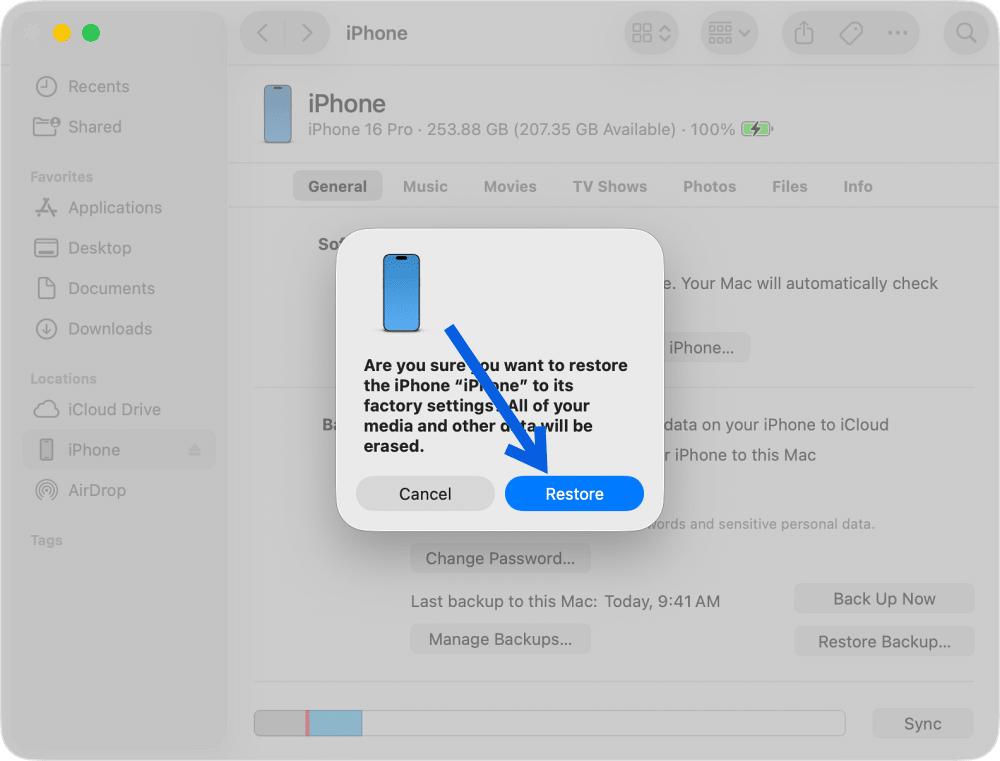
Apple notes that the software download can take more than 15 minutes. If the iPhone exits Recovery Mode while the download is still running, let the download finish, then turn off the iPhone and enter Recovery Mode again.
If you use an older Mac running macOS Mojave or earlier, or a Windows PC without Apple Devices, you may still need iTunes instead.
Method 4: Erase Your iPhone Remotely With iCloud
If Find My was enabled, you can also erase the locked iPhone remotely from another device.
This is useful if the iPhone is not physically with you or you would rather start the reset from a browser.
Follow these steps:
- Go to iCloud.com/find.
- Sign in with your Apple Account.
- Select the locked iPhone.
- Choose Erase iPhone.
- Confirm the erase.
- Once the process finishes, set the iPhone up again and restore a backup if available.
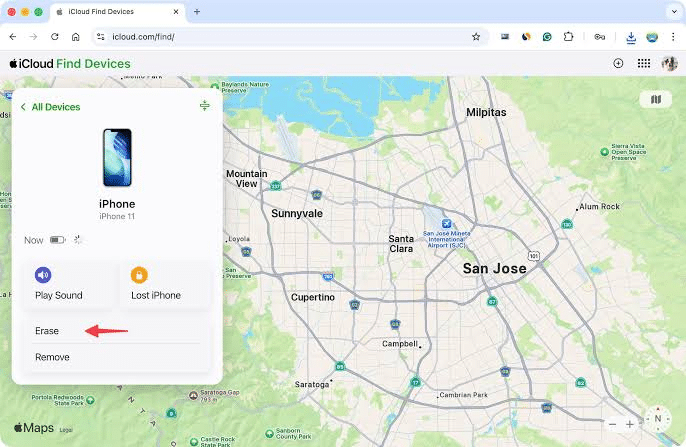
Apple confirms that Find Devices on iCloud.com can remotely erase an iPhone associated with your account.
The iPhone must already have been connected to Find My. If it is offline, the erase request can remain pending until the device comes online again.
Do not remove the iPhone from Find My after erasing it unless you are intentionally giving it away or selling it. Removing it from Find My also removes Activation Lock.
Does Stolen Device Protection Affect Passcode Recovery?
Stolen Device Protection adds extra security when someone knows your passcode but does not have your biometric authentication.
When the iPhone is away from familiar locations, certain sensitive changes can require Face ID or Touch ID without a passcode fallback. Some actions also trigger a Security Delay before they can be completed.
There is an important correction to many older guides here. Stolen Device Protection is not automatically enabled on every existing iPhone simply because it runs iOS 26.4.
Apple says it is automatically enabled on new devices set up with iOS 26.4 or later and when restoring a device using iOS 26.4 or later.
The feature primarily protects sensitive changes made while you still have access to the device. Apple’s forgotten-passcode recovery instructions remain separate, so I would not assume Stolen Device Protection will add an extra one-hour delay to the Lock Screen reset unless the iPhone specifically shows one.
What If Recovery Mode Does Not Work?
If you cannot enter Recovery Mode or your computer does not recognize the iPhone, start with the basics. Try another cable, USB port, or computer and make sure your Mac, Apple Devices app, or iTunes installation is up to date.
Apple specifically says that if you do not have a computer and cannot borrow one, you can take the iPhone to an Apple Store or Apple Authorized Service Provider for help.
I would avoid jumping straight to third-party “iPhone unlock” software. A modern iPhone passcode is protected by Apple’s hardware-backed security system, and legitimate consumer software cannot simply reveal the forgotten passcode while leaving the encrypted device data intact.
If a tool promises to bypass the Lock Screen without erasing anything, especially while asking for your Apple Account credentials, treat that claim carefully.
Can You Unlock an iPhone Without Losing Data?
Sometimes, but only in one specific situation. If you changed the passcode within the previous 72 hours and still remember your old passcode, Apple’s Passcode Reset feature can let you regain access and set another passcode without erasing the phone.
Otherwise, Apple’s official forgotten-passcode recovery methods require erasing the iPhone before setting it up again.
That is why backups matter. If iCloud Backup was enabled or you regularly backed up to a computer, you can restore that data during setup after the reset.
Anything synced separately through iCloud, such as contacts, calendars, notes, and iCloud Photos, may also return once you sign back into the same Apple Account.
What to Do After You Regain Access
Once your iPhone is working again, take a few minutes to prevent another lockout.
Start by creating a passcode that is secure but memorable. A six-digit code is the standard option, although you can use a custom numeric or alphanumeric code if you prefer stronger protection.
Then verify that Find My and iCloud Backup are turned on. Those two features make a future recovery much easier because Find My enables remote and on-device reset options, while backups protect your data if the phone has to be erased.
If your apps returned but your layout looks different, you can also use our guide to reset the iPhone Home Screen layout.
It is also worth confirming that your Apple Account information is still current. If you need to update it, see our guide on how to change your Apple ID.
Final Thoughts
Forgetting an iPhone passcode feels much worse than it usually turns out to be. Apple now gives you several recovery paths, and the 72-hour previous-passcode feature can even save you from erasing the phone if you recently changed your code.
If that option is unavailable, try the Lock Screen reset next. Recovery Mode remains the dependable fallback, while Find My gives you another way to erase the device remotely.
The bigger lesson is what happens after you regain access. Keep Find My enabled, turn on regular iCloud backups, and make sure you know your Apple Account password. Those three things are what turn the next forgotten passcode from a data-loss problem into a straightforward reset.
Try the old-passcode recovery option first if you changed your passcode within the last 72 hours. Otherwise, use Forgot Passcode on the Lock Screen, Recovery Mode on a computer, or remotely erase the iPhone through Find My.
Yes, but only if you changed your passcode within the last 72 hours and still remember the previous one. iOS 17 and later can temporarily accept that old passcode so you can create a new one.
The on-device reset option requires an internet connection and Find My to have been enabled before the lockout. If those conditions are not met, use Recovery Mode with a Mac or Windows PC.
Yes. If the Forgot Passcode option appears, you can erase and reset the iPhone directly from the Lock Screen using your Apple Account password. You can also erase it remotely through Find My on iCloud.com.
Recovery Mode is Apple’s standard computer-based solution when you cannot remember the passcode. The button used to enter Recovery Mode differs depending on the iPhone model.
No. Erasing the iPhone does not automatically remove Activation Lock. You will still need the Apple Account associated with the device during setup. Do not remove the device from Find My unless you intentionally want to remove Activation Lock.
I would not rely on software that promises to reveal or bypass a modern iPhone passcode without erasing the encrypted device. Apple’s official recovery methods are the safest route, especially if a third-party tool asks for Apple Account credentials.