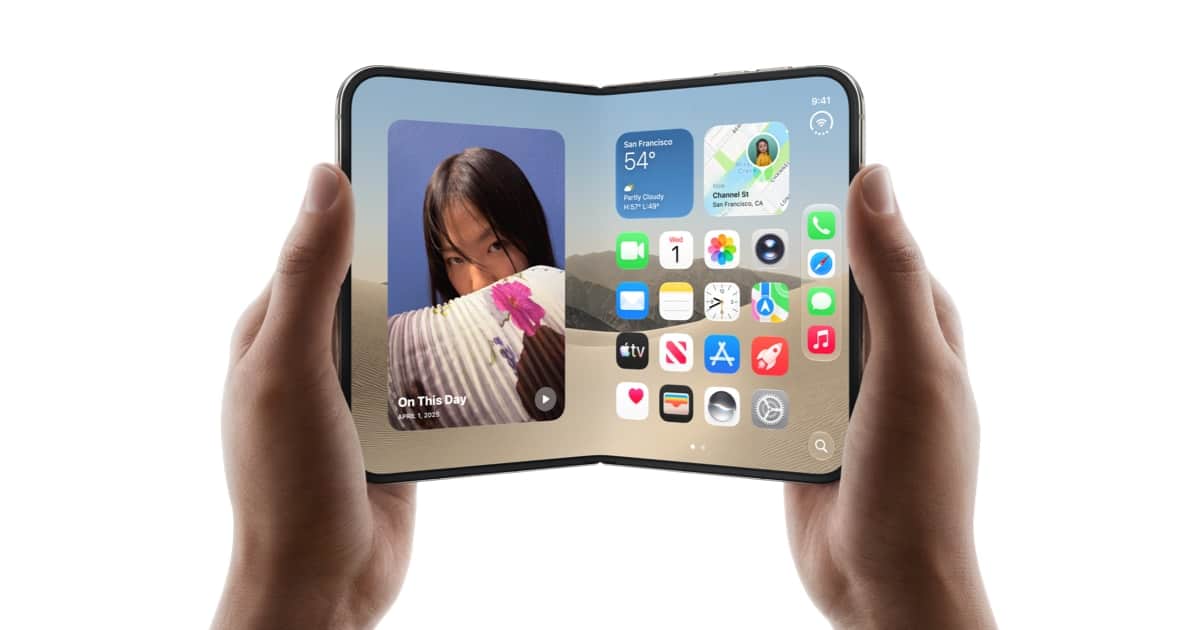
You unfold your iPhone Duo for one reason most of the time: to read, to watch, or to work on that 7.6-inch screen. Yet every time, you land on the same Home Screen and hunt for the same app.
You can skip that step. iOS 27.1, which ships on iPhone Duo, adds an Opened or Closed trigger to the Shortcuts app. Pair it with the Open App action, and the hinge becomes an app launcher. Open the phone, and Kindle, Netflix, or Notes is already waiting.
Here’s how to set it up, which apps are worth launching, and the one setting that stops the automation from getting in your way.
What You Need Before You Start
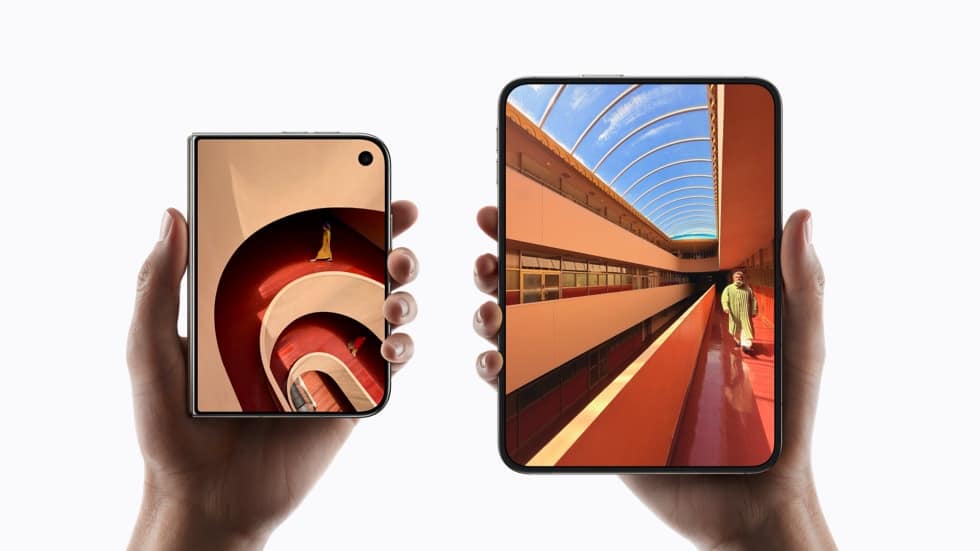
The requirements are short:
- An iPhone Duo. The Opened or Closed trigger only exists on Apple’s foldable, which launched on October 23, 2026.
- iOS 27.1 or later. Every Duo ships with iOS 27.1, so a new phone is already ready. If you’ve installed the latest iOS 27 update, you’re covered too.
- The Shortcuts app. It’s preinstalled. If you deleted it, download it again from the App Store.
Worth knowing: iOS 27 removed the separate Automation section from the Shortcuts start screen. Triggers now live inside the shortcut editor, which is why the steps below start from a regular new shortcut. Older guides that tell you to tap the Automation tab first won’t match what you see.
How to Make iPhone Duo Open an App When You Unfold It
The whole setup takes under a minute:
- Open Shortcuts on your iPhone Duo.
- On the All Shortcuts screen, tap the plus (+) button in the bottom-right corner.
- On the “What do you want your shortcut to do?” screen, tap Edit in the top-right corner.
- Tap the search field at the bottom, type Automation, and under the Display section tap Opened or Closed.
- Set the trigger to Opened.
- Search for the Open App action and add it.
- Tap the App placeholder inside the action and pick the app you want.
- Exit Shortcuts. The automation saves automatically and works right away. Renaming it is optional.
Now fold the phone, then open it. The app you picked should appear on the inner display without a single tap.
If Shortcuts shows an option to notify you or ask before running, turn it off. Otherwise you’ll get a confirmation prompt every time you unfold, which defeats the point.
Pick the Right App for the Big Screen
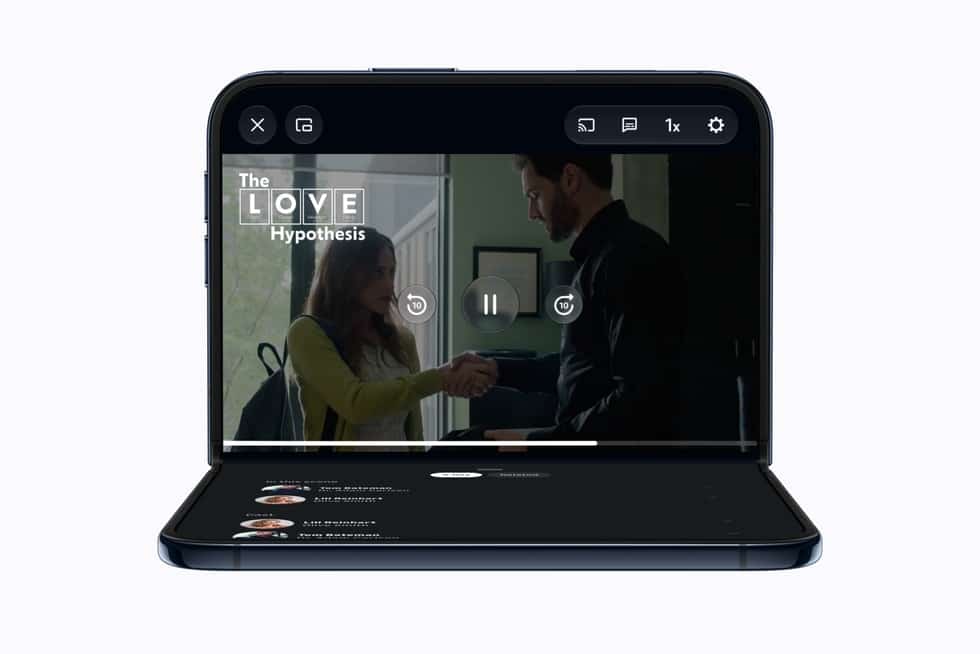
That trigger fires every time you open the phone, so the app you choose matters more than the setup itself. A good pick is the app you’d open on an iPad mini. A bad pick is anything you mostly use with one hand.
Strong candidates:
- Kindle or Books. Unfolding a book-shaped phone to read is the most natural use case. It’s also the example MacRumors uses in its guide.
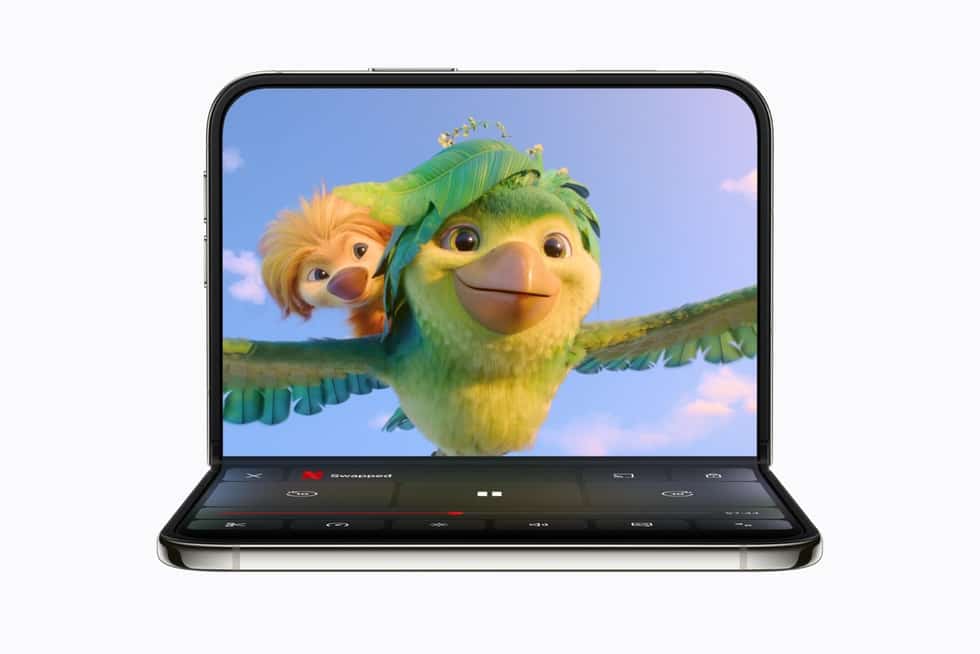
- Netflix or Prime Video. Apple highlights both as apps optimized for Duo. Prime Video, for example, plays video on the top half and shows X-Ray details on the bottom when you partially fold the phone.
- Notes, Freeform, or a drawing app. If you’ve paired the Duo with a stylus, the inner screen becomes a sketchpad.
- Calendar. Your schedule gets far more room than the 5.4-inch outer display can give it.
Skip the launcher entirely for Messages or social apps. You use those on the cover screen anyway, and forcing them open on the inner display adds friction instead of removing it.
Stop the Automation From Hijacking What You’re Doing
Here’s the catch most guides skip. iPhone Duo already moves your current app from the outer display to the inner one when you unfold it. Both screens share the same aspect ratio, so apps scale up and you pick up where you left off.
An Open App automation overrides that. Say you’re halfway through an email on the cover screen and unfold to finish it. With a basic automation in place, Shortcuts yanks you into Kindle instead.
The fix is a condition. Shortcuts lets you add conditions to any automation, and YouTuber Stephen Robles built a popular Duo shortcut that checks whether the Home Screen is showing before it acts. Apply the same logic here: add an If action that checks for the Home Screen, and put Open App inside it. Now the automation only launches your app when you unfold from the Home Screen, and it leaves your current task alone the rest of the time.
You can also add a time of day or a Focus as a condition. A few practical combinations:
- Reading Focus or after 9 PM: open Kindle.
- Work Focus: open Calendar or Mail.
- Weekend mornings: open your news app.
That turns one rigid automation into a launcher that adapts to your day.
Go Further With Opened, Closed, or Both
The same trigger has three settings, and the other two are useful once you’ve set up the first:
- Closed runs an action when you fold the phone. The best-known example, shared by MacStories’ Federico Viticci, locks the Duo when you close it, the way a laptop lid works.
- Opened or Closed runs on both events. Early users use it to switch wallpapers between the folded and unfolded states.
One honest caveat on lock-on-close: John Gruber of Daring Fireball tried the habit and decided against it, because every glance at the cover screen then needs Touch ID again. Robles’s Home Screen check solves this too. The phone locks only when no app is open.
If writing conditions sounds tedious, iOS 27 can build the automation for you. Describe what you want in plain language inside Shortcuts, such as “when I open my iPhone, open Kindle,” and Apple Intelligence in iOS 27 picks the actions. Check the result before relying on it, since it may skip the Home Screen condition.
Automation Not Working? Check These First
When unfolding does nothing, the cause is usually one of these:
- You chose the wrong state. Open the automation and confirm the trigger says Opened, not Closed.
- The automation is turned off. In Shortcuts, go to the Library, tap Automation, and use the filter button to show Turned Off automations. Toggle yours back on.
- The phone was locked. Unfolding by itself may not unlock the Duo. Touch ID sits in the side button, so rest your finger there as you open it. Robles suggests registering the side of your index finger in addition to your thumb, so the sensor catches it in a natural closed-phone grip.
- Your condition is too strict. If you added a Focus or time condition, test outside it to rule that out.
If you haven’t finished configuring your new foldable yet, our iPhone Duo setup checklist covers Touch ID, Split View, and the other settings worth changing on day one.
Signing off
The Opened or Closed trigger is a small Shortcuts addition, but it fixes a daily annoyance on the Duo: the same detour through the Home Screen every time you open the phone. Set it up with a Home Screen condition so it never fights the Duo’s built-in app continuity, and choose an app that earns the big display. Do that, and opening your iPhone Duo starts to feel like opening a book rather than unlocking a phone.
The Open App action launches one app. For a pair, unfold in landscape, open both apps side by side, and tap the center of the divider to save them as a pair in the app switcher.
No. The Opened or Closed trigger depends on the Duo’s hinge sensor, so it doesn’t appear on the iPhone 18 Pro or older models.
Neither Apple nor early users have reported battery problems tied to it. It only runs when you open the phone.