You open Instagram and get logged out. Your password stops working, or a gray screen says your account is suspended and shows a countdown. Both moments trigger the same panic. The fixes are completely different.
Meta rebuilt its account support over the past year. A central support hub launched on December 4, 2025, and the Meta AI support assistant started rolling out on March 19, 2026. Then in June 2026, Meta confirmed attackers had abused an AI-assisted recovery tool to hijack 20,225 Instagram accounts. The recovery system is faster than it was a year ago, and also easier to misuse.
Here’s how to pick the right recovery path, follow it in order, and avoid the mistakes that cost people their accounts.
Hacked or Suspended? Identify Your Situation First
Instagram treats a stolen account and a banned account as separate problems, and each has its own process. Pick the wrong one and you lose days.
- Hacked: Your password fails, Instagram emails you about an email or phone change you didn’t make, or friends report odd DMs from you. You need login recovery.
- Suspended or disabled: You log in and see a notice saying your account broke the Community Standards. You need an appeal.
- Both: Attackers often post scam content that gets the account disabled. Recover access first, then appeal.
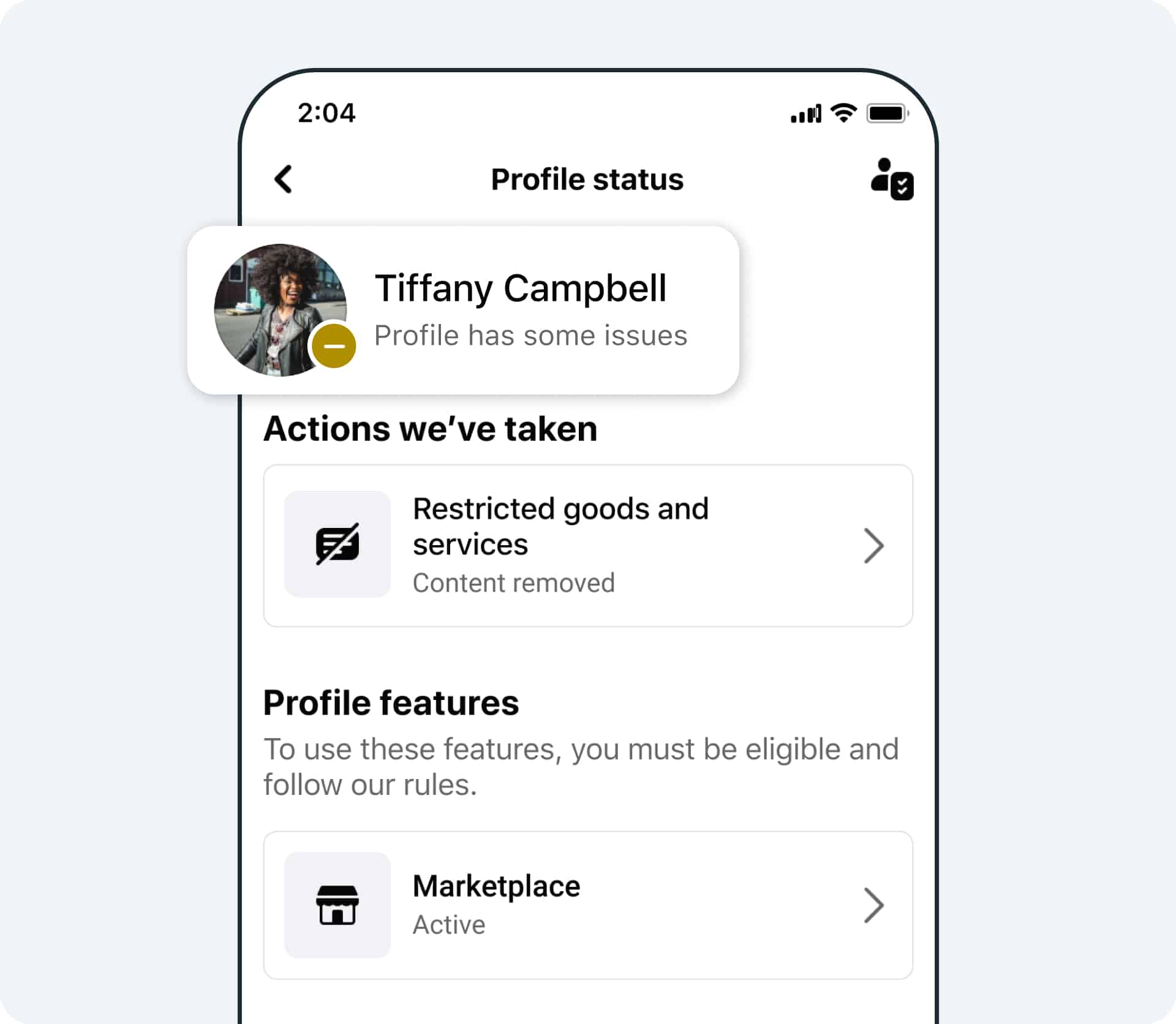
- Restricted: You can still log in, but some features are blocked. Check Settings > Account Status to see why.
If you were hacked, move fast. Attackers usually change the email, phone number, and password within minutes, and every change makes your path back harder.
How to Recover a Hacked Instagram Account With Your Email or Phone
Check for the “revert this change” email
When someone changes the email on your account, Instagram sends a message to the old address with a link to undo it. Search your inbox (and spam) for mail from security@mail.instagram.com and tap revert this change right away. Act fast and you can undo the takeover before the attacker changes anything else.
Use instagram.com/hacked
If the revert link didn’t work or never arrived:
- Open instagram.com/hacked in a browser, or tap Forgot password? on the app’s login screen.
- Select My account was hacked and enter your username, email, or phone number.
- Request a login link or security code to the email or phone on file.
- Log in and change your password immediately.
Submit one request and wait. Repeated requests can look like bot activity and slow your case.
Use a phone or laptop you’ve logged in from before, on your usual Wi-Fi. Meta said in December 2025 that its recovery system now gives weight to trusted devices and familiar locations, so a known device improves your odds. If your Instagram is linked to Facebook, Log in with Facebook also works, but only after you secure Facebook.
When the Hacker Changed Your Email and Phone Number
This is the hard case. With no working contact method, Instagram falls back to identity verification, usually a video selfie.
Here’s how it works: you record a short clip of your face turning in different directions, and Meta compares it with photos already on your account. Meta added the optional selfie video to its recovery flow in December 2025. Expect the review to take a few days.
One caveat most guides skip: the video selfie only helps if your account contains photos of your face. A meme page, a brand account, or a pet account has nothing to match against. In that case, your best routes are the original signup email or phone number, the support hub inside the app, or Meta Verified support if you subscribed beforehand.
Never send your selfie video, ID, or login code to anyone who DMs you offering help. Instagram collects verification only inside its own flow.
How to Appeal a Suspended or Disabled Instagram Account
The appeal process now happens inside the app. Instagram no longer documents a general standalone appeal form, so ignore old guides that send you to one.
- Open the Instagram app and log in with your username and password.
- Read the suspension notice and tap the option to disagree or request a review.
- If Instagram asks why, explain briefly and factually what happened. If you were hacked, say so.
- Complete any identity check (video selfie or ID).
- Keep screenshots of the notice, any case reference, and every confirmation email.
Many suspension screens show a 180-day countdown. Treat it as your appeal deadline, not a waiting period. Appeal early; nothing gets reinstated automatically when the timer ends.
If only one post or Reel was removed, go to Settings > Account Status and tap Request a review on that specific decision. Winning that review can clear the strike behind it. Instagram doesn’t publish appeal turnaround times. Meta confirmed in March 2026 that people, not AI, still handle account disablement appeals.
For a deeper walkthrough of disable reasons and review options, read our guide on how to recover a disabled Instagram account.
What Meta’s AI Support Assistant and Meta Verified Can Do for You
Meta’s new support tools help, but each has limits you should know before relying on it.
The Meta AI support assistant
On Facebook, the assistant resets passwords, tracks appeals, and handles scam reports. On Instagram, Meta says those actions will come “in the future.” As of Meta’s March 20, 2026 update, help for locked-out users covered only select cases in the US and Canada. Check your app’s support hub for current availability in your region.
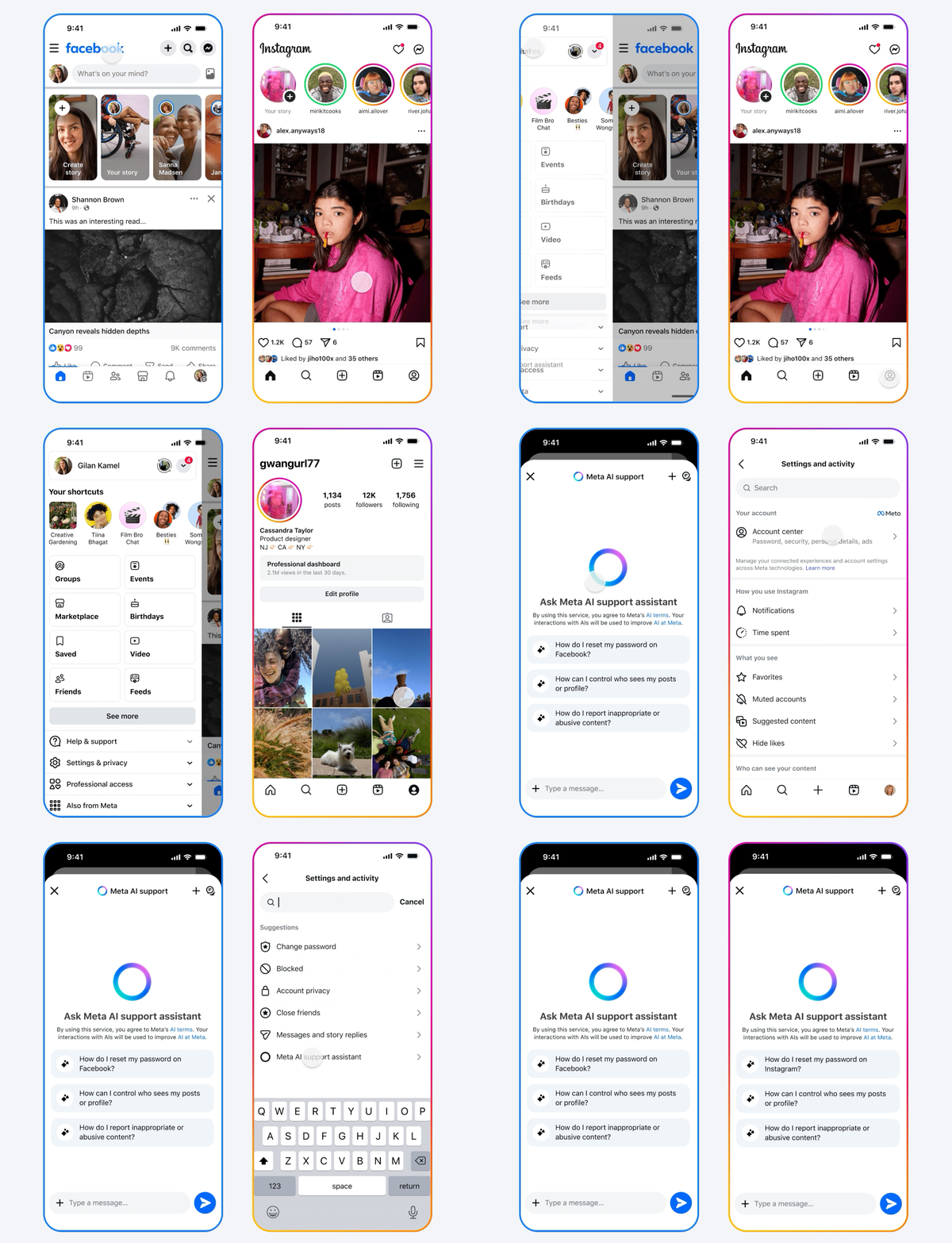
The June 2026 hijacking incident
Meta’s High Touch Support tool, an AI-assisted flow for locked-out users, failed to check whether the email requesting a password reset belonged to the account. Attackers used it to send reset links to their own addresses. The tool built to rescue locked-out users became the easiest way in.
Meta discovered the flaw on May 31, 2026, disabled the tool, cancelled every reset link it had issued, and forced affected accounts through a security checkpoint, according to BleepingComputer. The accounts taken over were ones without two-factor authentication. 2FA stopped this attack.
Meta Verified
Meta Verified costs $14.99 a month in the Instagram app in the US ($11.99 on the web), with local pricing elsewhere. It includes direct support access, but Meta says enhanced support “may not be available to all subscribers.” You can’t subscribe from a locked account, so it only helps if you signed up beforehand. It won’t reverse a ban.
Recovery scams
Instagram offers no phone support for personal accounts. Any “Instagram support number” in a comment, ad, or DM is a scam, and so is anyone selling recovery services. Recovery is free and happens only through Instagram’s official channels.
Secure Your Instagram Account Right After Recovery
Getting back in is half the job. Attackers often leave a backdoor, so lock things down in this order:
- Secure your email first. Change its password and turn on 2FA. Your email controls every password reset.
- Set a new, unique Instagram password. Use a password manager.
- Turn on two-factor authentication with an authenticator app instead of SMS. Go to Settings > Accounts Center > Password and security > Two-factor authentication, then save your backup codes offline.
- Remove unknown sessions in Accounts Center > Password and security > Where you’re logged in.
- Confirm your email and phone under Accounts Center > Personal details.
- Review Recent emails under Password and security to spot fake “Instagram” messages.
- Remove third-party apps you don’t recognize under Settings > Website permissions > Apps and websites.
- Run Security Checkup in Accounts Center.
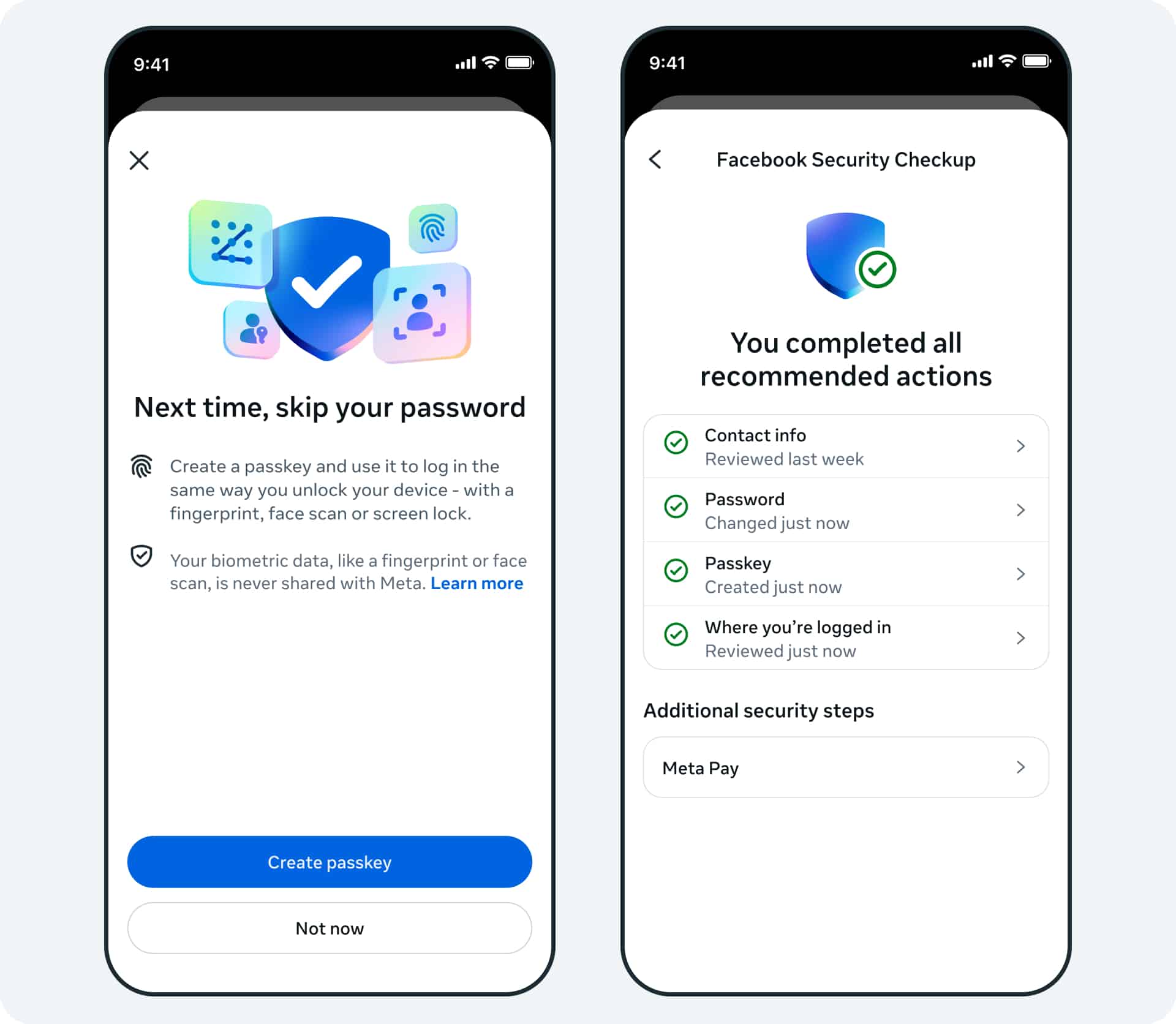
Once you’re secure, download a backup of your Instagram data. If you ever lose the account for good, you’ll still have your photos, messages, and follower list. Then post a Story telling followers to ignore any DMs sent from your account during the hack.
Final thoughts
Instagram recovery works best when you match the problem to the right tool: revert links and instagram.com/hacked for hacks, the in-app review for suspensions. Meta’s AI support is faster than the old system, but the June 2026 incident shows automated recovery can fail too.
The real protection is boring and free: an authenticator app, a secured email, and a data backup you made before anything went wrong.
Minutes if you still control your email or phone. A few days if Instagram needs a video selfie. Appeals have no published timeline.
Only within 30 days of requesting deletion, by logging back in to cancel it. After that, Instagram can’t restore it.
Yes. You can file a complaint with Instagram’s Grievance Officer through the Help Center, and appeal the outcome to the government’s Grievance Appellate Committee. This runs separately from the in-app appeal and doesn’t pause your 180-day countdown.