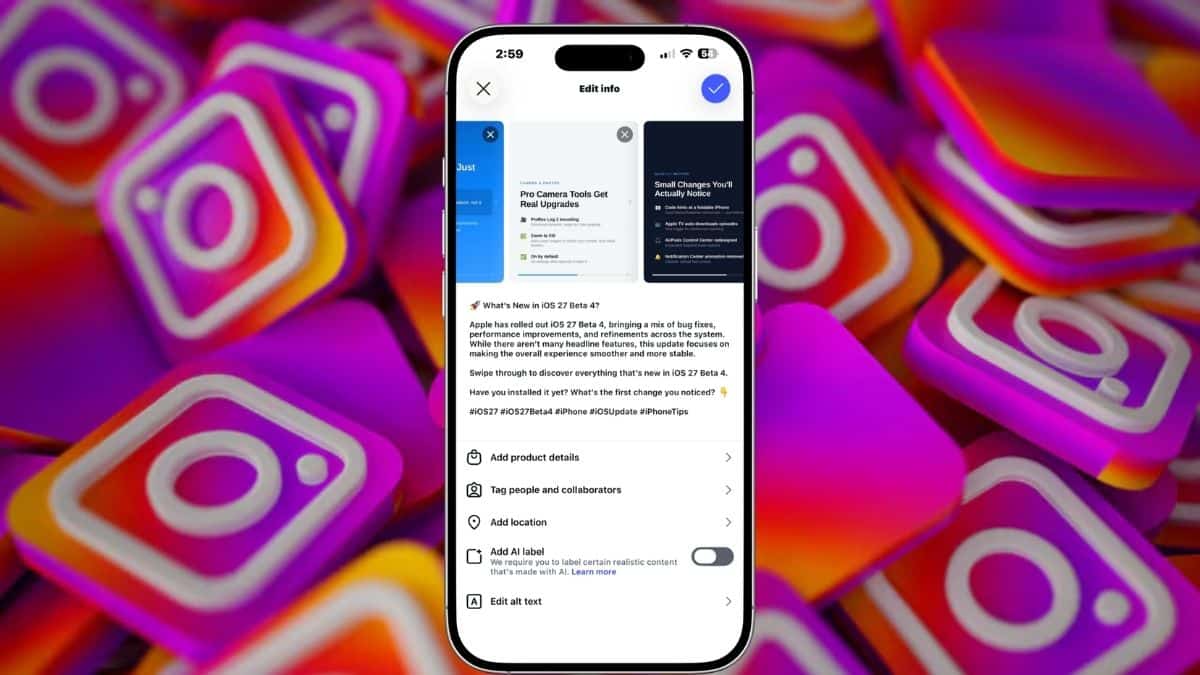
You post a nine-slide carousel, then spot it: slide six is blurry, has the wrong crop, or simply doesn’t belong. Knowing how to delete one photo from a carousel matters here because the alternative is deleting the entire post and losing the engagement it has already earned.
Fortunately, Instagram lets you remove individual photos and videos from a published carousel without deleting the whole post. The option is tucked inside the same Edit screen used for captions and tags, though there’s one important limitation you need to know before you start.
Here’s how to delete a single photo from an Instagram carousel, what happens to your likes and comments afterward, and what to do if the delete option doesn’t appear.
What You Need Before You Start
Before trying to remove a photo, check these three things.
- A carousel with at least three items: This is the rule that trips people up. Instagram needs at least two items for a post to remain a carousel, so you can’t remove a slide if doing so would leave only one item.
For example, if your carousel contains only two photos, you won’t be able to delete one and leave the other as a regular single-photo post.
The same limitation applies while editing. If you start with five slides and remove three, you won’t be able to remove another because only two slides remain. - The Instagram app on iPhone or Android: The easiest and most reliable way to edit carousel items is through Instagram’s mobile app.
- An updated Instagram app: Instagram regularly changes its editing interface and rolls out features gradually. Updating the app can help if an editing option isn’t appearing on your account.
How to Delete a Single Photo From a Carousel Post on Instagram
Removing an individual photo or video takes only a few steps.
- Open the Instagram app and go to your profile.
- Open the carousel post containing the photo or video you want to remove.
- Tap the three-dot menu in the top-right corner.
- Select Edit. Be careful not to select Delete, as that removes the entire post.
- Swipe through the carousel until you find the photo or video you want to remove.
- Look for the delete control on that slide and tap it.
- Confirm that you want to remove the item.
- Tap Done on iPhone or the appropriate confirmation button on Android to save your changes.
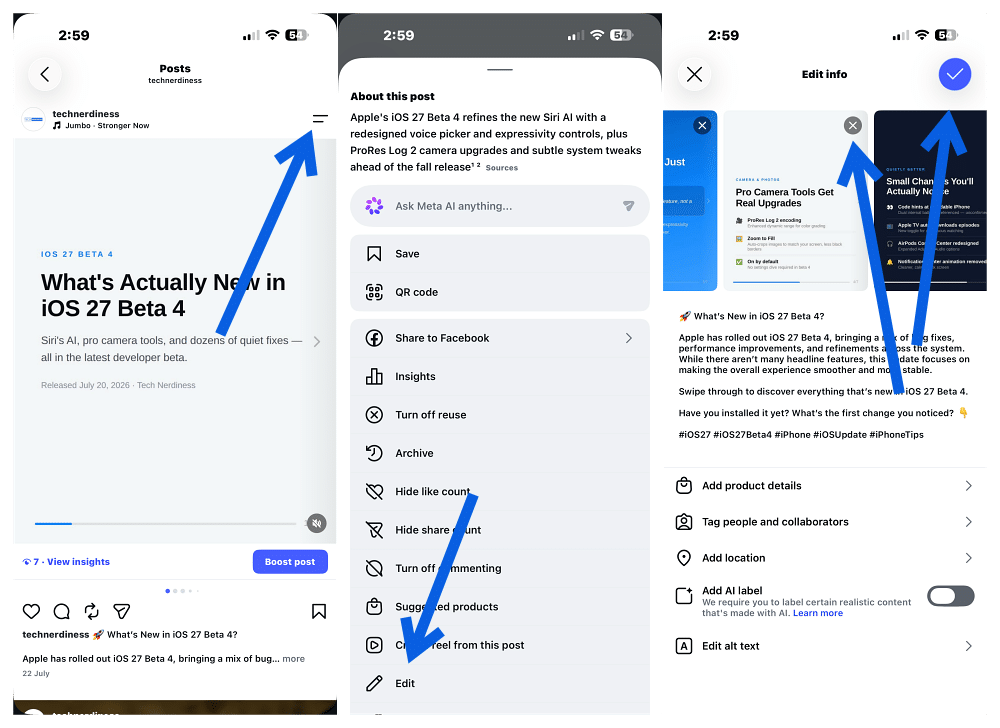
You can repeat the process if you want to remove more than one item, as long as at least two slides remain in the carousel.
The remaining photos and videos will automatically adjust to fill the gaps, while the original post stays live. The process works for videos as well as photos, so you can also remove a video from a mixed photo-and-video carousel without deleting the entire post.
Do You Lose Likes and Comments After Deleting a Carousel Photo?
No. Because you’re editing the existing carousel rather than deleting and reposting it, the post keeps its existing engagement. That means your:
- Likes
- Comments
- Saves
- Shares
remain associated with the post.
Instagram’s newer carousel editing tools also allow you to rearrange existing photos and videos without resetting the post’s engagement. Your followers aren’t normally notified simply because you removed or reordered an item. However, other edits can trigger their own notifications. For example, tagging someone in a post can notify that person.
Can You Recover a Deleted Instagram Carousel Photo?
Instagram may keep deleted content in Recently Deleted, giving you an opportunity to restore something you removed accidentally.
To check:
- Open your Instagram profile.
- Tap the menu icon in the top-right corner.
- Go to Your Activity.
- Select Recently Deleted.
- Find the deleted content.
- Follow the on-screen instructions to restore it.
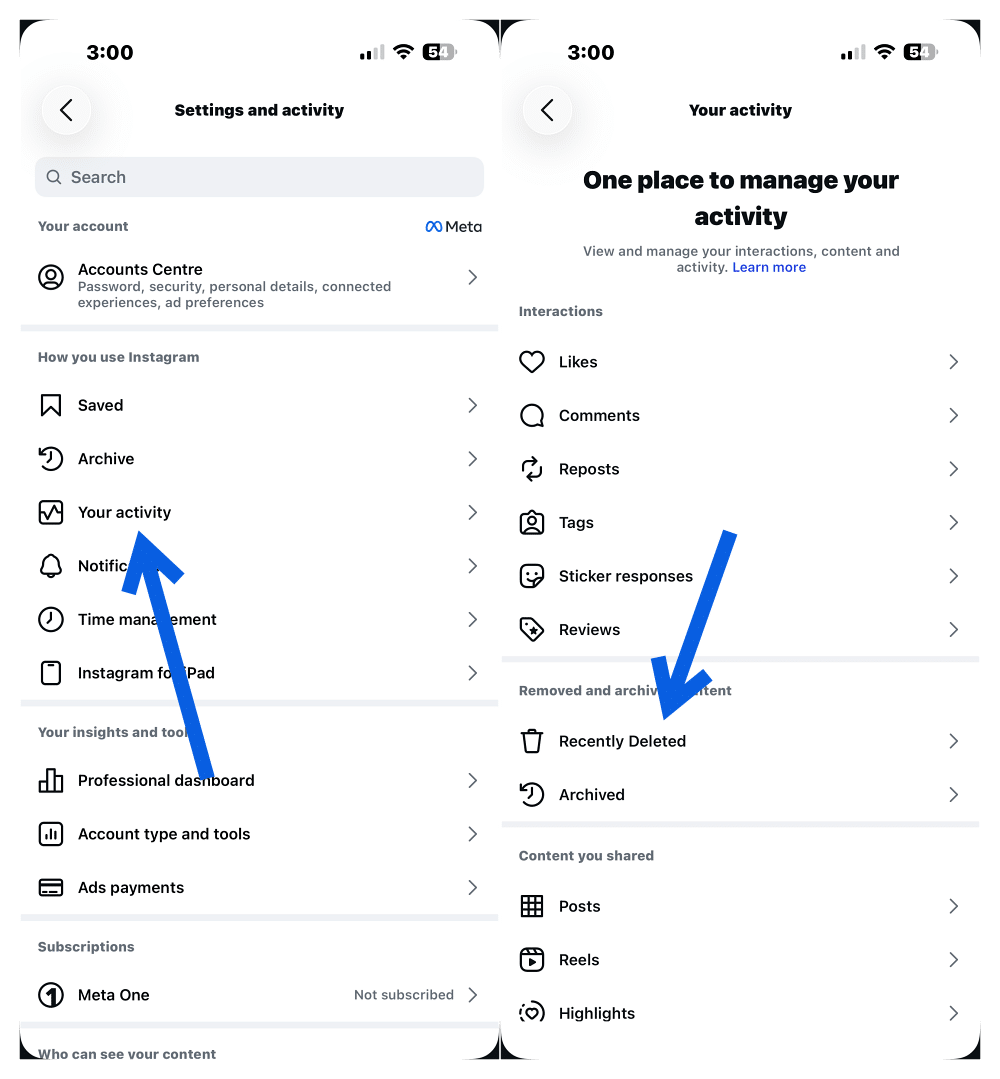
Instagram may ask you to verify your identity before restoring or permanently deleting content.
Don’t rely on the old trick of deleting and restoring a carousel slide to change its position. Instagram now provides a proper carousel reordering feature, making that workaround unnecessary. If the order matters after restoring an item, use Instagram’s native reordering option instead.
Can’t See the Delete Option? Try These Fixes
The steps above assume the delete option actually appears. If it doesn’t, there are several things worth checking before assuming Instagram removed the feature.
1. Check How Many Slides Are in the Carousel
Start here. If the carousel contains only two photos or videos, Instagram can’t remove one while keeping the post as a carousel. This is one of the most common reasons the delete option doesn’t appear.
2. Check the Entire Edit Screen
Instagram periodically changes the layout of its editing interface. Swipe through the carousel and check around each slide for the delete control. Depending on the version of the app you’re using, the button’s appearance or position may differ.
3. Force-Quit and Reopen Instagram
A temporary interface glitch can cause editing controls to disappear. Close Instagram completely, reopen it, and check the carousel again.
4. Update Instagram
Open the App Store on iPhone or Google Play Store on Android and check whether an Instagram update is available. Carousel editing features have changed several times, so using an outdated version can sometimes cause interface differences.
5. Log Out and Back In
If the feature still doesn’t appear, sign out of your Instagram account and sign back in. This can refresh account-specific features and settings.
6. Clear Instagram’s Cache
A corrupted or outdated cache can occasionally cause interface problems. Android makes it relatively easy to clear an app’s cache directly, while the process works differently on iPhone.
Our guide on how to clear the Instagram cache explains the available methods for both platforms.
7. Check Another Instagram Account
Instagram frequently rolls out features on an account-by-account basis. That means two accounts running on the same phone and the same Instagram app version can sometimes have slightly different editing features. If you manage multiple accounts, check whether the delete option appears on another one.
What If Instagram Says “There Was an Error Saving Your Changes”?
If you remove a slide and Instagram displays an error while saving the post, don’t immediately repeat the process. Exit the editor, reopen the carousel, and check whether the photo or video was actually removed.
If the change didn’t save, restart Instagram and try again. You can also check your internet connection or switch between Wi-Fi and mobile data before repeating the edit.
How to Reorder Instagram Carousel Photos After Posting
Deleting a photo is no longer the only way to change a carousel after publishing it. Instagram began rolling out native carousel reordering in March 2026, allowing you to rearrange existing photos and videos without deleting and reposting the carousel.
Here’s how it works:
- Open the carousel you want to rearrange.
- Tap the three-dot menu.
- Select Edit.
- Long-press the photo or video you want to move.
- Drag it left or right to its new position.
- Repeat for any other slides you want to move.
- Tap Done to save the new order.
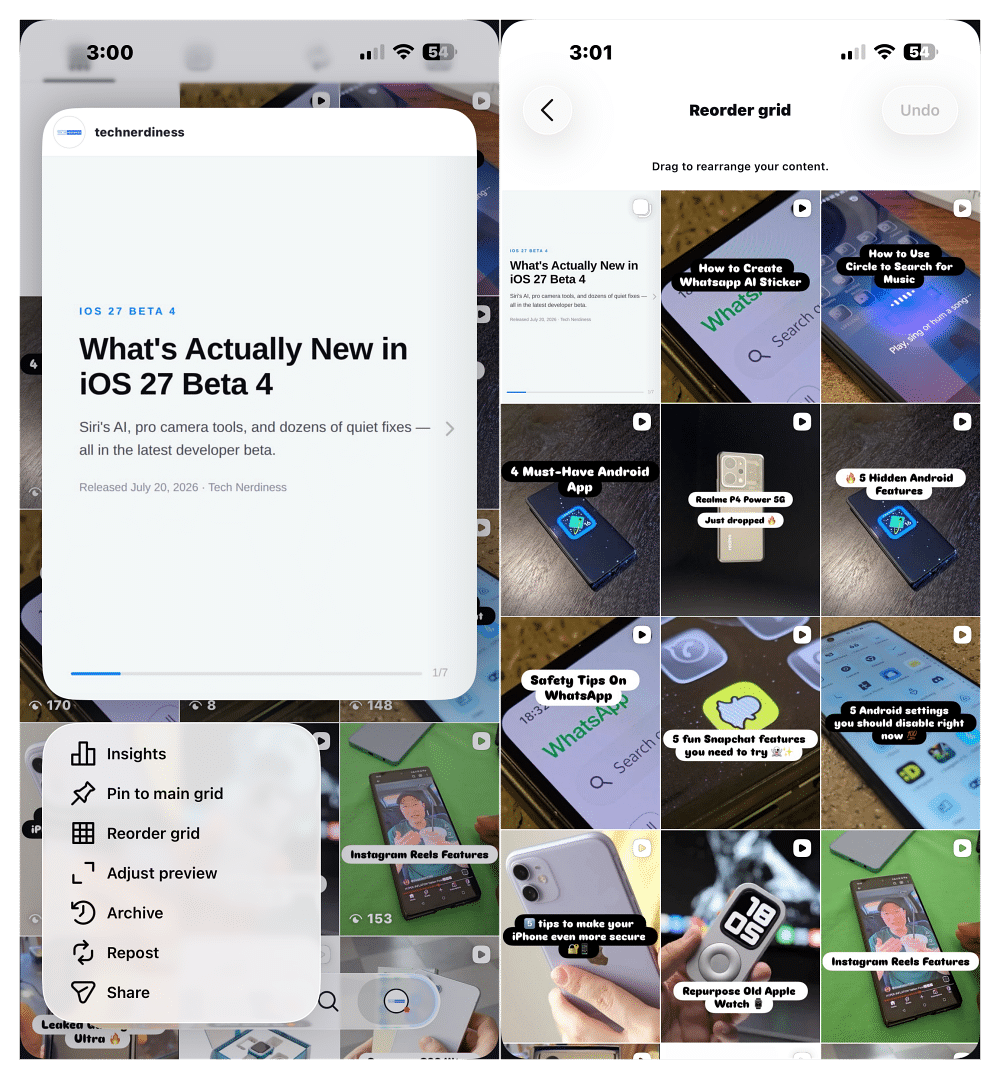
The post remains live, and its existing engagement stays intact. The feature has rolled out gradually, so it may still behave differently across accounts. If long-pressing doesn’t let you move a slide, make sure Instagram is updated and check again later.
Should You Delete or Reorder a Carousel Photo?
It depends on what’s wrong with the post.
- Delete the slide if it’s blurry, duplicated, incorrect, outdated, or simply shouldn’t be part of the carousel.
- Reorder the slide if the content itself is fine but appears in the wrong place.
For example, if your strongest photo accidentally ended up as slide five, there’s no reason to delete it. You can simply move it closer to the beginning.
Similarly, if you published a tutorial carousel and two steps are in the wrong order, reordering them is much better than removing either slide.
What You Still Can’t Do With a Published Carousel
Instagram has made carousel editing much more flexible, but there are still limitations.
- You can’t add new photos or videos to an existing published carousel.
- You can’t directly replace one slide with a completely different photo or video.
- You can’t reduce a carousel to a single item by deleting every other slide.
- You can’t completely re-edit the original media as though you were creating the post again.
However, Instagram does let you edit other post information, including things such as the caption, tagged people, location, and alt text.
Signing Off
Deleting one bad photo from an Instagram carousel is much better than deleting the entire post and starting again. Open the carousel, go to Edit, find the unwanted slide, remove it, and save your changes. Your existing engagement stays with the post.
The biggest limitation is that at least two items need to remain in the carousel. If the delete option isn’t showing up, check your slide count first, then update or restart Instagram before assuming the feature has disappeared.
And if the photo isn’t actually bad but is simply in the wrong position, don’t delete it at all. Instagram’s newer drag-and-drop reordering feature lets you rearrange carousel photos and videos after publishing without sacrificing the engagement you’ve already earned.