You save a Reel using Instagram’s own download button, open the file later, and there it is: a chunky username stamp and the Instagram logo sitting over the corner of the clip for its entire runtime. If you wanted the video for a moodboard, a client deck, or a repost to another platform, that watermark just became a design problem.
Instagram added native Reel downloads in 2023, after Adam Mosseri confirmed the rollout following a US test that summer. It works, but it was never built for clean exports. The watermark is Instagram’s way of tagging where a clip came from once it leaves the app, and it stays on every file the built-in download button produces.
Getting a clean copy means skipping that button and pulling the video from a different point in the pipeline. Here’s what that actually looks like, and when it’s fine to do.
Why Instagram’s Own Download Button Adds a Watermark
Tap the paper-plane share icon on a Reel and you’ll see a download option, but only if two conditions are met: the account is public, and the creator hasn’t turned off downloads for that post. Instagram gives creators this control in Advanced Settings during upload, either per Reel or as a default for everything they post going forward.
When the download does go through, Instagram burns the poster’s username and its own logo into the video, the same way TikTok does. Licensed music usually gets stripped out in the process too, so a download that used a trending audio track often comes back silent or with only the creator’s own voice intact.
None of this is a bug. It’s Instagram marking exported content so it’s traceable once it starts circulating elsewhere, which is a reasonable thing for a platform to want and an annoying thing to work around when you have a legitimate reason to need a clean file.
The Fastest Way: Direct-Link Downloader Sites
The watermark isn’t baked into the video file itself. Instagram’s own download feature stamps it on at the moment you tap “download.” So the workaround isn’t complicated: fetch the file a different way, and the stamp never applies.
That’s what paste-a-link Instagram downloaders do. Sites like SnapInsta, SaveInsta, and Indown.io talk to Instagram’s public media endpoints directly and hand you the raw MP4, the same master file the app streams when you’re watching the Reel. No app-side download pipeline touches it, so no watermark gets added.
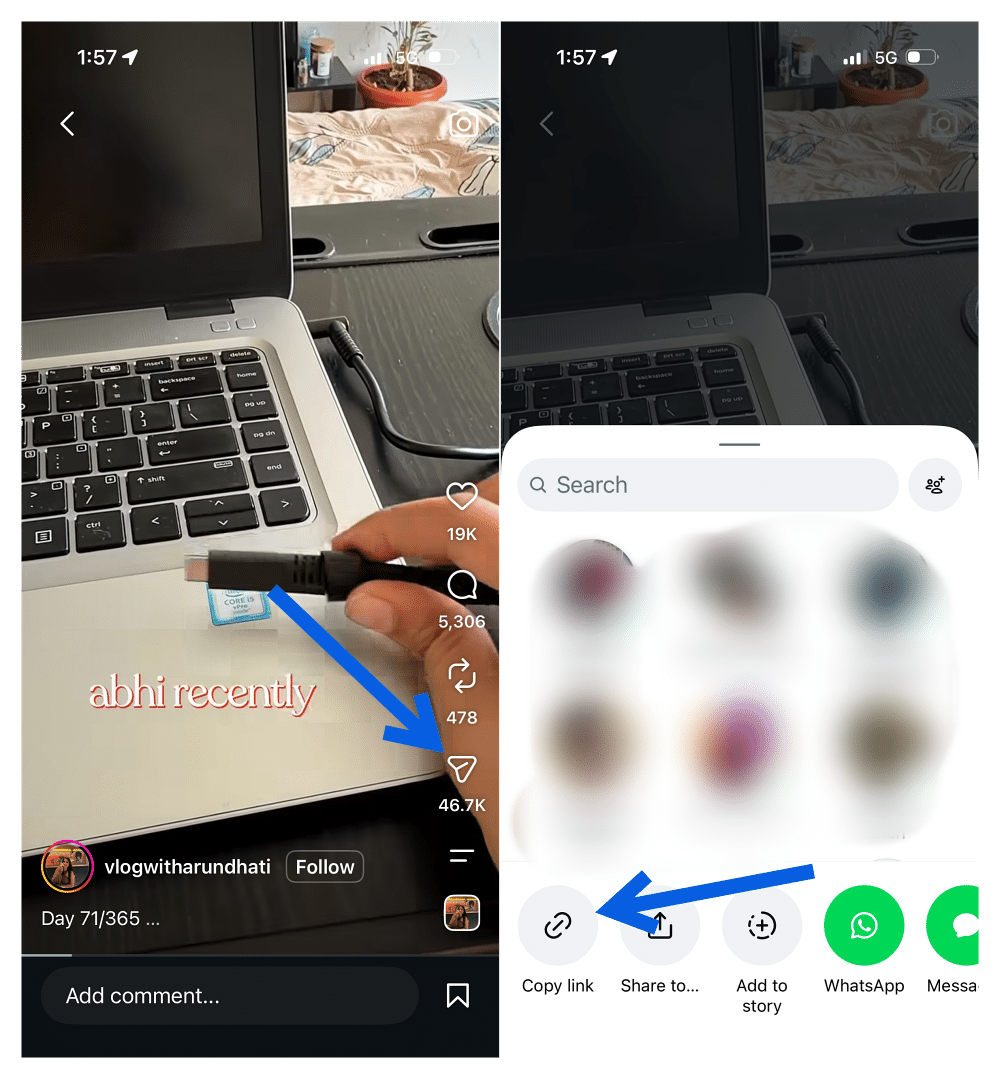
- Open the Reel or video in the Instagram app and tap Share > Copy Link.
- Open the downloader site in your browser and paste the link into its search box.
- Pick a resolution if you’re given a choice, then tap Download.
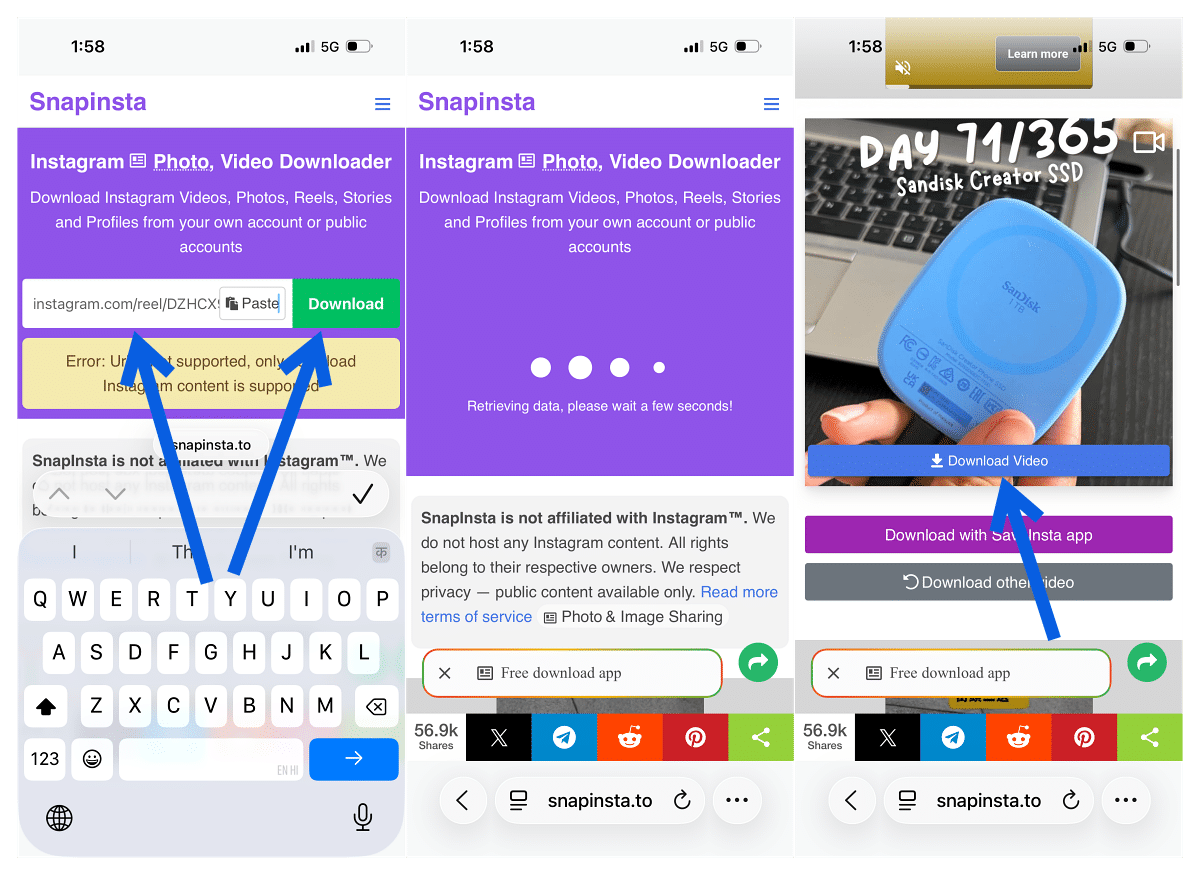
- Save the file to your camera roll or downloads folder.
This works on both iPhone and Android since it’s browser-based, and it’s the same approach that gets you around a creator disabling native downloads, since these tools don’t check that setting at all.
That’s worth sitting with for a second: if a creator switched downloads off specifically to stop their Reel from being copied, using a workaround like this to grab it anyway crosses from “personal convenience” into “ignoring what they asked for.”
A few of these sites are just a paste box and a download button, nothing else. Plenty of others are ad farms that route you through interstitial pages and fake “your device has a virus” popups before the video ever loads.
Stick to ones that don’t ask for your Instagram username or password (a real downloader never needs your login, since it’s only pulling public data) and close the tab the moment a pop-up tries to redirect you.
Downloading to a Computer
For anyone pulling clips regularly, a browser is slower than it needs to be. Desktop apps like 4K Stogram handle the same paste-link workflow but add batch downloading and can watch specific accounts for new posts automatically.
Browser extensions do the same job without leaving the tab. Reel Downloader for Instagram and Turbo Downloader for Instagram, both on the Chrome Web Store, add a download button directly to the Instagram web player.
Worth knowing: any extension that touches Instagram.com is also technically capable of reading everything else on the page, so check what permissions it’s requesting before installing.
When Downloads are Disabled: Screen Recording
If a creator has turned off downloads entirely, direct-link tools sometimes still work since they don’t check that flag, but that’s not guaranteed to stay true. The one method that always works, because it doesn’t interact with Instagram’s servers at all, is screen recording.
- On iPhone, add Screen Recording to Control Center, swipe it open, tap the record icon, then play the Reel full-screen.
- On Android, pull down Quick Settings and tap Screen Record. Either way, you get a clean, watermark-free file since you’re capturing playback, not downloading anything.
The tradeoff: you’re capped at your phone’s screen resolution, and the audio is whatever your device picks up rather than a clean track.
What’s Allowed and What Isn’t
Downloading a video for yourself sits in a gray area most platforms tolerate. Reposting someone else’s Reel to your own account, stripped of credit, is a different matter entirely — that’s a copyright and Instagram Terms of Use issue regardless of which download method got you the file.
For your own Reels, keep the original clip from your camera roll before you post it. Once it’s live, downloading your own content back through Instagram carries the same watermark as anyone else’s download.
For every other download method, our full Instagram Reels download guide covers the native app option step by step. And if you’ve ever wondered what that paper-plane share icon or the other symbols on a Reel mean, this breakdown of Instagram’s icons covers all of them.
Final Verdict
Instagram’s own download button gets you a file fast, but the watermark comes with it, and there’s no setting that turns that off. A direct-link downloader site skips the stamp entirely because it never goes through Instagram’s export pipeline in the first place. Pulling a clean copy for yourself is one thing; passing someone else’s work off without credit is another.