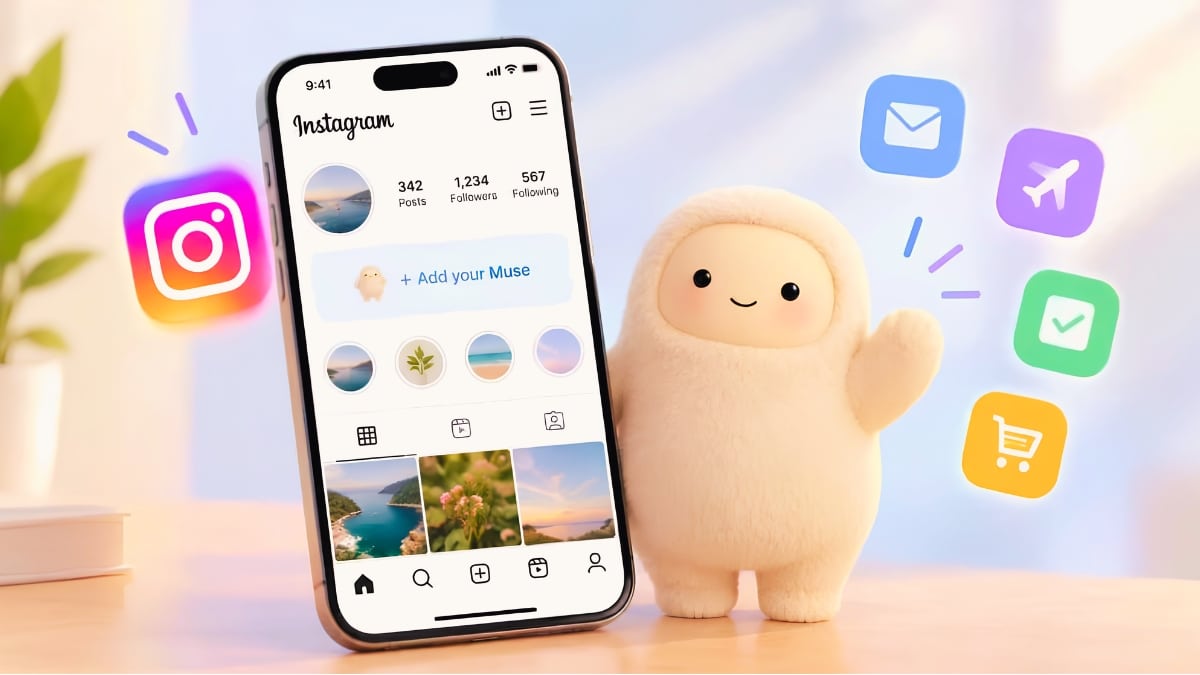
If you’ve opened Instagram lately, you’ve probably met Jolly, the fuzzy Muse mascot Meta keeps pushing into your feed. Now Meta wants the Muse agent on your profile too, right under your bio.
On September 27, 2026, Meta Chief AI Officer Alexandr Wang announced on X that you can add Muse to your Instagram profile to “show off your superintelligent sidekick.” Setup takes under a minute. Deciding whether you want it on a public page takes a bit longer.
Here’s how to add Meta Muse to your Instagram profile, why the option might be missing, and what to check before you tap Add.
What Is Meta Muse, and Why Is It on Instagram?
Muse is Meta’s personal AI agent, launched September 8, 2026. It runs on the Muse Spark model and handles multi-step tasks for you: booking travel, filling forms, sending emails and buying things through connected services. It runs on its own cloud computer with a separate browser, so it keeps working after you close the app.
Instagram matters because Muse connects to it automatically. Meta’s help pages say Facebook, Instagram and Threads link by default if they’re in the same Accounts Center as your Muse account. That link let early users turn saved Instagram recipe Reels into organized grocery lists without copying a single ingredient.
The profile button is the newest piece. It mostly shows off the agent and doesn’t add anything Muse couldn’t already do.
Before You Start: Who Can Add Muse Right Now
The “Add your Muse” option won’t appear for everyone. Check these first:
- Region: Muse is available only in the United States (since September 8, 2026) and Canada (since September 18, 2026). Meta hasn’t given a date for other countries.
- Age: You must be 18, or the age of majority where you live.
- A Muse account: You set up Muse through the Muse app on iOS or Android, or at muse.ai. You need a Meta account, but not necessarily a Facebook or Instagram account.
- Same Accounts Center: Your Instagram account should be in the same Accounts Center as Muse so the two connect.
If you’re in India, the UK or the EU, the button isn’t available yet. The Muse app is region-locked in both app stores, and using a VPN breaks Meta’s terms and puts your account at risk.
How to Add Muse to Your Instagram Profile
Once Muse is set up and linked, the steps are short:
- Open the Instagram app and tap your profile picture in the bottom-right corner.
- Look below your bio for + Add your Muse.
- Tap it, then tap Add on the banner that appears.
- Go back to your profile. Muse now shows below your bio.
- Tap Muse under your bio, then tap Main chat to start talking to it.
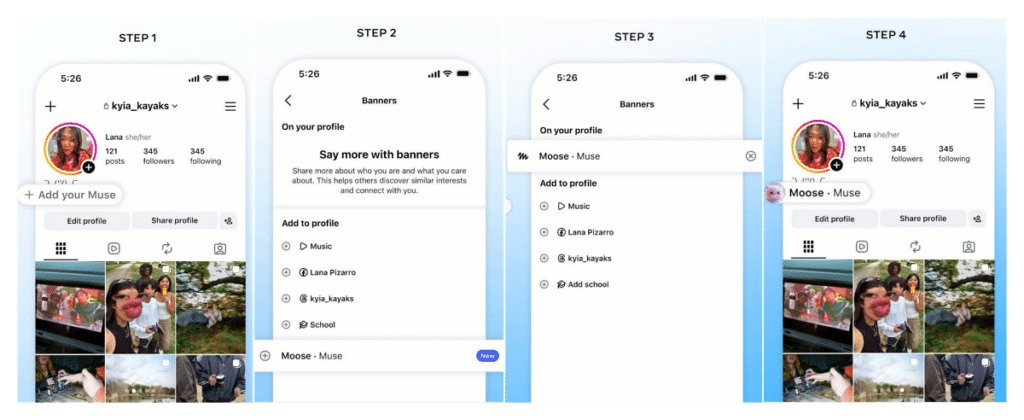
You don’t need an extra app or a trip into settings. If you don’t see the prompt, update Instagram from the App Store or Google Play and check the requirements above. Features like this often reach accounts in waves, so it may simply not have reached yours yet.
Not sure what a new icon or badge on your profile means? Our guide to what Instagram symbols and icons mean covers the rest of the interface.
What Visitors Can See and Do on Your Profile
This is the part Meta hasn’t explained well. Muse sits under your bio, where anyone viewing your profile can see it. Wang’s post frames it as a way to show the agent to friends.
It’s unclear what happens when someone else taps it. Some coverage of Meta’s demo says visitors can message your agent directly, but no Meta help page confirms that as of October 1, 2026. Assume visitors can interact with it until Meta says otherwise.
Before you add it, ask yourself one question: are you fine with followers seeing that you use Muse? If you run a professional profile for clients, the answer might be different than for your personal account.
Can Muse Post or Schedule Instagram Content for You?
No. Muse reads your saved content and account details, but no Meta page says it can publish or schedule Instagram posts. Its scheduled tasks are reminders inside the Muse chat.
Creators and businesses get more through Muse for Small Business, launched September 29, 2026. With a professional account connected, it reads Instagram analytics, Facebook Pages and Meta ad accounts. It can flag collaboration offers, compare partnership deals against industry averages and send account summaries. You still do the posting yourself. If you’re on a personal account, switch your Instagram account type to Professional first so Muse can read your analytics.
Muse vs. Muse Image: Don’t Mix Them Up
The shared name causes real confusion. In July 2026, Meta launched Muse Image, an image generator that let people tag public Instagram profiles in prompts and use those accounts’ photos as reference. Every public profile belonging to an adult was opted in by default.
The backlash came fast. Meta pulled Muse Image on July 10, 2026, three days after launch, saying the feature “missed the mark.”
The Muse agent on your profile is a different product. Adding it doesn’t let strangers generate images of you. If you remember the July controversy, keep that difference in mind.
Privacy Settings to Change Before Adding Muse
Muse acts on your behalf, so set its limits before you put it on your profile. In the Muse app:
- Turn off model training: Open Data controls and opt out of having your chats used to train Meta’s models.
- Set approval levels: Choose how often Muse asks before acting. When it proposes an action, you can pick Allow once, Allow for this task, Allow for this site, Always allow or Deny. For anything involving email or payments, have it ask every time.
- Review connectors: Disconnect any app Muse doesn’t need. You can also ask Muse to delete information it has stored.
Meta says Muse can’t see your passwords or payment methods and that its data isn’t shared with Meta’s ad systems. No one has independently verified that, so your approval settings are still your best protection.
How Much Does Muse Cost?
Adding Muse to your profile is free. Muse itself has three tiers:
- Free: Limited weekly usage.
- Power: $20 per month.
- Max: $100 per month.
Meta hasn’t published how much the free tier includes. Long browsing tasks use more of it than quick chats, so try the free tier before you pay.
Signing Off
Adding Muse to your Instagram profile takes five taps. The real decisions come before that: whether you want a public badge showing off your AI agent, and how much freedom that agent gets.
Lock down approvals and data controls in the Muse app first, then add the badge if you still want it. Outside the US and Canada, you’ll have to wait, and Meta hasn’t said for how long.
Meta hasn’t published removal steps as of October 1, 2026. Check your profile’s edit options. To cut off Muse’s access completely, disconnect Instagram in the connectors section of the Muse app.
You’re probably outside the US or Canada, under 18, haven’t set up Muse yet, or your accounts aren’t in the same Accounts Center. Updating Instagram can also help.
No. It sits below your bio. Your posts don’t change, and you can still reorder posts on your Instagram grid as usual.