You rest your thumb on the iPhone Duo’s side button and nothing happens. Or the phone buzzes. Or it unlocks and then just sits on the Lock Screen. After years of Face ID, that friction is hard to ignore.
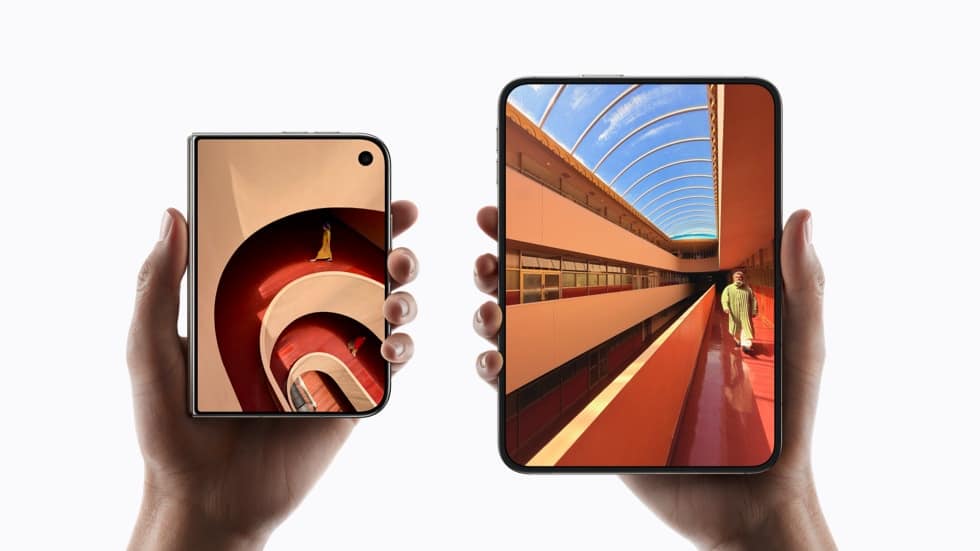
The iPhone Duo went on sale October 23, 2026, as the first new iPhone with Touch ID since the third-generation iPhone SE in 2022. The sensor sits in the side button, not a Home button, and it works whether the Duo is folded or open. That new placement explains most complaints, and plenty of them aren’t defects at all.
Here’s how to tell a settings quirk from a real fault, and how to fix each one.
Is Your iPhone Duo Touch ID Broken, or Slow by Design?
Answer this first, because the fix depends on it.
Several reviewers, including Marques Brownlee, noticed a short pause after every Touch ID read: the Duo stops on the Lock Screen before moving on to the Home Screen. Apple told Engadget the pause is intentional. It gives the phone time to wake and show your notifications, and it matches how Touch ID behaves on Macs and iPads. As of iOS 27.2, no setting removes it.
So if your Duo recognizes your finger but feels sluggish, nothing is broken. If it rejects your finger, ignores the sensor, or shows an error in Settings, match your symptom below:
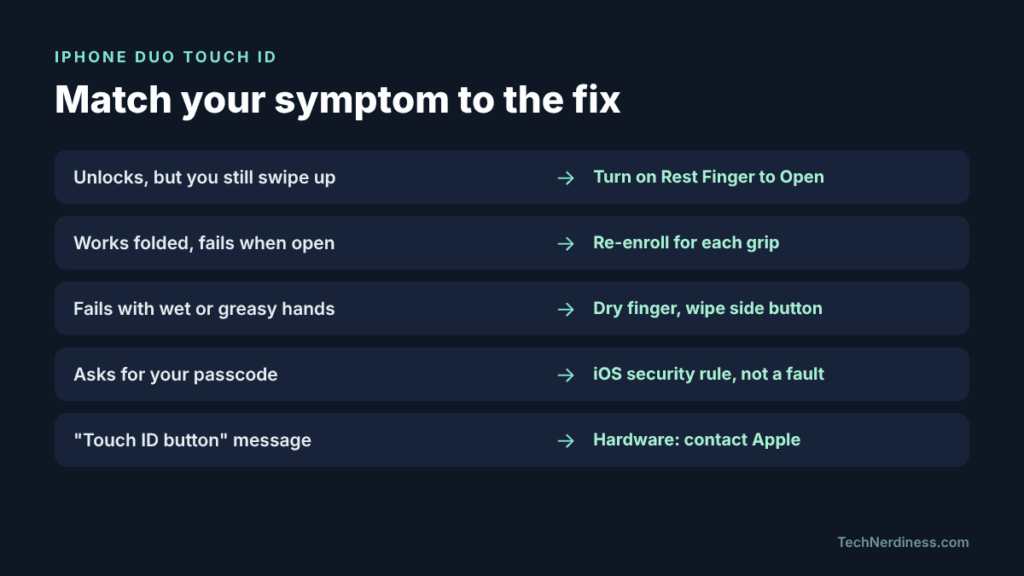
- Unlocks, but you still have to swipe up: Rest Finger to Open is off (Fix 1).
- Works folded but fails when open, or the reverse: your enrolled print doesn’t match your grip (Fix 2).
- Fails with wet or freshly washed hands: sensor contact problem (Fix 3).
- Asks for your passcode instead: an iOS security rule, not a fault (see the passcode section).
- Touch ID grayed out, or a “Touch ID button” message in Settings: a hardware or repair issue (see the final section).
Fix 1: Turn On Rest Finger to Open
Without this setting, Touch ID verifies you but keeps the Lock Screen up until you swipe. Many owners read that as Touch ID failing.
- Open Settings > Touch ID & Passcode and enter your passcode.
- Turn on Rest Finger to Open.
The same toggle also appears under Settings > Accessibility > Side Button. Both locations control one switch. Some owners find it already on after setup, so check before assuming. The tradeoff: you’ll occasionally open the phone when you only meant to glance at the Lock Screen.
Fix 2: Re-Enroll Fingerprints for How You Hold a Foldable
Generic Touch ID guides miss this one. On a Home-button iPhone, your thumb met the sensor at the same angle every time. On the Duo, your grip keeps changing: one-handed when folded, two-handed when open, sideways in landscape. A print enrolled at one angle may not match another.
Setup asks for only one fingerprint. You can add up to five, though each extra print can slightly slow recognition.
- Go to Settings > Touch ID & Passcode > Add a Fingerprint.
- Hold the Duo the way you normally do when unlocking it. Don’t enroll with the phone flat on a desk.
- Enroll your main thumb for folded use, then a finger from your other hand for holding the phone open in landscape.
Landscape deserves the attention. YouTuber Mrwhosetheboss found Touch ID comfortable mainly in that orientation. If one print keeps failing, delete it and redo it instead of stacking near-duplicates. Still in your first week with the phone? Our iPhone Duo setup guide covers the other settings worth changing early.
Fix 3: Dry Your Finger and Wipe the Side Button
Moisture is Touch ID’s oldest weakness, and the Duo inherits it. Mrwhosetheboss also reported failed reads right after washing his hands or with slightly greasy fingers.
- Dry your hands fully, then wipe the side button with a lint-free cloth.
- Cover the whole sensor and hold still. Quick taps and sliding fingers fail more often.
- Take off gloves. Touch ID needs bare skin.
Fix 4: Check Whether Your Case Covers the Sensor
Apple’s rule is simple: nothing can cover the sensor or its surrounding ring. On the Duo, that means the side button. Cases with sealed, press-through button covers block the fingerprint read even though the button still clicks.
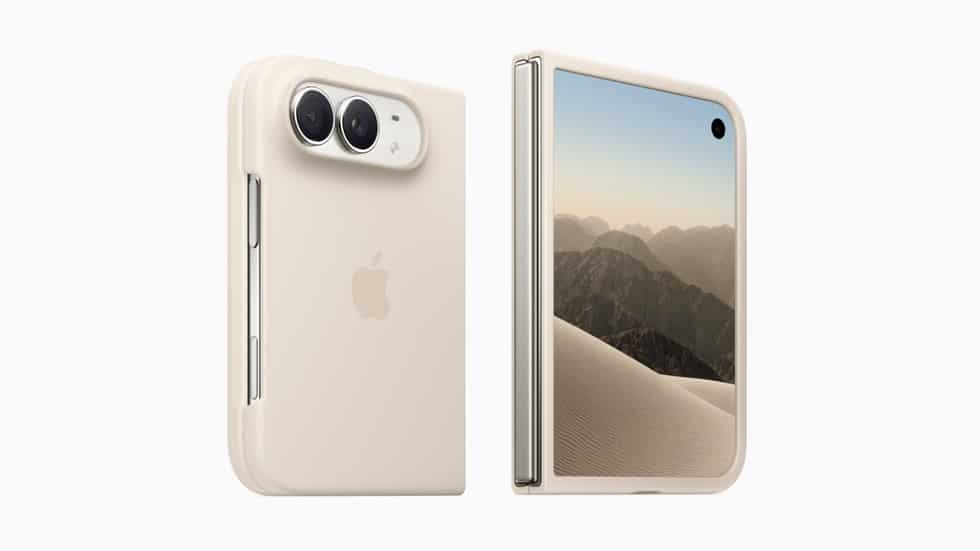
If trouble started after you put on a case, test without it. Shopping for a replacement? Check the side-button design before buying; our roundup of the best iPhone Duo cases is a good starting point.
Fix 5: Update iOS and Restart
The Duo shipped with iOS 27.1, and Apple released iOS 27.2 on October 26, 2026. Neither update’s release notes mention Touch ID, so don’t expect a named fix. Still, running the latest version is Apple’s first troubleshooting step, and it rules out software bugs.
- Go to Settings > General > Software Update and install anything available. Our iOS 27.2 features rundown covers what changes.
- Go to Settings > General > Shut Down, wait 30 seconds, then turn the phone back on.
Why Your iPhone Duo Asks for a Passcode Instead of Touch ID
Sometimes Touch ID works fine and iOS still demands your passcode. That’s by design. Apple requires the passcode when:
- The phone just restarted.
- Touch ID failed five times in a row.
- The phone hasn’t been unlocked in more than 48 hours.
- You haven’t used your passcode in 6.5 days and haven’t used Touch ID in the last 4 hours.
- You’re adding or deleting fingerprints, or opening Touch ID & Passcode settings.
The five-strike rule hits harder on the Duo. PetaPixel found that accidental presses while picking up the phone trigger an error buzz. If a passcode prompt appears out of nowhere, a run of stray touches may be the reason. Enrolling the grips from Fix 2 cuts down on misreads.
Use Your Apple Watch as a Backup Unlock
This isn’t a fix, but it’s the most reliable workaround. A paired Apple Watch on your wrist unlocks the Duo without touching the sensor, and PetaPixel found it faster than Touch ID.
- Open Settings > Touch ID & Passcode and enter your passcode.
- Under Unlock with Nearby Devices, turn on the switch next to your Apple Watch.
You still swipe up to dismiss the Lock Screen. It’s most useful when the Duo lies open on a table and the side button is awkward to reach.
When iPhone Duo Touch ID Problems Point to Hardware
If nothing above works, go to Settings > General > About and look at the Touch ID button entry. Apple’s support page for genuine iPhone Duo Touch ID buttons, published October 22, 2026, lists the messages you might see:
- “Touch ID button” Issue: The part is non-genuine, isn’t working as expected, or its calibration is incomplete. While this shows, Touch ID can’t unlock the phone, approve payments, or sign in to apps. Your passcode and Siri still work.
- Finish Repair: A new genuine button is installed, but the repair needs completing through Repair Assistant. Touch ID stays off until calibration finishes.
- Used: The button came from another iPhone Duo. Apple says previously used parts may perform inconsistently.
This matters most if you bought a Duo secondhand or had the side button replaced outside Apple. Contact Apple if Touch ID is grayed out, won’t turn on, or setup fails with “Unable to complete Touch ID setup.” Apple Stores, Apple Authorized Service Providers, and Independent Repair Providers all have access to genuine parts.
Final thoughts
Most iPhone Duo Touch ID trouble comes from three things: a setting that adds a swipe, fingerprints enrolled for one grip on a phone you hold four ways, and a deliberate pause Apple has no plans to remove. Fix the first two and the sensor gets far more dependable.
If Settings flags the Touch ID button itself, skip the tweaks and book a repair. And if you’re still deciding whether Touch ID is a dealbreaker, our iPhone 18 Pro vs iPhone Duo comparison lays out what you give up and gain.