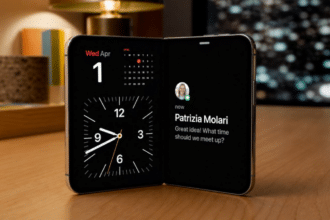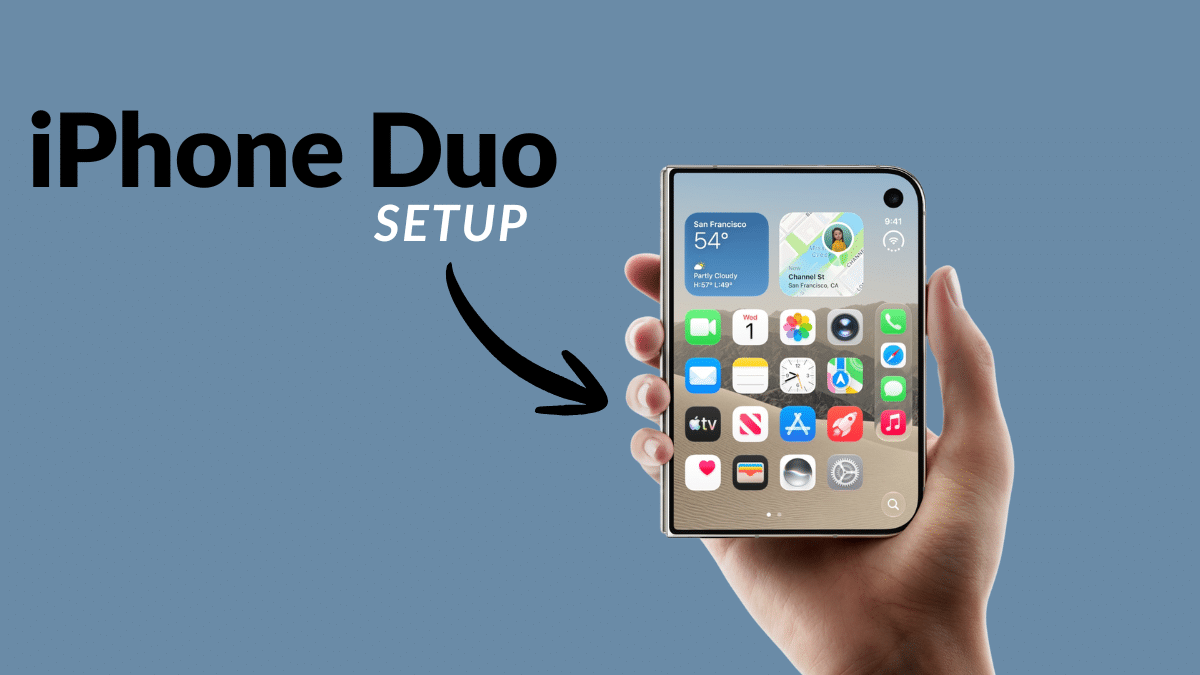
You paid at least $1,999 for a phone that folds in half. The worst way to start is the way you set up every other iPhone: restore a backup, tap Continue a dozen times, and sort out the rest later. That habit costs more on this phone. The iPhone Duo has no Face ID, no Action button, no mute switch and no SIM tray. Its inner screen costs $999 to replace without coverage, and a few of its defaults work against you.
Apple announced the iPhone Duo on September 9, 2026, and put it on sale on October 23 in more than 70 countries, with 28 more joining on October 30. It ships with iOS 27.1, a release built only for the Duo.
The order below matters. Steps you can’t easily undo come first.
What’s Different About iPhone Duo Setup
Before you start tapping, know what changed from your last iPhone:
- Unlock: Touch ID in the side button, working open or closed. No Face ID.
- SIM: eSIM only, worldwide, with dual eSIM support.
- Buttons: volume, side button and Camera Control. No Action button, no mute switch.
- Software: iOS 27.1, plus a newer 27.1 build pushed during setup.
- Screens: a 5.4-inch outer display and a 7.6-inch inner display with the same aspect ratio.
Each of those differences shows up in at least one step below.
1. Take the Day-One iOS 27.1 Update, Then Move Your eSIM
During setup, the Duo asks you to install a newer iOS 27.1 build (24A94425 at launch). Apple’s release notes say only “bug fixes for your iPhone,” and the update carries no security patches. Install it anyway. Restoring onto the final build means your apps download once instead of twice.
If the update stalls, our guide to fixing iOS 27 “Unable to Check for Update” errors covers the usual causes.
Next, your number. With no SIM tray, keep your old iPhone unlocked, on Wi-Fi and next to the Duo so setup can transfer the eSIM. If your current line uses a physical SIM, call your carrier before you start.
T-Mobile (US) and Telekom (Germany) customers get one extra option: iPhone Handoff in iOS 27 lets you switch between two iPhones on the same number. That’s handy if you plan to keep a regular iPhone for the gym or the beach.
2. Register Your Thumb in Every Grip You Use
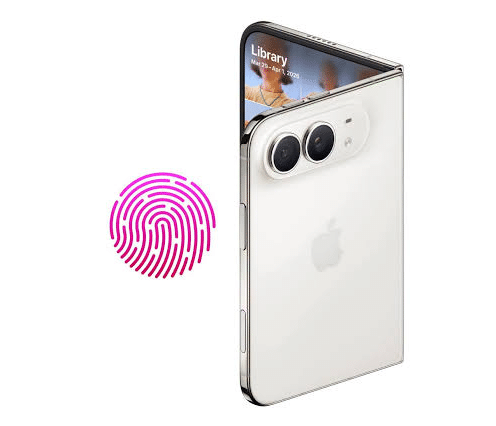
Here’s the Touch ID catch nobody mentions in the keynote. Your thumb lands on the side button at a different angle when the Duo is closed, open in portrait, or rotated to landscape. A fingerprint enrolled in one grip can fail in another.
Go to Settings > Touch ID & Passcode > Add a Fingerprint. Early owners recommend enrolling the same thumb three times: once closed, once open and rotated left, once open and rotated right. You get five slots, so there’s room for an index finger too.
Two more settings sit nearby:
- Unlock with Apple Watch (Settings > Touch ID & Passcode) unlocks the Duo when your watch is on your wrist. It’s a quick fallback when your thumb misses.
- Rest Finger to Open (Settings > Accessibility > Side Button) decides whether resting your finger unlocks the phone or whether you need a deliberate press. Leave it on for speed. Turn it off if you’d rather the phone wake only when you mean it.
Touch ID also approves payments, so check that Apple Pay works in each grip. Our breakdown of Apple Wallet in iOS 27 covers what’s new there.
3. Buy AppleCare+ Before the 60-Day Window Closes
Fingerprints protect your data. AppleCare+ protects your wallet, and on the Duo the gap between covered and uncovered repairs is unusually wide.
| Repair | Without AppleCare+ | With AppleCare+ |
|---|---|---|
| Inner display | $999 | $99 |
| Outer display | $379 | $29 |
| Back glass | $199 | $29 |
| Battery service | $229 | $0 |
| Inner screen cover layer | $49 | $19 |
| Other damage | $1,499 | $99 |
One uncovered inner screen repair costs half the phone’s starting price. AppleCare+ runs $19.99 per month in the US, and you can add it within 60 days of purchase.
The cover layer line deserves a note. Kate Bergeron, Apple’s VP of hardware engineering, confirmed that the nano-texture layer above the inner screen is replaceable, so a worn or scratched layer doesn’t mean a full display swap.
4. Fit a Case, Then Turn On Shift Left Edge
A case is your first line of defense, but Apple’s own two-part iPhone Duo Case wraps a sliver of the outer display. iOS offers to adjust for it when you fit the case.
If you dismissed that prompt, go to Settings > Display & Brightness > Shift Left Edge. The phone restarts and moves outer screen content away from the covered edge.
Apple sells the iPhone Duo Case for $79 and the Folio with Kickstand for $129. Both support MagSafe and Qi2 25W charging, which we explain in Does iPhone Duo Have MagSafe?. For third-party options, see our picks for the best iPhone Duo cases for hinge protection.
5. Change How You Fold, Starting Today
A case protects the outside. The inner screen needs new habits.
Since launch, some owners have posted reports of inner screen damage. iFixit’s teardown, reported by Engadget on October 26, 2026, points to two possible causes. In iFixit’s simulation, the hinge’s center support bar didn’t drop far enough when folding, leaving a stress point under the screen.
iFixit also found that fine particles can get into the hinge, even though the phone carries an IP68 rating. Engadget’s report included no response from Apple.
Until there’s more clarity:
- Check for grit before you close it. Sand and dust inside the fold are the biggest risk iFixit identified.
- Never peel the cover layer yourself. Apple Stores and authorized providers handle replacement.
- Skip third-party inner screen protectors until Apple publishes guidance. The cover layer already does that job.
None of this means the Duo is fragile in daily use. It means a $999 screen deserves the same care you’d give a camera lens.
6. Make the Volume Buttons Follow the Screen
With protection handled, fix the controls. By default, the Duo’s volume buttons keep fixed roles no matter how you hold the phone. Rotate it, and “up” can end up pointing down.
Go to Settings > Sounds & Haptics and turn off Fixed Position Volume Controls. The buttons now adjust as you rotate. It’s a small change, but you’ll notice it the first time you watch a video on the inner screen.
7. Rebuild the Action Button and Mute Switch You Lost
If you came from an iPhone 15 Pro or newer, you’ll reach for an Action button that isn’t there. iOS 27 gives you three replacements:
- Silent Mode in Control Center. Tap the round status icon at the top right to open Control Center, tap +, choose Add a Control, then Silent Mode.
- A Lock Screen control. Touch and hold the Lock Screen, tap Customize, and swap a bottom control for the shortcut you used to run from the Action button.
- A Shortcuts widget on the Home Screen, placed where your thumb rests.
Our guide to iOS 27 Lock Screen features covers more ways to customize that screen. Camera Control stays, so the camera still has its dedicated button.
8. Learn Split View and Save Your App Pairs
Split View is the first true multitasking mode on an iPhone, and it’s the main reason to open the Duo at all.
- Unfold the phone and hold it in landscape.
- Open an app, swipe up from the bottom, pause, and drag it to the left or right edge.
- Pick a second app for the other half. You can also touch and hold an app icon and tap Open in Split View.
- Tap the center divider to save the two apps as a pair. The pair then shows up together in the app switcher.
Rotate to portrait and you drop to one app. Rotate back and the pair returns. You can also open two windows of the same app, such as Safari.
Expect rough edges. Netflix, Zoom and Slack adapted their apps for launch, but Safari’s inner screen layout feels cramped, and Apple reportedly plans a fix. Siri AI can also stay open beside an app on the inner screen, though it’s still in beta, English first, and not initially available in the EU. Our rundown of iOS 27 Siri features explains what it can do.
9. Build an “Opened or Closed” Automation
Here’s the setting most setup guides miss. The Shortcuts app on the Duo has a new trigger called Opened or Closed, listed under the Display automation category. It runs actions every time you unfold or fold the phone.
Open Shortcuts, tap Automation, create a new automation, and choose Opened or Closed. Ideas worth trying:
- Switch wallpapers between the outer and inner screens. Apple’s official iPhone Duo wallpapers suit this well.
- Turn on a Reading or Work Focus when you open the phone.
- Turn a Focus off when you close it.
This is what makes the Duo feel like two devices instead of one phone with a bigger screen.
10. Set Up StandBy and Smart Take for Hands-Free Use
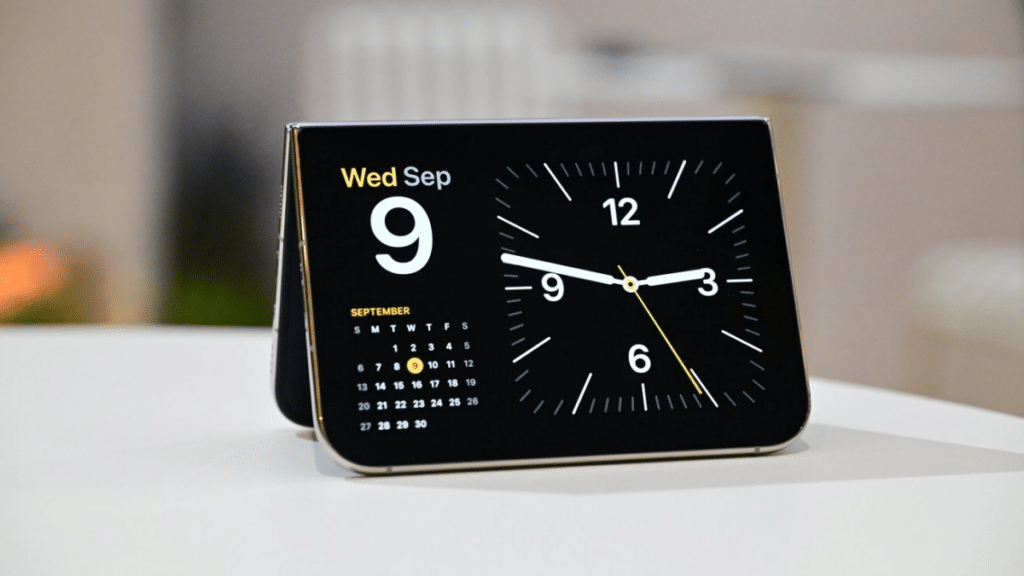
The hinge doubles as a stand, and two features use it well.
StandBy on the Duo starts when you partly fold the phone and set it down, with or without a charger. That’s great on a desk and less great for battery. If you want the old behavior, go to Settings > StandBy and turn on Only While Charging. The same screen lets you limit StandBy to one of the two poses. New Calendar and Weather faces join the existing ones.
Smart Take is for group photos. Prop the Duo on a table and it detects when everyone is ready, then takes the shot without a timer. By default, the flash blinks each time it captures. Turn that off in Settings > Camera > Smart Take > Flash During Capture. Pair it with Duo Preview, which shows your subjects the shot on the outer display, and Kid Cue, which plays Peanuts animations to get children to look at the lens.
Final Thoughts
The Duo rewards an hour of deliberate setup more than any iPhone before it. The big moves are the boring ones: enroll your thumb in every grip, buy AppleCare+ while you can, and fold with care while questions about the hinge play out.
Split View and fold-triggered automations are the fun part, and they’ll get better as apps catch up. Which of these settings surprised you most?