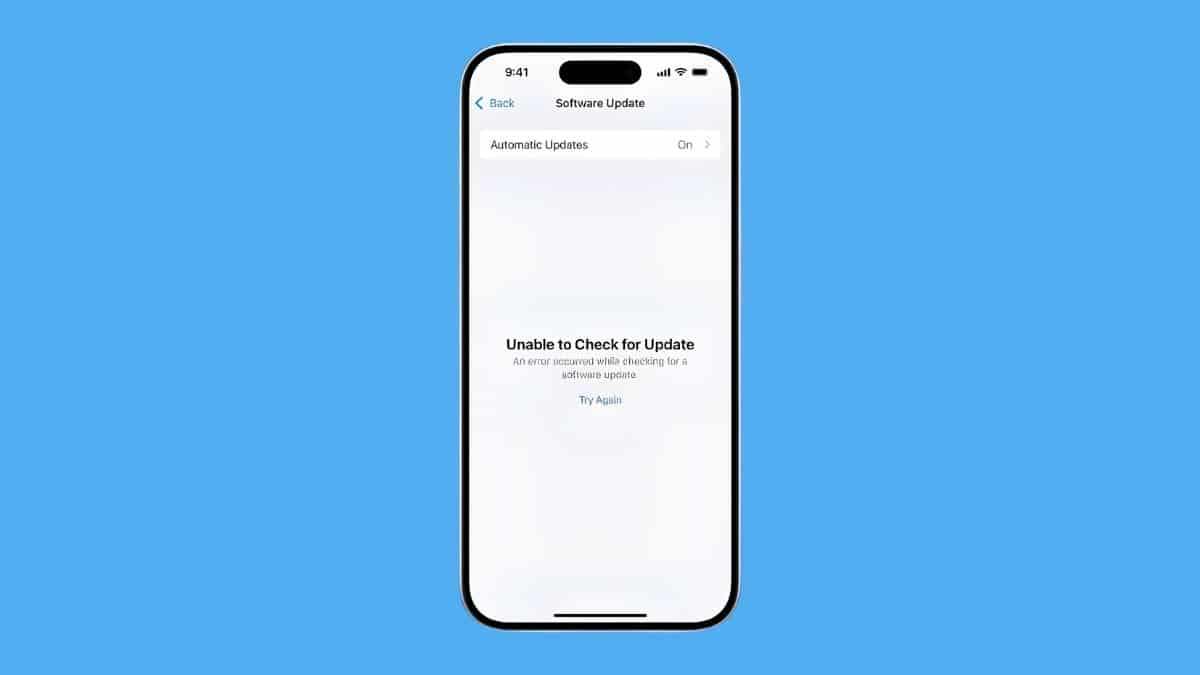
You open Settings > General > Software Update, expecting your iPhone to check for the latest iOS version. Instead, you’re greeted with a frustrating message: “Unable to Check for Update. An error occurred while checking for a software update.”
There’s no useful explanation telling you what went wrong, which makes the error more confusing than it needs to be. The good news is that this message usually doesn’t mean there’s anything seriously wrong with your iPhone. A poor internet connection, busy Apple servers, a VPN, incorrect network settings, or even a partially downloaded iOS update can prevent your iPhone from checking for an update.
iOS 27 rolled out widely on September 14, 2026, and this error has been one of the most common complaints since — mostly for one boring reason: everyone’s phone is trying to reach the same Apple servers at once. The trick is figuring out which cause applies to you. Below, I’ve arranged the fixes from quickest to more involved, so you don’t waste time resetting settings when switching Wi-Fi networks might be all you need.
Why Does My iPhone Say “Unable to Check for Update”?
Before your iPhone can show you an available iOS update, it needs to communicate with Apple’s software update servers and determine whether a newer compatible version is available for your device. If something interrupts that process, iOS may display the generic Unable to Check for Update message rather than explaining exactly what failed.
Some of the most common causes include:
- A weak or unstable internet connection
- Temporary problems with Apple’s servers
- A VPN or network configuration interfering with the connection
- Incorrect date and time settings
- A corrupted or partially downloaded iOS update
- Network configuration problems
- Restrictions on a work- or school-managed iPhone
- Your iPhone isn’t actually compatible with the update you’re checking for
The same message can appear for several different reasons, so it’s best to start with the easiest fixes.
Confirm Your iPhone Can Actually Run iOS 27
This step wasn’t relevant for earlier iOS releases with broader support, but it’s worth checking first this time: iOS 27 supports iPhone 11 and later — including the standard, Pro, Pro Max, mini, Plus, and supported iPhone SE generations within that window. If you’re on an iPhone XS, XR, or older, Software Update will never surface iOS 27 for you, and depending on the model, you may see an error rather than a clean “your device isn’t compatible” message.
This isn’t the most common cause of the error, but it’s the fastest to rule out, and it explains a specific pattern people have been reporting since launch day: an update that seems to check forever, or throws an error, on a phone that was never going to be offered it in the first place. If you’re on a supported model but not seeing anything advanced Apple Intelligence features promise, that’s separate and expected — some of iOS 27’s newer AI capabilities are gated to iPhone 15 Pro and newer, not to Software Update eligibility itself.
1. Restart Your iPhone
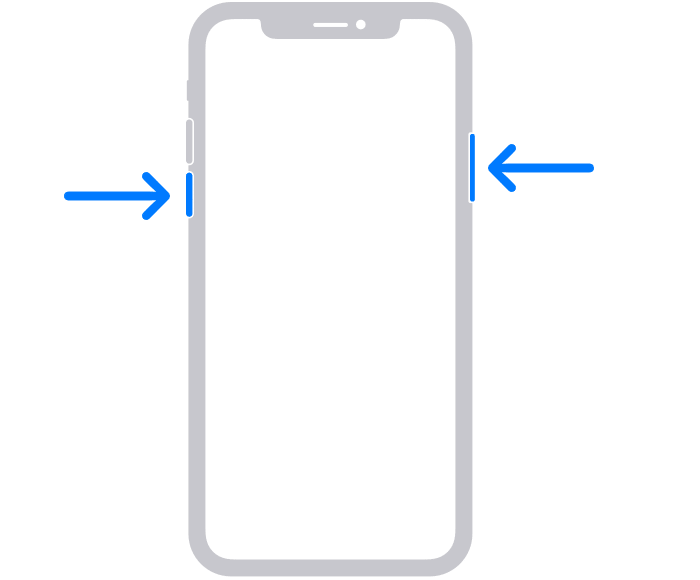
Start with the obvious one. Restarting your iPhone clears temporary system and network processes that may have become stuck while checking Apple’s servers.
On an iPhone with Face ID:
- Press and hold the Side button and either Volume button.
- Drag the slide to power off slider.
- Wait about 30 seconds.
- Hold the Side button again until the Apple logo appears.
Once your iPhone reconnects to the internet, go back to: Settings > General > Software Update
Try checking for the update again. If the error returns, move on to the network.
2. Check Your Internet Connection
Your iPhone needs a reliable internet connection to communicate with Apple’s update servers. Even if Safari and other apps appear to work normally, a weak or unstable connection can cause the update check to fail.
Try opening a few websites in Safari first. If pages load slowly or fail altogether, your connection is probably the problem. You can also try switching networks.
If you’re connected to Wi-Fi, disconnect and try another reliable Wi-Fi network. If you’re using a public, office, hotel, or school network, switch to a private connection if possible.
Public networks are particularly troublesome because firewalls and network restrictions can interfere with certain connections. After switching networks, return to Settings > General > Software Update and try again.
3. Turn Airplane Mode On and Off
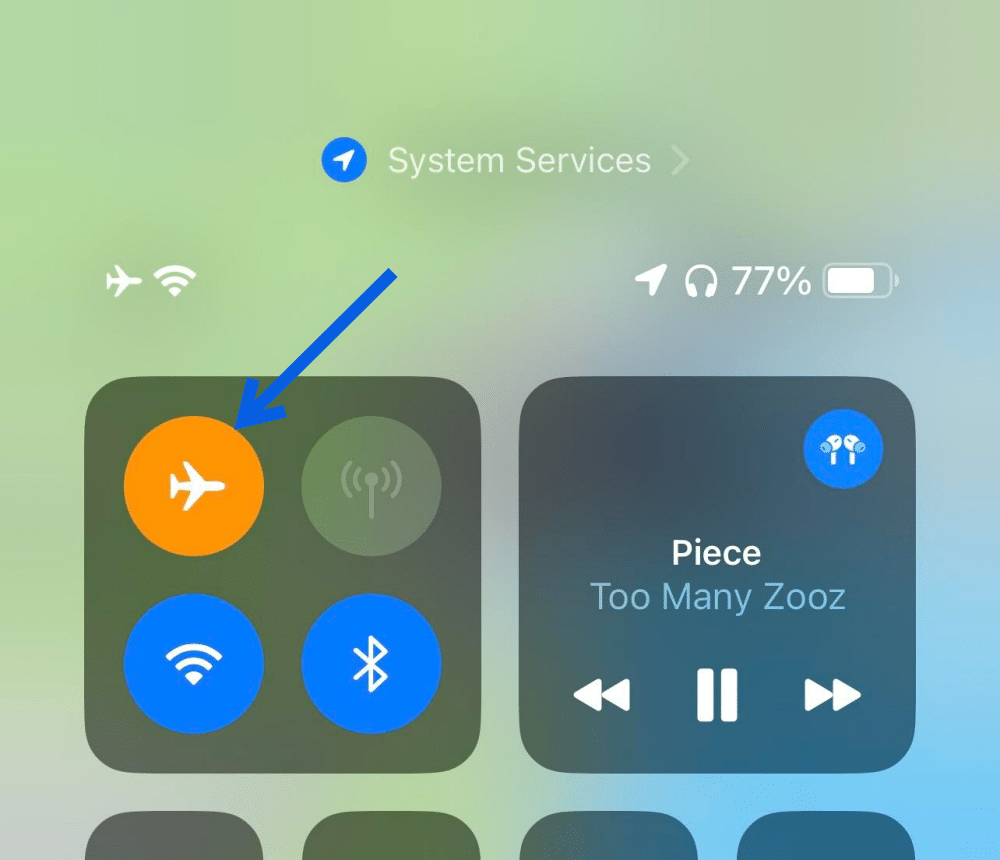
Before changing any deeper network settings, force your iPhone to reconnect.
- Open Control Center, turn on Airplane Mode, and wait about 10 seconds.
- Turn Airplane Mode off and allow your iPhone to reconnect to Wi-Fi or cellular service.
Now try checking for the update again.
This simple trick can clear temporary connectivity problems without requiring a full network reset.
4. Turn Off Your VPN
If you use a VPN on your iPhone, temporarily disable it. This isn’t just a workaround people have stumbled into — it’s Apple’s own documented explanation: Apple’s support guidance states plainly that VPN or proxy connections can prevent your device from contacting the update servers. Certain VPN configurations route traffic in a way that interferes with the connection between your iPhone and Apple’s update services.
- Go to: Settings > VPN
- Or open your VPN app and disconnect from the active server.
- Then return to Settings > General > Software Update.
If your iPhone suddenly finds the update, you’ve identified the problem. Keep the VPN disabled while downloading and installing iOS, then reconnect afterward. If you use custom DNS, ad-blocking profiles, or other network-filtering tools, temporarily disabling those may also be worth trying.
5. Check Apple’s System Status
Sometimes there’s nothing wrong with your iPhone at all. Apple’s update servers can experience temporary problems, particularly when a major iOS update has just been released and millions of devices are trying to download it at the same time — and that’s exactly what’s been happening since iOS 27 went live. Reports since the September 14 rollout describe slow downloads, Software Update screens that briefly show blank, and update checks that time out, all consistent with server congestion rather than a fault on any individual phone. Apple hasn’t logged this as a formal outage on its status page, which fits: it’s launch-day demand, not a broken service.
Check Apple’s System Status page and look for any reported problems affecting software updates or related services.
If Apple is experiencing an outage, changing settings on your iPhone won’t help. Wait for Apple to resolve the issue and try again later — in the first day or two after a major release like this, that alone often clears the error without any other troubleshooting.
6. Check the Date and Time
This one is easy to overlook because it doesn’t seem connected to software updates. Your iPhone relies on accurate date and time information for secure connections to online services. If the clock is significantly wrong, communication with Apple’s servers may fail.
Go to:
- Settings > General > Date & Time
- Make sure Set Automatically is enabled.
It’s also worth checking your region under: Settings > General > Language & Region
Make sure your region is set correctly. Once you’ve corrected anything that looks wrong, restart your iPhone and check for the update again.
7. Make Sure Your iPhone Has Enough Storage
Software updates need free storage not only for the download itself but also for temporary installation files.
Check your available space under: Settings > General > iPhone Storage
If your iPhone is almost completely full, free up some space before trying again.
Start with things you can safely remove, such as:
- Downloaded movies and TV shows
- Offline music
- Large message attachments
- Unused apps
- Duplicate photos and videos
- Files in the Downloads folder
You can also use Offload Unused Apps to reclaim storage without deleting the app’s documents and data. Once you’ve freed some space, restart your iPhone and try Software Update again.
8. Delete a Stuck iOS Update
Here’s a fix that’s easy to miss. If your iPhone previously started downloading an iOS update but something went wrong, part of that update may still be stored on the device.
A corrupted or incomplete update file can cause problems when you try again.
Go to: Settings > General > iPhone Storage
Scroll through the list and look for an iOS update.
If you find one:
- Tap the update.
- Tap Delete Update.
- Confirm that you want to remove it.
- Restart your iPhone.
Then return to: Settings > General > Software Update
Your iPhone should check for and download a fresh copy of the update.
9. Check for a Management Profile
If this is a work or school iPhone, the error may not actually be an error. Organizations can manage iPhones through Mobile Device Management (MDM). Administrators can use these profiles to control when software updates become available to managed devices.
Go to: Settings > General > VPN & Device Management
If you see a management profile, your organization may be delaying or restricting the latest iOS update. Don’t remove a work or school management profile just to force an update. Doing so can break access to corporate email, apps, VPNs, Wi-Fi networks, and other managed services. Instead, contact your IT administrator and ask whether the update is currently allowed.
10. Reset Network Settings
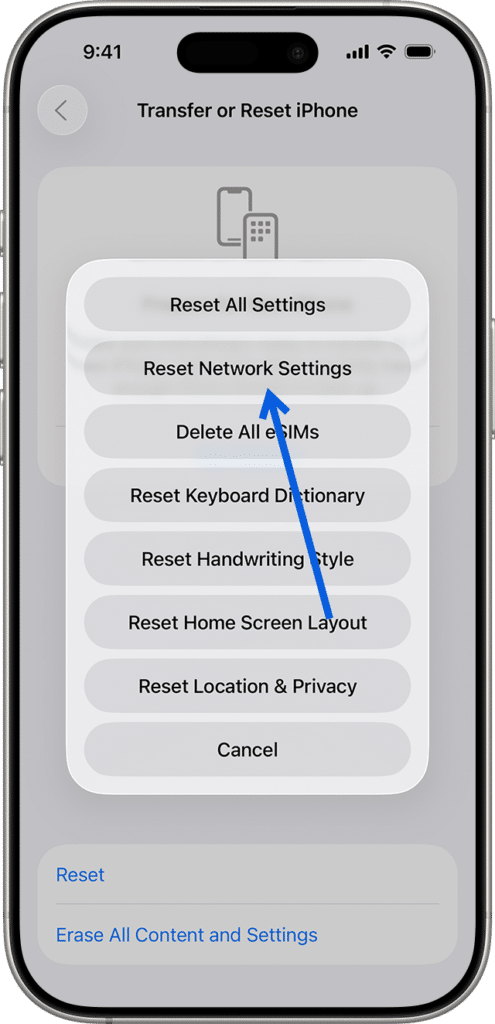
If nothing has worked so far, your iPhone may have a corrupted network configuration. Resetting network settings clears saved network-related information and rebuilds those configurations.
Go to: Settings > General > Transfer or Reset iPhone > Reset > Reset Network Settings
Enter your passcode if prompted and confirm the reset.
Your iPhone will restart.
Keep in mind that this removes saved Wi-Fi networks and passwords along with certain VPN and network configurations, so make sure you know your Wi-Fi password before proceeding.
After your iPhone restarts, reconnect to Wi-Fi and try: Settings > General > Software Update
again.
11. Update Your iPhone Using a Mac or Windows PC
If your iPhone still says Unable to Check for Update, you don’t necessarily have to solve the over-the-air problem before updating. You can install the latest compatible version of iOS using a computer instead.
On a Mac
- Connect your iPhone to your Mac using a USB cable.
- Open Finder.
- Select your iPhone from the sidebar.
- Open the General tab.
- Click Check for Update.
- Choose Download and Update if an update is available.
On Windows
Connect your iPhone to your PC and open the Apple Devices app. Select your iPhone, check for an available software update, and follow the onscreen instructions.
Updating through a computer can work when the update process directly on the iPhone refuses to cooperate.
Back up your iPhone before installing a major update, especially if you’ve already experienced update-related problems.
What If Your iPhone Still Can’t Check for Updates?
If you’ve tried everything above and your iPhone still can’t communicate with Apple’s update servers, check two things before considering more drastic troubleshooting.
First, make sure your iPhone actually supports the iOS version you’re trying to install. Older models eventually stop receiving major iOS upgrades, although they may continue receiving certain security updates.
Second, try again later on a different network. If Apple’s servers are under heavy load immediately after a major release, waiting a few hours can sometimes accomplish more than repeatedly changing settings.
If the problem persists across multiple networks and your Mac or PC can’t update the iPhone either, contacting Apple Support is the next sensible step.
I wouldn’t factory-reset an iPhone solely because of this error unless Apple Support recommends it or you’re experiencing other serious software problems.
Final Thoughts
The “Unable to Check for Update” error sounds more serious than it usually is. In most cases, you don’t need to erase your iPhone or perform complicated troubleshooting. Start by restarting the phone, checking your internet connection, disabling any VPN, and making sure Apple’s servers are working — and if you’re chasing iOS 27 specifically, double-check your iPhone is actually on the supported list first.
If those don’t help, check your date and time, available storage, and whether an old iOS update is stuck on the device. Work or school iPhones deserve special attention because an MDM profile may intentionally prevent or delay updates.
And if Software Update still refuses to cooperate, updating through a Mac or Windows PC gives you another way to install the latest compatible version of iOS without relying on the failing on-device update check. Given how congested things have been in the first days after iOS 27’s release, that’s often the quickest path if you don’t want to keep waiting it out.