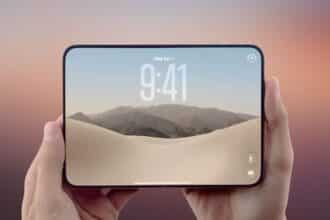
You take a photo you love, set it as your Lock Screen, and it just doesn’t fit. The subject’s head gets clipped at the top, or the sides leave awkward gaps because your iPhone‘s display is taller than the photo you captured. Every iOS update since Apple redesigned the Lock Screen in iOS 16 has given you more ways to customize fonts, colors, and widgets, but the actual wallpaper has always been limited by the aspect ratio of the original image.
iOS 27 finally addresses that problem, and it does so alongside three other changes that quietly give you far more control over the first screen you see every time you pick up your iPhone. Apple introduced iOS 27 during WWDC 2026 on June 8, 2026. While most of the keynote focused on Siri’s Apple Intelligence overhaul, these Lock Screen improvements arrived without getting much attention on stage.
Here’s everything new, how each feature works, and what you’ll need to try them yourself.
When Will iOS 27 Lock Screen Features Be Available?
iOS 27 has been available as a developer beta since Apple’s WWDC keynote on June 8, while the public beta launched in July 2026 for anyone enrolled through beta.apple.com. Apple has confirmed a fall release, and based on previous iOS launches, that almost certainly points to a September 2026 rollout alongside the next iPhone lineup. Until Apple announces the official release date, though, September should be treated as a strong expectation rather than a confirmed date.
Compatibility remains generous this year. iOS 27 supports the iPhone 11 and later, along with the iPhone SE (2nd generation) and newer, matching the same compatibility list as iOS 26.
One important caveat: two of the four personalization features below rely on Apple Intelligence, which requires an A17 Pro chip and at least 8GB of RAM. That means they’re limited to the iPhone 15 Pro, iPhone 15 Pro Max, and newer models. The remaining two features work on every iPhone capable of running iOS 27.
If you’d rather try these features before the official release, here’s how to install the iOS 27 public beta. Just remember that beta software can still contain bugs, so back up your iPhone before installing it.
1. Extend Your Wallpaper to Fit the Entire Lock Screen
This is the feature people have wanted ever since Apple introduced customizable Lock Screens.
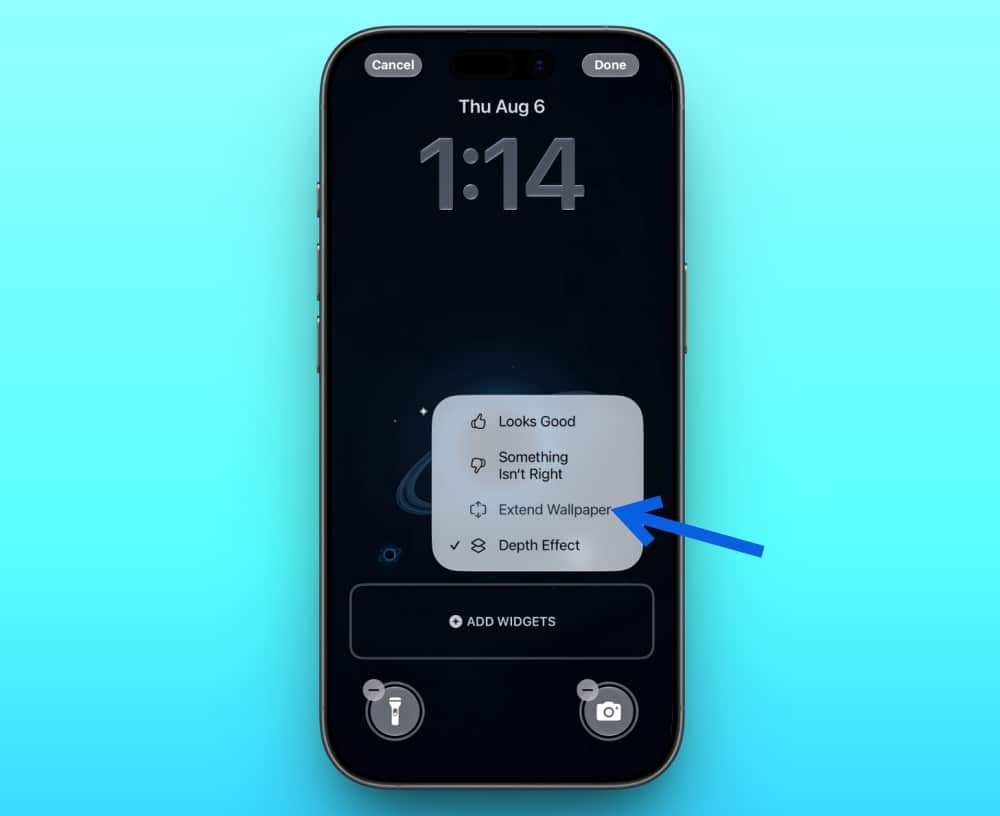
iOS 27 adds a new Extend option that uses Apple Intelligence to generate additional image content around the edges of your wallpaper. Instead of stretching your photo or cropping important details, it intelligently fills in missing sky, walls, scenery, or background elements that blend naturally with the original image.
To use it, long-press your Lock Screen and tap Customize. If your selected photo doesn’t properly fit your display, iOS 27 automatically suggests using Extend. You can also access the same tool directly inside the Photos app alongside Apple’s other AI-powered editing features.
Apple uses a combination of on-device processing and Private Cloud Compute, generating only the missing portions of the image while leaving your original subject untouched.
The same technology also powers the Reframe and Extend editing tools introduced in Photos this year.
Keep in mind that Extend requires Apple Intelligence, so it’s only available on the iPhone 15 Pro and newer. Older supported devices, including the iPhone 11 through iPhone 15, can still run iOS 27 but won’t have access to this feature.
2. Create AI Wallpapers With Image Playground
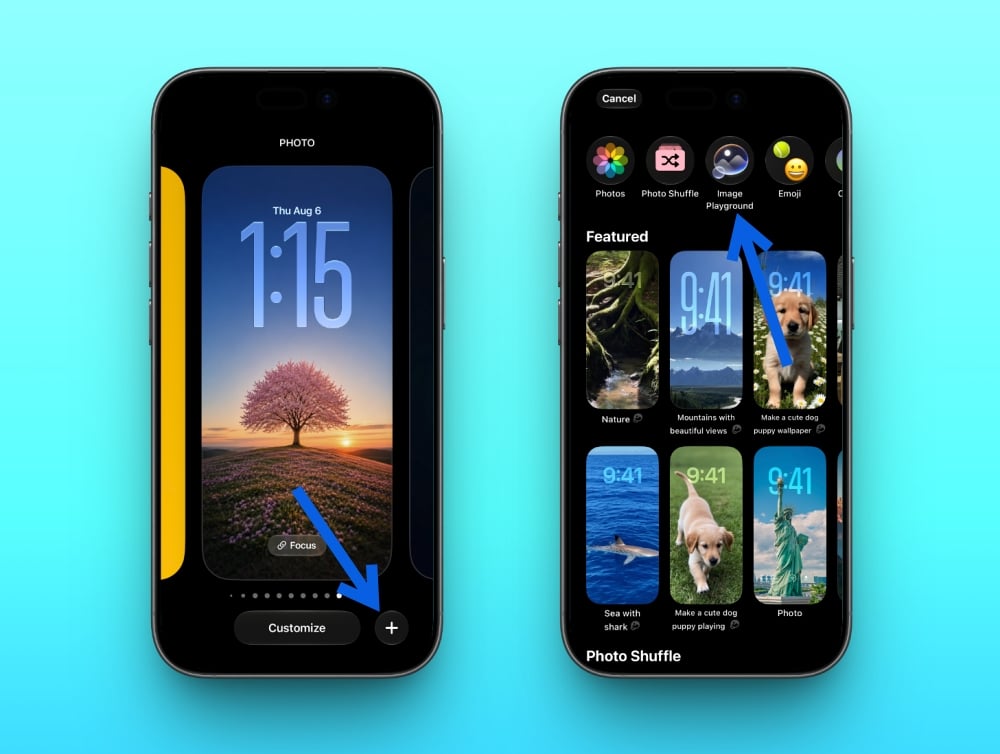
The second wallpaper upgrade skips your existing photo library altogether.
iOS 27 integrates Image Playground directly into the Lock Screen wallpaper picker, letting you generate completely new wallpapers without leaving the customization screen.
There are two ways to use it.
The first lets you select one of your own photos and transform it using Apple’s artistic styles, including illustrated and animated looks.
The second starts from scratch. Simply describe what you want using natural language, something like “a peaceful forest at sunrise painted in watercolor”—and Image Playground generates a matching wallpaper.
It’s a relatively small addition on paper, but it solves a surprisingly common problem. Most iPhone owners eventually rotate through Apple’s built-in wallpaper collection, which means a lot of devices end up looking nearly identical.
If you’d rather stick with Apple’s own designs instead of generating your own, you can always download the official iOS 27 wallpapers instead.
Like Extend, Image Playground requires Apple Intelligence hardware, making it exclusive to the iPhone 15 Pro lineup and newer.
3. Use the New Compact Lock Screen Clock
Not every improvement in iOS 27 revolves around wallpapers. Apple has also redesigned the Lock Screen clock, taking almost the opposite approach from last year.
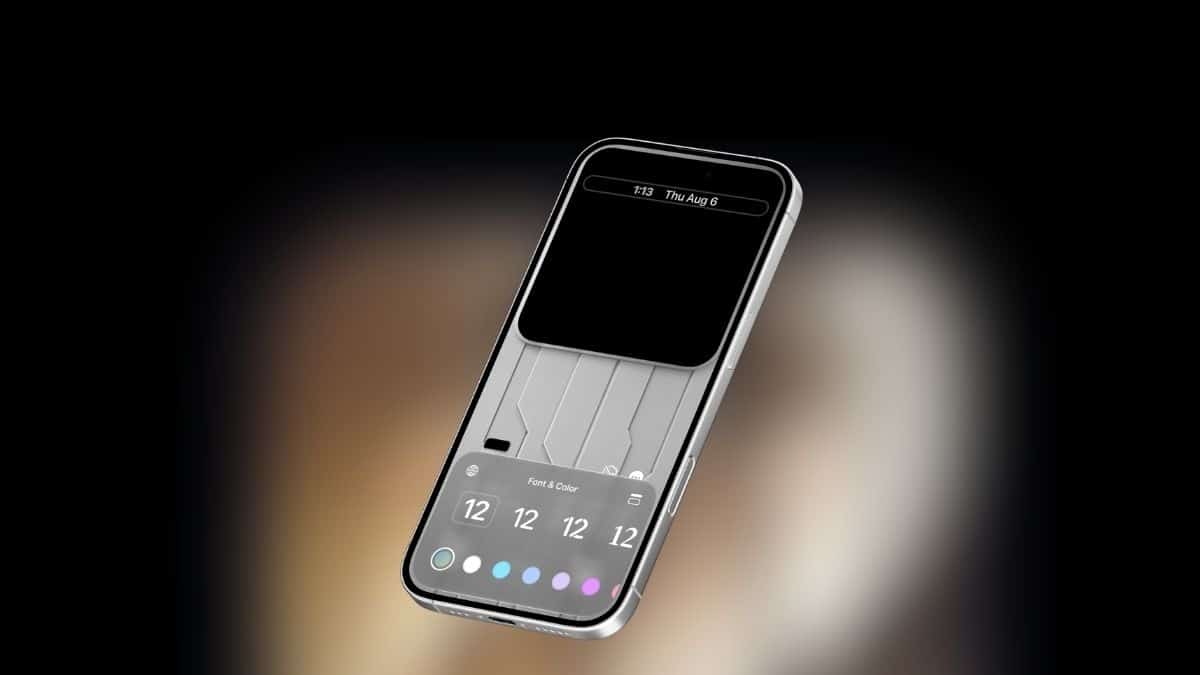
While iOS 26 introduced the ability to make the clock dramatically larger, iOS 27 now lets you shrink it into a compact layout that sits alongside the date and widget row.
To enable it:
- Long-press the Lock Screen.
- Tap Customize.
- Open Font & Color.
- Tap the new icon in the upper-right corner.
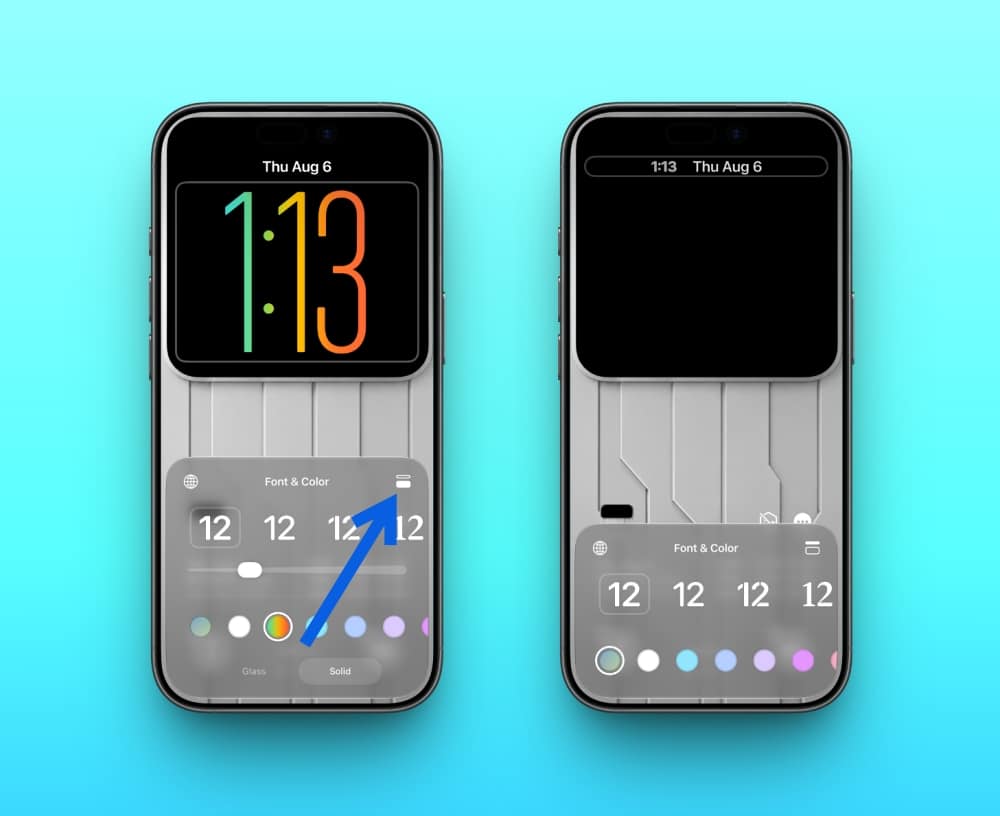
The oversized clock immediately shrinks into a smaller layout positioned above your wallpaper. The difference is surprisingly noticeable. Photos feel less crowded, portraits remain unobstructed, and scenic wallpapers finally get more room to breathe.
This feature makes the most sense if you already wear an Apple Watch or rarely rely on the large Lock Screen clock. If you prefer the traditional oversized design, nothing forces you to switch.
Unlike Apple’s AI-powered wallpaper tools, the compact clock works on every iPhone running iOS 27, including the iPhone 11.
4. Dismiss the Now Playing Widget Without Stopping Music
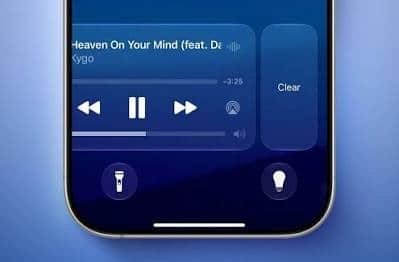
The final Lock Screen improvement fixes one of those tiny annoyances you don’t think about until it disappears.
Whenever you play music or a podcast, iOS automatically places the Now Playing controls on the Lock Screen. Until now, that widget stayed there whether you wanted it or not, making accidental taps surprisingly common.
iOS 27 finally lets you swipe it away. Your music keeps playing exactly as before. The widget simply disappears from the Lock Screen until you manually open playback controls again or begin playing another track.
It sounds minor, but anyone who’s accidentally skipped songs while pulling their iPhone out of a pocket or bag will probably appreciate this change immediately.
Like the compact clock, this improvement works on every iPhone running iOS 27 and doesn’t require Apple Intelligence.
Other Small Lock Screen Improvements in iOS 27
Apple also introduced a couple of smaller visual refinements that, while not full personalization features, still affect the Lock Screen experience.
The first is a new Liquid Glass opacity slider, found under Settings > Appearance > Liquid Glass. It lets you control how transparent the glass effect appears across widgets, notifications, and the clock. If the fully transparent look isn’t your style, you can dial it back for a more solid appearance.
Siri also looks different. Instead of filling the edges of the display with a glowing animation, Siri responses now appear inside a compact orb within the Dynamic Island. That keeps far more of your wallpaper visible while you’re interacting with the assistant.
Neither change is as significant as the four features above, but both subtly improve the overall Lock Screen experience.
Final Thoughts
None of these features are flashy enough to dominate an Apple keynote, but they solve everyday frustrations people actually have with their Lock Screens. Photos finally fit properly, AI can generate unique wallpapers from scratch, the oversized clock no longer dominates the display, and the Now Playing widget can finally be dismissed without interrupting your music.
Two of these features, Extend and Image Playground, require an iPhone 15 Pro or newer because they rely on Apple Intelligence. The other two, the compact clock and dismissible Now Playing controls, work on any iPhone that supports iOS 27.
If you’re already running the iOS 27 public beta, you can try all four of these features today directly from the Lock Screen customization menu.
Make the Most of Your Apple Devices: