Apple’s Find My app is one of the most useful tools in the iOS ecosystem, but it’s also full of icons and symbols that can be confusing at first glance. From pulsing blue circles to gray dots and small notification bells, understanding what everything means is key to using the app effectively.
The Find My app acts as a central hub for device tracking, location sharing with friends, and locating AirTags or other Find My network accessories. Each feature uses its own set of visual cues. Learning this language of icons makes it easier to track your Apple devices, stay connected with family, and find your lost keys without guesswork.
In this guide, I’ll break down every Find My app icon and symbol, explain what they mean, and show you how to use them for better privacy, security, and everyday convenience.
What Is the Find My App and Why Are Icons Important?
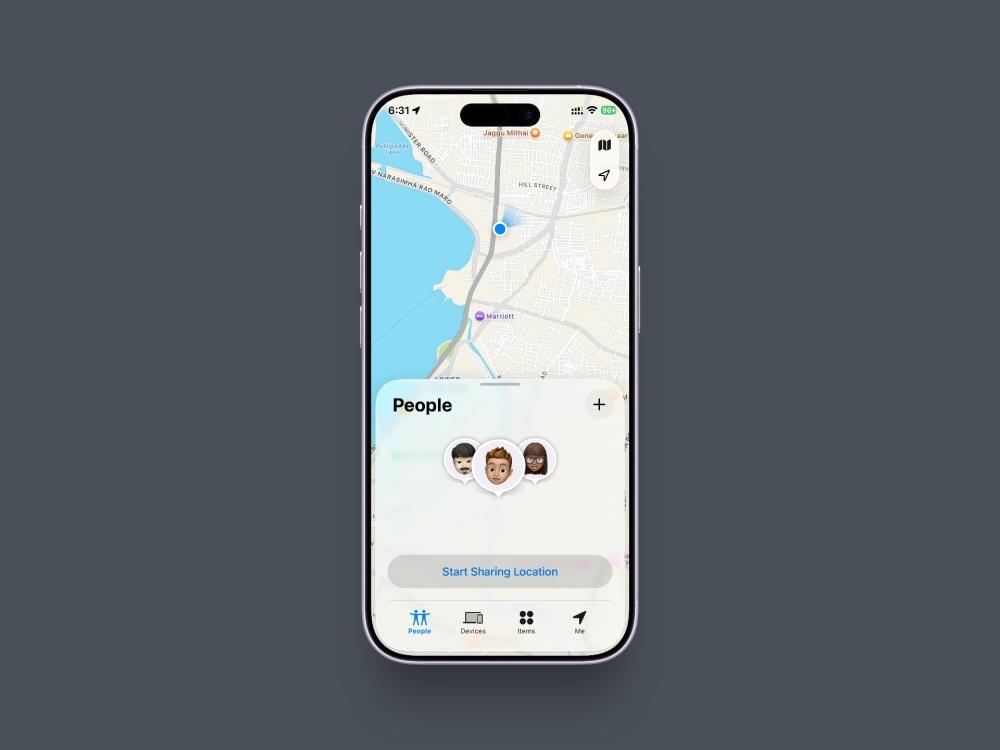
Find My is Apple’s unified app for locating everything important to you. That includes your Apple devices like iPhone, Mac, Apple Watch, and Apple Vision Pro, your friends and family who share their location with you, and your personal items via AirTags or other compatible Find My network accessories.
The icons in the app are more than decoration. They provide instant, at-a-glance information. They show if a device is online, how accurate a person’s location is, or whether an AirTag is nearby. Understanding these symbols helps you quickly assess a situation, whether you’re trying to find a misplaced iPad or confirming that a family member got home safely.
Where Do You See Icons in the Find My App?
The app is organized into four main tabs, each with its own icons.
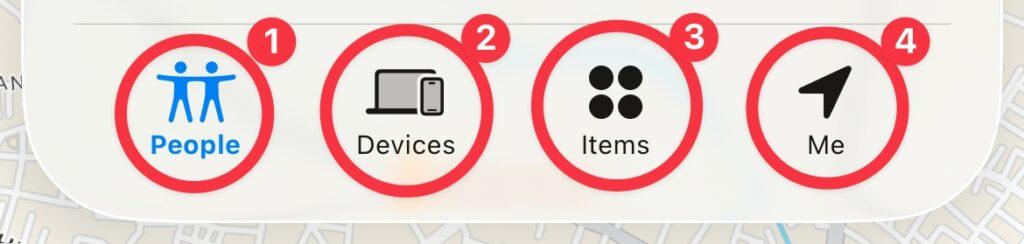
- People Tab: Shows friends and family who are sharing their location with you. Icons here represent location status, accuracy, direction of travel, and notifications. Recent updates include improved Live location features for real-time tracking.
- Devices Tab: Lists all your Apple devices linked to your Apple ID. Icons show battery levels, online or offline status, and device type. With iOS 18 and later, this includes Vision Pro headsets.
- Items Tab: Dedicated to AirTags and Find My-compatible accessories. Icons relate to connection status, sound alerts, and Precision Finding.
- Me Tab: Contains your personal settings. Icons show your location sharing status and privacy controls.
Device Status Icons and What They Mean
When browsing your device list, these icons provide a quick status overview.
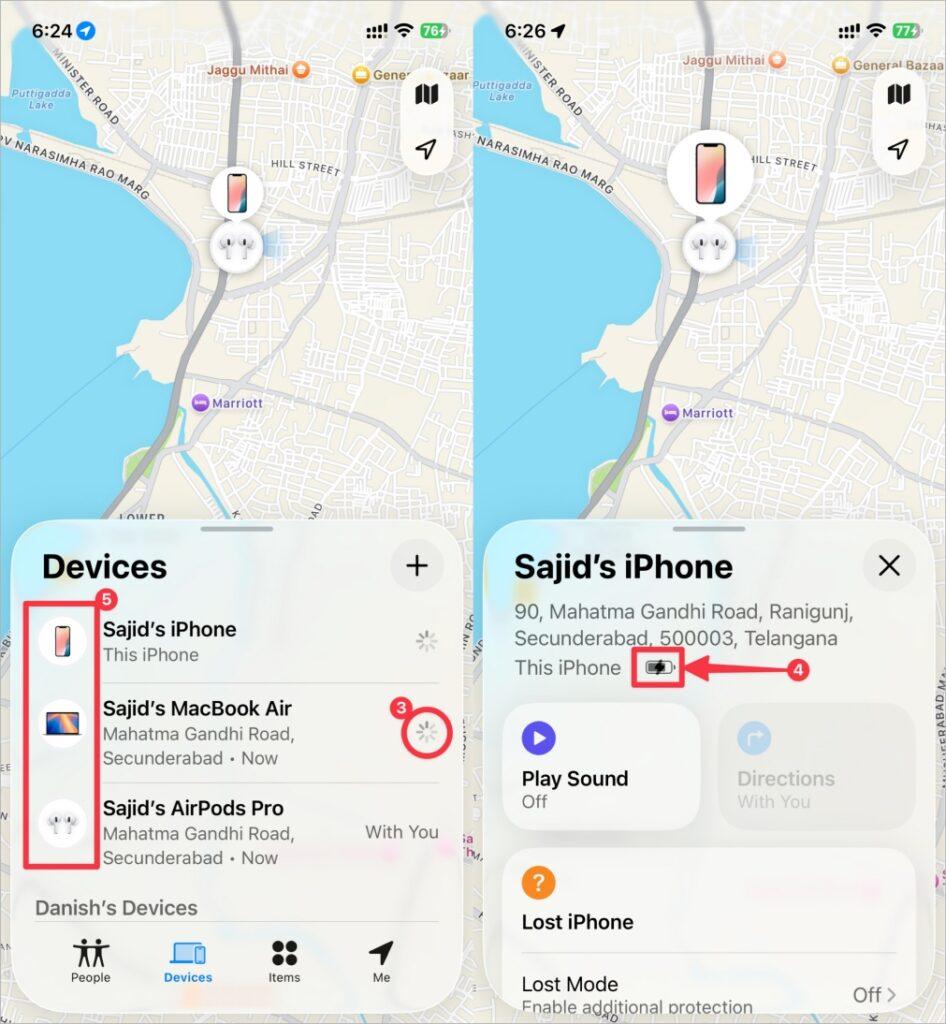
- Green dot: The device is online and reporting its current location.
- Gray dot: The device is offline. The map shows its last known location.
- Spinning circle: The app is trying to update the device’s location.
- Battery icons: Show if the device is charged, low on power, or charging. A lightning bolt indicates active charging.
- Device type icons: Indicate whether the item is an iPhone, Mac, iPad, Apple Watch, AirPods, or Vision Pro.
- In iOS 18 and newer, some icons, such as green and gray dots, no longer appear. Instead, status information is shown as text next to the device.
People and Location Sharing Symbols
In the People tab, the symbols communicate the accuracy and status of a person’s location. With improved iOS 18 location features, these icons are more precise than ever.
You can check out our guide to iMessage symbols and their meanings.
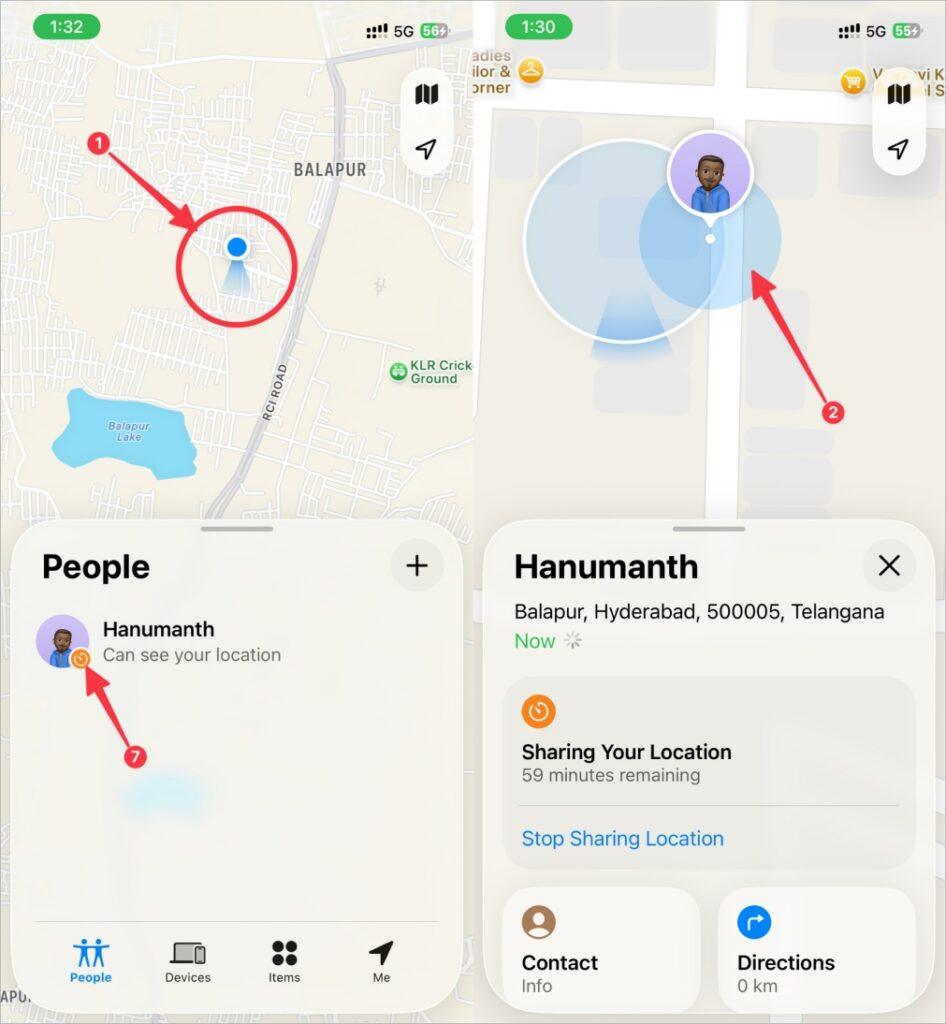
- Solid blue circle: A person’s current location is accurate. May include a Live label for real-time updates.
- Blue circle with a larger, transparent blue halo: Location is approximate. The person could be anywhere within the blue zone.
- Gray circle: The location isn’t live. It may be outdated because the person is offline or stopped sharing.
- Pulsing blue circle: Find My is updating and trying to refine the location.
- Arrow icon: Indicates the person is moving and shows their direction of travel.
- “No location found” message: The person stopped sharing, their device is off, or they lack an internet connection.
- “Live” indicator: Shows continuous, real-time location updates.
Precision Finding and Distance Indicators
When you’re close to an AirTag, a supported accessory, or a U1-equipped iPhone, Precision Finding displays helpful directional icons.
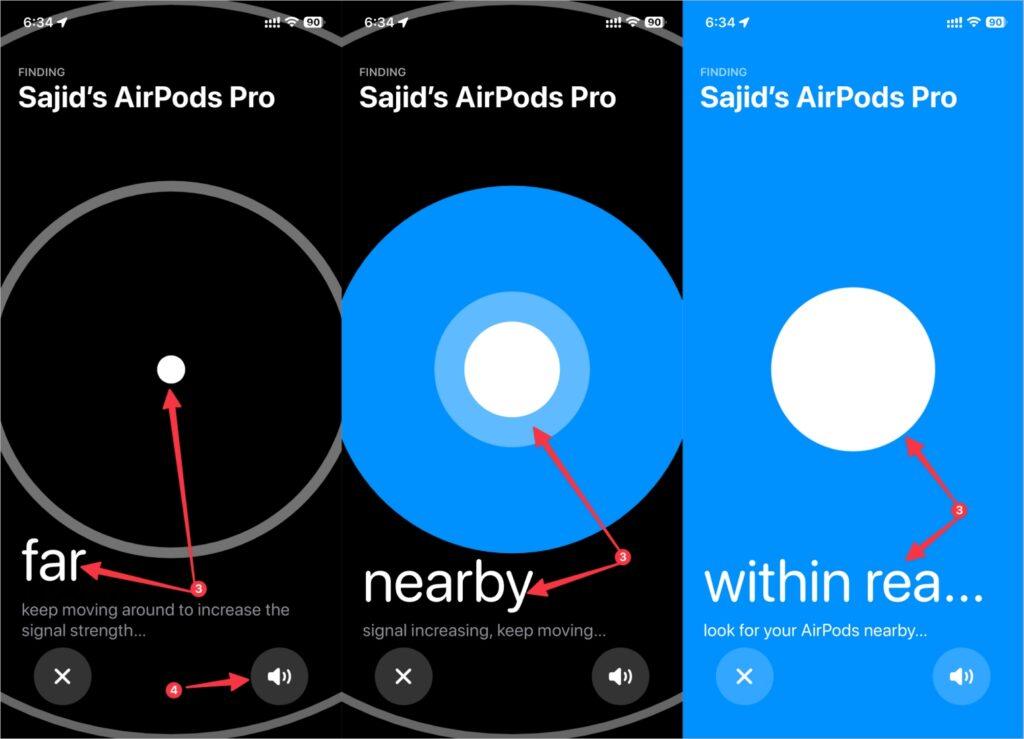
- Large arrow pointing in a direction: Guides you toward your item.
- Distance measurements: Updates in feet or meters as you move.
- “Near,” “Far,” and “Here” indicators: Simple text prompts showing proximity.
- Speaker icon: Plays a sound on the AirTag to help you locate it.
- Haptic feedback indicators: Stronger vibrations as you get closer.
Notification and Alert Icons
Find My allows you to set several types of alerts, each represented by clear symbols.
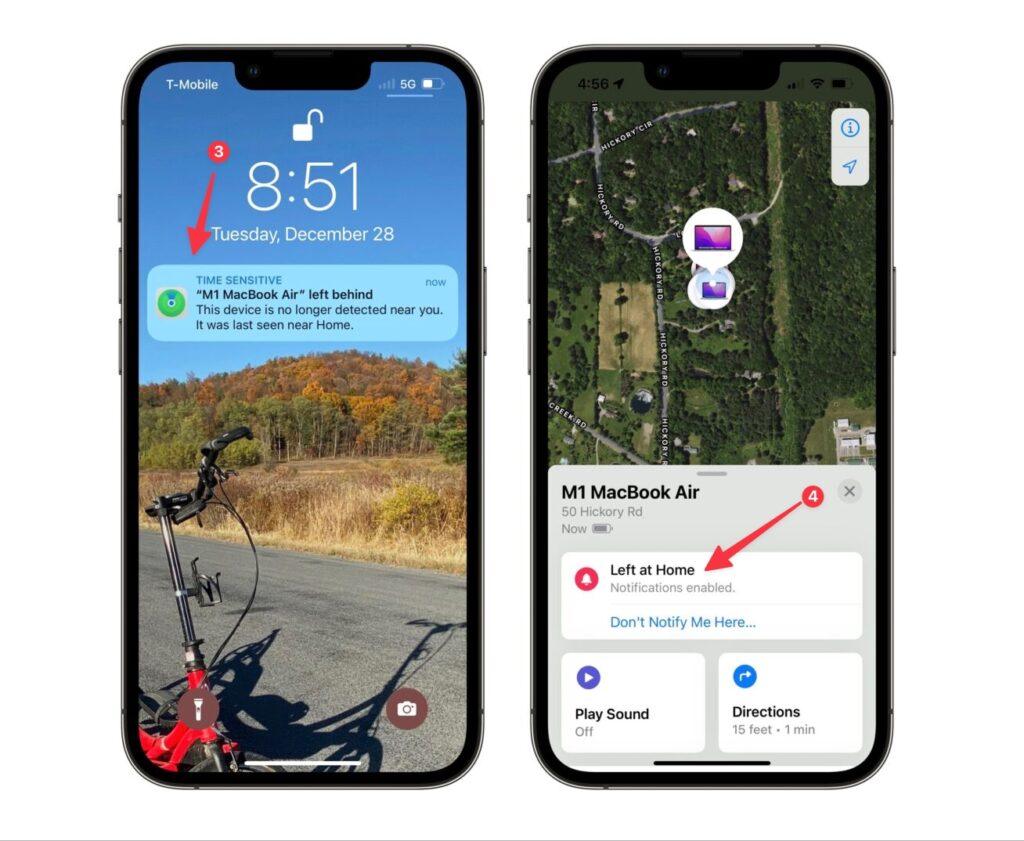
- Bell icon: A notification is active for a person or item.
- Crossed-out bell: Notifications are muted.
- Left Behind notifications indicator: Alerts you if you forget an item in an unfamiliar place.
- Separation alerts: Notifies you when you’ve been away from a device or item for too long.
Privacy and Security Icons in Find My
Apple includes several privacy and safety protections in the app.
- Lock symbol: Appears when a device is in Lost Mode, showing Activation Lock is enabled.
- Share My Location toggle indicators: Show whether you’re sharing your location.
- Unknown accessory detected warnings: Alerts you if an unknown AirTag or accessory is traveling with you. This now works across both iOS and Android.
- Privacy indicators: Show when your location is being used or shared.
How to Customize Icon Notifications and Display
You can control how icons and alerts work throughout the app.
1. Managing Device Icons
You can’t change the icons themselves, but you can rename devices in your Apple ID settings for clarity. Starting with iOS 18, you can group devices by location or usage pattern.
2. Controlling People Notifications
In the People tab, tap a person’s name and choose Add under Notifications. Set arrival or departure alerts, choose one-time or recurring alerts, or enable quiet hours and custom tones.
3. Item Alert Settings
Open any AirTag or Find My item and turn on Notify When Left Behind. You can also set safe locations like your home or office. More accessories from brands like Chipolo and Spigen now support these alerts.
4. Location Accuracy Settings
In iOS 18 and later, you can choose to share either precise or approximate location access with different contacts.
Final Thoughts
The icons in the Find My app might seem cryptic at first, but they offer quick, essential information about your devices, friends, and items. Learning what each symbol means helps you get the most out of Apple’s tracking ecosystem, which continues to grow with new accessories and features.
Knowing these icons isn’t just convenient. It can be invaluable when something is lost or during an emergency. With ongoing improvements to the Find My network and upgraded privacy controls, understanding these visual cues is more important than ever for managing your digital life.