You open Instagram, and it’s no longer where it’s always been. Somewhere along the way, three folders merged into one, a widget you never asked for is sitting where your Camera shortcut used to be, and an extra page of apps has appeared out of nowhere. Maybe you handed your iPhone to a kid for ten minutes. Maybe you restored from an iCloud backup and everything landed in a different order. Either way, you’re now staring at a Home Screen that feels like it belongs to someone else.
Apple has quietly included a fix for exactly this for years. It’s called Reset Home Screen Layout, and it restores every built-in app to its original position without erasing your data, restoring your iPhone, or waiting for iCloud to sync.
Think of it as a clean slate for your app layout—not a factory reset for your iPhone.
Here’s what Reset Home Screen Layout actually changes, what it leaves untouched, and how to use it on your iPhone today.
What Happens When You Reset Your iPhone Home Screen Layout?
Before you tap anything in Settings, it’s worth understanding exactly what this option does, because it changes more than just where your app icons sit.
All Custom Folders Are Removed
Every folder you’ve created disappears. Whether you’ve organized apps into folders like Work, Games, Finance, or Travel, they’ll all be removed, and the apps inside them will return to the Home Screen as individual icons.
Custom Widgets Are Removed
Any widgets you’ve added manually are removed from the Home Screen.
That includes Apple widgets you’ve placed yourself, Smart Stacks you’ve customized, and widgets from third-party apps. Only the default Home Screen configuration remains. If you want those widgets back, you’ll need to add them again manually.
Apps Move, but Nothing Is Deleted
This is the part most people worry about.
Reset Home Screen Layout does not delete apps or erase any data.
Apple’s built-in apps return to their original factory positions, while every app you’ve installed is reorganized alphabetically across the remaining Home Screen pages.
Your apps, photos, messages, downloads, documents, and app data all stay exactly where they are.
Screen Time Restrictions Stay Enabled
If you’ve hidden apps using Screen Time or restricted access to certain apps, those restrictions remain in place after the reset.
Resetting the Home Screen won’t make hidden apps reappear. You’ll need to adjust your Screen Time settings separately if you want to restore them.
There’s No Undo Button
One important thing to know before you continue: Reset Home Screen Layout can’t be undone.
Once you confirm the reset, your previous arrangement is gone. If you’ve spent time creating a folder system you actually like, it’s worth taking a few screenshots first so you can recreate it later if needed.
How to Reset Your iPhone Home Screen Layout
The entire process takes less than a minute.
The menu has remained in the same place for years and works whether you’re running the latest public release of iOS 26 or testing the iOS 27 Public Beta.
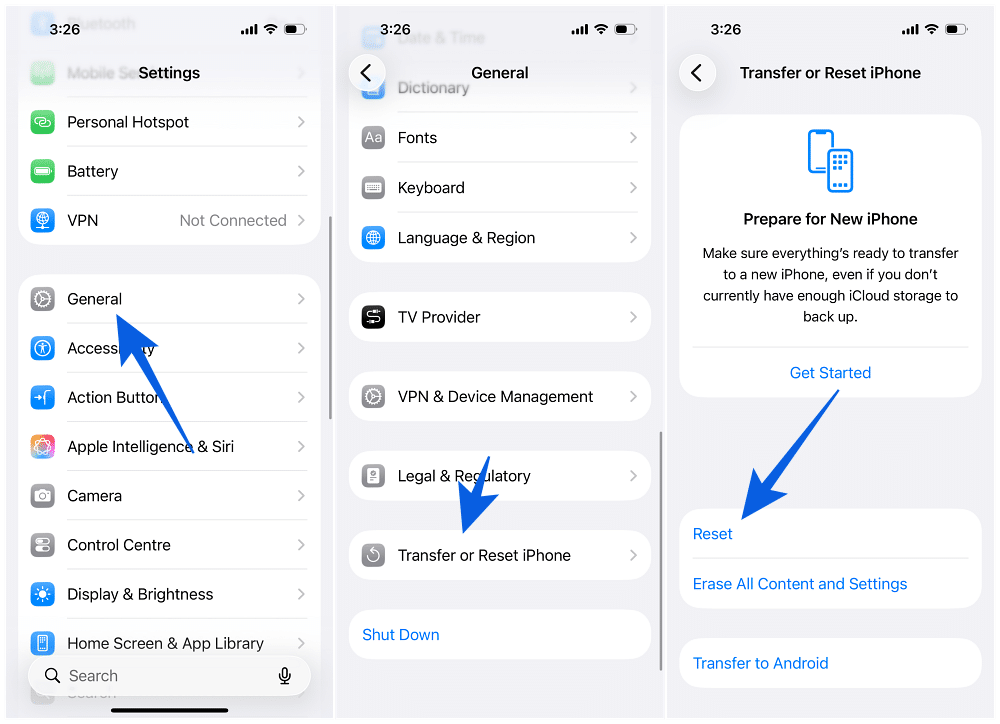
- Open Settings.
- Tap General.
- Scroll down and tap Transfer or Reset iPhone.
- Tap Reset.
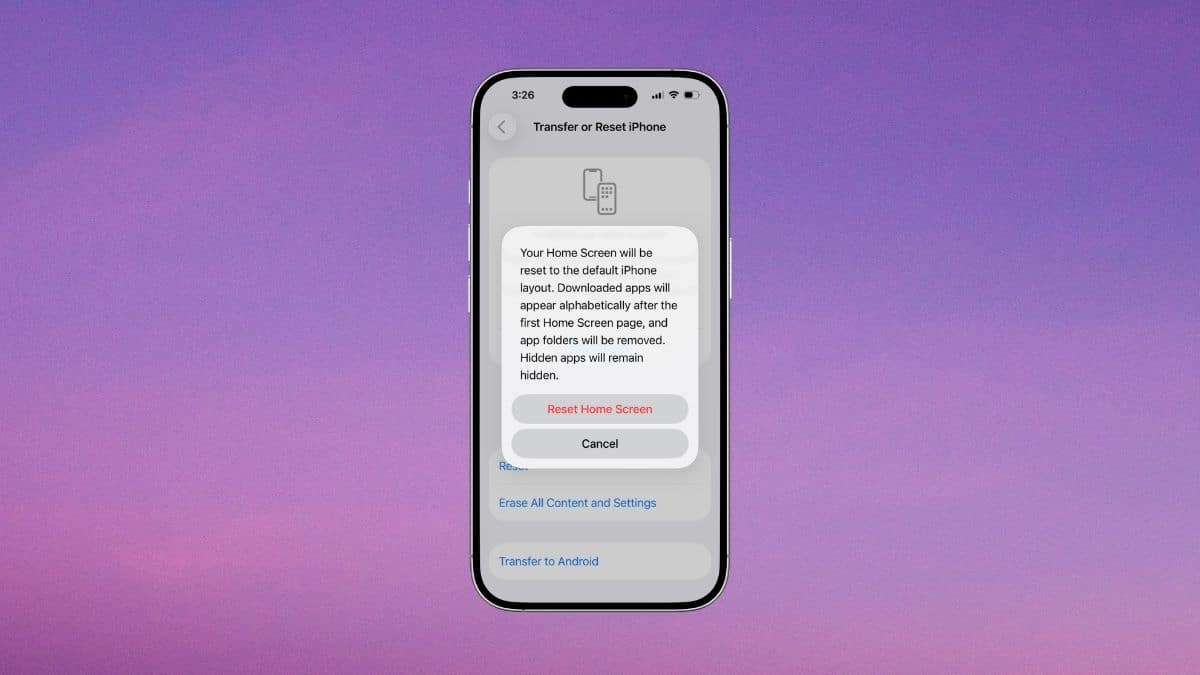
- Select Reset Home Screen Layout.
- Tap Reset Home Screen to confirm.
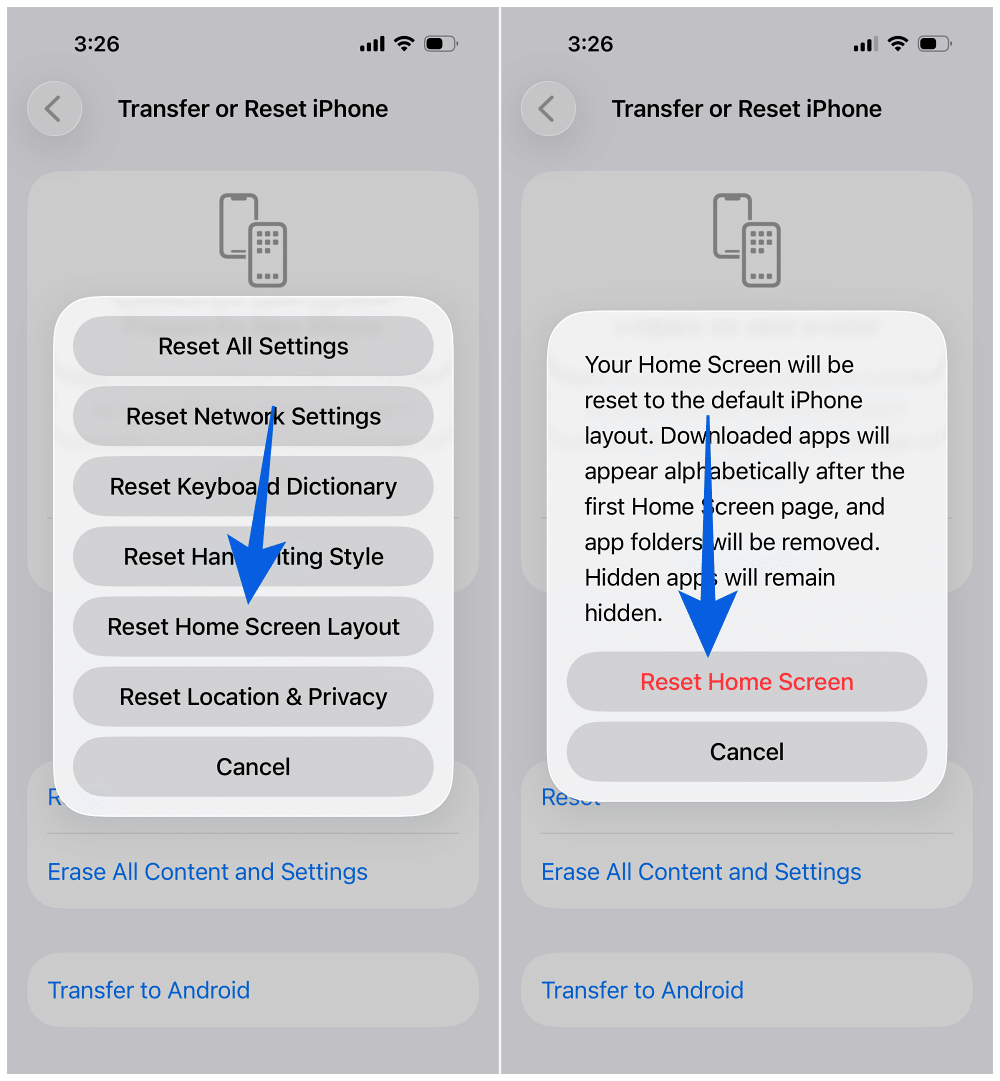
That’s all there is to it.
Your Home Screen rebuilds itself immediately, and you won’t need to restart your iPhone.
What Changes Immediately After the Reset?
Most people notice the same thing right away—their iPhone suddenly looks much cleaner.
Without folders, extra widgets, and years of accumulated app organization, everything feels more open. Apps that were previously buried inside multiple folders now sit directly on the Home Screen, making them much easier to spot at a glance.
Your App Library remains completely untouched. Every app you’ve installed is still organized automatically by category, so nothing has actually disappeared during the reset.
If you’re looking at unfamiliar icons after everything has been rearranged, this is also a good opportunity to check out our guide to iPhone icons and symbols to refresh yourself on what everything means.
If you’ve hidden apps using Screen Time, they’ll remain hidden after the reset.
Likewise, if you’ve customized your app icons using Tinted, Dark, or Clear icon styles introduced with iOS 26’s Liquid Glass redesign, those appearance settings aren’t affected. Icon styling is controlled separately through the Customize menu and isn’t tied to your Home Screen layout.
Reset Home Screen Layout vs. Erase All Content and Settings
This is where many people accidentally choose the wrong option.
Reset Home Screen Layout only changes where your apps and widgets appear.
It does not:
- Delete apps
- Remove photos
- Erase messages
- Sign you out of your Apple Account
- Reset settings
- Remove personal data
Erase All Content and Settings, on the other hand, completely wipes your iPhone.
It removes every app, deletes all personal data, restores factory settings, and requires you to set the device up again or restore it from a backup.
If your goal is simply, “Put my apps back in their original positions,” Reset Home Screen Layout is the only option you need.
Reserve Erase All Content and Settings for situations like selling your iPhone, trading it in, or troubleshooting problems that require a full factory reset.
How to Make the Most of Your Fresh iPhone Home Screen
Once you’ve reset everything, it’s worth taking a few extra minutes to organize your Home Screen in a way that actually matches how you use your iPhone.
Start by placing the apps you open every day on the first page. Leave the rest where iOS organizes them, or move them gradually as you figure out what works best instead of recreating the same clutter you just removed.
If you’re not a fan of iOS 26’s Liquid Glass design, this is also a good time to switch back to a more familiar look by following our guide on how to turn off the Liquid Glass effect on iPhone.
While you’re reorganizing, take a quick look through the apps you’re moving around. Chances are you’ll find subscriptions you’ve forgotten about or apps you haven’t opened in months. Before spending time organizing them, consider removing the ones you no longer use. Our roundup of the best free iPhone cleaner apps can also help identify apps and files that are taking up unnecessary storage.
And if you’ve recently upgraded to iOS 26, it’s worth exploring some of the hidden iOS 26 features Apple didn’t highlight, since several of them affect how your Home Screen works every day.
When You Don’t Need to Reset the Entire Home Screen
A full reset isn’t always necessary.
If only one or two things are bothering you, these quicker fixes may be enough.
Remove a Single Folder
Touch and hold the folder until the icons begin to jiggle. Open the folder, then drag each app back onto the Home Screen. Once it’s empty, the folder disappears automatically.
Delete an Unwanted Widget
Touch and hold the widget, then tap Remove Widget. The rest of your Home Screen stays exactly as it is.
Move Apps Manually
Enter Jiggle Mode and drag apps between pages yourself. You can even select multiple apps at once to move them together, making large reorganizations much faster than moving icons individually.
These manual fixes take a little longer, but they’re ideal if only a small part of your Home Screen needs attention.
Final Thoughts
A cluttered Home Screen usually feels like a much bigger problem than it actually is. Apple’s built-in Reset Home Screen Layout option fixes it in less than a minute without deleting your apps, photos, messages, or personal data.
If the entire layout has become overwhelming, resetting gives you a fresh starting point that’s easy to rebuild. If only a folder or widget is out of place, the manual fixes are often enough.
Either way, you’ll end up with a Home Screen that’s organized around how you actually use your iPhone instead of one that feels like it was rearranged by accident.
Make the Most of Your Apple Devices: