Apple skipped iOS 19 and jumped to iOS 26 to match the release year. The update looks fresh, but many iPhone users find the new Liquid Glass (translucent) interface distracting in everyday use. The shiny layers, transparent icons, and floating effects look good in promos but can cause eye strain, slowdowns, and quicker battery drain.
If you prefer a cleaner, more solid look, you’re not alone. Apple added an option to turn off Liquid Glass effect in iOS 26.1, and it’s easy to use. Here’s how to do it.
How to Turn Off the Liquid Glass Effect in iOS 26
Make sure your iPhone is updated to iOS 26.1, then follow these steps:
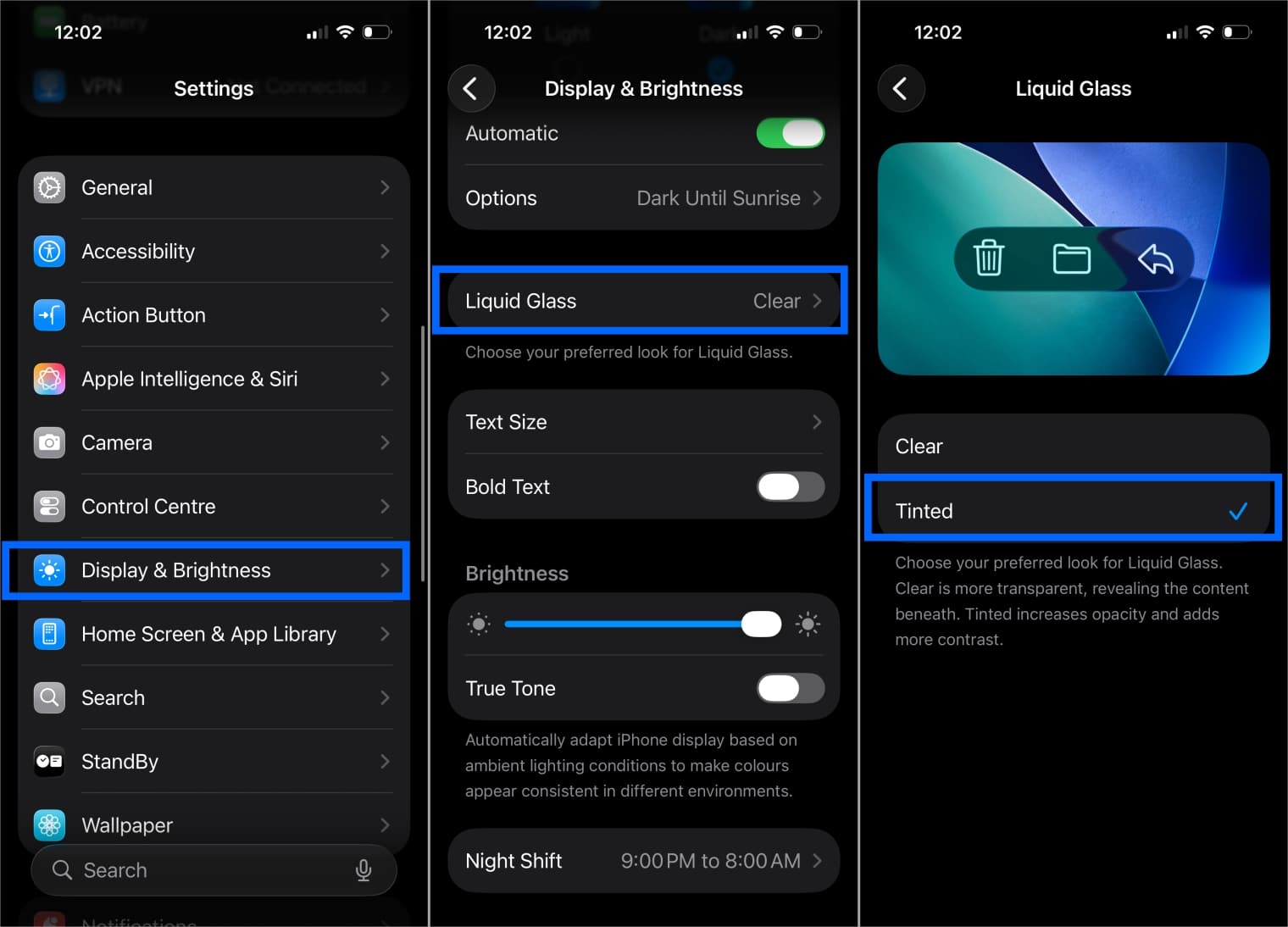
- Open the Settings app and go to Display & Brightness.
- Scroll down to the Liquid Glass option, tap it, and pick either Clear UI or Tinted UI.
- Tap Tinted to see Liquid Glass return to its normal look.
5 Ways to Reduce the Liquid Glass Effect on iPhone
There are other manual methods too. You can’t turn it off completely, but you can reduce its transparency to make it less visible.
1. Turn On Reduce Transparency
The quickest way to tone down the Liquid Glass look is to enable Reduce Transparency. In iOS 26, elements like folders and Control Center normally show a blurred backdrop. Turning on Reduce Transparency removes that shine and replaces it with solid, darker surfaces. Here’s how to switch it on.
- Go to Settings > Accessibility > Display & Text Size.
- Toggle Reduce Transparency.
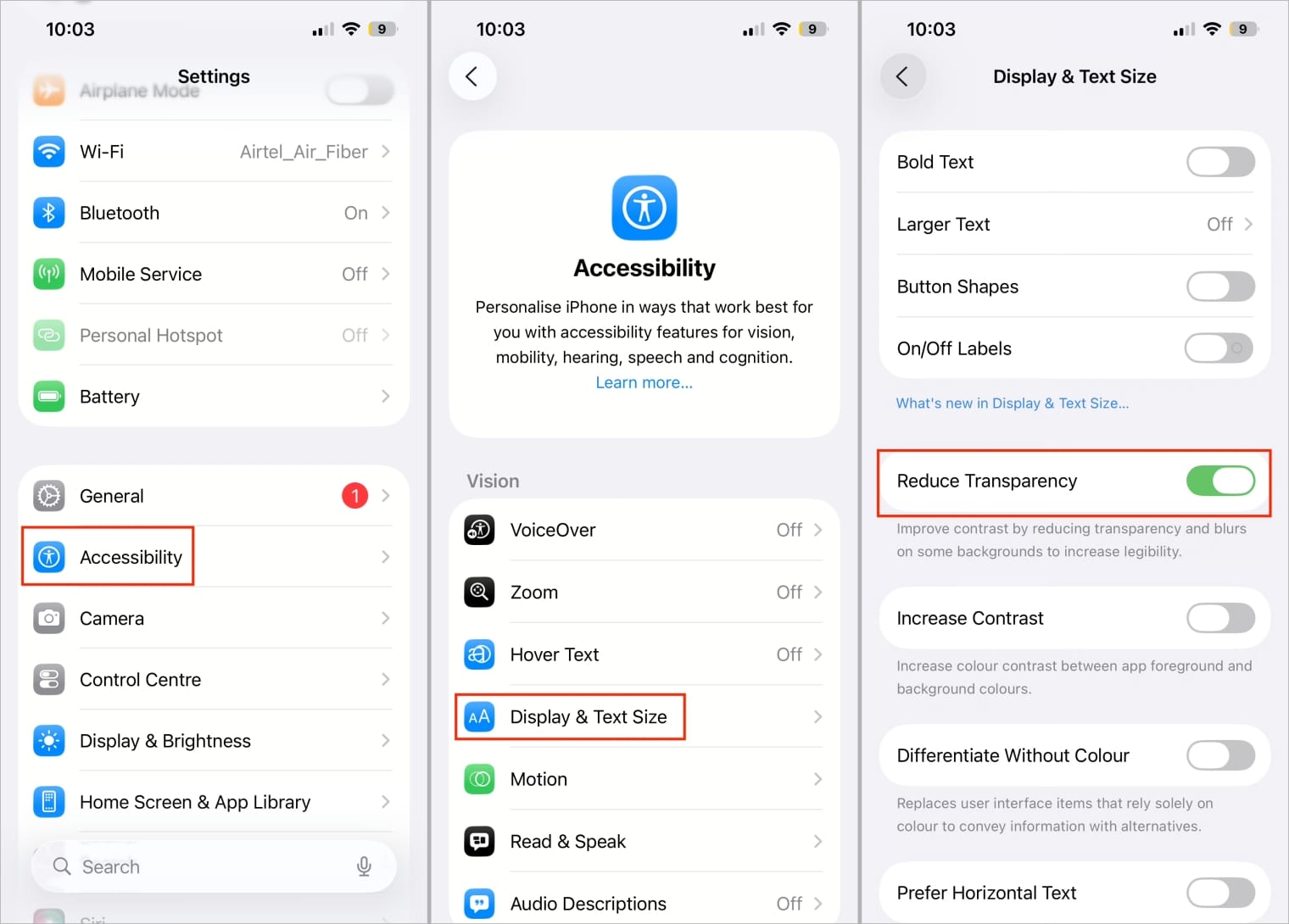
This replaces blurred, glassy areas (like Control Center and folders) with solid blocks, instantly cutting down on distractions.
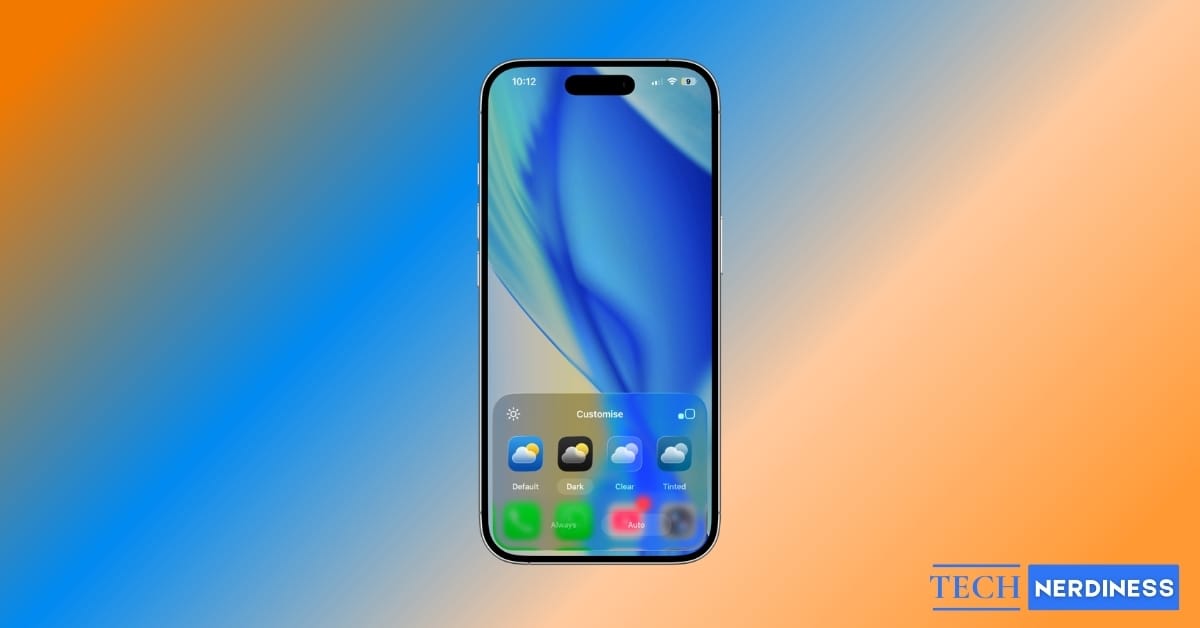
2. Customize App Icons
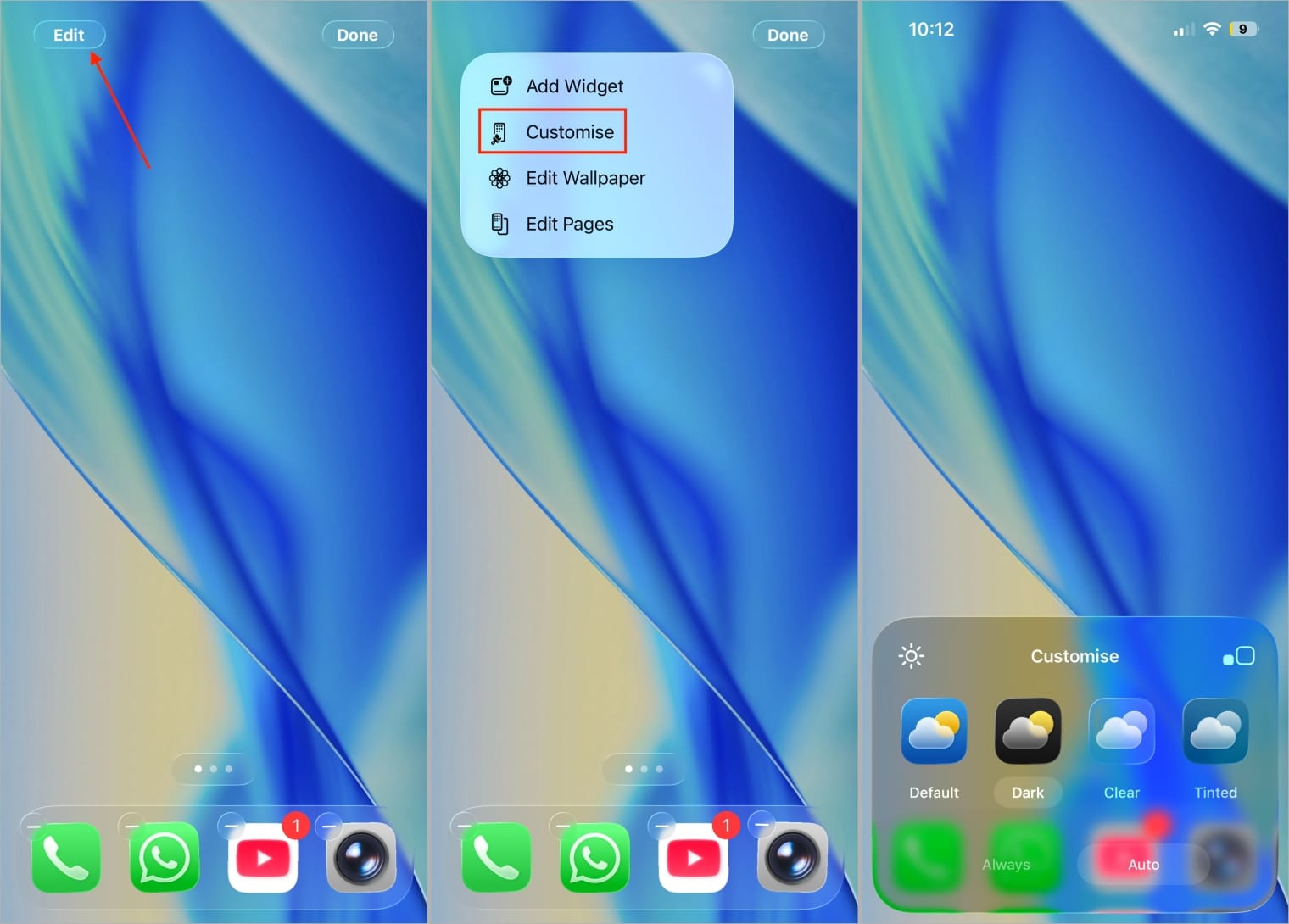
iOS 26 expands Apple’s icon customization with a new Clear style under the Liquid Glass design. It looks sleek, but the transparency can make icons blend into the wallpaper. If that happens, switch to Default, Dark, or Tinted for better visibility. Default and Dark usually give the cleanest look.
- Long-press an empty area on your Home Screen.
- Tap the Edit button > Customise.
- Apple now offers four different app icon styles, Default, Dark, Clear, and Tinted. To reduce transparency, choose any option except Clear.
3. Switch to Dark Mode
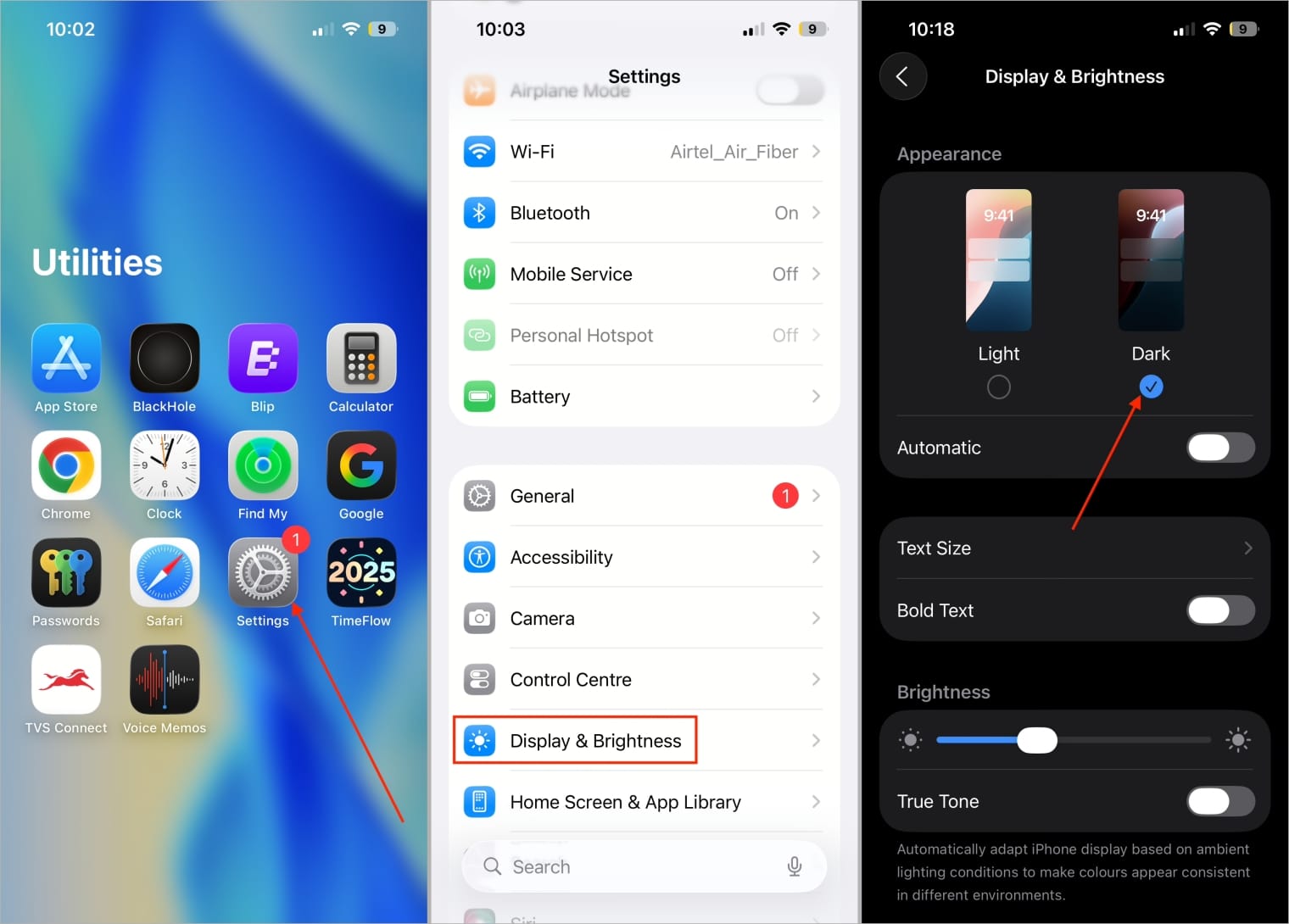
After turning on Reduce Transparency and using Default or Dark icons, switch your iPhone to Dark Mode. Liquid Glass appears stronger in Light Mode on iOS 26, so Dark Mode tones it down even more.
- Go to Settings > Display & Brightness.
- Now, under Appearance, select Dark.
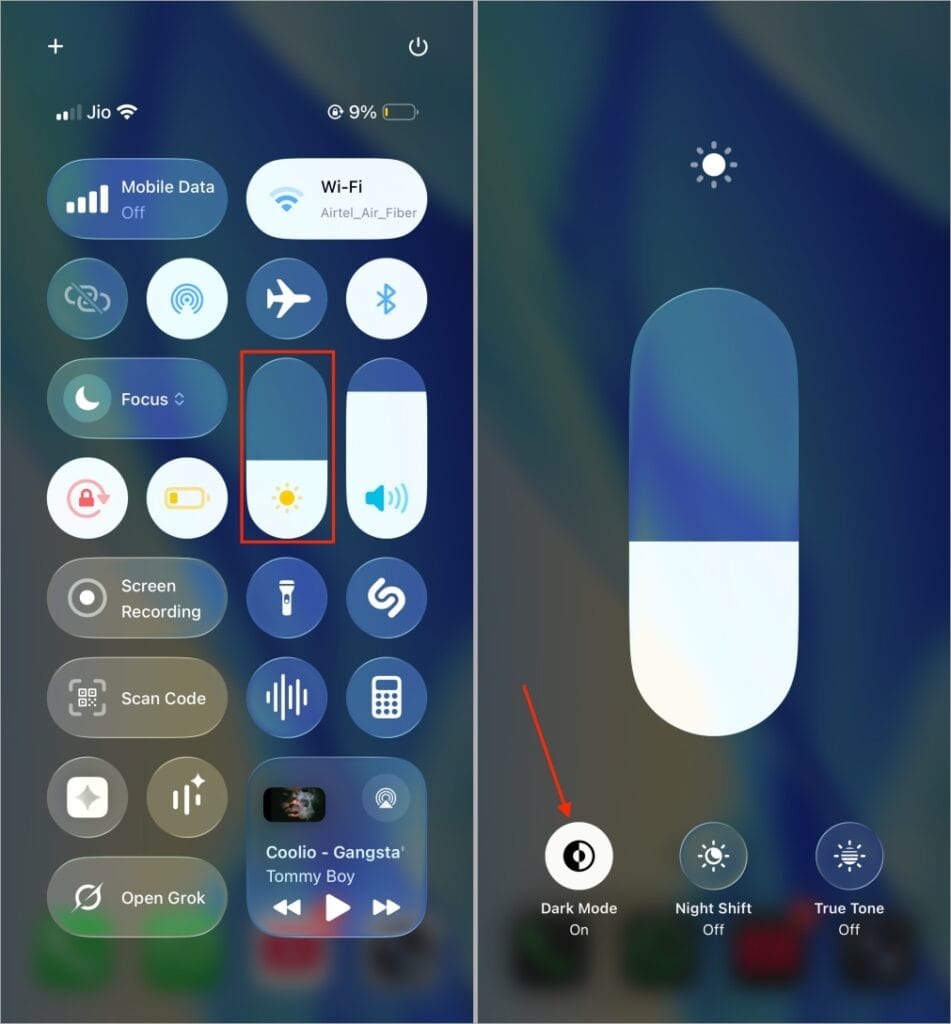
Alternative: Open Control Center, long-press the Brightness slider, and tap Dark Mode. If you’ve added the Dark Mode toggle, just tap it once to switch instantly.
Bonus Tip: Pair Dark Mode with a dark wallpaper to further reduce Liquid Glass effects on the Home Screen, Lock Screen, and App Library.
4. Use a Solid Clock Style on Lock Screen
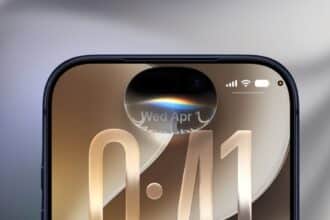
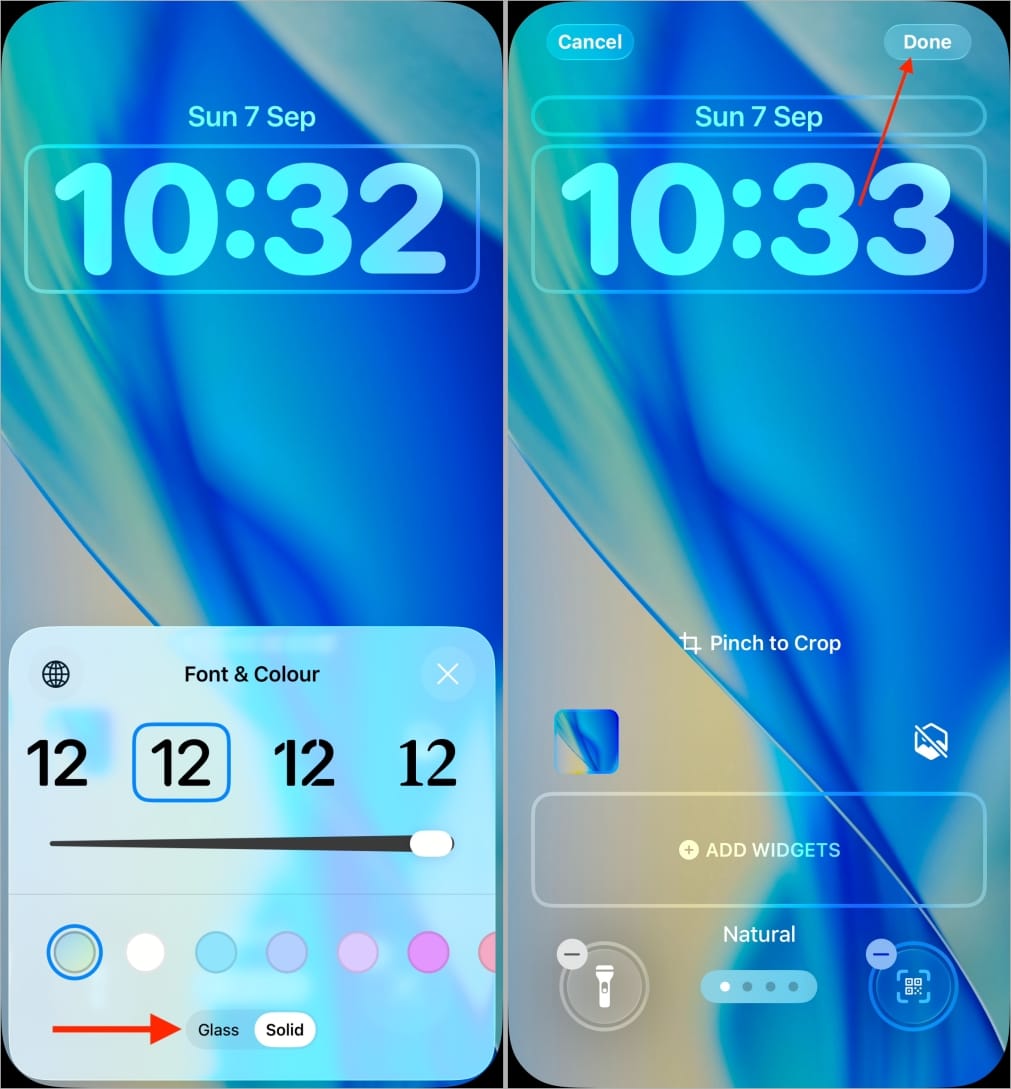
The iPhone Lock Screen gets a major redesign in iOS 26. You can resize the clock, watch it shift around alerts, and add widgets. Apple also introduced the Liquid Glass effect, which blends elements into the wallpaper and can make the clock or notifications harder to read. If you want the solid iOS 18 style back, follow these steps.
- Unlock your iPhone and stay on the Lock Screen.
- Long-press on an empty area of the screen.
- Tap Customize > Clock widget.
- In the Font & Colour menu, choose any font other than the first one.
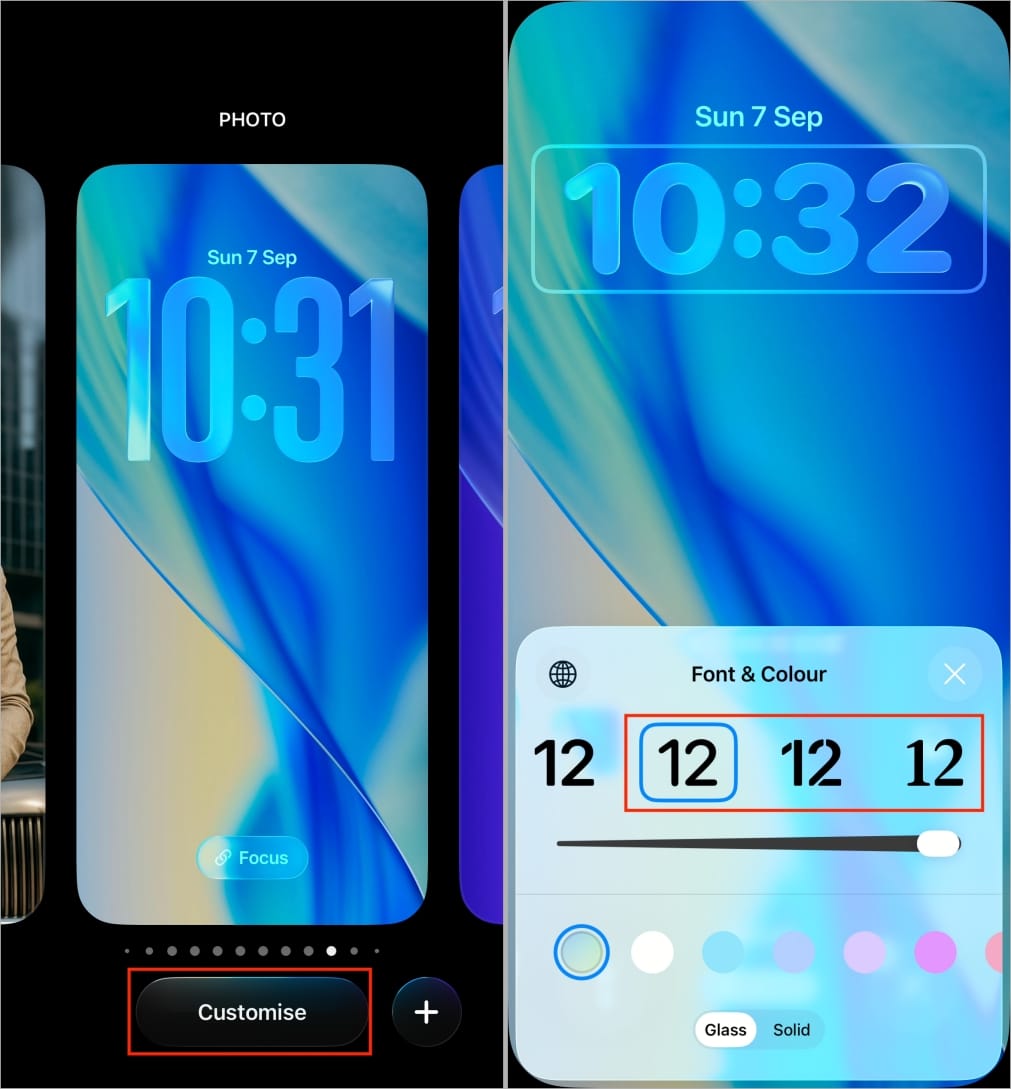
- Switch from Glass to Solid.
- Tap Done to save your changes.
5. Turn On Increase Contrast
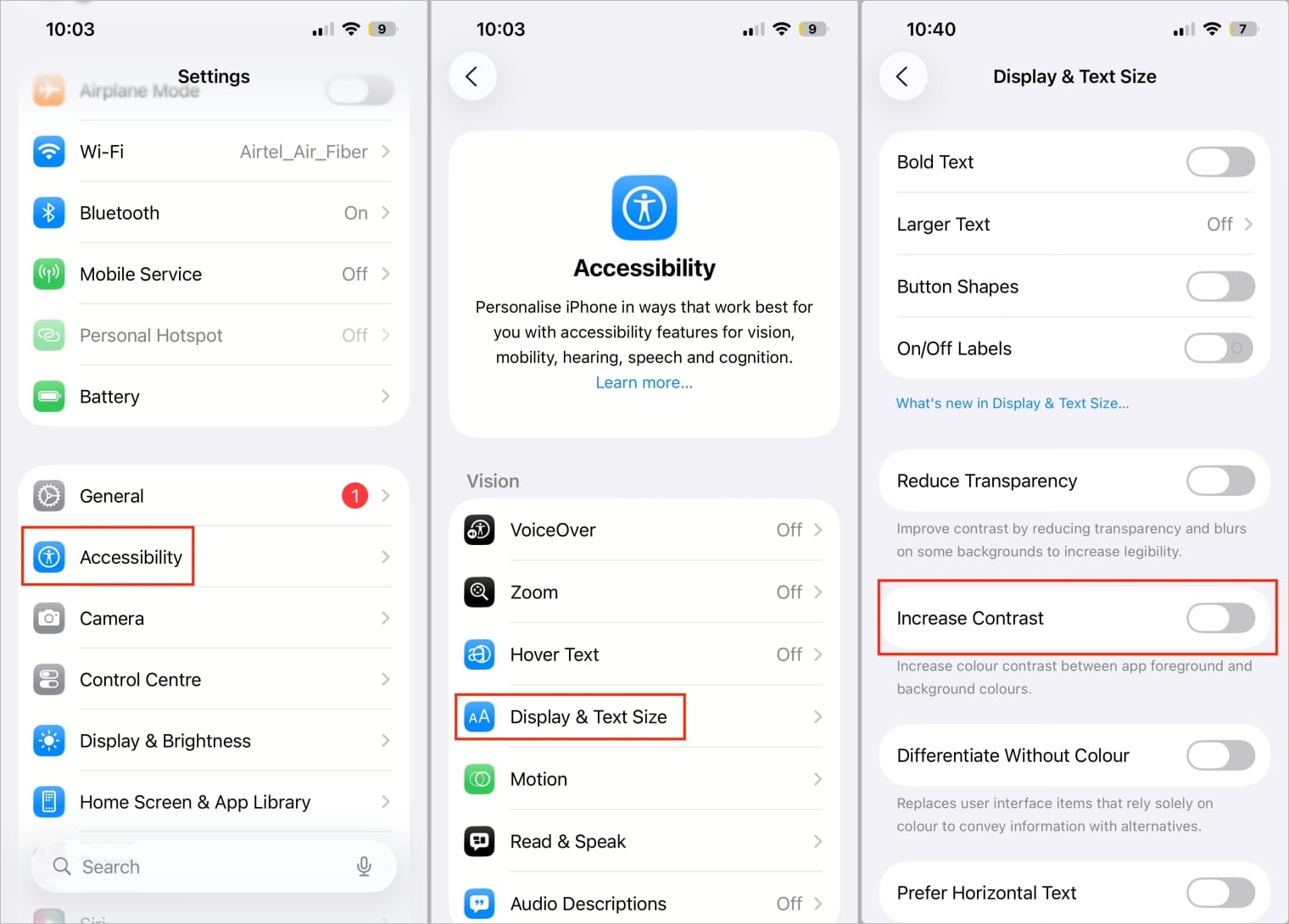
Turn on Increase Contrast in iOS 26. It sharpens colors and backgrounds, which helps tone down the Liquid Glass effect.
- Launch Settings >Accessibility.
- Tap Display & Text Size.
- Scroll down and turn on the Increase Contrast toggle.
Final Thoughts
That’s it. You now know how to turn off the Liquid Glass UI on your iPhone and use a few extra settings to reduce its transparency even further.
Yes. Reducing transparency and animations can help prevent unnecessary GPU usage, slightly improving battery life and charging performance.
No. It applies system-wide. You can only reduce its intensity across iOS.
Turning on Reduce Transparency in Accessibility is the quickest fix.