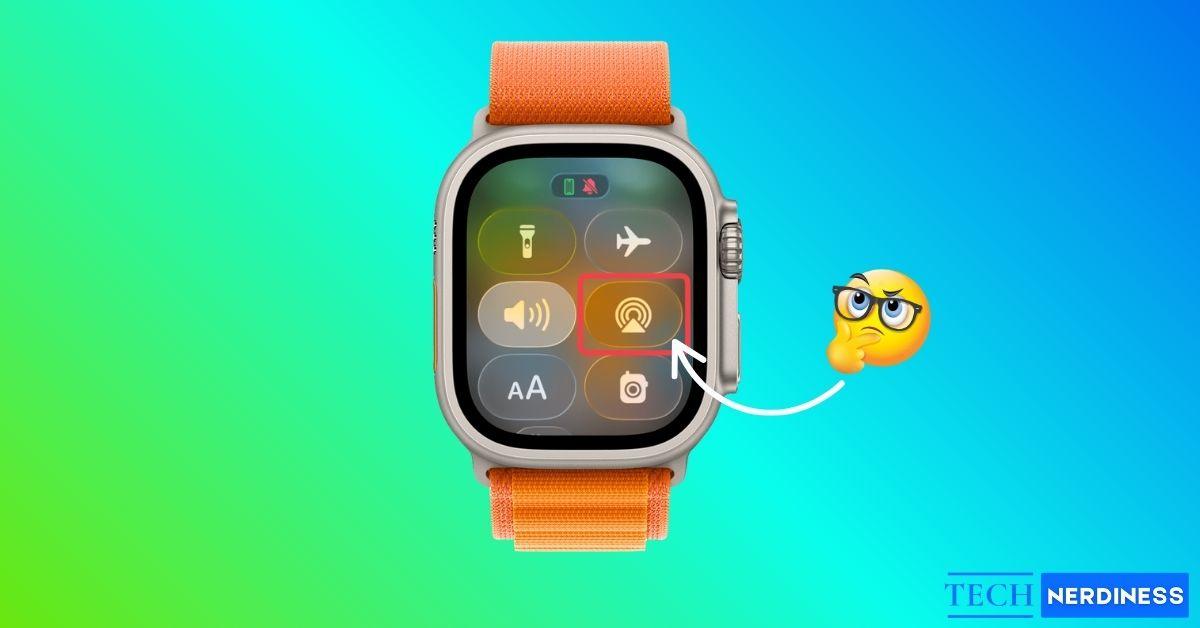
Ever notice a tiny red dot, green lightning bolt, or blue phone icon on your Apple Watch and wonder what they actually mean? You’re not alone.
Your Apple Watch is packed with smart features, but those little icons can get confusing fast. From the status bar and Control Center to apps like Workout or Activity, each icon has a specific meaning. In this guide, I’ll break down every Apple Watch icon in simple, clear language. No tech jargon, just straightforward explanations that make sense. Let’s dive in and decode your Apple Watch icons together.
Apple Watch Status Bar Icons and Meanings
You’ll see these icons at the top of your Apple Watch screen, either on the watch face or when you swipe down for notifications. They quickly show what’s happening, like your connections, alerts, or active modes.
1. Red Dot Icon 🔴 (Unread Notifications)
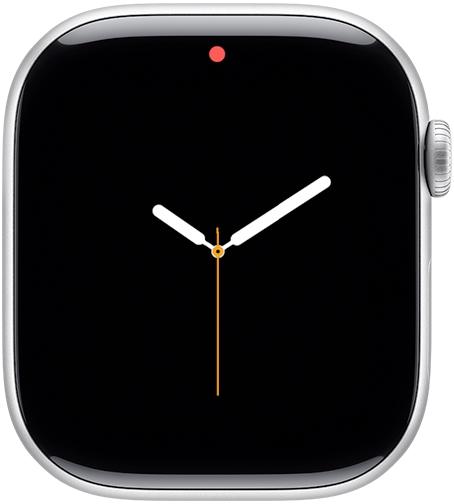
If you spot a small red dot at the top of your screen, it means you’ve got unread notifications. Simply swipe down to check them, and the dot will vanish once you do.
Tip: If you’d rather not see it, open your iPhone’s Watch app, go to Notifications, and turn off Notification Indicator.
2. Green Lightning Bolt Icon (Charging)
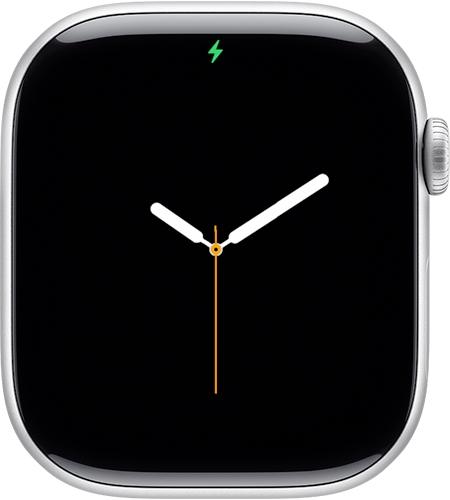
A green lightning bolt means your Apple Watch is charging.
Tip: Not seeing the bolt? Clean the back of your watch and charger, and make sure they’re properly aligned.
3. Red Lightning Bolt Icon (Low Battery)
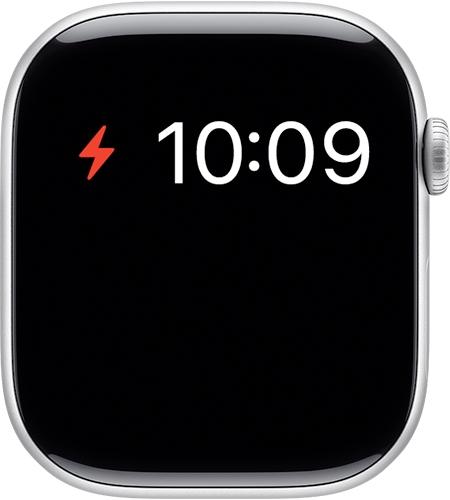
Appears when your Apple Watch battery is critically low and needs to be charged. According to Apple, it can also point to a charging cable that isn’t working properly, so if charging seems slow, try a different cable or charger.
4. Green Phone or Rectangle Icon (Connected)
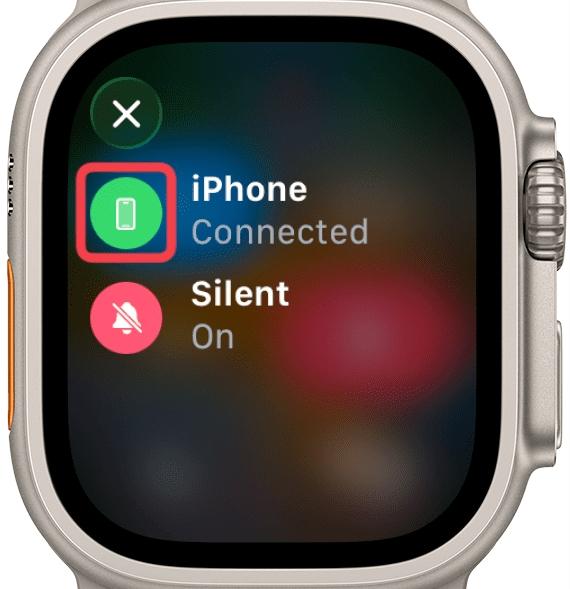
When you see a green phone (or sometimes a small green rectangle), your watch is connected to your iPhone. If it disappears, the devices are disconnected.
5. Red Phone Icon (Disconnected from iPhone)
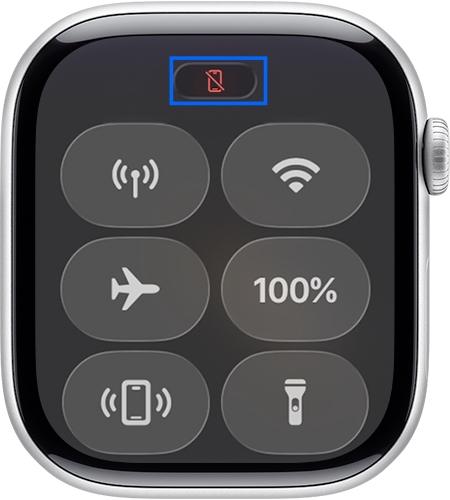
If you spot a red iPhone icon with a slash, your Apple Watch has lost connection with your iPhone. This usually happens when the devices are too far apart, or when Bluetooth or Wi-Fi is turned off.
Quick Fix:
- Bring your iPhone closer.
- Make sure Bluetooth and Wi-Fi are on, and Airplane Mode is off.
- If still disconnected, restart both devices.
6. Purple and White Person Icons (Focus)

A purple person icon means Personal Focus is active. A white person icon means Work Focus is active.
7. Lock Icon 🔒 (Apple Watch Locked)
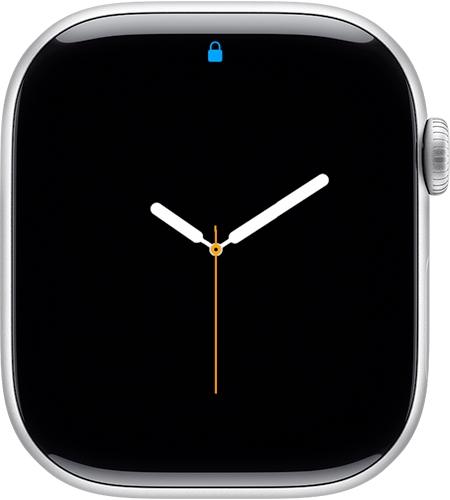
A lock icon means your Apple Watch is locked. Enter your passcode to unlock it. This usually appears after you’ve taken the watch off your wrist, if Wrist Detection is enabled.
8. Running Figure Icon (Workout in Progress)
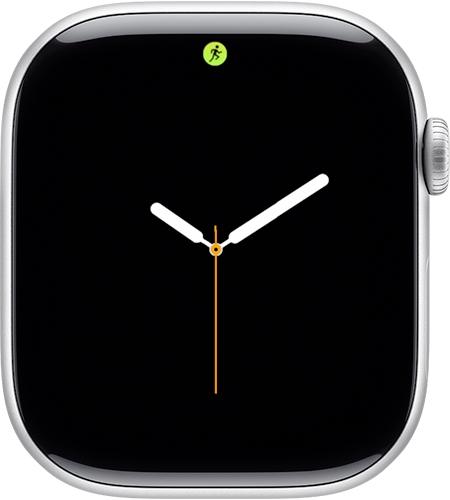
Shows up when a workout is in progress. End it when you’re done, since leaving it running can drain your battery faster.
9. Red Cross Icon (No Cellular Signal)
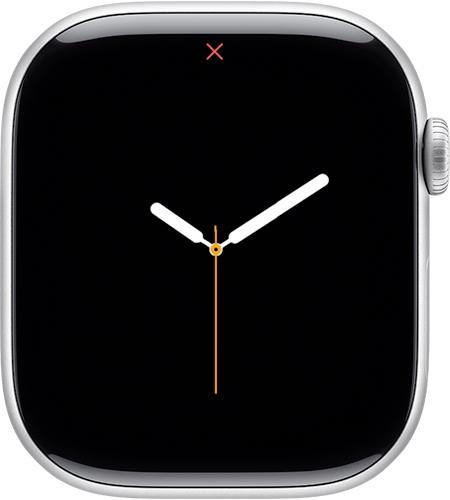
Appears only on cellular models. It means your Apple Watch has lost its cellular connection and cannot access network services. This can happen if you’re out of your carrier’s range, in Airplane Mode, or if there’s a temporary signal issue.
10. Microphone Icon (Mic in Use)
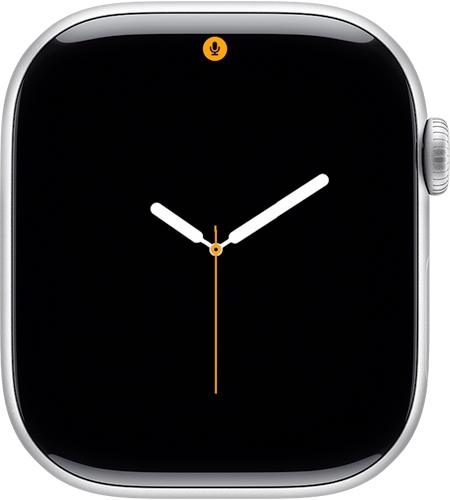
Appears when your Apple Watch microphone is active, for Siri, voice memos, or any app that listens for your voice.
11. Blue Arrow Icon (Location Services)
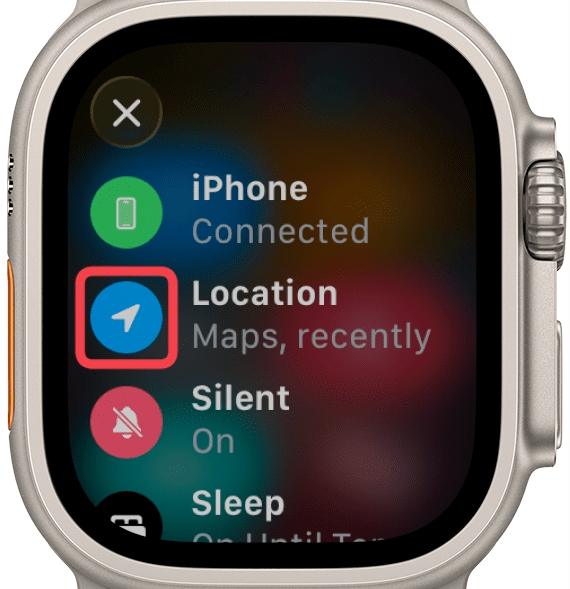
Indicates your Apple Watch is currently using GPS for location tracking.
12. Arrow Pointing Right Icon (Third-Party Navigation)
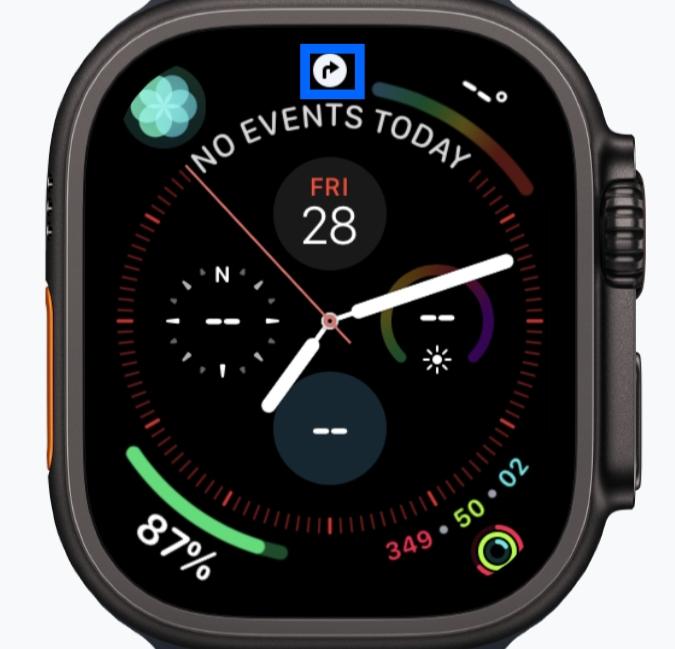
Appears when you’re navigating using a third-party app such as Google Maps or Waze instead of Apple Maps.
13. Compass Red Arrow Icon (Backtrack)
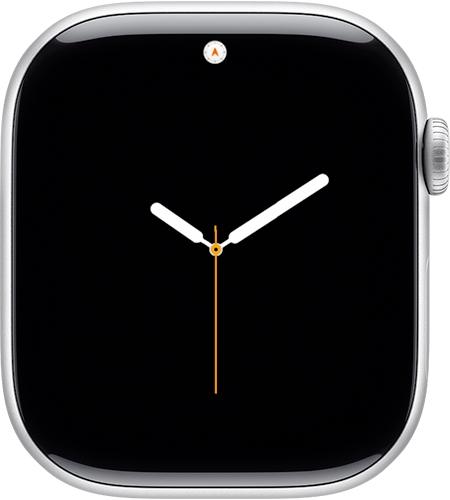
Appears when Backtrack is active, showing your route via the Compass app. The red arrow points in the direction of your previous path, helping you find your way back even without an internet connection.
14. Dots in a Circle Icon (Wireless Activity)
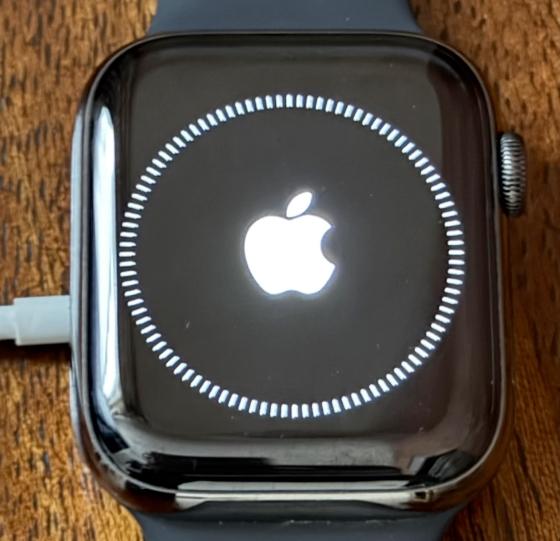
Shows wireless activity happening on your watch, like background syncing, data transfers, or app updates.
15. Apple Sports Icon (Live Activity)
Represents a live sports activity from the Apple Sports app. Tap it to open the Live Activity.
16. Now Playing Icon (Audio Playing)
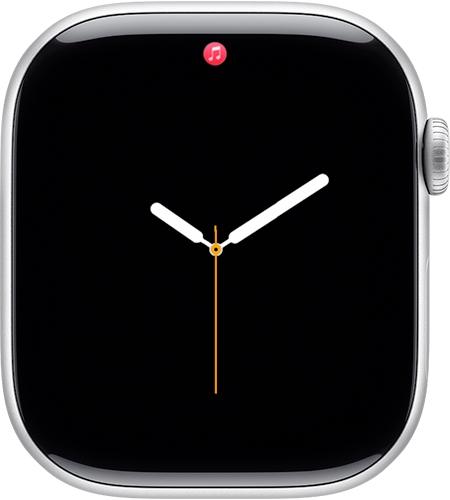
Appears when music or audio is playing on your iPhone or Apple Watch. Tap it to control playback.
17. Red Lightning Bolt in Ring (Charging from Low Battery)
Means charging is in progress but the battery is still low. You’ll often see this if your watch dropped into Power Reserve before you put it on the charger.
18. Charging Cable Icon (Fully Drained)
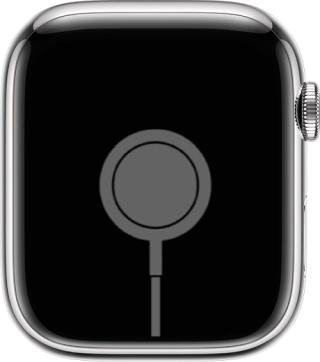
Appears when the Apple Watch battery is completely drained or being charged for the first time.
19. Pinching Finger Icon (Double Tap)
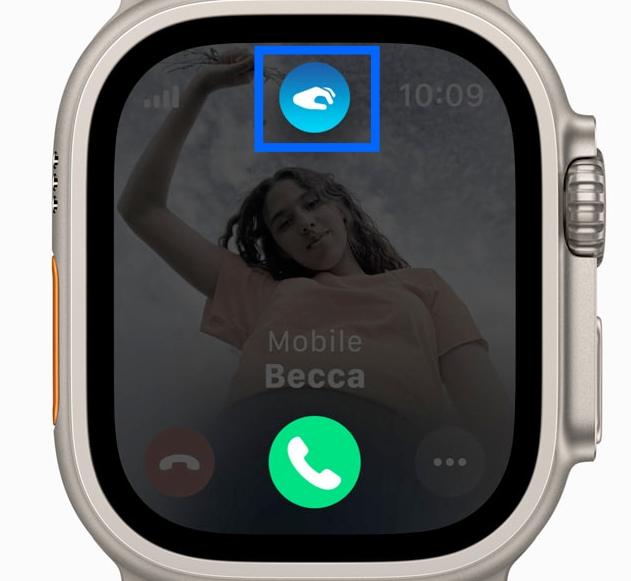
Appears when the double-tap gesture is used in an unsupported situation. It indicates the gesture was detected but isn’t available for that screen.
Apple Watch Control Center Icons and Meanings
Press the side button to open Control Center. On older watchOS versions, swipe up from the bottom of the watch face instead. You’ll see a panel full of handy shortcuts, each with its own icon. Some status bar icons repeat here, letting you control the actions directly.
1. Airplane Mode ✈️
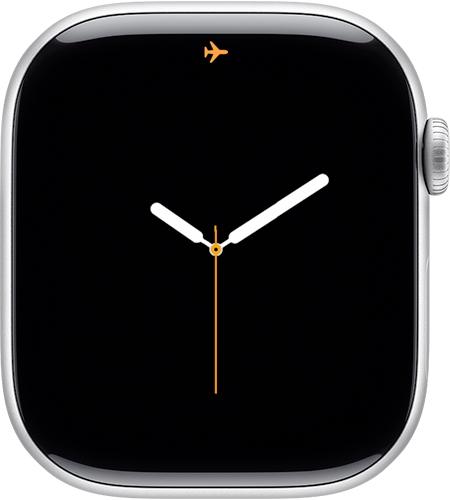
Disables all wireless connections, which is perfect for flights or saving battery life.
2. Cellular Signal Bars 📶
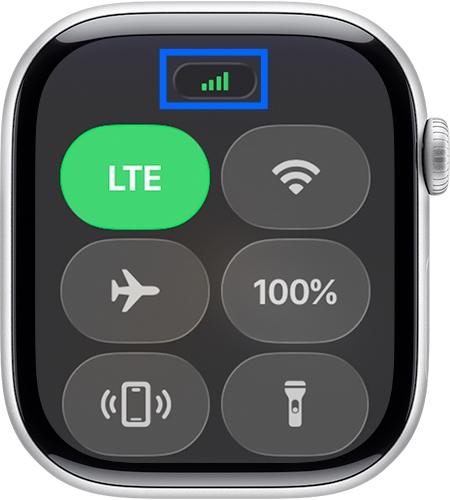
Shows how strong your cellular signal is. A green icon means your Apple Watch is connected to a network (available on cellular models only).
3. Wi-Fi Symbol ( Apple Watch is connected to Wi-Fi )
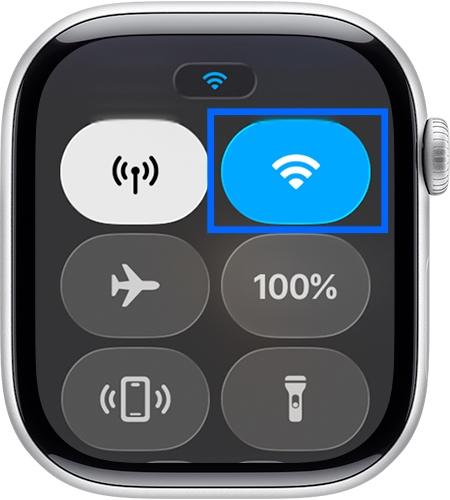
Turns Wi-Fi on or off on your Apple Watch. Tap to quickly connect or disconnect from a network.
4. Ping iPhone (Phone with Sound Waves)
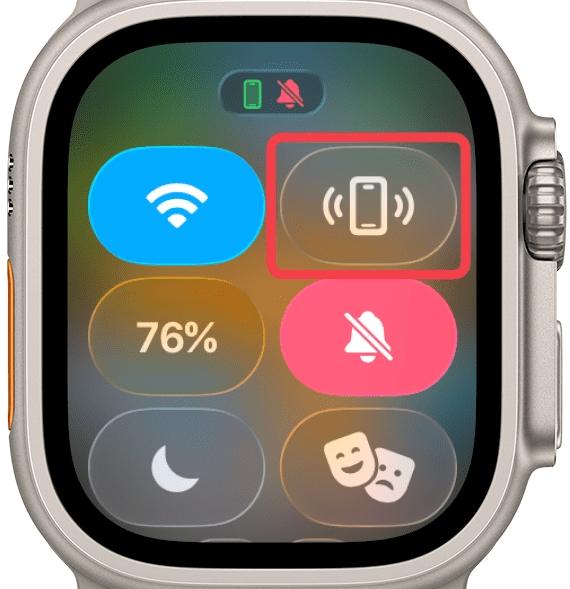
Lost your iPhone? Tap this icon to make it ring even if it’s on silent. Press and hold to flash the iPhone’s flashlight too, which is perfect for finding it in the dark.
5. Theater Mode 🎭 ( Theater Mode is enabled )
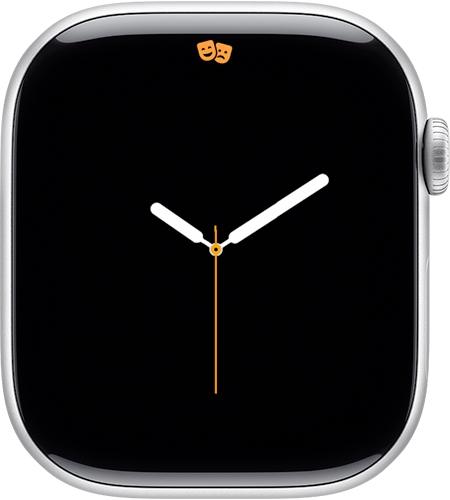
Keeps your watch screen dark and quiet, which is ideal for movies, meetings, or bedtime.
6. Sleep Mode (Bed Icon)
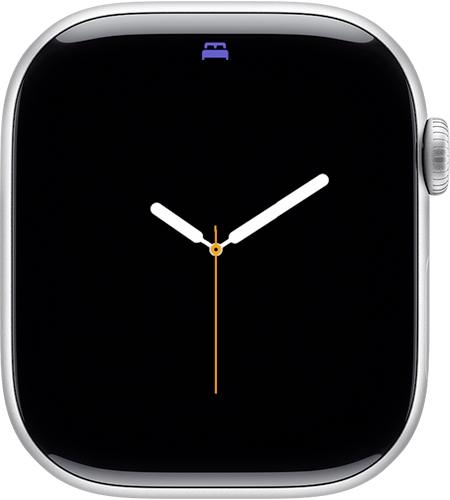
Gently dims your screen, silences distractions, and helps you stay focused on rest. To exit, press and hold the Digital Crown.
7. Crescent Moon Icon
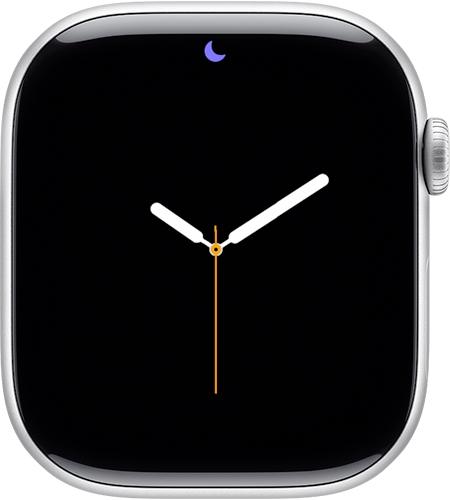
The crescent moon means Do Not Disturb or a Focus mode (like Sleep, Fitness, or Personal) is on. Calls and alerts are silenced, but alarms will still ring.
8. Silent Mode (Bell Icon)
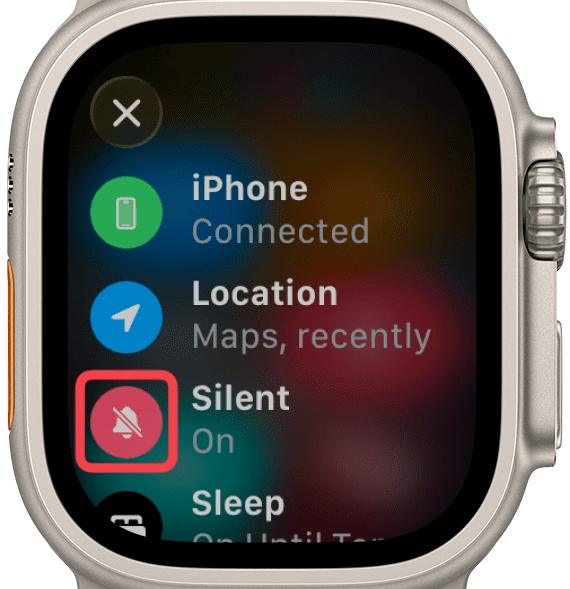
Mutes all sounds but still vibrates for alerts. If you spot a crossed-out bell, your Apple Watch is fully silent.
9. Water Drop 💧 (Water Lock)
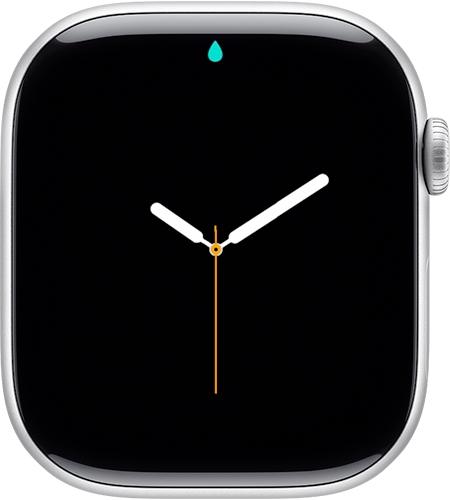
Keeps your Apple Watch safe from accidental taps while swimming or showering. Turn the Digital Crown afterward to unlock and clear out any water from the speaker.
10. Flashlight Icon
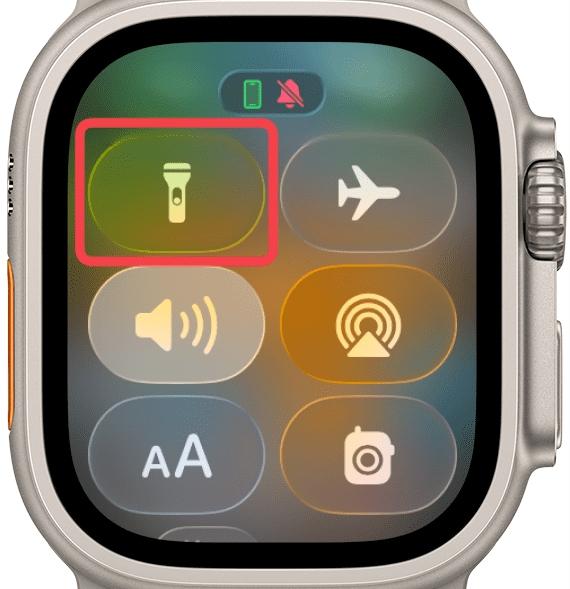
Lights up your screen like a flashlight. Swipe to switch between white, flashing, or red modes.
11. Battery Percentage Icon
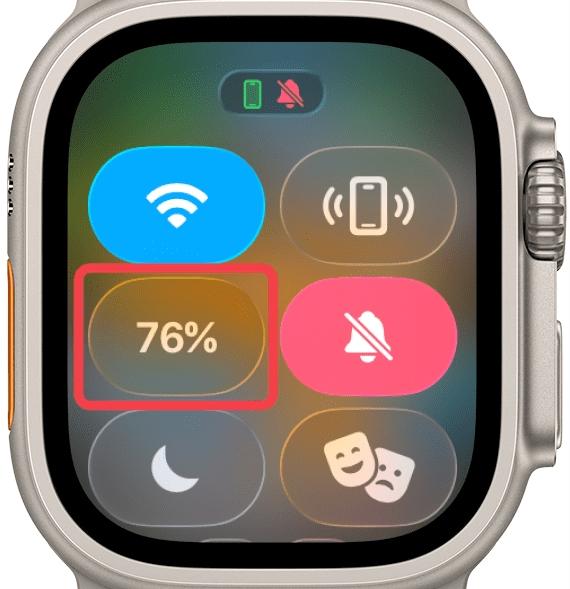
Displays your current battery level. Tap it to turn on Power Reserve when running low.
12. Walkie-Talkie Icon
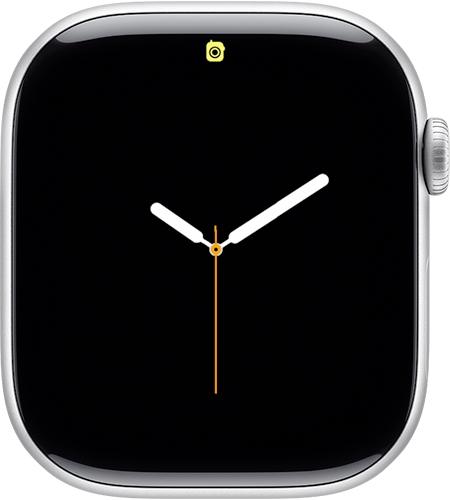
Opens the Walkie-Talkie app so you can instantly talk with your friends right from your Apple Watch.
13. Audio Output (Triangle with Circles)
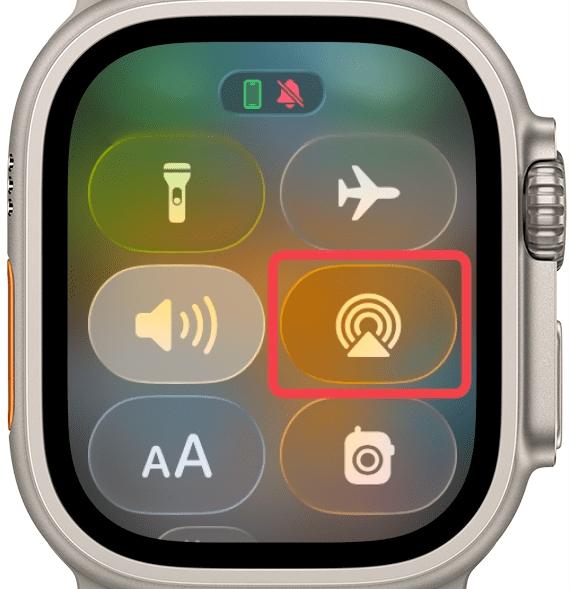
Choose where you want the sound to play, like AirPods, Bluetooth headphones, or speakers.
14. Yellow Circle Icon
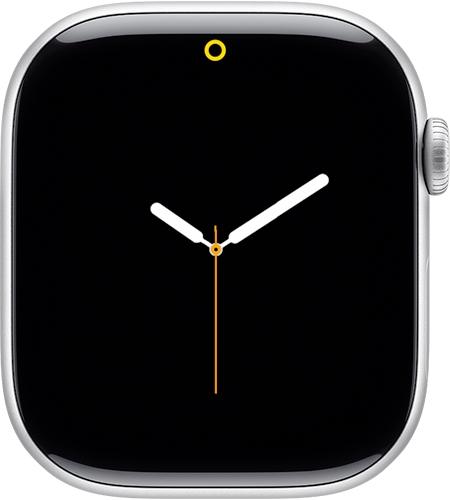
Shows Low Power Mode is on and your watch is conserving battery.
15. aA Icon
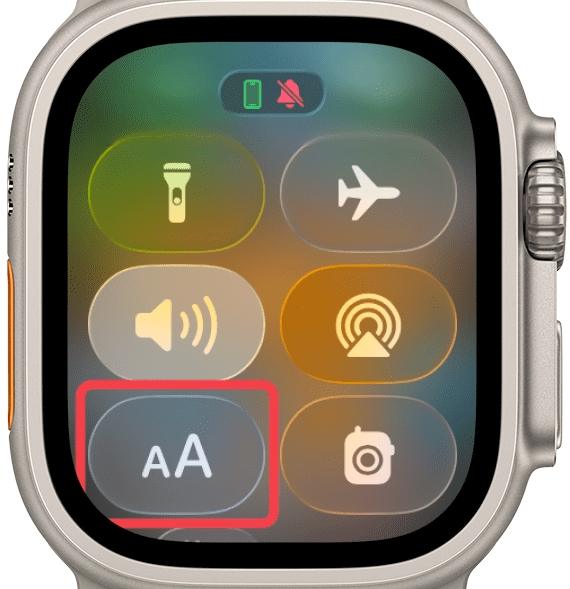
Lets you adjust the text size in supported apps for better readability.
16. Person Raising Hand Icon
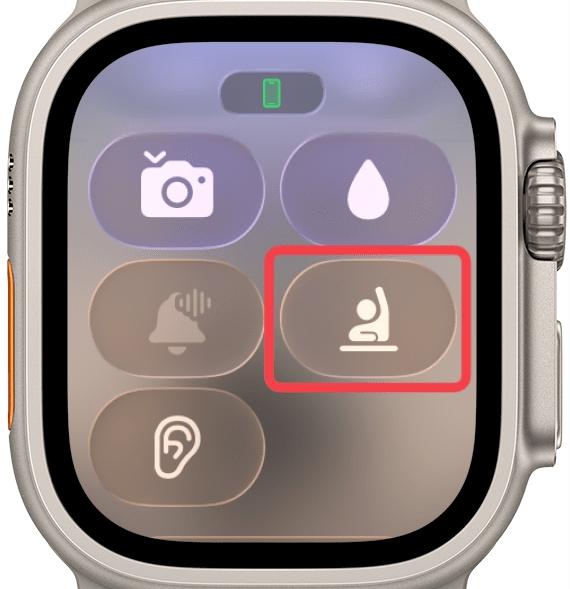
Activates Schooltime mode, which enables Do Not Disturb and blocks all apps and notifications except emergency services.
17. Hearing Icon (Ear Symbol)
Appears when noise levels around you exceed safe limits. It helps protect your hearing by alerting you about loud surroundings.
Focus Mode Icons and Meanings
Focus Mode icons appear whenever you activate a specific Focus setting such as Personal, Sleep, or Work. These icons help you quickly recognize which focus type is active so you know how notifications and alerts are being filtered. Each mode has a different symbol and color, making it easy to tell them apart at a glance.
1. Blue Smiley or Star Icon (Personal Focus)
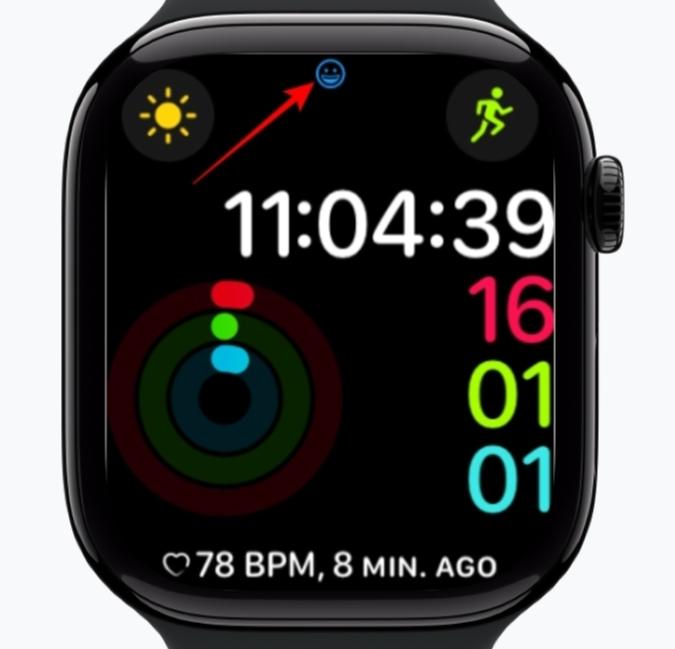
Appears when a Personal or custom Focus mode is active.
2. Rocket Icon (Gaming Focus)
Indicates Gaming Focus is active, which silences most alerts while you play.
3. Car Icon (Driving Focus)

Appears when Driving Focus is active.
Apple Watch Face Icons and Meanings (Complications)
Your Apple Watch face can show small icons called complications. These are quick shortcuts that display live info or open apps directly from your watch face. Each face supports different complications, and you can fully customize what you see, like weather, battery, calendar, or heart rate.
Here’s what the common ones mean.
1. Weather Icon (Cloud or Sun)
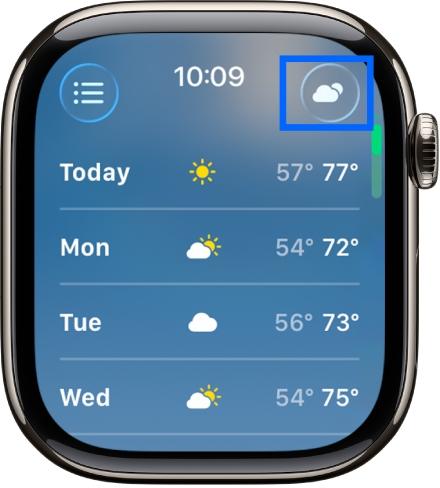
Shows current weather conditions. Tap to open detailed weather info.
2. Activity Rings Icon
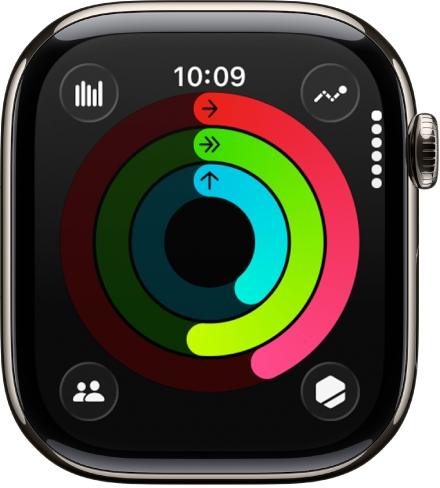
Displays your daily activity progress. Tap to view the Fitness app.
3. Calendar, Battery, and Heart Rate Icons
Show live data for calendar events, remaining charge, and heart rate readings.
To customize or understand your complications:
- In the Watch app on iPhone, tap the Face Gallery or your current face.
- Select your face and check the Complications section for icon meanings.
4. Heart with Arrow Icon
May appear if the watch can’t detect a heartbeat. Try tightening your strap and cleaning the sensors on the back.
5. Announce with Siri
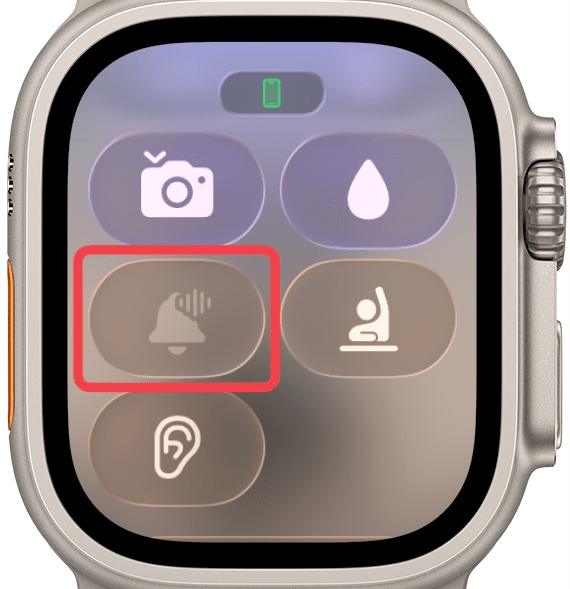
Appears when your Apple Watch announces calls and notifications through AirPods or connected devices.
Icons only appear when a feature is active or needs your attention. Once the feature turns off, or you handle the alert, the icon goes away on its own.
New watchOS versions introduce new features and refreshed icon designs, so the look and placement can shift slightly after a major update.
You can disable certain features, like Focus modes or the notification indicator dot, but core system icons (charging, connection, lock) can’t be removed.
This usually means Bluetooth is off, your iPhone is too far away, or Airplane Mode is enabled on one of the devices. Bringing them closer and toggling Bluetooth back on normally fixes it.
Final Thoughts
Apple Watch icons are designed to keep you informed at a glance. Once you understand what each symbol means, it becomes much easier to troubleshoot issues, manage notifications, and get the most out of your watch.
Bookmark this guide so you can quickly check any unfamiliar Apple Watch icon in the future.