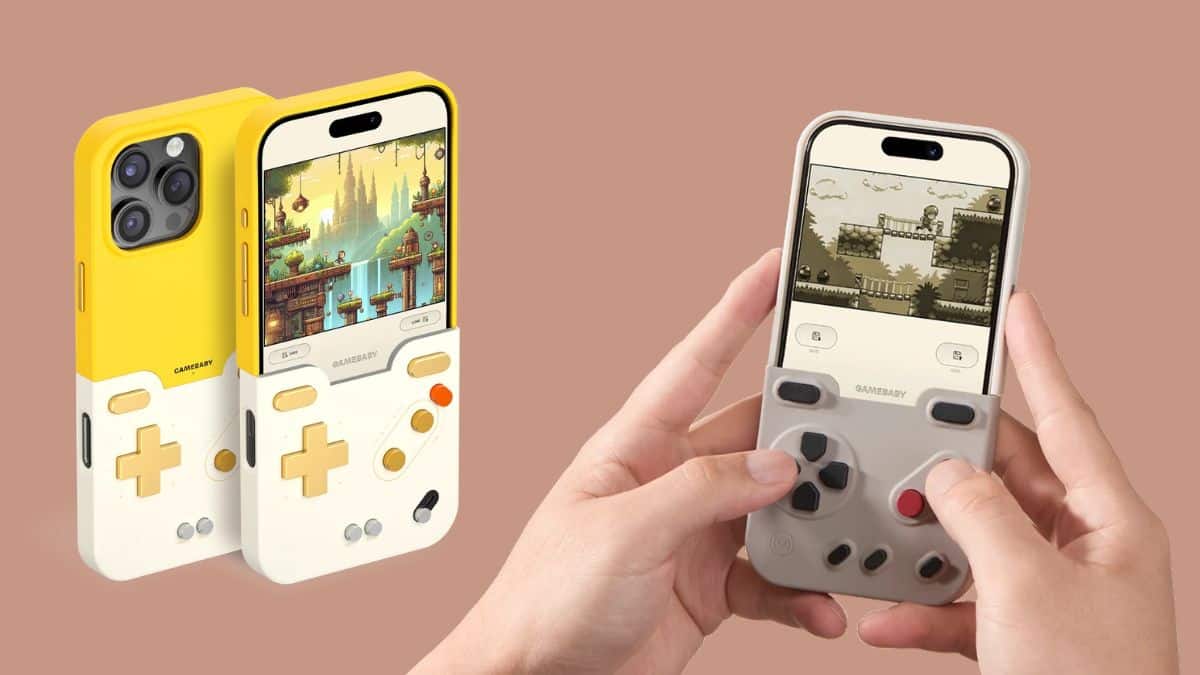
The GAMEBABY iPhone case exists to fix the one thing that ruins retro gaming on a phone: touchscreen controls. If you have ever tried to replay a Game Boy or NES classic on your iPhone, you know the problem. Your thumb drifts off the D-pad mid-jump, you hit the A button by mistake during a boss fight, and half the screen ends up covered by your own hands. It is one of the biggest reasons mobile emulation never quite feels like the real thing, no matter how good the emulator itself is.
That is the gap BitmoLab’s GAMEBABY tries to close. Rather than pretending I personally tested a review unit, this review pulls together the official specifications and hands-on feedback from reviewers who have actually used the case. Here’s how GAMEBABY works, what reviewers liked and disliked, how it compares with alternatives like Backbone, and whether it is worth putting on your iPhone.
What Is the GAMEBABY iPhone Case?
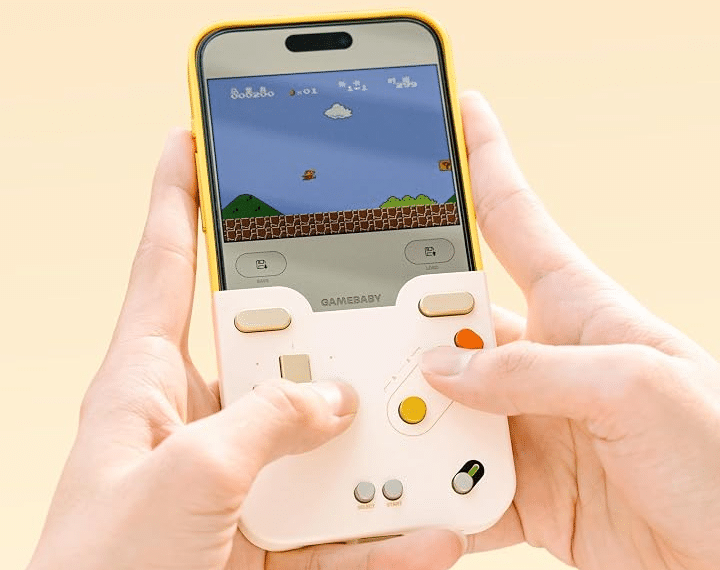
GAMEBABY is a two-piece iPhone case whose bottom half doubles as a physical game controller. That lower section carries a real button pad with a D-pad, A and B face buttons, and shoulder triggers.
There is no battery, Bluetooth pairing, or charging involved. The buttons use silicone with metal contact points underneath, and those contacts effectively act like capacitive styluses. When you press a physical button, the contact underneath registers as a touch on the iPhone screen.
The case is designed to work with Delta, the App Store-approved multi-system emulator developed by Riley Testut, who is also behind GBA4iOS and AltStore. You supply your own legally obtained game files, while GAMEBABY and Delta handle the physical control setup.
That combination is what makes GAMEBABY interesting. It gives you physical controls without adding another electronic accessory that needs to be paired, charged, and carried separately.
How Does GAMEBABY Work?
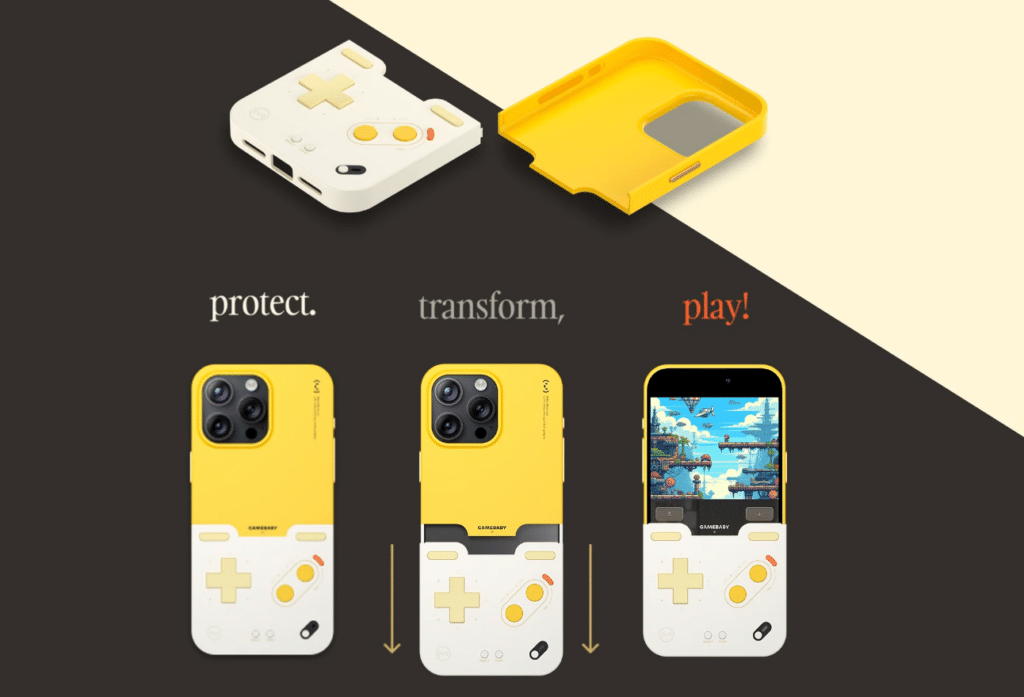
The mechanism sounds unusual at first, but the actual setup is surprisingly simple:
- Snap the GAMEBABY case onto a compatible iPhone like a regular protective case.
- Download the Delta emulator from the App Store.
- Install GAMEBABY’s downloadable Delta skin, which positions the emulator’s on-screen controls directly underneath the case’s physical buttons.
- Add your own supported game files to Delta’s library.
- When you want to play, remove the bottom section of GAMEBABY, flip it around, and attach it to the front of your iPhone.
- The physical buttons now sit over Delta’s corresponding touchscreen controls.
- Launch a game and use the D-pad and physical buttons. The metal contacts underneath translate each press into the touch input Delta expects.
- When you are finished, remove the controller section, flip it back around, and GAMEBABY returns to being a regular iPhone case.
There is a one-time alignment process during setup to make sure the physical buttons line up properly with Delta’s on-screen controls. BitmoLab provides setup instructions through a QR code included with the case.
Once that is done, there is essentially nothing else to configure each time you want to play.
GAMEBABY Compatibility: Which iPhones and Games Work?
Because GAMEBABY relies on precise physical alignment between its buttons and the iPhone display, compatibility is much narrower than you would get with a Bluetooth controller.
GAMEBABY currently supports:
- iPhone 15 Pro Max
- iPhone 16 Pro Max
- iPhone 17
- iPhone 17 Pro
- iPhone 17 Pro Max
If you have an older iPhone or another model that does not match the case dimensions, GAMEBABY is not an option.
Game compatibility is similarly focused. Through Delta, GAMEBABY is designed for games from systems including:
- Nintendo Entertainment System (NES)
- Game Boy
- Game Boy Color
- Game Boy Advance
It is not a good fit for systems such as SNES, Nintendo 64, or Nintendo DS because those consoles require additional controls that the GAMEBABY button layout cannot fully replicate.
That makes this very specifically a retro handheld accessory rather than an all-purpose iPhone gaming controller.
GAMEBABY Features That Stand Out
Physical Buttons Instead of Touchscreen Controls
This is the entire reason GAMEBABY exists. Rather than trying to keep your thumb aligned with a virtual D-pad on a piece of glass, you get physical directional and action buttons with actual travel and resistance.
Reviewers who have tried different versions of GAMEBABY have also reported improvements to the newer button design, including stiffer rubber, thicker construction, and fewer accidental inputs during faster gameplay.
It still does not feel exactly like an original Game Boy, but physical buttons are a major improvement over trying to play precision-heavy retro games using touchscreen controls.
Game Boy-Inspired Design
GAMEBABY makes no attempt to hide where its inspiration comes from. Its overall design borrows heavily from Nintendo’s classic handheld aesthetic, particularly the original Game Boy.
BitmoLab offers multiple designs, including GameBaby Color, GameBaby Retro, and GameBaby Transparent. That gives you the choice between something closer to the original gray handheld aesthetic and more colorful or transparent alternatives.
It is clearly an accessory aimed at people who want the nostalgia as much as the functionality.
No Battery, Bluetooth, or Charging
One of GAMEBABY’s smartest design decisions is what it leaves out. There is no Bluetooth radio and no internal battery because the controller does not electronically communicate with the iPhone. The physical buttons simply interact with Delta’s touchscreen interface through capacitive contacts.
That means there is nothing to pair before playing and no controller battery that can die halfway through a game. Flip the controller into place, open Delta, and start playing.
It Doubles as Your Everyday iPhone Case
Most mobile controllers become another accessory you need to remember to carry. GAMEBABY takes a different approach because the controller itself is part of the case already attached to your phone.
When you are not gaming, the controller section flips around and becomes part of the regular case. When you want to play, you reverse it. That makes GAMEBABY considerably easier to carry than a traditional clip-on controller, especially if you only play retro games occasionally.
Built Specifically for Delta
GAMEBABY’s close integration with Delta is both a strength and a limitation. Delta is one of the best-known retro emulators available officially through Apple’s App Store, so there is no need to sideload an emulator or jump through complicated installation hoops just to get started.
The downside is that GAMEBABY is effectively designed around that specific layout and experience. It does not offer the flexibility of a traditional Bluetooth or USB-C controller that can work across many games and apps.
GAMEBABY Price vs. Backbone One
Price is one of GAMEBABY’s strongest arguments. BitmoLab lists the standard GAMEBABY variants at around $24.99, down from a $34.99 list price, while certain limited-edition versions have been offered at higher prices.
That is considerably cheaper than something like the Backbone One, which generally sits much higher in the mobile-controller market. But comparing the two purely on price misses the point because they are built for different types of players.
Backbone is a full mobile gaming controller with more buttons and much broader support for App Store games, cloud gaming, remote play, and emulators. GAMEBABY is a simpler accessory focused primarily on recreating the experience of playing older Nintendo games through Delta.
If you want to play modern mobile games, stream console titles, and use several gaming services, Backbone makes more sense. If all you want is a better way to play Game Boy-era games without spending much money or carrying a separate controller, GAMEBABY has a much clearer advantage.
Who Should Buy GAMEBABY?
GAMEBABY makes the most sense for a fairly specific type of iPhone owner.
- Retro gaming fans are the obvious audience. If you grew up playing Game Boy, Game Boy Color, or Game Boy Advance titles and hate touchscreen controls, the physical button layout gets much closer to the experience you probably remember.
- Casual retro players should also appreciate it. You do not need to carry or charge another controller, making GAMEBABY particularly convenient for short gaming sessions at home or while traveling.
- Budget-conscious buyers get a lot of the appeal here too. At around $25, GAMEBABY costs far less than many dedicated iPhone gaming controllers.
And, of course, you need to own a compatible iPhone. The narrow device support is one of the biggest limitations of the entire product.
If you primarily play SNES, Nintendo 64, DS, modern iOS games, or cloud gaming titles, GAMEBABY probably is not the controller you want. The same applies if rugged drop protection is your priority, since this is more of a gaming accessory that happens to function as a case than a heavy-duty protective case.
What Reviewers Say About GAMEBABY
Looking across hands-on feedback from multiple independent reviewers, a few patterns consistently stand out.
The Newer Buttons Feel Better
Reviewers who have experience with more than one version of GAMEBABY generally point to the button design as one of the biggest improvements.
The newer buttons have firmer travel and appear to suffer from fewer accidental inputs than earlier designs. That matters because button feel is essentially the entire product. If the D-pad and face buttons are not enjoyable to use, there is little reason to choose GAMEBABY over touchscreen controls.
The D-Pad Can Miss Some Inputs
The D-pad is not flawless. Multiple reviewers have noted that directional inputs can occasionally fail when sliding a thumb directly from one direction to another instead of lifting and pressing again.
That may not matter much in slower games, but it can become noticeable in titles where quick directional changes are important. It is one of the compromises of GAMEBABY’s capacitive approach compared with a traditional electronically connected controller.
Capacitive Controls Can Be Inconsistent
Because GAMEBABY is essentially simulating finger touches, its reliability can also depend on how well those capacitive contacts register with the screen. Some reviewers have reported occasional missed inputs, particularly under conditions where capacitive touchscreen responsiveness itself can become less reliable.
Again, this is fundamentally different from a Backbone-style controller, where a button press is sent electronically to the phone.
The Connecting Clasps Need Care
The most notable durability concern is not the buttons. It is the small plastic clasps or tabs connecting the two sections of the case. Reviewers and buyer feedback have raised concerns about these thinner connecting pieces potentially breaking if the case is repeatedly twisted or pulled apart roughly.
That matters more with GAMEBABY than it would with a normal phone case because flipping the controller section is part of everyday use. If you buy one, it is worth removing and reattaching the lower section carefully rather than forcing it apart.
Is GAMEBABY MagSafe Compatible?
No, GAMEBABY is not designed as a MagSafe-compatible case. The case depends on very specific positioning for its reversible controller mechanism, which means you give up the usual magnetic accessory experience while using it.
If MagSafe chargers, wallets, stands, or car mounts are central to how you use your iPhone every day, that is a meaningful compromise.
Standard wireless charging may still be possible depending on the model and setup, but GAMEBABY should not be purchased with the expectation that it will behave like a normal MagSafe case.
GAMEBABY Review: The Verdict
GAMEBABY is not trying to compete with full-featured mobile controllers like Backbone on raw capability. At around $25, it does not need to.
It solves a much narrower problem: touchscreen controls make classic Game Boy-era games less enjoyable, and carrying a separate controller just to fix that feels excessive.
For that job, GAMEBABY is genuinely clever. The physical buttons are a meaningful improvement over tapping glass, the battery-free design eliminates charging and pairing entirely, and turning the controller back into part of your everyday case means there is no extra accessory sitting at home when you actually want it.
The limitations are equally clear. Device compatibility is narrow, supported game systems are limited, the capacitive controls can occasionally miss inputs, and the connecting clasps deserve careful handling. You also give up MagSafe compatibility.
If you own a supported iPhone and mainly want to play NES, Game Boy, Game Boy Color, or Game Boy Advance titles through Delta, GAMEBABY offers a surprisingly practical way to make retro gaming feel more physical again without spending much money. It is a niche accessory, but for the right person, that niche makes a lot of sense.
Signing Off
For an accessory around the $25 mark, GAMEBABY does something genuinely clever: it turns the iPhone already in your pocket into a more convincing retro handheld without asking you to charge, pair, or carry another controller. It is not perfect, and the clasp durability and occasional input issues are fair concerns, but as an affordable route back to Game Boy-era gaming, it is one of the more inventive iPhone accessories around.
Would you swap your everyday iPhone case for one that turns your phone into a Game Boy? Let us know in the comments below.