If you’ve ever needed to fix a typo in a scanned contract, merge a stack of PDFs before a deadline, or just fill out a form without paying for an Adobe Acrobat subscription, you’ve probably hit the same wall. PDF editors are either bloated, expensive, or missing the one tool you actually needed. I recently spent time digging deep into Tenorshare’s PDNob PDF Editor, going through its feature set line by line, checking its claims against Tenorshare’s own documentation and pricing pages, and cross-referencing verified user reviews on G2 and Capterra. The goal: figure out whether it’s a legitimate Acrobat alternative or just another budget PDF tool overpromising on its landing page.
In this review, I’ll break down what PDNob actually does well, how its OCR and AI tools hold up, what it costs, and whether it’s worth choosing over Adobe Acrobat or another budget PDF editor for your specific needs.
Tenorshare PDNob PDF Editor at a Glance
| Pros | Cons |
|---|---|
| ✅ Strong OCR with smart image preprocessing for scanned and skewed documents | ❌ Lags on large or image-heavy PDFs (200MB+) |
| ✅ Genuinely useful AI chat and summarization with source-tracked citations | ❌ No Android app, and no mature mobile option in general |
| ✅ Lifetime license option undercuts subscription-based competitors | ❌ Restrictive free trial makes full evaluation difficult |
| ✅ Permanent redaction, Bates numbering, and 256-bit AES encryption | ❌ Complex table conversions need manual cleanup |
| ✅ Clean, beginner-friendly interface with a short learning curve |
What Is PDNob PDF Editor?
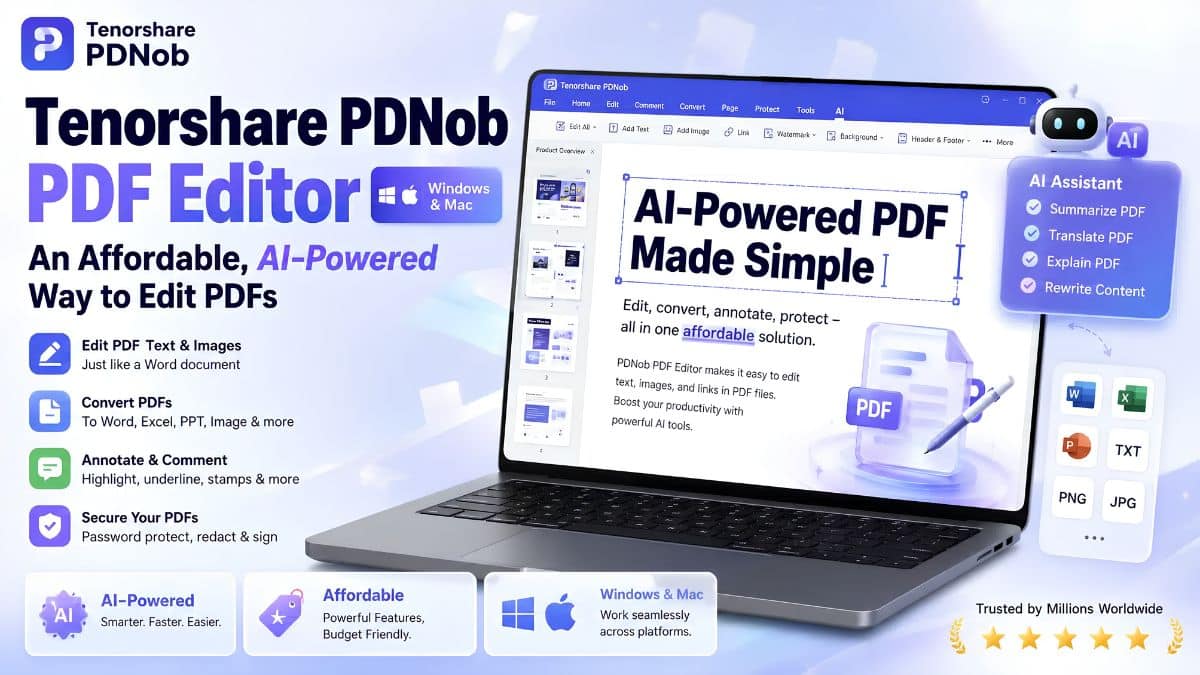
PDNob is a PDF editing suite from Tenorshare, a software company that’s been making Windows and Mac utilities since 2007. It’s available as a desktop app for Windows and Mac, plus a free browser-based editor for basic tasks. The pitch is straightforward: give people most of what Adobe Acrobat does (editing, annotating, converting, OCR, and now AI document tools) at a fraction of the price, without a mandatory monthly subscription.
It’s built for two modes of use: quick one-off edits (fixing text, filling a form, merging files) and heavier document workflows (OCR-ing scanned contracts, batch converting files, redacting sensitive pages). Both run from the same interface rather than separate tools, which is the main convenience argument for picking it over stitching together free web tools.
OCR and Editing Speed: Surprisingly Sharp for the Price
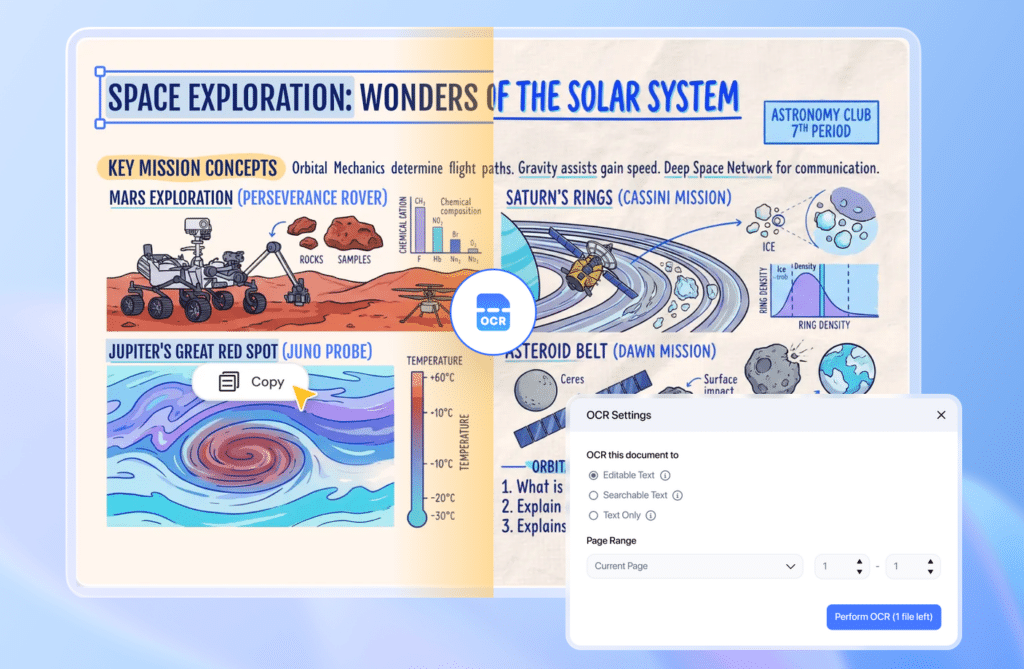
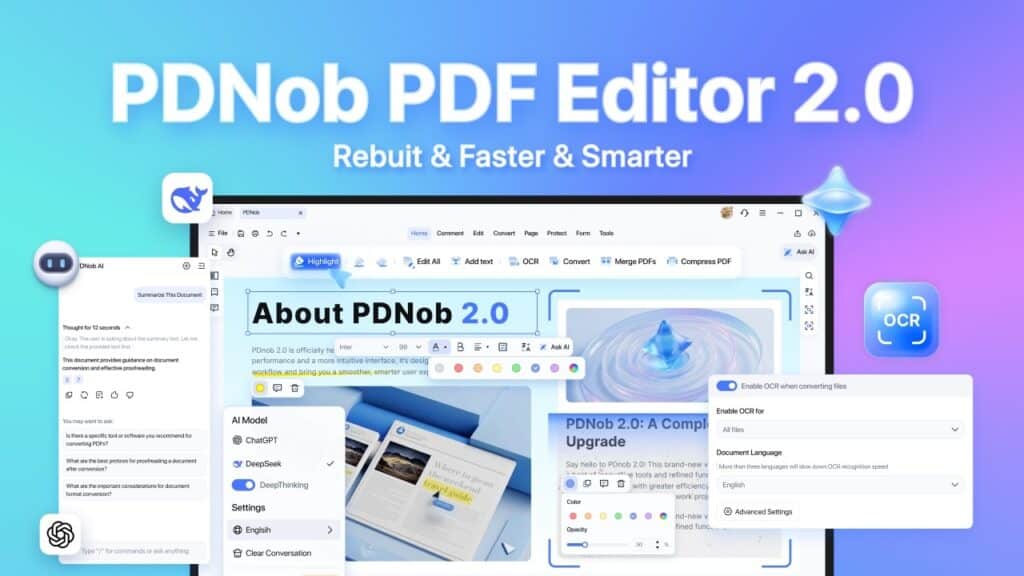
Tenorshare advertises 99% OCR accuracy for PDNob, with support for 20+ languages including English, Chinese, Japanese, German, and Arabic. Before you convert a scanned document, PDNob runs it through what Tenorshare calls smart image preprocessing. It auto-corrects skewed pages, sharpens blurry text, and strips background noise before the OCR pass actually runs. It can even convert clear handwritten text into digital text.
On paper, that’s a genuinely useful step most budget OCR tools skip, and it’s the kind of detail that matters if you’re regularly digitizing old contracts or handwritten forms rather than clean, born-digital PDFs.
Editing and conversion themselves are reasonably quick, with Tenorshare’s own documentation citing processing times under 10 seconds for most single-file tasks. However, real-world user reviews tell a slightly different story once files get large. Multiple reviewers on G2 and Capterra specifically flagged lag and sluggish rendering on graphic-heavy PDFs or files over 200MB. So the speed claims hold up for typical office documents, but if your workload leans toward large scanned archives or image-dense files, expect PDNob to slow down rather than stay snappy.
Security & Privacy: More Serious Than You’d Expect from a Budget Tool
For a PDF editor priced well under Acrobat, PDNob’s security list is more substantial than I expected. It offers 256-bit AES encryption for password-protected files, permission-based restrictions (viewing, printing, and editing separately), and permanent redaction for stripping sensitive information rather than just visually hiding it.
Tenorshare also lists a set of compliance certifications for PDNob on its site, which are worth naming as vendor claims rather than independently verified facts:
- CMMI Level 5 process maturity certification
- PCI DSS compliance
- ISO 9001 and ISO 56005 certification
- GDPR and CPRA compliance
None of these are unusual for a company that’s been operating since 2007, but I couldn’t independently verify the certifications beyond what Tenorshare states on its own site. Treat them as the vendor’s word rather than a third-party audit result.
PDNob PDF Editor Key Features That Stand Out
PDNob packs a lot into one app. Here’s what actually stands out once you get past the marketing copy.
1. AI Chat & Summarization
PDNob’s AI assistant runs on GPT-4.1 and DeepSeek R1, and lets you “chat” with a PDF directly. You can ask it to summarize a document, answer specific questions about its content, translate sections, or rewrite passages. Answers come with source-tracked citations pointing back to the relevant page, which is a nice touch for verifying the AI isn’t just making things up. The free trial caps this at 50 AI credits total (roughly one per question), so it’s really just enough to test the feature, not use it for real work.
2. Text & Image Editing
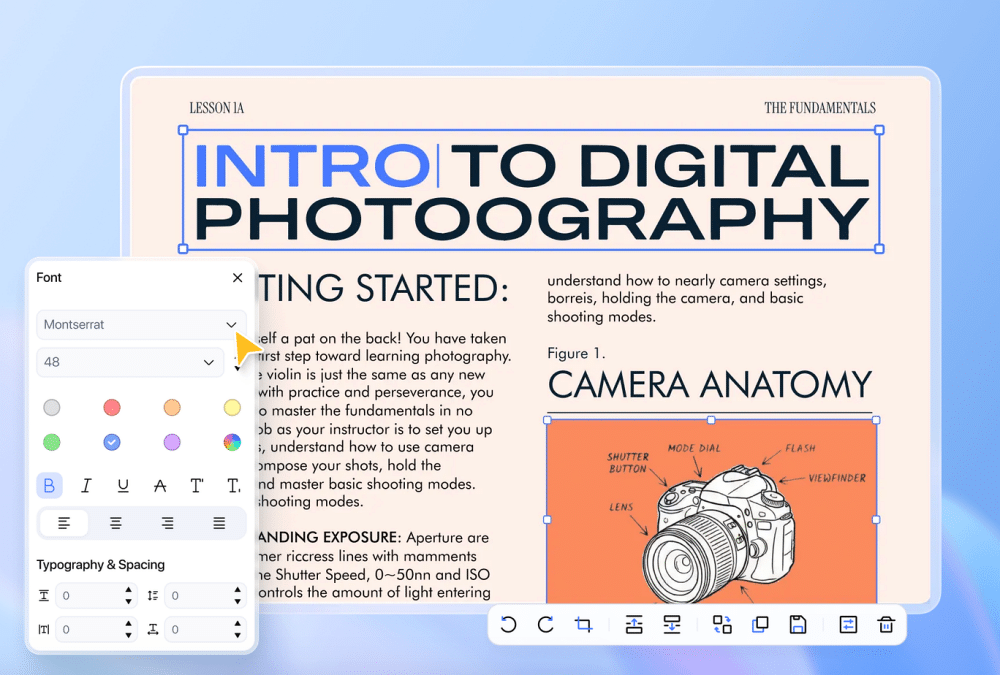
PDNob offers over 100 text editing options, covering font, size, color, alignment, and spacing, plus image replacement and resizing, all handled with drag-and-drop rather than buried in menus. It behaves more like editing a Word document than the clunky “click a text box and hope it doesn’t reflow” experience you get in a lot of cheaper PDF editors.
3. Annotation Tools
With over 200 annotation options, including highlights, underlines, strikethroughs, sticky notes, stamps, shapes, and freehand pencil drawing, PDNob covers pretty much everything you’d need for reviewing contracts or marking up a document collaboratively.
4. File Conversion
PDNob converts to and from more than 30 formats, including Word, Excel, PowerPoint, TXT, RTF, EPUB, and common image formats (JPG, PNG, TIFF, BMP), plus PDF/A for archival compliance. Simple conversions are fast and clean. Complex tables are the one spot where user reviews consistently note you’ll need to do some manual cleanup afterward.
5. OCR for Scanned Documents
Beyond the accuracy claim covered above, the OCR tool is built to handle dense, footnote-filled pages and difficult fonts, not just clean single-column text. That’s useful if you’re regularly digitizing scanned legal or academic documents rather than simple forms.
6. Batch Compression
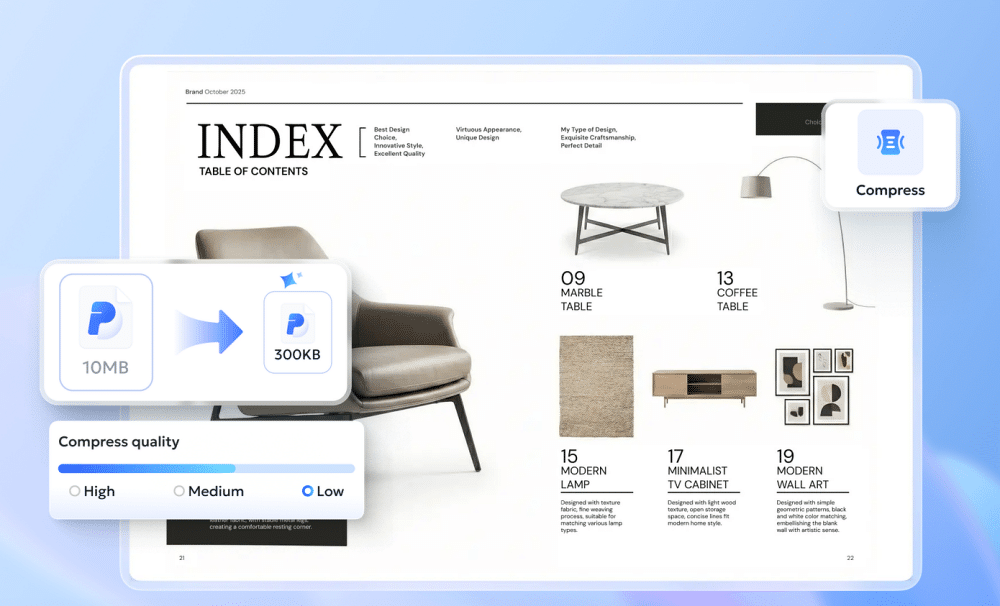
PDNob can compress files at adjustable quality levels and handle batch compression across multiple files at once, which is useful before emailing a stack of large PDFs. The free trial version, though, caps batch operations at 5 files at a time.
7. Redaction & Watermarking
Beyond basic annotation, PDNob includes permanent redaction (for genuinely removing sensitive text and images, not just covering them) and watermark tools for both adding and removing watermarks, plus Bates numbering for legal document sets.
8. Cloud Sync & Storage
Paid plans include 20GB of cloud storage with cross-device syncing, so a document you start editing on one machine picks up where you left off on another, along with basic in-cloud search and custom folder organization.
Platforms and Compatibility
PDNob runs on Windows 10 and 11 and macOS 10.15 and later, plus a free web-based editor with no registration or file-size limit for basic tasks. There’s currently no Android app, a gap several reviewers specifically called out, and no mature mobile option in general. If you need PDF editing on a phone or tablet as part of your regular workflow, that’s worth knowing upfront before committing to a license.
Pricing
I checked pricing on July 25, 2026. One caveat upfront: Tenorshare runs frequent promotions, and third-party listing sites show different numbers that appear stale or region-specific, so treat the figures below as current promotional pricing and confirm on Tenorshare’s purchase page before buying.
The free trial has no time limit, but it’s capped in ways that matter if you’re trying to evaluate the app seriously:
- 20 watermark-free exports total
- Weekly limits on OCR and format conversion (once per week each)
- 2GB of cloud storage
- 50 AI credits
- A 120-page / 15MB cap per PDF
- Batch processing limited to 5 files at once
Paid plans:
- 1-Year License: $49.99. Full features, no watermark, usable across 2 devices (2 Windows, 2 Macs, or one of each), with 1,200 AI credits per year included.
- Lifetime License: $64.99 (listed regular price $349.95). Same feature set as the annual plan, paid once, with 6,000 lifetime AI credits included.
- Team plans are available for 3+ users, including a lifetime team option at around $104.99 for 3 users with 9,000 shared AI credits.
Two things worth noting. First, there’s no monthly plan; the minimum commitment is annual. Second, AI credits come bundled into every paid tier rather than being sold separately, so the sticker price is the whole price. It’s inexpensive compared to Adobe Acrobat’s subscription pricing, and the lifetime option in particular is a genuinely different value proposition than software that locks you into paying forever, though it isn’t the absolute cheapest PDF editor on the market either.
How Does PDNob PDF Editor Work?
- Download the installer from Tenorshare’s site for Windows or Mac (it’s a small download, a few megabytes) and run through the standard install.
- Open a PDF by dragging it into the app window or using File > Open.
- Pick a tool from the sidebar (Edit, Annotate, Convert, OCR, or AI Chat) depending on what you need to do.
- For editing, click directly on the text or image you want to change. For OCR, select Recognize Text and choose the document’s language before running it.
- Use the AI panel to ask questions about the document or request a summary, if you’re on a plan or trial that includes AI credits.
- Export or save your changes via File > Save or Export, choosing your target format if you’re converting rather than just editing in place.
Who Should Get PDNob PDF Editor?
- Students and freelancers who need to edit, annotate, and convert PDFs occasionally without paying for a full Acrobat subscription.
- Small business and office workers handling contracts, forms, and scanned documents who’d benefit from OCR and redaction without enterprise-level pricing.
- Mac users looking for a native, lightweight editor rather than relying entirely on Preview’s limited toolset.
- Budget-conscious Acrobat switchers who want a one-time lifetime license instead of an ongoing subscription.
- Anyone digitizing scanned or older documents regularly, given the OCR preprocessing and multi-language support.
It’s a weaker fit if you’re managing large, image-heavy PDF archives regularly, need deep e-signature workflows, or specifically need mobile support. PDNob doesn’t currently handle any of those well.
My Experience With PDNob PDF Editor
I want to be upfront here: I didn’t get hands-on install time with PDNob myself for this piece, so this section is built from aggregating verified user feedback on G2 and Capterra rather than my own day-to-day use. Treat it as a research-based synthesis, not a personal testing account, and factor that in before you take it as gospel.
With that framing, here’s what comes up consistently across real reviewers:
- Users repeatedly describe the interface as intuitive with a minimal learning curve, even for people who aren’t especially technical.
- The OCR tool gets specifically called out as accurate and reliable, including on messier scanned documents.
- The AI summarization and chat features are frequently mentioned as genuine time-savers rather than gimmicks.
- Performance is described as lightweight and fast for typical office documents, but that reputation breaks down on large or image-heavy files, where multiple reviewers reported lag and slow rendering.
- Several reviewers wanted deeper form-building and e-signature tools, along with native integrations for Google Drive or Dropbox, none of which PDNob currently offers.
Taken together, the pattern is consistent enough to trust. PDNob earns real praise for everyday PDF tasks and OCR quality, and the complaints cluster around the same few gaps: large-file performance, missing cloud integrations, and a free trial that’s restrictive enough to make full evaluation harder than it should be. That last point is the one genuine limitation I’d flag loudest. With only 20 watermark-free exports and weekly caps on OCR and conversion, you can’t really put PDNob through its paces before paying, which undercuts the “try before you buy” pitch a little.
Final Verdict: 7.5/10
PDNob isn’t a household name the way Adobe Acrobat is, but based on its actual feature set, pricing, and consistent independent user feedback, it holds up as a legitimate budget alternative. You get strong OCR, a genuinely useful AI layer, and a one-time lifetime license option that undercuts subscription-based competitors by a wide margin. It’s worth it if you’re a student, freelancer, or small business handling routine PDF editing and occasional scanned documents, and less so if you’re managing large enterprise archives or need mobile and deep e-signature support.
If you want solid PDF editing and OCR without committing to an Adobe Acrobat subscription, then download PDNob PDF Editor and try the free trial before deciding on a plan.