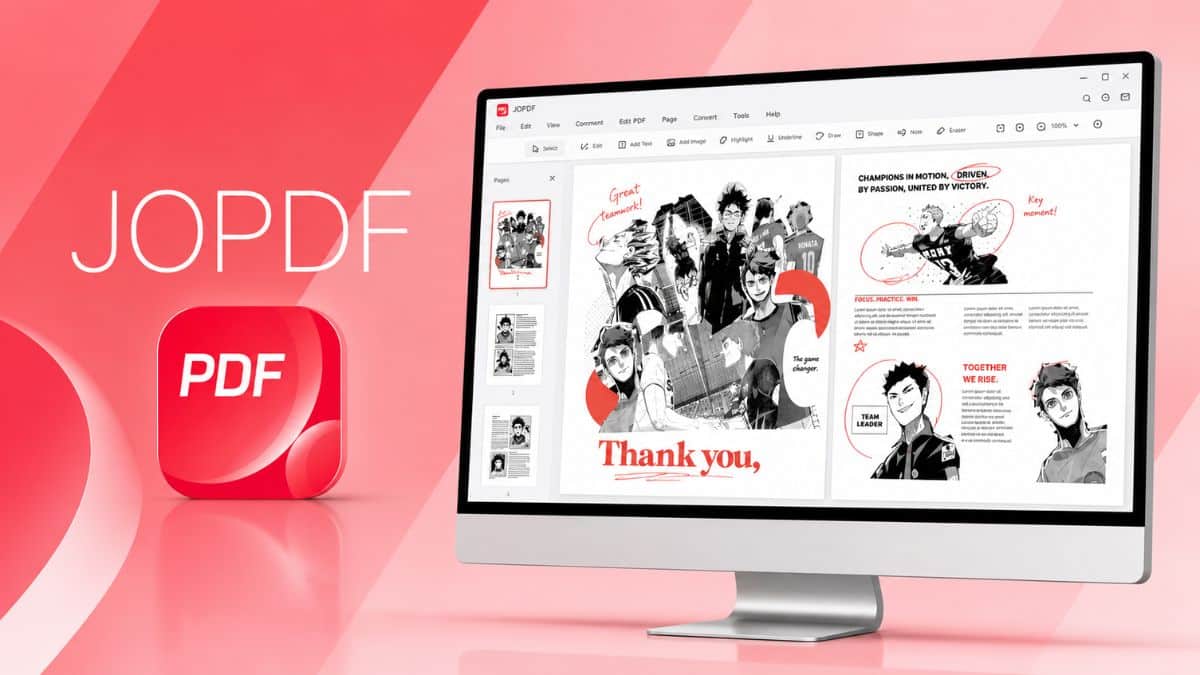
If you’ve ever needed to quickly edit a PDF, convert one to Word, or just strip a password off a file, you’ve probably run into the same wall most people do: Adobe Acrobat is expensive, the free online converters upload your files to someone else’s server, and half the “free” desktop tools slap a watermark on anything you touch. I went looking for something that skips all three problems, and JOPDF kept coming up: a free, no-registration, no-watermark PDF editor for Windows, Mac, and Linux that processes everything locally on your machine.
In this review, I’ll break down what JOPDF actually does, how its feature set holds up against paid alternatives, and, because this is the one thing I can’t skip past, what a handful of independent security scanners are flagging about the site itself, so you can make an informed call before you install anything.
What JOPDF Actually Is?
JOPDF is a desktop application, not a browser tool: you download and install it on Windows (7 and later), macOS (10.13 High Sierra and later, with Apple Silicon support), or Linux (major distributions including Ubuntu, Fedora, Debian, and Linux Mint).
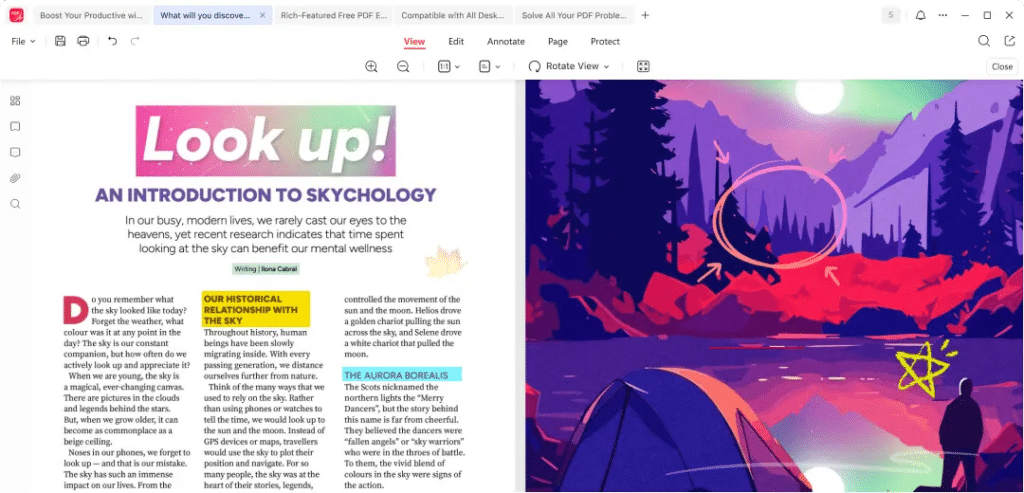
Once it’s installed, it works as an all-in-one PDF utility: you can edit text and images directly in a PDF, convert files to and from Word, Excel, PowerPoint, and image formats, compress oversized PDFs, merge multiple files, annotate with markup tools, reorganize pages, and password-protect anything sensitive.
The pitch is “take full control of your PDFs” without a subscription, a trial countdown, or a watermark stamped across your export. To its credit, that part checks out.
Performance & Everyday Use: Snappy, With the Usual Free-Tool Limits
Because JOPDF processes files locally instead of routing them through a server, it’s genuinely fast for the day-to-day stuff: opening, scrolling, editing, and exporting standard PDFs feels lightweight even on older hardware, and one independent reviewer who tested it across 200+ page documents reported stable performance without the lag some browser-based converters introduce. Batch conversion and compression run in the background without needing an active internet connection for most operations, which is a real advantage if you’re working somewhere with spotty Wi-Fi.
That said, it’s not a substitute for professional-grade tools once you get into edge cases. OCR (optical character recognition, for pulling editable text out of scanned documents) is noticeably more basic than what you’d get in Adobe Acrobat or ABBYY FineReader, and complex, heavily formatted documents (think multi-column layouts with embedded tables) sometimes need manual cleanup after editing rather than converting cleanly on the first pass.
If your PDF work is mostly contracts, forms, reports, and straightforward documents, you likely won’t notice. If you’re regularly digitizing messy scanned archives or fighting with dense legal formatting, you’ll hit the ceiling faster.
JOPDF Key Features That Stand Out
JOPDF’s feature list covers the full lifecycle of working with a PDF, not just one narrow task. Here’s what stands out.
1. Editing
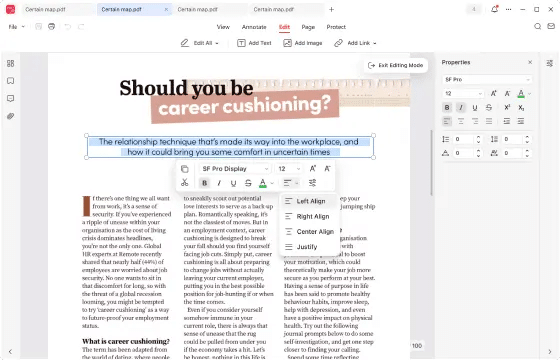
You can directly modify text, images, and links inside a PDF, with basic formatting controls for font, size, and alignment. It’s not a full desktop-publishing tool, but for correcting a typo, updating a date, or swapping out a logo without recreating the whole document, it does the job.
2. Converting
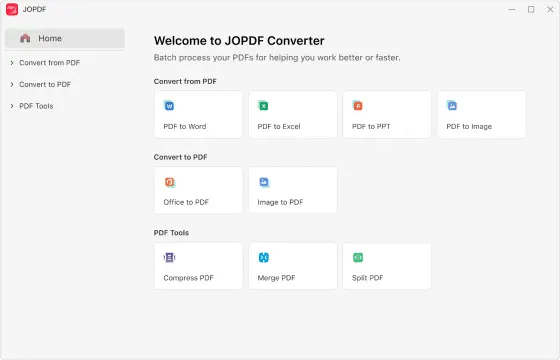
Batch conversion lets you convert multiple files at once to and from Word, Excel, PowerPoint, and common image formats, rather than processing one file at a time. The conversion engine does need an initial internet connection to download a small plugin (JOPDF notes at least 200MB of free disk space for it), but works offline afterward.
3. Compressing
File compression reduces PDF size while aiming to preserve visual quality, useful for email attachments or upload limits, though JOPDF doesn’t publish exact compression ratios or size caps, so results will vary by document.
4. Merging
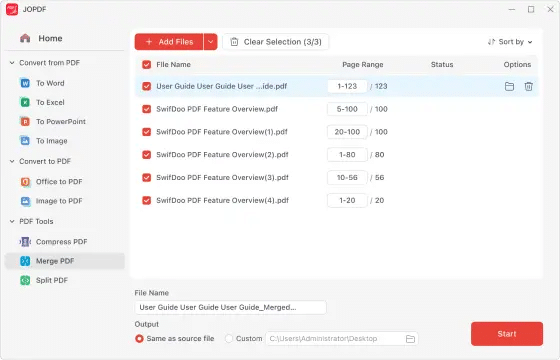
Drag-and-drop reordering makes combining multiple PDFs into one document straightforward: you can visually rearrange pages before finalizing the merge rather than guessing at file order beforehand.
5. Annotating
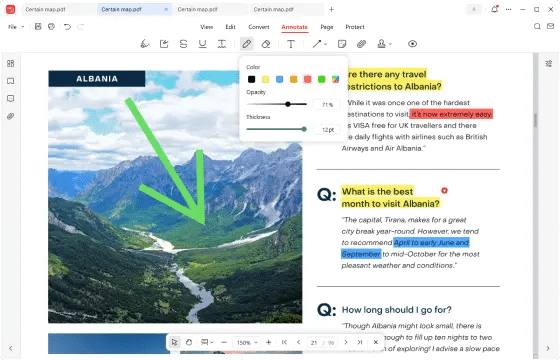
JOPDF includes over 15 markup tools for highlighting, commenting, stamping, and drawing on a document, with a show/hide toggle so you can review a document with or without the markup layer visible.
6. Organizing
Page-level tools cover insertion, splitting, rotation, and removal, the kind of housekeeping you need when a scanned document comes in upside-down or you need to pull three pages out of a fifty-page report.
7. Protecting
Password encryption and permission restrictions let you lock a PDF from being opened, edited, or printed without authorization, a genuinely useful feature for anything you’re sending outside your own team.
8. Reading & Printing
Beyond editing, JOPDF also functions as a straightforward PDF reader with fast scrolling and a full-screen mode, plus print output options including grayscale and double-sided printing.
Platforms & Compatibility
JOPDF runs on Windows 7 through 11 (32- and 64-bit), macOS 10.13 and later (both Intel and Apple Silicon, including M1 through M4 chips), and major Linux distributions on both AMD64 and ARM64 architectures.
Minimum system requirements are modest across the board: a 1GHz processor, 512MB of RAM, and 500MB of free disk space, so it should run comfortably on hardware that’s several years old.
There’s no mobile app for iOS or Android, so this is strictly a desktop tool.
Pricing
JOPDF is entirely free, with no paid tier, no subscription, and, according to the vendor, no hidden costs, trial restrictions, or watermarks on anything you export.
That’s a meaningfully different pricing model than most PDF editors on the market, where “free” usually means a limited trial or a watermarked export until you upgrade. Whether that’s worth the trust trade-off discussed above is the real question here, not the price itself.
How JOPDF Works?
- Download the installer for your operating system from jopdf.com’s download center, and run it. No account creation or email sign-up is required at any point.
- Open the app and use Open File (or drag and drop) to load a PDF you want to work with.
- Choose the tool you need from the main toolbar: Edit, Convert, Compress, Merge, Annotate, Organize, or Protect. Each opens a dedicated workspace for that task.
- Make your changes directly in the document view; for conversions, select your target format (Word, Excel, PowerPoint, or an image type) and confirm.
- Use Export or Save As to output the finished file to your chosen location. Exports carry no watermark and don’t require any account or activation step.
Who Should Get JOPDF?
JOPDF’s combination of a genuinely capable free feature set and local-only processing makes it a fit for a specific set of people, with the security caveat above front of mind.
- Students and freelancers on a tight budget who need to edit, convert, and merge PDFs regularly without paying for Acrobat or a SaaS subscription.
- Privacy-conscious users who specifically want a tool that processes files on-device rather than uploading them to a browser-based converter, as long as they’re comfortable with the trust trade-off discussed above.
- Linux users, who are consistently underserved by mainstream PDF editors and get full native support here.
- Casual, everyday PDF tasks (merging a few files, dropping a password on a document, converting a report to Word) rather than heavy OCR work or enterprise document management, where JOPDF’s limitations show up fastest.
My Experience With JOPDF
When I test a PDF tool, I’m mainly looking for two things: how much friction there is between installing it and actually finishing a task, and whether going free means giving up capability you’d normally pay for. JOPDF cleared both bars better than I expected, and after the security research above, I went in more skeptical than usual.
- Editing text and images, adding annotations, organizing pages, merging files, and compressing or converting documents all worked without any real learning curve. I was moving between tasks within minutes of installing.
- The interface stayed clean and straightforward throughout. I never had to hunt for a tool or dig through a menu to find something basic.
- No watermarks showed up on anything I exported, and nothing required an account or a sign-up to unlock.
- The one bit of friction: the conversion tool needs a one-time internet connection to download an additional plugin before it’ll work. Once that’s done, it runs offline like everything else, so it’s a minor inconvenience rather than a real drawback.
Putting it together, my experience with JOPDF has been surprisingly positive. I wanted a simple editor that didn’t require a subscription, and it offered noticeably more than I expected from a free tool: editing, annotating, organizing, merging, compressing, and converting all held up as reliable, everyday PDF tools. It’s genuinely feature-packed for the price of nothing, and worth trying if you want a capable PDF editor without paying for a subscription, so long as you’ve weighed the trust question from the security section above.
Final Verdict: 7/10
JOPDF isn’t a household name, and after digging into it, I don’t think that’s an accident of poor marketing: it’s a genuinely new, thin-track-record site attached to a genuinely solid feature set. The editing, conversion, and organization tools are real and, by independent accounts, work well; the local-processing, no-watermark, no-subscription model is exactly what a lot of people are looking for.
But the phishing-pattern flags, the visual similarity to a tool with its own controversy, and the installer’s flagged behavior mean I can’t hand you a clean recommendation here the way I could for a more established name.
If you’re set on trying JOPDF, download it only from jopdf.com, scan the installer yourself before running it, and keep it away from sensitive documents until it’s built a longer track record. Do that, and it’s worth a cautious look; skip it if you’d rather not deal with the due diligence at all.