If you’ve ever emptied the Recycle Bin too early, formatted the wrong USB drive, or watched a PC refuse to boot with months of work inside, you know the panic. Most people grab the first free recovery tool they find, install it on the same drive, and make things worse. This Stellar Data Recovery review looks at whether the software turns that panic into a process.
Here’s what this covers: how Stellar Data Recovery performs, which features matter, which edition gives you the best value, and the mistakes that decide whether any recovery tool succeeds.
What Stellar Data Recovery Actually Is
Stellar Data Recovery is desktop software that scans a drive for deleted, formatted, or inaccessible files and copies them to a safe location. It started life in 2000 as Stellar Phoenix, so it carries over two decades of development behind it.
It handles three core scenarios:
- Deleted files: Files removed from the Recycle Bin or Trash, or deleted with Shift+Delete.
- Damaged or formatted drives: RAW, corrupted, formatted, or lost partitions.
- Dead systems: PCs and Macs that no longer boot, recovered through a bootable USB (Professional and above).
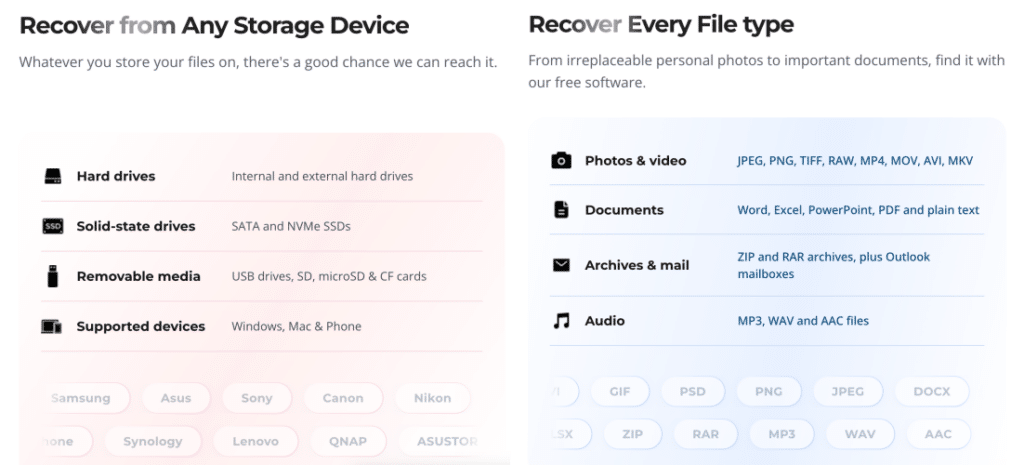
It works with internal HDDs and SSDs, external drives, USB flash drives, SD cards, and CDs/DVDs.
Speed and Performance: Thorough, Not Fast
Stellar offers two scan modes. Quick Scan reads the file system records and finds recently deleted files in minutes. Deep Scan reads the drive sector by sector and matches file signatures, which is how it finds data on formatted or RAW drives.
That thoroughness costs time. TechRadar clocked a quick scan at over 25 minutes on an external NVMe drive, which is slower than several rivals, though the software kept CPU usage low throughout the scan. An older Comparitech test measured roughly two hours for a deep scan on a 1TB HDD, and results varied elsewhere too: EaseUS’s own testing found a 1TB external drive took over three hours on deep scan, while one 2026 test using RecoverGo as a comparison point clocked Stellar’s deep scan on a large drive at around 45 minutes against a competitor’s 25. The honest takeaway across independent tests is that deep scan time varies a lot by drive size, condition, and what’s actually on it, but it consistently runs slower than several competitors.
Two things make the wait manageable:
- Pause and Resume Scan lets you stop a long scan and continue later. TechRadar found this feature a bit buggy in practice: pausing a scan doesn’t let you back out to the main screen to start a different scan, and clicking stop means starting the whole scan over.
- Preview during scanning shows found files before the scan finishes, though TechRadar’s specific test noted files couldn’t be previewed until the scan fully completed, unlike some rivals such as EaseUS.
Deep Scan has one trade-off every signature-based tool shares: files recovered from a formatted drive often lose their original names and folder structure. Expect folders sorted by file type, not your original tree.
Safety: Read-Only by Design
Stellar scans in read-only mode, so it never writes to the drive you’re recovering from. That matters, because every new write can overwrite the exact sectors holding your lost file.
The software handles the tool side. Your job is the rest:
- Stop using the affected drive the moment you notice data loss.
- Install Stellar on a different drive than the one you’re scanning.
- Save recovered files to a separate drive, never back to the source.
- Image a failing drive first. Stellar’s Disk Imaging creates a sector-level copy, so you scan the image instead of stressing clicking hardware.
One hard limit applies to every recovery app, not just Stellar: on an SSD with TRIM enabled (the default on Windows and macOS), the drive erases deleted blocks in the background. If you deleted a file from an internal SSD days ago, no software can bring it back. External HDDs, USB sticks, and SD cards give you far better odds.
Stellar Data Recovery Key Features That Stand Out
Stellar packs more into its paid tiers than the marketing page makes obvious. These features matter most in real use.
1. Quick Scan and Deep Scan
Quick Scan handles the common “I deleted it yesterday” case and usually keeps file names intact. Deep Scan kicks in for formatted, RAW, or corrupted drives. You can also add custom file signatures if Stellar doesn’t recognize a niche format.
2. Preview Before You Pay
You can scan and preview files in the free version. If the preview of a photo, document, or video looks clean, the file is recoverable. If it doesn’t render, it’s likely damaged. This removes the guesswork before you spend money.
3. Partition and Formatted Drive Recovery
Professional and above add Lost Partition Recovery, which finds partitions deleted by a bad resize, a failed OS install, or a mistaken format. Standard skips this, so a lost partition means upgrading.
4. Recovery From Unbootable PCs
Professional creates a bootable USB recovery drive on a working computer. You boot the dead PC from that USB and copy files to an external disk. Once your data is safe, you can reinstall Windows with the Windows 11 Media Creation Tool.
5. BitLocker Encrypted Drive Recovery
Stellar scans BitLocker encrypted drives across all Windows editions. You still need your password or recovery key; Stellar doesn’t break encryption.
6. Photo and Video Repair
This is the most underrated feature. Deep Scan often recovers a video that won’t play or a JPEG with gray blocks. Premium adds Photo Repair and Video Repair, which fix those files inside the same app. This is a genuine gap in the Professional tier: multiple G2 reviewers of Professional specifically call out that it can recover corrupted files but has no repair option, meaning you need separate software for that step unless you’re on Premium or above.
7. Disk Imaging and Drive Monitoring
Disk Imaging clones a drive to an image file for safe recovery. The Technician edition adds Drive Monitor, which checks drive health, temperature, and SMART status, so you can spot a failing disk before it dies.
8. RAID, NAS, and Virtual Drive Recovery
The Technician edition reconstructs RAID 0, 5, and 6 arrays, even when you don’t know the original parameters. The Toolkit edition goes further with virtual drive recovery (VMDK, VDI, VHD, VHDX), Synology, QNAP, and ASUSTOR NAS with BTRFS, and Linux ext2/3/4 drives.
Platforms and Compatibility
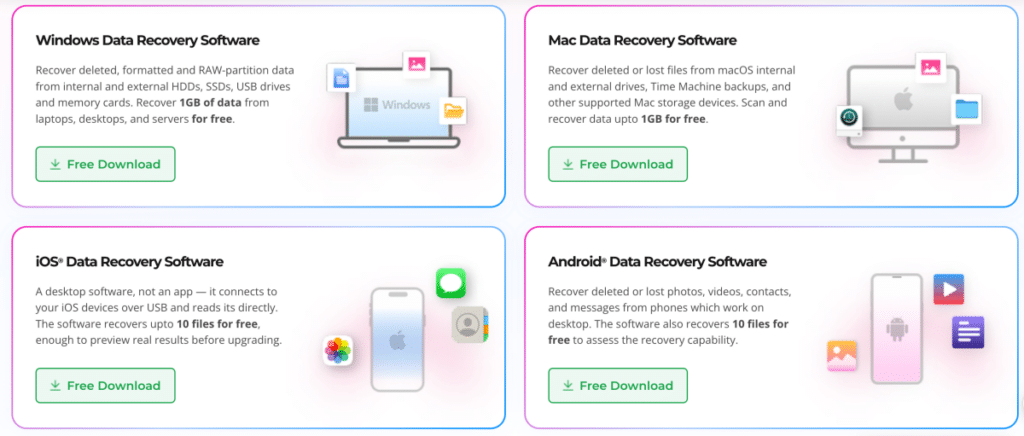
- Windows: Windows 11, 10, 8.1, and 8 (64-bit only), plus Windows Server 2022, 2019, and 2016. Needs 4GB RAM (8GB recommended) and 250MB of disk space.
- Mac: A wide range of macOS versions on both Apple silicon and Intel Macs with the T2 chip. Same 4GB RAM and 250MB requirements.
- File systems: NTFS, FAT32, and exFAT on Windows. APFS, HFS+, NTFS, and exFAT on Mac. Toolkit adds Linux ext2/3/4.
Stellar also sells separate recovery tools for iPhone and Android. They cover device storage, not app-specific chats, so for WhatsApp history specifically, our guide on how to recover deleted WhatsApp messages covers that directly.
Pricing
The free edition includes:
- Full Quick Scan and Deep Scan
- File preview
- Up to 1GB of recovery on Windows and Mac
That 1GB cap is enough to recover a batch of documents or a few hundred photos, which makes it more than a demo. Some rivals let you scan for free but charge before you save a single file.
Current promotional pricing below reflects vendor listings at the time of writing. Stellar frequently runs time-limited promotions, so verify the live price on Stellar’s own site before buying.
| Edition | Price | Adds |
|---|---|---|
| Standard | $59.99/year | Deleted, formatted, RAW, and BitLocker recovery |
| Professional | $79.99/year (list $99.99) | Lost partitions, unbootable PC recovery |
| Premium | $89.99/year (list $209.99) | Photo and video repair |
| Technician | $99.99/year (list $299) | RAID 0, 5, 6 recovery |
On Mac, Professional, Premium, and Technician editions are priced separately from Windows, and the Mac Technician tier in particular runs meaningfully higher than its Windows counterpart, so Mac users running NAS or RAID setups should check current Mac-specific pricing before assuming parity with the Windows table above.
Three pricing details most reviews skip:
- Premium costs only $10 more than Professional on both platforms. Unless you’re certain your files will come back intact without repair, Premium is the better buy.
- Subscriptions auto-renew by default. You can switch to manual renewal any time before the renewal date.
- “Lifetime” means a fixed number of years of use per Stellar’s own licensing terms, with a limited window of free support included. Confirm the exact terms on Stellar’s site before treating “lifetime” as literal.
Every paid plan includes a 30-day money-back guarantee.
How Stellar Data Recovery Works
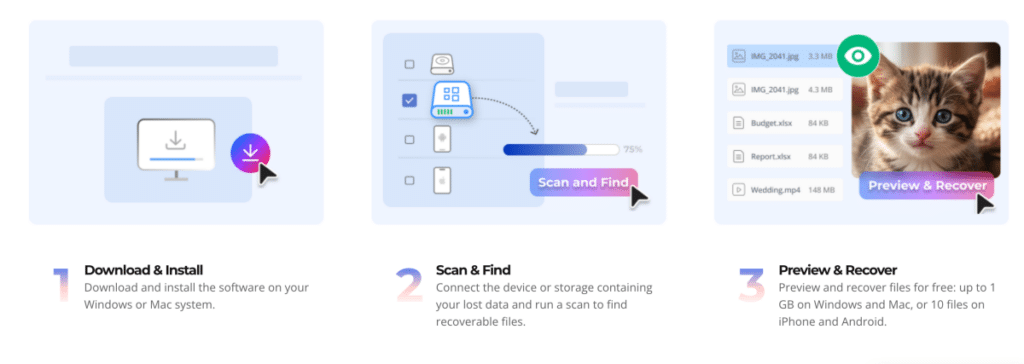
- Download and install Stellar Data Recovery on a drive other than the one holding your lost data.
- On the Select What To Recover screen, choose All Data or specific types like Documents or Photos, then click Next.
- Pick the drive or folder under Recover From. Toggle Deep Scan for formatted or corrupted drives.
- Click Scan and wait. Use Pause if you need to stop and continue later.
- Browse results in Tree View, File Type, or Deleted List, and preview files before recovering.
- Select the files you need, click Recover, and save them to a different drive.
- Click Save Scan to store the scan data, so you can resume recovery later without rescanning.
Who Should Get Stellar Data Recovery?
Stellar’s edition ladder makes it useful for very different people.
- Home users: The free 1GB tier or Standard covers accidentally deleted documents, photos, and USB drives.
- Photographers and videographers: Premium recovers and repairs corrupted RAW photos and video clips from SD cards in one app.
- Laptop owners with a dead system: Professional pulls files off a PC that won’t boot.
- IT technicians and repair shops: Technician and Toolkit handle RAID, NAS, and virtual machine drives for client work.
- Mac users: Stellar supports Apple silicon and T2 Macs and recovers from APFS drives.
What Independent Testing and User Reviews Say
Across the third-party tests and reviews checked for this piece, a consistent pattern shows up: Stellar is praised for its clean interface and dependable results on recently deleted files, and criticized consistently for slow deep scans on larger drives. TechRadar specifically flagged the pause and stop controls as a little buggy in practice, and G2 reviewers of the Professional edition repeatedly note the missing repair function as a real gap if you land on that tier expecting Premium’s capabilities.
None of that makes Stellar unreliable. It means the tool’s real strength is dependability over speed, and picking the right edition matters more than the marketing page suggests, since Standard, Professional, and Premium solve genuinely different problems rather than just unlocking more of the same thing.
Final Verdict: 8/10
Stellar Data Recovery isn’t the fastest tool in its category, but it’s one of the most dependable. The read-only scanning, usable 1GB free tier, and built-in photo and video repair make it a safe pick for beginners, and the Technician and Toolkit editions give professionals room to grow. Slow deep scans and auto-renewing subscriptions are the main drawbacks. If file repair matters to you, Premium is worth the small price jump over Professional.