Apple’s Messages app has long been known for its clean and minimal interface (usually with a white background) paired with blue and green chat bubbles. But with iOS 26 and iPadOS 26, Apple finally allowed users to customize conversations with backgrounds, similar to what other messaging apps like WhatsApp and Telegram have offered in the past.
This new feature, while making chatting more fun, also helps you distinguish between different threads at a glance and adds a personal touch to your everyday conversations. So how do you do that? Here’s a definitive guide to changing the Messages background on iPhone and iPad.
What You Need to Know Before Changing Backgrounds in Messages
Before diving into customization, you need to keep these things in mind:
- Your iPhone or iPad must be running iOS 26 or iPadOS 26. If not, update it to the latest version of iOS.
- iMessage only: backgrounds work only in iMessage (blue-bubble) conversations. They don’t work in SMS or RCS (green-bubble) threads, so you won’t be able to set one for a chat with an Android contact.
- Sync across devices: If you set a background on your iPhone, it also appears on your iPad or Mac, as long as that device is signed into the same Apple Account and running the matching current OS (iPadOS 26 or macOS Tahoe 26).
- Not visible on older devices: Anyone using iOS 18 or earlier won’t see the backgrounds (they’ll just see the standard white interface).
- Visible to others: Everyone in the conversation — whether it’s a one-on-one chat or a group — sees the background you set, so pick something you’re okay sharing.
- AI-generated backgrounds need extra hardware: the Playground option (see below) only works on devices that support Apple Intelligence — iPhone 15 Pro or newer (iPhone 16 or later for non-Pro models), an iPad mini (A17 Pro) or iPad with M1 or later, or an Apple silicon Mac.
How to Set a Background for Your iMessage Conversations
Changing the background in iMessage is effortless. All you have to do is follow these steps to personalize your Messages conversation background:
- Open Messages and select the conversation you want to customize.
- Tap the name of the person or title of the conversation.
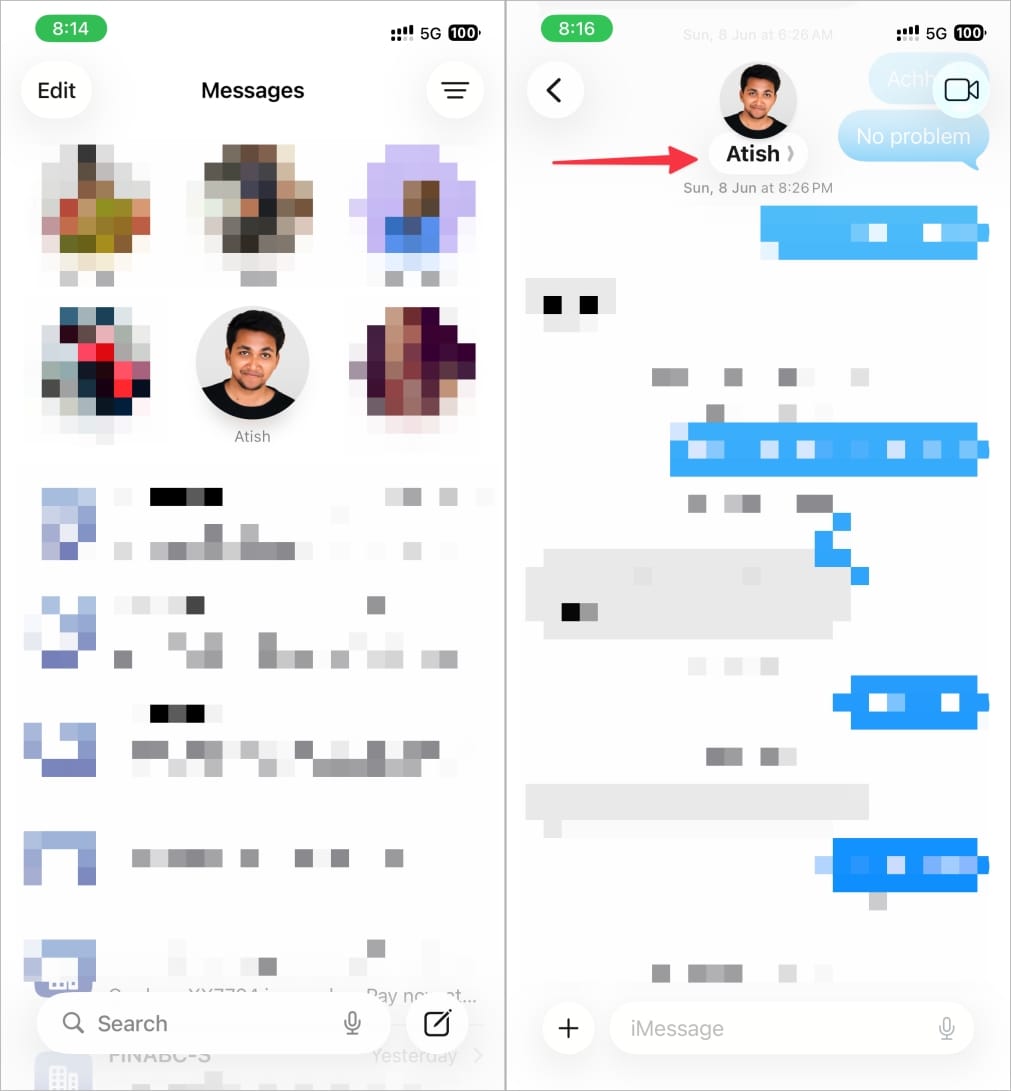
- Select the Backgrounds tab.
- Choose a background from the Suggestions section or select from one of the categories. Swipe to preview color variations or pinch to crop your photo background.
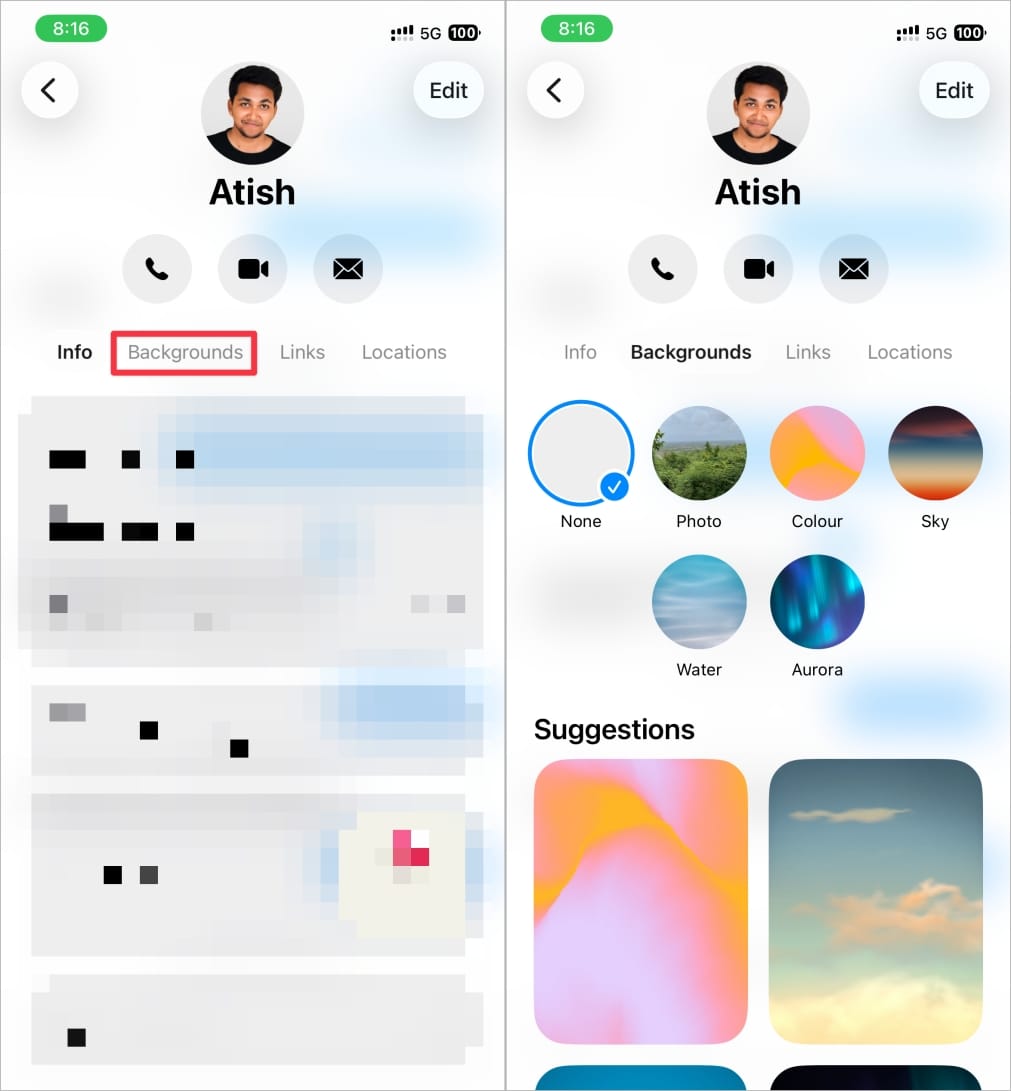
- Tap the checkmark in the top right to confirm your choice.
- Hit the back button to return to your conversation.
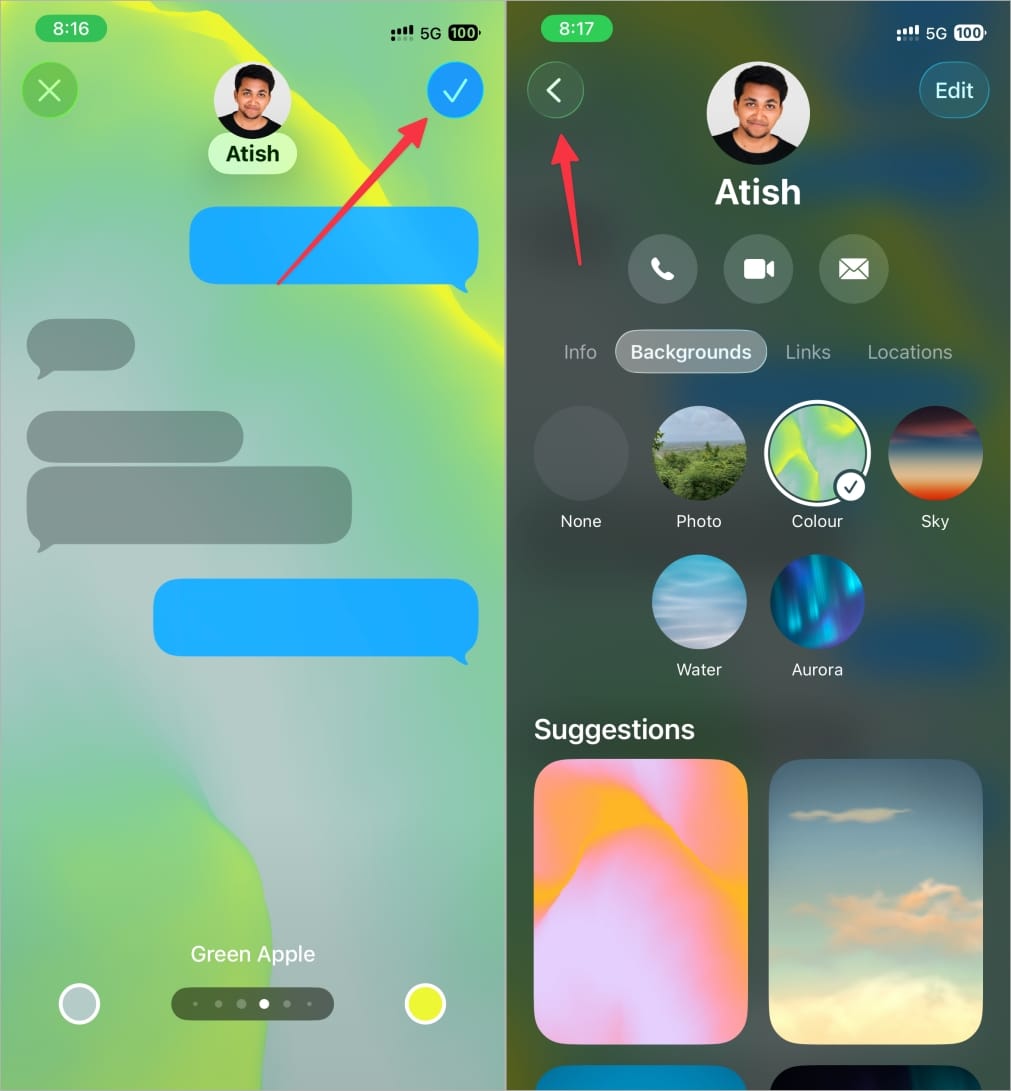
Your chat now has a fresh look!
Background Options in Messages
Apple offers a wide range of options to choose from when it comes to backgrounds in Messages in iPhone and iPad:
- Photos: Choose from your photo library. Browse through albums, collections, or simply use the search bar in the bottom-right corner to find the exact picture you want. Once you’ve picked one, you can apply a style — Natural, Black & White, Duotone, or Color Wash — to change how it renders behind your chat bubbles.
- Playground: Create your own background with Image Playground. Just type a description, pick from suggested prompts, and generate a custom design. (Requires an Apple Intelligence–compatible device — see above.)
- Color: Set a gradient-style background with flowing, wave-like visuals. Swipe through preset color blends, or tap the circles in the corners to pick your own custom combo.
- Water: Dive into an underwater world with shimmering light effects on the sandy floor. Swipe to toggle between Light and Dark variations.
- Aurora: Add some magic with glowing Northern Lights. Swipe through different preset color themes to find your favorite.
- Sky: Bring your chats to life with an animated skyline. Swipe to change the time of day or adjust how cloudy the scene looks.
With this variety, you can make your chat look professional, fun, or creative depending on the context.
Tips for Choosing the Best Messages Background
Setting a background is easy, but choosing a good one makes all the difference.
Here are a few tips:
- Prioritize Readability: The coolest photo in the world is a bad choice if you can’t read your messages. Avoid overly “busy” or high-contrast images. Look for photos with simple patterns or areas of “negative space” (like a clear sky or a plain wall) where the chat bubbles will be easy to see.
- Consider Dark Mode: Many of Apple’s animated backgrounds have Light and Dark variations that switch automatically with your system theme. When choosing your own photo, see how it looks in both modes to make sure it’s always comfortable to view.
- Match the Vibe: Use backgrounds to help you quickly identify chats. You could set a professional, subtle gradient for a work group, a fun photo of your pet for your family chat, and a picture of your partner for your conversation with them.
How to Disable a Background in Messages
If you ever want to go back:
- Open Messages and select the conversation.
- Tap the title of the chat.
- Open the Backgrounds tab.
- Select None.
- Hit the back button to return to your conversation.
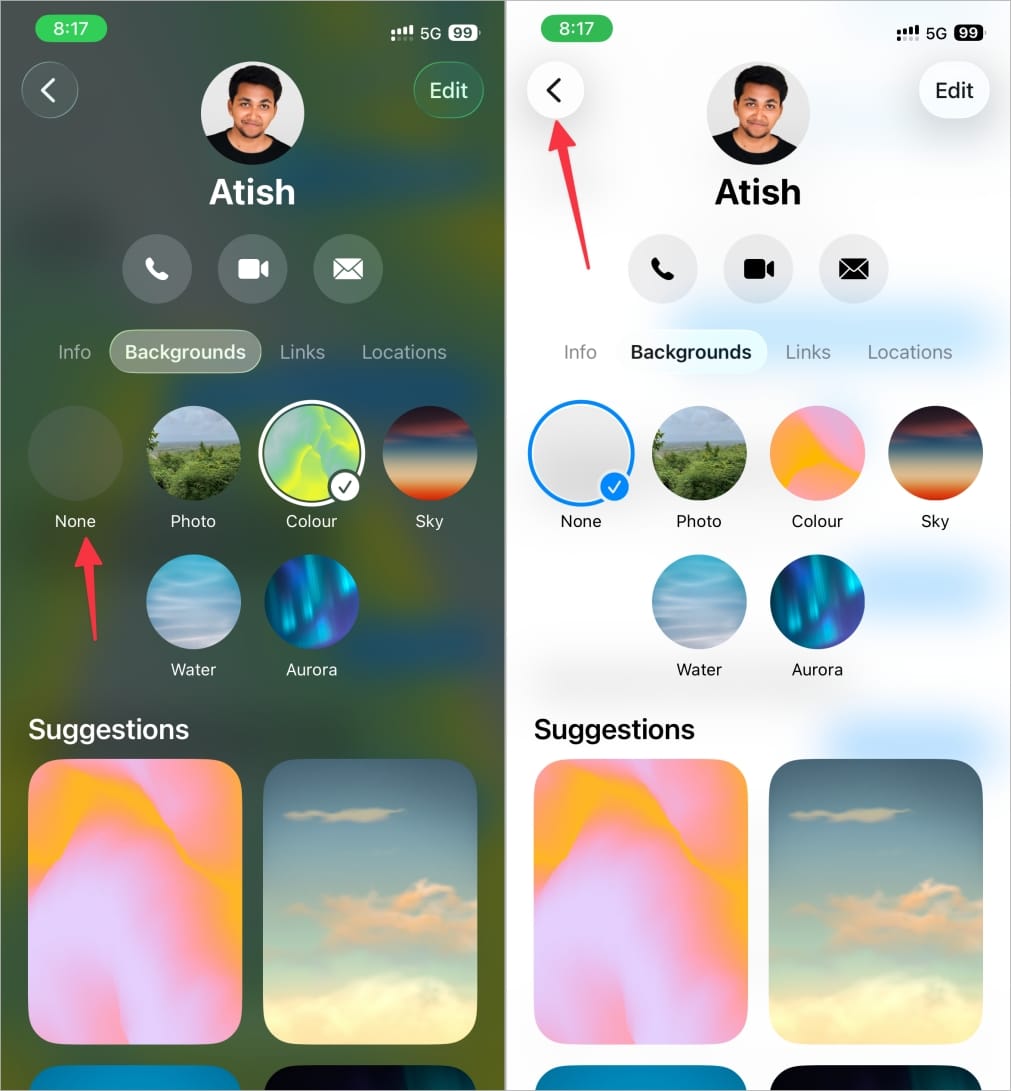
And that’s it! Your Messages app will return to its default white background.
If you’d rather turn the feature off everywhere at once instead of doing it conversation by conversation, go to Settings > Apps > Messages and turn off Conversation Backgrounds. You’ll stop seeing backgrounds set by others, though people you message will still see any background you’d previously chosen for their thread.
Why This Feature Matters
This update makes iMessage feel more personal and modern.
It helps:
- Personalization: Add your favorite photo, colors, or themes.
- Organization: Use different looks for work, family, or friends.
- Catch-up: Apple finally joins WhatsApp, Telegram, and others in offering customization.
Final Thoughts
With iOS 26 and iPadOS 26, Apple has quietly given Messages a long-awaited personalization upgrade. Whether you want a gradient splash of color, a serene animated sky, or a custom AI-generated scene, backgrounds make chats more enjoyable and easier to manage.
If you ever get tired of the flair, you can easily revert to the classic clean look. So go ahead, open Messages and watch your conversations feel fresher than ever with new backgrounds.
Don’t miss these related reads: