If you’ve been waiting for Apple to finally make Messages feel smarter without turning it into something unrecognizable, iOS 27 is quietly delivering on that promise. This isn’t a redesign. There’s no dramatic interface overhaul. What Apple has done instead is more interesting: they’ve layered intelligence into the places you already tap every day, fixed the performance issues that have quietly frustrated heavy users for years, and added a few genuinely useful tools that don’t feel forced.
Here’s everything that’s changed in the iOS 27 Messages app and, more importantly, what it actually means for how you’ll use it.
Apple Intelligence Finally Makes Messages Feel Like It’s Paying Attention
The headline addition to the new features in the Messages app with iOS 27 is one-tap suggestions, and honestly, it’s one of those features that sounds modest until you’re actually using it.
Here’s how it works: Messages reads the context of your conversation and surfaces relevant actions right where you need them, either below a specific message or sitting in the top row of your keyboard. Ask a friend to send you some photos from last weekend’s trip, and Messages doesn’t just wait for you to go digging. It proactively surfaces matching photos from your own library, pulling from people tags, location data, and keywords to find the best options.
It goes further than media, too. If a conversation naturally leads to making plans, Messages can suggest creating a Calendar event on the spot. Mention something you need to remember and it’ll offer to spin up a Reminder or a note without you ever leaving the thread. Apple described it in their press release as “making it easier than ever to get things done,” and for once, that’s not marketing fluff. It genuinely reduces the number of steps between thinking about doing something and actually doing it.
Smart Replies have also gotten noticeably better. Rather than generic suggestions that feel like they came from a template, the responses now reflect your personal writing style: your tone, your punctuation habits, even how formal or casual you tend to be with different people. The result is replies that actually sound like you wrote them.
The New Drawing Tool Is More Useful Than It Sounds
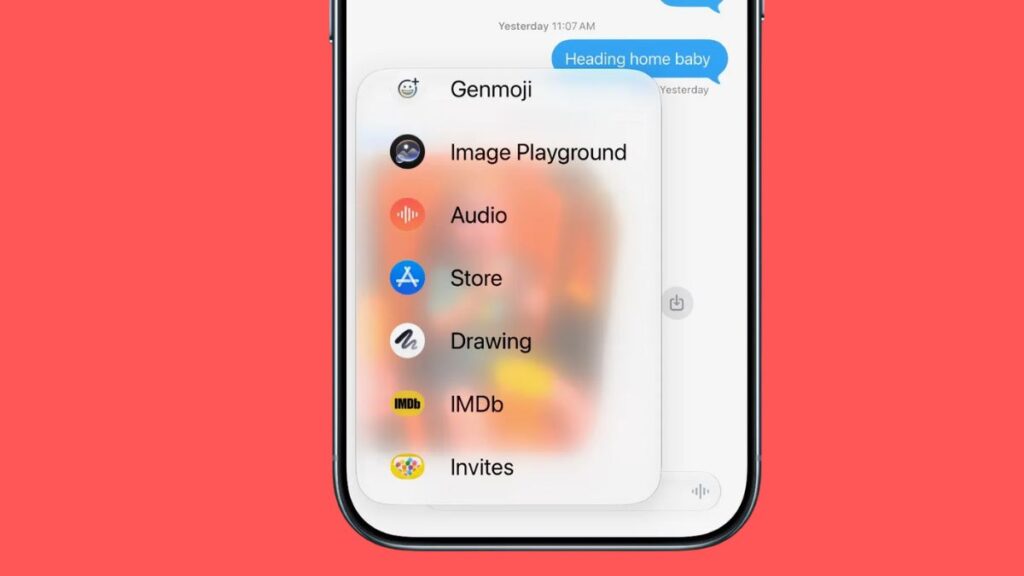
Buried inside the + menu in your message field is something new: a full drawing canvas, similar to the Markup tool you’d find in Notes or Preview.
This isn’t just scribbling on a photo. It’s a standalone sketch tool that lets you draw something from scratch and send it as a message. It’s been a long-requested feature, and it lands at an interesting moment, right as Apple is rumored to be introducing an iPhone Ultra with a larger display, where sketching something quickly and sending it makes a lot more practical sense.
If you already enjoy expressing yourself visually, this is going to become a go-to. For everyone else, it’s there when you need it and completely out of the way when you don’t.
That Accidental Mic Button Problem? Fixed.
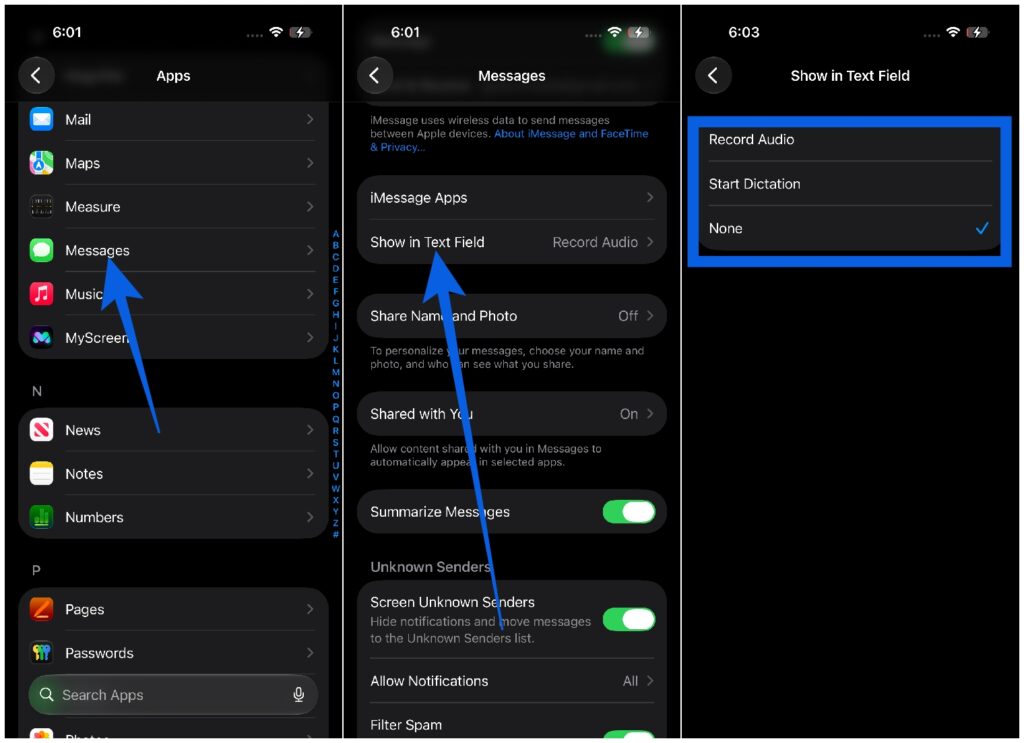
If you’ve ever fired off an unintended voice memo because your thumb grazed the microphone icon, this one’s for you.
iOS 27 finally gives you control over what lives in your text field. Head to Settings → Apps → Messages → Show in Text Field to choose between ‘Record Audio,’ ‘Start Dictation,’ and ‘None.’
Performance Improvements That Heavy Users Will Actually Feel
This is the section that doesn’t get enough attention, but for anyone who’s been using Messages for years across multiple devices, it matters enormously.
Apple has done serious under-the-hood work on the iOS 27 Messages app in areas that directly affect daily use:
- Large thread loading is dramatically faster. If you have group chats or one-on-one conversations stretching back years, scrolling through that history used to be a laggy, frustrating experience. That’s been addressed.
- Cross-device syncing is more reliable. Read receipts, reactions, and attachments now sync more consistently between your iPhone, iPad, and Mac, something that’s been inconsistently broken for longer than it should have been.
- Sending keeps going in the background. Photos, videos, and texts now continue sending even if you switch apps or lock your screen. If something fails, it retries automatically instead of silently dropping the message. This alone eliminates a category of “did you get that?” conversations.
- Offloaded media is now findable. iCloud-stored media that’s been offloaded from your device now shows up as thumbnails in conversation search, so you can actually locate it without downloading everything first.
- Search by phone number or nickname. A small but genuinely useful addition that’s handy when you’re trying to find a conversation with a contact you saved under an unusual name, or someone who’s only in your phone as a number.
- Faster camera access. Recent captures from your camera roll are now quicker to pull up directly inside Messages, which speeds up the very common flow of taking a photo and immediately sending it.
Child Safety Gets a Meaningful Upgrade
Building on the Communication Safety features Apple introduced in previous versions, iOS 27 now automatically detects and blocks graphic or violent content in images and videos for child accounts without any parent needing to configure it manually. It works at the system level, which means it applies across Messages without gaps. For parents, this is the kind of protection that should have been here sooner, but it’s genuinely useful now that it is.
Notifications Got Smarter Too
If you’re in an active group chat, you’ve probably experienced the notification flood that happens when someone reacts to a message, with multiple tapbacks piling up as separate alerts. iOS 27 consolidates those into a single notification, which is a small thing that makes a surprisingly meaningful difference to how manageable your lock screen feels.
When Can You Get It?
The developer beta is available now as of mid-June 2026. The public beta is expected shortly after. The stable release is targeting Fall 2026, and full Apple Intelligence features, including the one-tap suggestions, will likely require an iPhone 15 Pro or later.
While you’re getting familiar with what’s new in iOS 27, it’s worth exploring the broader design changes happening across the system. The new Liquid Glass aesthetic, which is reshaping Apple’s UI, is adjustable if you find the transparency too intense. And if you want to make your Home Screen feel more personal alongside these app updates, there’s a full walkthrough on how to create custom iPhone wallpapers in iOS 27 that’s worth checking out.
The Bottom Line
What’s new for the Messages app in iOS 27 isn’t about flashy features that look good in a keynote and fade into the background after a week. It’s about an app that finally works the way it should have for years: faster, smarter, more reliable, and a little more personal. The AI-powered suggestions add genuine utility without feeling intrusive. The performance improvements remove friction that power users have just accepted as normal. And the smaller additions, like drawing support and the customizable mic button, fill in gaps that have been frustrating people for a while.
Which iOS 27 Messages feature are you most looking forward to? The one-tap suggestions, the performance improvements, or something else entirely? Drop your thoughts in the comments.
Related articles worth reading: