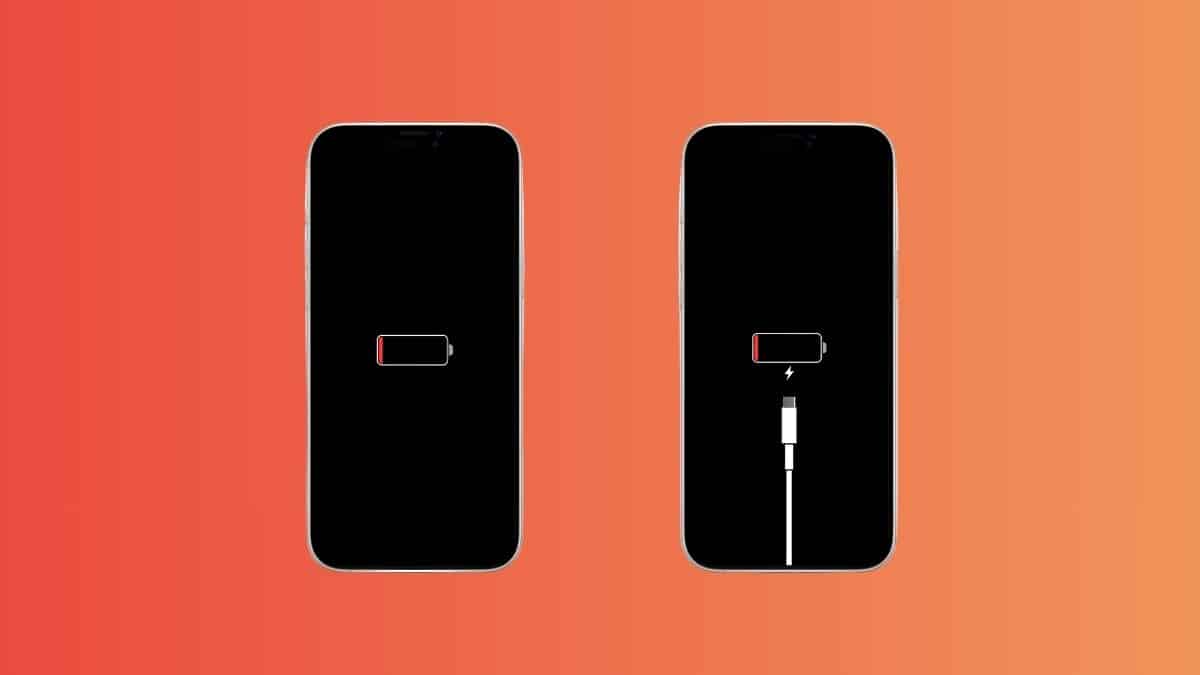
You plug your iPhone in overnight, expecting to wake up to a full battery. Instead, you’re greeted by a frozen red battery icon that hasn’t moved in twenty minutes. Maybe it’s the Apple logo with a progress bar that’s going nowhere. Maybe the screen stays completely black, even though the phone feels warm and the cable is definitely connected. Your first instinct is to assume the worst.
Most of the time, that instinct is wrong. A stuck charging screen is one of the more common iPhone issues. It’s common enough that Apple has published its own troubleshooting steps, and in 2026, the company even patched a specific charging bug affecting newer hardware. In most cases, it isn’t a dead phone. It’s usually a stalled handshake between the battery, the charging circuit, and iOS, and there’s a logical order of steps that usually gets things working again.
Here’s what’s actually causing the problem and how to fix it, starting with the simplest solutions first.
Understand What the Charging Screen Is Telling You
Not every “stuck” charging screen means the same thing, and knowing what you’re looking at can save you time.
- A red or black battery icon with a lightning bolt usually means your battery is critically low, so low that the internal protection circuit won’t allow iOS to boot yet. The phone is charging, but it doesn’t have enough power to turn on.
- An Apple logo with a progress bar that doesn’t move typically points to a software issue, often a stalled update or restore process.
- A completely black screen that never lights up, even after charging for a while, deserves closer attention. It could indicate a deeper software freeze or, in a small number of documented cases in 2026, a hardware-related charging issue covered later in this guide.
If you’ve ever wondered what the different icons on your iPhone actually mean, check this guide explaining what every iPhone icon and symbol means.
Check the Charging Cable, Adapter, and Port First
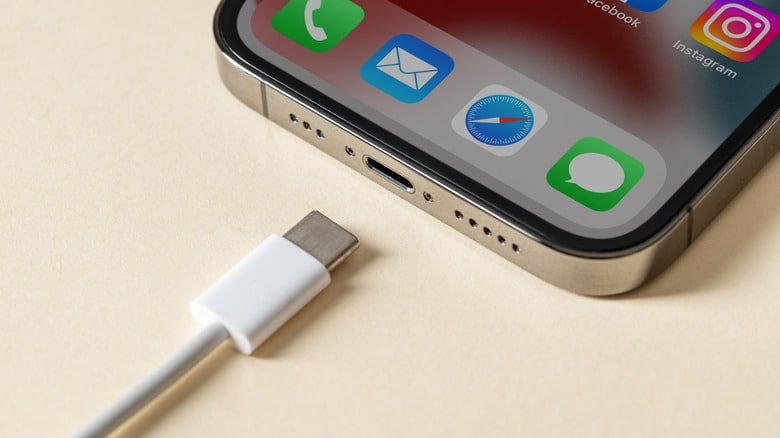
Before trying any software fixes, rule out the obvious. These simple issues cause charging problems far more often than people expect.
A worn Lightning or USB-C cable, a charger that isn’t MFi-certified, or lint packed into the charging port can all reduce power delivery enough for the iPhone to recognize it’s plugged in without receiving enough power to boot.
Try these basic checks:
- Use a different Apple-certified charging cable.
- Switch to another wall adapter, preferably Apple’s 20W USB-C charger or an equivalent.
- Plug directly into a wall outlet instead of a computer’s USB port, which often supplies less power.
- Carefully inspect and clean the charging port if you see dust or lint.
If you’re charging an older iPhone with a USB-C to Lightning adapter connected to a newer Mac or iPad charger, the adapter itself can sometimes be the problem. Cheap or poorly made adapters often charge inconsistently or become unusually warm.
I tested several reliable options in its guide to the best USB-C to Lightning adapters if you’re considering a replacement.
Give Your iPhone Enough Time to Charge
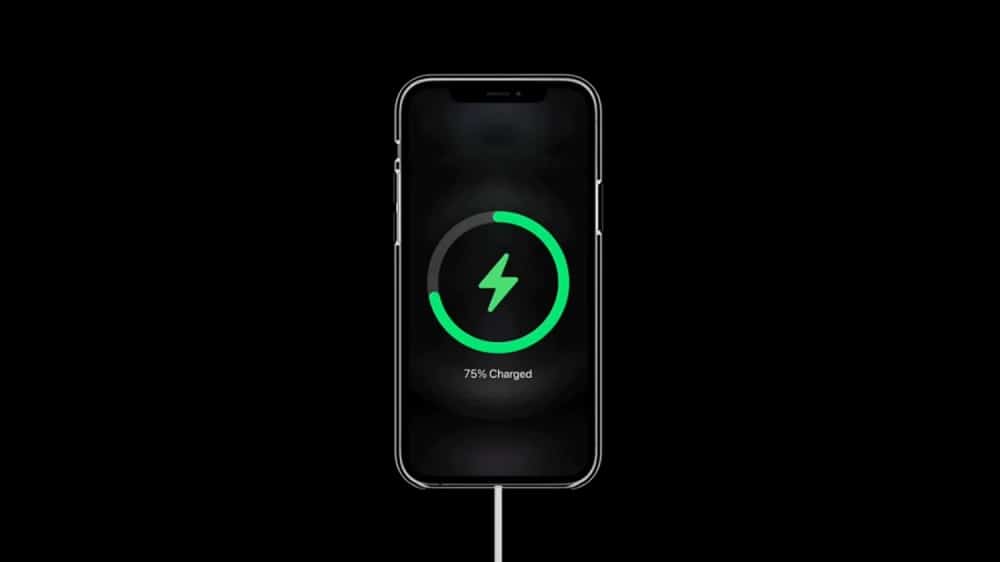
This is the step most people skip, and it’s the very first recommendation Apple makes.
If your battery completely drained before you plugged it in, your iPhone needs time to recover before it can boot. Apple recommends leaving it plugged in for at least 30 minutes, and in some cases up to an hour, before assuming something is wrong.
Here’s why.
A fully depleted lithium-ion battery activates a low-voltage protection system that intentionally prevents the phone from turning on until it reaches a safe minimum charge level. That’s a built-in safety feature, not a malfunction.
Instead of repeatedly unplugging the cable or pressing the power button every few minutes, leave the phone connected to a wall charger for the full hour. Constantly disconnecting and reconnecting the charger can interrupt the charging cycle and make the wait even longer.
iPhone 17 and iPhone Air Had a Wired Charging Bug
If you own an iPhone 17, iPhone 17 Pro, or iPhone Air, your charging problem may not be your fault at all.
Beginning in late 2025 and becoming more widely reported by April 2026, some owners found that their phones wouldn’t power back on after the battery reached 0%, even while connected to a wired charger.
Power meters attached to affected devices showed inconsistent power draw, fluctuating between roughly 0W and 2.1W, suggesting the phones were struggling to accept wired power while fully discharged.
Interestingly, many users found that placing the phone on a MagSafe or Qi wireless charger allowed it to recover normally when wired charging failed.
Apple officially addressed the issue in iOS 26.5.1, released on June 1, 2026. The release notes describe it as fixing:
“An issue for a small number of users that may prevent wired charging on iPhone Air and iPhone 17 models when the battery is nearly drained.”
If you’re still running an older version of iOS, updating should be one of your first troubleshooting steps.
Go to: Settings > General > Software Update
Install the latest version available, iOS 26.6 at the time of writing, which includes this fix along with additional stability improvements.
Until your device is updated, keeping a MagSafe charger nearby isn’t a bad backup plan. Also, I rounded up the best 25W MagSafe chargers if you’re looking for one.
Force Restart Your iPhone
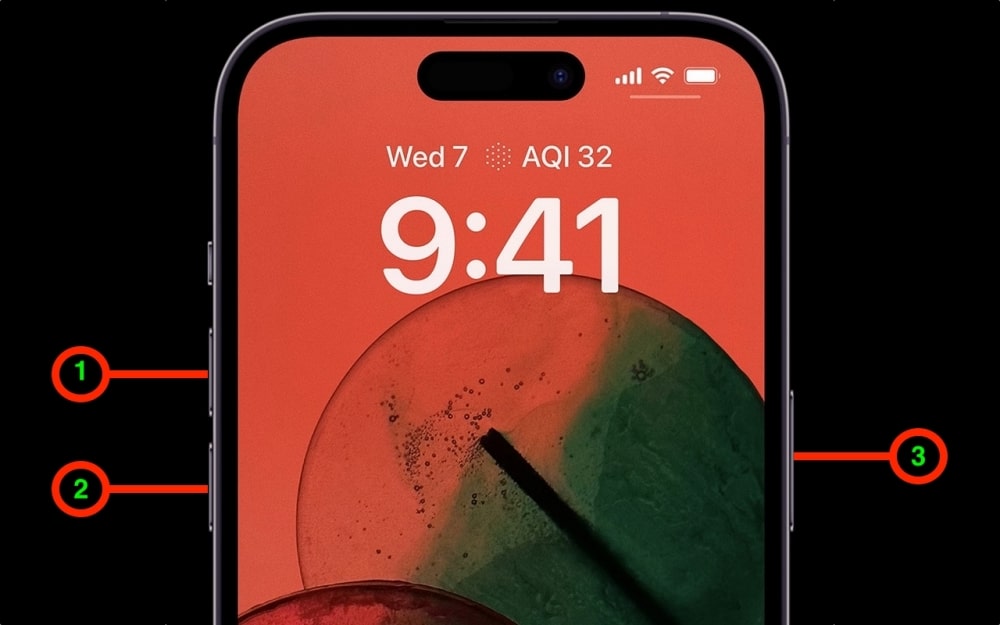
If you’ve given your iPhone enough time to charge and it’s still stuck, the next step is a force restart.
This fixes many charging screen issues caused by temporary software freezes and doesn’t erase any of your data.
iPhone 8 or later (including Face ID models)
- Quickly press and release Volume Up.
- Quickly press and release Volume Down.
- Press and hold the Side button until the Apple logo appears.
Don’t release the Side button too early. It can take longer than ten seconds before the logo appears.
iPhone 7 and iPhone 7 Plus
Press and hold the Side button and Volume Down together until you see the Apple logo.
iPhone 6s and earlier
Press and hold both the Home button and the Side (or Top) button until the Apple logo appears.
If the screen remains black after the force restart, reconnect the charger, wait another 15 to 20 minutes, and try again. A battery that’s right on the edge of recovery sometimes needs an additional charging period before the restart succeeds.
Use Recovery Mode if Force Restart Doesn’t Work
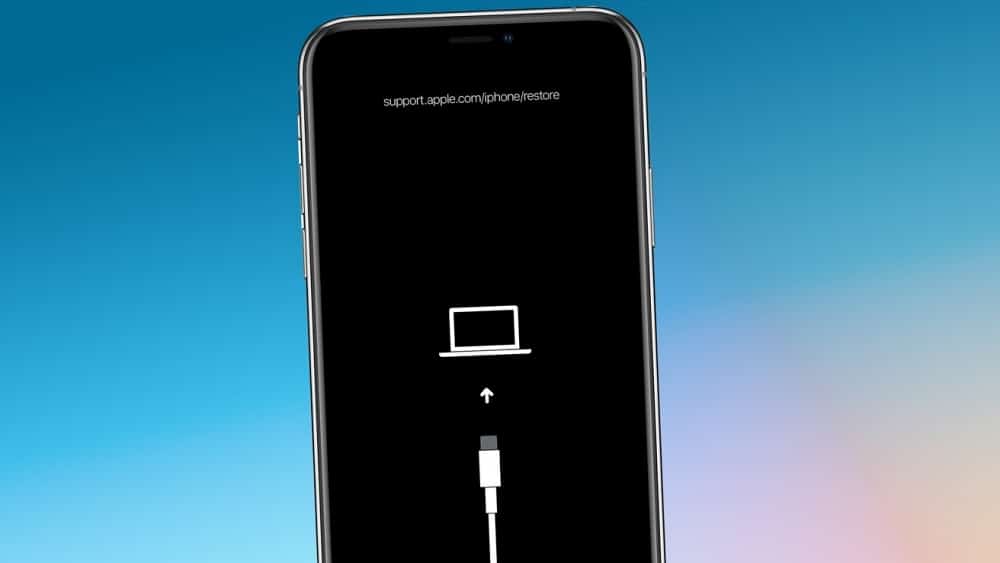
If your iPhone remains stuck on the Apple logo or the progress bar hasn’t moved after an hour, Recovery Mode is the next step.
You’ll need a Mac or Windows PC.
Enter Recovery Mode using the same button sequence as the force restart, but continue holding the final button after the Apple logo appears until the Connect to Computer screen shows up.
Connect your iPhone to:
- Finder on macOS Catalina or later
- Apple Devices on modern Windows PCs
- iTunes on older Windows systems and older versions of macOS
You’ll be offered two options:
- Update — reinstalls iOS without erasing your data.
- Restore — erases your iPhone and installs a fresh copy of iOS.
Always choose Update first.
DFU (Device Firmware Update) Mode sits one level below Recovery Mode and is typically used by Apple technicians when Recovery Mode itself fails. Apple doesn’t document it for everyday users because it’s easy to perform incorrectly, so it’s usually best reserved for Apple Support or a Genius Bar appointment if Recovery Mode doesn’t solve the problem.
Prevent Future Charging Screen Problems
If this has happened more than once, it’s worth looking at the underlying cause rather than treating each incident separately.
Battery health plays a bigger role than many people realize. As batteries age and accumulate charge cycles, they lose capacity and reach critical battery levels more quickly.
You can check your battery health in Settings > Battery, and I also explain how to check your iPhone’s battery cycle count for every supported model.
A thick or worn-out case can also interfere with MagSafe or Qi charging alignment, leading to inconsistent charging that gradually drains your battery into the critical zone.
Finally, keep your iPhone updated. Apple has released several charging and power management fixes throughout the past year alone.
None of these tips is particularly dramatic on its own. Together, though, they help prevent a one-time charging issue from becoming a recurring problem.
The Bottom Line
A stuck charging screen looks alarming, but it rarely means your iPhone is beyond repair.
Start with the basics. Give the phone enough time to charge, check the cable, charger, and charging port, then perform a force restart before assuming the worst. If you own an iPhone 17 or iPhone Air, make sure you’re running the latest version of iOS, since Apple has already fixed a known wired charging issue affecting those devices.
Recovery Mode and Apple Support are there for the small number of cases that don’t respond to these steps. For everyone else, the solution is usually patience, not panic.
Make the Most of Your Apple Devices: