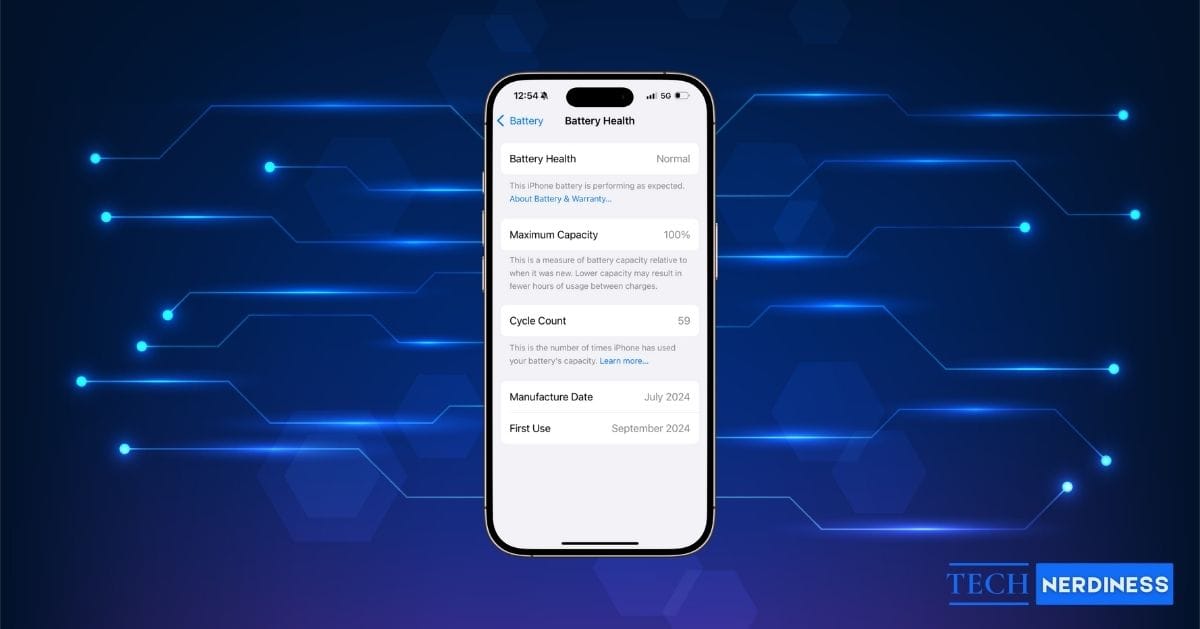
Your iPhone’s battery quietly keeps track of how many times it’s been charged and discharged. This number, called the cycle count, is one of the best ways to know how healthy your battery really is. If you’ve noticed your iPhone draining faster than before, checking the cycle count can give you a clearer picture of whether it’s time for a replacement.
What Is the iPhone Battery Cycle Count?
A cycle doesn’t just mean charging from 0% to 100% in one go. Instead, it’s the total of 100% discharge accumulated over time. For example, if you use 70% of your battery one day, recharge it back to 100% or 80%, and then use 30% the next day, that adds up to one cycle. Every battery has a limit to how many of these full cycles it can handle before performance starts to drop.

- iPhone 14 and earlier: Designed to keep up to 80% of original capacity after about 500 cycles.
- iPhone 15 and newer: Built to last for about 1000 cycles before hitting that same threshold.
Here’s a simple reference table to give you an idea of how cycle counts usually translate to battery health. Keep in mind this is an estimate, and actual performance depends on temperature, charging habits, and usage.
| Cycle Count | Expected Battery Health (Approx.) |
|---|---|
| 0–100 | 100%–95% |
| 100–300 | 95%–90% |
| 300–500 | 90%–85% |
| 500–700 | 85%–80% |
| 700–1000 | 80%–75% |
Luckily, now you can check these battery cycle counts directly from Settings.
How to Check iPhone Cycle Count
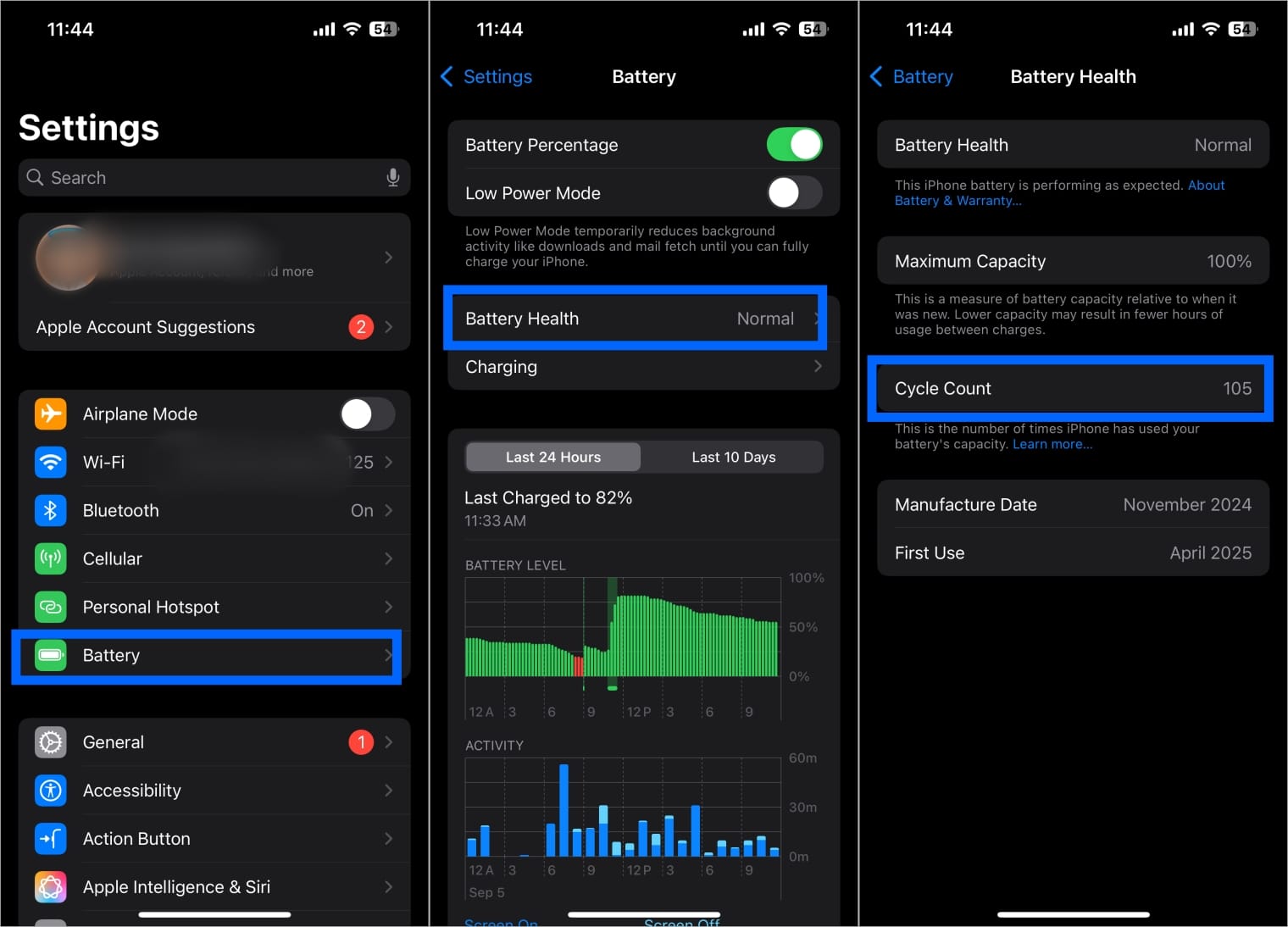
Apple finally made it easy for newer iPhones. If you’re on iOS 17.4 or later, here’s what to do:
- Open Settings on your iPhone.
- Tap Battery.
- Select Battery Health.
- Look for Cycle Count. It will show the total number of charge cycles if you’re using an iPhone 15 or newer on iOS 17.4 or later.
If you don’t see this option, make sure your iPhone is updated to the latest iOS.
How to Check Cycle Count on Older iPhones (14 or Earlier)
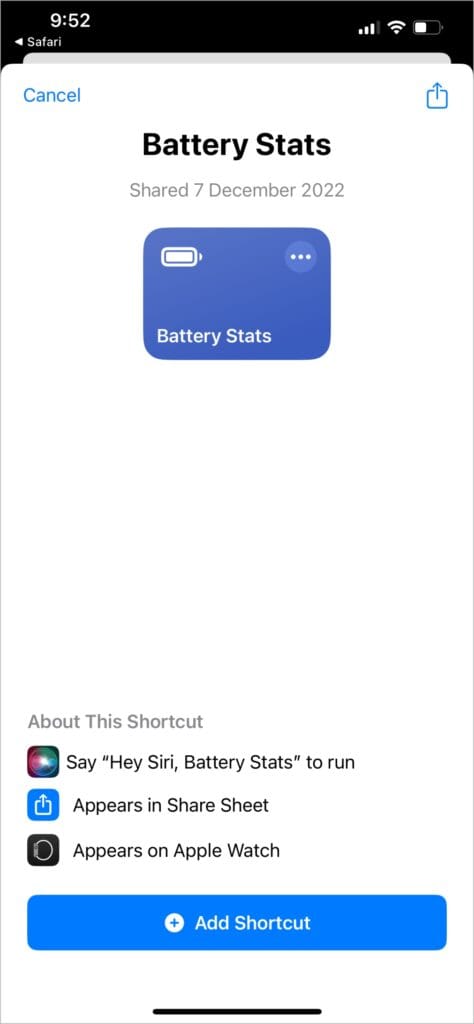
For iPhone 14 or earlier, Apple doesn’t show cycle count in Settings. But the data is still there. First, install the Battery Stats Shortcut. Then:
- Open Settings → Privacy & Security → Analytics & Improvements → Analytics Data.
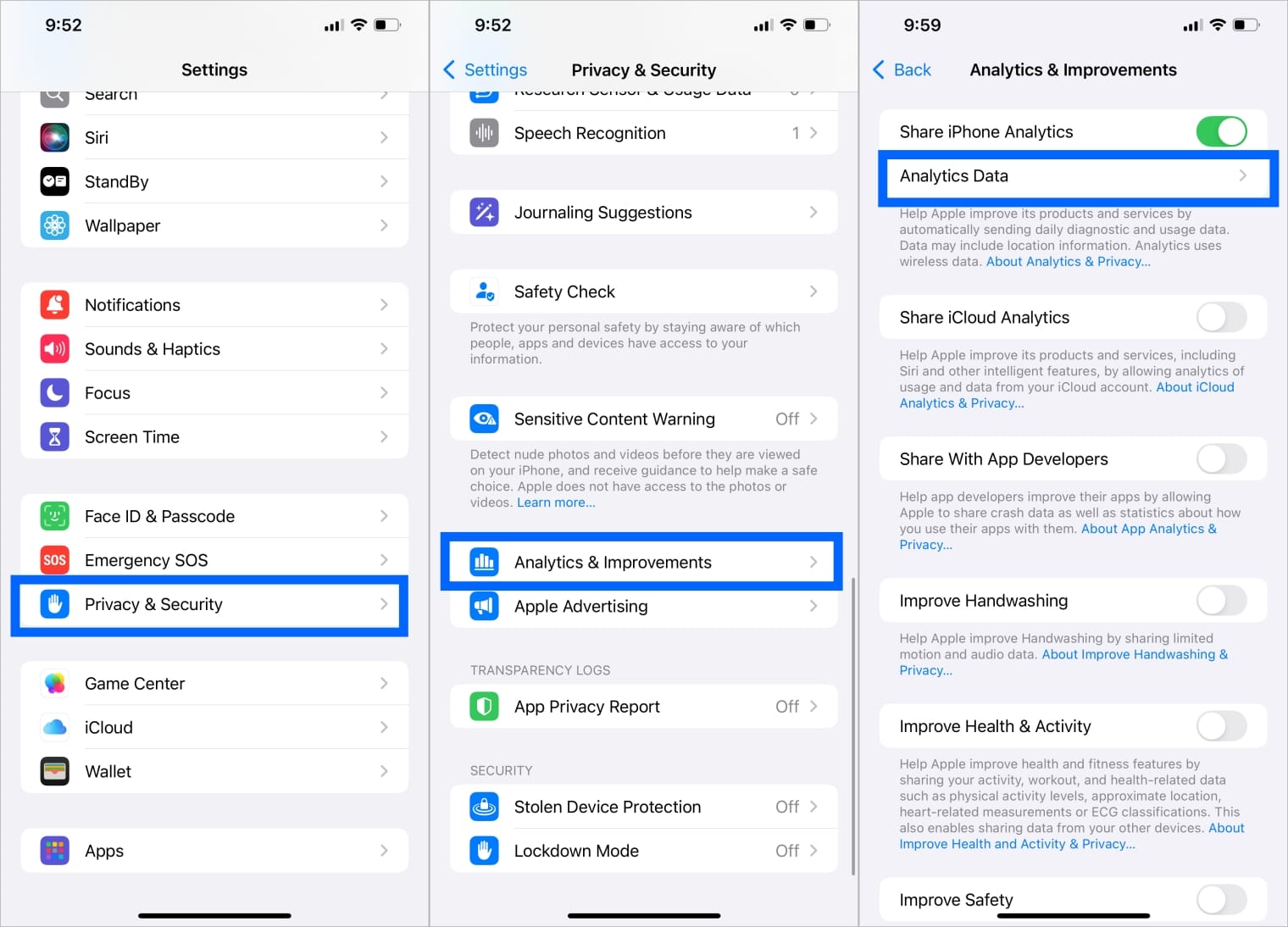
- Pick a file that starts with Analytics followed by a date.
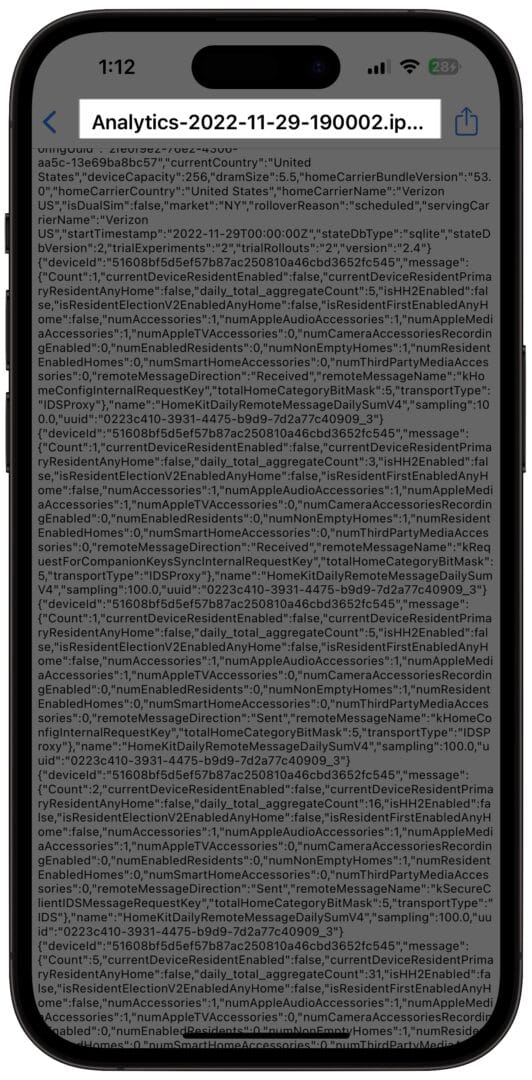
- Tap the Share button and choose Battery Stats from the share sheet.
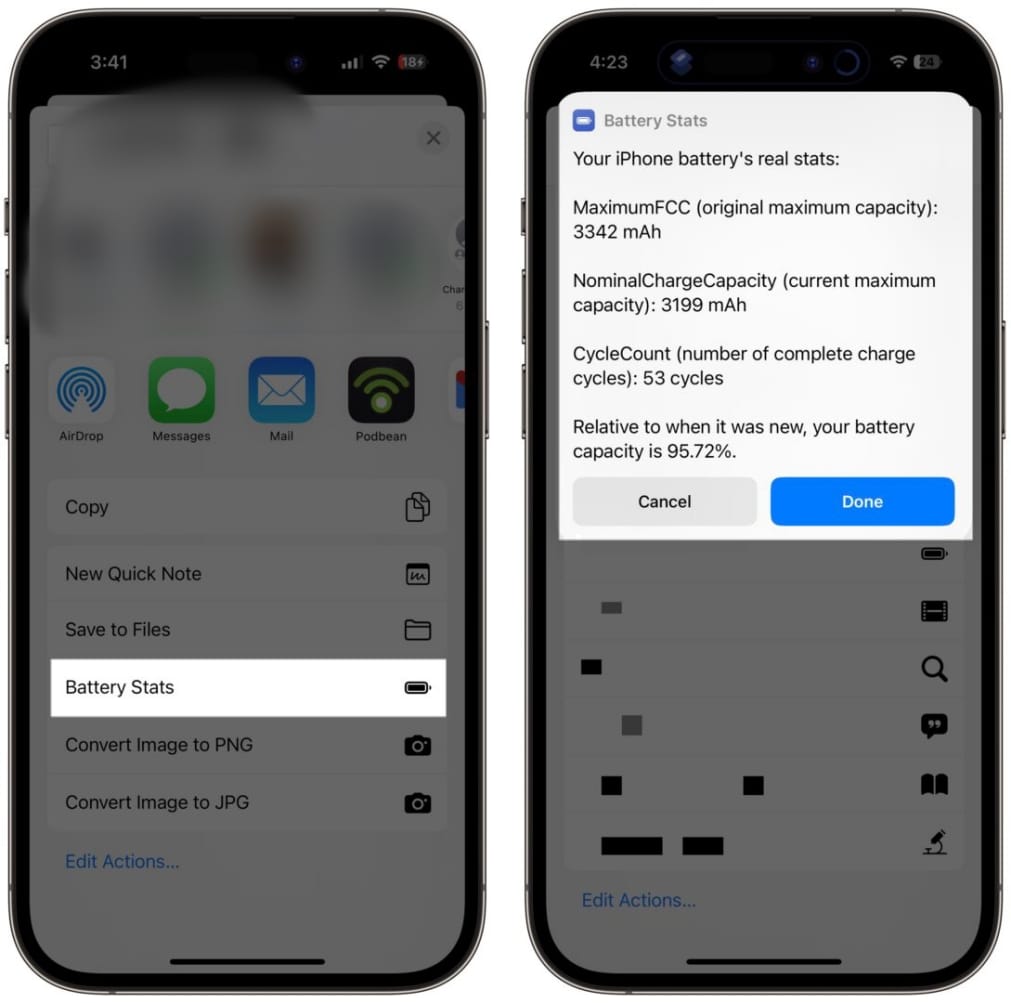
The Shortcut will show your iPhone’s original maximum capacity, current maximum capacity, and cycle count.
Note: If “Share iPhone Analytics” is turned off, your iPhone won’t save these analytics files.
When Should You Replace Your iPhone Battery?
Knowing your cycle count gives you a good sense of battery wear, but it’s not the only factor to watch. Apple batteries are designed to last hundreds of cycles, but real‑world usage, temperature, and charging habits can speed up or slow down that aging process. That’s why you should look at the bigger picture instead of relying only on the number.
Here are the most common signs it may be time to replace your iPhone battery:
- Your cycle count is close to Apple’s rated limit (500 on iPhone 14 and earlier, 1000 on iPhone 15 and newer).
- You see a Service message or other warning under Battery Health in Settings.
- Your iPhone drains unusually fast, even after light use, forcing multiple charges a day.
- The phone shuts down randomly, especially when running heavier apps.
- Performance feels slow and laggy. iOS sometimes throttles speed to prevent shutdowns when the battery can’t deliver enough power.
If you’re experiencing one or more of these symptoms, it’s worth booking a battery check at an Apple Store or authorized repair center. Replacing the battery not only restores battery life but also improves overall performance and reliability.
Tips to Make Your Battery Last Longer
A few habits can stretch your battery’s lifespan:
- Avoid leaving your phone in very hot or very cold places.
- Don’t keep it plugged in at 100% for long periods.
- Turn on Optimized Battery Charging in Settings. You can also make use of features like Attention Aware on iPhone, which automatically dims the display when you’re not looking at it, saving power and reducing strain on your battery.
- Use certified chargers and cables.
- On iPhone 15 and newer, set the 80% charging limit if you don’t need a full charge every day.
Keeping an eye on your iPhone’s battery cycle count is like checking the mileage on a car. It helps you know how much life your battery has left and when it’s time to take action. Whether you have the latest iPhone or one that’s a few years old, these steps give you a clear way to track your battery’s health and keep your phone running smoothly.
FAQs
A good cycle count is anything well below Apple’s rated limit under 300 cycles usually means your battery is still strong.
iPhone 14 and earlier are rated for about 500 cycles. iPhone 15 and newer can handle around 1000 cycles before dropping below 80% health.
Yes. A new battery starts with a fresh cycle count of 0.
It shows how much the battery has been used and gives you a clearer idea of how soon you may need a replacement.
Yes, apps like CoconutBattery or iMazing can display cycle counts, but for privacy and accuracy, Apple’s built‑in options or trusted shortcuts are safer.