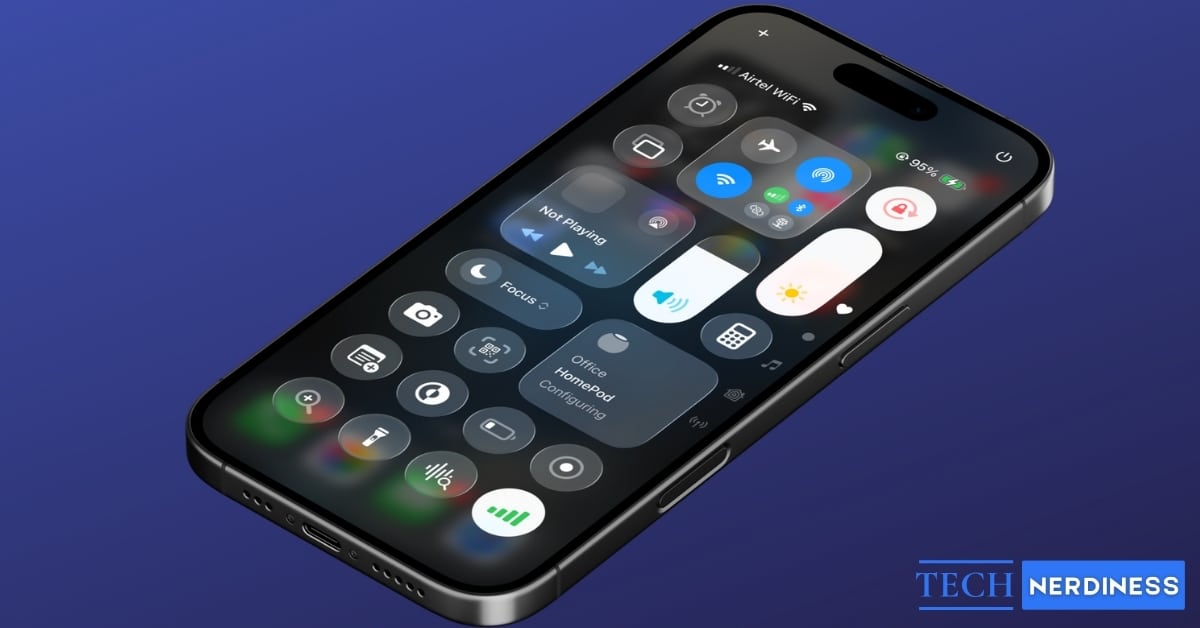
If you’ve ever glanced at the top of your iPhone screen and thought, “What does that little icon even mean?”, you’re not alone. Apple squeezes a lot of meaning into tiny symbols that pop up all day. Those icons quietly tell you what your iPhone is doing, what it’s connected to, and when an app is using sensitive features like your camera, microphone, or location.
Let’s walk through every iPhone icon and symbol you need to know, explained clearly and simply.
iPhone Status Bar Icons and their Meanings
The status bar is your iPhone’s quick “dashboard.” It updates in real time. On iPhone X and newer models, some icons are hidden swipe down from the top‑right corner to reveal them (along with the battery percentage).
Cellular and Network Icons
These icons show how your iPhone is connected (or not connected) at the moment.
| Image | Icon detail | Icon description |
|---|---|---|
 | Cellular signal bars | Shows the strength of your mobile signal. More bars usually mean better call quality and mobile data performance. |
 | Dual SIM signal | Appears when you use two cellular lines on your iPhone. Each line may show its own signal status. |
| No Service | Your iPhone is not connected to a cellular network. Calls, messages, and mobile data may not work until signal returns. | |
| SOS or SOS Only | Your carrier network is not available, but your iPhone may still be able to make emergency calls through another available network. | |
 | 3G | Your carrier’s 3G network is available for mobile data. |
 | 4G | Your iPhone is connected to a 4G network or similar carrier network. |
 | LTE | LTE data is available through your carrier. |
 | 5G | Your carrier’s 5G network is available, and your iPhone can use it for mobile data. |
 | 5G+, 5G UW, 5G UC, or 5GA | A faster or higher-capacity 5G network may be available. The exact label depends on your carrier, region, and iPhone model. |
 | 5G E | A carrier-specific network label used in some regions. It is not the same as true 5G. |
 | GPRS | An older cellular data network is available. It is much slower than modern 4G or 5G networks. |
 | EDGE | An older GSM-based data network is available. It is usually slow compared with LTE or 5G. |
 | Teletype (TTY) | TTY feature is on (users with hearing or speech difficulties can communicate via text or phone line). |
 | SOS/SOS Only | Your carrier signal isn’t available, but you may still be able to place emergency calls using another network. |
 | Satellite features | Satellite services are available in your location (for features like Emergency SOS / Messages via Satellite on supported models). |
 | Wi‑Fi | Your iPhone is connected to a Wi-Fi network. |
 | Wi‑Fi Calling | Your carrier allows calls to be made over Wi-Fi. This is helpful when mobile signal is weak. |
 | VPN (connected) | Your iPhone is connected to a VPN. Your internet traffic may be routed through a private network. |
 | VPN (disconnected) | A VPN profile exists on your iPhone, but it is currently not connected. |
 | Personal Hotspot (connected) | Your iPhone is using another device’s Personal Hotspot for internet access. |
 | Network Activity | Your iPhone is sending or receiving data in the background. |
Colored Time Bubble (Behind the Time)
On newer iPhones, the time can sit on a colored background. Think of it as a quick “activity alert.”
| Image | Icon detail | Icon description |
|---|---|---|
 | Blue time bubble | An app is using your location, or Screen Mirroring may be active. |
 | Green time bubble | A phone call is active, or your iPhone is sharing internet through Personal Hotspot. |
 | Red time bubble | Your iPhone is recording audio, recording the screen, or both. |
 | Purple time bubble | SharePlay is active during a supported session. |
Privacy Indicators: The Green & Orange Dots
These tiny dots are your privacy “spotlights.” They tell you when the camera or mic is in use.
| Image | Icon detail | Icon description |
|---|---|---|
 | Orange dot | An app is currently using your microphone. |
 | Green dot | An app is currently using your camera, or your camera and microphone together. |
Apple says the orange indicator means the microphone is being used, while the green indicator means the camera only or camera plus microphone is being used. Apple also notes Control Center can show when an app has recently used either.
Location Services Icons
Location icons reveal whether location is being used right now, used recently, or potentially used under certain rules.
| Image | Icon detail | Icon description |
|---|---|---|
 | Location arrow (active) | An app or system service is using Location Services. |
 | Hollow location arrow | An app may receive your location under certain conditions. |
 | Purple location arrow | An app is using your location in the background. |
 | White arrow on a blue dot | Turn-by-turn directions are active in a maps or navigation app. |
 | Navigation icon | Turn‑by‑turn navigation is running (maps guidance is active). |
Call, Audio, and Activity Icons
These show up when your iPhone is doing something “active” like calling, recording, sharing, or connecting to devices.
| Image | Icon detail | Icon description |
|---|---|---|
 | Phone call | A phone call is currently in progress. |
 | FaceTime | A FaceTime call is currently active. |
 | Screen recording | Screen recording is running right now. |
 | Headphones connected | Headphones are connected and ready for audio playback/calls. |
 | AirPlay | Audio/video is being streamed to an AirPlay device. |
 | Silent mode | Your iPhone is set to silent, so alerts won’t ring/vibrate normally (depending on settings). |
 | Alarm set | At least one alarm is scheduled. |
 | Syncing | Your iPhone is syncing with a computer (Finder/iTunes/Apple Devices). |
 | Locked | Your iPhone is locked (Face ID/Touch ID/passcode protection is active). |
 | Call forwarding | Calls are being forwarded to another number/device. |
 | Airplane Mode | Airplane Mode is on, so cellular is off (Wi‑Fi/Bluetooth may still be enabled manually). |
 | CarPlay | Your iPhone is connected to CarPlay. |
 | SharePlay active | SharePlay is being used to share content with other participants. |
 | Classroom (raised hand) | Your device is in an active Classroom session, and a teacher can view/monitor your screen. |
 | Battery level | Shows current battery charge. The icon turns red when the battery is critically low (around 20% or less). |
 | Charging | Your iPhone is charging (wired or wireless). |
 | Low Power Mode | Low Power Mode is on to reduce background activity and save battery. |
 | Bluetooth device battery | Shows the battery level of a connected Bluetooth accessory (like AirPods). |
Related: iMessage Symbols and Icons Meaning: What Every User Should Know
Focus Mode & Do Not Disturb Icons on iPhone
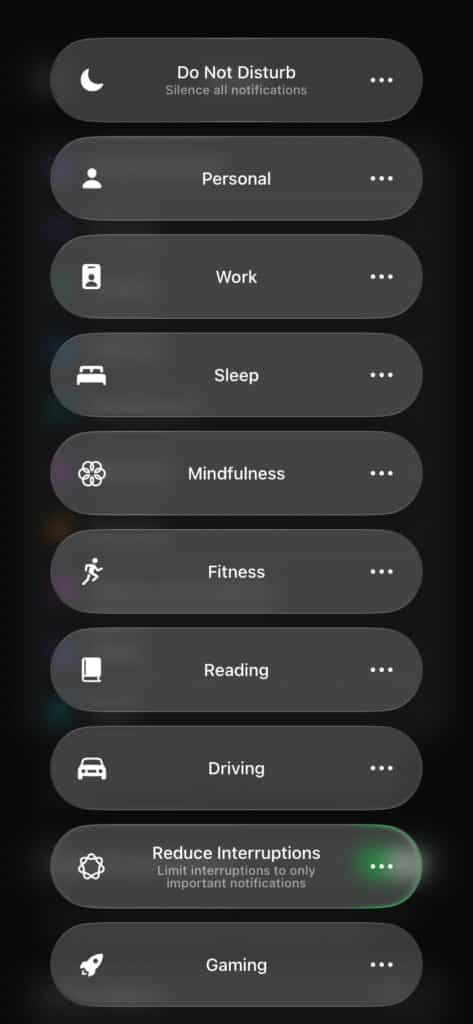
Focus modes help you cut distractions. When a Focus is enabled, its icon appears near the time so you can tell what’s active at a glance.
| Icon detail | Icon description |
|---|---|
| Do Not Disturb (crescent moon) | Do Not Disturb is on, so most alerts and calls are silenced based on your settings. |
| Reduce Interruptions (gear) | A Focus designed to allow only important notifications is enabled. |
| Gaming Focus (rocket) | Gaming Focus is on to reduce interruptions while you play. |
| Personal Focus (person) | Personal Focus is enabled to separate personal time from other notifications. |
| Work Focus (briefcase) | Work Focus is on, filtering notifications so you can stay productive. |
| Sleep Focus (bed) | Sleep Focus is enabled to reduce disruptions while winding down or sleeping. |
| Driving Focus (car) | Driving Focus is on to minimize distractions while you drive. |
| Fitness Focus (running person) | Fitness Focus is enabled for fewer interruptions during workouts. |
| Mindfulness Focus (flower/brain) | Mindfulness Focus is enabled for calmer, quieter notification behavior. |
| Reading Focus (book) | Reading Focus is enabled to keep distractions low while reading. |
iPhone Control Center Icons Explained
Control Center is your iPhone’s quick‑settings hub. It often shows icons without labels, so knowing them helps you move faster. On iPhone X and newer, swipe down from the top‑right; on iPhone 8 and earlier, swipe up from the bottom.
Network Card (Connectivity)
This cluster controls your main connections.
| Image | Icon detail | Icon description |
|---|---|---|
 | Airplane Mode | Toggles Airplane Mode on/off. When on, cellular shuts off (Wi‑Fi/Bluetooth can be turned on separately). |
  | Cellular Data ( or tower icon) | Turns mobile data on or off, controlling whether apps can use cellular internet. |
 | Wi‑Fi | Toggles Wi‑Fi on/off and helps you connect to available networks. |
 | Bluetooth | Toggles Bluetooth on/off for pairing and connecting accessories. |
 | AirDrop | Controls AirDrop visibility and sharing settings. |
 | Personal Hotspot | Turns Personal Hotspot on/off and may show sharing options when you press and hold. |
Display & Audio Sliders
These are your “comfort controls” for the screen and sound.
| Image | Icon detail | Icon description |
|---|---|---|
 | Brightness slider | Drag to raise or lower screen brightness. |
 | Dark Mode | Switches between Light and Dark appearance. |
 | Night Shift | Warms the display color temperature (often used in the evening). |
 | True Tone | Auto‑adjusts display color/brightness to match your environment’s lighting. |
 | Volume slider | Drag to change media volume (not your ringer volume). |
Time Tools
Quick shortcuts for timers and time tracking.
| Image | Icon detail | Icon description |
|---|---|---|
 | Timer (clock icon) | Opens Timer (press and hold for quick duration options on some versions). |
| Alarm | Opens the Alarm screen so you can add or edit alarms. |
 | Stopwatch | Opens Stopwatch for measuring time and laps. |
Utilities & Quick Actions
Fast access to everyday tools.
| Image | Icon detail | Icon description |
|---|---|---|
 | Calculator | Opens the Calculator app (some versions allow copying the last result via press‑and‑hold). |
 | Camera | Opens Camera quickly (press‑and‑hold may show mode shortcuts). |
 | Flashlight / Torch | Turns the flashlight on/off (press‑and‑hold may adjust brightness). |
 | Notes | Starts a new note quickly (press‑and‑hold may show checklist/photo/scan shortcuts). |
 | Wallet | Opens Wallet for Apple Pay cards, passes, tickets, and boarding passes. |
Scanning & Recognition
Icons that help your iPhone scan and identify things.
| Image | Icon detail | Icon description |
|---|---|---|
 | QR Code Scanner | Opens the QR scanner so you can scan codes with the camera. |
 | NFC Tag Reader | Activates NFC reading so you can tap your phone near a supported NFC tag. |
 | Music Recognition (Shazam “S”) | Identifies music playing nearby and can show your recognition history. |
 | Sound Recognition (waves + search) | Lets iPhone listen for specific sounds (like sirens or alarms) and notify you when detected. |
Recording & Audio Features
Tools for recording and hearing assistance.
| Image | Icon detail | Icon description |
|---|---|---|
 | Screen Recording (dot in a circle) | Starts/stops screen recording (press‑and‑hold can enable microphone audio). |
 | Voice Memos (waves) | Opens Voice Memos for recording or playing back voice notes. |
 | Hearing / Live Listen (ear) | Accesses Hearing features like Live Listen or Background Sounds (device‑dependent). |
 | Announce Notifications | Lets Siri read incoming messages/alerts through compatible headphones. |
 | Noise Control | Controls noise cancellation/transparency for supported AirPods models. |
 | Spatial Audio | Enables spatial audio features for supported headphones. |
Accessibility & Focused Use
Designed to make iPhone easier to use or to lock it into a single task.
| Image | Icon detail | Icon description |
|---|---|---|
 | Accessibility (person in a circle) | Opens your configured Accessibility Shortcuts. |
 | Guided Access (lock in dotted box) | Enables Guided Access to limit the device to one app and restrict certain actions. |
 | Magnifier (search + plus) | Opens Magnifier to zoom in and read small text or details. |
 | Text Size (aA) | Adjusts text size (either for the current app or system‑wide, depending on settings). |
Apple Ecosystem Controls
Icons that connect your iPhone to Apple devices, your home, your car, and shared experiences.
| Image | Icon detail | Icon description |
|---|---|---|
 | Apple TV Remote | Opens a remote control for Apple TV and compatible TVs. |
 | Home | Opens Home controls for smart accessories and scenes you’ve set up. |
| CarPlay | Shows CarPlay connection controls when supported and connected. |
| AirPlay | Routes audio/video to another device (speakers, TV, Apple TV) using AirPlay. |
| SharePlay | Starts or manages SharePlay for supported apps during calls/sessions. |
 | Screen Mirroring | Sends your entire screen to a compatible display (not just media playback). |
Related: What All the Find My App Icons and Symbols Mean: Complete Guide
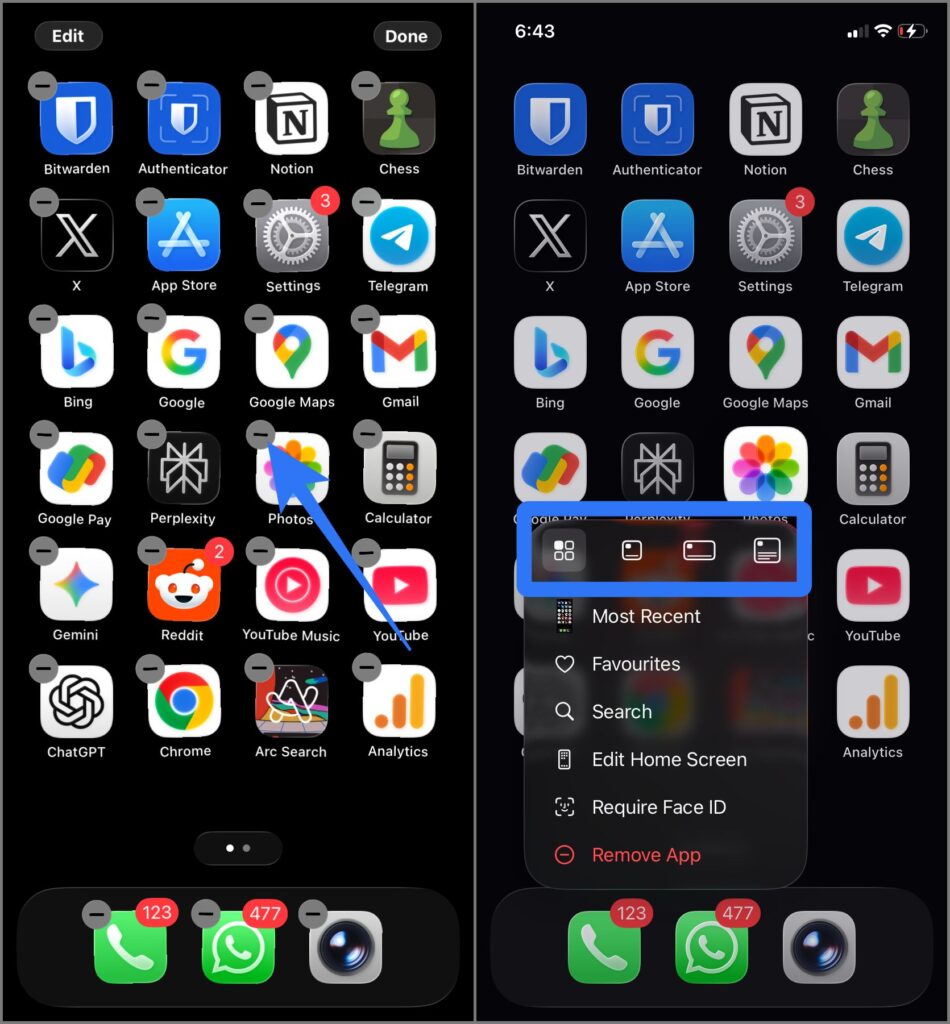
Home Screen App Icons and Symbols Explained
Home Screen icons feel “obvious” at first, until you long‑press and iPhone suddenly shows extra symbols with no labels. These two are the most common ones people get stuck on.
| Icon detail | Icon description |
|---|---|
| Minus on the Apps and Widgets | When you long press any icon and enter jiggle mode, all apps on the home screen have this minus icon. When you tap on it, you get the option to remove the app from homepage or even delete the app completely. |
| Widget icons in Menu | When you long press any app, you get a pop-up menu. While all options have clear names, widget icons have no descriptions. When you tap on them, your app or widget will change it’s layout size or even convert between apps and widgets according to selected option. |
Final Thoughts
iPhone icons are more than tiny pictures. They’re your phone’s language. Once you learn to read them, your iPhone stops feeling mysterious and starts feeling intuitive. You no longer wonder “Is my phone listening?” or “Why did that symbol appear?” – You already know. And that knowledge turns everyday iPhone use into a calmer, more confident experience.
You may like to read: