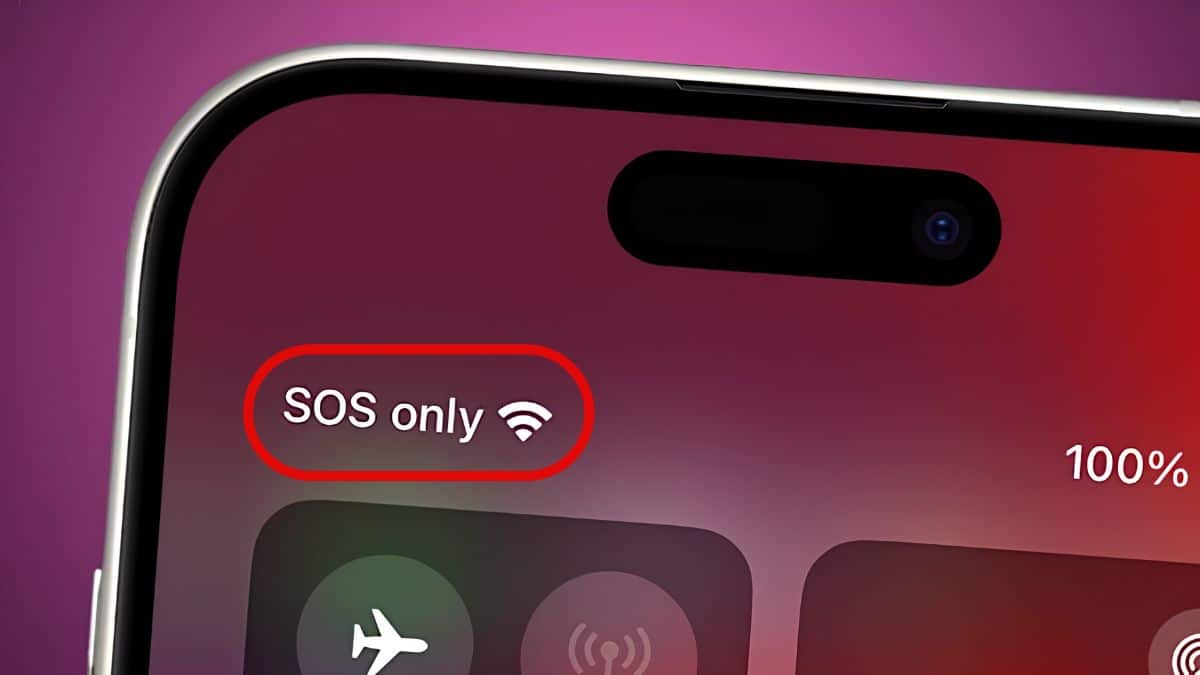
You go to send a text or make a call, and instead of your carrier’s name and signal bars, you see three letters sitting in the status bar: SOS. No bars, no data icon, nothing that looks like a normal cellular connection.
It looks alarming, but it does not necessarily mean something is wrong with your iPhone. When your iPhone says SOS, it has lost its normal connection to your carrier’s network. In supported regions, your iPhone may still be able to make emergency calls using another available carrier’s network, even though regular calls, texts, and cellular data are unavailable.
Think of SOS as your iPhone saying, “I can’t connect to my normal network right now, but emergency calling may still be available.” Here’s why your iPhone gets stuck in SOS mode and what you can do to restore your cellular connection.
What Does SOS Mean on iPhone?
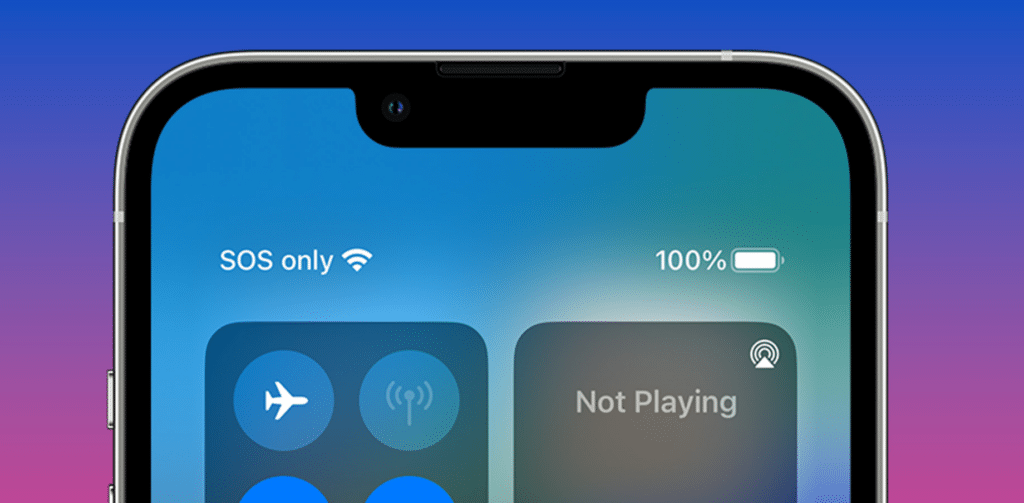
When SOS or SOS only appears in your iPhone’s status bar, your device is not connected to your regular cellular network. That means normal phone calls, SMS messages, and cellular data may not work.
However, your iPhone may still detect another carrier’s network that can be used for emergency calls. This is why SOS can appear even when your normal carrier has no service.
The exact behavior depends on your country, carrier, and available cellular networks. It is also important not to confuse this with Emergency SOS via satellite.
Emergency SOS via satellite is available on supported iPhone models and can help you contact emergency services when neither cellular nor Wi-Fi coverage is available. It is a separate feature from the SOS indicator that appears when your iPhone loses its regular cellular connection.
If you suddenly see SOS while you normally have coverage, you are most likely dealing with a carrier, SIM, account, or network configuration problem.
Why Is My iPhone Stuck in SOS Mode?
A handful of issues account for most cases, and many of them have nothing to do with your iPhone’s hardware.
1. Your carrier is experiencing an outage
A carrier outage is one of the first things worth checking, especially if your iPhone suddenly switches to SOS in a location where you normally have strong service.
During an outage, your phone may still detect other cellular networks for emergency calling but cannot register normally with your own carrier.
If several people using the same carrier are experiencing the problem, changing settings on your iPhone probably will not help. You will need to wait for the carrier to restore service.
2. Your cellular account has a problem
A suspended line, billing problem, expired prepaid plan, or account provisioning issue can prevent your iPhone from connecting to your carrier.
From the iPhone’s perspective, the result can look almost identical to a network outage: your normal cellular service disappears and SOS appears instead.
3. Your SIM or eSIM is not working correctly
Your SIM connects your iPhone to your carrier account. If something goes wrong with it, your phone may lose cellular service. With a physical SIM, the card may be damaged, incorrectly seated, or no longer properly provisioned.
If you use an eSIM, the cellular line may have been disabled or encountered a provisioning issue. This is particularly worth checking if you recently transferred your number, switched carriers, installed an eSIM, or updated your iPhone.
4. You are outside your carrier’s coverage area
Sometimes there is nothing to fix. If you are traveling through an area where your carrier has poor or no coverage, your iPhone can display SOS until it finds your carrier’s network again.
The same thing can happen when traveling internationally if your plan does not support roaming or roaming has not been configured correctly.
5. Your carrier settings need an update
Carriers periodically release carrier settings updates that help your iPhone connect correctly to their networks. These updates can include changes related to cellular connectivity, calling, messaging, 5G, Wi-Fi Calling, and other carrier-specific features.
Most install automatically, but it is still worth checking manually when your iPhone unexpectedly gets stuck in SOS mode.
How to Fix an iPhone Stuck in SOS Mode
Work through these fixes in order. You may not need to try all of them.
1. Turn Airplane Mode On and Off
Start with the quickest fix.
- Open Control Center and tap the Airplane Mode icon. Alternatively, go to Settings > Airplane Mode.
- Leave Airplane Mode enabled for about 15 seconds, then turn it off.
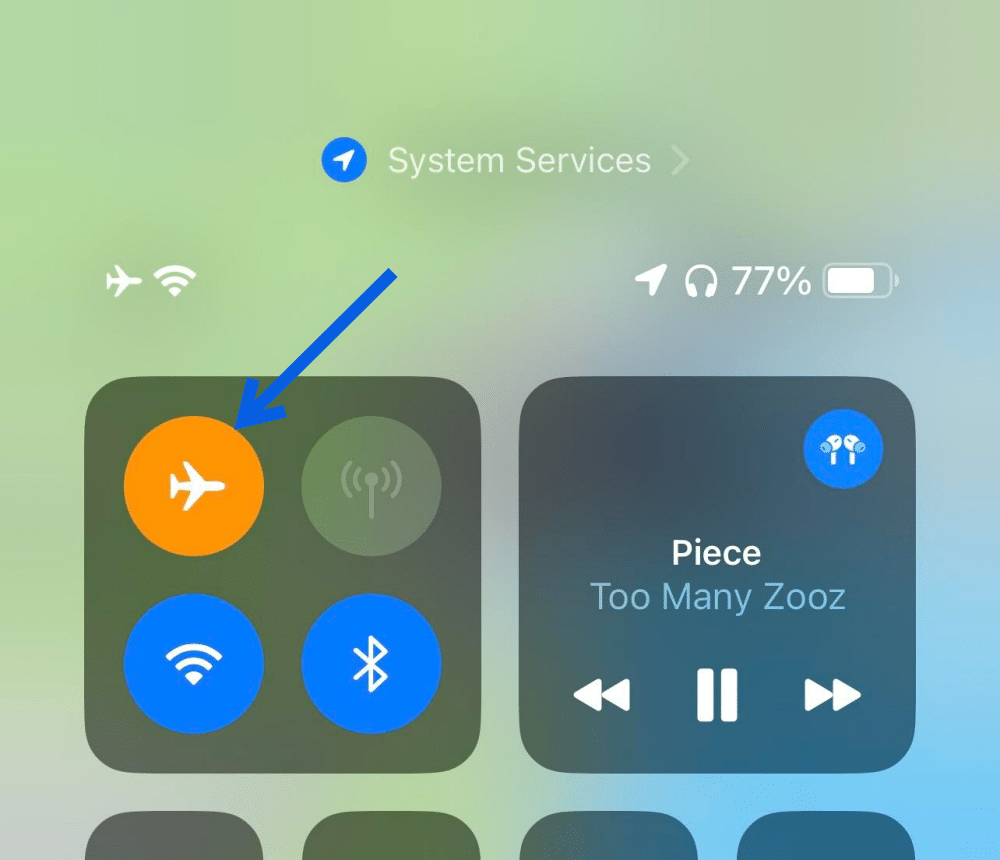
Your iPhone will disconnect from its wireless radios and then search for your carrier again. If SOS appeared because of a temporary registration or network glitch, your normal signal may return within a few seconds.
2. Restart Your iPhone
If toggling Airplane Mode does not work, restart the iPhone.
On an iPhone with Face ID:
- Press and hold the Side button and either Volume button.
- Drag the slide to power off slider.
- Wait around 30 seconds for the iPhone to shut down completely.
- Press and hold the Side button until the Apple logo appears.
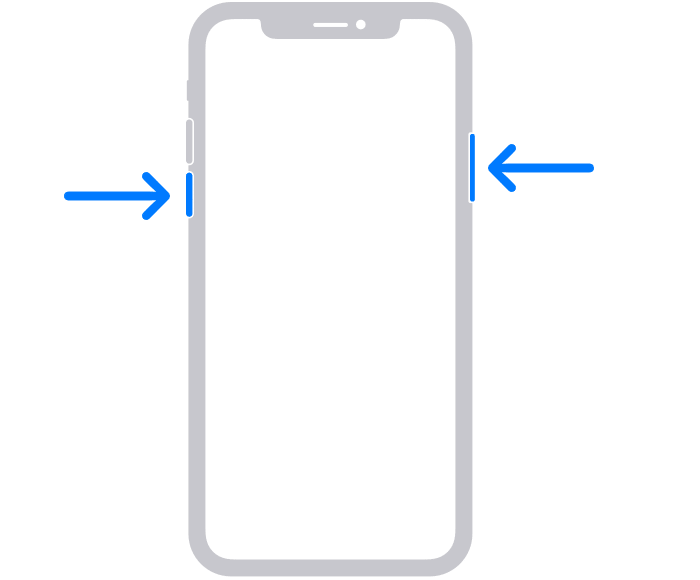
Once the phone starts, give it a minute to reconnect to your carrier.
A restart sounds basic, but it can clear temporary cellular and software problems that prevent your iPhone from registering correctly with the network.
3. Check for a Carrier Outage
Before resetting anything important, make sure the problem is actually on your end. Check your carrier’s official network-status page, support account, or app. You can also check an outage-tracking service to see whether other customers are reporting similar problems.
Another quick test is to ask someone nearby who uses the same carrier whether their phone has service. If multiple phones on the same network suddenly show SOS, there is little reason to start resetting your iPhone. Wait for the carrier to resolve the outage.
4. Check Your SIM or eSIM
Next, make sure your cellular line is actually enabled.
Go to Settings > Cellular or Settings > Mobile Service, depending on your region.
If you have multiple SIMs or eSIMs, tap the affected line and confirm that Turn On This Line is enabled.
For a physical SIM, you can also turn off your iPhone, remove the SIM tray, check that the card is seated correctly, and reinstall it.
Be careful before deleting an eSIM. Removing an eSIM is different from simply turning the line off, and you may need your carrier to reactivate it afterward. Do not delete the eSIM as a troubleshooting step unless your carrier specifically tells you to.
5. Check for a Carrier Settings Update
Connect your iPhone to Wi-Fi, then go to:
Settings > General > About.
Stay on the About screen for a few seconds.
If your carrier has an update available, iOS should display a prompt asking you to install it. Follow the instructions and then check whether cellular service returns.
Carrier settings updates are easy to overlook because they are separate from regular iOS updates, but they can fix network compatibility and connectivity problems.
6. Update Your iPhone
If your iPhone is running an older version of iOS, check whether an update is available.
Go to: Settings > General > Software Update.
Install the latest version available for your device.
Apple regularly includes bug fixes and cellular-related improvements in iOS updates, so updating is particularly worthwhile if SOS started appearing after another software change or has been happening repeatedly.
If you are currently running iOS 26, our breakdown of what’s new in iOS 26.6.1 covers the latest changes and fixes.
7. Reset Network Settings
If your carrier is working, your SIM appears fine, and your iPhone still shows SOS, resetting the network settings is the next step worth trying.
- Go to: Settings > General > Transfer or Reset iPhone > Reset > Reset Network Settings.
- Enter your passcode if prompted and confirm the reset. Your iPhone will restart and rebuild its network configuration.
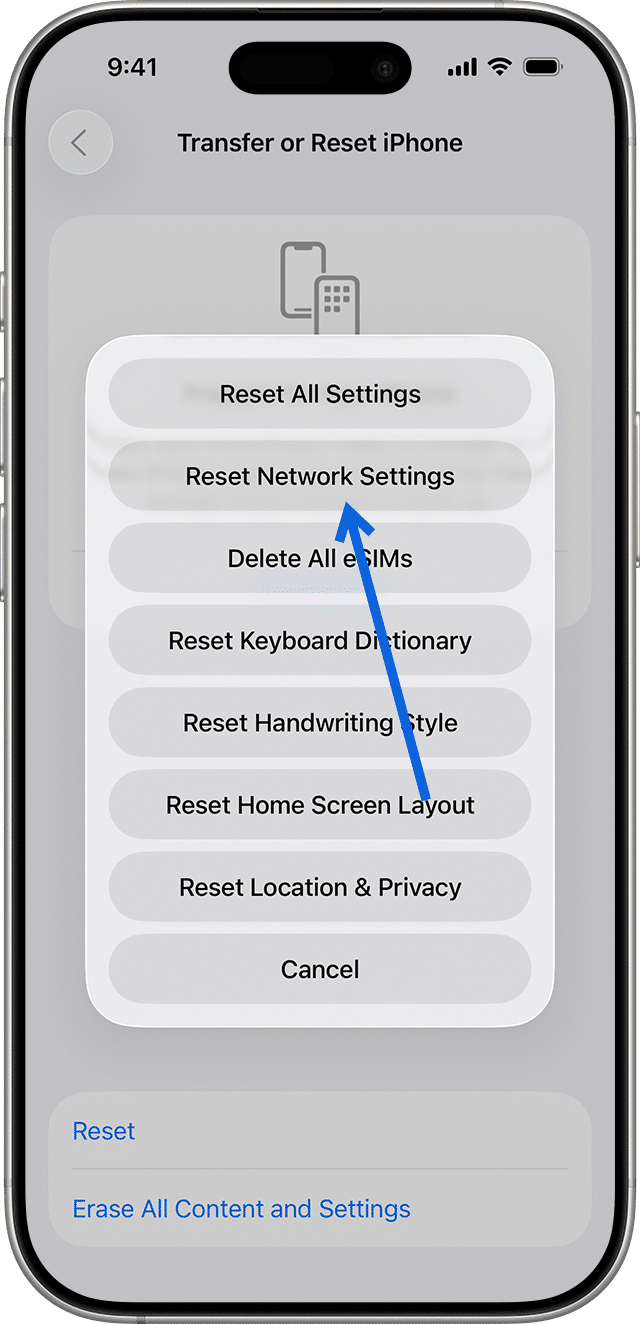
Keep in mind that this reset removes saved Wi-Fi networks and passwords along with certain cellular, VPN, and network settings. It does not erase your photos, apps, messages, or other personal data.
Because you will need to reconnect to Wi-Fi afterward, make sure you know your Wi-Fi password before doing this.
8. Contact Your Carrier
If your iPhone is still stuck in SOS mode after all the steps above, it is time to contact your carrier.
Ask the carrier to verify that:
- Your account and cellular line are active.
- There are no outages in your area.
- Your plan is properly provisioned.
- Your SIM or eSIM is active.
- Your device has not been blocked or reported lost.
- Your iPhone’s IMEI is correctly registered on the network, where required.
Your carrier may also be able to refresh or reprovision your line remotely.
If the carrier confirms that everything looks normal on its end and your iPhone still cannot connect, the next step may be contacting Apple Support to rule out a hardware issue.
How to Fix SOS on iPhone While Traveling Abroad
If SOS appears shortly after you arrive in another country, roaming or your travel eSIM should be among the first things you check.
If you are using your regular carrier internationally, go to: Settings > Cellular > Cellular Data Options
Check whether Data Roaming needs to be enabled for your plan.
Before turning it on, confirm that international roaming is included in your plan or that you understand your carrier’s roaming charges. Otherwise, you could end up with an unexpectedly expensive bill.
If you installed a travel eSIM, go to Settings > Cellular and make sure the new eSIM is enabled. Also check that the correct line is selected for cellular data.
A failed, expired, or incorrectly configured travel eSIM can leave your iPhone showing SOS even though everything else on the phone is working normally.
If you have not purchased one yet, our roundup of the best eSIM apps for international travel can help you compare your options.
What If My iPhone Keeps Going Into SOS Mode?
Seeing SOS once while driving through a dead zone is normal. Seeing it repeatedly in places where you normally have reliable coverage is different. Start paying attention to when it happens.
If your iPhone repeatedly drops into SOS in one specific location, your carrier may simply have weak coverage there. If it happens everywhere, including areas where other people on the same network have full service, the problem could involve your SIM, eSIM, account provisioning, or the iPhone itself.
Testing another SIM or eSIM, when your carrier supports it, can help narrow down whether the problem follows the cellular line or stays with the phone.
If the issue persists after your carrier has checked the line and you have updated iOS and reset network settings, contact Apple Support for further diagnosis.
Final Verdict
Seeing SOS on your iPhone looks more alarming than it usually is. In most cases, it means your iPhone has temporarily lost its normal carrier connection, not that the phone itself has failed.
Start with the simple fixes: toggle Airplane Mode, restart your iPhone, and check whether your carrier is experiencing an outage. Then move on to checking your SIM or eSIM, carrier settings, and iOS updates. Save Reset Network Settings for later in the troubleshooting process because it removes saved network information.
And if your iPhone remains stuck in SOS after all of that, contact your carrier. At that point, an account, SIM, eSIM, provisioning, or network-side issue is more likely than something you can fix with another restart.