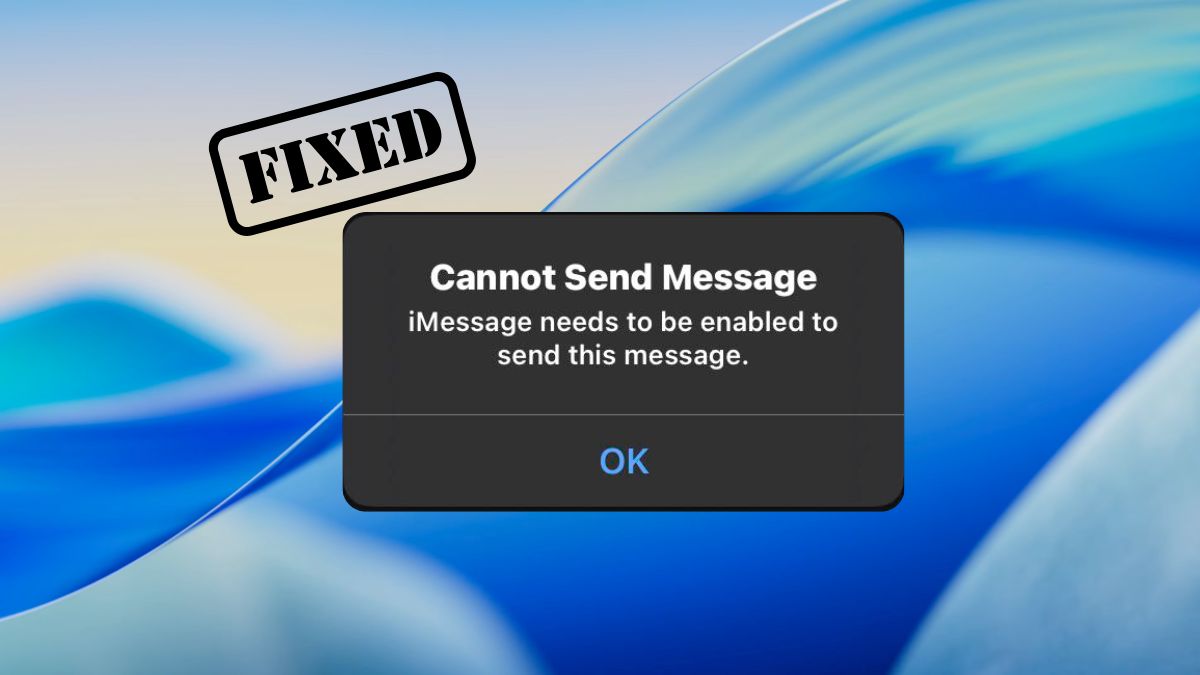
If you’ve ever gone to send a message and been hit with the “iMessage needs to be enabled to send this message” warning out of nowhere, you know how frustrating it is, especially when iMessage is clearly already turned on. I’ve been there too.
The confusing part? This error doesn’t always mean iMessage is actually disabled. It’s often a sign of an activation glitch, a sync hiccup after an iOS update, or a subtle conflict with your Apple ID, network, or even your device’s date and time settings. In fact, this error has been showing up more frequently after recent iOS updates, including reports tied to iOS 26, and it’s also known to affect people using dual SIM or eSIM setups. Apple’s discussion forums are full of threads about it.
The good news? In most cases, you don’t need to visit an Apple Store or call anyone. Let’s walk through all the fixes, starting with the quickest ones first.
Why You’re Seeing This Error
Before diving into fixes, it helps to know what’s actually triggering the error. Here are the most common causes:
- iMessage toggle is off, it sounds obvious, but it’s easy to miss, especially after a restore or device switch.
- Activation glitch, iMessage failed to register with Apple’s servers, which happens more often after iOS updates.
- Apple ID authentication issue, a silent sign-out or account sync problem can break iMessage even if the toggle is green.
- No internet connection, iMessage requires Wi-Fi or cellular data to activate and send messages.
- Apple server outage, iMessage’s servers go down occasionally, and no local fix will help until Apple restores them.
- Incorrect date and time, if your device clock doesn’t match Apple’s servers, the activation handshake fails silently.
- SIM card or phone number issue, an improperly seated SIM, an unchecked phone number in settings, or a carrier restriction can all block iMessage from activating.
- VPN interference, some VPN configurations route traffic in a way that Apple’s servers don’t accept, breaking iMessage.
12 Fixes for “iMessage Needs to Be Enabled to Send This Message”
Fix 1: Toggle iMessage Off and Back On
This sounds almost too simple, but it works more often than you’d think. Turning iMessage off and on again forces it to re-register with Apple’s servers, which clears out most minor activation glitches.
Here’s how:
- Open Settings on your iPhone.
- Scroll down and tap Messages.
- Find the iMessage toggle at the top.
- If it’s already green, turn it off, wait about 10 seconds, then turn it back on.
- If it’s gray, it was never enabled in the first place. Toggle it on and wait for activation.
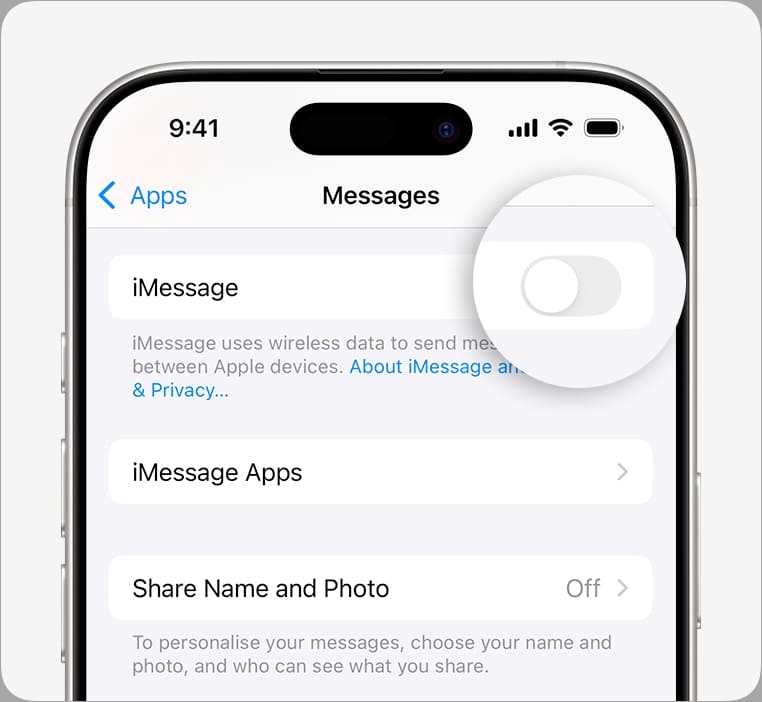
Activation can take a minute or two, so give it a moment before assuming it didn’t work.
Fix 2: Restart Your iPhone
A simple restart clears temporary system glitches that can leave iMessage stuck in a broken state, even after you’ve toggled it. If Fix 1 didn’t work, this should always be your second step.
On iPhone X or later: Press and hold the Side button and either Volume button until the power-off slider appears. Drag it to turn off. Wait 30 seconds, then press and hold the Side button again to turn it back on.
On iPhone SE, 2nd or 3rd gen, or older: Press and hold the Top button until the slider appears. Drag it off, wait 30 seconds, then restart.
Once the phone reboots, go back to Settings → Messages and check if iMessage activates normally.
Fix 3: Make Sure You Have a Working Internet Connection
iMessage runs entirely over the internet, Wi-Fi or cellular data. No connection means no iMessage, period. It’s worth confirming both before assuming something deeper is wrong.
- For Wi-Fi: Go to Settings → Wi-Fi and confirm you’re connected to a network.
- For Cellular Data: Go to Settings → Cellular and make sure Cellular Data is toggled on.
If both look fine but things still aren’t working, open Safari and try loading a webpage. If that fails too, the issue is your connection, not iMessage specifically.
Fix 4: Reset Network Settings
If iMessage keeps failing to activate even with a working connection, the problem might be deeper in your network configuration, such as stored Wi-Fi credentials, VPN profiles, or APN settings that have become corrupted. Resetting network settings clears all of that and often resolves stubborn iMessage activation failures.
Here’s how:
- Go to Settings → General.
- Scroll down and tap Transfer or Reset iPhone.
- Tap Reset, then choose Reset Network Settings.
- Enter your passcode and confirm.
Your iPhone will restart with fresh network settings. You’ll need to reconnect to Wi-Fi networks afterward, so have your passwords handy.
Note: This does not delete any personal data, apps, or messages. It only resets network-related preferences.
Fix 5: Check Your Send & Receive Settings
This is one of the more overlooked fixes, and it trips a lot of people up. Apple links your phone number and Apple ID email together for iMessage, but sometimes after an iOS update or device switch, one of them gets unchecked or goes missing entirely. When that happens, messages can fail silently.
Here’s how to check:
- Go to Settings > Messages > Send & Receive.
- Under You Can Receive iMessages to and Reply From, make sure both your phone number and Apple ID email are checked.
- Under Start New Conversations From, only one should be selected (typically your phone number).
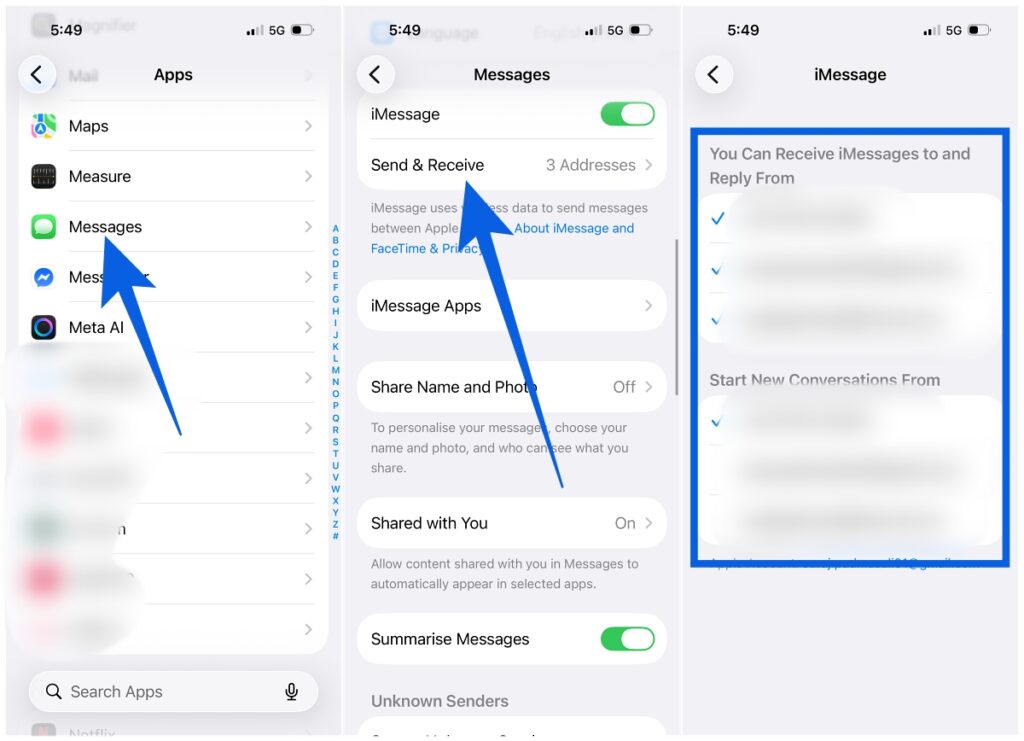
If your number isn’t showing up at all, that can sometimes trace back to a SIM or carrier issue. See Fix 8 below.
Fix 6: Check Your Date and Time Settings
This one surprises a lot of people. If your iPhone’s date or time is even slightly off from Apple’s servers, iMessage’s activation process can fail silently because the two sides can’t agree on the handshake.
Here’s how to make sure it’s correct:
- Go to Settings → General → Date & Time.
- Make sure Set Automatically is toggled on.
That’s it. With Set Automatically enabled, your iPhone syncs the clock with your carrier’s network time, which keeps it in sync with Apple’s servers. If you’d previously set the time manually, or if someone else had, this toggle might have been switched off.
Fix 7: Sign Out of Your Apple ID and Sign Back In
Your Apple ID is the backbone of iMessage. If there’s any authentication issue between your Apple ID, iCloud, and iMessage, it can silently break things, including triggering this error even when settings look fine.
- Go to Settings and tap your name at the top.
- Scroll to the bottom and tap Sign Out.
- Follow the prompts, then sign back in with your Apple ID and password.
This re-establishes the connection between your account, iCloud, and iMessage. A lot of people are surprised by how often this alone resolves persistent errors.
Heads up: Make sure you know your Apple ID password before signing out. If you’ve forgotten it, reset it at appleid.apple.com before proceeding.
Fix 8: Check Your SIM Card and Phone Number Status
If iMessage can’t verify your phone number, it won’t activate properly, and this is exactly what happens when your SIM isn’t seated correctly, your carrier hasn’t provisioned iMessage, or your phone number isn’t selected in settings.
Check that your phone number is selected: Go to Settings → Messages → Send & Receive and confirm your phone number appears and has a checkmark next to it.
If your number isn’t showing up at all:
- Try removing and reinserting your physical SIM card.
- For eSIM users: go to Settings → Cellular and confirm your eSIM plan is active.
- Contact your carrier to confirm that iMessage/SMS is enabled on your account, as some prepaid plans or recent activations need it manually turned on.
This fix is especially relevant if you recently switched carriers, activated a new SIM, or set up a new iPhone.
Fix 9: Update iOS to the Latest Version
Running an outdated iOS version is one of the quieter culprits behind iMessage errors. Apple regularly pushes fixes for messaging bugs and activation issues, and skipping updates means missing those patches. This is especially relevant right now because several users have reported this specific error appearing or resolving after specific iOS updates.
To check:
- Go to Settings > General > Software Update.
- If an update is available, download and install it.
Even if the release notes don’t mention iMessage specifically, Apple frequently ships under-the-hood fixes for activation and messaging that never make it into the headline features.
Fix 10: Check Apple’s Server Status
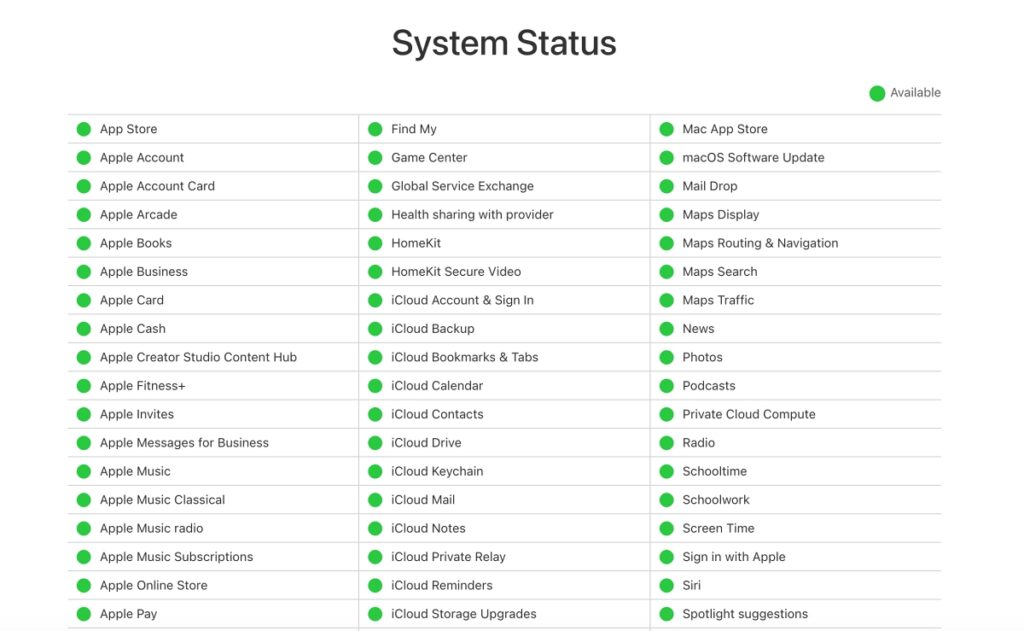
Before spending more time troubleshooting your own device, it’s worth checking whether the problem is on Apple’s end. Apple’s iMessage servers do go down occasionally, and when they do, nothing you do locally will fix it.
Visit Apple’s System Status page and look for:
- iMessage (center column)
- Apple ID (left column)
- iCloud (which iMessage depends on)
A green dot means everything is running normally. If anything shows yellow or red, Apple is already aware and working on a fix. In that case, just wait it out. It typically resolves within a few hours.
Fix 11: Disable Your VPN Temporarily
VPNs are great for privacy, but they can occasionally interfere with how iMessage authenticates and sends messages, especially if the VPN routes traffic in a way that Apple’s servers don’t recognize or trust.
- Go to Settings > VPN.
- Toggle VPN Status off.
- Try sending your message again.
If it goes through, your VPN was the issue. You may need to switch to a different VPN server location or check your VPN app’s settings for a “split tunneling” option that lets you exclude Apple services from the VPN tunnel.
Fix 12: Reset All Settings, Last Resort
If nothing above has worked, resetting all settings is the nuclear option, and it’s often the fix for deep, stubborn configuration issues that can’t be resolved any other way.
Important: This will not delete your photos, apps, messages, or personal data. But it will reset all system preferences back to factory defaults, including Wi-Fi passwords, notification settings, keyboard shortcuts, and iMessage configuration.
Here’s how:
- Go to Settings → General → Transfer or Reset iPhone.
- Tap Reset, then choose Reset All Settings.
- Enter your passcode and confirm.
Your iPhone will restart. You’ll need to reconnect to Wi-Fi and re-enable Face ID and other preferences, but this approach resolves even the most persistent iMessage activation failures.
Fall Back to SMS in the Meantime
If none of the above has worked yet and you need to reach someone right now, SMS is your backup. When an iMessage fails to send, a small red exclamation mark appears next to it. Tap that, then select Send as Text Message.
It’s not a permanent fix, but it keeps communication open while you continue troubleshooting.
This usually means iMessage is enabled but hasn’t successfully activated, or the activation has expired. The most common triggers are an iOS update resetting a setting, an Apple ID authentication lapse, or a temporary server issue. Start with Fix 1, toggle off/on, and Fix 2, restart. Those two steps resolve the majority of cases.
Usually between a few seconds and two minutes. If it’s been stuck on “Waiting for activation” for longer than five minutes, turn iMessage off, restart your iPhone, turn it back on, and make sure you have a working internet connection.
This is typically caused by an Apple ID authentication issue or a persistent network problem. Sign out of your Apple ID and back in, Fix 7, then check your Send & Receive settings, Fix 5. If it keeps happening after iOS updates, this is a known bug. Make sure you’re on the latest iOS version.
Yes. It typically happens after a macOS update or when your Apple ID session expires in the Messages app. See the “How to Fix iMessage on Mac” section above for the full steps.
No. Resetting network settings only removes stored Wi-Fi passwords, VPN configurations, and network preferences. It does not touch your photos, apps, messages, or any personal files.
You might also like: