Whether you’ve recently moved abroad, traveling long-term, or just want access to apps and content that aren’t available in your current region, knowing how to change your Apple ID country or region can save you a lot of frustration. The good news? It’s simpler than most people expect — but there are a few things you’ll want to sort out before you dive in.
Before You Change Your Country or Region on Apple ID
Skipping this part is where most people run into problems. Apple has a few hard requirements before it lets you switch regions, so take five minutes to go through this checklist:
- Spend your remaining Apple ID balance. Your current balance does not carry over to a new country. Use it on apps, music, or anything in the store before you switch.
- Cancel active paid subscriptions and let them expire. Even one active subscription can block the entire process. Cancel first, then wait for the billing period to end.
- Let pending transactions finish. This includes store credit refunds, movie rentals, pre-orders, and memberships. Switching mid-transaction can cause headaches.
- Have a valid payment method ready for your new region. Whether that’s a local credit card, PayPal, or selecting “None,” you’ll need to provide something during the switch. Without it, you may not be able to use the App Store right away.
- Download content you want to keep. Apps, ebooks, music, and movies don’t always follow you across regions. If something you love isn’t available in your new country, grab it before you make the change.
- Review your iCloud+ plan. Pricing varies by country. After updating your Apple ID or Apple Account, you may need to adjust or upgrade your iCloud storage plan to match the new regional pricing.
- Leave any Family Sharing group you’re part of. This is a step a lot of people miss. If you’re still in a Family Sharing group, Apple won’t let you change your country until you leave.
Steps to Change Your Country or Region on Apple ID from Your iPhone
Once you’ve handled the prerequisites above, here’s exactly how to change your country on your iPhone’s Apple ID account running iOS 26:
- Open Settings and tap your name at the top of the screen.
- Tap Media & Purchases, then select View Account from the pop-up. You may be asked to sign in with your password or Face ID.
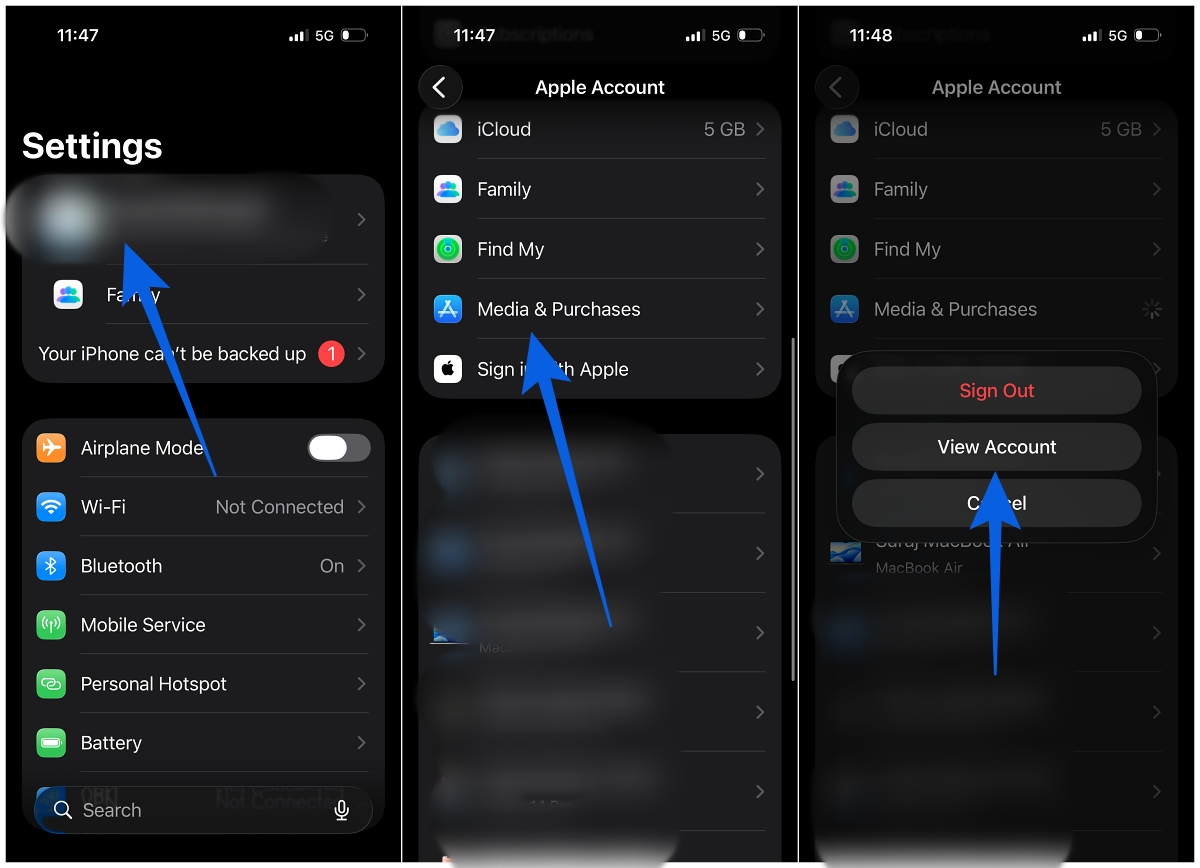
- Tap Country/Region, then tap Change Country or Region.
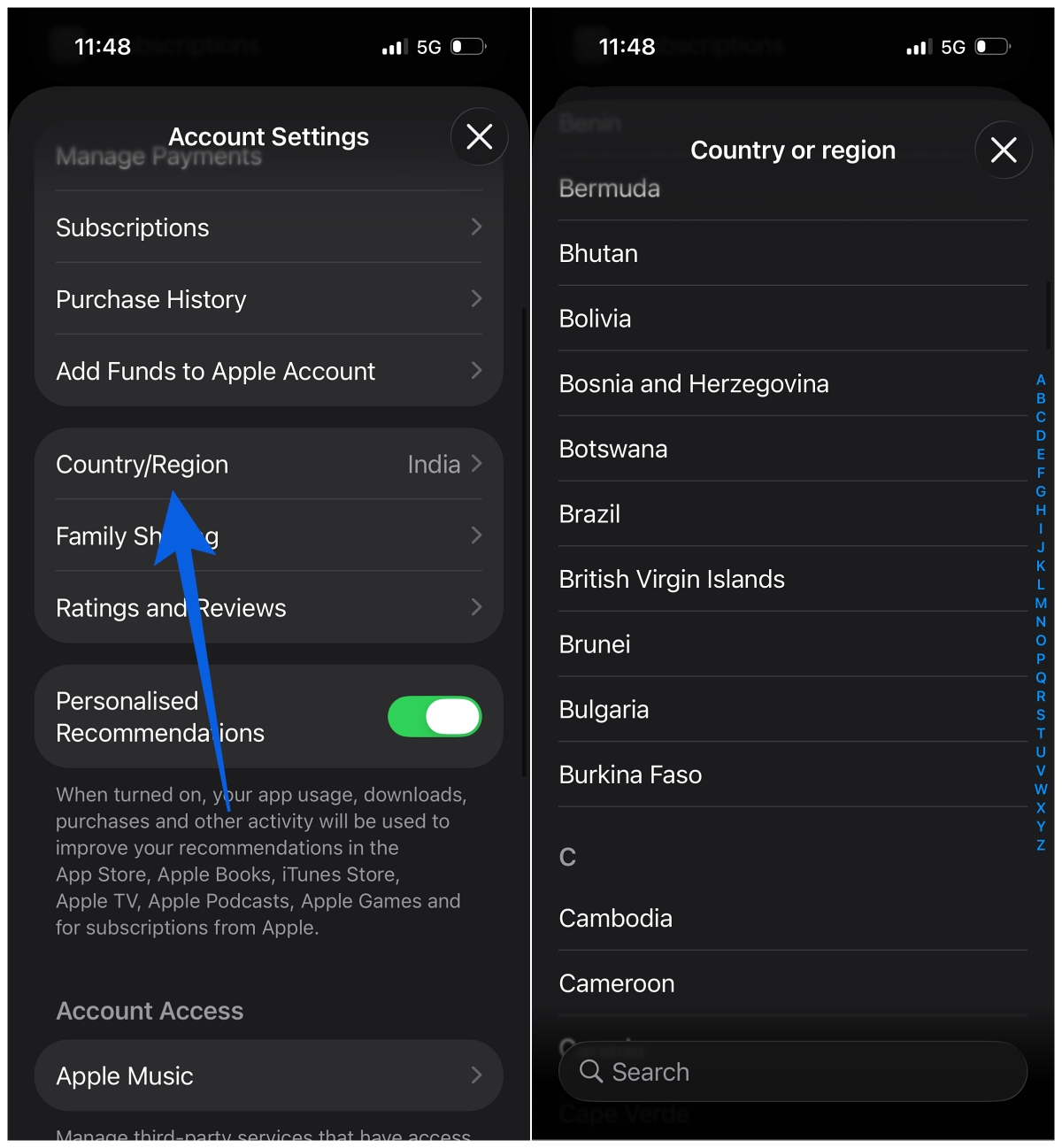
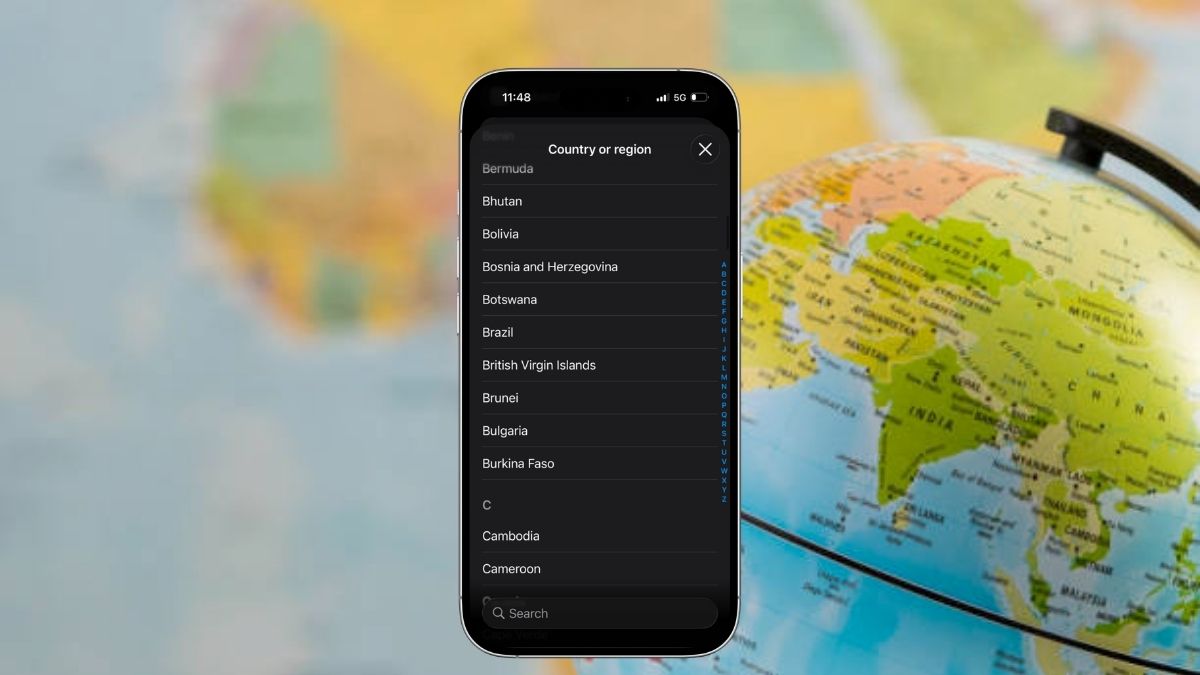
- Scroll through the list and select your new country or region. Read through the Terms and Conditions, then tap Agree.
- Select a valid payment method for your new country — credit card, PayPal, or None if you prefer. Enter your new billing address and tap Next.
That’s it. Your Apple Account country or region is now updated, and your App Store will reflect the new location.
Quick note: If any of the steps or icons look unfamiliar, our guide on all iPhone icons and symbols explained is a handy reference to keep nearby.
Wrapping Up
Changing your Apple ID country or region is genuinely useful when you’re relocating or want access to a different App Store catalog. The process itself takes only a few minutes, but the preparation beforehand is what makes or breaks the experience. Clear your balance, cancel your subscriptions, and have a payment method lined up for the new region — do those three things, and the rest of the switch is seamless.
Yes. When prompted to select a payment method, choose “None.” Keep in mind that some purchases and subscriptions may not be available until you add a valid local payment method.
Apple allows you to change your country or region once every 365 days, so choose carefully before making the switch.
Apps you’ve already downloaded stay on your device, but they may no longer be available to redownload if they aren’t offered in your new region. Download anything you want to keep before switching.
Check out these helpful guides too: