In the Settings app, iPhone gives you only a list of ringtones to choose from. Apart from that, your only option is to buy a song from the iTunes Store. Apple does not make custom ringtones obvious, but you can absolutely set any song as your iPhone ringtone for free.
This guide explains every working method in 2026, including the new option, in clear and practical steps that anyone can follow.
What You Need Before Setting a Custom iPhone Ringtone
Before you start, make sure your audio file meets these requirements. This will prevent errors later in the process.
- The file must be DRM free. Streaming songs from Apple Music, Spotify, or other subscription services will not work.
- The file must be downloaded and saved locally on your device or computer.
- Supported formats include MP3, AAC, M4A, and WAV.
- The ringtone must be 30 seconds or less. Longer files must be trimmed.
- iPhone uses the .m4r format for ringtones, even if you begin with another file type.
Method 1: Set a Song as iPhone Ringtone Directly from the Files App on iOS 26 (No Apps, No Computer)
If your iPhone is running iOS 26, this is the easiest method Apple has introduced. You do not need GarageBand, a Mac, or iTunes.
First, make sure your audio file is saved in the Files app and is under 30 seconds.
- Open the Files app.
- Locate the audio file you want to use.
- Tap the file to open it.
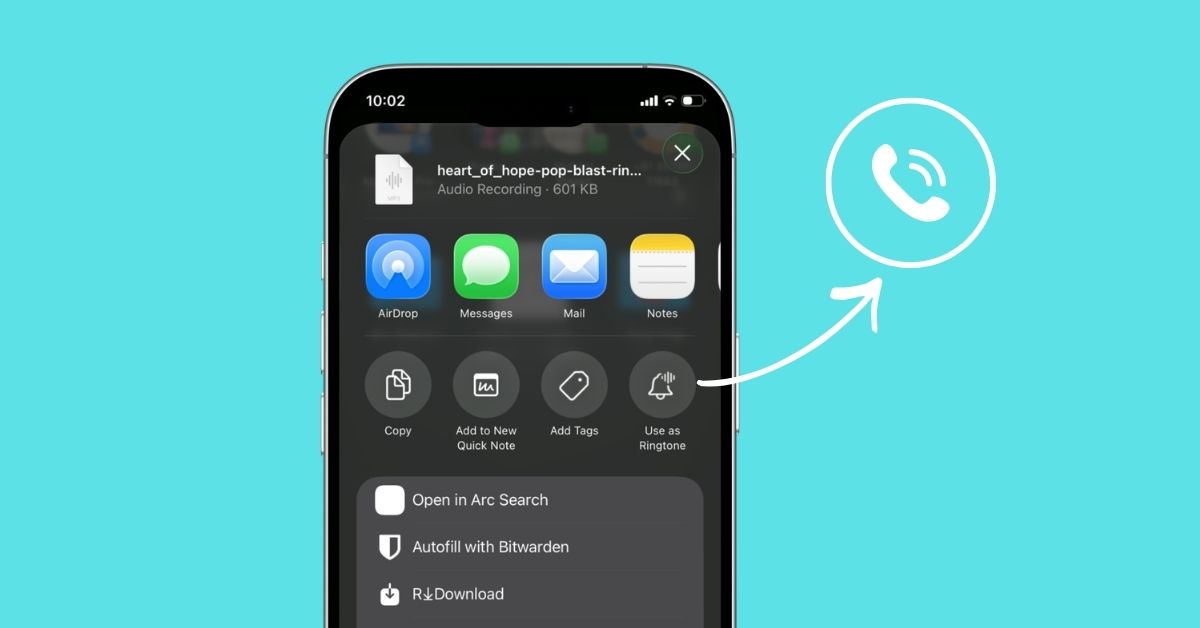
- Tap the Share button.
- Scroll through the share sheet and tap Use as Ringtone.
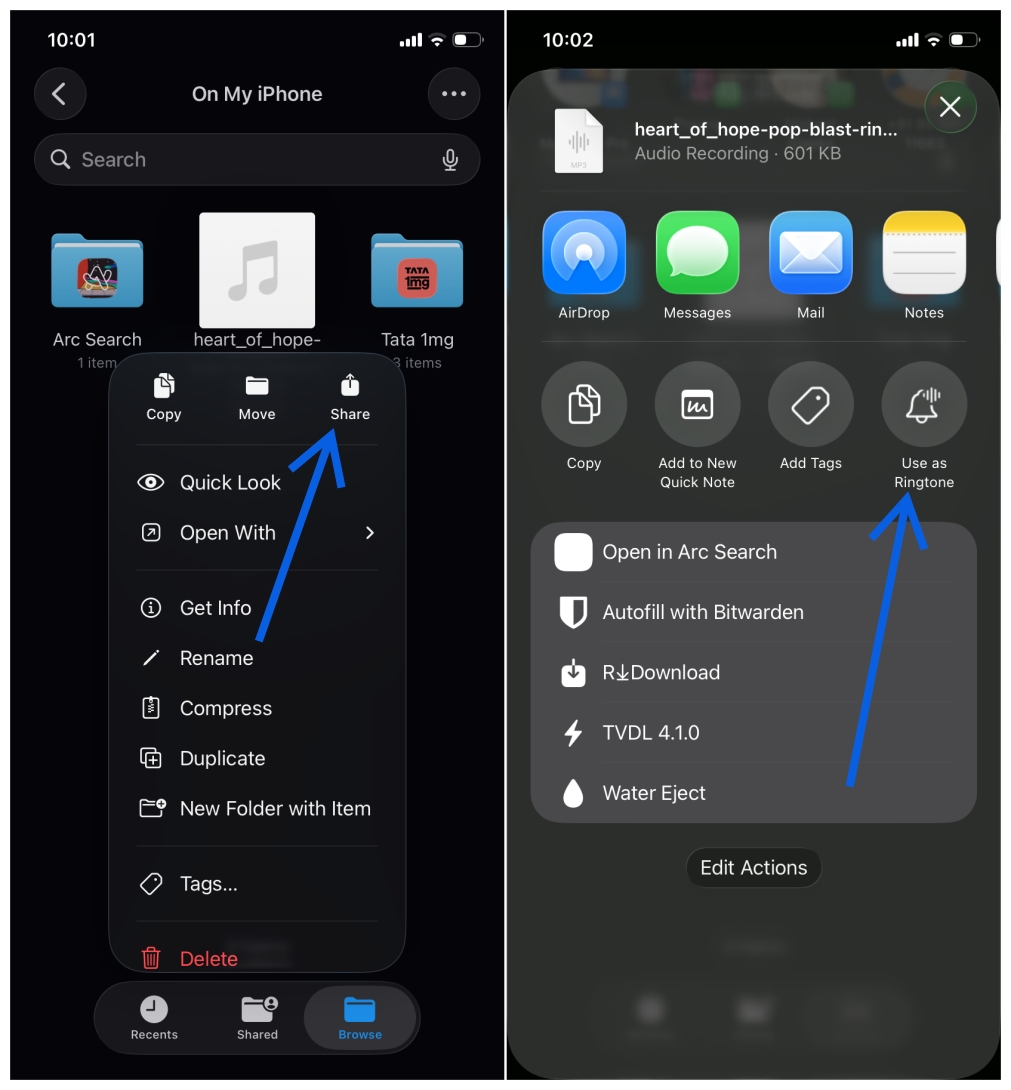
The ringtone will be added automatically and set as your default ringtone.
If you do not see the Use as Ringtone option, check the file itself. Make sure it is DRM free and under 30 seconds. If it still does not appear, close and reopen the Files app and try again.
To confirm it is applied:
- Go to Settings > Sounds & Haptics > Ringtone.
- Your custom tone will appear at the top of the list.
If you are using iOS 18 or earlier, use the GarageBand method below.
Method 2: How to Make an iPhone Ringtone Using GarageBand (Free, No Computer)
If your iPhone is running the latest iOS 26, then you can still use the GarageBand method. It is Apple’s own music creation app and remains the most reliable free method. It gives full control over trimming and exporting. If it is not installed, download GarageBand from the App Store.
First, download the song you would like and save it to your iPhone. The file must be stored locally in the Files app or purchased and downloaded to your device. Streaming songs from Apple Music or Spotify will not work.
Once the file is ready, follow the steps below:
- Open GarageBand.
- Swipe to Audio Recorder and select it.
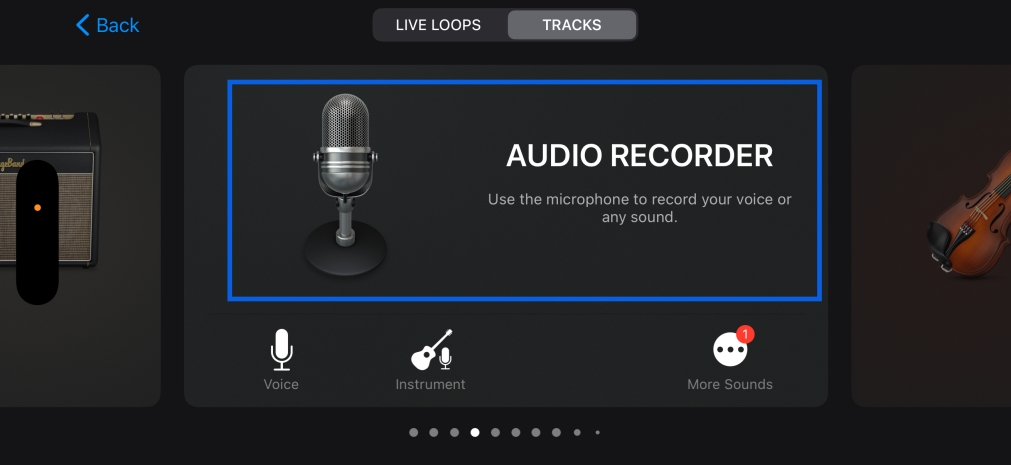
- Tap the gray lines in the upper left corner to switch to track view.
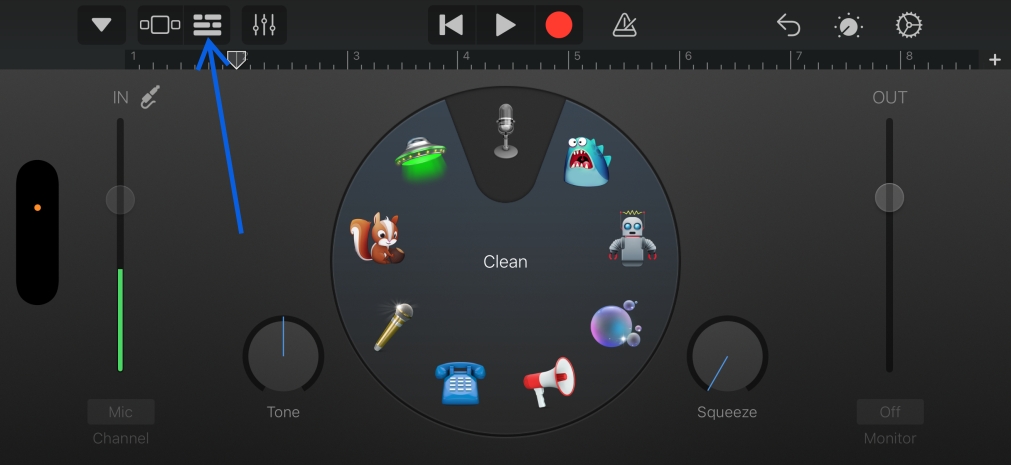
- Tap the blue metronome icon to turn it off.
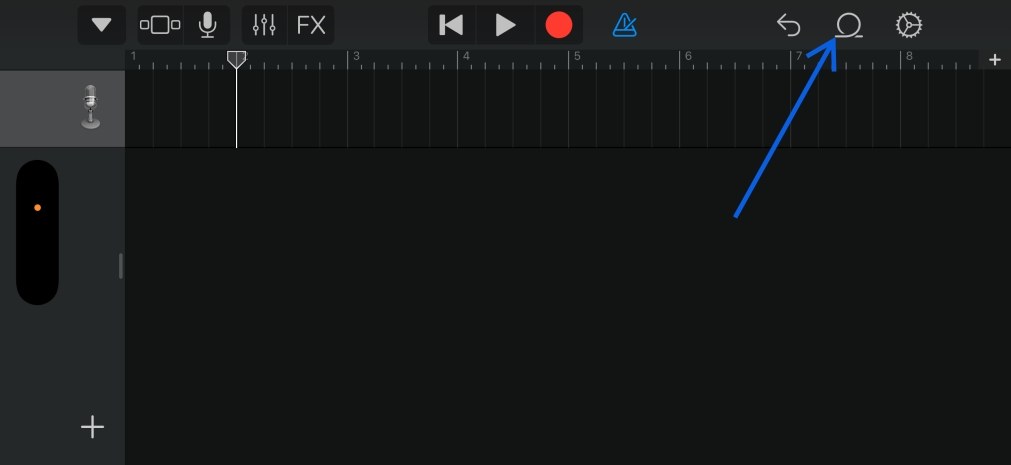
- Tap the gray loop icon in the upper right corner.
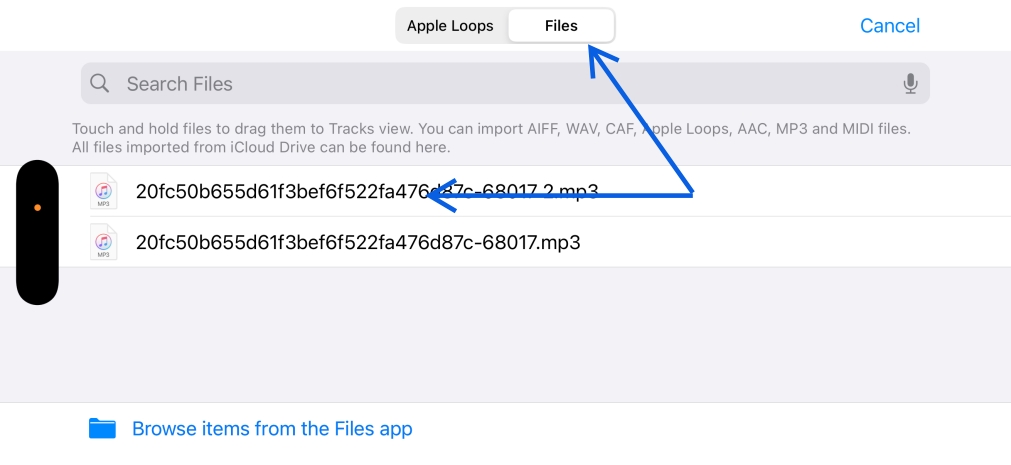
- Go to Files or Music at the top and locate your downloaded song.
- Hold down on the song and drag it into the workspace timeline.
- Tap the small gray plus icon in the upper right corner.
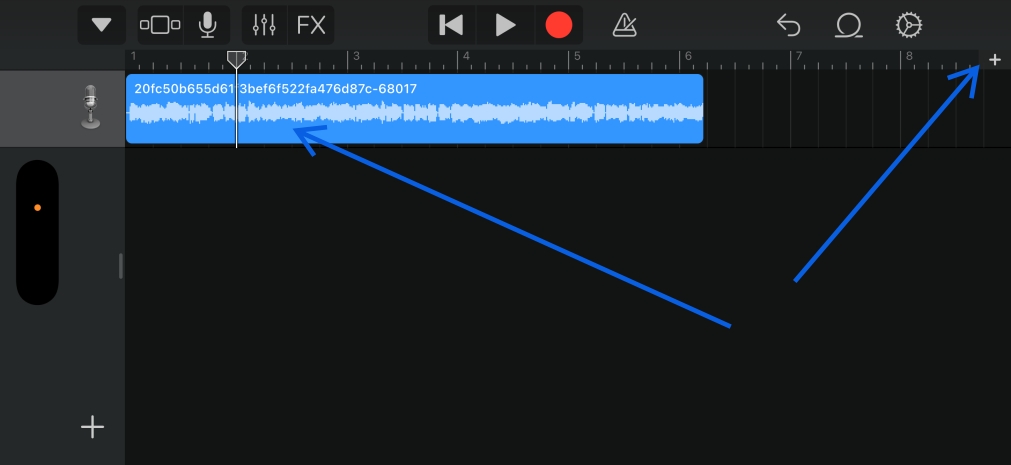
- Change the section length from eight to thirty seconds.
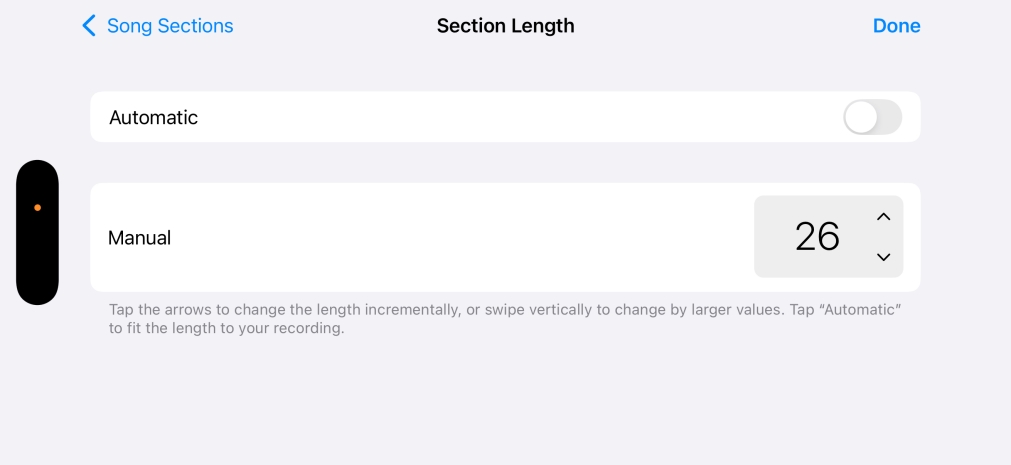
- Hold down on the song and tap Trim to customize the exact thirty seconds you want. Drag the audio to select your preferred section.
- Tap the gray arrow in the upper left corner and select My Songs.
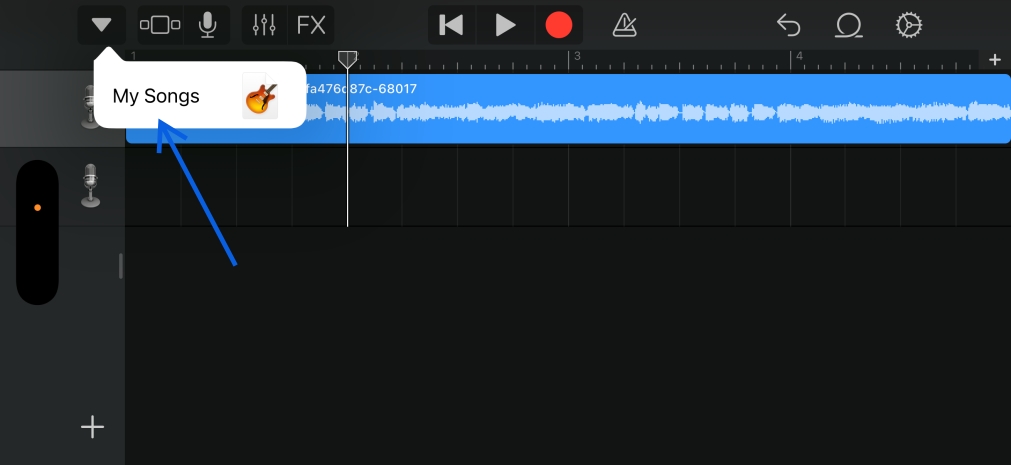
- To rename your project, double tap it.
- Hold down on your project and select Share.
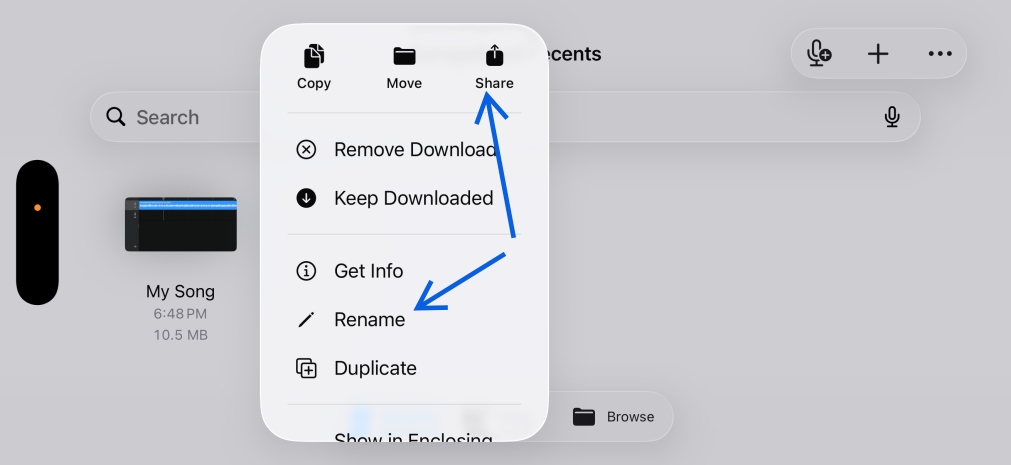
- Select “Ringtone.”
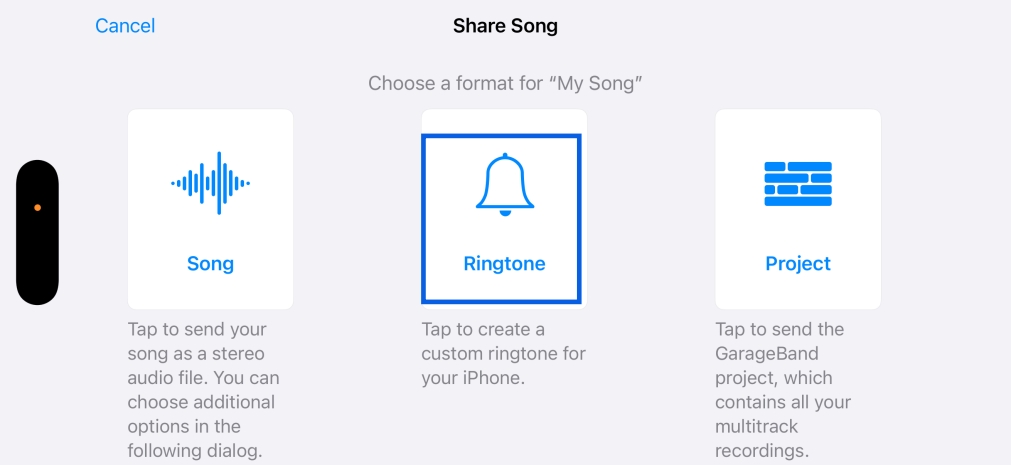
- Tap Continue > Select Export.
- Choose how you want to use the ringtone and tap Done.
Your ringtone will now appear in Settings > Sounds & Haptics > Ringtone.
Method 3: Best Third-Party Ringtone Maker Apps for iPhone (Free & Paid)
If you find GarageBand overwhelming or just want a faster trimming interface, third-party ringtone apps can help. These apps do not bypass Apple’s rules, but they make editing easier before you export the tone.
Here are a few reliable options and what makes each one different:
- RingTune is best if you want ready-made tones plus the option to edit your own. It is useful for users who do not want to start from scratch.
- Garage Ringtones for iPhone is helpful if you want to extract audio from videos as well as songs. It works well for turning short clips or memes into ringtones.
These apps usually follow the same flow. You import a song, trim it to 30 seconds, and export it. After that, you may still need to use GarageBand or the iOS 26 Files method to finalize the ringtone, depending on how the app handles export.
Keep in mind that many third-party apps include ads or subscriptions. If you want a completely free and system-level solution with no limitations, GarageBand remains the safest choice.
How to Set a Custom Ringtone for a Specific Contact on iPhone
If you want a unique ringtone for certain people, you can assign it individually:
- Open the Contacts app.
- Select a contact.
- Tap Edit > Ringtone.
- Choose your custom ringtone.
- Tap Done.
Now you can recognize specific callers instantly without even looking at your screen.
Why Is Setting a Custom Ringtone on iPhone So Hard? (And How Apple Could Fix It)
On Android devices, setting a custom ringtone is usually immediate. On iPhone, Apple promotes buying tones from the Tone Store, which makes the free methods less visible. However, once you understand the 30-second limit, the DRM restriction, and the M4R format requirement, the system becomes logical and easy to repeat.
Final Thoughts
Setting your favorite song as a ringtone is more than customization. It makes your device feel personal and intentional. Whether you use the iOS 26 direct method or GarageBand, the result is the same. Your phone finally sounds like yours, and in a crowded room, you immediately know when it is ringing.