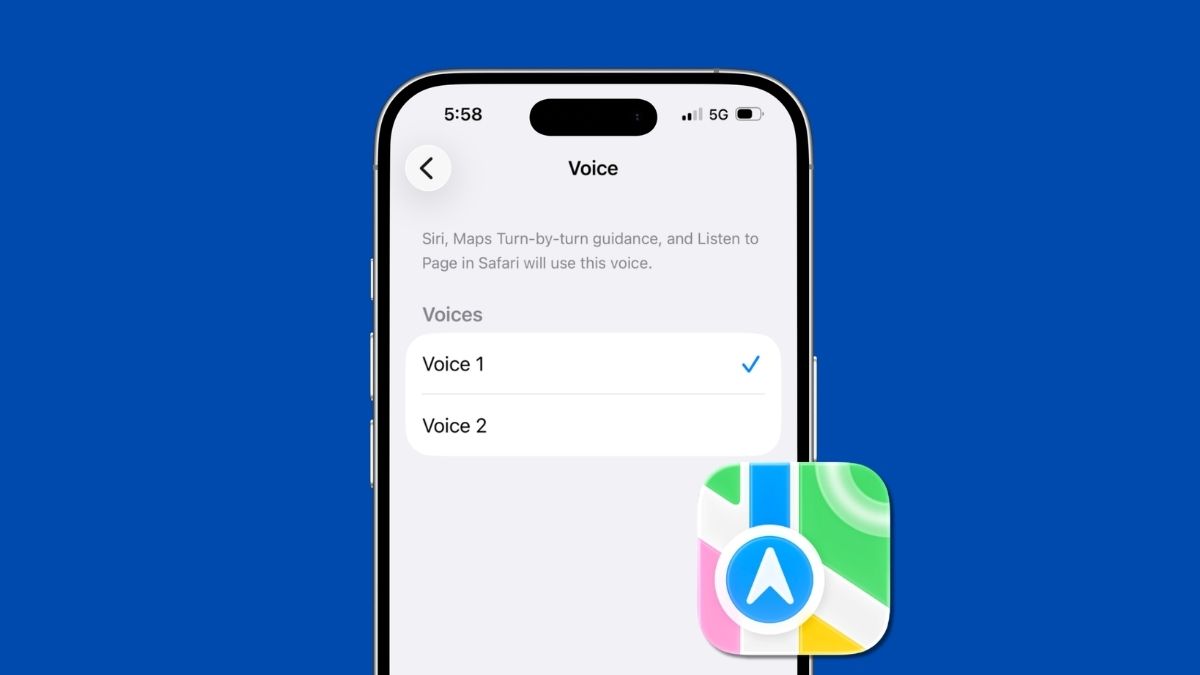
Apple Maps has quietly become one of the best navigation apps for iPhone users, and with iOS 26, it got a meaningful upgrade. Directions now sound more like something a friend would say, “turn left at the next traffic light,” instead of the older, robotic “turn left in 500 feet.”
If you’ve been putting up with a voice that feels off, too flat, too fast, or just not your style, you’ll be glad to know you can customize the Apple Maps voice to sound the way you prefer. It takes less than a minute, and the difference is noticeable from your very first turn.
What Actually Controls the Apple Maps Voice?
Before jumping into the steps, it helps to understand one key detail: Apple Maps does not have its own standalone voice system.
The navigation voice you hear is powered entirely by Siri.
That means when you change your Siri voice, you’re also changing what you hear inside Apple Maps. The upside is that this change applies everywhere Siri speaks, including Maps, CarPlay, and other system interactions.
Siri offers a solid range of accents and voice options across multiple languages, so you’re not just tweaking navigation, you’re personalizing your entire iPhone experience.
Steps to Change the Apple Maps Voice on Your iPhone
Here’s exactly how to change the Apple Maps voice:
- Open the Settings app.
- Scroll down and tap Siri (or Apple Intelligence & Siri).
- Tap Language, then tap a language to select it as your primary language (American, British, Australian, Indian, and more).
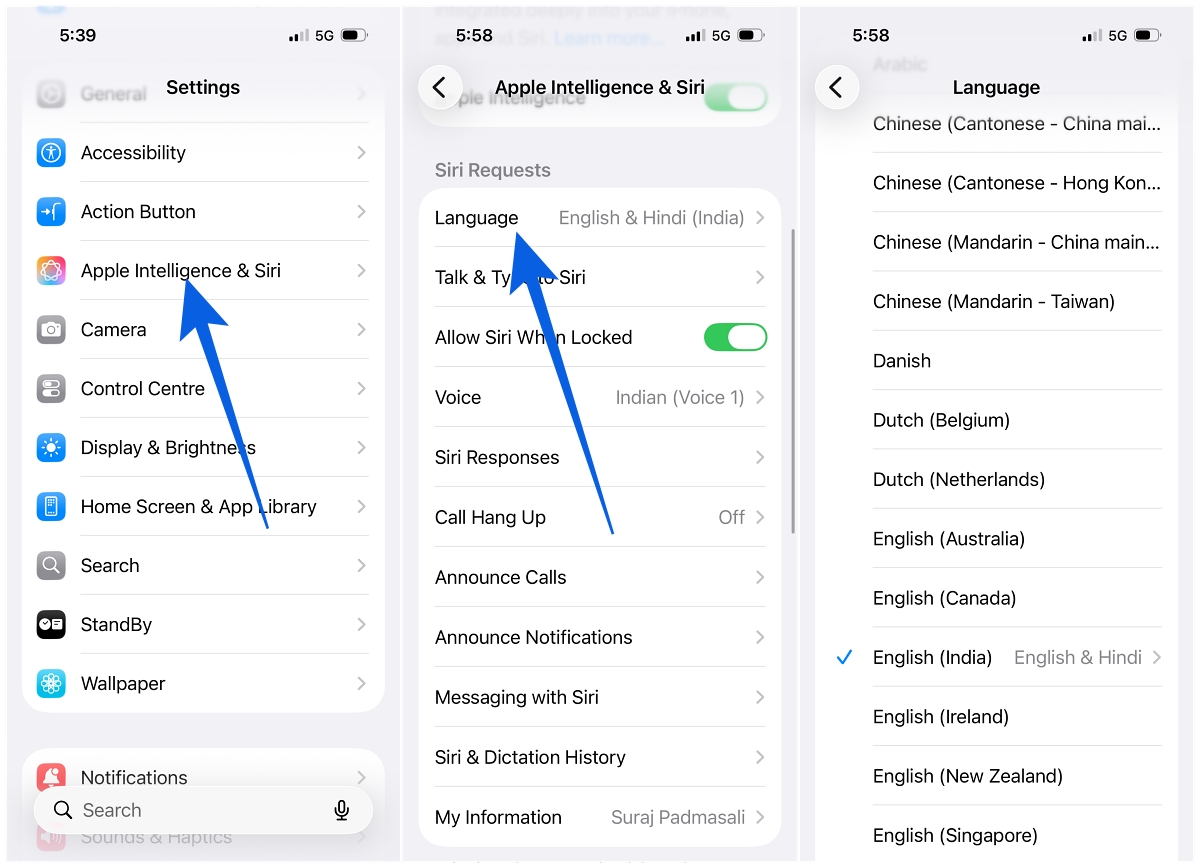
- Now, tap Voice, then tap to hear the different options.
- The voice will start downloading in the background, and once it’s ready, Apple Maps will automatically use it.
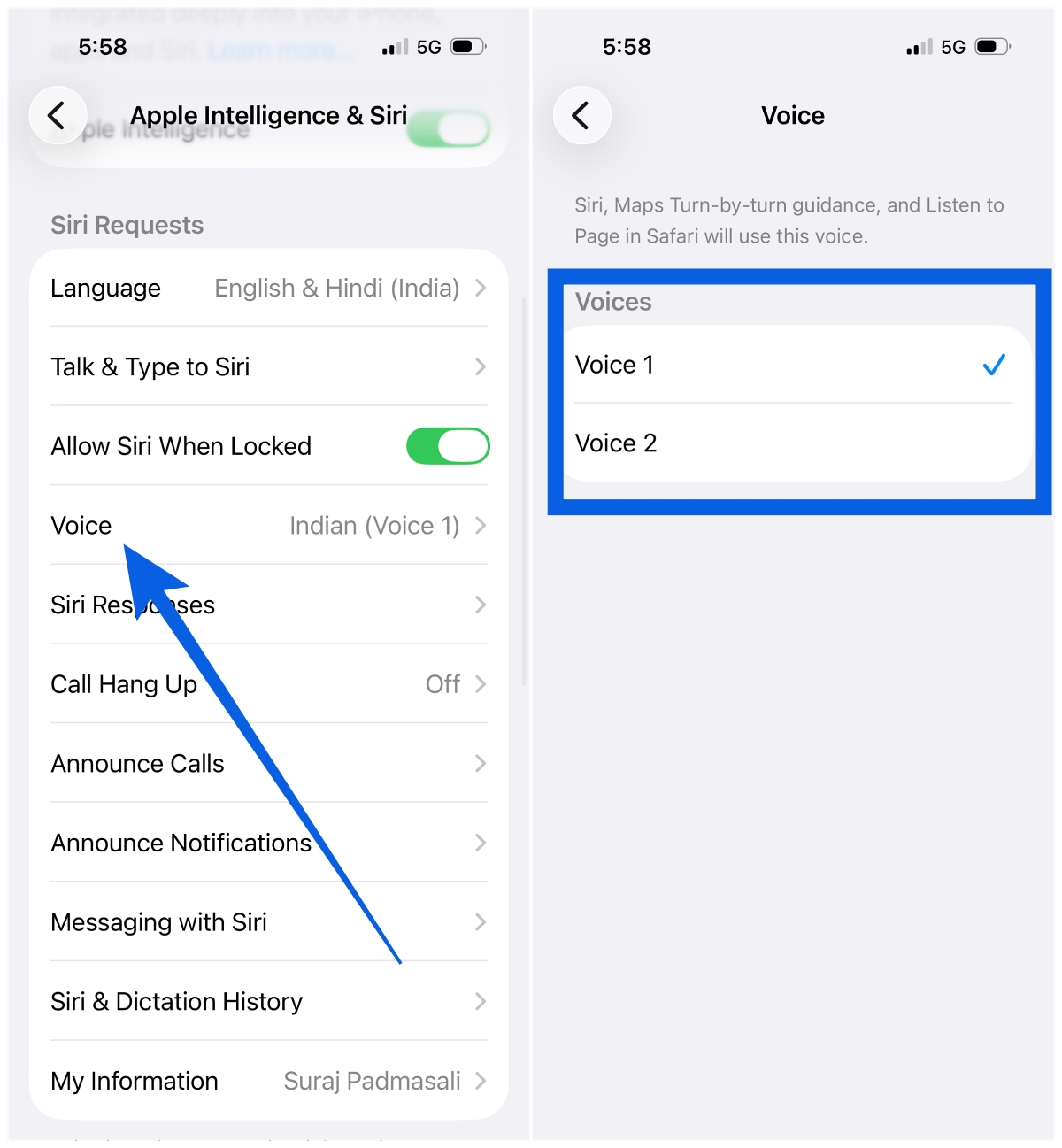
Tip: Tap on different voice options to preview them before selecting. It helps you pick the one that feels natural without switching back later.
CarPlay users: The updated voice automatically applies to Apple Maps in CarPlay as well. No extra setup needed.
Tips to Get the Most Out of Your Apple Maps Voice
A few things worth keeping in mind after switching:
- Download on Wi-Fi: Siri voice files are fairly large. Use Wi-Fi to avoid unnecessary mobile data usage.
- Choose clarity over novelty: A new accent might sound interesting at first, but when you’re driving, clarity matters more than anything. Pick a voice you can understand instantly.
- Adjust navigation volume if needed: Go to Settings > Maps > Spoken Directions and increase the Navigation Voice Volume. This makes a noticeable difference in noisy environments like traffic or public streets.
- Voice not updating? Restart your iPhone: Sometimes the new voice doesn’t apply immediately. A quick restart usually fixes it.
- Keep iOS updated: iOS 26 improved how Siri delivers directions, making them more natural and conversational. Staying updated ensures you’re getting the best experience.
One Thing Worth Knowing About Apple Maps in 2026
With iOS 26, Apple refined how Siri delivers directions inside Maps. Instead of rigid, distance-based prompts, guidance now feels more contextual and human, referencing landmarks and intersections the way people naturally give directions.
This works especially well with hands-free use. You can ask follow-up questions or reroute without touching your phone, which makes navigation feel more seamless overall.
One thing to keep in mind: starting in summer 2026, Apple Maps is expected to introduce ads in search results in regions like the US and Canada. Navigation itself remains unaffected, but it’s worth knowing as the app continues to evolve.
Yes. Apple Maps uses Siri for spoken directions, so any change you make to Siri’s voice applies directly to navigation.
No. The Maps voice is tied to Siri, so any changes apply system-wide.
The voice may still be downloading, or it may need a restart to apply properly. Make sure you’re on Wi-Fi and try rebooting your iPhone if needed.
Yes. Siri supports a wide range of languages and regional accents. You can explore them under Siri > language in Settings.
You might also like: