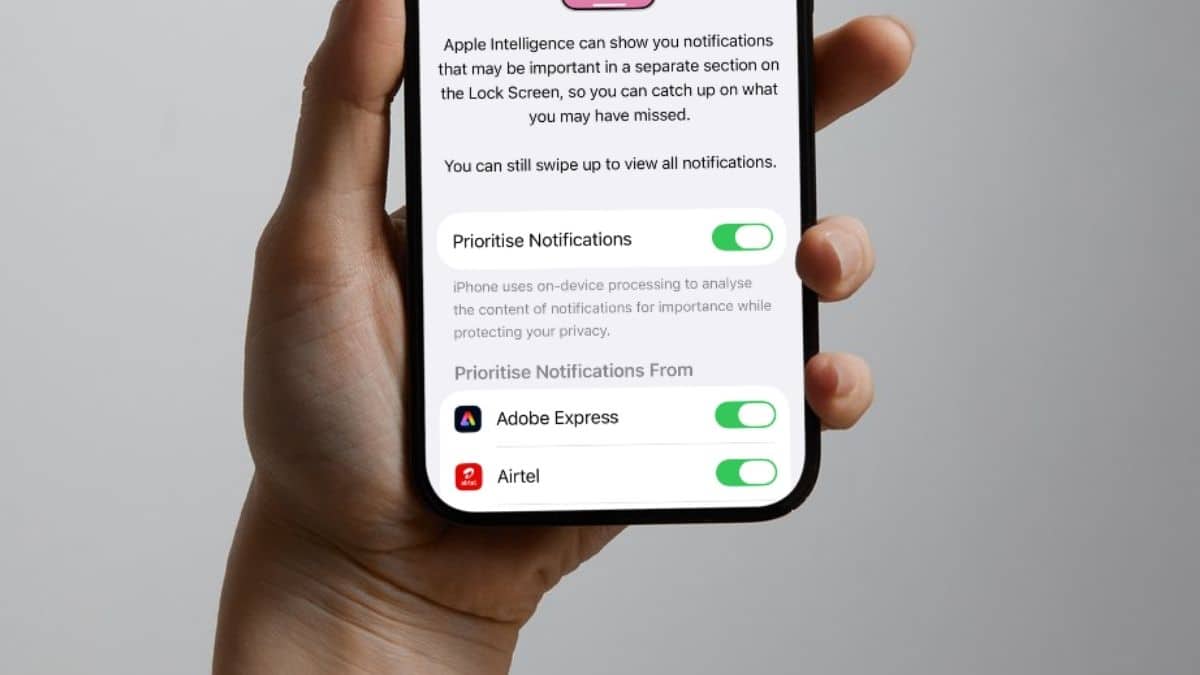
Priority Notifications on iPhone is Apple’s answer to the daily notification chaos. Your phone buzzes forty times before lunch. Somewhere in that pile is the one text that actually matters, buried beneath a shipping update, a game notification, and a promotional email you never asked for. You unlock your phone, glance at the stack, and still aren’t sure what deserves your attention first.
Apple’s solution is an Apple Intelligence feature that first arrived with iOS 18.4. It’s still quietly doing its job today across iOS 26 and continues into the iOS 27 public beta ahead of September’s release. It isn’t a new notification sound or a redesigned Notification Center. It’s subtler than that. Your iPhone reads incoming notifications, decides which ones are most important, and moves them to the top of your Lock Screen before you even look.
I turned it on, left it running for two weeks, and used my iPhone the way most people do. Which is to say, I mostly forgot the feature was there. It either quietly saved me from missing something important or occasionally reminded me it wasn’t perfect. Here’s how it works, how to enable it, and what I learned after actually living with it.
What Are Priority Notifications on iPhone?
Priority Notifications on iPhone don’t silence alerts or change how notifications look. Instead, Apple Intelligence analyzes incoming notifications on-device and weighs factors like who sent the message, how time-sensitive it appears, and how often you interact with that person or app.
The notifications it considers most important are moved into a dedicated Priority Notifications section at the top of your Lock Screen and Notification Center.
That’s the entire idea.
A boarding pass update or a message from your spouse can appear above a retailer’s flash sale, even if the sale notification arrived first. Because all processing happens on your device instead of Apple’s servers, Apple positions the feature as privacy focused. During my testing, it also had no noticeable impact on battery life.
It’s important to understand what this feature isn’t. It doesn’t replace Do Not Disturb or Focus modes. It simply organizes the notifications you’ve already allowed through, putting the ones it believes matter most at the top.
Which iPhones Support Priority Notifications?
This is the step many people skip before wondering why the option isn’t available.
Priority Notifications relies entirely on Apple Intelligence, so your iPhone must support Apple’s on-device AI features.
You’ll need one of the following:
- iPhone 15 Pro
- iPhone 15 Pro Max
- iPhone 16
- iPhone 16 Plus
- iPhone 16 Pro
- iPhone 16 Pro Max
- iPhone 16e
- Any iPhone 17 model, including iPhone Air
Under the hood, your device needs an A17 Pro chip or newer with at least 8GB of RAM. If you’re unsure whether your device qualifies, our iOS 27 compatibility guide explains which iPhones support Apple Intelligence.
There are a few additional requirements that are easy to overlook:
- Apple Intelligence must be enabled.
- Siri language and device language must match a supported language.
- Around 7GB of available storage is required for Apple Intelligence models.
- The feature isn’t available if your device region is set to mainland China.
Before assuming something is broken, make sure every requirement above is satisfied.
How to Turn On Priority Notifications on iPhone
If your iPhone supports Apple Intelligence, enabling Priority Notifications takes less than a minute.
- Open Settings.
- Tap Apple Intelligence & Siri and make sure Apple Intelligence is enabled.
- Wait for the AI models to finish downloading if prompted.
- Return to Settings.
- Tap Notifications.
- Select Prioritize Notifications.
- Turn Prioritize Notifications on.
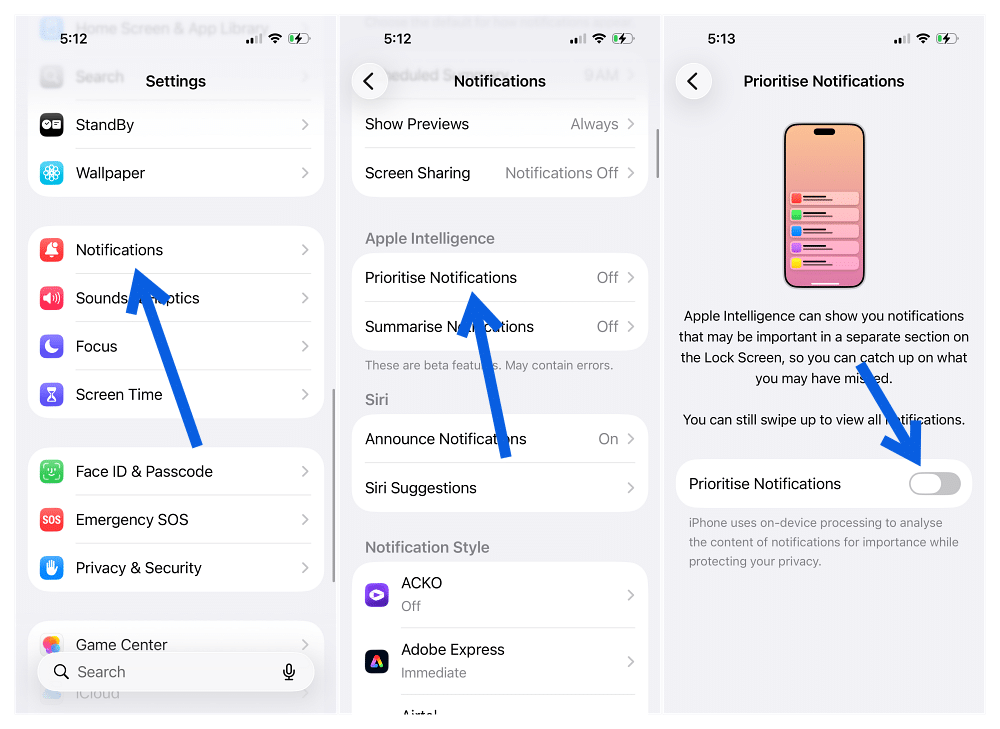
That’s all there is to it.
Apple doesn’t walk you through a setup process or ask you to train the feature. Once enabled, it immediately begins ranking incoming notifications.
Turn Off Priority Notifications for Specific Apps
One thing I appreciated is that Apple doesn’t force this feature across every app.
Priority Notifications works on an app-by-app basis, so you can leave it enabled where it works well and disable it where it doesn’t.
To manage it:
- Open Settings > Notifications > Prioritize Notifications.
- Under the main toggle, you’ll see a list of supported apps.
- Turn off the switch beside any app you don’t want Apple Intelligence to prioritize.
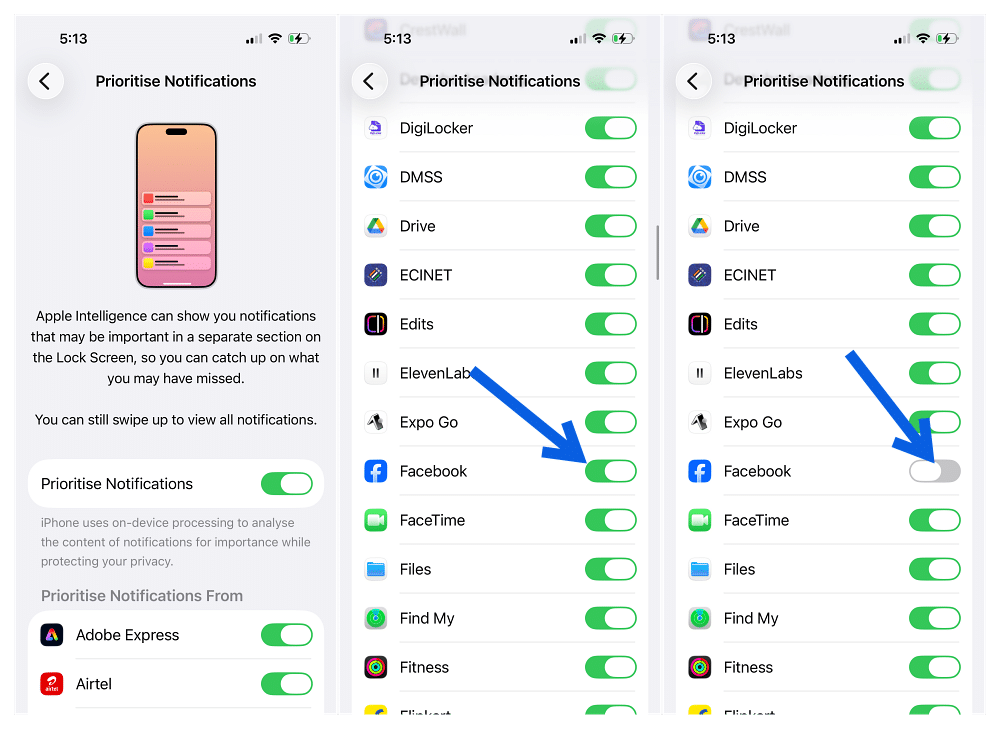
There’s an even quicker shortcut directly from the Lock Screen.
Swipe left on any Priority Notification, tap Options, then choose either:
- Turn Off All [App] Notifications
- Turn Off Prioritization
If you decide the feature simply isn’t for you, disabling the main Prioritize Notifications switch turns it off everywhere at once.
My Experience After Two Weeks of Testing Priority Notifications
This is where Apple marketing stops and real-world usage begins.
I used Priority Notifications on an iPhone 16 Pro for roughly two weeks with Mail, Messages, Calendar, Slack, and a handful of delivery tracking apps enabled. Then I simply paid attention to what floated to the top and what didn’t.
Apple’s own apps worked surprisingly well
Priority Notifications performed best with Apple’s own ecosystem.
Calendar invitations that changed at the last minute consistently appeared first. Messages from close family members almost always landed in the priority section. Flight delay alerts surfaced exactly where I’d expect them.
After a few days, I realized I’d stopped scrolling through dozens of notifications looking for the important one. More often than not, it was already sitting at the top.
It’s one of those features you barely notice until you suddenly imagine going back without it.
Third-party apps were less consistent
Things became less predictable with third-party apps.
Slack rarely appeared as a priority notification, even when it probably should have. Apple Intelligence relies heavily on structured metadata like sender relationships, interruption levels, and time-sensitive information. Many third-party apps simply don’t provide enough of those signals.
One interesting example was a shipping notification from a retail app. It appeared as a priority alert, but only after I’d opened that app repeatedly over several days.
It felt less like Apple Intelligence understood the notification itself and more like it had learned, “This is an app you use frequently.”
That’s still useful, but it isn’t always the same thing as understanding what actually matters.
Does Priority Notifications get smarter over time?
This was something I paid close attention to.
Honestly, I didn’t notice dramatic learning over those two weeks.
The feature felt remarkably consistent from day one through day fourteen rather than noticeably adapting to my habits. If you’re expecting something that evolves into a personal assistant over several months, that’s probably setting expectations too high.
It behaves more like a very well-designed sorting system than an AI that continuously learns your preferences.
Its decisions remained logical most of the time, but they also remained fairly predictable, which isn’t necessarily a bad thing.
Priority Notifications vs. Notification Summaries vs. Reduce Interruptions
Apple introduced several Apple Intelligence notification features around the same time, and it’s easy to confuse them because they all aim to make notifications less overwhelming. In practice, though, they solve different problems.
| Feature | What It Does | Where to Turn It On | Silences Notifications? |
|---|---|---|---|
| Priority Notifications | Moves important notifications to a dedicated section at the top of your Lock Screen and Notification Center | Settings > Notifications > Prioritize Notifications | No |
| Notification Summaries | Creates AI-generated summaries of long notification threads or grouped alerts | Settings > Notifications > Summarize Previews | No |
| Reduce Interruptions | Uses Apple Intelligence to filter less important notifications and deliver them later | Control Center > Focus > Reduce Interruptions | Yes |
Priority Notifications, the feature covered here, simply changes the order of your notifications. Everything still arrives, but the alerts Apple Intelligence considers most important appear first.
Notification Summaries work differently. Introduced with iOS 18.1, they condense multiple notifications from the same app into a short AI-generated summary, so you can quickly understand what’s happened without reading every individual alert.
Reduce Interruptions is the most aggressive option. Rather than reorganizing notifications, it temporarily holds back alerts it considers less important until a more appropriate time.
The nice part is that these features aren’t mutually exclusive. You can use all three together, and that’s probably the setup many people will end up with once they understand what each one does.
If you’ve already tried Call Screening on iPhone in iOS 26, the overall philosophy feels familiar. Apple Intelligence quietly filters and organizes information before it demands your attention.
Things You Should Know Before Using Priority Notifications
A few smaller details are worth knowing before you turn the feature on and forget about it.
It doesn’t override Focus modes
Priority Notifications only works with notifications that are already allowed through your current Focus.
If Do Not Disturb or another Focus mode silences an app, Priority Notifications won’t suddenly surface those alerts.
You control it app by app
This isn’t an all-or-nothing feature.
If one app consistently gets its priorities wrong, simply disable prioritization for that app while leaving it enabled for everything else.
Some apps naturally work better than others
Apple’s own apps generally provide richer notification data, which helps Apple Intelligence make better decisions.
Apps that send detailed notifications with sender information and urgency indicators tend to perform well.
Apps that simply push generic notification text usually don’t.
That doesn’t mean those apps are broken. Apple Intelligence just has less information to evaluate.
It’s only one part of Apple’s notification system
Priority Notifications works alongside several other notification controls.
For example, iOS 27 lets you separate alarm volume from notification volume, making it easier to reduce everyday notification noise without affecting your morning alarm.
Used together, these features create a much cleaner notification experience than any one feature alone.
Is Priority Notifications Worth Turning On?
After living with it for two weeks, my answer is yes.
Not because it changes how your iPhone works, but because it quietly removes a little friction from everyday use.
Messages, Mail, and Calendar benefited the most during my testing. Those notifications consistently surfaced where I’d expect them, saving me from scrolling through everything else.
Third-party apps were more hit or miss, largely because Apple Intelligence can only work with the information those apps provide.
That’s probably the biggest takeaway.
Priority Notifications isn’t magical AI that perfectly understands your life. It’s a smart notification sorting system that works best when apps give it meaningful signals to work with.
Fortunately, it doesn’t get in your way. If it occasionally gets something wrong, you haven’t lost anything. Every notification still arrives exactly as it always has.
The Bottom Line
Priority Notifications on iPhone isn’t one of Apple’s flashiest Apple Intelligence features, and it isn’t trying to be.
Instead, it quietly reorganizes your Lock Screen so the notifications you’re most likely to care about appear first. During my testing, it consistently worked well with Apple’s own apps and stayed largely invisible everywhere else, which is exactly what I’d want from a feature like this.
If your iPhone already supports Apple Intelligence, there’s very little downside to enabling it. It doesn’t noticeably affect battery life, doesn’t change how notifications behave, and takes less than a minute to set up.
Turn it on, use it for a week, and see whether you notice yourself spending less time hunting for important alerts. If it doesn’t fit your workflow, switching it off is just as easy.
Priority Notifications are available on iPhones that support Apple Intelligence, including the iPhone 15 Pro, iPhone 15 Pro Max, the entire iPhone 16 lineup (including iPhone 16e), and all iPhone 17 models, including iPhone Air.
No. The feature relies entirely on Apple Intelligence. You’ll need to enable Apple Intelligence & Siri before Priority Notifications can work.
Based on my testing, I didn’t notice any meaningful impact on battery life. Apple processes notification ranking on-device using the same Apple Intelligence models that power other AI features.
Yes. Go to Settings > Notifications > Prioritize Notifications and enable or disable prioritization for individual apps. You can also disable prioritization directly from the Lock Screen for specific apps.
No. Priority Notifications simply reorganize your notifications so important ones appear first. Reduce Interruptions is a Focus mode that temporarily suppresses less important notifications and delivers them later.
Many third-party apps don’t include the structured notification data that Apple Intelligence uses to determine importance, such as sender relationships, interruption levels, or time-sensitive metadata. As a result, Apple’s own apps generally perform better than many third-party apps.
Third-party apps often don’t send the kind of structured signals (sender relationship, time-sensitivity, interruption level) that Apple Intelligence weighs most heavily. That doesn’t mean the app is broken; it just means the system has less to work with.