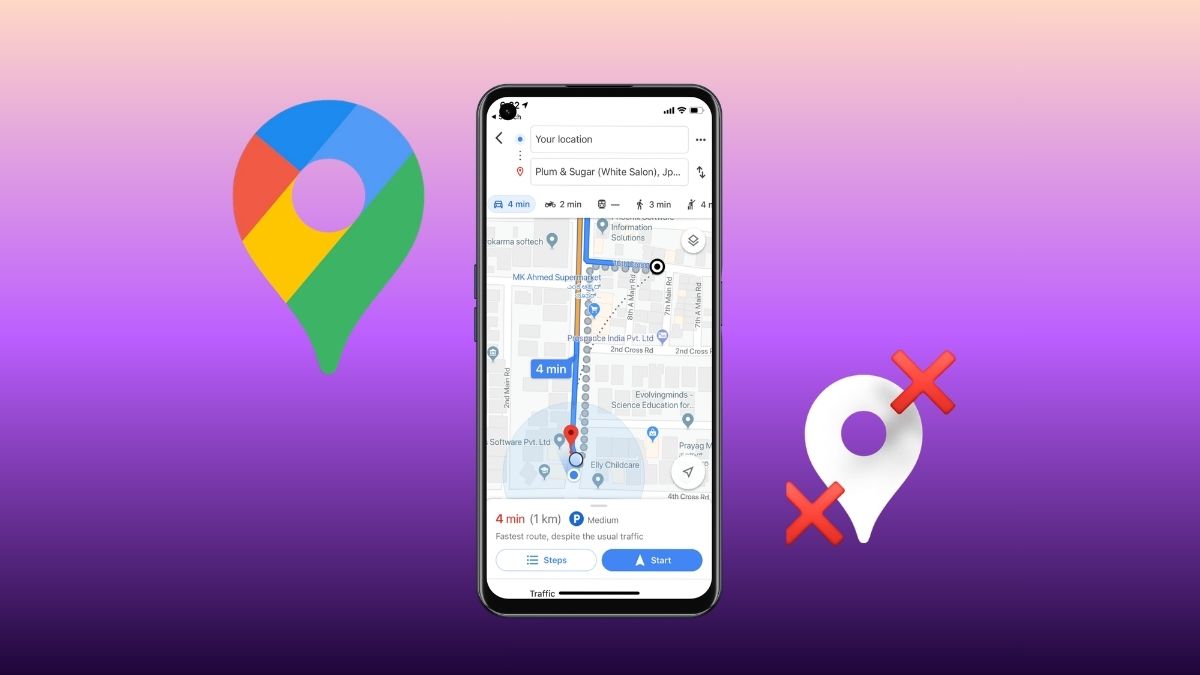
Google Maps is possibly the most-used map and navigation app in the world. This is because Google has poured a tremendous amount of effort, time, and money into making it the go-to map app. As functional and feature-rich as Google Maps is, it’s not flawless. The app can mess up and think you’re in Kentucky when you’re actually in Florida. Sometimes, even Google Maps needs a map app of its own.
Don’t worry. If Google Maps loses your location, don’t panic. You can usually correct the issue easily. Here are a few steps you can try when Google Maps shows the wrong location. Keep in mind that there are several potential causes for this problem, so there may not be a one-size-fits-all solution. Still, we’ll go over the most common causes.
Does Location Permission Affect Google Maps?
First and foremost, make sure your phone has location permission enabled. Your phone needs permission to track and report your location. If you don’t want your phone to track your position, you can disable this feature. Many services, such as social media apps, use your location to enable certain features. However, some people prefer not to have their phone constantly tracking their location.
Without location services enabled, Google Maps cannot properly track where you are. So, you should check whether location services were accidentally turned off.
There are many different versions of Android, but accessing location settings is fairly similar across most devices.
Steps:
- Go to Settings.
- Scroll until you see Location.
- Tap the switch at the top of the screen.
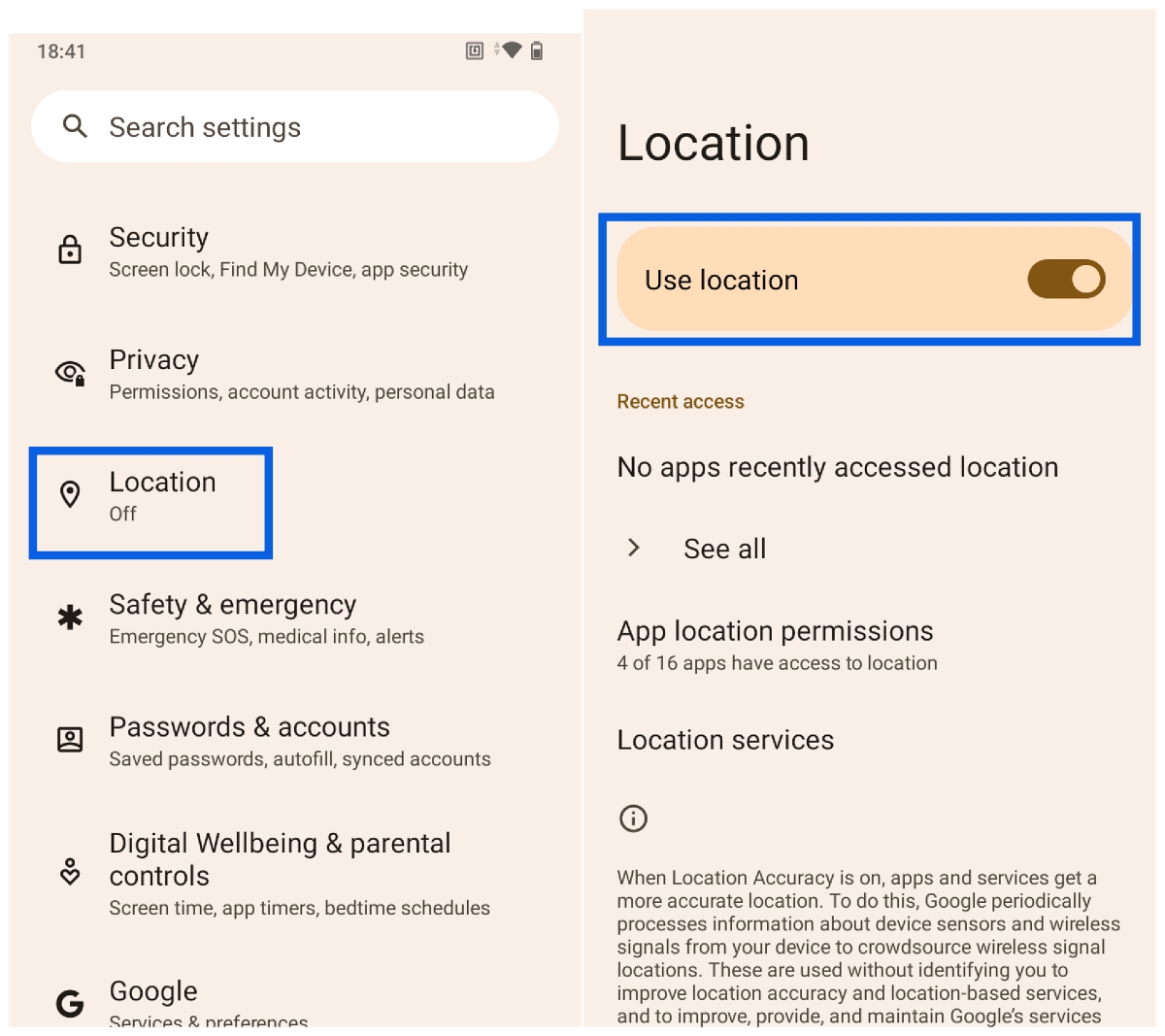
This will turn your location settings back on. Once that’s done, go back to Google Maps and see if your location is now accurate. If you’re unsure what the icons on the map mean while checking your location, you can also learn about the different symbols in Google Maps to better understand the map interface.
How Can I Improve Location Accuracy on My Phone?
If Google Maps still can’t pinpoint your location, don’t lose hope. There’s another way to help the app locate you more accurately, though it may involve some privacy trade-offs.
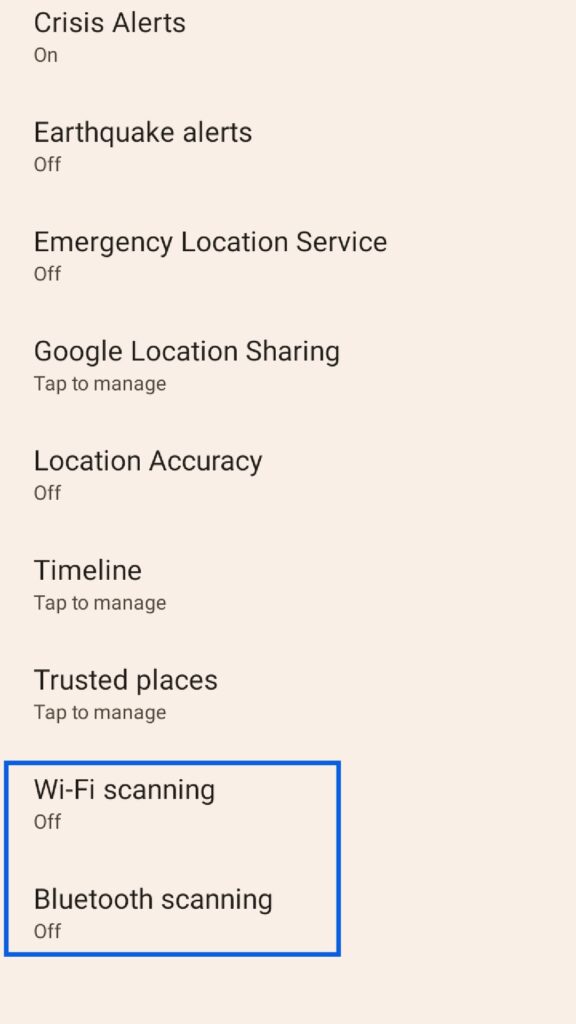
Go back to your Location settings and tap on the Location Services option. This will open additional settings. You should see three options:
- Improve Location Accuracy
- Wi-Fi Scanning
- Bluetooth Scanning
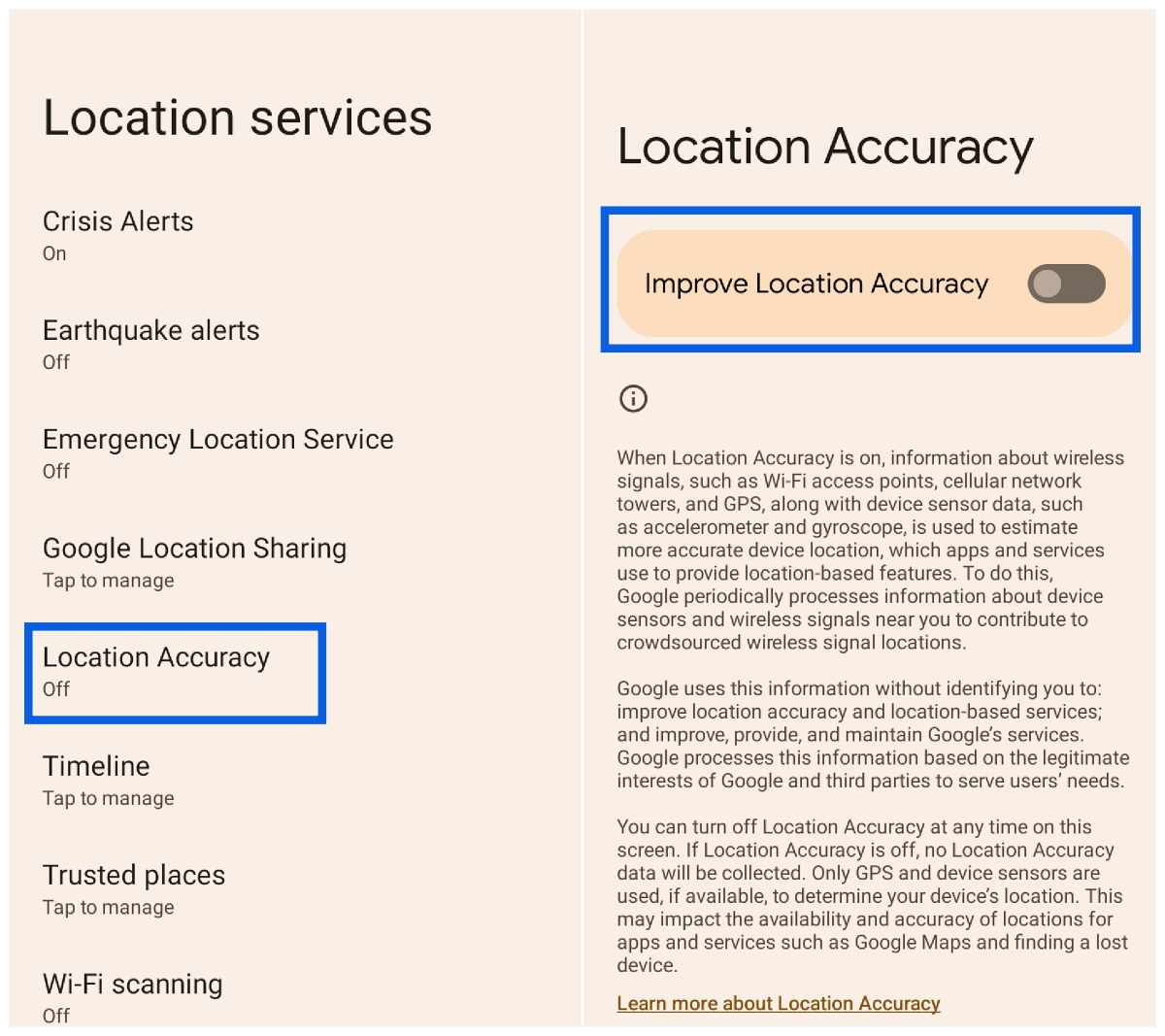
The first option usually appears at the top of the screen. When enabled, your phone uses GPS, Wi-Fi access points, cell towers, and device sensors like the gyroscope to determine your location more accurately. Your phone then relays this information to Google Maps so it can determine whether you’re in a coffee shop or somewhere else entirely.
At the bottom of the screen, you’ll find the Wi-Fi scanning and Bluetooth scanning options. These settings help your phone track your location more precisely by scanning for nearby Wi-Fi networks and Bluetooth-enabled devices.
What Are the Risks?
While improved accuracy can help you navigate to a concert, restaurant, or wedding more easily, there are some drawbacks. The biggest concern is privacy.
Phones can be hacked, and attackers often target sensitive personal data. Since your phone stores a lot of information about you, including location data, enabling constant location tracking could expose where you work, visit, or even live if your device were compromised.
This isn’t meant to scare you, but it’s something to consider. If you rely on navigation apps frequently, you may want to keep these features enabled. However, if you only use navigation occasionally, disabling them when not needed may be a better choice.
How Do I Update or Reset Google Maps?
The problem may lie within the Google Maps app itself. Apps occasionally run into bugs, and sometimes updates fix those issues.
The first thing you should do is check whether your version of Google Maps is up to date.
Through App Info
- Find Google Maps on your home screen.
- Press and hold the app icon.
- Tap App Info (the “i” icon).
- Look for the App Details button (the name may vary depending on your Android version).
- Check if there is an Update button and tap it if available.
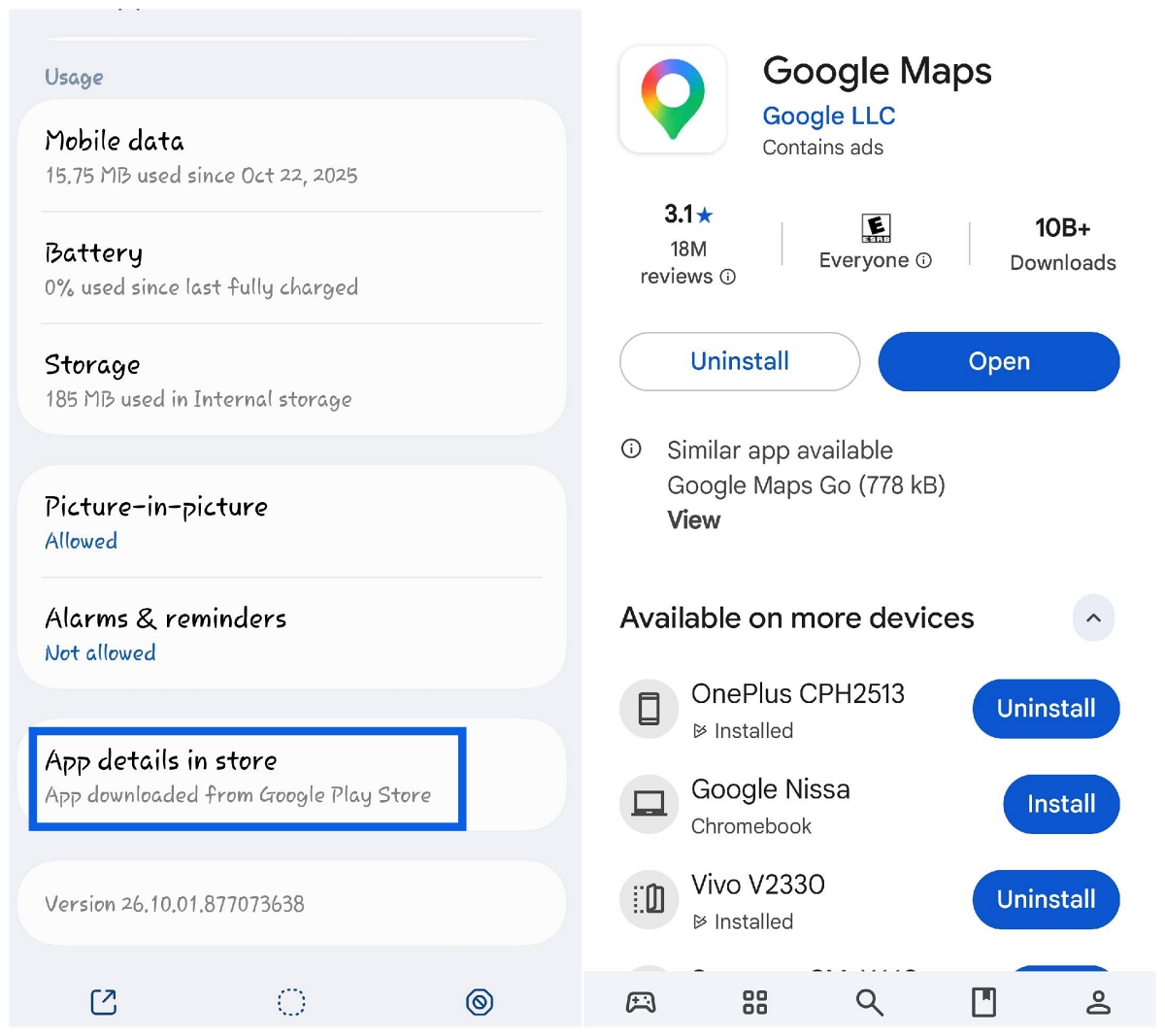
Some Android devices don’t show the App Details button. If that’s the case, simply open the Google Play Store and search for Google Maps.
Updating the app might fix the problem. After updating, reopen Google Maps and see if the issue is resolved.
Resetting Google Maps
You can also reset the app. This works similarly to uninstalling and reinstalling it but saves you the step of downloading the app again.
Apps store data locally on your device. Resetting the app clears that stored data and returns the app to its default state.
Steps:
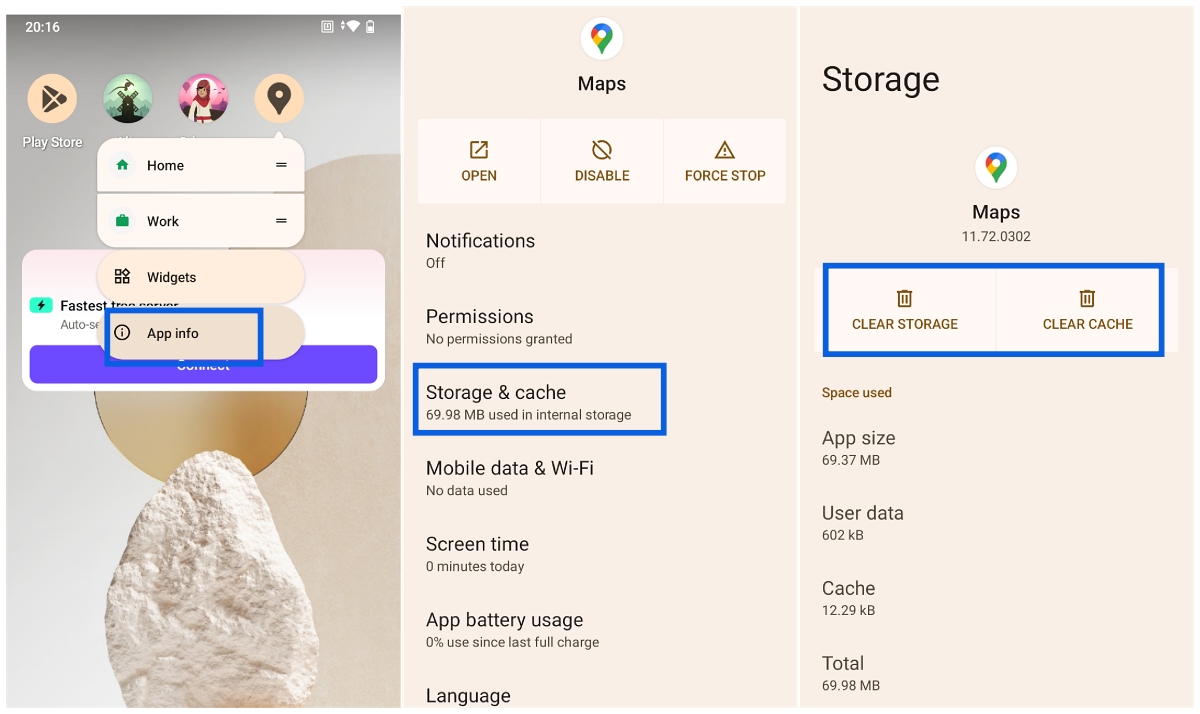
- Go back to the App Info screen.
- Tap Storage & cache.
- Tap Clear Storage and Clear Cache.
- Relaunch Google Maps.
Sometimes simply restarting the app can resolve the issue.
Can Updating My Phone Fix Google Maps?
Sometimes the problem isn’t the app but your phone’s operating system. A system-level bug could affect location services.
To check for updates:
On most Android phones:
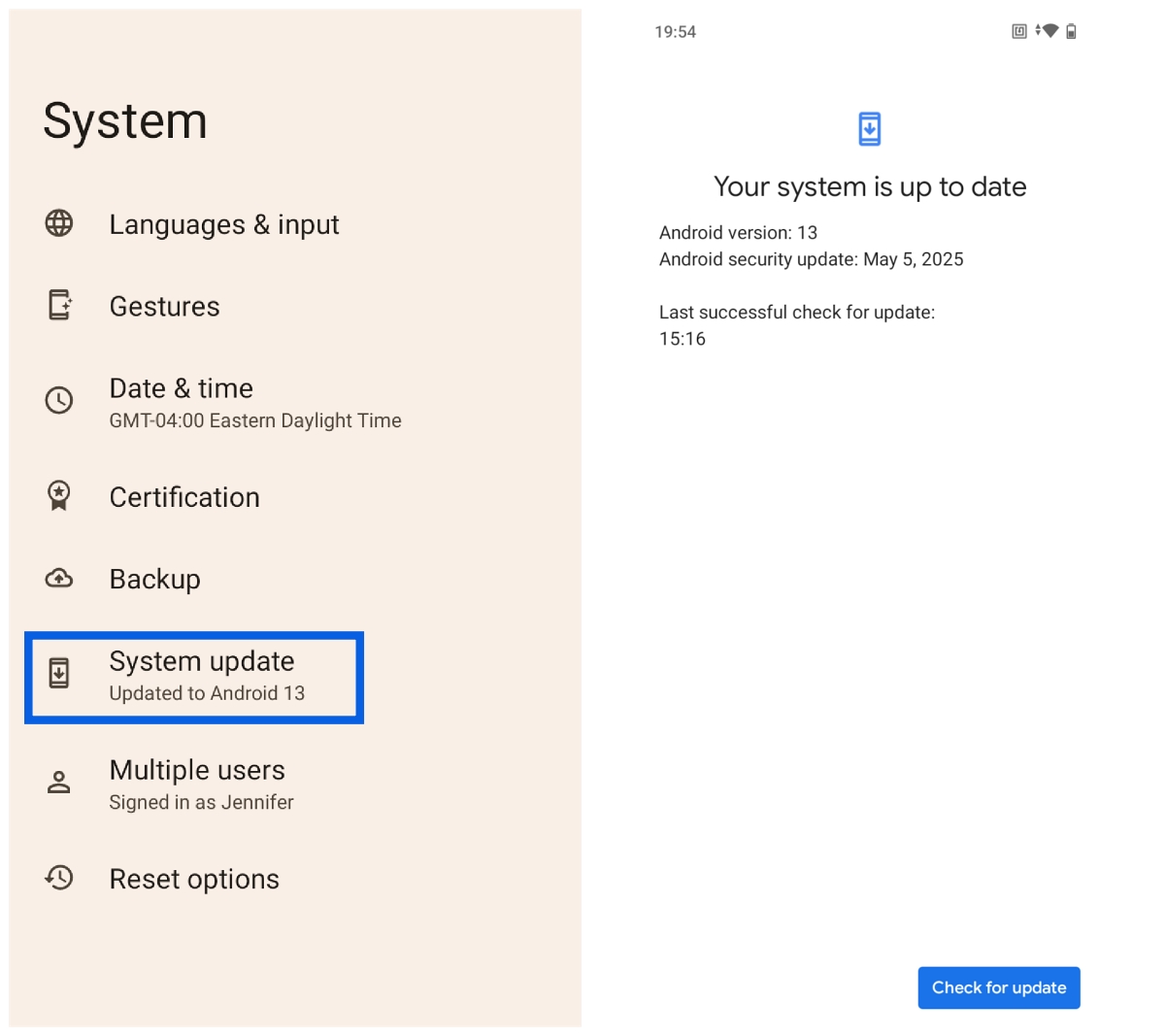
- Go to Settings.
- Scroll to System.
- Tap System Update.
- Tap Check for Updates.
On Samsung Galaxy phones:
- Go to Settings.
- Tap Software Update.
- Tap Download and Install.
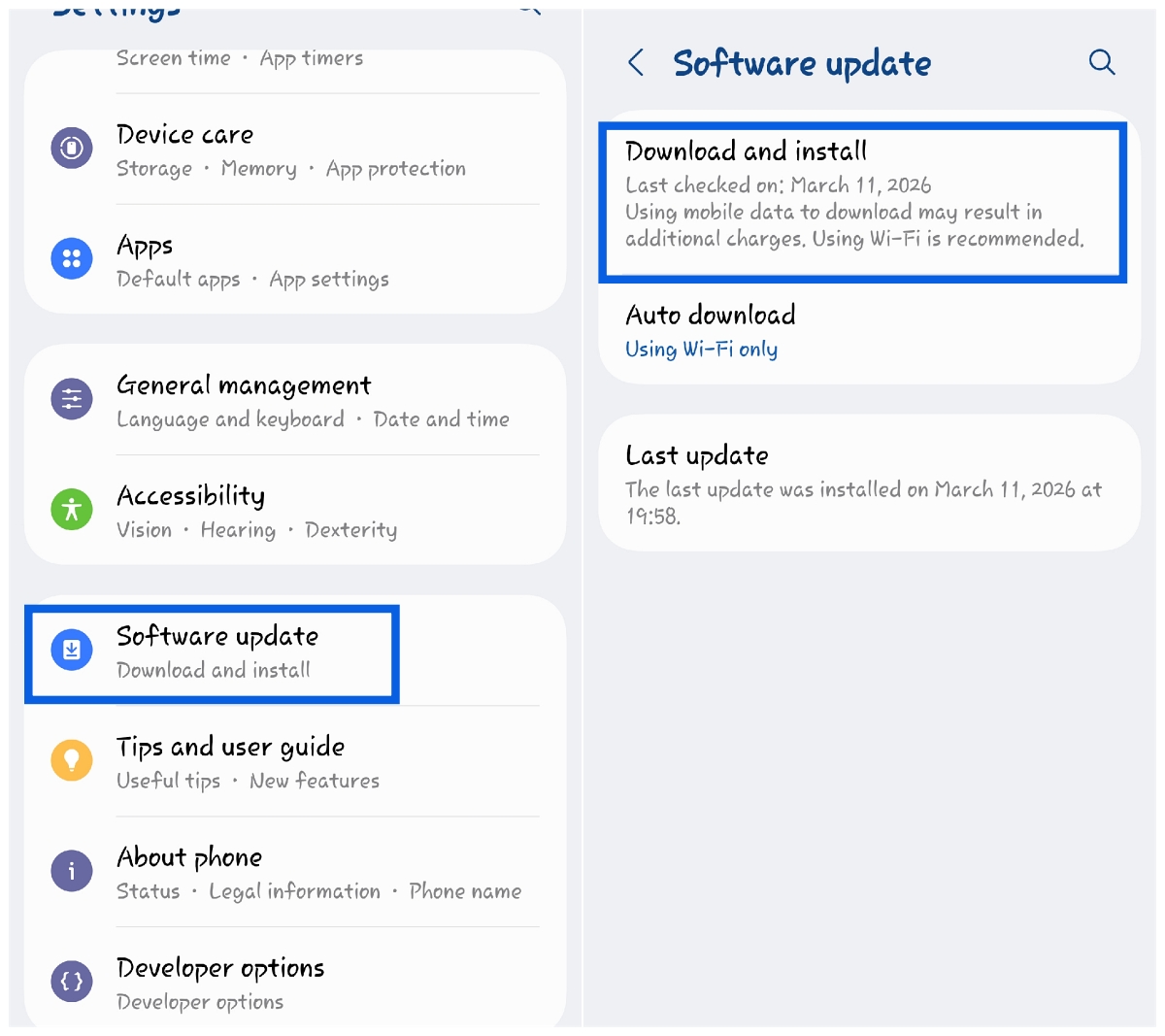
If an update is available, installing it may fix the problem.
Can VPNs Affect Your Location?
Did you forget that you enabled a VPN to watch content from another country on Netflix? It happens.
A VPN (Virtual Private Network) routes your internet connection through another server and assigns your device a different IP address. That IP address may be tied to another location.
Because of this, Google Maps might detect the VPN location instead of your real one. If you have a VPN enabled, try turning it off and check whether Google Maps becomes more accurate.
Conclusion
Software issues on your phone can be frustrating, but there is usually a solution. If Google Maps is showing the wrong location, the fix could be as simple as enabling location services, updating the app, or turning off a VPN.
Sometimes finding the right path is as easy as flipping a few switches.
Related articles worth reading: