The current Android version is Android 17. Google released it to Pixel phones on June 16, 2026, and its September update, Android 17 QPR1, is the newest build on Pixels. Samsung is rolling out One UI 9, which is based on Android 17, right now. Android 18 isn’t expected until 2027.
Your Android version decides which security protections and features your phone gets. But “the latest Android” looks different on a Pixel, a Galaxy and a OnePlus, and it arrives at different times. Here’s where things stand this month.
What is the latest Android version right now?
Android 17 is the latest stable release. Its API level is 37, and Google’s internal codename for it is “Cinnamon Bun.” Google released it on June 16, 2026 for the Pixel 6 and newer. That’s the second year in a row the major Android update has shipped in June instead of in the fall.
Google also changed how it tests Android this cycle. It dropped the traditional developer previews and moved early testing to rolling “Canary” builds. After that came the public betas. Our Android 17 Beta 4 breakdown covers the last major beta before launch.
| Build | Date |
|---|---|
| Beta 1 | February 13, 2026 |
| Beta 2 | February 26, 2026 |
| Beta 3 (platform stability) | March 26, 2026 |
| Beta 4 | April 16, 2026 |
| Beta 4.1 | June 1, 2026 |
| Stable release | June 16, 2026 |
| QPR1 (September Pixel Drop) | September 15, 2026 |
If your Pixel is fully up to date, you’re on Android 17 QPR1. On almost any other brand, you’re probably still on Android 16 or partway through an Android 17 rollout.
What’s new in Android 17?
Android 17 focuses on multitasking, privacy and performance. Some features depend on your phone maker, so not every Android 17 phone gets all of them. The sections below cover the biggest changes. For more depth, see the Android 17 upgrades worth getting excited about.
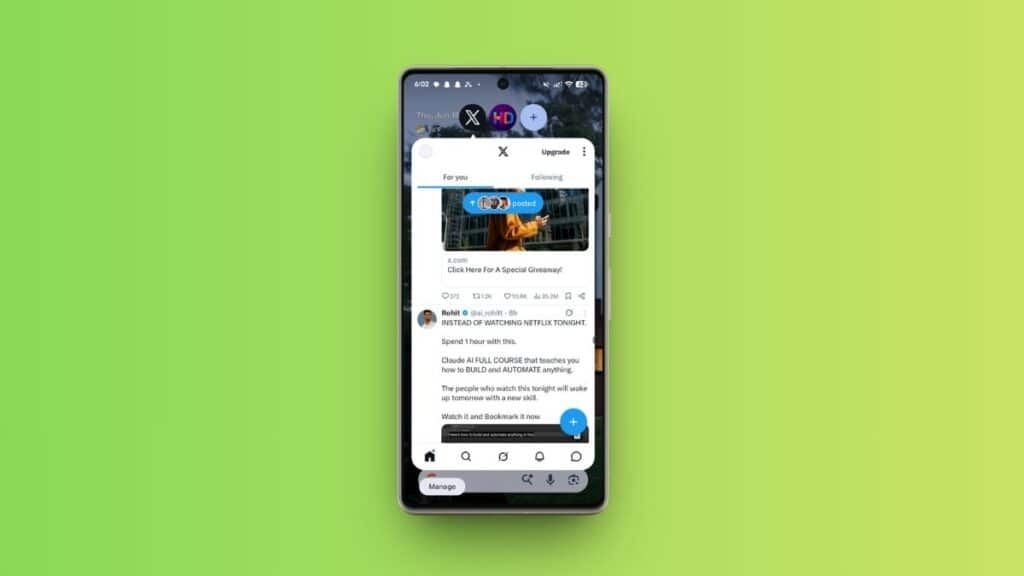
App bubbles
Long-press any app icon on the home screen and you can turn that app into a small floating window that sits on top of whatever you’re doing. On tablets and foldables, bubbles dock in a “bubble bar.” Chat apps have had bubbles since Android 11, but now any app can use them. That makes quick jobs like checking a calculator mid-chat much easier. Here’s how to use app bubbles on a Pixel.
Screen reactions
You can record your screen and your selfie camera at the same time. Android removes the background behind you automatically, so you can make reaction or tutorial clips without a green screen or a second device. Our guide shows how to set up screen reactions.
Tighter location and contact privacy
You can now give an app your precise location just once instead of permanently. A persistent indicator also shows when an app is using your location. The new contacts picker lets you share only the contacts, and only the details, an app actually needs instead of your whole address book. There’s more in our rundown of Android 17’s security and privacy changes.
Stronger theft protection
If you mark your phone as lost in Find Hub, unlocking it now takes your fingerprint or face as well as your passcode. That stops a thief who watched you type your PIN. Android 17 also allows fewer PIN guesses and makes you wait longer after each wrong attempt.
App memory limits
Android now caps how much memory each app can use, based on the phone it’s running on, so one app can’t hog the RAM. Google says this should reduce stutter and battery drain. Mid-range phones with less memory benefit most.
Smaller changes
- A separate volume slider for your voice assistant, so it no longer follows media volume
- An option to hide app names on your home screen
- More dark theme controls
- Built-in parental controls on all Android phones, not just Pixels
- Native button remapping for game controllers
- A foldable gaming mode with a 50/50 split layout, which Google says will arrive in a later update
What are QPR updates, and what did Android 17 QPR1 add?
A QPR (Quarterly Platform Release) is a mid-cycle Android update. Google ships one about every three months, alongside its “Pixel Drops.” Android 17 QPR1 arrived on September 15, 2026, for the Pixel 6 through the Pixel 11 Pro Fold. It brought:
- Pause Point, a feature meant to interrupt doomscrolling before it starts
- More blur effects in the volume panel and power menu
- A redesigned media player that shows your open media apps as a scrolling carousel instead of dots
- Bouncier Quick Settings animations and a new keyboard-switcher tile
- A home screen app menu that separates app shortcuts from system actions like Bubble and Widgets
- Distance and calories burned in Health Connect, alongside step counts
The new blur effects need newer hardware. Pixel 6 and Pixel 7 owners get QPR1’s bug fixes but not the blur.
Google is already testing the next two quarterly releases:
- QPR2 is in beta (see what changed in QPR2 Beta 5) and is expected around December.
- QPR3 reached Beta 1 on October 2 and should go stable in early 2027.
Which phones get Android 17?
Google supports the Pixel 6 and newer, and the Pixel 11 series shipped with Android 17 on August 20, 2026.
The original Pixel 6 and Pixel 6 Pro are at the end of their support, though. Google confirmed that Android 17 QPR1 is their last major update, and their support ends in October 2026, five years after they launched. The Pixel 6a has a later end date and is still in the QPR3 beta.
Other brands depend on how long the maker supports each phone. Google promises seven years of updates for the Pixel 8 and later. Samsung promises up to seven years for its recent flagships, including the Galaxy S24 and newer and the Z Fold 8. Many budget phones from other brands still get only two or three major updates. To see where your phone stands, here’s how to check your Android phone’s update expiration date.
When did Samsung and other brands get Android 17?
This year Samsung’s new foldables came with Android 17 before any older Galaxy phone could update to it. The Galaxy Z Fold 8 and Z Flip 8 were announced at Galaxy Unpacked on July 22 and went on sale August 7, 2026. They were the first phones to ship with Android 17 preinstalled, running One UI 9.
The stable One UI 9 update started reaching the Galaxy S26 series in late September. The Galaxy S25, Z Fold 7, Z Flip 7 and Z TriFold are getting it in phases.
Pixels usually get each new Android version first because Google makes both the phone and the software. Samsung now follows within weeks for its top phones instead of months. OnePlus, Xiaomi, Vivo and Oppo usually roll out through the fall and winter, newest flagships first. Within any brand, a new flagship gets the update before last year’s model and well before budget phones.
How do I check my Android version?
On a Pixel or a phone with close-to-stock Android:
- Open Settings.
- Tap About phone.
- Look at Android version. Tap it to see your security update date and Google Play system update.
On a Samsung Galaxy, go to Settings > About phone > Software information. You’ll see both the Android version and the One UI version. One UI 9 means Android 17. Other brands use similar menus, sometimes called “Software version” or “System.”
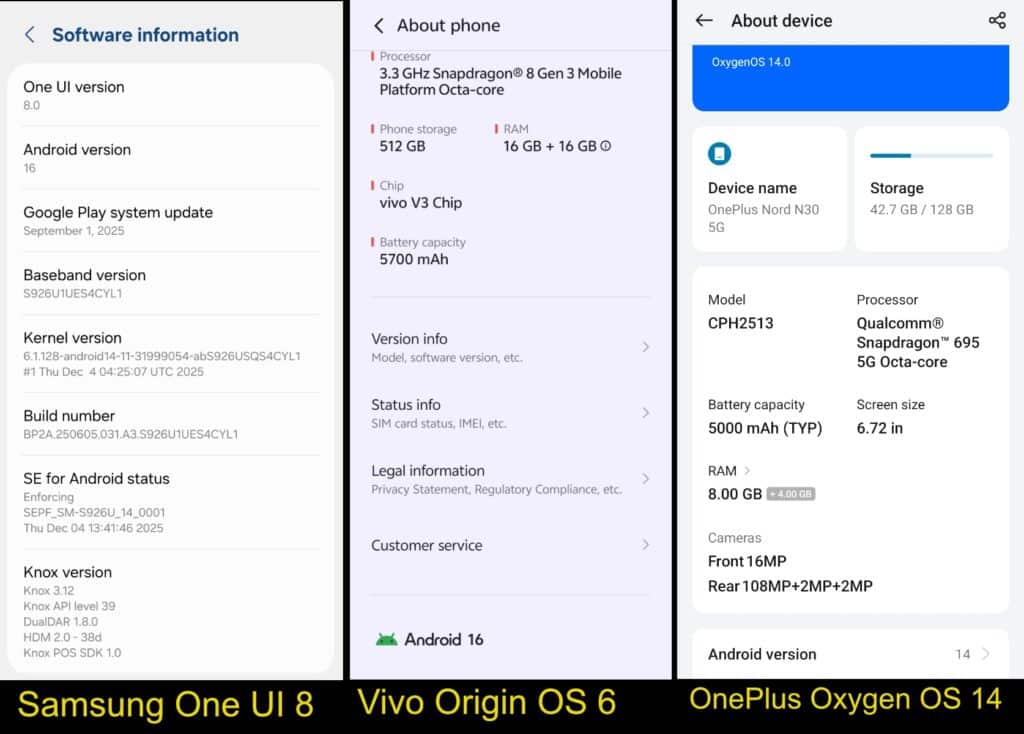
While you’re there, check the security update date as well. Major Android versions come once a year, but security patches should arrive monthly or quarterly. If your patch is more than three months old, your phone is falling behind. Google also pushes smaller monthly Play system updates, like the June 2026 Google System Updates.
To install an update, go to Settings > System > Software updates on a Pixel or Settings > Software update on a Galaxy.
Should you update to Android 17 right away?
For most people, yes, as soon as the update reaches your phone through the normal rollout. The security fixes alone make it worthwhile, and apps gradually drop support for older versions.
There are a few reasons to wait a week or two:
- Early bugs: New releases sometimes ship with problems the first patch fixes. Android 17’s launch on Pixels, for example, brought a Wi-Fi connectivity bug for some users.
- Older hardware: A phone near the end of its support may run a new version a bit slower. The Pixel 6 and 7 missing out on QPR1’s blur effects shows where the limits are.
- Storage: Major updates usually need a few gigabytes free.
Before you update, charge your phone to at least 50%, connect to Wi-Fi, back up your data and free up some storage. If you depend on your phone for work, wait for the first follow-up patch.
When is Android 18 coming out?
Android 18 isn’t in public beta yet. Google’s agenda for the Android Dev Summit on October 28-29, 2026, mentions Android 18 and “powerful new graphics features,” so expect the first details there. If Google follows the pattern of the last two years, betas will start in early 2027 and the stable release will reach Pixels around June 2027. Google hasn’t confirmed those dates.
A brief history of Android versions
| Version | Name | Released | Notable change |
|---|---|---|---|
| 1.0 | (none) | 2008 | First public release |
| 1.5 | Cupcake | 2009 | On-screen keyboard |
| 1.6 | Donut | 2009 | Support for more screen sizes |
| 2.0-2.1 | Eclair | 2009-2010 | Live wallpapers |
| 2.2 | Froyo | 2010 | Wi-Fi hotspot |
| 2.3 | Gingerbread | 2010 | NFC support |
| 3.0-3.2.6 | Honeycomb | 2011 | Tablet-only interface |
| 4.0 | Ice Cream Sandwich | 2011 | One interface for phones and tablets |
| 4.1-4.3 | Jelly Bean | 2012-2013 | Project Butter (smoother scrolling) |
| 4.4 | KitKat | 2013 | Runs on low-RAM devices |
| 5.0 | Lollipop | 2014 | Material Design |
| 6.0 | Marshmallow | 2015 | Doze and app permissions |
| 7.0 | Nougat | 2016 | Split screen |
| 8.0 | Oreo | 2017 | Picture-in-picture |
| 9 | Pie | 2018 | Gesture navigation |
| 10 | (internal: Quince Tart) | 2019 | System-wide dark theme, Live Caption |
| 11 | (internal: Red Velvet Cake) | 2020 | Chat bubbles |
| 12 | (internal: Snow Cone) | 2021 | Material You |
| 13 | (internal: Tiramisu) | 2022 | Per-app languages |
| 14 | (internal: Upside Down Cake) | 2023 | Predictive back gesture |
| 15 | (internal: Vanilla Ice Cream) | 2024 | Private space |
| 16 | (internal: Baklava) | June 2025 | Live Updates |
| 17 | (internal: Cinnamon Bun) | June 2026 | App bubbles, stronger privacy controls |
Google stopped using dessert names publicly with Android 10. Since then, they’ve only been internal codenames.
Yes. Android 17 is the latest stable version as of October 2026, and Android 17 QPR1 is the newest build on Pixels.
Yes, as long as your phone still gets monthly or quarterly security patches. The patch date matters more than the version number.
Not officially. Unofficial versions of Android, called custom ROMs, exist for some phones. Installing one means unlocking your phone’s bootloader, takes some technical comfort and can break banking apps.
Related articles worth reading: