You need to get some serious work done, but you’re out of the house, and all you have is your phone. This happens to everyone, but it shouldn’t have to be an issue. Believe it or not, the device in your pocket is more powerful than some lower-end laptops on the market. As such, you can use it for much more than typical smartphone tasks.
Here are some tips and tricks to use your Android smartphone as a true pocket computer. We’ll go over software features, devices, and basic usage habits to turn your phone into a mobile workstation.
Best Apps To Make Your Phone A Mini Office
Sometimes, it’s not just about having the beefiest chips. Good software can unlock your hardware’s true potential, so a good place to start is by looking at some great business apps you can find on the Google Play Store.
For example, there are a ton of office suite apps that you can download. These are applications like word processors, slide presentation makers, spreadsheet makers, email clients, and more. Apps like these bring your office to you by letting you create documents on the go.
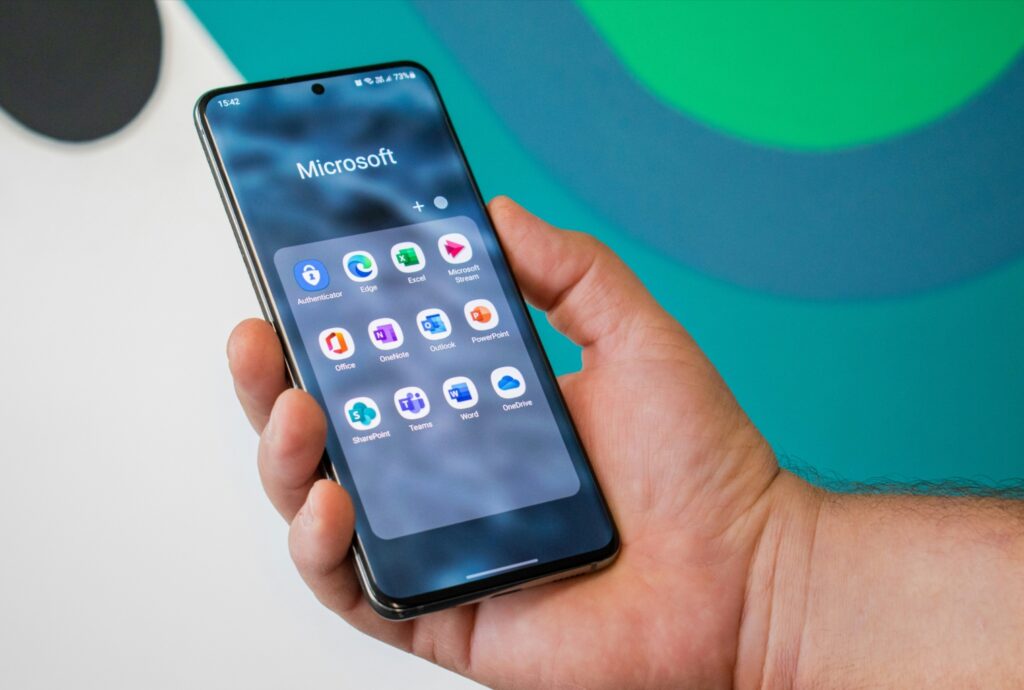
We can’t make a list of mobile office apps without talking about Microsoft’s suite of apps. Yes! Microsoft Office migrated to the mobile space. You can access:
- Word
- Excel
- Power Point
- Outlook
- Teams
- OneDrive
These are incredibly useful, and they allow you to access, create, and edit your documents right from your phone. Thanks to Microsoft’s software ecosystem, you can easily access files saved in OneDrive and edit them while out of the house.
If you don’t use Microsoft Office, don’t worry. There are other office suites out there that accomplish much the same thing. You’re an Android user, so you more than likely know about Google’s collection of Workspace apps. Not only are they functional, but they’re also free. You can use:
- Google Docs
- Google Slides
- Google Sheets
- Google Chat
- Google Meet
- Gmail
- Google Keep
Google saves documents to the cloud, so you can access your files from anywhere. You can edit your documents on the long train ride to work if you need to. Along with Google’s and Microsoft’s offerings, there are thousands of others that you can download and try out.
How to Use Your Android Phone As A Content Creation Hub
Even if you don’t create documents for your occupation, you can still use your phone as a replacement for your computer. Years ago, creating content required using a computer, but the smartphone has come a long way in terms of sheer horsepower. Users can use their phones as content creation hubs nowadays.
Let’s start with photo editing apps. You can use your phone to create some professional-grade images. Whether you need to color grade images, crop out objects, add effects, etc., there are some amazing apps out there. Some of them include:
- Photoshop Express
- Snapseed
- Picsart
- Lightroom
- Luminar
- Google Photos
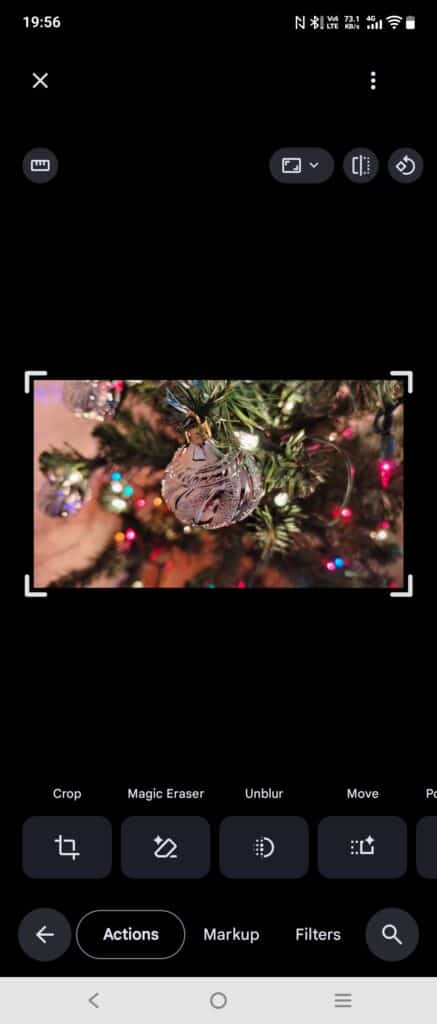
Apps like these have amazing photo editing tools that almost match what you get from full desktop applications. For example, Google Photos comes standard on most Android phones. Just open the app, select the photo you want to edit, and the app will show you a large list of options. It will even suggest some actions to perform through AI.
Suppose video editing is your thing. Mobile video apps are great options for the aspiring filmmaker. They let you trim videos, add effects, layer audio, and much more. Again, they allow you to create the kind of videos you can using a computer. Some great video editors include:
- Kinemaster
- YouCut
- Power Director
- CapCut
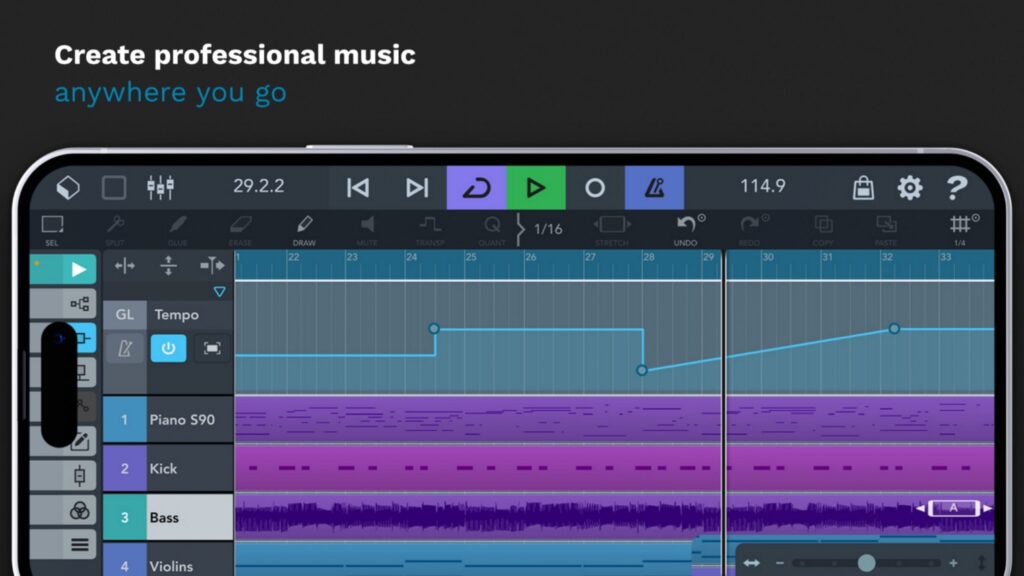
Music production has long been confined to full desktop setups. But, that’s not the case anymore. You can download apps like Fruity Loops Mobile and Cubasis 3. These are powerful mobile DAWs that you can use to create music on your phone.
There are so many powerful apps out there on the Google Play Store that allow you to turn your coffee shop into an office. Whether you’re a business person or creator, you can always find the right app for you.
How to Use Samsung DeX
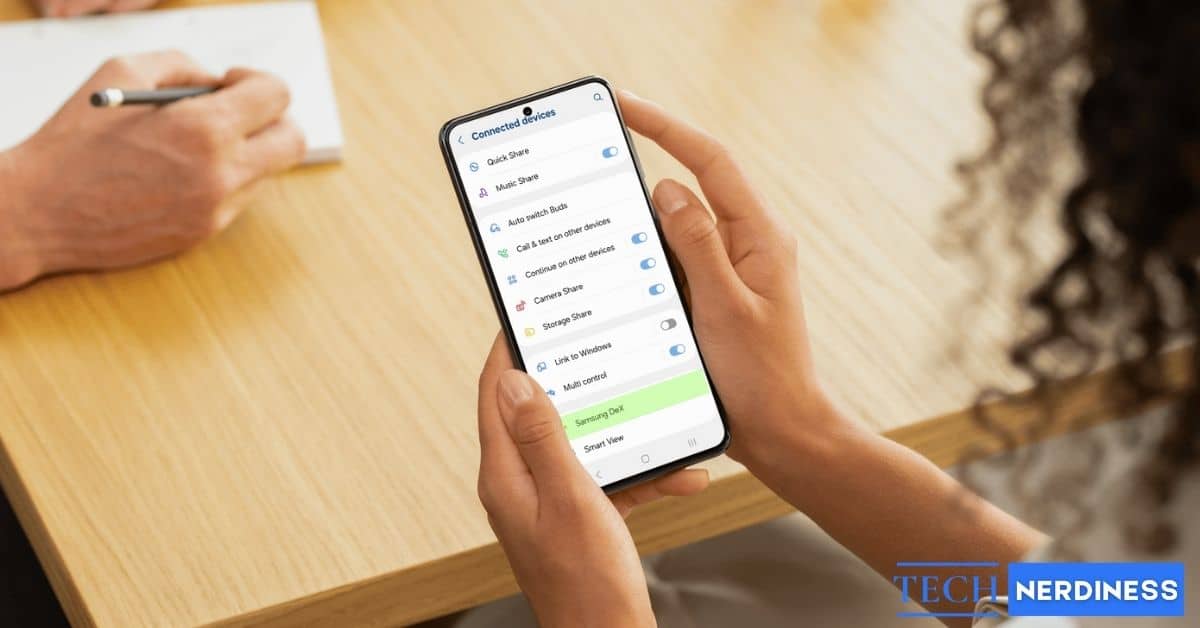
When it comes to desktop modes, Samsung DeX is the most popular. The company introduced it back in 2017 and has improved it ever since. So, it’s pretty intuitive. All you’ll need to get started is a DeX-compatible phone, an HDMI monitor, and a cord to connect the two. The cord can be either a USB-C to HDMI cord, DeX cable, or multiport adapter. To get the full experience, you’ll also want to add a Bluetooth Keyboard and mouse.
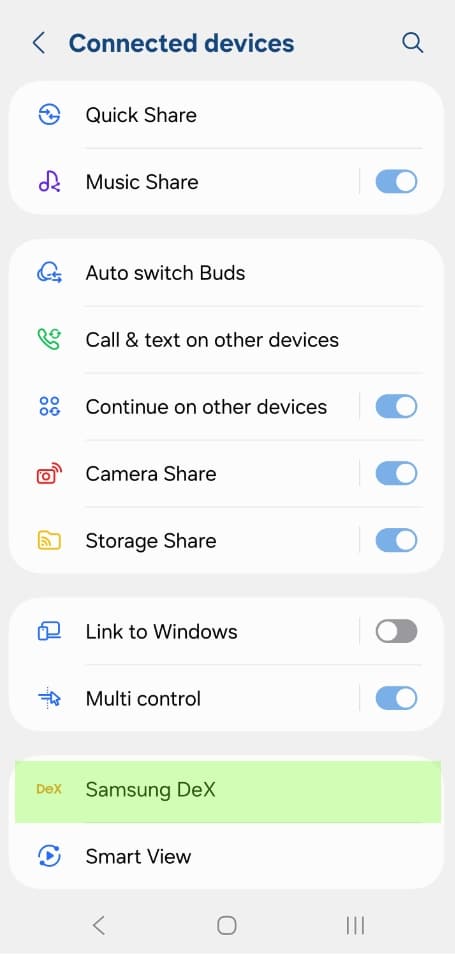
Firstly, go to your phone’s settings and search for the DeX settings. Enable it by switching on the toggle. After that, DeX will automatically activate when you plug your phone in.
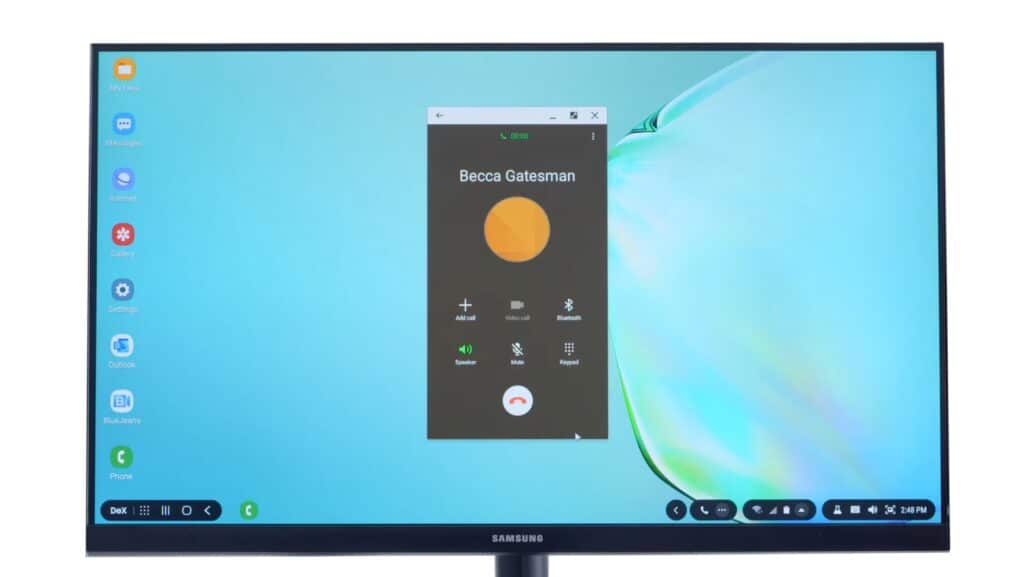
Once you look at your interface, you’ll see similarities between it and Windows/MacOS. The canvas will stretch across the entire screen, and you’ll see some apps on the left. Also, you’ll see a taskbar at the bottom of the interface that will let you access your apps. Just like with Android, you’ll see the navigation buttons at the bottom of the screen also.
Click on the little grid of circles on the taskbar to view your entire library of apps. Those apps will open in windowed mode, and you can move and resize them just like on a computer.
Alternatives to DeX Mode
Since this is Android we’re talking about, there isn’t only one flavor of desktop mode. For example, Motorola also has its own desktop mode called Moto Connect. Just like Samsung DeX, you can connect your Motorola phone to a monitor using an adapter and work with a computer-like interface.
Previously, only a handful of Android manufacturers gave you the ability to use desktop mode. However, Google baked desktop mode into Android 16, so more phones have this ability. It’s important to know that not all phone support video out through USB-C. So, if you want to use this feature, make sure that your phone has this capability.
To enable desktop mode on your Android phone, you will need to enable developer options. Once you’re in the options, look for the toggle that enables desktop mode. Bear in mind that not all Android phones will support it, so your results will vary.
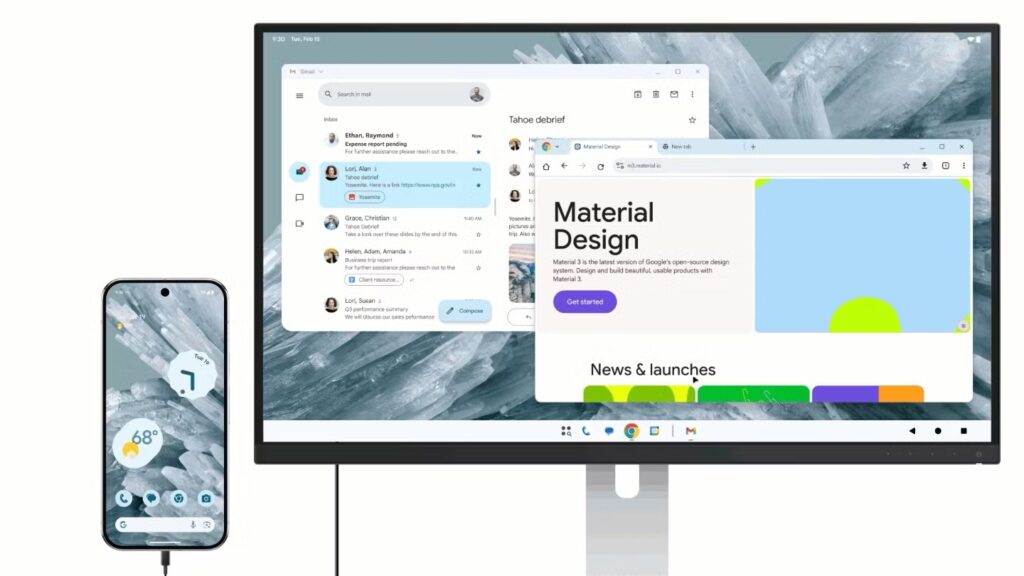
You can expect advanced windowing, the ability to run multiple apps at the same time, and a taskbar at the bottom of the screen. Your overall experience will depend on your phone’s internals, so you should keep that in mind.
What Bluetooth Accessories Can Increase Mobile Productivity?
A lapdock stretches your phone’s screen into a desktop interface, but suppose you don’t want that big screen experience. Your phone has a massive 7-inch display, and you intend to use every inch of it. It’s as easy as buying a portable Bluetooth keyboard and pairing it with your phone.
Most Bluetooth keyboards are compact, so you’ll be able to toss them into a bag when you’re traveling. There are even keyboards small enough to fit in your pocket. They fold in two so you can slip them into your pants pocket or purse for easy traveling.
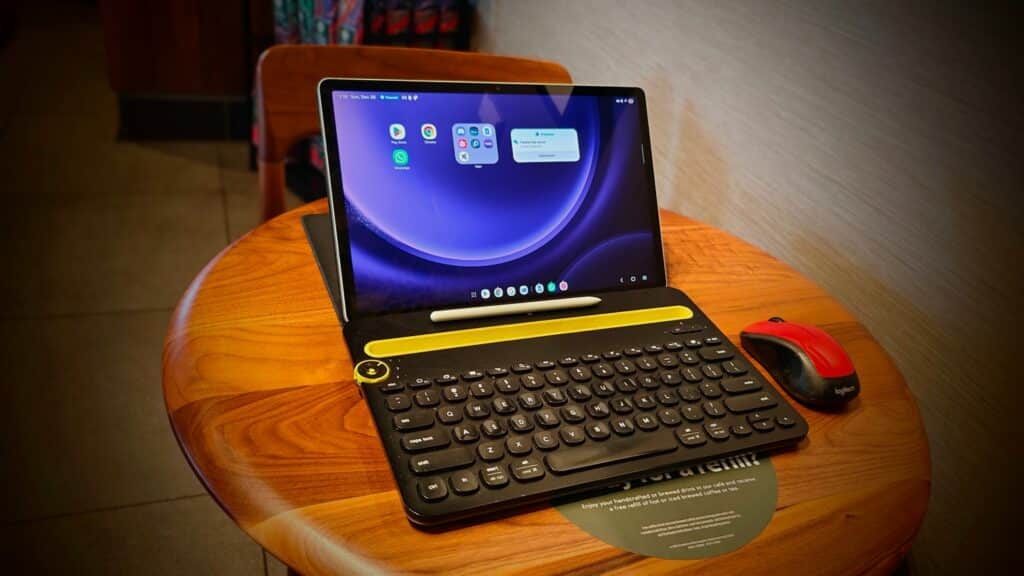
Those wanting the full computer experience should also consider getting a Bluetooth mouse. Just like the keyboard, it can connect to your phone and operate just like it would on a computer.
To tie your mobile setup together, you’ll want to get a phone stand. These let you prop your phone up like a mini computer monitor. A keyboard, mouse, and phone stand are all you need to turn your phone into a microcomputer for on-the-go productivity.
How a Foldable Phone Can Replace Your Computer?
This sub-genre of smartphones has come a long way since the days of the first Galaxy Z Fold. Book-style foldable phones have a normal phone display when folded. However, when unfolded, they house a tablet-sized display. Many of them have an 8-inch screen hidden inside. This unlocks so many more possibilities with your phone.
The larger screen lets you view the full desktop version of webpages, expands your apps, and makes using floating windows more useful. The increased screen real estate will make your phone more like a computer, especially if you couple your phone with the aforementioned Bluetooth accessories.
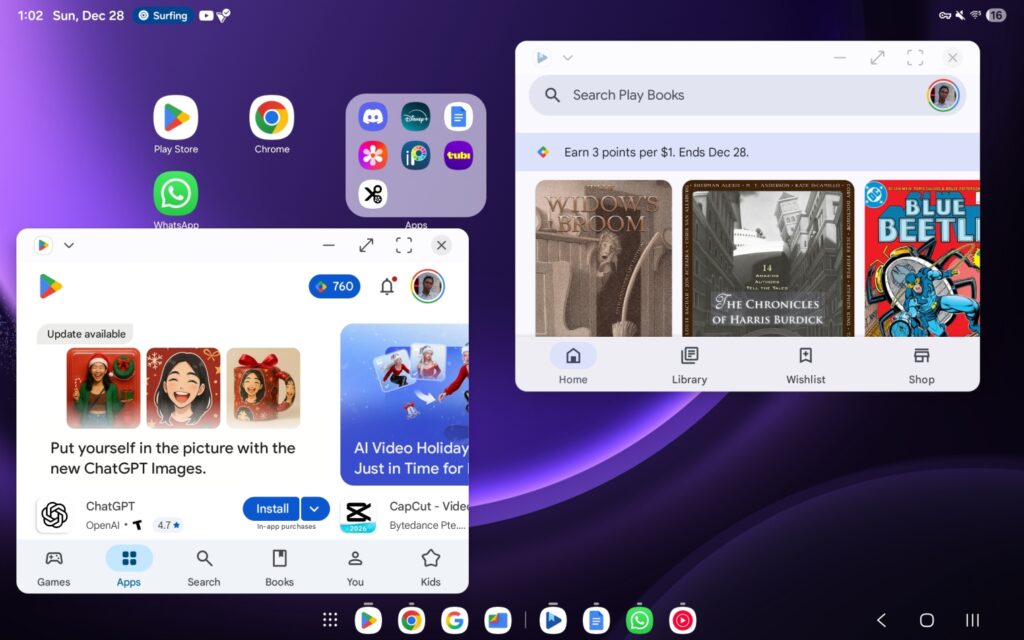
If you grab a Samsung Galaxy Z Foldable phone, then you’ll have access to its DeX mode for tablets. Rather than letting you plug your phone into a monitor, it turns your phone’s screen into the monitor. DeX will make your phone’s software more like that of a computer. Your apps will open in floating windows, and you’ll see a bar of apps at the bottom of the screen, just like a Windows or Mac computer.
Conclusion: Unlock Your Phone’s Productivity Potential
It’s so easy to underestimate the device sitting in your pocket. Companies design mobile processors to save space first and foremost. However, that doesn’t mean that your phone can’t be a business machine. Mobile processors can still give you some great performance, and once you truly unlock your phone’s potential, there’s no telling how much work you can get done on the go.