You’re standing outside the stadium, trying to book parking on your phone while the line moves. Or you’re three tabs deep, filling out the same shipping form you filled out last month, because the site won’t remember you. That kind of small, repetitive friction is exactly what Google built Auto Browse to erase.
On August 18, 2026, Google rolled out Gemini in Chrome, including Auto Browse, to every Android user in the United States. It’s not a keynote-headline feature. It’s the kind of quiet expansion that only matters once you actually need it, and then it matters a lot.
Here’s what changed, who gets it, and how it actually works.
When Gemini’s Auto Browse Actually Reached Android
Google previewed the feature for some Android users back in May 2026 during The Android Show, then began a limited rollout by late June. August 18 marks the point where it stopped being a beta test and became available to everyone in the US running a compatible phone.
What you need to use it:
- Android version: 12 or higher.
- RAM: At least 4GB.
- Language and region: English (US), currently limited to the United States.
- Model: Powered by Gemini 3.1, which Google calls its most capable model to date.
- Auto Browse specifically: Requires a Google AI Pro or AI Ultra subscription. Free accounts get the rest of Gemini in Chrome, just not the auto-browsing part.
If you’re not sure which Android version your phone is running, check your current Android version before you go looking for the feature.
How Auto Browse Gets Things Done
This is the part that separates Auto Browse from a chatbot bolted onto your browser. You give it a task in plain language, and it navigates real web pages to complete it: clicking links, filling out forms, and working through multiple steps without you touching the screen.
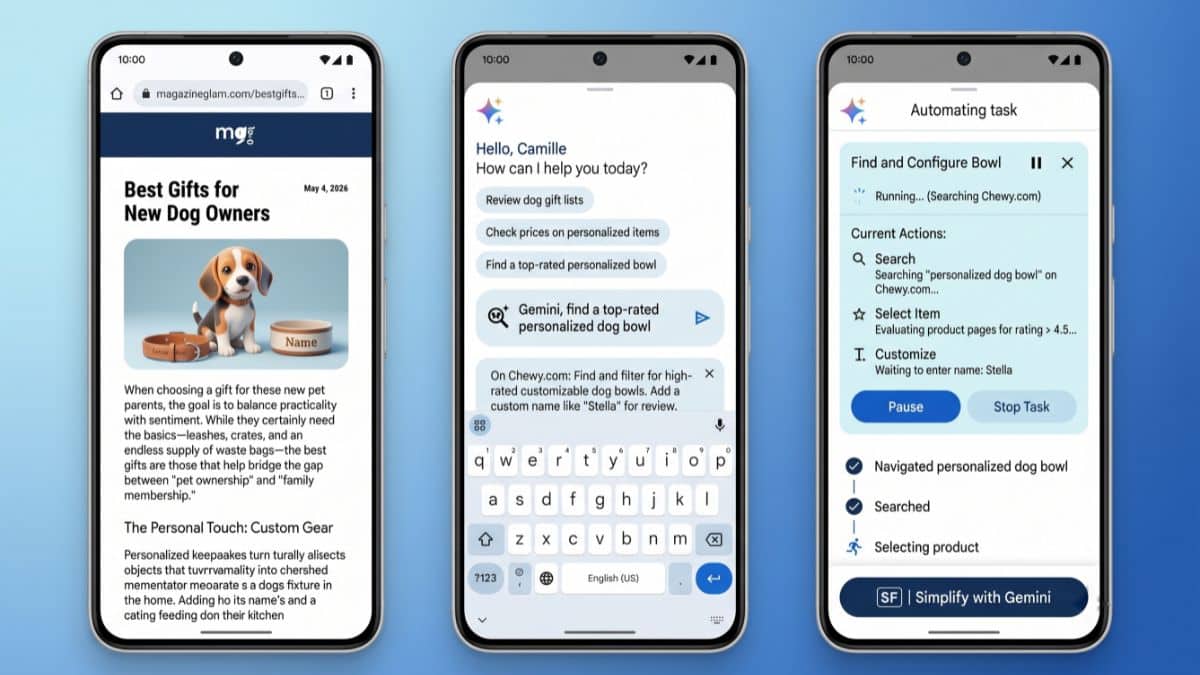
Google’s own demo has Gemini sourcing a personalized dog bowl on Chewy, picking the right size and color without you scrolling through listings yourself. Other examples Google has shown off include booking parking through SpotHero, updating a recurring online order, and pulling together the pieces of a trip itinerary.
Before it acts, Gemini shows you a plan. You approve it, and Auto Browse gets moving. It stops short of the very last step on anything that matters, though. Payments and social media posts still require you to confirm manually. Google built it that way on purpose, so the AI does the tedious middle part of a task and hands control back to you right before anything irreversible happens.
What Everyone Gets, Subscription or Not
Auto Browse is the headline, but Gemini in Chrome does plenty without a paid plan attached. It summarizes long articles into a few bullet points, answers questions about whatever page you’re on, and edits or generates images through Nano Banana without leaving the browser.
It also plugs into your other Google apps. Ask it to check your Calendar, pull up a Keep note, or search your Gmail, and it responds without you switching apps. That’s part of the same Personal Intelligence system Google has been building into its Gemini connected apps, and it’s opt-in, not automatic.
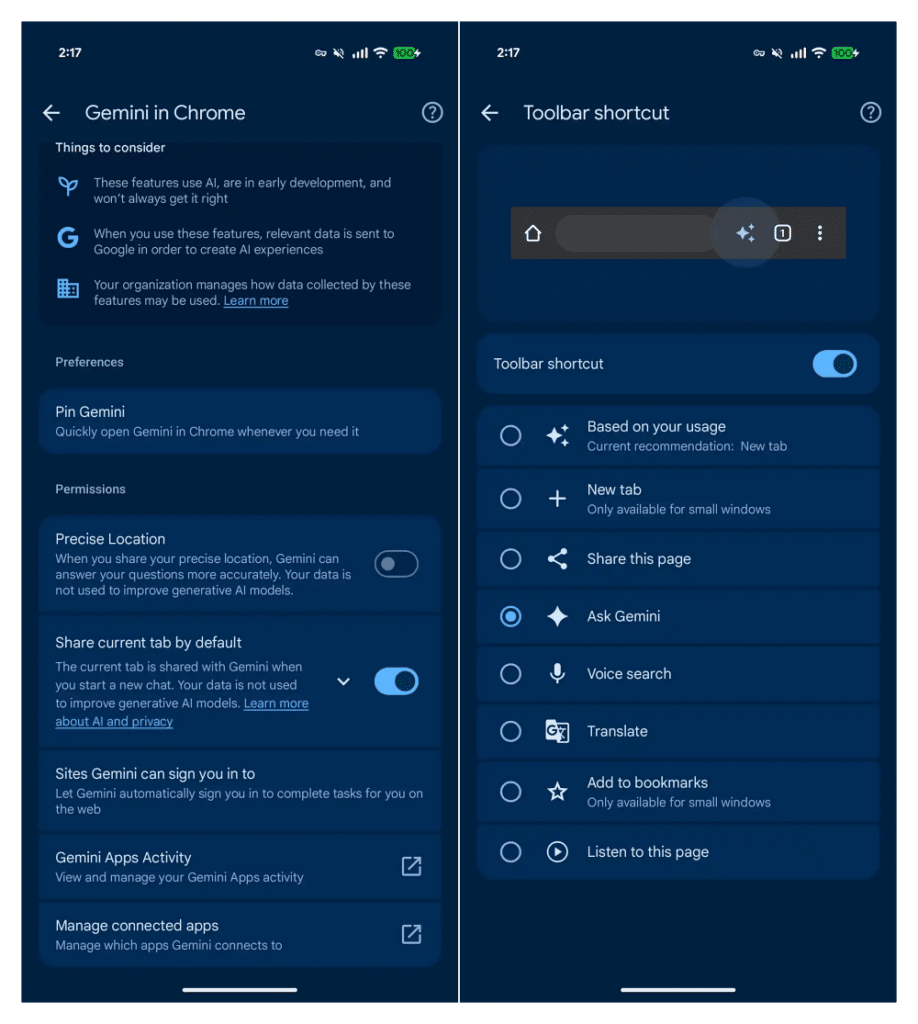
You’ll find both the free features and Auto Browse behind the same entry point: tap the spark-shaped Gemini icon next to the address bar, or open it from the three-dot menu. Gemini docks to the bottom of the screen once it’s open, so you can keep browsing while it works.
The Guardrails Keeping Auto Browse in Check
Handing an AI the keys to click around the web on your behalf raises an obvious question: what stops it from doing something you didn’t mean? Google trains its models to detect prompt injection, the trick where a malicious webpage slips in hidden instructions to hijack the AI mid-task, then layers that on top of the confirmation gate already built into every sensitive step.
Together, they’re designed to keep you as the one making the final call on anything that costs money or goes public, even when you’re not watching every click.
If you’d rather skip the feature entirely, Gemini on Android can be disabled from your device settings.
Why Google Is Pushing This Now
That cautious rollout wasn’t an accident, and the timing traces back further than August. Chrome picked up a floating Gemini window back in September 2025, and Google shipped a full agentic Auto Browse feature to desktop Chrome on January 28, 2026. Android’s version arrives roughly seven months later, which tells you where Google’s priorities sat.
Part of the urgency traces back to competition. Perplexity’s Comet, OpenAI’s Atlas, Opera’s Neon, and The Browser Company’s Dia all launched through 2025 pitching themselves as AI-first alternatives built to pull users away from Chrome. Google controls the browser with by far the largest market share, and it wasn’t going to let that lead erode without a fight. Auto Browse on Android closes the gap between what Chrome can do and what its upstart rivals were built to do from day one.
Small Details Worth Knowing
A few things don’t fit neatly under a feature heading but matter if you’re trying it out:
- Nothing changes for existing Chrome habits. Gemini sits alongside your normal browsing, not in place of it.
- The current page can feed the prompt automatically. Chrome includes context from whatever you’re viewing unless you turn that off in settings.
- Rollout speed varies by device, so if you don’t see the Gemini icon yet, an update to Chrome itself may need to land first.
Final Thoughts
Auto Browse won’t replace how you use your phone overnight, and Google isn’t pretending it will. What it does is take the small, repetitive tasks, booking parking, reordering something you buy every month, filling out a form you’ve filled out a dozen times, and hands them to an AI that shows its plan before it moves. That’s a modest promise, but it’s one Google can actually keep, and after watching a handful of AI browsers try to out-flash each other for the past year, modest and reliable is a fair trade.