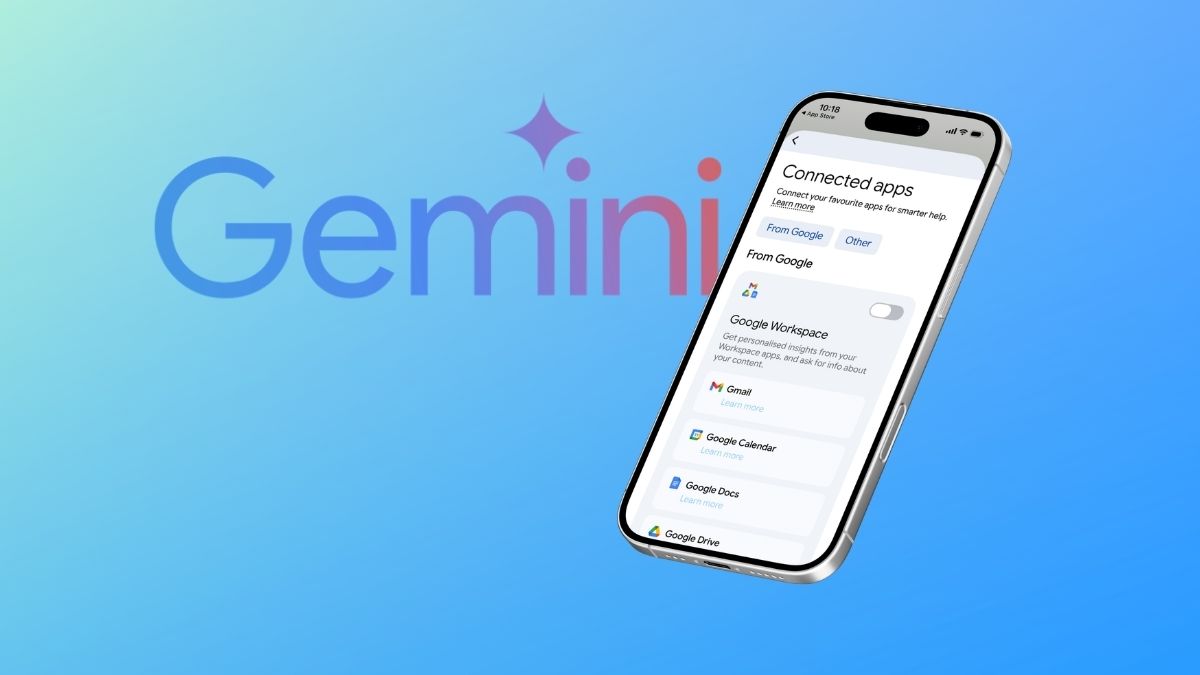
If you’ve spent any time with Google Gemini lately, you’ve probably noticed it can do a lot more than answer questions. Ask it to check your next flight, summarize an email thread, or control your smart home devices, and it just does it. That’s not magic. That’s what happens when Gemini’s app integrations are working behind the scenes.
Google originally called these Gemini extensions, and while that name still sticks in casual use, the official terminology has quietly shifted. As of 2025–2026, Google refers to them as Connected Apps in its documentation and within the Gemini app itself. Same concept, cleaner name, and significantly more capable than when they first launched.
This guide breaks down exactly what these integrations do, how to set them up, and which ones are worth your attention in 2026.
What Are Gemini Extensions, Really?
Think of Google Gemini Extensions as live bridges between Gemini and the apps you already use. Instead of Gemini being a sealed-off assistant that only knows what it was trained on, Connected Apps let it reach into your Gmail, your calendar, your Google Drive, YouTube, Maps, and more, pulling real-time data and acting on your behalf.
The practical difference is significant. Without app integrations, asking Gemini “what’s the cheapest flight to Tokyo this weekend?” gets you a general answer. With Google Flights connected, it pulls live pricing and availability. That’s the gap these integrations close.
What Gemini can do through these connections includes:
- Access personal data (emails, docs, notes, calendar events) with your explicit permission
- Retrieve real-time information like flight schedules, hotel availability, and map directions
- Perform actions such as drafting messages, creating calendar events, setting reminders, and controlling smart devices
- Deliver richer, more contextual responses with maps, booking cards, and structured results
By mid-2025, Google had expanded Connected Apps support to over 40 additional languages and broadened device coverage across Android, iOS, web, and desktop. Privacy controls have remained granular. Each app is toggled individually, and Google doesn’t flip them on without your consent.
The Full List of Google Gemini Connected Apps (June 2026)
The number of integrations has grown past the original nine. Here’s a current breakdown by category:
Google Workspace (Productivity)
The most used integrations by far. If your work life runs on Google’s ecosystem, these are transformative:
- Gmail – Search emails, summarize threads, draft replies, manage your inbox through conversation
- Google Docs – Summarize documents, continue writing where you left off, restructure content
- Google Drive – Find files, get summaries, retrieve specific content without digging through folders
- Google Calendar – Schedule meetings, check your week, add events from natural language
- Google Tasks – Create, view, and check off tasks conversationally
- Google Keep – Add notes or retrieve them (“what did I write about that contractor last month?”)
Travel & Real-Time Information
- Google Flights – Live prices, schedules, and availability comparisons
- Google Hotels – Availability, ratings, and pricing by location and date
- Google Maps – Directions, nearby places, traffic, and points of interest
Media & Entertainment
- YouTube – Search and play videos, get recommendations
- YouTube Music – Play playlists, find music by mood or artist
- Spotify – Stream music through natural language requests
- Google Photos / Samsung Gallery (on compatible Android devices) – Search your photo library
Communication & Device Control
- Phone – Make calls on supported devices
- Messages – Send texts hands-free
- WhatsApp – Send messages through Gemini, which has become one of the more requested integrations since it launched. If you haven’t tried it yet, Gemini can now send WhatsApp messages hands-free. It’s worth reading.
- Utilities (Android) – Set alarms, open apps, and adjust device settings
- Google Home – Control lights, thermostats, and other smart home devices
Education & Developer Tools
- OpenStax – Access free academic textbook content
- GitHub – Code search, repository navigation, and coding help
As of 2026, third-party integration is expanding, though Gemini app integrations with non-Google services remain more limited on the consumer side compared to the developer-facing CLI ecosystem.
How to Enable and Use Gemini Extensions
One thing that trips people up: Gemini’s Connected Apps aren’t something you install like browser plugins. They’re built-in integrations that you simply turn on or off. Most are enabled by default once you sign in with your Google account.
Turning Apps On or Off
On desktop (gemini.google.com):
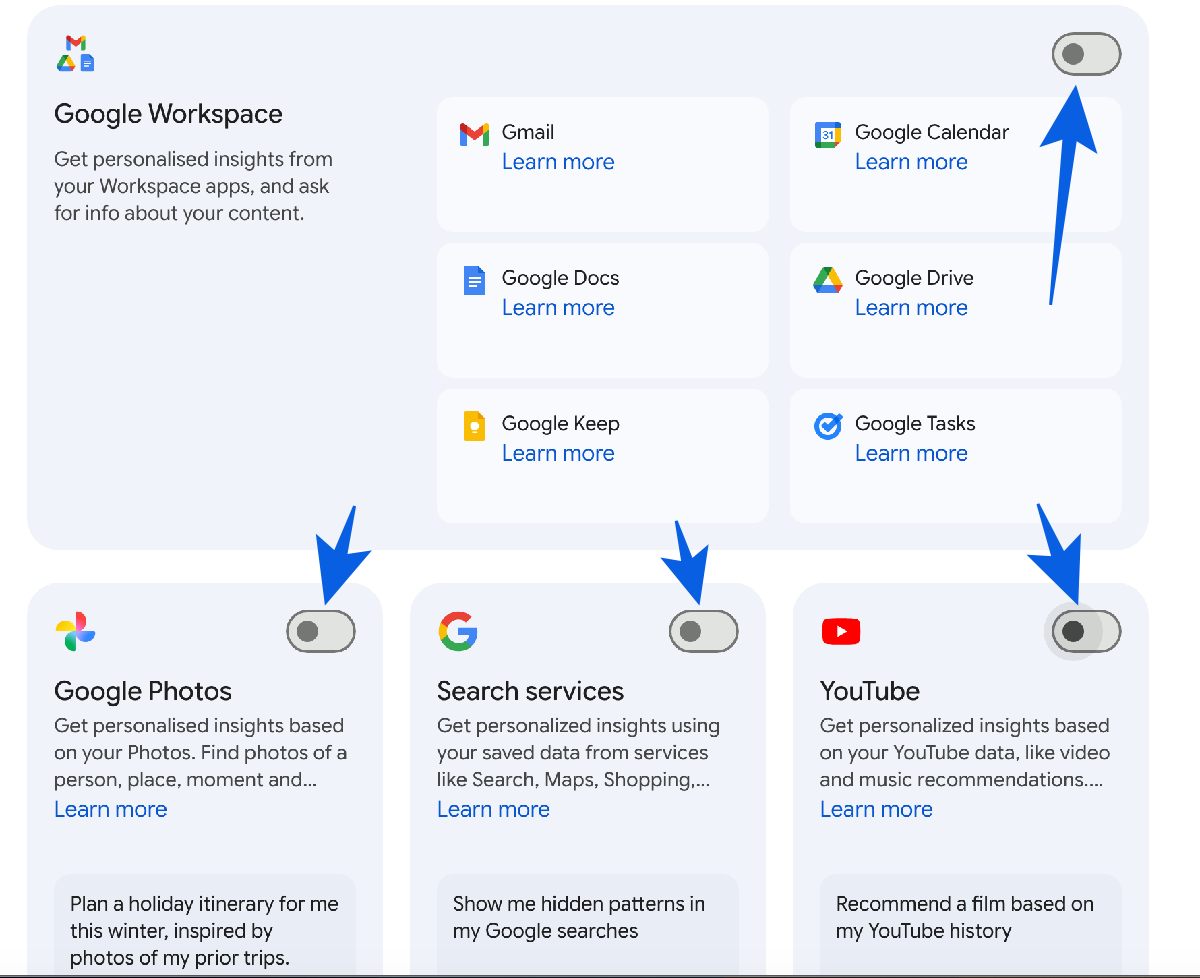
- Open Gemini and click Settings at the bottom of the sidebar.
- Go to Connected Apps (or Personal Intelligence → Connected Apps)
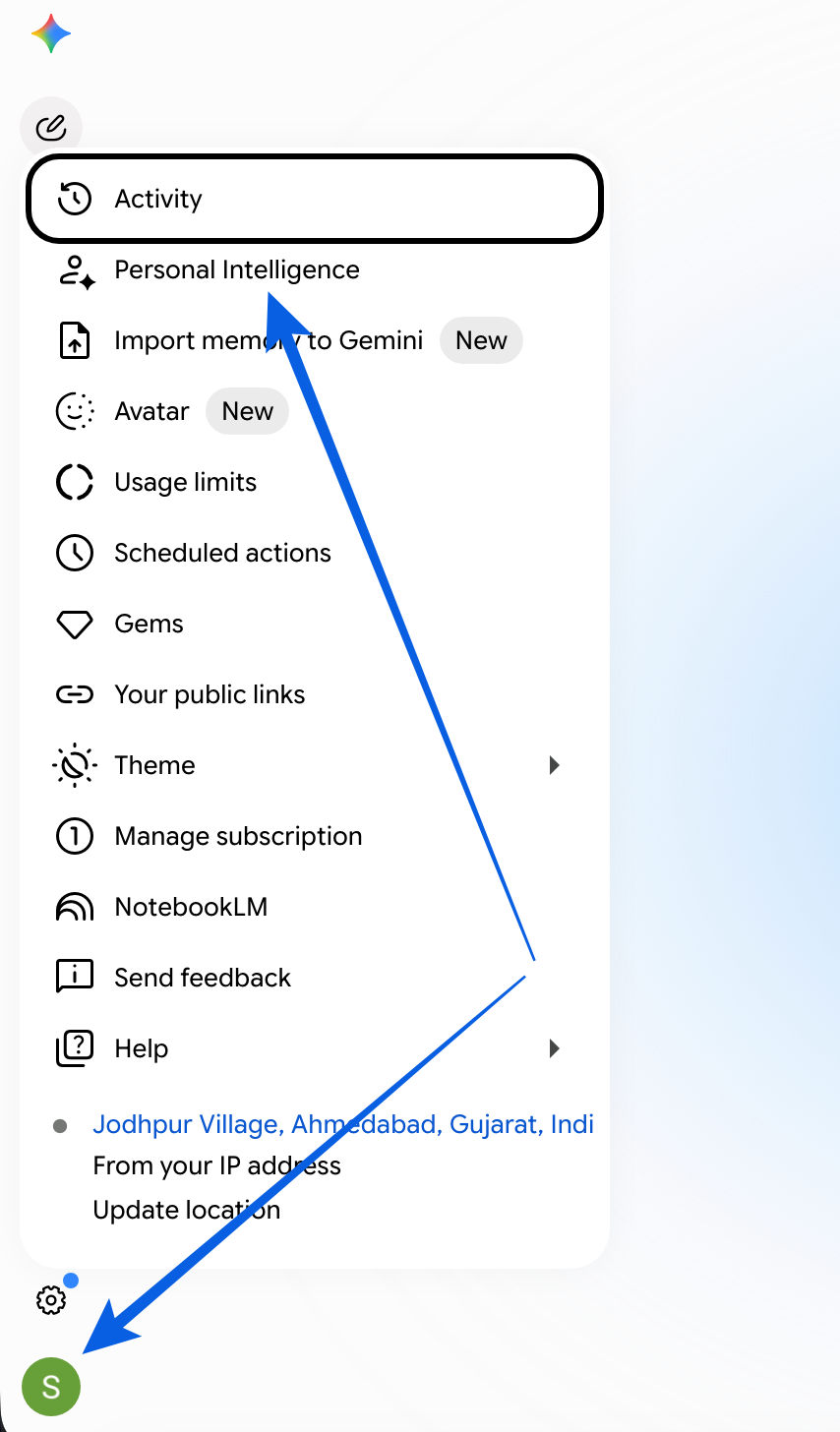
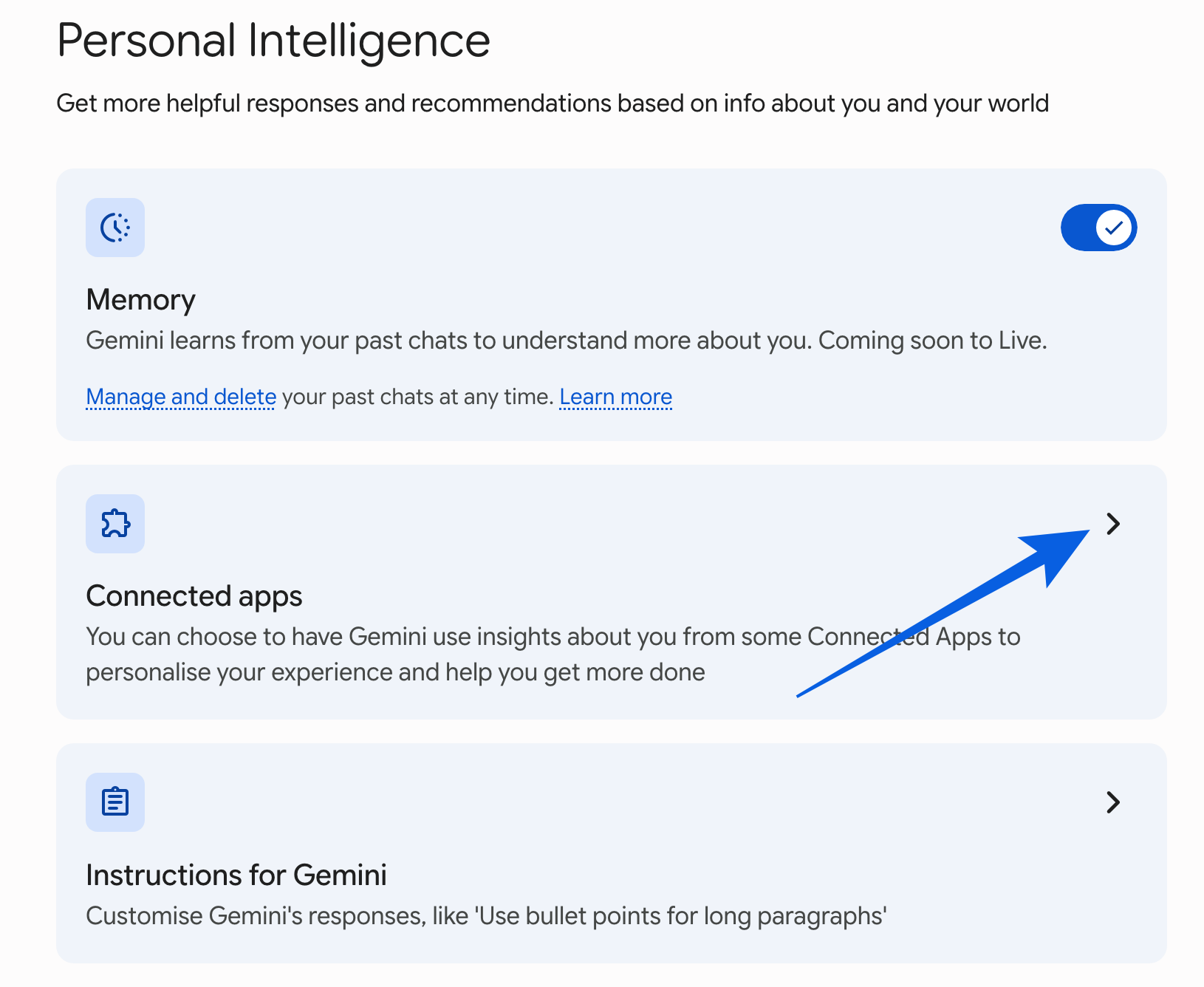
- Enable the desired apps.
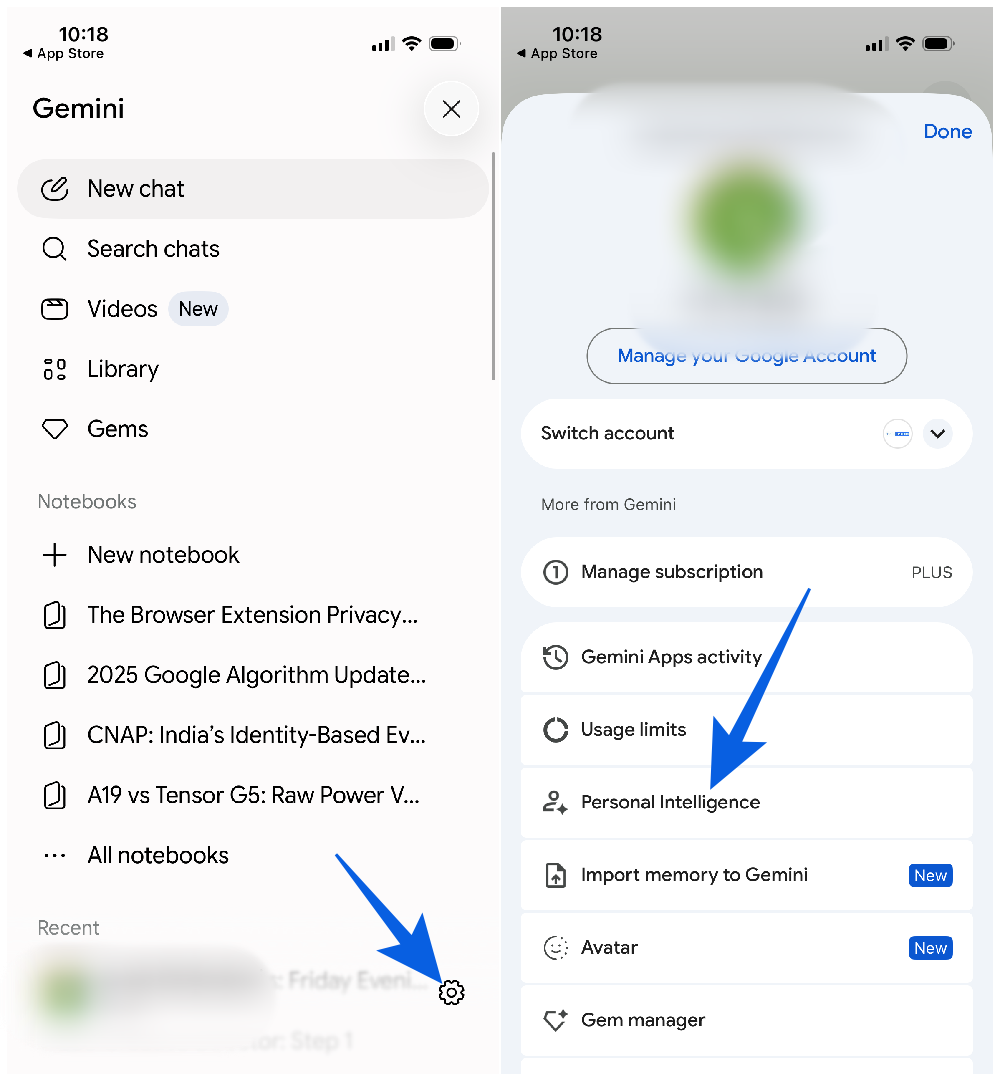
On mobile (Gemini app):
- Tap your profile icon > Settings.
- Go to Connected Apps (or Personal Intelligence → Connected Apps).
- Toggle apps On (e.g., Gmail, Photos, YouTube, Calendar, Drive, Maps, etc.).
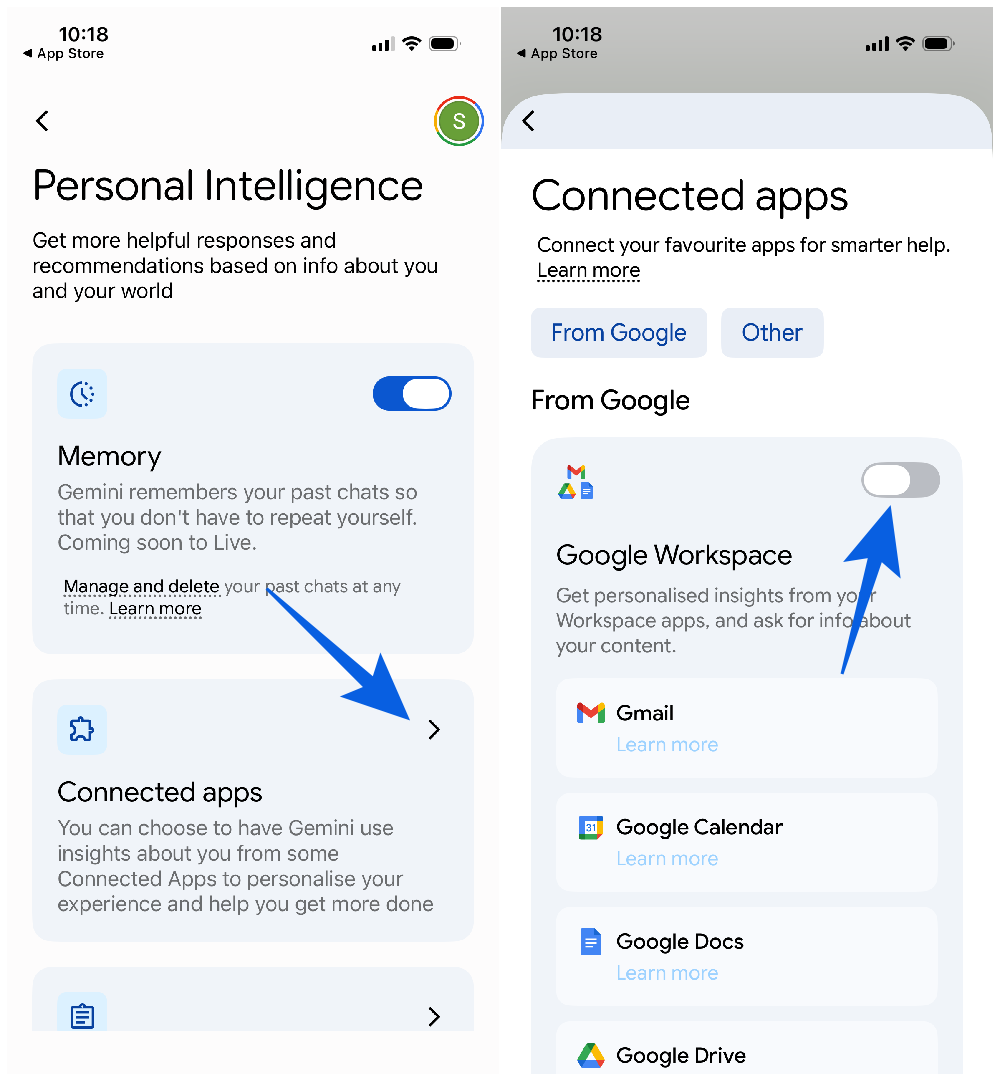
- Follow on-screen prompts to grant permissions.
One requirement worth noting: you need Gemini Apps Activity enabled for Connected Apps to function. This setting logs your interactions so Gemini can reference personal data contextually. You can set auto-deletion at 3, 18, or 36 months, or manually clear activity anytime from the same settings panel.
Note for younger users: If you’re under 18, some integrations, including Google Workspace and Maps, currently support English prompts only.
Use Connected Apps in Prompts
There are two ways to invoke a Connected App mid-conversation:
Let Gemini decide
For most requests, Gemini will auto-invoke the relevant app. Ask “what’s my meeting schedule tomorrow?” and it pulls Google Calendar automatically.
Use the @ mention
For more targeted requests, type @AppName directly in your prompt:
- @Gmail find all emails from Sarah about the Q2 report
- @Drive summarize the product roadmap doc
- @YouTube find a tutorial on setting up Obsidian
This is especially useful when you want Gemini to use a specific service rather than guess which one fits best.
Gemini Live Integration
Recent updates, including the May 2026 release, have woven Connected Apps deeper into Gemini Live, Google’s real-time voice conversation mode. This means you can have a back-and-forth voice conversation while Gemini pulls in live data, shows map cards, and surfaces booking information in the same session. It makes the experience feel considerably less robotic than earlier versions.
A Note for Developers: Gemini CLI Extensions
If you’re building with Gemini rather than just using it, there’s a separate and considerably more powerful layer worth knowing about.
Gemini CLI Extensions, launched in October 2025, let developers connect their own tools directly to Gemini’s command-line interface. This is distinct from the consumer app integrations above.
Install a CLI extension with:
gemini extensions installAs of 2026, there are over 1,000 community-built extensions in the ecosystem, alongside official integrations for Google Apps Script, Shopify, Elasticsearch, Dynatrace, and cloud deployment workflows. The CLI integrations also connect with Gemini agents like Jules and support image generation workflows.
If you’re building AI-assisted developer tooling, browse the full directory at geminicli.com/extensions.
Privacy: What Gemini Actually Sees
This is a legitimate question, and it deserves a straight answer. When you enable a Connected App, Gemini can access relevant content from that service, but only with your permission and only for the interactions you initiate.
Google logs this activity under Gemini Apps Activity. You can:
- Set auto-deletion at 3, 18, or 36 months
- Manually delete logs at any time from the Gemini Apps Activity settings
- Turn off individual integrations without affecting others
Third-party apps like Spotify or GitHub also apply their own data policies, which is worth reviewing separately for the ones you use most.
The Bigger Picture
What makes Gemini app integrations genuinely useful isn’t any single feature. It’s the compounding effect. When your email, calendar, files, messages, maps, and music are all accessible through one conversational interface, the friction of switching between apps starts to disappear. You stop managing tools and start describing what you need.
The original nine extensions from early Gemini launches have grown into a much broader ecosystem, now spanning over 40 languages and multiple device platforms. The direction is clearly toward a more ambient, always-connected assistant, one where the AI knows your context because you’ve given it permission to, rather than asking you to re-explain yourself every time.
Whether that sounds useful or slightly unsettling probably depends on how much you trust Google with your data. But if you’re already in the Google ecosystem, the Connected Apps experience in 2026 is meaningfully better than where it started.
Want to try one right now? Start with @Gmail. Ask it to find your last email from a specific person. It takes about 30 seconds to see what the integration actually feels like in practice.