If you have been treating Gemini like just another chatbot for quick questions, you are genuinely underusing it. When I started using Gemini with WhatsApp, my whole relationship with the assistant changed. It stopped feeling like a novelty and started feeling like something I actually relied on every single day, especially on the road.
Google has been quietly but steadily expanding Gemini’s ability to interact with the apps already living on your phone. WhatsApp is now one of them, and it is not some workaround or third-party hack. This is an official Google feature that rolled out progressively and became widely available through 2025 and 2026. Once you enable WhatsApp integration in Gemini, you can send messages, initiate calls, and compose texts entirely through voice without ever unlocking your phone.
This guide walks you through the exact steps, the smartest ways to use it, and the honest limitations you should know before you expect too much from it.
What You Need Before Getting Started
- An Android device. This feature is not available on iPhone yet. Google has not brought the WhatsApp toggle to Personal Intelligence on iOS.
- The Gemini app installed and updated.
- WhatsApp installed and updated to its latest version from the Play Store.
Running an older version of WhatsApp can cause the integration to behave unpredictably, so that update step matters more than it might seem.
How to Enable WhatsApp Integration in Gemini
Connecting WhatsApp with Gemini takes under two minutes, and you do not need to log into anything or authorize any separate account.
- Open the Gemini app on your Android phone.
- Tap your profile icon in the top-right corner.
- Go to Settings → Personal Intelligence → Connected Apps.
- Scroll down until WhatsApp appears in the list.
- Flip the toggle on.
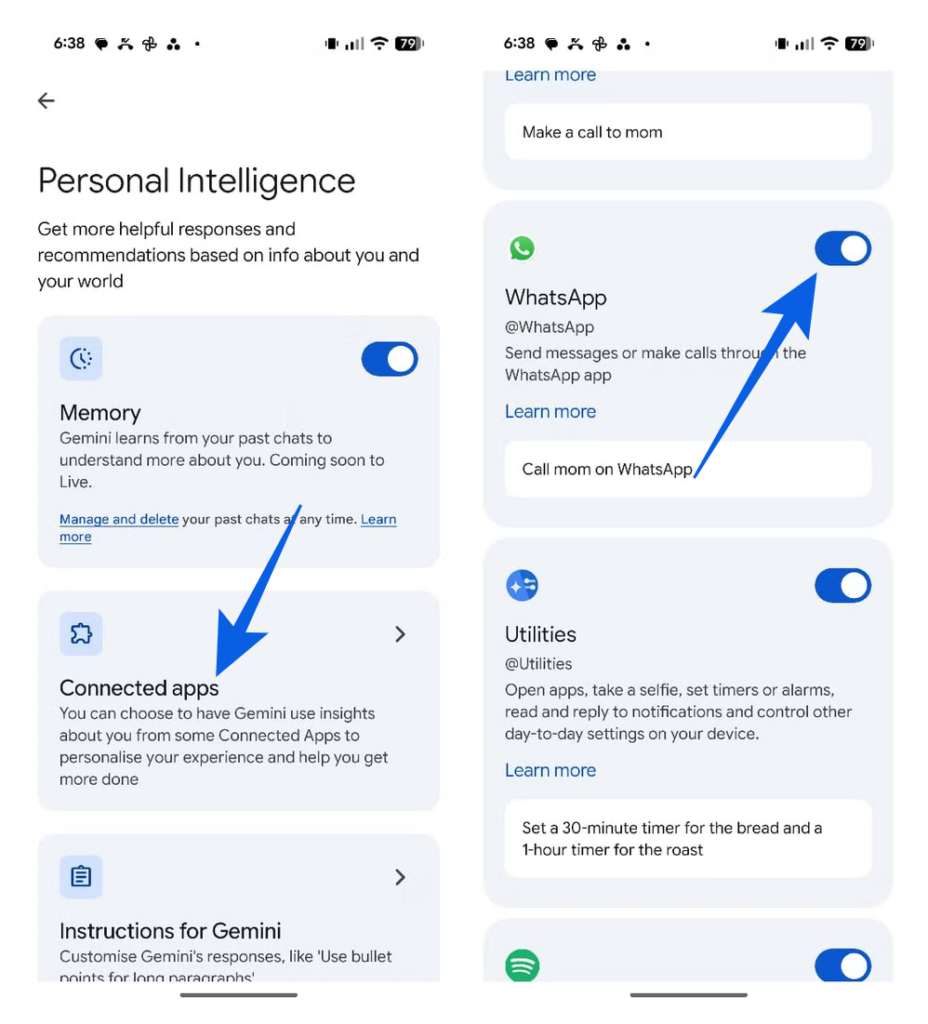
That is genuinely all there is to it. No passwords, no OAuth screens, and no additional configuration.
One thing worth flagging: the WhatsApp toggle only exists inside the Gemini mobile app. If you are sitting at your laptop and hunting through the Gemini web interface for this setting, you will not find it there. It has to be done from your phone.
Sending WhatsApp Messages Using Gemini with Your Voice
Once you are connected, using Gemini with WhatsApp is as simple as talking out loud. The difference between this and old Google Assistant is significant. Assistant would relay your words verbatim; Gemini actually understands what you mean and acts on it.
Here are prompts that work well in real use:
- “Send a WhatsApp message to Priya that I’m on my way.”
- “Tell Rohan on WhatsApp that I’ll call him after 6.”
- “Message Sonal on WhatsApp and ask if she’s free this Saturday.”
- “Call Dad on WhatsApp.”
- “Help me write a congratulations message for Aisha’s promotion and send it on WhatsApp.”
That last one is genuinely useful. You can ask Gemini to draft something thoughtful first, review the preview, and then confirm the send. Nothing goes out without your approval. Gemini holds the message and waits for your green light.
A few small things that make daily use smoother: if you have been messaging someone recently, Gemini defaults to the last app you used for that contact, so you do not need to say “on WhatsApp” every single time. For situations where you want to be explicit, you can add @WhatsApp to your prompt. For example, ”@WhatsApp call Rohan” removes any ambiguity.
Gemini’s WhatsApp Setup in Android Auto: The Real Game-Changer
Hands-free messaging on Android Auto is where this integration genuinely earns its place. Most in-car voice systems have always felt like talking to a machine that needs precise syntax to function. Gemini on Android Auto is different. It responds to natural, casual speech the way a real conversation does.
On a drive back from the office, I can hit the microphone icon on my car display, or hold the steering wheel voice button, and just say, “Send a WhatsApp to Sonal that I’m coming home in about 10 minutes,” and it handles it. The system processes the speech, surfaces a confirmation on the Android Auto interface, and sends the message without me needing to glance down at my phone screen for even a second.
Gemini’s WhatsApp setup in Android Auto makes this feel less like using a feature and more like having a co-pilot manage your communications while you stay focused on the road.
Related: Best Android Auto Wireless Adapters You Can Buy
What Gemini Cannot Do with WhatsApp (Be Clear-Eyed About This)
This is the part most guides gloss over, and it matters.
Gemini is built for action, not surveillance of your inbox. It cannot read your WhatsApp chat history, summarize conversations, or access images, GIFs, or videos from your chats. If you are hoping it will pull up what someone said to you last week, that is not what this integration does.
What it can do is interact with incoming WhatsApp notifications through the Utilities app and, of course, send messages and initiate calls on your behalf. Think of it as a capable outbound assistant, not a read-access agent on your messaging history.
Messages sent through Gemini go through WhatsApp’s normal system and are subject to WhatsApp’s own privacy policy, the same as any message you would send yourself.
A Note on Privacy and When This Changed
This integration became significantly more prominent around July 2025, when Google expanded Gemini’s app access permissions. Notably, the access applies even if you have Gemini Apps Activity turned off. That is worth knowing if privacy is a concern for you.
The good news is that disconnecting is just as easy as connecting. Head to Connected Apps in your Gemini settings and toggle WhatsApp off at any time. Gemini’s relationship with WhatsApp is purely action-based. It is sending on your behalf, not passively reading your messages in the background.
Related: How to Delete My Activity History in Google
More Than Just Messaging
Flipping that WhatsApp toggle under Personal Intelligence takes Gemini from an interesting tech demo to something genuinely useful in your daily life. Beyond WhatsApp, the same framework works with other apps like Spotify, and Google keeps adding to that list.
And if you want to explore what Gemini is capable of beyond communication, it is worth knowing that Google has also opened up Gemini’s creative side, you can now generate AI music for free directly through the app. The assistant is expanding fast, and the best way to keep up is to actually explore what is sitting in that extensions menu.
Go turn it on. Try sending your next message by voice. The first time it works flawlessly while your hands are on the wheel, you will understand exactly why this matters.
You might also like: