You’re mid-sentence, trying to finish a thought before it slips away, and a little four-color sparkle pulses at the bottom of the page. Or a pill-shaped prompt slides in asking if you’d like Gemini to keep writing for you. You didn’t ask for it. You just wanted to write.
Google has been folding Gemini deeper into Docs, and by now, most personal and work accounts have some version of it baked in, whether that’s the floating bottom bar, the sparkle icon in the top-right corner, or the Refine button that appears when you highlight text.
Here’s the important part: there’s no single master switch to completely turn off Gemini in Google Docs. Disabling it means closing a few separate doors, and depending on whether you’re using a personal Google account or a managed Workspace account, one or two of those doors might be locked from your side entirely.
This guide walks through the controls you can actually use, what each one does and doesn’t disable, and where Google currently draws the line on removing Gemini from Docs.
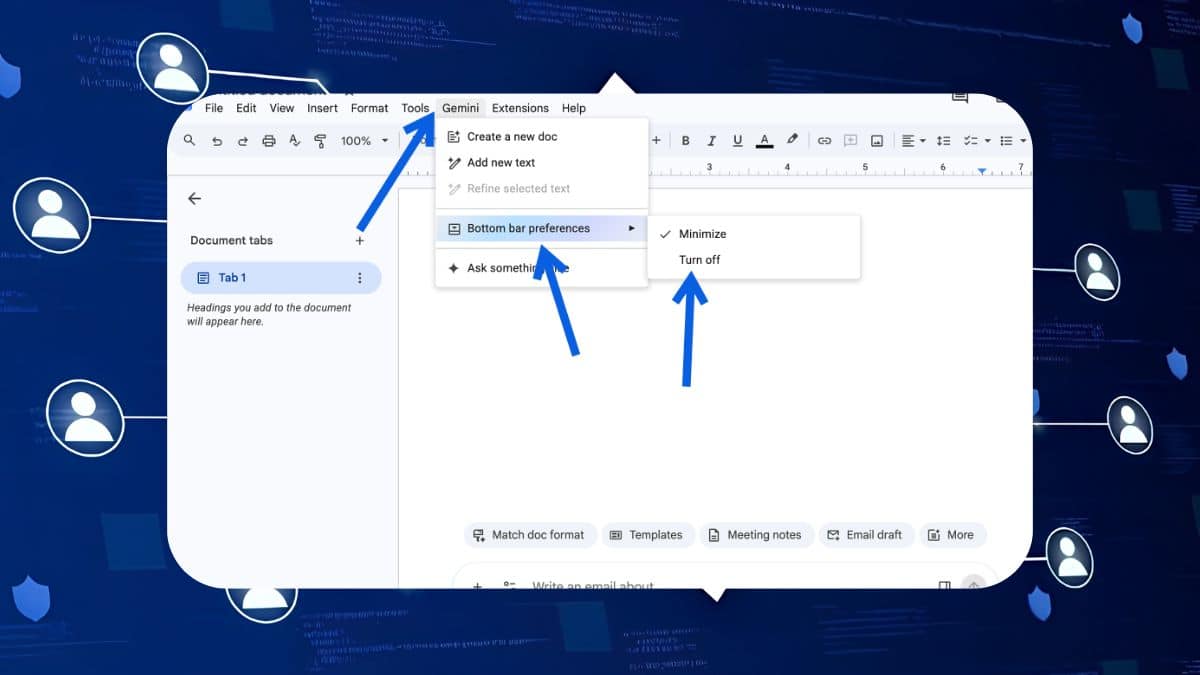
How to Turn Off the Gemini Bottom Bar in Google Docs
The floating Gemini prompt bar at the bottom of a document is one of the most noticeable AI elements in Google Docs, and fortunately, it’s also one of the easiest to turn off.
- Open any Google Doc.
- Click Gemini in the top menu bar.
- Select Bottom bar preferences from the dropdown menu.
- Choose Turn off.
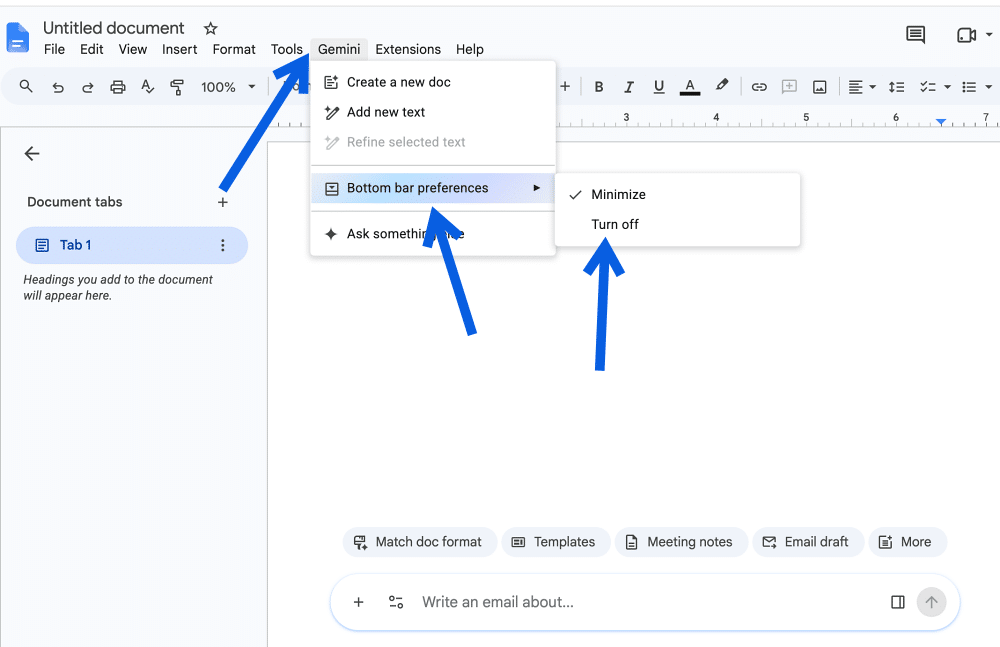
That’s it. Worth knowing: this isn’t a per-document setting. Turning off the Gemini bottom bar in one document disables it across Google Docs for your account, which is convenient if you simply want it out of the way everywhere. For most accounts, the change should also take effect immediately without requiring a refresh or sign-out.
What this doesn’t do is remove Gemini from Google Docs entirely. The bottom bar is only one Gemini entry point, and the others require different settings or, in a couple of cases, can’t currently be disabled at all.
Can You Remove the Gemini Sparkle Icon and Refine Button?
This is the part many how-to guides skip, and it’s probably the first thing you’ll notice after disabling the bottom bar.
The Gemini sparkle icon in the top-right corner and the Refine button that appears when you select text aren’t controlled by the bottom bar preference. Google currently doesn’t provide a regular Docs setting, toggle, or preference that completely removes these Gemini elements from the interface.
The same issue applies to certain Upgrade prompts that may encourage users without the required subscription to try Google’s paid AI features.
If the visual clutter is the problem rather than Gemini itself, some users turn to browser-level workarounds, such as CSS-injection extensions like Stylus, to hide individual interface elements.
It’s worth being clear about what that accomplishes: it only hides the buttons in that particular browser.
It doesn’t disable Gemini, change anything about your Google account, or prevent Gemini from appearing elsewhere. Open Docs in another browser or on another device, and those elements can appear again. Think of this as a cosmetic workaround rather than a genuine Gemini opt-out.
How to Disable Gemini Smart Features Across Google Workspace
If turning off the bottom bar doesn’t quiet things down enough, the next layer is Google’s broader smart-features settings.
Interestingly, Google manages some Workspace personalization and smart-feature controls through settings accessible from Gmail rather than giving Docs its own complete AI preference panel.
Here’s where to check:
- Open Gmail and click the gear icon.
- Select See all settings.
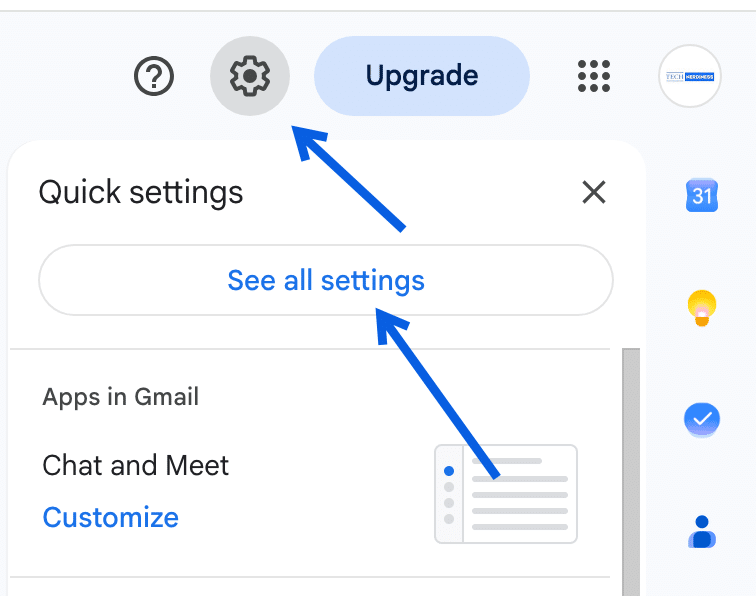
- Stay on the General tab and find Google Workspace smart features.
- Click Manage Workspace smart feature settings.
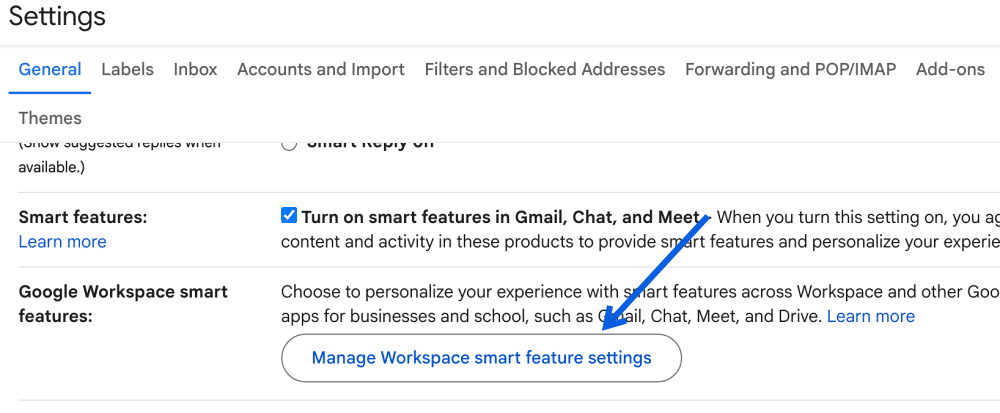
- Turn off Smart features in Google Workspace.
- If you want to restrict personalization further, you can also disable Smart features in other Google products.
- Save your changes if prompted.
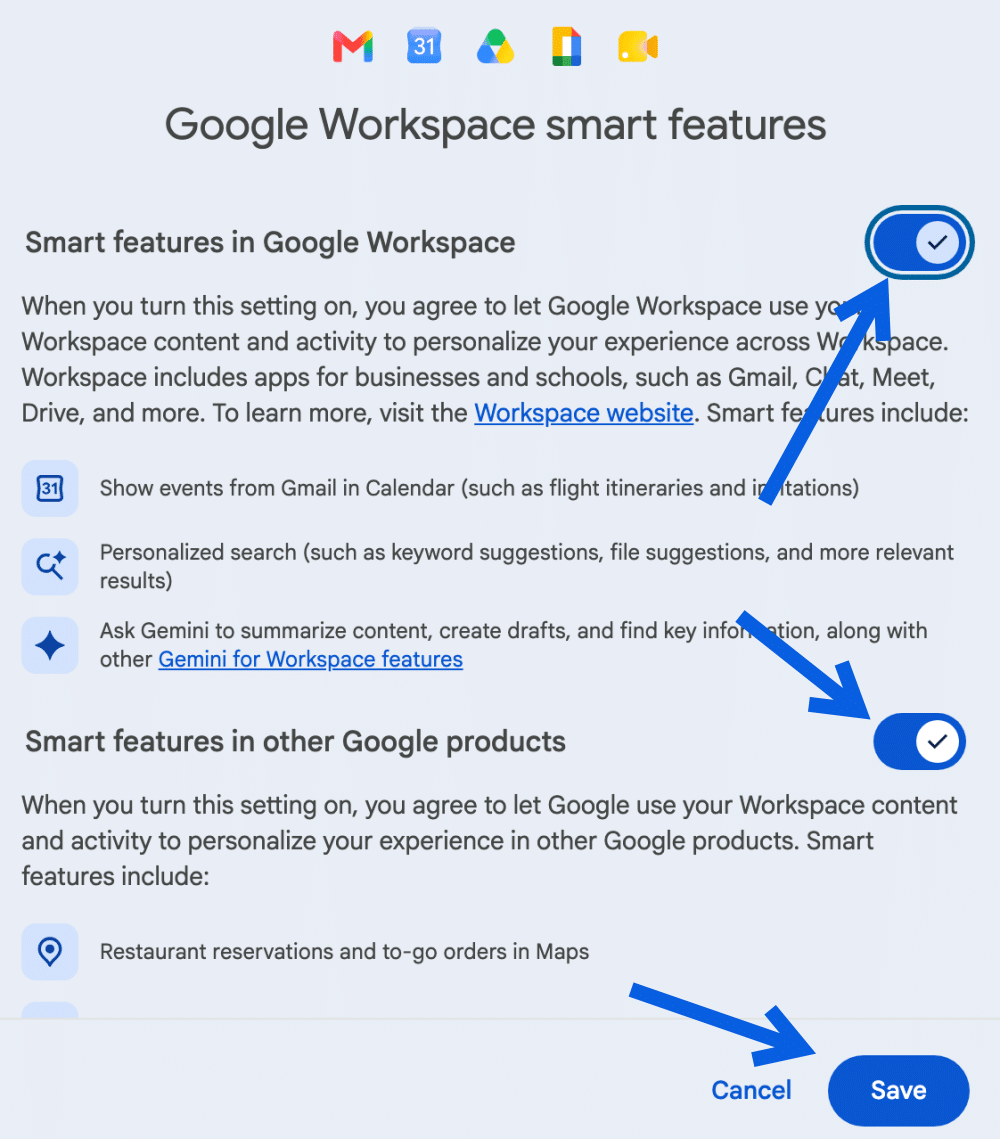
The important catch is that these are broader account-level controls, not a dedicated “disable Gemini in Docs” switch. Turning off smart features can affect functionality elsewhere in Gmail and Google Workspace, so don’t assume you’re disabling only the AI elements you see inside Docs.
If you’d rather preserve the useful features you already rely on, I recommend changing one setting at a time and checking Docs afterward instead of switching everything off at once.
The same broader controls can matter when you’re figuring out how to turn off Gemini in Gmail, so it’s worth reviewing both apps if your goal is to reduce Gemini’s presence across your Google account rather than only inside Docs.
How Workspace Admins Can Turn Off Gemini in Google Docs
If your Google account is provided by your employer or school, the situation is different. Your Workspace administrator may have additional controls over which Gemini features are available to you.
More importantly, admins have to distinguish between access to the standalone Gemini service and Gemini features built directly into Workspace apps.
Turn off access to the Gemini app
Workspace administrators can manage access to the Gemini app from the Google Admin console. Depending on the organization’s configuration, admins can disable access for everyone or apply restrictions to specific organizational units or groups.
This primarily controls access to the standalone Gemini experience rather than serving as a universal switch for every AI feature embedded throughout Google Workspace.
In other words, turning off the Gemini app doesn’t necessarily mean every Gemini button inside Google Docs disappears.
Manage Gemini features inside Workspace apps
Google also provides Workspace administrators with controls for managing Gemini features within supported Workspace services. The exact controls available depend on the organization’s Google Workspace edition, licensing, and Google’s current rollout.
That’s an important distinction because administrators shouldn’t assume that disabling the standalone Gemini app automatically disables Gemini inside Docs, Gmail, Sheets, Slides, and other Workspace apps.
If you’re using a work or school account and can’t change one of the settings described above, there’s a good chance the setting is being managed at the organizational level. In that situation, you’ll need to check with your Workspace administrator rather than repeatedly looking for a missing toggle in Docs.
Can You Completely Disable Gemini in Google Docs?
For many users, no, not completely.
You can reduce Gemini’s presence considerably by turning off the bottom bar and adjusting the available Workspace smart-feature settings. Workspace administrators may also have additional controls depending on their organization’s subscription and configuration.
But Google doesn’t currently give every personal Google account a single universal switch labeled something like Turn off Gemini in Google Docs that removes every AI-related button, prompt, and integration.
That’s why it’s useful to separate three different goals:
- Hide the Gemini bottom bar: Yes, you can do this directly in Docs.
- Reduce broader Google Workspace smart features: You can adjust the available smart-feature settings.
- Completely remove every Gemini element from Docs: This generally isn’t available as a simple user-facing option.
That distinction saves a lot of frustration. If you’ve already disabled the bottom bar but still see the sparkle icon or Refine button, you haven’t missed a secret setting. Those interface elements simply aren’t controlled by the same preference.
What Happens After You Turn Off Gemini Features?
Turning off the available Gemini-related settings doesn’t turn Google Docs into a completely stripped-down text editor.
Traditional Docs features that aren’t dependent on the specific Gemini integration can continue to work. The exact behavior can also vary depending on your Google account type, Workspace configuration, subscription, and Google’s ongoing feature rollouts.
That’s another reason I wouldn’t recommend blindly disabling every smart-feature option just to get rid of one Gemini prompt. Start with the most targeted control, which is the Bottom bar preferences option in Docs, and then move to the broader Workspace settings only if Gemini is still getting in your way.
For personal Google accounts, there’s no Workspace administrator to fall back on. If you’ve disabled the controls available to you and Gemini elements are still visible, there may simply be no official way to remove those remaining elements from the interface right now.
Business and education accounts can have more administrative options, but those controls depend heavily on the organization’s Google Workspace plan and how its administrator has configured Gemini access.
Which Gemini Setting Should You Turn Off?
If your only complaint is the floating Gemini prompt appearing while you’re writing, start by disabling the Gemini bottom bar. It’s the most targeted change and is less likely to affect unrelated Google features.
If you’re trying to reduce Gemini and other personalized smart features across Google Workspace, review the Google Workspace smart features settings as well.
And if you’re using a managed work or school account, check with your administrator before assuming a missing toggle is a bug. Some Gemini controls are managed centrally and may not be available to individual users.
The browser-extension approach should be the last resort. It can make the interface look cleaner, but it doesn’t actually disable Gemini or change how your Google account interacts with Google’s AI services.
Final Thoughts
Google gives you some real control over how prominently Gemini appears in Docs, but it doesn’t provide one master switch that removes the AI assistant outright.
The Bottom bar preferences setting is the best place to start if the floating Gemini bar is distracting you while you write. Broader Workspace smart-feature settings can reduce additional AI-driven functionality, while organizations using managed Google Workspace accounts may have extra administrative controls.
What’s left, including certain Gemini interface elements such as the sparkle icon and Refine button, may not have an individual user-facing off switch. So, for now, the realistic goal is to make Gemini less intrusive in Google Docs rather than expect to remove every trace of it completely.