You type “make a birthday song for my sister,” hit enter, and get 30 seconds of generic pop that could be for anyone. Most people blame the AI. Usually, the prompt and one hidden setting are the real problem.
Google made its best music model, Lyria 3.5, available to every Gemini user on September 4, 2026, on web and mobile. It’s the third music upgrade this year: Lyria 3 arrived on February 18 with 30-second clips, and Lyria 3 Pro followed on March 25 with tracks up to three minutes for paid subscribers. Lyria 3.5 brings more expressive vocals, better song structure, and templates to the free app.
Here’s how to make a song using Google Gemini, and how to get a track that sounds like yours.
What You Need Before You Create Music in Gemini
Google’s support page lists a few requirements that trip people up:
- Age: You must be 18 or older.
- Account: A personal Google Account or a supported work or school account.
- Keep Activity: This setting must be on. If you turned it off to stop Gemini from saving chats, the music tool won’t work until you turn it back on. (Our guide on how to delete your Gemini chat history explains where that setting lives.)
- Region: Google says Lyria 3.5 works in every country where the Gemini app is available.
Most guides skip the Keep Activity requirement, and it’s the most common reason the Create music option seems to be missing.
How to Generate a Song in Gemini on Web and Mobile
The steps are the same on gemini.google.com and in the Gemini app for Android and iPhone.
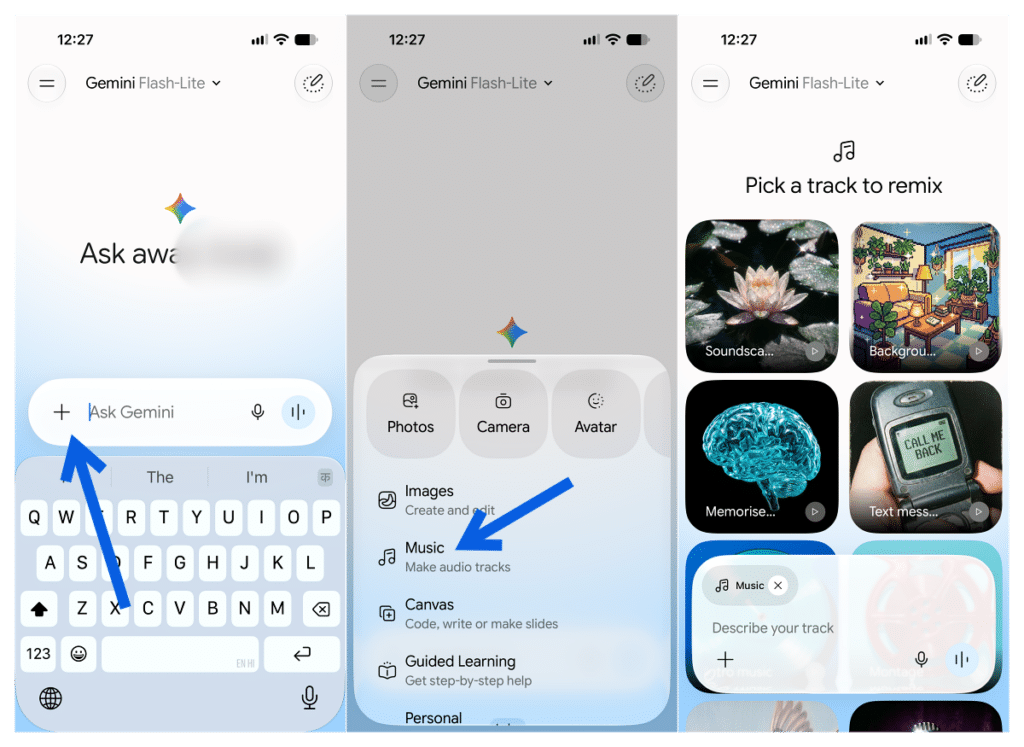
- Open Gemini and start a new chat.
- Tap Upload & tools (the + icon), then select Create music.
- Pick a template, or skip it and write your own prompt.
- Choose Vocals or Instrumental, then pick a genre.
- Set the length: short (about 1 minute) or full (about 2 to 3 minutes).
- Optionally, upload a photo or video for Gemini to score.
- Enter your prompt and send it.
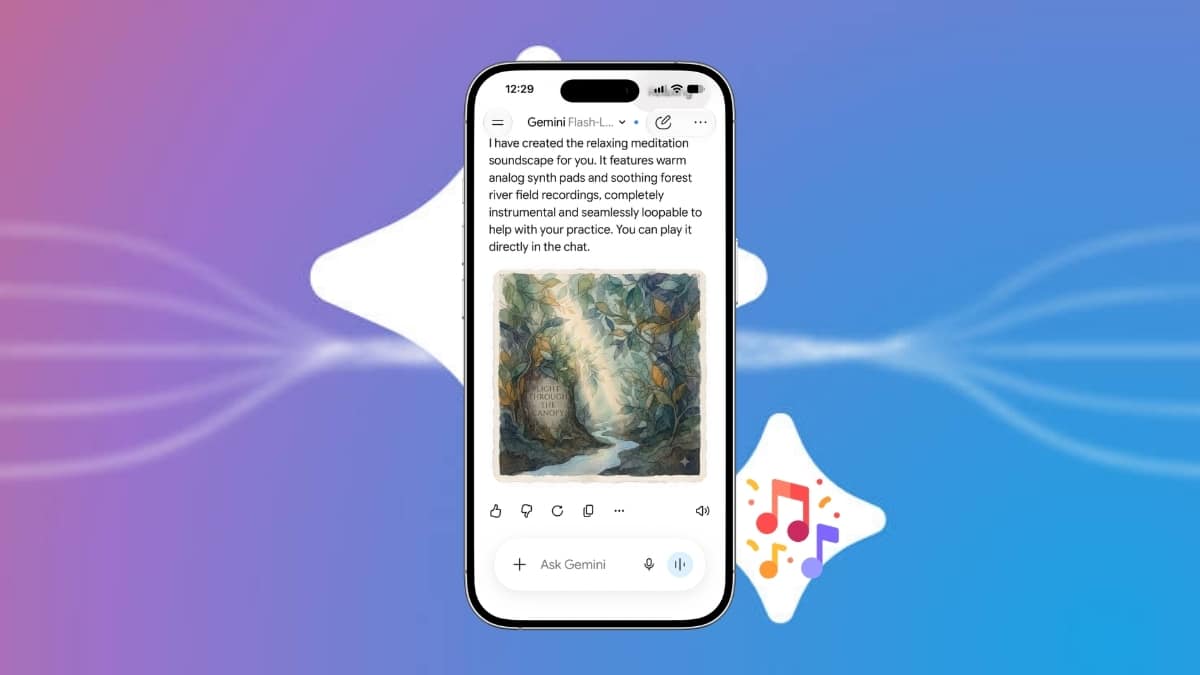
Gemini returns the track with cover art generated by Nano Banana. Play it in the chat, then download or share it.
Short or Full Track? Check the Model Picker First
This setting causes most “why is my song so short” complaints. Google’s help page says that to create a full track, you need to switch Gemini’s model to Pro in the model picker. If you leave it on the default model, you’ll likely get the shorter version, even with a long-form prompt.
Free users can use Lyria 3.5, but the number of tracks is capped. Google hasn’t published per-plan limits for Lyria 3.5. When Lyria 3 Pro launched in March, 9to5Google reported daily caps of 10 tracks on Google AI Plus, 20 on AI Pro, and 50 on AI Ultra.
Treat those numbers as a reference, not current policy. Gemini notifies you when you hit your limit, and the limit resets over time. Our breakdown of Gemini AI pricing and its free vs paid plans covers what each tier includes.
The practical takeaway: try out ideas as short tracks, then switch to Pro and generate the full version once your prompt is right. You’ll use up fewer generations.
How to Write a Gemini Music Prompt That Works
Lyria 3.5 follows prompts more closely than earlier versions, so vague input gives vague output. Google’s own guidance covers five elements. Include as many as you can:
- Genre and era: “90s Bollywood romance,” “2010s indie folk,” “lo-fi hip-hop.”
- Tempo and rhythm: “slow, swaying beat” or “fast, driving 140 BPM.”
- Instruments: “acoustic guitar, tabla, soft piano.”
- Vocals: “warm female vocal, breathy, close to the mic” or “male choir harmonies.”
- Lyrical theme: what the song is about, with real details.
Specific details make the difference. Compare these two prompts:
- Weak: “A happy birthday song for my sister.”
- Strong: “Write an upbeat acoustic pop song for my sister Priya’s 25th birthday. She loves chai, late-night drives, and her cat Mochi. Warm female vocals, handclaps, a catchy chorus that repeats her name.”
The second prompt gives Lyria names, objects, and a chorus instruction. The song sounds personal because the prompt was personal.
Google recommends starting prompts with an action verb like “write,” “compose,” or “create.” Naming the song’s structure also helps. Lyria 3.5 understands intros, verses, choruses, and bridges, so “open with a 10-second piano intro, then build into the chorus” gives you more control.
If you’ve written your own lyrics, paste them in. The Gemini API documents section tags like [Verse] and [Chorus] for Lyria 3.5. Google doesn’t officially document tags in the consumer app, so treat them as a helpful hint rather than a guaranteed control.
Turn a Photo or Video Into a Soundtrack
When you upload a photo or video, Gemini reads its mood and composes around it. A beach sunset video tends to pull the track toward something mellow. A crowded Diwali photo pushes it toward celebration.
Add a line of direction with the upload, for example “Instrumental soundtrack for this trek video, cinematic, building to a big finish.” Without text, Gemini guesses the vibe, and the guess won’t always match what you pictured.
Download and Share Your Gemini Song
Once the track is ready, you have two download options:
- MP4: A video file with the cover art, ready for Instagram, YouTube Shorts, or WhatsApp Status.
- MP3: Audio only, useful for ringtones, podcast intros, or editing in another app.
You can also copy a shareable link. Every track carries SynthID, Google’s inaudible watermark for AI-generated content. If you upload any audio file to Gemini and ask whether Google AI made it, Gemini checks it for that watermark.
What Gemini Music Can’t Do
Knowing the limits saves wasted generations.
- No artist clones. If you name an artist, Gemini treats the name as broad inspiration only. Lyria blocks requests for specific artist voices and copyrighted lyrics. “In the style of 2000s Punjabi pop” works better than naming a singer.
- No surgical edits. Google describes Lyria 3.5 generation in the API as single-turn, meaning each request produces a new track. Expect a follow-up like “make the chorus louder” to give you a new track, not a tweak of the old one. Rewrite the full prompt with the change built in.
- Results vary. The same prompt produces a different track each time. Generate two or three and keep the best one.
- Commercial use carries risk. Google’s terms govern what you can do with the output, and AI music copyright is unsettled. On July 31, 2026, a Munich court found Suno liable for copyright infringement in a case brought by GEMA. Before you use a track on a monetized YouTube channel or in a client jingle, read the Gemini terms.
For background on how Google’s music features grew this year, our earlier story on Gemini’s free AI music generator covers the Lyria 3 launch.
Signing Off
Generating a song in Gemini takes under a minute. Getting a good one depends on three things: Keep Activity turned on, the Pro model selected for full-length tracks, and a prompt packed with real names, instruments, and moods.
Lyria 3.5 rewards detail and ignores vagueness. Start short, refine the prompt, then spend a full-length generation on the version worth keeping.
What’s the first song you plan to make?
Worth checking on Amazon: