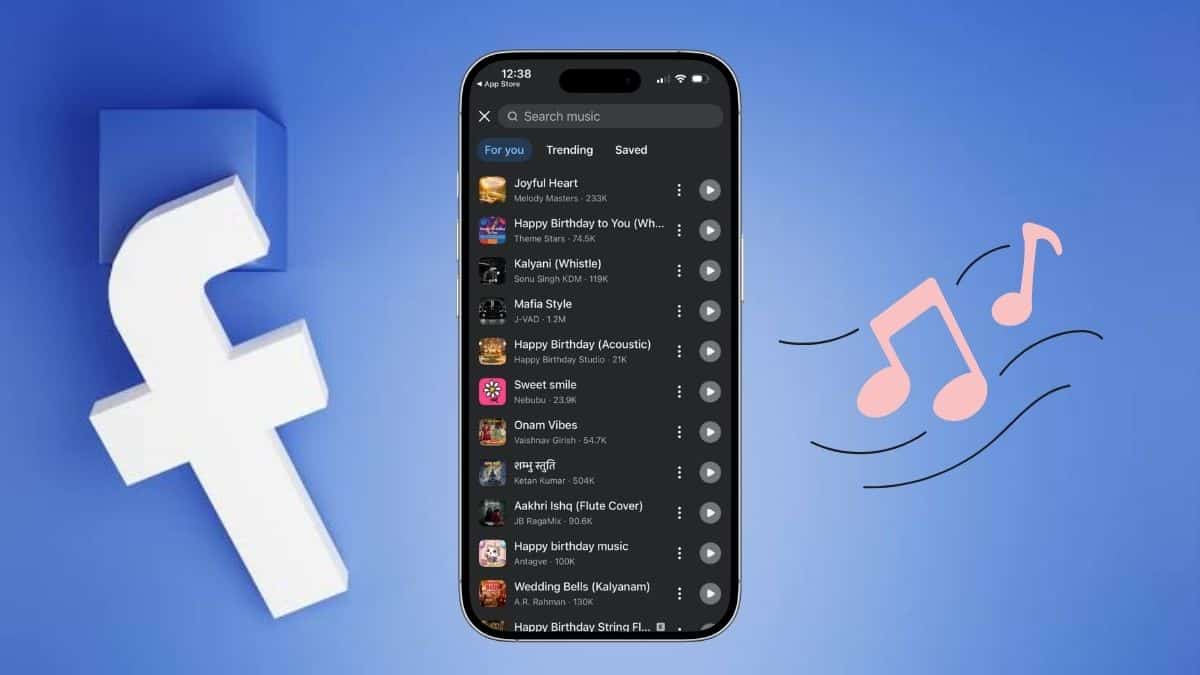
Scroll through Instagram or TikTok and every third post seems to have a song attached. Facebook felt like the odd platform out for years, so figuring out how to add music to a Facebook post often ended in a dead end. That changed in July 2025, when Meta gave text posts on Facebook the ability to carry a licensed soundtrack instead of just a wall of words.
The catch is that this is not a blanket “add music to anything” tool. Meta built music into specific parts of Facebook’s mobile composer, and the feature behaves differently depending on whether you are publishing text, a photo, a Story, a Reel, or a regular video.
That distinction explains why you might see the music option on one screen and have it disappear completely on another. Here’s how to add music to a Facebook post, where the feature actually works, and what to do when the music option does not appear.
Can You Add Music to a Facebook Post?
Yes, but the exact options depend on the type of Facebook post you are creating. Facebook supports adding licensed music directly to certain text posts through its mobile app. Music is also widely available for Stories and Reels, while support for adding music directly to regular photo posts can vary by account, device, and region.
Standard feed videos are different again. If Facebook does not give you a music option while creating one, you generally need to add the soundtrack to the video before uploading it.
There are a few other things worth knowing before you start:
- Platform: Facebook’s feed-post music tools are primarily available through the iOS and Android apps. Do not expect every option available on mobile to appear on Facebook’s desktop website.
- Post type: Music availability differs between text posts, photo posts, Stories, Reels, and regular feed videos.
- Account type: Personal profiles generally have broader access to licensed music than commercial accounts and Business Pages.
- Region: Meta licenses music by country, so available songs and even some music features can vary depending on where you live.
- Song availability: A track available today can disappear later if licensing agreements change.
If you cannot find a music icon that someone else has on their phone, it does not necessarily mean you are overlooking a setting. Facebook frequently rolls features out gradually, and music licensing adds another layer of regional restrictions.
How to Add Music to a Text Post on Facebook
Facebook’s text-post music feature lets you pair a written update with a song directly from the post composer.
Here’s how to use it:
- Open the Facebook app on your iPhone or Android phone.
- Tap What’s on your mind? to create a new post.
- Type the text you want to publish.
- Tap the Aa or background option to switch to one of Facebook’s colored or generated post backgrounds, if required on your version of the app.
- Look for the music note icon and tap it.
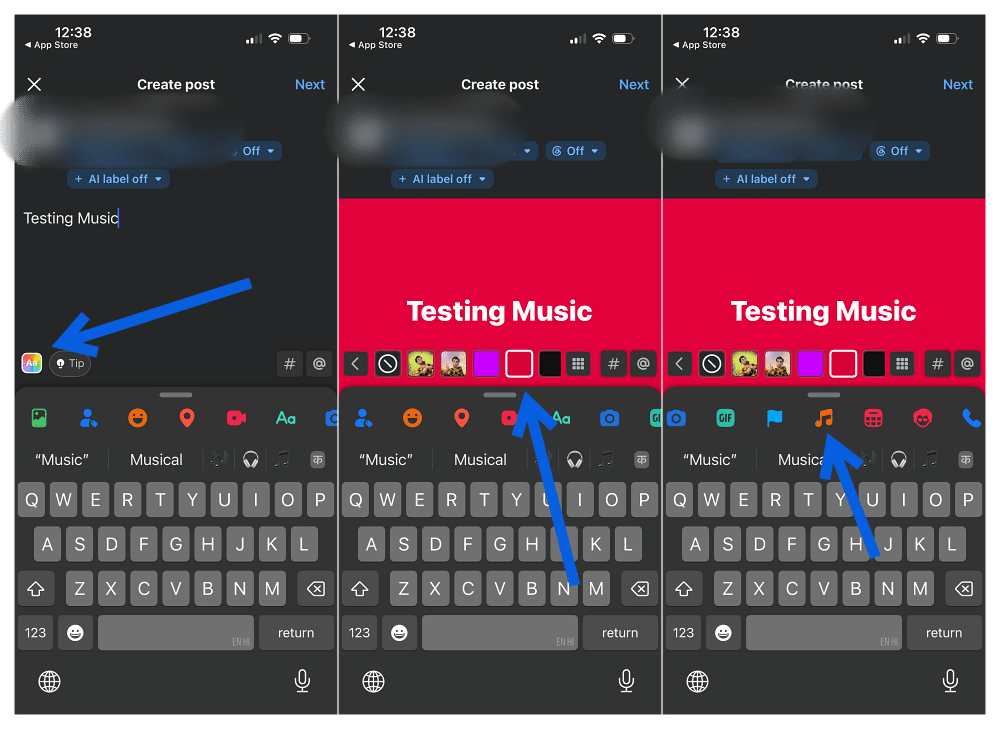
- Browse Facebook’s available music or search for a specific song or artist.
- Select the song you want to use.
- Review your text, audience, background, and music selection.
- Tap Post.
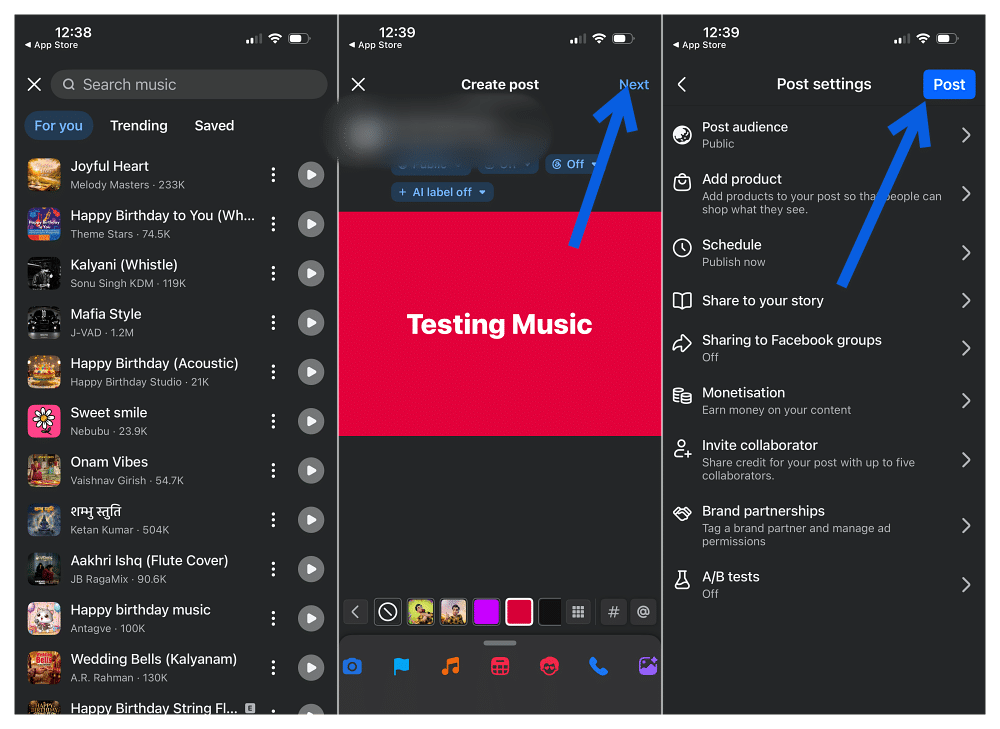
Facebook then publishes the text and selected music together.
The exact appearance of the composer can change between app versions, so you may not see every button in precisely the same position. If the music option is available to your account, however, it should appear somewhere within the supported post composer.
Can you change the song after posting?
Do not count on being able to replace the song after the post has been published. If you accidentally choose the wrong track and Facebook does not provide an edit option for the music, you may need to delete the post and create it again. That also means losing any reactions, shares, or comments the original post has already received.
It is worth previewing everything before tapping Post, especially when the music itself is an important part of what you are sharing. This is also a good moment to check your other post settings.
If you would rather keep engagement numbers less prominent, hiding likes on your Facebook posts works separately from the music feature.
And if you are posting inside a Facebook group that supports anonymous participation, posting anonymously on Facebook is another feature worth understanding. Anonymous posting availability depends on the group and its settings.
How to Add Music to a Facebook Photo Post
This is where things become less predictable. Facebook’s music support has historically been clearer for text posts, Stories, and Reels than for ordinary photo posts. Depending on your account and version of the Facebook app, you may also see an option to attach music while creating a photo post.
The easiest way to find out is to check your own composer:
- Open the Facebook app.
- Tap What’s on your mind?
- Select Photo/video.
- Choose the photo you want to upload.
- Look through the available editing options for a music or audio icon.
- If it appears, tap it and search for the song you want.
- Select the available section of the track, if Facebook lets you adjust it.
- Finish your caption and other post settings.
- Tap Post.
If you see the option, you can use it. If you do not, there may not be another hidden toggle somewhere in Settings that suddenly enables it.
Facebook features can roll out account by account and region by region, so two people running similar phones and app versions may still see different composer options.
That is why I would not rely on photo-post music being available for something time-sensitive until you have checked the account you actually plan to publish from.
What to Do If the Facebook Music Option Is Missing
If there is no music icon in your Facebook post composer, first make sure you are looking in a post type that supports it. After that, try a few basic checks.
Update the Facebook app
Open the App Store or Google Play and make sure you are running the latest version of Facebook. An older app can leave you without newer composer features even when your account already supports them.
Try the Facebook mobile app
If you are trying to add music through a desktop browser, switch to the Facebook app on your phone. Meta’s music tools are much more heavily integrated into the mobile experience, particularly for Stories, Reels, and composer effects.
Try another type of post
If music does not appear while creating a plain post, try switching to a colored text background or another supported composer layout. Likewise, if it does not appear on a regular photo post, check whether the same track is available when creating a Story or Reel.
Check whether you are using a Page
Music availability can be much more restrictive on Business Pages than on personal profiles because commercial music usage involves different licensing rules.
A song appearing on your personal Facebook account does not automatically mean you are licensed to use it in commercial content from a Page.
Consider regional availability
Music licensing differs by country. That means Facebook’s available catalog, and sometimes the music feature itself, can vary between accounts in different regions. There may be nothing wrong with your app if a particular song or option simply is not licensed where you are.
If you have updated Facebook, switched to the mobile app, and checked the correct composer but still see no music option, the feature may simply not be available to your account yet.
How to Add Music to Facebook Stories and Reels
If adding music directly to a regular photo post is unavailable, Stories and Reels are the most reliable alternatives. Both formats were designed around multimedia content, so Facebook gives them much stronger audio tools.
Add music to a Facebook Story
To add music to a Story:
- Open the Facebook app.
- Tap Create story or Add to story.
- Select the photo or video you want to share.
- Look for Music, Audio, or the music-note icon in the editing tools.
- Search for a song or browse Facebook’s recommendations.
- Select the track.
- Choose the portion of the song you want to use, where available.
- Adjust any lyrics, stickers, text, or other elements.
- Publish the Story.
Stories are usually the better option when you have a single photo and want the music to be an obvious part of the post.
Add music to a Facebook Reel
For a Reel:
- Open Facebook and start creating a Reel.
- Record a new clip or choose an existing video or photos.
- Tap Audio or the music-note icon.
- Search Facebook’s music library.
- Select the song you want.
- Choose the section of the track that fits your Reel.
- Finish editing the video.
- Add your caption and other settings.
- Publish the Reel.
Reels give you more flexibility when timing visuals to music because the format is built around video and audio working together.
The available catalog may also differ from what you see elsewhere in Facebook, particularly when Meta is promoting trending audio.
Can You Add Music to a Regular Facebook Video Post?
This is another area where Facebook’s options can vary. Reels have a dedicated audio workflow, but a standard video uploaded directly to the Facebook feed may not offer the same licensed music picker.
If you do not see a music option while preparing the video, the simplest solution is to add the soundtrack before uploading. You can do that with a video editor such as CapCut, iMovie, or another editing app, then upload the finished video to Facebook.
There is one major warning here: editing copyrighted music into your video yourself does not give you permission to use it on Facebook.
Facebook can detect copyrighted audio after upload and may mute the affected section, restrict the video’s availability, block it in certain countries, or remove it depending on the rights holder and how the music is being used.
Using music offered directly through Facebook’s own licensed tools is generally the safer route for ordinary personal posts.
What Happens If Facebook Flags Your Music?
Meta automatically checks uploaded content for copyrighted audio. If you upload music you do not have permission to use, Facebook may take action even if the video originally publishes successfully.
Depending on the situation, Facebook can:
- Mute some or all of the audio.
- Limit where the post can be viewed.
- Block the video in certain regions.
- Remove the affected content.
- Notify you about a copyright or rights-management claim.
That is particularly important for businesses and creators using Facebook commercially. Meta’s licensed music catalog for personal use is not the same thing as having unrestricted commercial rights to every song in that catalog.
If you manage a Business Page, Meta’s Sound Collection and other properly licensed royalty-free sources are safer choices when you need music for branded or promotional videos.
The general rule is simple: if Facebook gives you a song inside the exact creation tool you are using, use it according to the options Facebook provides. If you are importing music yourself, make sure you actually have permission to use it.
Which Facebook Post Type Is Best for Sharing Music?
It depends on what you are trying to publish.
- If the words are the main content and the song is there to set the mood, a text post with music makes sense.
- If you have one photo and a song, check whether your account supports music on photo posts. If it does not, a Story is usually the easiest alternative.
- For short videos built around music, use a Reel. Facebook’s Reel editor gives you the strongest native audio controls and is better suited to synchronizing clips with a track.
- For a regular feed video, prepare the soundtrack before uploading if Facebook does not give you a native music option, but only use audio you have permission to include.
Final Thoughts
You can add music to Facebook posts, but the confusing part is that Facebook does not offer one universal music button that works everywhere.
Text posts can support licensed music through Facebook’s mobile composer. Some accounts can also add music to photo posts, but availability can vary. Stories and Reels have much more consistent built-in music tools, while standard feed videos may require you to add audio before uploading.
If the music icon is missing, do not spend half an hour hunting through Settings for a switch that may not exist. Update the Facebook app, try the mobile composer, check the type of post you are creating, and remember that account type and regional music licensing can affect what you see.
Once you know those differences, adding music to Facebook becomes much simpler, and you know when a missing music button is actually a limitation rather than something you are doing wrong.