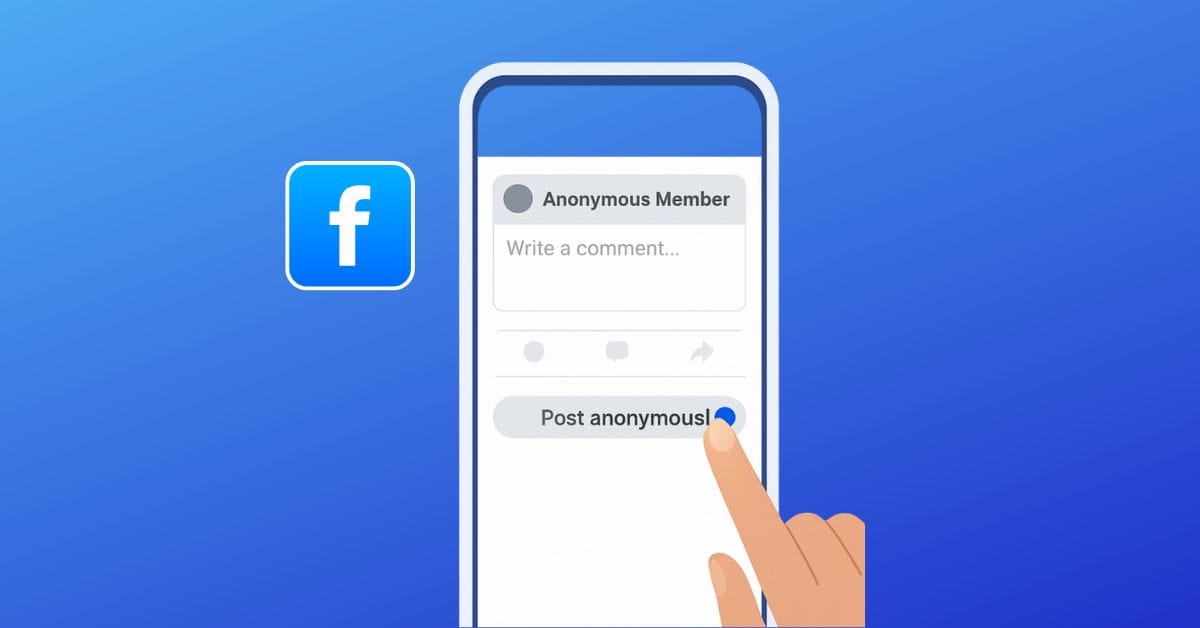
Sometimes you want to ask a question or share a story on Facebook without putting your name out there. Maybe it feels too personal, or you just do not want attention tied to your profile. Facebook does not offer full anonymity, but it does let you post anonymously in certain groups.
This guide explains where anonymous posting is possible, how to do it on desktop and mobile, and what limits you should know before using it.
Can You Really Post Anonymously on Facebook?
Short answer: not everywhere. You cannot post anonymously on your personal timeline or in your friends’ feeds. Anything shared from your profile always shows your name and photo.
Where anonymity is possible:
- Facebook groups that have anonymous posting enabled
- Your post appears as Anonymous Member in private groups
- In public groups, it shows as Anonymous Participant
Important detail: group admins and moderators can always see who posted. Facebook can too.
Anonymous posting is designed to reduce social pressure, not to remove responsibility.
How to Post Anonymously in a Facebook Group on Desktop
Anonymous posting only works if the group admin has enabled it.
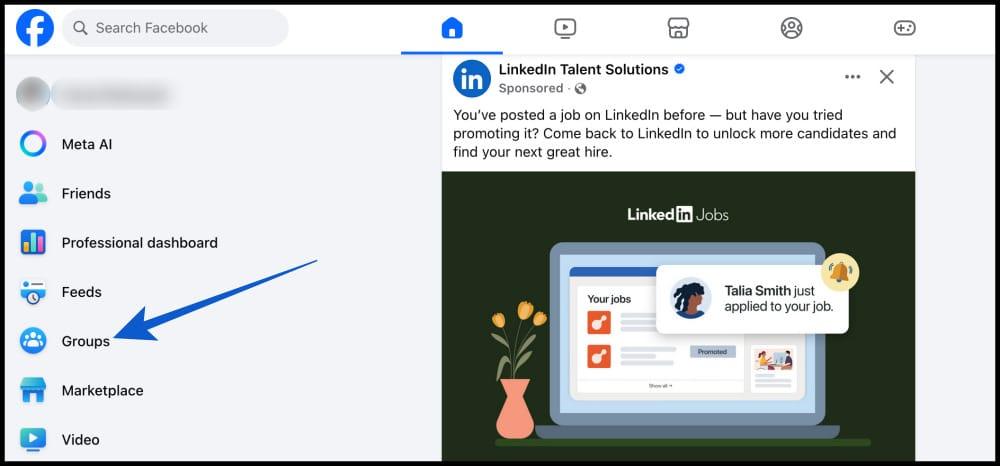
- Visit Facebook.com and go to Groups from the left sidebar.
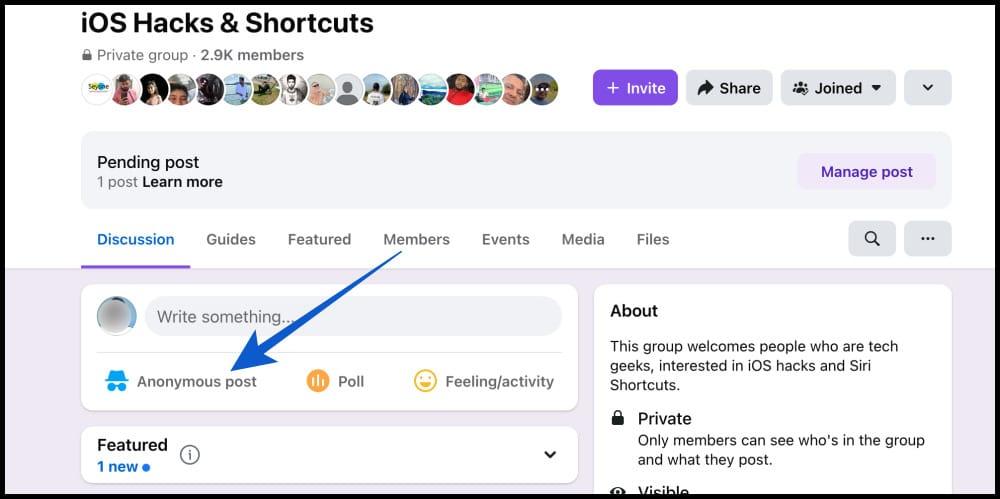
- Select the group where you want to post anonymously (for example, I’m selecting iOS Hacks & Shortcuts).
- Click the Anonymous post.
- Choose the Create Anonymous post option
- Write what you want to add in the post and click Submit.
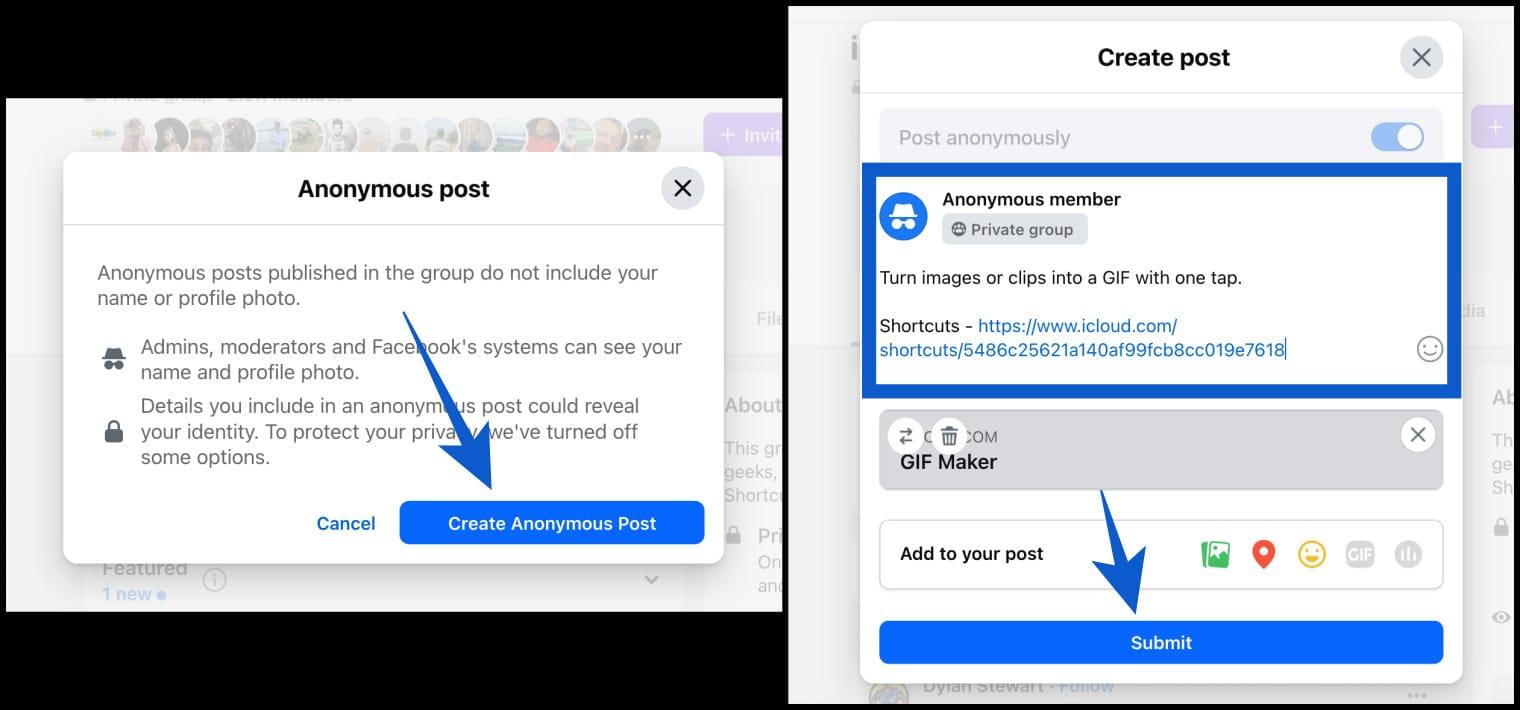
- Wait for the admin’s approval.
After posting, use the three dot menu on your post to manage or delete it.
How to Post Anonymously on Facebook Using iPhone or Android
- Open the Facebook app and tap the menu.
- Select a Group, then choose your desired group (for example, I’m selecting iOS Hacks & Shortcuts).
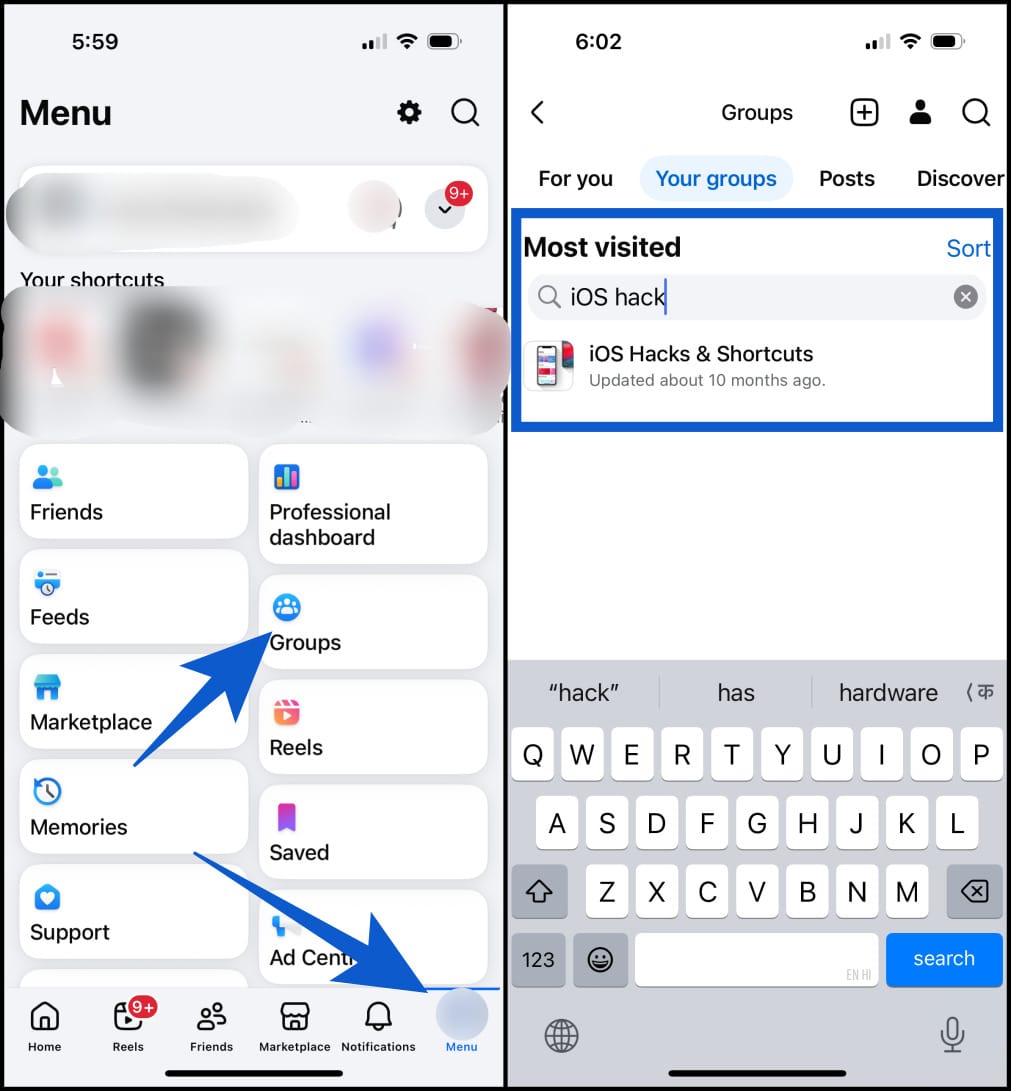
- Tap the Anonymous Post.
- Turn on the Post Anonymously toggle, write your post, and Submit. Wait for approval from the admin.
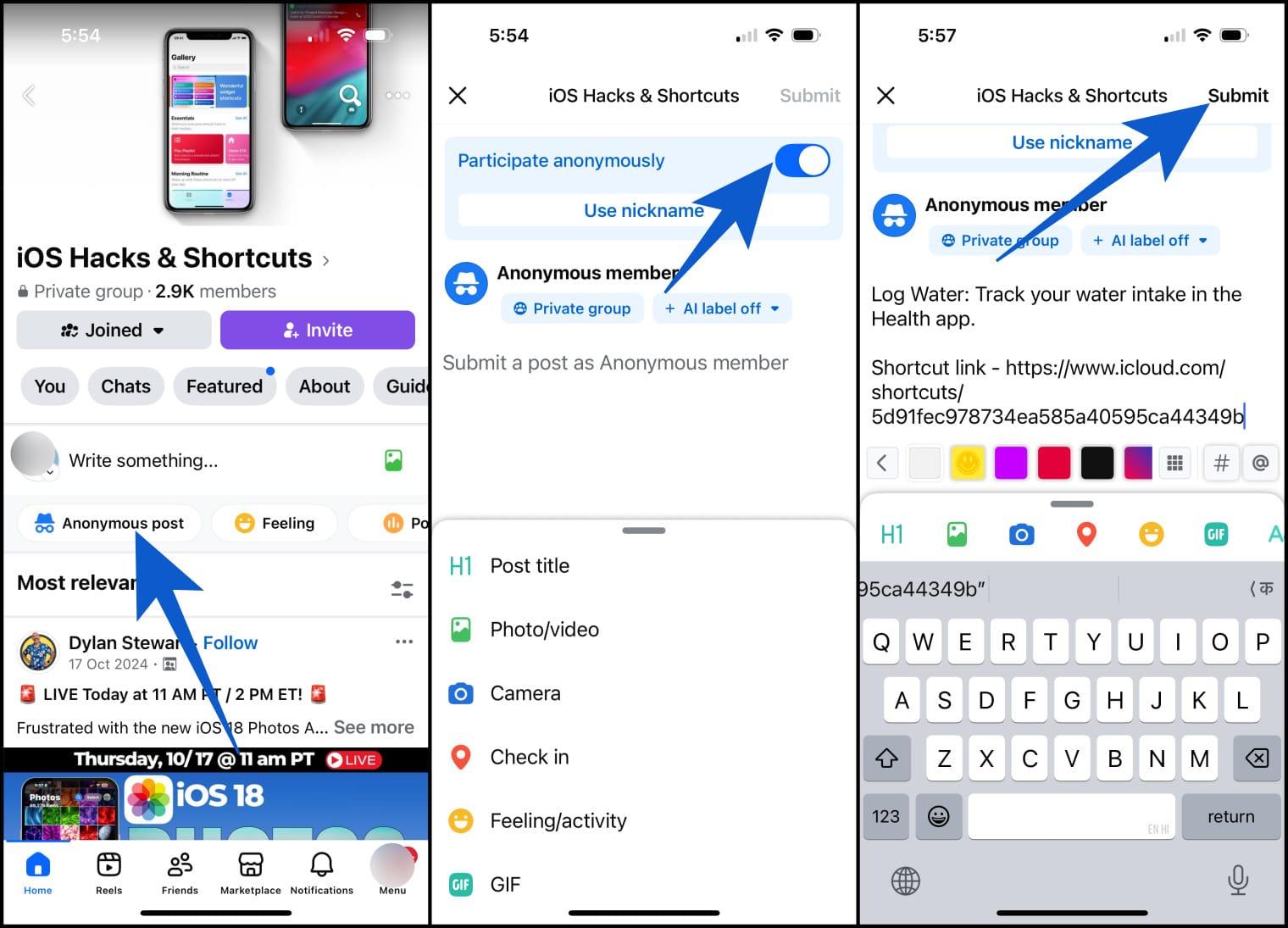
Your post may need admin approval before it becomes visible.
What You Can and Cannot Do With Anonymous Posts
You Can Do:
- Share text, photos, or links in the group.
- React and reply to your own anonymous post.
- Use a nickname in some groups.
- Remove your post whenever you want.
- Post anonymously in more than one group.
You Can’t Do:
- Start a live video or create group events.
- Change the look of your anonymous icon.
- Send or receive private messages as anonymous.
- Stay hidden from admins or moderators.
Editing is limited and may require reapproval depending on the group.
How Group Admins Can Enable Anonymous Posting
If you manage a Facebook group, here is how to turn the feature on:
- From your group, tap Manage group.
- Select Group settings.
- Scroll down to Manage discussion and select Anonymous participation.
- Tap On or Off → Tap Save to confirm.
Once enabled, members will see the option when creating a post.
Admin tip: Set clear rules. Anonymous posts can encourage honesty, but they can also invite spam or abuse if not moderated properly.
Other Ways to Post Without Using Your Personal Profile
If anonymous posting is not available in a group, these options may help:
- Post as a Facebook Page: Create a Page and post from it instead of your profile. Your personal identity stays hidden.
- Use a secondary account: Facebook allows additional profiles if they follow community rules. Keep details minimal.
- Ask a friend to post for you: Not ideal for privacy, but useful in small groups.
- Limit visibility using Stories or Messenger Rooms: Not anonymous, but you control who sees it.
Limitations and Risks of Anonymous Posting
Anonymous does not mean untraceable.
- Admins Can Always See You: Group admins and moderators know who posted, even if members do not.
- Facebook Keeps Records: Every anonymous post is linked to your account internally.
- Rules Still Apply: Breaking Facebook’s policies can lead to warnings, restrictions, or bans, even for anonymous posts.
- Fewer Features: Anonymous posts come with limited tools compared to regular posts.
Think of anonymity as privacy from members, not immunity from consequences.
Privacy Tips for Safer Anonymous Posting
- Review your Facebook privacy settings regularly.
- Avoid sharing personal details that can identify you.
- Remove location data from photos before uploading.
- Be careful with workplace, city, or timeline clues.
- Recheck settings after major Facebook updates.
Extra tip: some users reduce discoverability by adjusting their profile name or visibility settings, but this should still follow Facebook’s rules.
Conclusion
Facebook does not support full anonymity, but anonymous posting in groups can be useful for sensitive questions or honest discussions. Knowing where it works, how it works, and its limits helps you use it responsibly. Your name may be hidden from other members, but it is never hidden from admins or Facebook itself. Use the feature for privacy, not to avoid accountability.
It is a group feature that lets you post without showing your name or profile photo to other members.
To ask sensitive questions, share personal experiences, or seek advice without judgment.
No. Timeline posts always show your identity.
Yes. Admins and moderators can always see the author.
Yes, just like a normal post.
No. Only the original post is anonymous.
The admin has not enabled it, or the group type does not support it.
Open the post, tap the three dot menu, and choose edit or delete. Some edits may require approval.
You may like to read: