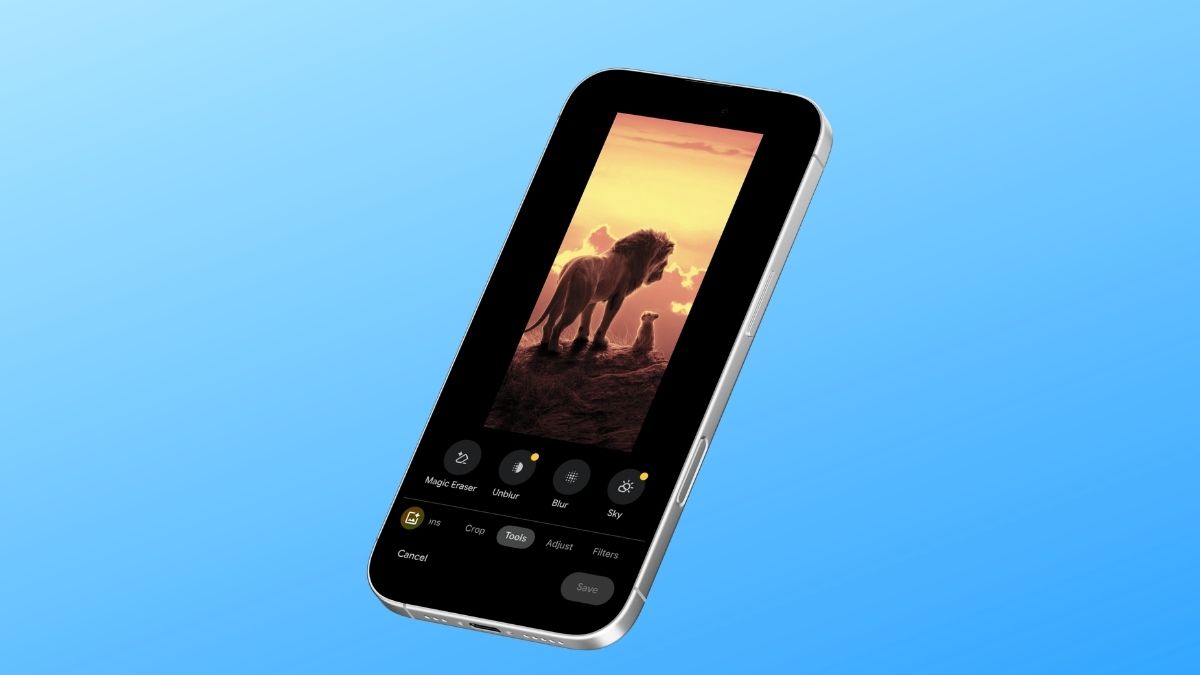
If you have ever assumed that the best Google camera features are locked behind a Pixel purchase, that assumption is worth revisiting. Magic Eraser, one of Google Photos’ most useful AI photo editing tools, is now available for free to Google Photos users on Android and iPhone.
No Pixel requirement. No Google One subscription. As long as your device meets Google Photos’ basic compatibility requirements, you can open the app and start removing distractions from your photos.
Here is everything you need to know about where Magic Eraser stands today and how to get the best results from it.
What Google Magic Eraser Actually Does
Before getting into the steps, it helps to understand what Magic Eraser is actually doing, because this is one of those features that sounds gimmicky until you need it.
You know the situation. You take what feels like a great photo, then notice later that a stranger walked through the background, your finger grazed the lens, or a stray object is sitting right where your eye keeps going. The photo is good, just not quite clean.
Magic Eraser is built for exactly that. You highlight the unwanted element, and Google’s AI reads the surrounding pixels to predict what the background would look like if that object were not there. It then fills the gap by blending texture, color, and light so the removal looks natural at normal viewing size.
When Magic Eraser first launched with the Pixel 6 in 2021, Google positioned it as a machine learning feature powered by the Tensor chip. Today, the feature is available more broadly through Google Photos. Pixel phones still have performance advantages because more processing can happen on-device, while non-Pixel phones and iPhones rely more on cloud processing.
The core purpose, though, remains the same: remove distractions from photos quickly without needing a full editing app.
Magic Eraser vs Magic Editor: What’s the Difference?
It is worth separating Magic Eraser from Google’s more advanced Magic Editor because the two tools are often confused.
- Magic Eraser is mainly for removing unwanted objects, people, shadows, or distractions from an image. It is quick, simple, and designed for cleanup edits.
- Magic Editor goes further. It uses generative AI for more advanced changes, such as moving subjects, resizing objects, changing backgrounds, or reworking parts of a scene.
Magic Editor is available inside Google Photos on Android and iPhone, but free users are currently limited to a set number of saves per month. Pixel owners and eligible Google One subscribers get expanded access. Magic Eraser is not limited in the same way as Magic Editor’s monthly save cap, which makes it the more practical everyday tool for quick photo cleanup.
Magic Eraser Without a Pixel: What Changed?
Magic Eraser spent its first couple of years as a Pixel-exclusive feature. At the time, many people assumed it needed Google’s Tensor chip to work properly. That was partly true for on-device performance, but Google later expanded the feature beyond Pixel by using cloud processing on other devices.
For a while, non-Pixel users needed a Google One subscription to access Magic Eraser. That barrier is now gone. As of 2026, Google Photos users can use Magic Eraser for free on supported Android phones and iPhones.
That means you can use Google Magic Eraser on Samsung Galaxy, OnePlus, Motorola, Nothing, Xiaomi, and iPhone devices without buying a Pixel.
If you have been avoiding Google’s AI editing tools because you thought they required Pixel hardware, this is a good time to try them. And if you are curious about what Google’s newest phones still offer beyond free photo tools, our guide to the AI features in the Google Pixel 10 Series explains where Pixel hardware still has an advantage.
How to Use Magic Eraser on Android
Using Google Magic Eraser on Android is straightforward, but make sure your Google Photos app is updated before you start. On older versions, the Tools menu may look different or may not show the feature.
Here is how to use Magic Eraser on Android:
- Open the Google Photos app.
- Select the photo you want to edit.
- Tap Edit in the bottom toolbar.
- Swipe through the editing options and tap Tools.
- Select Magic Eraser.
- Tap, brush, or circle the object you want to remove.
- If Google Photos auto-detects distractions, select the suggested object or adjust the selection manually.
- Tap Erase.
- Review the result.
- Tap the checkmark and save a copy if you are happy with the edit.
In my use, Magic Eraser works best when the object has clear edges. If the background is busy, zoom in and brush slowly instead of selecting the whole object in one swipe. This gives the AI a cleaner selection and usually produces a better fill.
Simple removals, such as a person in the background, a signboard, a wire, or a small object on a table, usually work well. More complex edits with patterns, reflections, hair, grass, or detailed architecture may need a second attempt.
For non-Pixel Android phones, performance can depend on your internet connection because the processing may happen in the cloud. A stable connection helps the edit complete faster.
Google’s basic requirements are generally Android 8.0 or later, a 64-bit device, and around 4GB of RAM. Most Android phones released in the last few years should meet that comfortably.
How to Use Magic Eraser on iPhone
Magic Eraser also works on iPhone through the Google Photos app. The experience is almost the same as Android, and you do not need a Pixel or Google One subscription to access it.
Here is how to use Magic Eraser on iPhone:
- Download or update Google Photos from the App Store.
- Open the app and sign in with your Google account.
- Select the photo you want to edit.
- Tap Edit.
- Tap Tools.
- Select Magic Eraser.
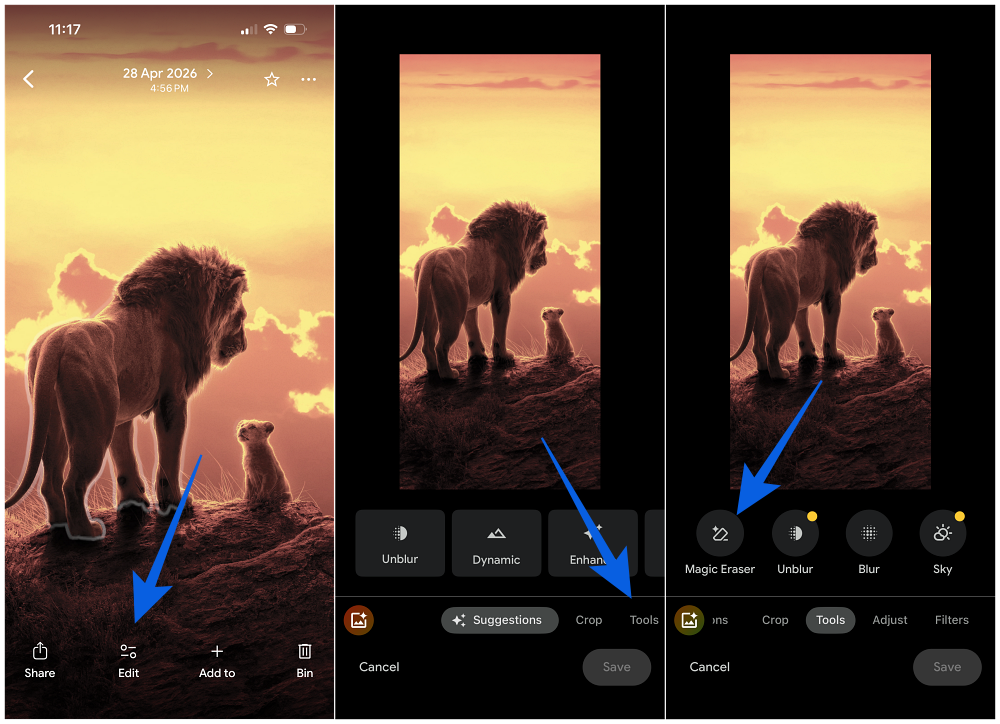
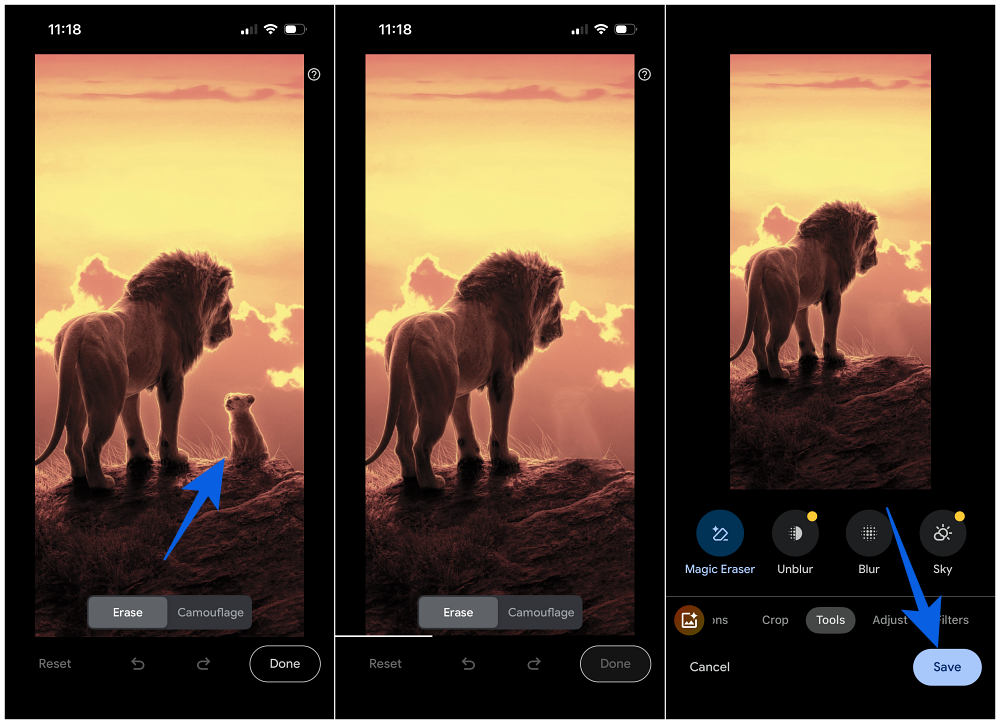
- Tap, brush, or circle the object you want to remove.
- Tap Erase.
- Review the result.
- Save the edited copy.
On iPhone, I found it helpful to duplicate the photo first if I was testing multiple edits. Google Photos usually saves edits as a copy, but keeping the original easy to find makes comparison simpler.
Magic Eraser on iPhone depends on cloud processing, so it works best with a stable internet connection. The minimum requirement is iOS 15 or later on a 64-bit device, though newer iPhones will offer a smoother experience.
Apple Photos also has its own cleanup-style editing tools, but Google Magic Eraser is still worth trying, especially for removing people, background objects, and distractions from travel or street photos.
Google Magic Eraser Without a Pixel: How Good Is It?
Using Magic Eraser without a Pixel is genuinely useful, not just a watered-down version of the feature. For most everyday edits, the final result looks very close to what you would get on a Pixel.
The biggest difference is speed. Pixel phones can process many edits faster because they are designed to handle more AI work on-device. On Samsung, OnePlus, Motorola, iPhone, and other non-Pixel devices, you may wait a little longer because the edit often relies on Google’s cloud processing.
In normal use, that delay is usually minor. Removing a person from the background or cleaning up a small distraction typically takes only a few seconds.
Where Magic Eraser can struggle is with complicated backgrounds. If you remove something from a brick wall, patterned floor, fence, crowd, grass, or reflection-heavy surface, the fill may look slightly smudged or unnatural when you zoom in. That is not a non-Pixel problem specifically. It is simply where AI cleanup tools still have limits.
If you are comparing Pixel alternatives, our guide to Android phones you should buy instead of the Google Pixel 10a can help you decide whether Pixel’s AI advantages matter enough for your needs.
Tips to Get Better Magic Eraser Results
Magic Eraser is simple, but a few small habits can make the results noticeably better.
- Use it on clear distractions: The tool works best when the object you want to remove is separate from the main subject. A person in the background, a sign, a trash can, a wire, or a small object on a table is usually easy to erase.
- Zoom in before brushing: If the object has uneven edges, zoom in and brush carefully. A rough selection can confuse the AI and create messy fills.
- Remove objects one at a time: Do not try to erase too many things in one pass. Remove one object, check the result, then move to the next.
- Avoid over-editing faces and hands: Magic Eraser can produce strange results around skin, fingers, hair, and facial details. Use it carefully around people.
- Save a copy before experimenting: If you are making multiple edits, keep the original photo safe. This makes it easier to compare results or start over.
The Honest Take on AI Photo Editing
AI photo editing can be incredibly useful, but it also raises a fair question: when does cleanup become fabrication?
Magic Eraser usually sits on the safer side of that line. Removing a stranger who walked through the background or cleaning up a distracting object does not necessarily change the meaning of a photo. It simply helps the image match what you were trying to capture.
That feels closer to traditional photo cleanup than full image manipulation.
But the same tool can be pushed further. You can erase major subjects, remove context, or make a scene look emptier than it really was. At that point, the edit becomes less about cleaning up a photo and more about changing the story.
For everyday use, Magic Eraser is best treated as a distraction remover, not a reality rewriter.
Final Thoughts
Google Magic Eraser is one of those AI tools that actually solves a common problem. You do not need editing experience, a paid subscription, or a Pixel phone to use it anymore. If you have Google Photos on a supported Android phone or iPhone, you can remove unwanted objects from photos in a few taps.
Pixel phones still offer the smoothest experience because of stronger on-device AI processing, but non-Pixel Android phones and iPhones get the same core benefit. For most people, that is more than enough.
If you have old travel photos, group shots, screenshots, or casual pictures with distracting objects in the background, Magic Eraser is worth trying. It is quick, free, and often good enough to save a photo you almost deleted.