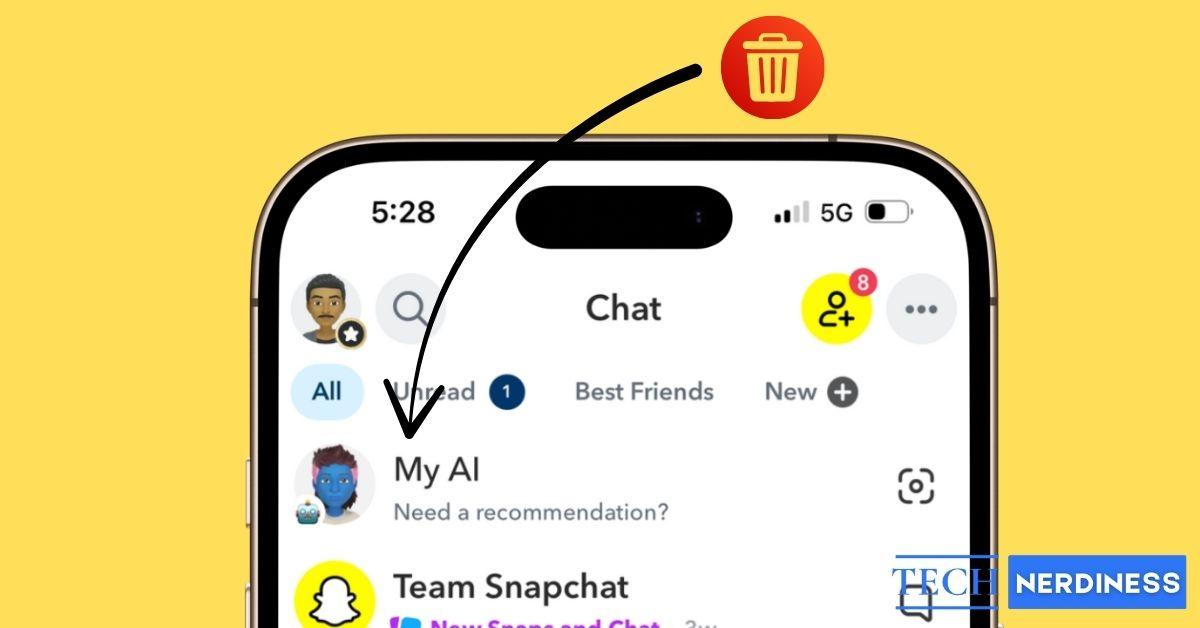
Snapchat’s My AI is a ChatGPT-powered chatbot pinned permanently to the top of your chat list. While some users enjoy it, many want it gone — and for good reason. The bot has been caught suggesting nearby restaurants despite claiming it has no location access, and it watches your Stories by default without making that obvious.
This guide covers every way to get rid of My AI on Snapchat, including a free method that doesn’t require Snapchat+, how to delete your data, stop it from watching your Stories, and what to do when it keeps coming back after an update.
Free vs Snapchat+: What You Can Actually Do
Before diving in, here’s the honest breakdown — because Snapchat is not upfront about this:
| What you want to do | Free users | Snapchat+ ($3.99/mo or $29.99/yr) |
|---|---|---|
| Unpin My AI and move it down the list | Yes | Yes |
| Clear My AI from the chat feed entirely | No | Yes |
| Block My AI using a free workaround | Yes | Yes |
| Delete your My AI data | Yes | Yes |
| Control location and Stories access | Yes | Yes |
The short version: Free users can unpin, block, and delete data — but can’t use the official “Clear from Chat Feed” button. Scroll to Method 3 below for the free workaround.
1. Unpin My AI from Your Chat List
This is the quickest option for free users. It won’t remove My AI entirely, but moves it out of the pinned top spot.
- Open Snapchat and head to your Chat list.
- Here, long-press the “My AI” conversation tab.
- Now, tap Chat and notification settings in the pop-up menu.
- Next, tap Unpin Conversation.

My AI drops down in your chat list like any other conversation and stops dominating the top of your feed.
2. Clear My AI from Your Chat Feed (Snapchat+ Only)
If you have a Snapchat+ subscription ($3.99/month or $29.99/year), you can remove My AI from your chat feed entirely using the official method.
- Long-press the “My AI” conversation tab until the chat settings menu pops up.
- Tap Chat and notification settings in the pop-up menu.
- Here, tap Clear from Chat Feed.
- Next, tap the Clear button on the confirmation prompt that appears.
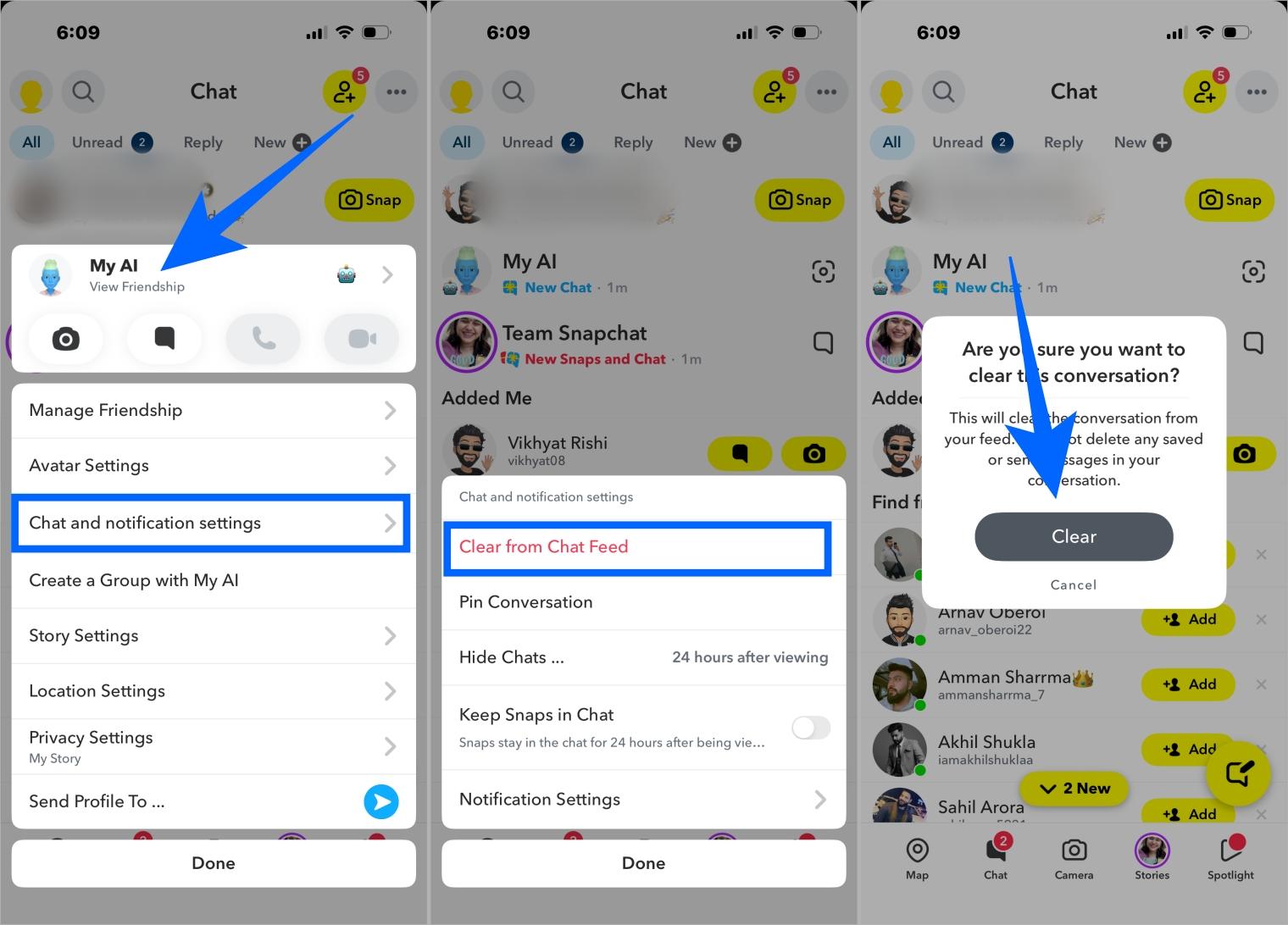
My AI disappears from your chat list. Note that clearing the chat feed does not delete the data you previously shared — see Section 4 for that.
Related: How Do I Cancel Snapchat Plus Subscription on Android or iPhone?
3. Block My AI for Free (No Snapchat+ Needed)
Don’t have Snapchat+? This workaround lets free users remove My AI from their chat list by reporting and then blocking it.
- Open your Chat list and tap My AI to open the conversation.
- Tap the My AI profile icon at the top of the chat.
- Scroll to the bottom of My AI’s profile page.
- Tap Report (it appears in light gray — easy to miss).
- Select any reason from the report options.
- After submitting the report, a Block option will appear.
- Tap Block to confirm.
My AI will be removed from your chat list. Snapchat may attempt to re-add it after future app updates — see Section 9 for how to handle that.
4. Delete Your My AI Data
Removing My AI from your chat feed doesn’t erase what Snapchat has already stored. To wipe your conversation history from their servers:
- Open Snapchat → Profile → Settings.
- Here, scroll down and tap Clear Data under Privacy Controls.
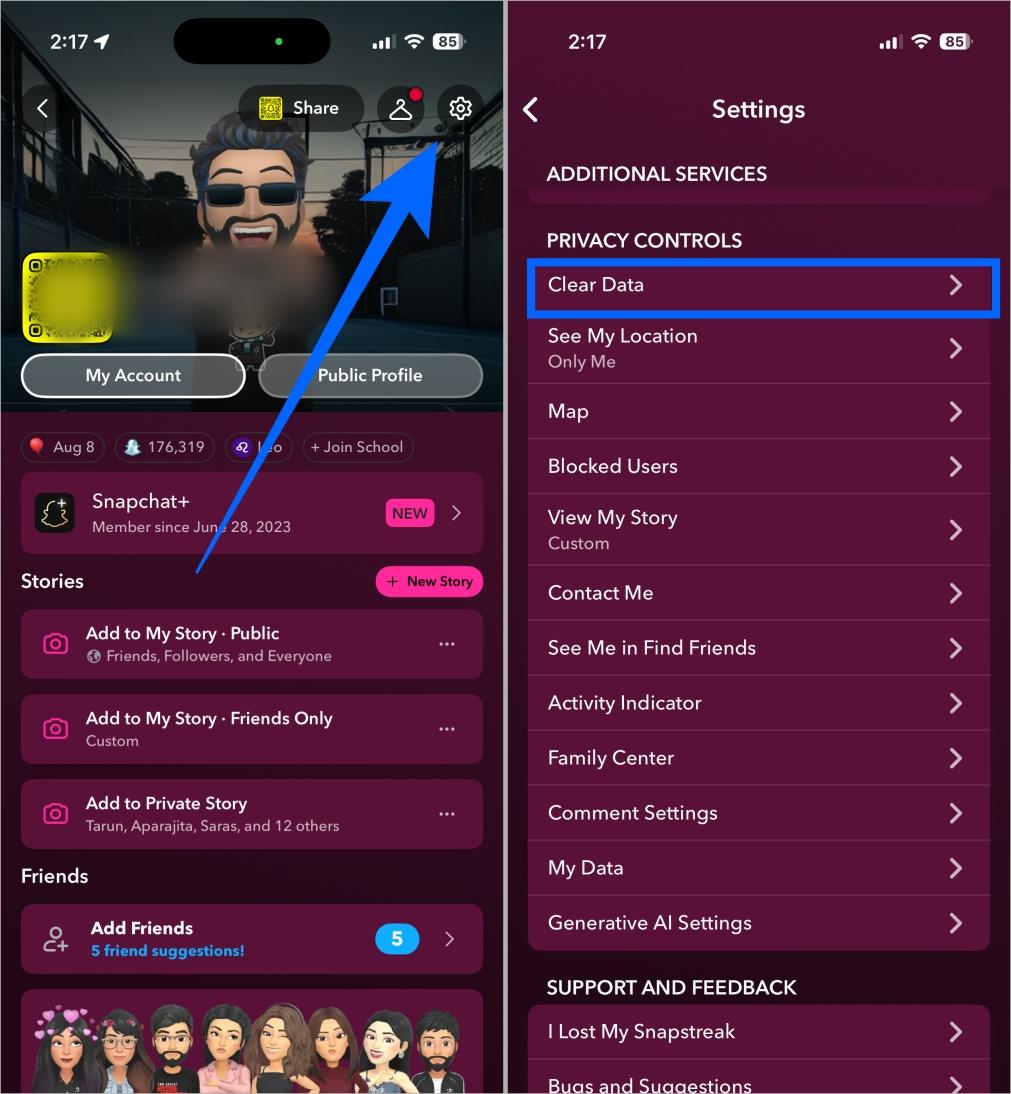
- Now, tap Delete My AI Data.
- Next, tap the Confirm button on the confirmation prompt that appears.
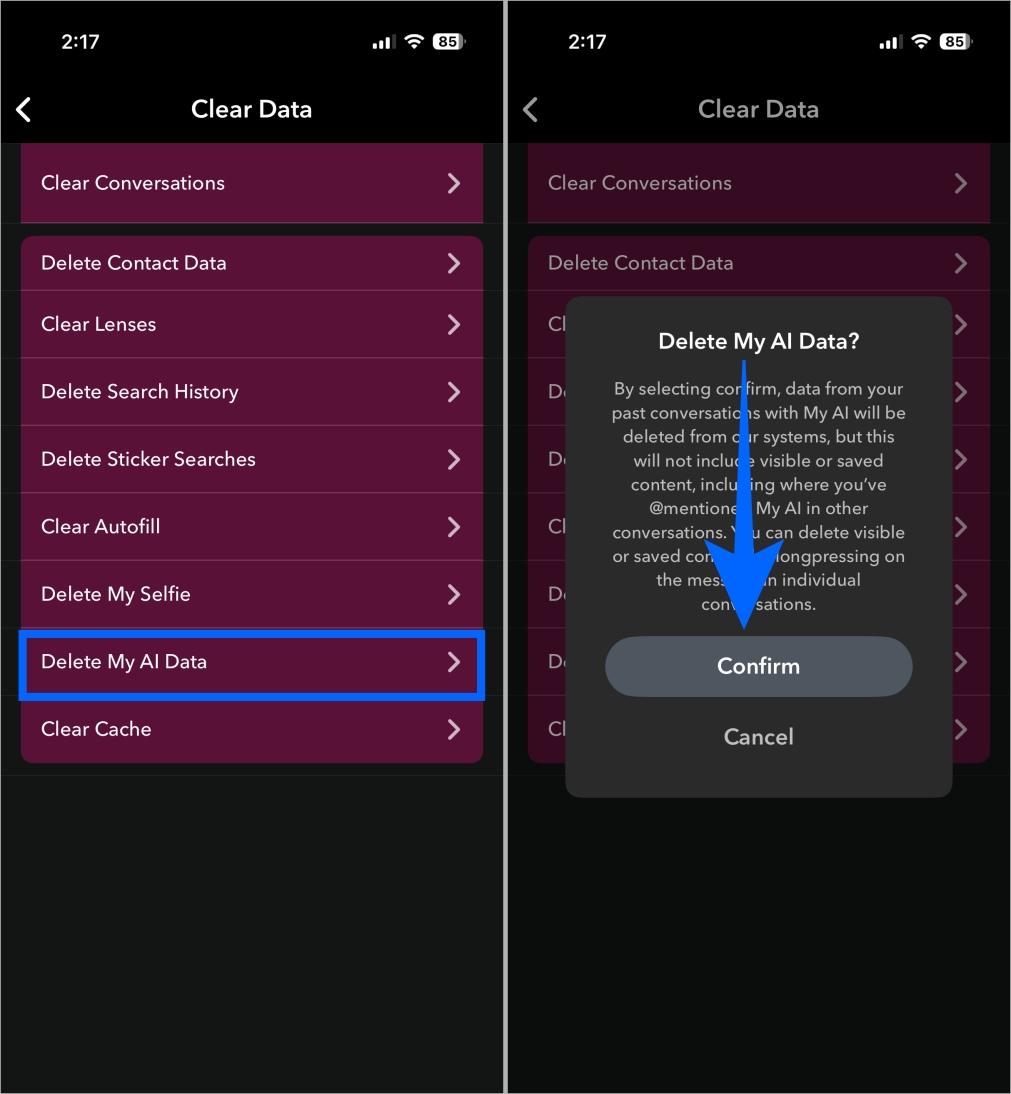
Snapchat can take up to 30 days to fully remove your My AI data from its servers.
5. Stop My AI from Watching Your Stories
This one surprises most users: My AI watches your Snapchat Stories by default. Snapchat doesn’t advertise this, but it’s buried in My AI’s privacy settings.
To turn it off:
- Go to your Chat list and long-press My AI.
- Tap Privacy Settings in the pop-up menu.
- Find the Stories toggle and turn it off.
Once disabled, My AI will no longer have access to your Story content.
6. Control Location Access (iPhone & Android)
My AI can access your real-time location to make recommendations like nearby restaurants or places to visit — even if it claims otherwise in chat. Here’s how to cut that off on both platforms.
On iPhone
- Open the Settings app.
- Go to Privacy & Security → Location Services.
- Scroll down and tap Snapchat.
- Under Allow Location Access, select Never or Ask Next Time or When I Share.
On Android
- Open your phone’s Settings app.
- Go to Apps (or Application Manager) → Snapchat.
- Tap Permissions → Location.
- Select Deny or Ask every time.
With location blocked at the system level, My AI can no longer use your position for suggestions.
7. Turn Off My AI Notifications
Even after clearing My AI from your feed, Snapchat may still send push notifications prompting you to chat with it. To disable these:
- Open Snapchat → Profile → Settings.
- Scroll down and tap Notifications.
- Find any entries related to My AI or Suggested Chats.
- Toggle them off.
This stops My AI from nudging you back into conversation through alerts.
8. Parental Controls for Teens
Parents enrolled in Snapchat Family Center can disable My AI for their teenager’s account entirely — without needing Snapchat+.
- Open Snapchat on the parent’s device and go to Profile → Family Center.
- Select your teen’s account from the list.
- Tap Settings (within Family Center).
- Find the My AI option and toggle it off.
Once disabled, My AI will no longer respond to your teen’s messages. The Family Center also lets you see which contacts your teen has been chatting with, though it doesn’t show the content of their messages.
Also Read: How to Pause Your Snapchat Location
9. My AI Keeps Coming Back After Updates
Many users report that My AI reappears in their chat feed after Snapchat releases an app update — even after they’ve cleared or blocked it. This is a known frustration.
The fix: Every time Snapchat updates, check your chat list. If My AI has reappeared, use the same method you used before (Section 2 for Snapchat+ users, Section 3 for free users) to remove it again.
To reduce how often this happens, you can also turn off automatic updates for Snapchat in your phone’s app store settings. That way, you can wait and see if other users report issues with a new version before installing it.
If you don’t want to fully remove My AI, Snapchat lets you control what data it can use. Here’s how you can manage or limit it:
10. How to Get My AI Back
Changed your mind? If you cleared My AI and want it back in your chat feed:
- Go to your Chat list and tap the search icon.
- Type “My AI” in the search bar.
- Tap on My AI from the results to open a conversation.
- Send a message to reactivate it.
My AI will reappear in your chat list after you initiate a conversation.
Final Thoughts: Taking Control of Snapchat AI
That’s everything you need to remove or manage My AI on Snapchat in 2026. Free users can unpin it, block it via the report workaround, delete their stored data, and cut off location and Stories access — all without paying for Snapchat+. If you do have Snapchat+, the official Clear from Chat Feed option is the cleanest solution. And if My AI keeps coming back after updates, a quick block or clear is all it takes to send it on its way again.
If you’re also wondering whether someone you know has Snapchat Plus, there are a few signs you can look for.
Yes. While the official “Clear from Chat Feed” button is a Snapchat+ feature, free users can remove My AI by reporting its profile and then blocking it. My AI disappears from your chat list immediately after you block it.
Snapchat app updates sometimes re-pin My AI to your chat feed, even after you’ve cleared it. This is intentional on Snapchat’s part. The fix is to simply clear or block it again each time it reappears.
No. Clearing My AI from your chat feed only removes the conversation from view. To delete your actual data, go to Settings → Clear Data → Delete My AI Data. Snapchat may take up to 30 days to fully remove it from their servers.
By default, yes. You can stop this by long-pressing My AI in your chat list → Privacy Settings → turn off Stories access.
Snapchat+ costs $3.99 per month or $29.99 per year. It unlocks the official “Clear from Chat Feed” button, along with other features like custom app icons and the ability to see who rewatched your story.
Yes. Parents enrolled in Snapchat Family Center can disable My AI for their teen’s account by going to Family Center → select teen → Settings → toggle off My AI.
Removing My AI from your chat feed doesn’t revoke its location permissions. To stop it from accessing your location, go to your phone’s system settings and revoke Snapchat’s location permission entirely, or set it to “Ask every time.”