Snap Map lets you and your friends keep track of each other in real time, which is useful right up until it is not. If you want to pause your Snapchat location without giving up Snap Map altogether, you have more options than the single Ghost Mode toggle most guides stop at.
Not everyone on your friends list needs to know where you are at any given moment, especially once that list includes acquaintances and people you barely know. The good news is that Snapchat gives you granular control, from disappearing entirely for three hours to hiding from one specific person while everyone else still sees you.
Here is every method that works, and what your friends actually see in each case.
Will Your Friends Know You Paused Your Location?
This is the question almost everyone has, and most guides skip it entirely, so let us settle it first.
Snapchat sends no notification when you turn on Ghost Mode. There is no alert, no badge, no label on your profile, and nothing in your chat threads. Your Bitmoji simply stops appearing on the map.
From your friends’ side, Ghost Mode looks identical to you not opening Snapchat for a while. They genuinely cannot tell the difference between the two.
That said, a few things can give it away if someone is paying close attention:
- Your last-seen timestamp sat frozen for hours or days before you vanished.
- You are the only person missing from a cluster of friends at the same school, party, or event.
- You disappeared suddenly right after being visibly active.
On your own screen, you will see a small ghost icon over your Bitmoji whenever Ghost Mode is on, so you always know your current sharing status at a glance.
Method 1: Turn On Ghost Mode to Freeze Your Location
Ghost Mode is the fastest and most complete way to pause your location. It hides both your live location and your last known location, so you vanish from the map entirely rather than freezing in place.
- Open Snapchat and tap the Snap Map (Location Pin) icon at the bottom left corner.
- Here, tap the Settings button at the top right corner.
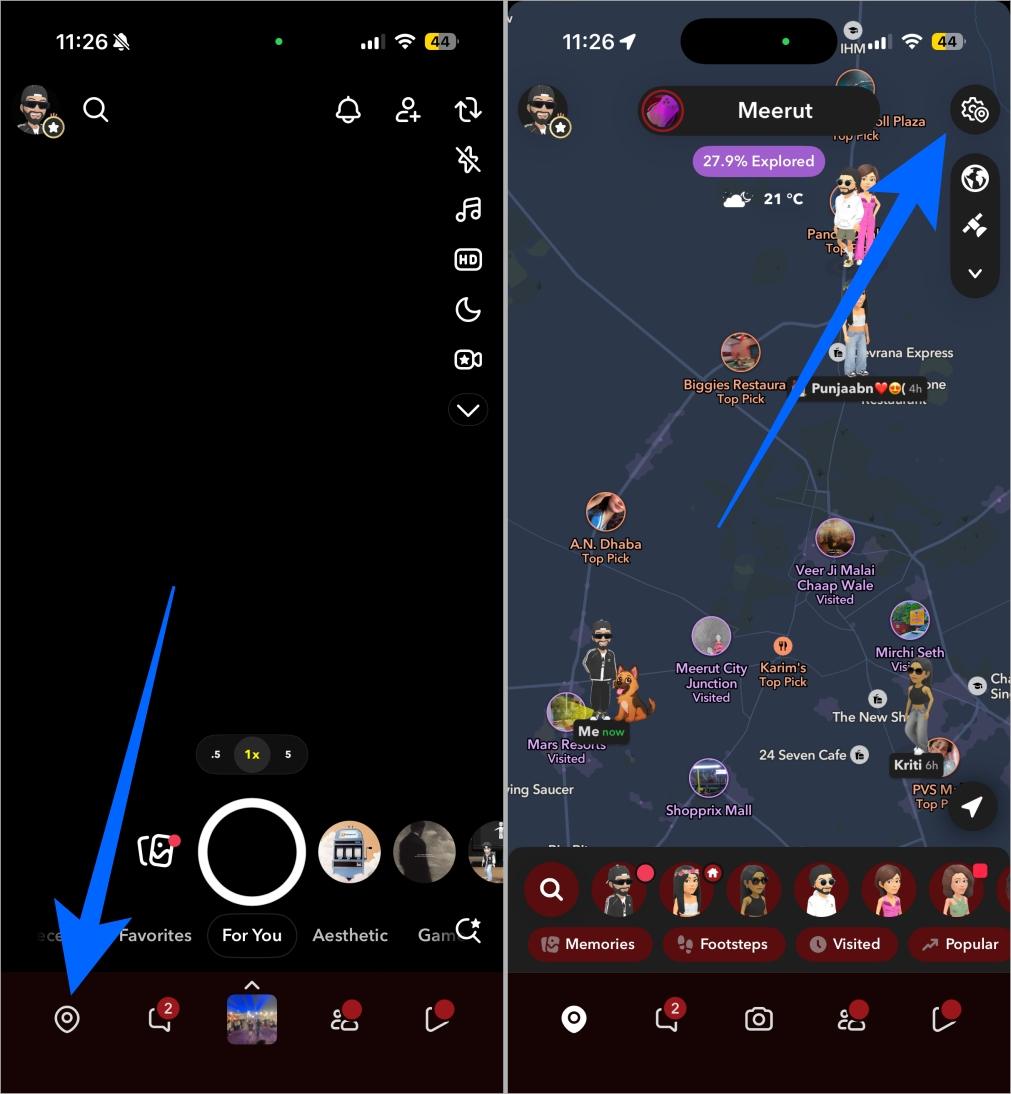
- Next, toggle on Ghost Mode.
- Now, choose the duration for which you want to keep the Ghost Mode active:
- 3 hours
- 24 hours
- Until turned off
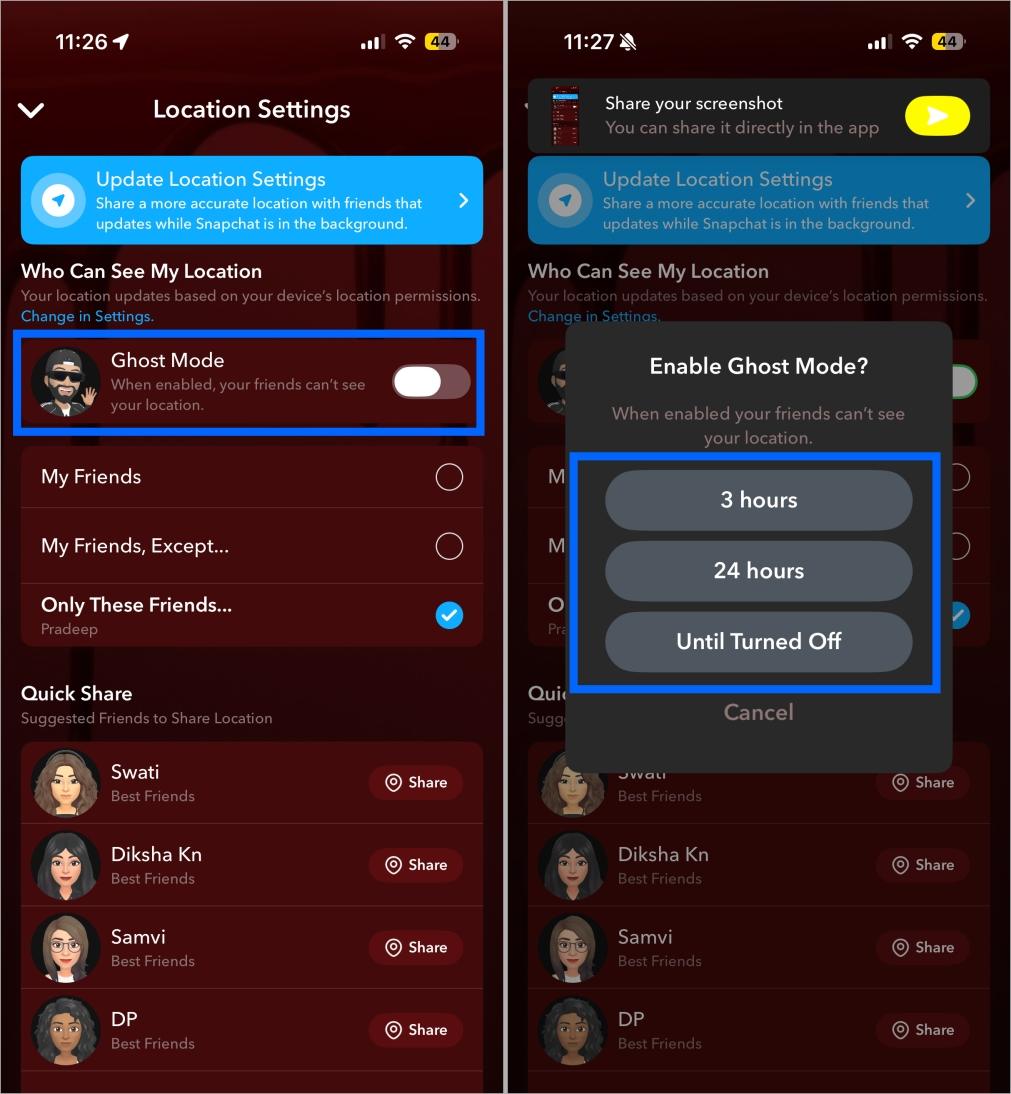
Picking a timed option freezes your location only for that window. Once it expires, sharing resumes automatically without you having to remember anything.
Practical tip: choose 3 hours and extend it if needed, rather than defaulting to Until Turned Off. The indefinite option is the one people forget about, then wonder weeks later why nobody can find them on the map.
Method 2: Turn Off Background Location Access
Practical tip: choose 3 hours and extend it if needed, rather than defaulting to Until Turned Off. The indefinite option is the one people forget about, then wonder weeks later why nobody can find them on the map.
On iPhone:
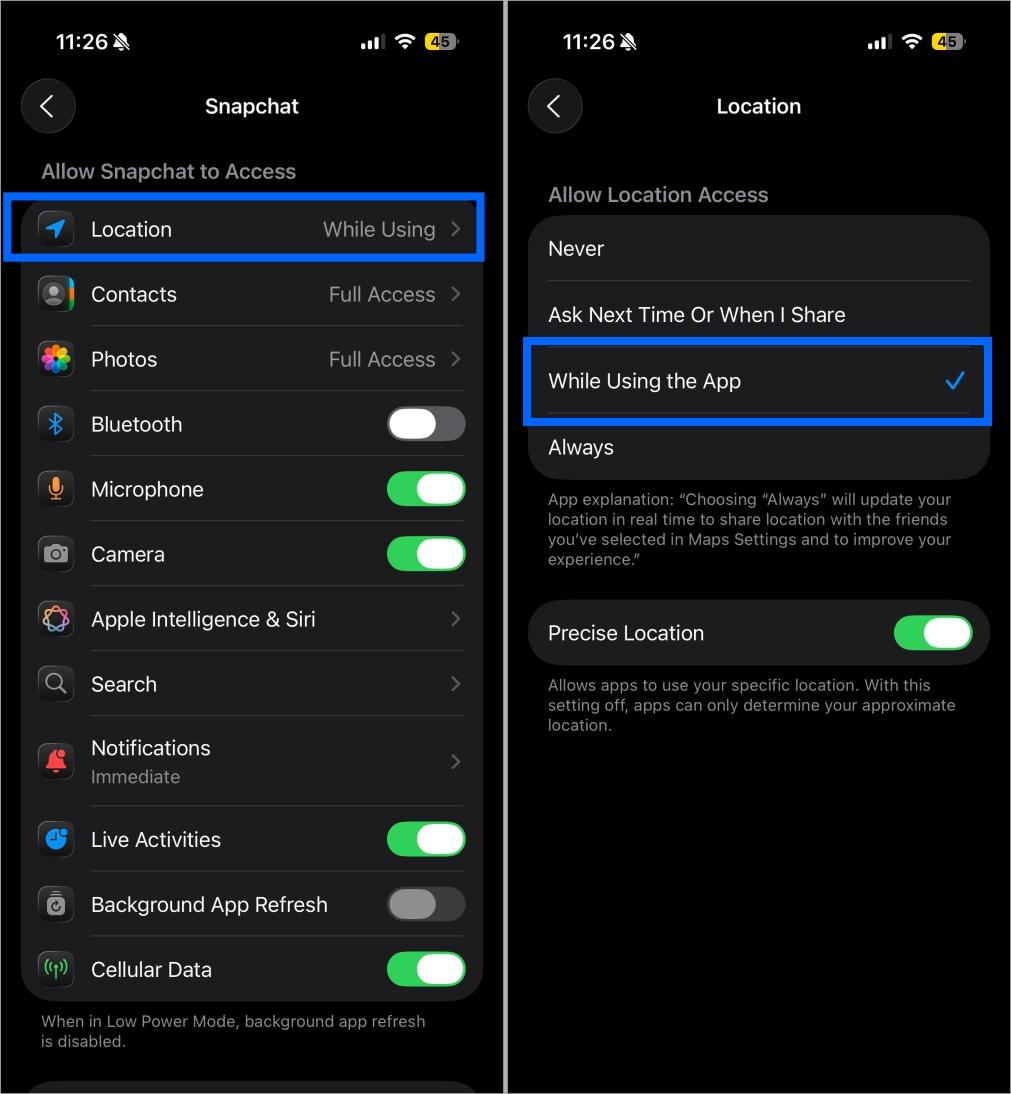
- Open the Settings app, scroll down to the bottom and tap Apps.
- Here, locate and tap Snapchat.
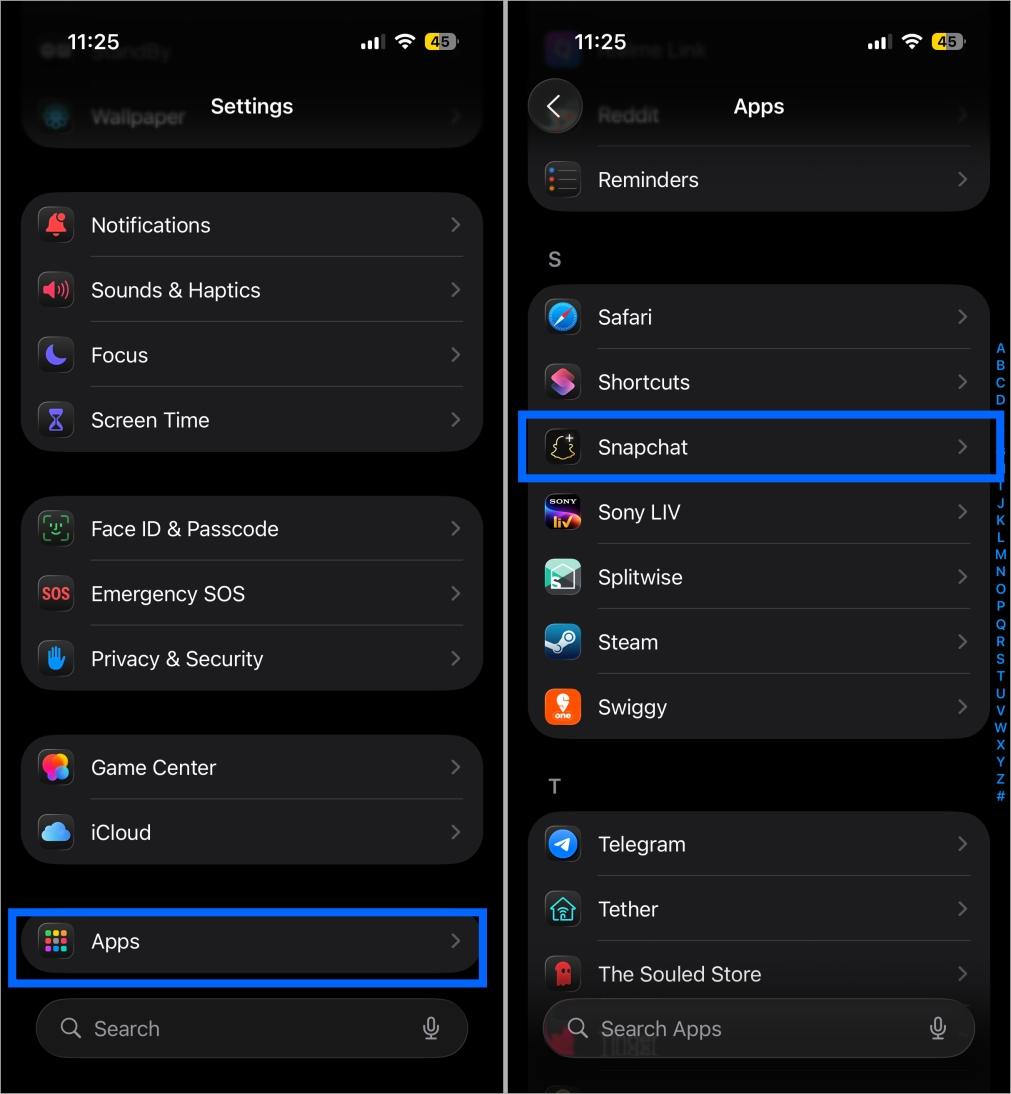
- Next, tap Location under Allow Snapchat to Access.
- Now, select the While Using the App option under the Allow Location Access section.
On Android:
- Long-press the Snapchat app icon, then tap the “i” button in the pop-up menu.
- Here, tap Permissions on the App Info screen.
- Next, tap Location, then choose the Allow while using the app option on the subsequent menu.
Worth thinking through before you use this one: your frozen last location is often your home, since that is where many people last opened the app. Depending on who you are hiding from, showing your home address indefinitely may be worse than showing where you actually are. Ghost Mode avoids that problem completely by removing you from the map rather than freezing you on it.
Method 3: Take a Break from Snapchat for a While
Turning off background location access for Snapchat isn’t enough because the app still updates your last known location on the Snap Map whenever you open it. If you don’t want your friends to see where you are, it’s best to stay off Snapchat until you’re somewhere you’re comfortable sharing your location from.
This way, your friends won’t know where you’ve been, since they’ll see your last active location on the Snap Map, usually your home.
Method 4: Turn Off Precise Location (Optional Privacy Boost)
If you are fine with friends knowing your general area but not your exact spot, this is the middle ground. Snapchat shows an approximate neighbourhood instead of pinpointing which building you are in.
On iPhone:
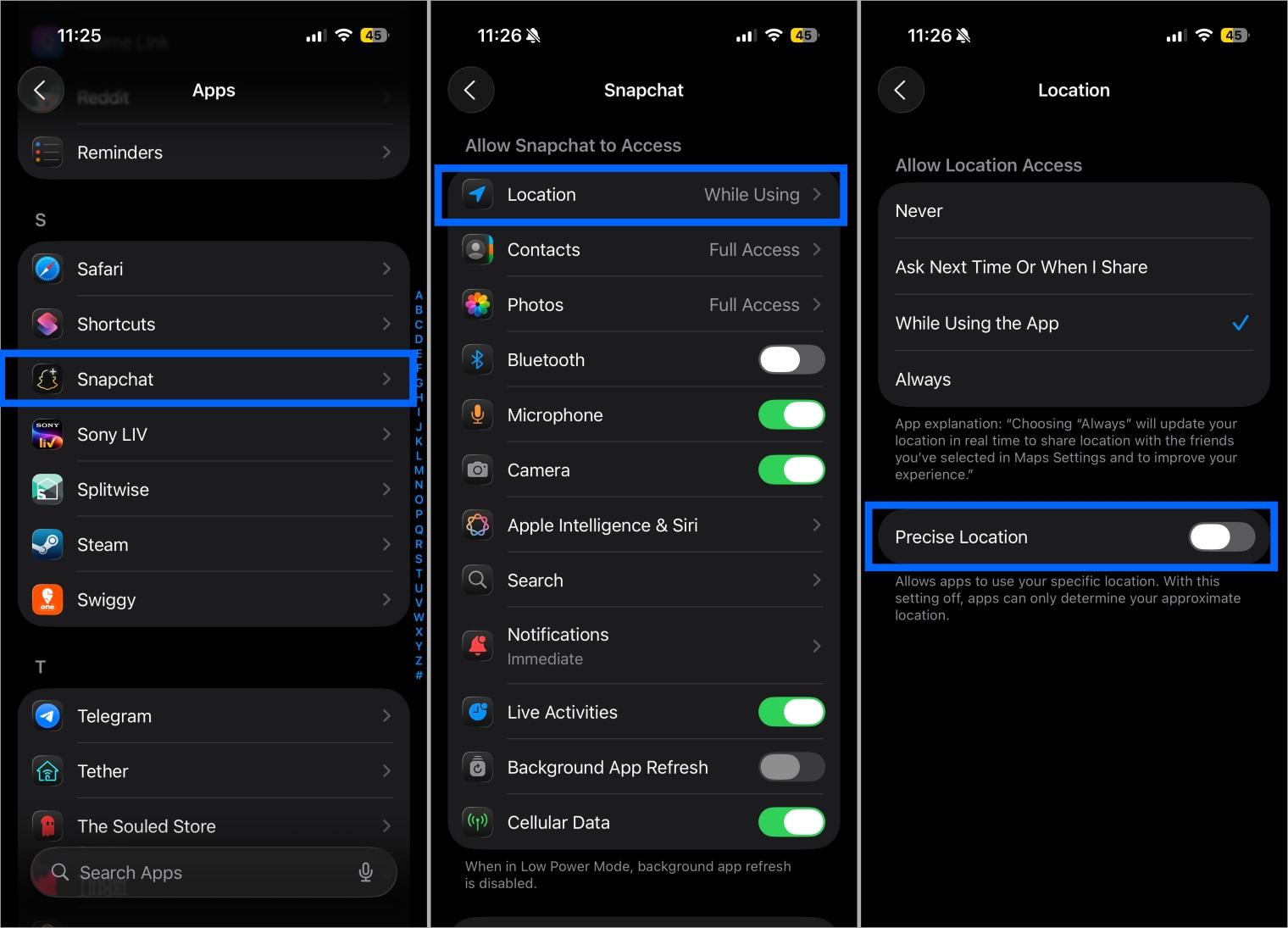
- Open Settings → Apps → Snapchat.
- Here, tap Location under Allow Snapchat to Access.
- Now, toggle off Precise Location.
On Android:
- Long-press the Snapchat app icon, then tap the “i” button in the pop-up menu.
- Here, tap Permissions.
- Next, tap Location, then toggle off Use precise location on the subsequent menu.
This works well when you want to stay visible on Snap Map without broadcasting exactly which side of the street you are on.
Method 5: Choose Who Can See Your Location
If you don’t want to turn off your location for everyone but still want a bit more privacy, Snapchat lets you pick which friends can see where you are. It’s a simple way to stay visible only to the people you trust.
Here’s what you need to do:
- Open Snapchat → Snap Map.
- Tap the Settings icon.
- Scroll down to the Quick Share section and tap the Share button next to the friend’s name you want to share your location with.
You may like to read: How to Create, Edit, or Delete Shortcuts on Snapchat
Method 6: Revoke Location Access Entirely (Optional)
This one goes further than pausing, so use it only when you want Snapchat cut off from location data completely. Unlike Ghost Mode, it also disables location filters, Lenses, and any other location-based feature.
On iPhone:
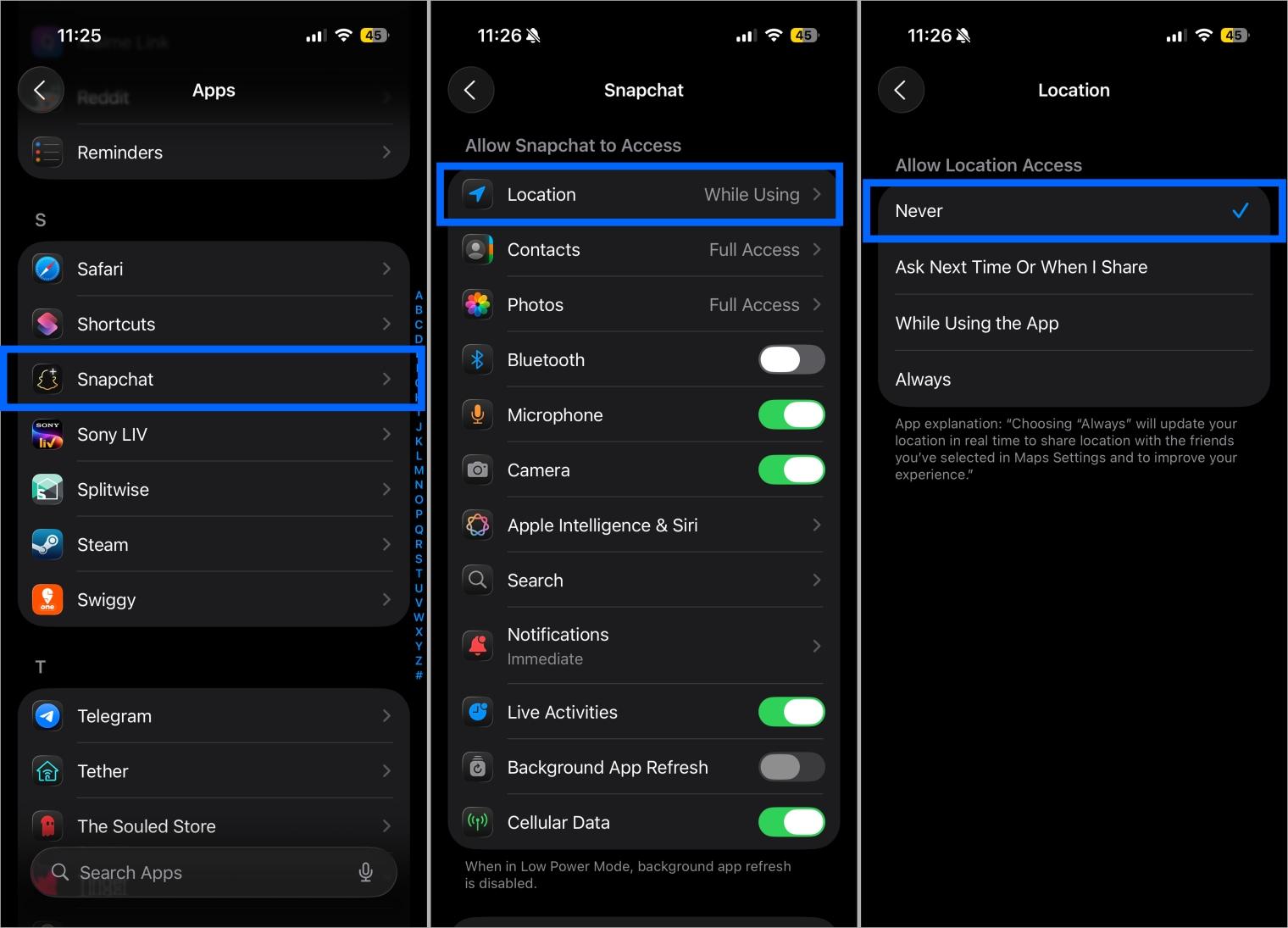
- Open Settings → Apps → Snapchat.
- Here, tap Location under Allow Snapchat to Access.
- Select the Never option under the Allow Location Access section.
On Android:
- Long-press the Snapchat app icon, then tap the “i” button in the pop-up menu.
- Here, tap Permissions.
- Next, tap Location, then choose the Don’t Allow option on the subsequent menu.
Once done, Snapchat won’t be able to use your location for Snap Map, filters, or any location-based features. You can always turn it back on later if you want to resume sharing your location or use location-specific Lenses and filters.
Which Method Should You Use?
| What you want | Best method | What friends see |
|---|---|---|
| Disappear from everyone temporarily | Ghost Mode with a timer | Nothing, your Bitmoji is gone |
| Hide from one or two specific people | My Friends, Except… | Nothing, you vanish for them only |
| Share with a small trusted circle | Only These Friends | Nothing, you vanish for everyone else |
| Stop your location following you around | Background location off | Your last active location, frozen |
| Stay visible but vague | Precise Location off | Your approximate area |
| Cut Snapchat off from location entirely | Revoke access | Your last known location, then nothing |
What Ghost Mode Does Not Change
A few common worries worth clearing up.
- Everything else keeps working. Messaging, snaps, streaks, Stories, and calls all function exactly as normal. Ghost Mode only affects Snap Map visibility.
- You can still see your friends. Turning on Ghost Mode hides you from the map, but you keep full access to everyone else’s locations.
- It does not save battery. Snapchat continues checking your location at the same rate. The setting controls who can see it, not how often your phone reports it.
- It is free for everyone. Ghost Mode is not a Snapchat Plus feature. Every account has it.
Stay in Control of Your Privacy
Letting close friends know where you are can be genuinely useful, and Snap Map is built well for that. But constant location sharing also makes it easy for someone to build a picture of your daily movements, which occasionally leads to unwanted attention.
The good news is that pausing your location is reversible, private, and takes seconds. Ghost Mode for a clean disappearance, My Friends Except for hiding from specific people, and permission tweaks for everything in between.
While you are tightening up your Snapchat settings, our guide to Snapchat symbols and icons explains what every emoji and indicator in the app actually means, including the ones that appear on Snap Map. And if notifications are the bigger annoyance, our breakdown of Time Sensitive alerts on Snapchat covers why Snapchat interrupts your Focus modes and how to stop it.
No. Snapchat sends no notification, badge, or message. Your Bitmoji simply stops appearing on the map, which from your friends’ perspective looks the same as you not opening the app for a while.
No. Ghost Mode hides both your live location and your last known location. You disappear from the map completely rather than freezing in place.
No. Ghost Mode is available to every Snapchat account at no cost.
Yes. Use My Friends, Except… in your Snap Map settings to exclude specific people while staying visible to the rest of your friends list.
No. Messaging, snaps, streaks, Stories, and calls all work exactly as before. Only your map visibility changes.
No. Snapchat still checks your location at the same rate whether Ghost Mode is on or off. The setting controls visibility to others, not how often your phone reports its position.
Your location sharing resumes automatically and your Bitmoji reappears at your current location. You do not need to do anything manually.
How Do You Handle Snap Map?
Do you keep your location visible to friends, or live permanently in Ghost Mode? Drop a comment below, especially if you have found a setting combination that works well for you. Snapchat shuffles these menus fairly often, so reader reports help keep this guide accurate.