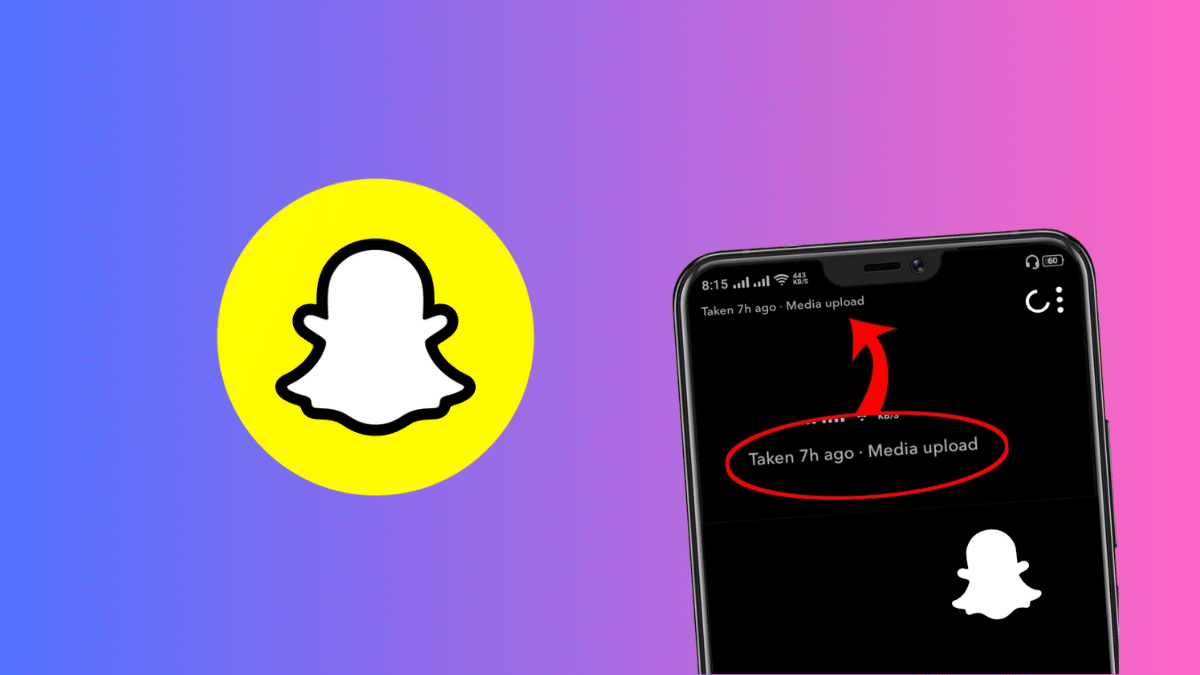
You open a Snap and spot two small words in the top-left corner: Media Upload. Sometimes a date sits beside them. It looks like a warning. It isn’t.
Media Upload means the sender didn’t shoot that photo or video inside Snapchat. They picked it from their phone’s Camera Roll or gallery and sent it as a Snap. Snapchat adds the tag so you know you’re not watching something captured in the moment.
Here’s what the label actually tells you, where it shows up, and which “fixes” are worth your time.
What Media Upload Means on Snapchat
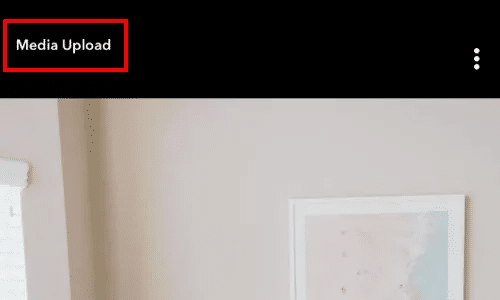
Snapchat was built on live capture, so it marks anything that didn’t come from its own camera. Coverage since mid-2024 from Stealth Optional and Dexerto describes the tag appearing on imported Snaps, often alongside the date the original file was created.
You’ll typically see it when the sender used:
- An older photo or video from their gallery. This is the most common trigger.
- A screenshot or screen recording. Both save to the Camera Roll, so Snapchat treats them as imported.
- A clip edited in another app. Trim a video in a third-party editor, upload it, and it carries the tag.
- A Lens that pulls an image from the Camera Roll. The final Snap still counts as uploaded media.
One thing most guides skip: Snapchat hasn’t published a Support article that explains the label by name. Its official help page on sending Camera Roll photos covers the steps (swipe up to Memories, open the Camera Roll tab, press and hold the file) and says nothing about the tag. What’s known comes from user reports and hands-on testing.
Where the Media Upload Tag Shows Up (and Where Reports Disagree)
Direct Snaps to friends show the label consistently. Every source agrees on that.
Stories are murkier. AirDroid’s testing says posting imported media to My Story (Friends Only or Public) skips the tag, while custom Stories shared with select people still show it. Dexerto lists Story sharing as one of the triggers. Snapchat hasn’t clarified, and app updates change this behavior quietly. If hiding the tag matters to you, post a test Story and check it from a second account before relying on it.
How to Send a Snap Without the Media Upload Label
Only one method works every time: capture the photo or video with Snapchat’s own camera. Everything else comes with conditions.
- Shoot it live in Snapchat. No import, no tag. Guaranteed.
- Post to My Story instead of sending directly. It may avoid the label based on the testing above, but results vary by app version.
- Use an older app version (Android only). AirDroid reports that Snapchat 12.90.0.46 doesn’t show the tag. You’d have to sideload an APK from a third-party site, give up recent security fixes, and accept that Snapchat may force an update anyway. iPhone users can’t downgrade through the App Store at all.
For most people, option 1 is the only one worth the effort.
“Fixes” That Don’t Work or Risk Your Account
Several popular guides recommend steps that can’t affect the label, because the tag reflects where the file came from, not a glitch on your phone.
- Clearing the cache. It removes temporary files. It doesn’t change a file’s origin. Our guide on how to clear Snapchat cache on iPhone and Android covers when clearing actually helps.
- Updating or reinstalling the app. Same problem. The file is still imported.
- Switching Wi-Fi or mobile data. Network speed has nothing to do with how Snapchat classifies media.
- SnapEnhance and similar mods. This is the risky one. Snapchat’s Support page on third-party apps names SnapEnhance and SE-Extended as unauthorized and says using them violates its Terms of Service. Accounts caught using them can get locked, and Snapchat states plainly that Team Snapchat “will not be able to unlock it.”
Losing your streaks, Memories, and friends list to hide a two-word tag is a bad trade.
What the Label Tells You When You Receive One
On the receiving end, Media Upload isn’t a lie detector. A friend sharing last night’s concert clip isn’t hiding anything. They just didn’t film it in Snapchat.
Context is where the tag earns its keep. If someone says they’re at the beach right now and the Snap shows a date from two years ago, you’ve learned something. Parents get the same signal; our breakdown of Snapchat parental controls covers what Family Center does and doesn’t show. For other indicators you’ll spot in chats, see the full list of Snapchat emoji, symbols, and icon meanings.
Media Upload on Snapchat: Quick Answers
Does Media Upload mean the sender took a screenshot?
No. It means the content came from their Camera Roll. A screenshot they sent would show the tag, but the tag itself doesn’t indicate a screenshot of your chat.
Can I tell how old an uploaded Snap is?
Usually. Reports show the original creation date next to the label, though the date reflects the file’s metadata, so a re-saved or edited copy may show a newer date.
Will I still be able to share old Memories?
Yes, for now. Every account gets 5GB of free Memories storage. Snapchat says it won’t archive any Memories before January 2027. After that, Memories older than a year that fall outside your oldest 5GB get archived, and you’ll need a paid plan (100GB starts at $1.99 per month in the US) to open or share them. If you want copies on your phone first, here’s how to download your Snapchat Memories for free.
Signing Off
Media Upload is Snapchat telling you a Snap wasn’t captured live, and the attached date tells you how old it is. That’s it. No bug, no penalty, no hidden flag on your account. If you want a clean Snap, open the camera and shoot it fresh. Skip the cache-clearing tricks, and stay far away from mods that Snapchat explicitly bans.
Worth checking on Amazon: