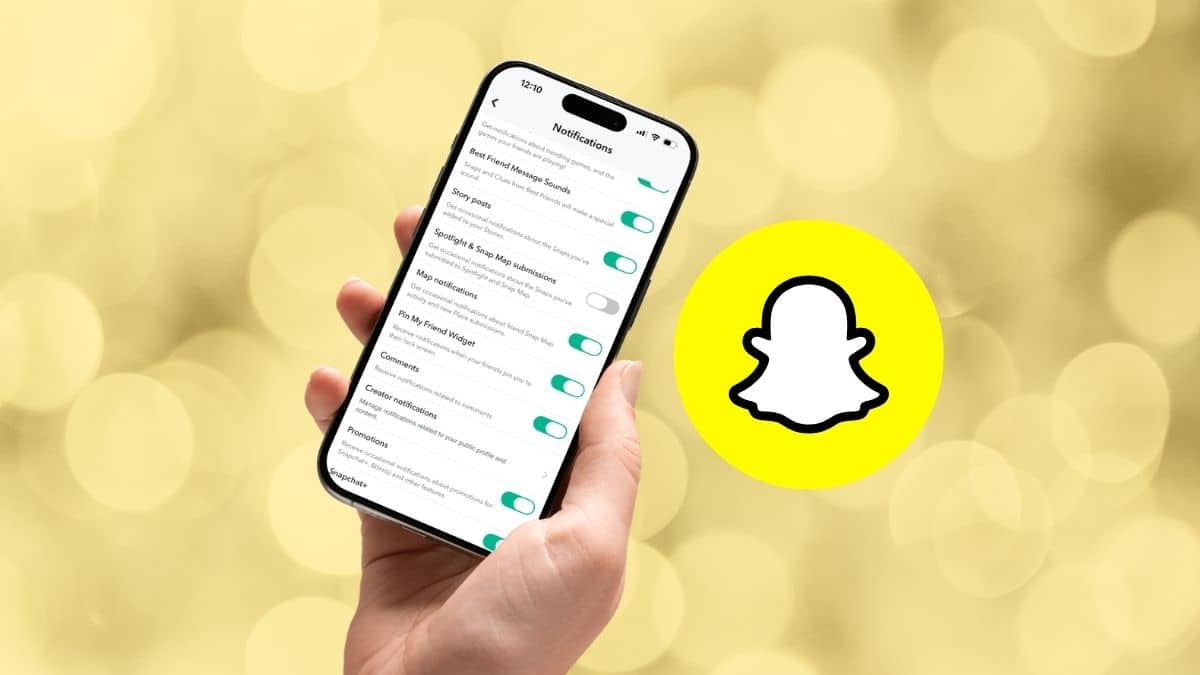
Your phone buzzes. You unlock it expecting a message from a friend, only to find Snapchat recommending another Spotlight video you never asked to hear about. Then it happens again a few hours later. Spotlight is Snapchat’s short-form video feed, and depending on your notification settings, the app can send alerts about recommended content, activity, and interactions with your own posts.
Fortunately, you don’t need any workaround to reduce the noise. Snapchat provides notification controls inside the app, while iPhone and Android give you another layer of control if the in-app options aren’t enough. Here’s how to turn off Spotlight notifications on Snapchat and what you can do if they keep appearing.
Why Am I Getting Spotlight Notifications?
Snapchat uses notifications to bring you back to content it thinks you’ll want to watch. That can include recommended Spotlight videos as well as activity related to content you’ve posted.
The exact alerts you receive can vary depending on your account, region, Snapchat version, and notification preferences.
This also means two people may not see exactly the same options inside Snapchat’s Notifications menu. If a setting mentioned below has a slightly different name on your phone, look for the closest Spotlight, recommendation, content, or suggestion-related option.
How to Turn Off Spotlight Notifications in Snapchat
Start with Snapchat’s own notification settings. This lets you reduce Spotlight-related alerts without necessarily silencing important notifications such as direct Snaps and messages.
- Open Snapchat and tap your profile icon in the top-left corner.
- Tap the gear icon in the top-right corner to open Settings.
- Scroll down and tap Notifications.
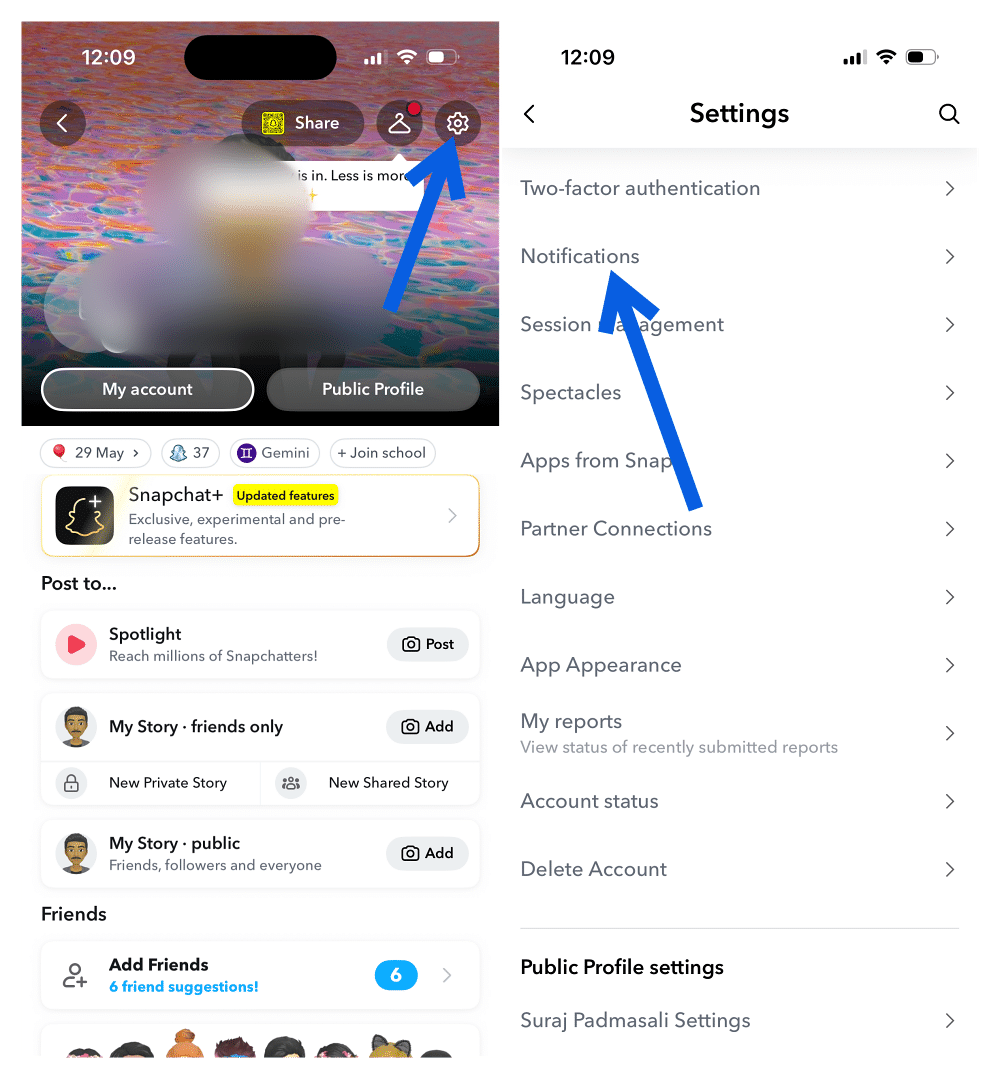
- Look through the available notification options for Spotlight, content recommendations, suggestions, or similar alerts.
- Turn off the Spotlight-related notifications you don’t want to receive.
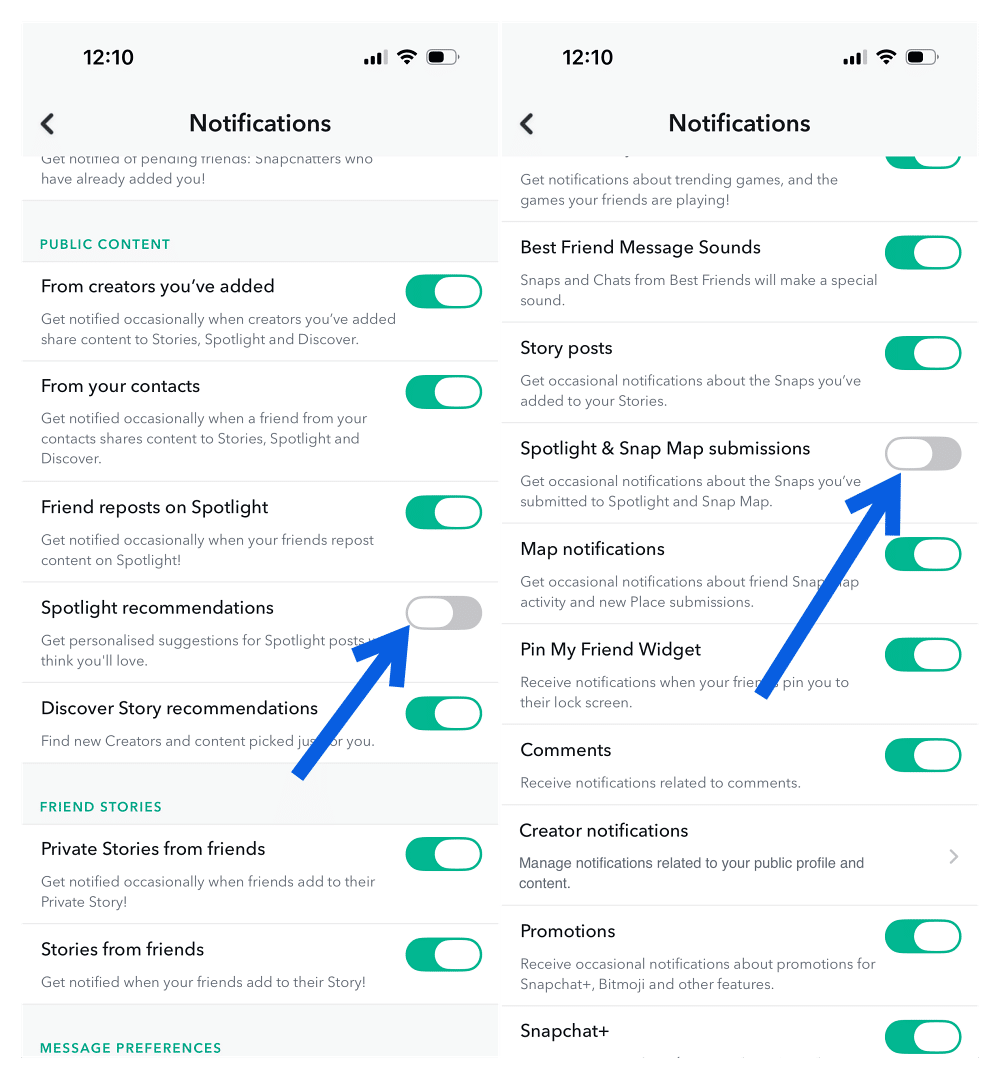
Snapchat occasionally changes the names and organization of these options, so your menu may look slightly different depending on the app version you’re using.
After making the change, you should still receive other Snapchat notifications unless you disable them separately.
How to Turn Off Notifications for Comments on Your Spotlight Posts
If you post videos to Spotlight yourself, the notifications bothering you may actually be comment alerts rather than Spotlight recommendations.
You can disable those separately:
- Open Snapchat and tap your profile icon.
- Tap the gear icon to open Settings.
- Select Notifications.
- Find Comments and turn it off.
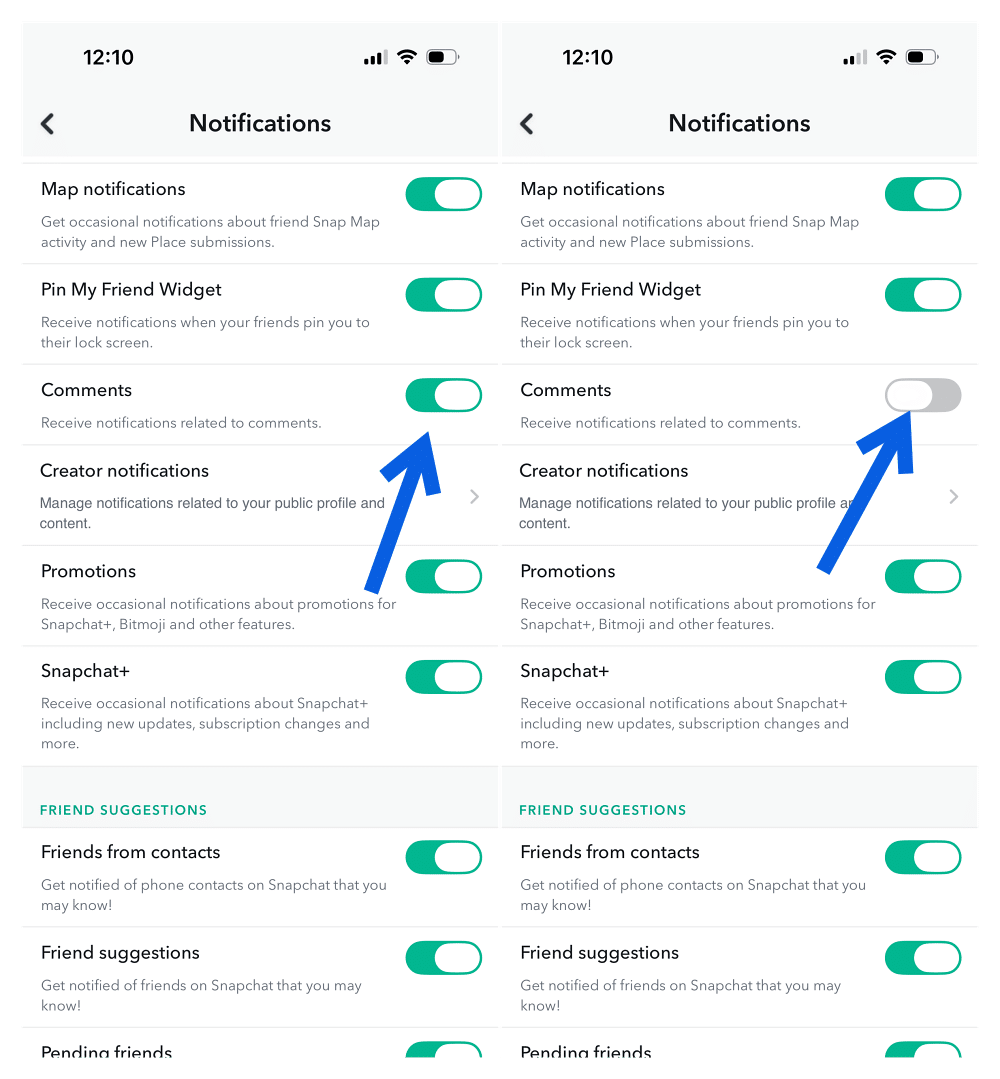
This prevents Snapchat from notifying you about comments while allowing other types of notifications to continue.
Keep in mind that this setting may also affect comment notifications elsewhere in Snapchat rather than exclusively comments on Spotlight posts.
Turn Off Snapchat Notifications on iPhone
If Spotlight notifications continue appearing after you’ve changed Snapchat’s settings, iOS gives you another way to control them.
- Open the Settings app on your iPhone.
- Tap Notifications.
- Scroll down and select Snapchat.
- Turn off Allow Notifications.
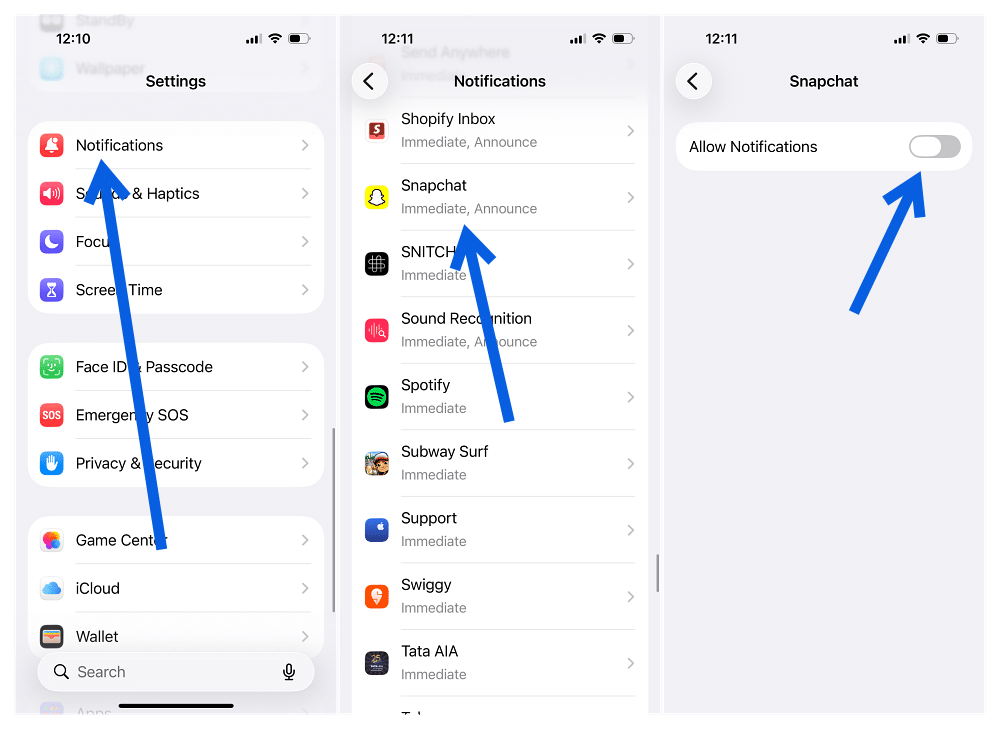
This completely prevents Snapchat from sending notifications to your iPhone.
If you don’t want to go that far, leave Allow Notifications enabled and customize how Snapchat alerts appear. For example, you can disable Sounds, Badges, Lock Screen, or Banners.
The downside is that iOS generally controls Snapchat notifications at the app level. Turning them off here can also silence messages and Snaps you may actually want to know about. That’s why Snapchat’s in-app settings should usually be your first stop.
Turn Off Snapchat Notifications on Android
Android also lets you manage Snapchat notifications at the operating-system level, and some phones provide more granular notification categories than iOS. The exact menu names vary between Samsung Galaxy, Google Pixel, OnePlus, Xiaomi, and other Android phones, but the general process is:
- Open Settings.
- Tap Apps.
- Find and select Snapchat.
- Tap Notifications.
- Turn off Snapchat notifications completely or disable individual notification categories if your phone provides them.
If your Android phone shows separate Snapchat notification categories, check them before disabling everything. You may be able to silence recommendations or promotional notifications while keeping direct-message alerts enabled.
What If Spotlight Notifications Keep Coming Back?
First, reopen Snapchat > Settings > Notifications and confirm the option you disabled hasn’t been turned back on.
It’s also worth updating Snapchat from the App Store or Google Play. Notification controls can change between versions, and an outdated app may not expose the same options as the latest release.
If the alerts still appear, use your phone’s notification settings as the fallback. Device-level notification permissions ultimately determine whether Snapchat is allowed to display alerts.
On Android, you may also be able to press and hold an unwanted Snapchat notification when it appears and jump directly to the notification category responsible for it. This can be easier than trying to identify the correct category manually.
Can You Remove Spotlight From Snapchat?
No. Turning off notifications doesn’t remove Spotlight itself. Spotlight is built into Snapchat’s main interface, and Snapchat doesn’t currently provide a setting that permanently hides or removes the Spotlight section.
You can, however, influence what appears there. When Snapchat recommends a Spotlight video you don’t want to see, press and hold the content and choose Not Interested, Hide, or the closest available option. Repeating this for unwanted recommendations gives Snapchat’s recommendation system more information about the content you don’t want.
It won’t remove Spotlight, but it can make the feed more relevant over time.
A Few Related Snapchat Settings Worth Checking
If you’re already cleaning up Snapchat notifications, there are a couple of other settings worth reviewing.
Story alerts can become just as distracting as Spotlight recommendations. Our guide on how to turn off Snapchat Story notifications on iPhone and Android explains how to silence them without necessarily disabling your other Snapchat alerts.
You may also want to review your account’s broader privacy controls. These Snapchat privacy settings worth changing cover who can contact you, see your activity, access your location, and more.
Signing Off
The best way to turn off Spotlight notifications is to start with Snapchat > Settings > Notifications and disable the Spotlight, recommendation, or content-related alerts available for your account.
If that doesn’t stop them, use your iPhone or Android notification settings as the fallback. Just remember that disabling Snapchat notifications at the device level can also silence messages, Snaps, calls, and other alerts you may still want.
You can’t remove Spotlight from Snapchat entirely, but you can stop most of its notifications and use Not Interested or similar feedback controls to make its recommendations less intrusive.
Check out these helpful guides too: