You’re three Stories deep, your thumb already moving to swipe, when a Sponsored Snap slides in using the same font and pacing as everything around it. By the time you realize it’s an ad, you’ve already watched a couple of seconds. That’s not an accident. It’s exactly how Snapchat‘s advertising experience is designed, and it’s why so many users go searching for a setting that makes it stop.
Here’s the honest answer upfront: there isn’t one, at least not for free. Snap is an advertising business first, and the app is built to keep ads in your experience regardless of how you adjust your settings. What you can control is the type of ads you see, how personalized they become, and, in one specific case, whether most of them disappear altogether.
Think of it less like an on/off switch and more like a dimmer with several controls. Some settings only affect ad targeting. One paid option gets you close to an ad-free experience. Here’s what actually works, what doesn’t, and whether paying for Snapchat Platinum is worth it.
Can You Turn Off Snapchat Ads? The Short Answer
No, you can’t completely turn off ads on Snapchat for free.
Every free version of Snapchat, including the standard Snapchat+ subscription, continues to show advertisements. We’ve covered this in our guide explaining what Snapchat+ actually includes. Even at $3.99 per month, Snapchat+ unlocks dozens of customization features, but it doesn’t reduce or remove ads.
That’s often surprising because services like YouTube Premium or Spotify Premium remove advertising once you subscribe. Snapchat doesn’t work that way.
Snap currently offers only one subscription tier that removes most ads, and it’s a separate, more expensive plan. Everything else in Settings simply changes how ads are personalized, not whether they appear.
How to Get Rid of Personalized Ads on Snapchat
Although you can’t remove ads entirely, you can stop Snapchat from personalizing them using your activity.
Change Your Ad Preferences
- Tap your Bitmoji or profile picture in the upper-left corner.
- Tap the Settings gear icon.
- Scroll down to Additional Services and tap Ad Preferences.
- Turn off:
- Activity-Based Ads
- Audience-Based Ads
- Third-Party Ad Networks
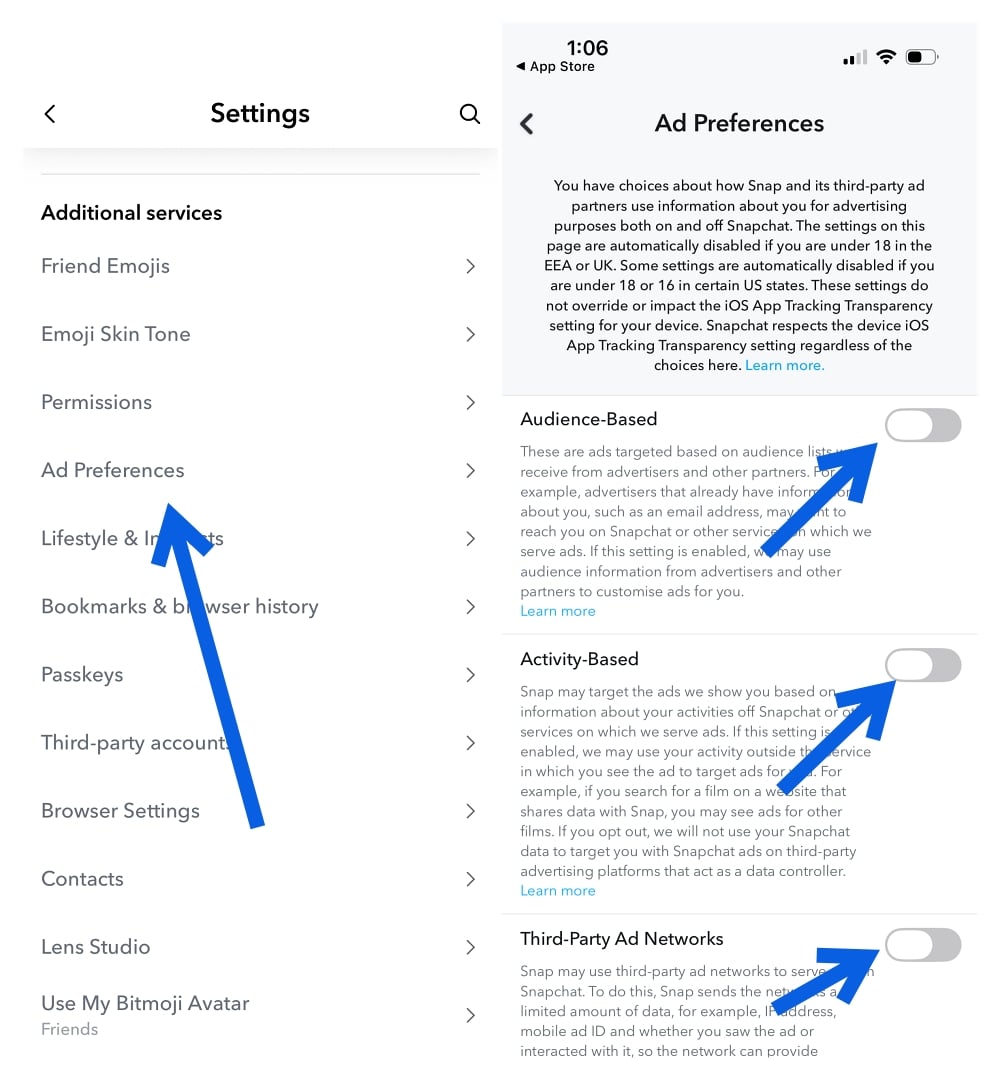
Each option controls a different source of personalization.
- Activity-Based Ads use activity from websites and apps outside Snapchat.
- Audience-Based Ads come from advertiser customer lists.
- Third-Party Ad Networks allow external advertising partners to use your device and engagement data.
Disabling all three won’t stop advertisements from appearing. Instead, they’ll become more generic instead of following your browsing habits.
Snapchat also lets you review the Lifestyle Categories it has assigned to your account based on your activity. If you’re curious about what Snapchat thinks it knows about you, it’s worth taking a look.
Users in the EU, UK, Norway, and Switzerland also receive additional privacy protections, including broader opt-outs for personalized advertising. Snap has similarly limited ad personalization by default for users between 13 and 17 years old in several regions.
If you’re tightening your privacy settings overall, our guide covering Snapchat privacy settings you should change is worth reading as well.
How to Stop Snapchat From Using Your AI Selfie in Ads
Snapchat’s newer AI Creative Tools introduced My Selfie, an AI-generated version of your face that can appear inside certain advertising experiences.
Many users don’t realize this feature is enabled by default.
Fortunately, disabling it only takes a few seconds.
Turn Off My Selfie in Ads
- Tap your Bitmoji.
- Open Settings.
- Scroll to My Selfie.
- Turn off See My Selfie in Ads.
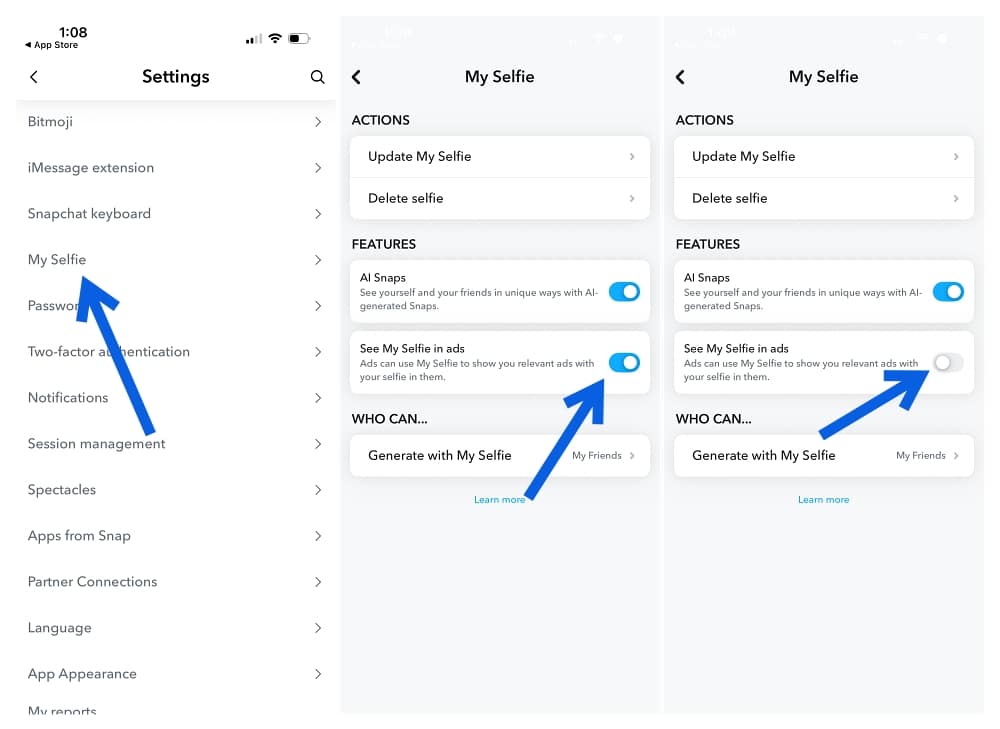
While you’re there, it’s also worth changing Generate with My Selfie to Only Me. That limits how your AI-generated likeness is used across Snapchat.
Snap says advertisers don’t directly receive your personal data, but disabling the feature gives you more control over how your AI image is used inside the app.
Snapchat+ Platinum Is the Only Way to Remove Most Ads
If your goal is to stop seeing Sponsored Snaps, Story ads, and Lens ads, Snapchat does offer a solution—but it isn’t free.
Snapchat+ Platinum costs approximately $15.99 per month, making it roughly four times more expensive than the standard Snapchat+ subscription.
This is the only Snapchat subscription specifically marketed as reducing ads.
However, it’s important to understand what “ad-free” actually means.
According to Snap’s own support documentation, Platinum subscribers may still encounter:
- Sponsored Places
- Certain ads inside My AI conversations
So Platinum doesn’t eliminate every advertisement. Instead, it removes the three formats that most users encounter every day.
How to Subscribe
- Open your Snapchat profile.
- Tap the Snapchat+ banner.
- Select the Platinum Monthly Plan.
- Complete the purchase through the App Store or Google Play.
Availability is still expanding in some countries, so if the Platinum plan doesn’t appear yet, it’s likely because it hasn’t reached your region.
What You Can Do Without Paying
If you don’t want to subscribe, there are still a few ways to improve your experience.
1. Hide Sponsored Snaps
Press and hold a Sponsored Snap, then choose Clear from Chat Feed.
It won’t stop similar ads from appearing later, but it removes that particular placement.
2. Report Misleading Ads
Tap the Learn More button on an ad and submit a report if it’s misleading or violates Snapchat’s advertising policies.
3. Adjust Sensitive Ad Topics
Snapchat also lets you reduce advertising related to topics like:
- Gambling
- Alcohol
- Political campaigns
These settings are separate from the standard personalization controls.
None of these options provide an ad-free experience, but together they noticeably reduce how intrusive Snapchat’s advertising feels.
Is Snapchat+ Platinum Worth Paying For?
Whether Platinum is worth the money depends almost entirely on how often you use Snapchat.
If you mostly open the app to maintain streaks or send a few Snaps each day, $15.99 per month is difficult to justify simply to reduce advertising.
If you spend twenty or thirty minutes scrolling Stories and Discover every day, the calculation changes.
That’s where Sponsored Snaps appear most frequently, and it’s also where Platinum’s additional benefits, including expanded AI Lenses and 5TB of Memories storage, become more valuable.
The biggest mistake is expecting a completely ad-free Snapchat.
That’s not what Platinum delivers.
The people who benefit most are those who were already considering Snapchat+ for its premium features and see reduced advertising as an extra bonus rather than the only reason to subscribe.
Final Thoughts
Snapchat doesn’t offer a free switch to turn off ads completely, but it does give you meaningful control over how they’re personalized and, with Snapchat+ Platinum, how many of them appear.
Disabling personalized advertising and turning off My Selfie in Ads takes only a few minutes and is worth doing whether or not you ever subscribe.
If you’re looking for a completely ad-free Snapchat, though, that option still doesn’t exist. Platinum gets you closer than any other plan, but even it isn’t completely silent. The best choice comes down to how much time you actually spend in the app and whether fewer ads are worth the monthly subscription cost.
Don’t miss these related reads: