If you want to download your Snapchat data—whether you’re switching phones, backing up years of Memories, or simply curious about what Snapchat has stored about your account—the answer is built directly into Snapchat’s settings. The feature is called My Data (officially Download My Data), and it’s been quietly sitting inside Snapchat’s account settings for years, even though most people never scroll down far enough to notice it.
The process is still refreshingly simple. You request an export from your account, wait for Snapchat to prepare it, and receive a ZIP file that can contain everything from your login history to years of location records.
Think of it as Snapchat’s version of the “Download your data” feature now offered by most major online platforms. Thanks to modern privacy regulations, companies are expected to give users access to the information they collect. Snapchat’s version is particularly useful because many of your Memories and account records can’t be recovered any other way once they’re gone.
Here’s exactly how to request your Snapchat data, choose what gets included, and understand what you’ll receive before the download even arrives.
How to Download Your Snapchat Data
You can request your Snapchat data either from the app or through a web browser. Both methods ultimately take you to the same My Data portal.
- Open Snapchat and tap your Bitmoji in the top-left corner.
- Tap the Settings (gear) icon.
- Scroll down and tap My Data.
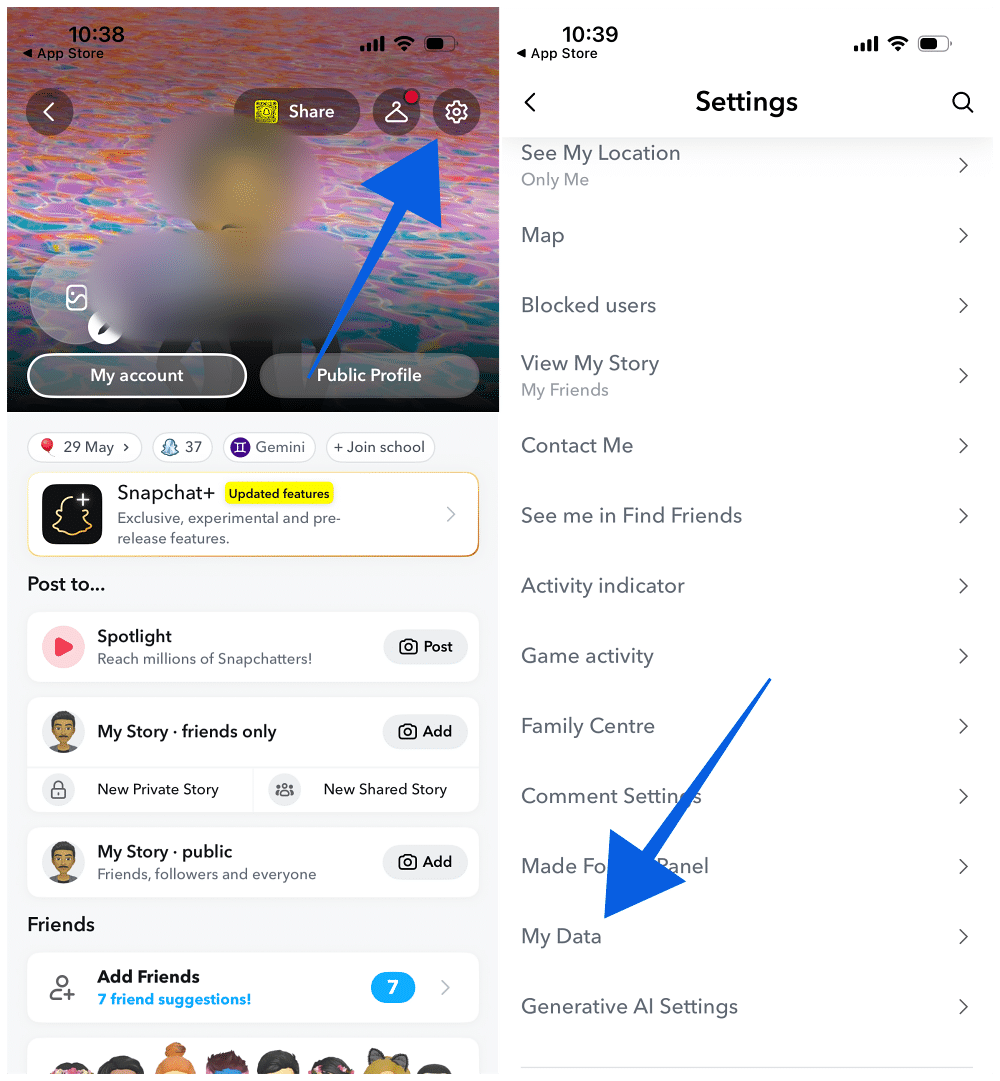
- Snapchat will open accounts.snapchat.com in your browser. Sign in if prompted.
- Select the categories of data you’d like to include.
- (Optional) Choose a specific date range instead of exporting your entire account history.
- Confirm the email address where you want Snapchat to send the download notification.
- Tap Submit.
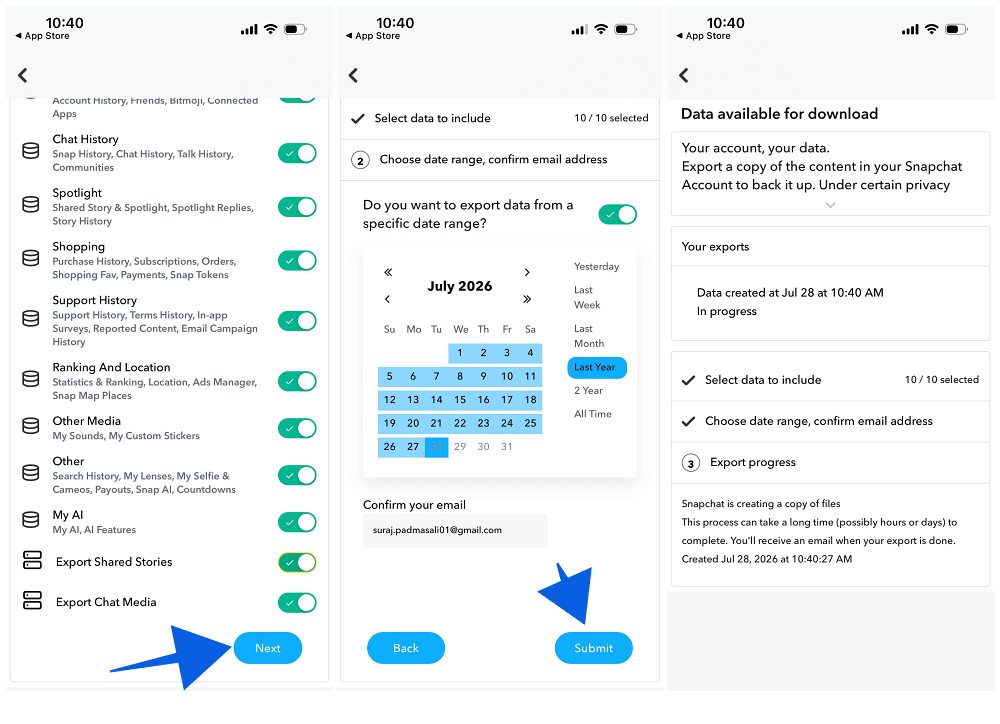
That’s it. Snapchat will begin preparing your export.
One thing worth knowing before you submit your request: you can’t cancel it afterward. If you accidentally choose the wrong categories or date range, you’ll need to wait for that export to finish—or simply ignore it—and submit a new request.
Likewise, if you enter the wrong email address, don’t panic. Every completed export also appears under See Exports on accounts.snapchat.com, so you can still download it later by signing back into your Snapchat account.
What Can You Download from Snapchat?
One of the best parts of Snapchat’s My Data portal is that you don’t have to download everything.
Instead, Snapchat lets you choose exactly which categories to include in your export.
Current options include:
- Login History and Account Information — Devices you’ve used, login timestamps, and account metadata.
- User & Public Profiles — Your username, display name, and public profile information.
- Snap History — A record of Snaps you’ve sent and received.
- Saved Chat History — Messages that you or the other participant explicitly saved.
- Memories — Photos and videos backed up to your Snapchat account.
- Purchase & Shop History — Purchases made through Snapchat, including Snapchat+ subscriptions.
- Snapchat Support History — Previous conversations with Snapchat Support.
- Friends — Your current friends list.
- Location — Location information associated with your account activity.
- Search History — Previous searches within Snapchat.
- Bitmoji — Information related to your Bitmoji avatar.
Not everyone needs every category.
If your goal is simply creating a backup of your photos and videos, Memories and Saved Chat History are usually all you need.
If you’re more interested in understanding how much information Snapchat keeps about your account, exporting Location, Search History, and Login History provides a much clearer picture without generating an unnecessarily large download.
How Long Does Snapchat Take to Prepare Your Data?
Snapchat says it typically delivers your export within seven days, although the actual wait depends on how much data you’re requesting.
Accounts that have been active for years—with thousands of Memories, extensive location history, and a large amount of saved information—naturally take longer to process than newer accounts.
If you only need recent Memories or data from a specific period, selecting a smaller date range is the easiest way to speed things up.
The My Data page also lets you monitor the status of your request without repeatedly checking your email. Under See Exports, you’ll find every export you’ve requested, along with its current processing status.
There’s another important detail many guides overlook.
Once your export is ready, the download links included with it remain active for only about seven days. If you wait too long before downloading a large Memories archive, those links can expire, forcing you to submit another export request.
If your download contains years of photos and videos, it’s a good idea to save everything as soon as the export becomes available.
What’s Actually Inside Your Snapchat Data Download?
This is the part that most guides skip—and it’s also where many people become confused after opening the ZIP file for the first time.
Your export usually contains an index.html file that acts as the main navigation page, along with a json folder filled with the raw data behind each category you’ve requested.
The JSON files are plain text, so you can open them with applications like Notepad, TextEdit, or Visual Studio Code. However, they aren’t formatted for easy reading. If you want a cleaner view, you can paste the contents into a free online JSON viewer, or simply open the index.html file in your browser, which organizes the same information into a much more readable format.
How Snapchat Stores Your Memories
This is where Snapchat’s export works differently from what many people expect.
Instead of placing all of your photos and videos directly inside the ZIP file, Snapchat creates a file called memories_history.json.
Each Memory includes details such as:
- The exact UTC timestamp it was created.
- Whether it’s an image or a video.
- GPS coordinates (if location information was available).
- A download link pointing back to Snapchat’s servers.
In other words, the ZIP file doesn’t automatically give you a folder full of viewable photos and videos. It provides an organized index with links to your stored Memories, while the index.html page makes those links much easier to browse.
If your primary goal is simply downloading your Snapchat Memories, you may find our guide on how to download Snapchat Memories for free a faster option than digging through the export manually.
What About Chat History?
Your chat history may be much shorter than you expect—and that’s completely normal.
Snapchat is built around disappearing messages, so the export only includes conversations that you or the other person explicitly saved.
Messages that disappeared normally after being viewed aren’t stored in the export because Snapchat doesn’t retain them on its servers indefinitely.
If you’re expecting a complete lifetime archive of every conversation you’ve ever had, the export will naturally look incomplete. That’s how Snapchat’s messaging system is designed to work rather than a limitation of the export tool itself.
What If You Didn’t Request Your Snapchat Data?
Whenever someone requests a My Data export, Snapchat sends a notification email to the account owner.
If you receive one of these emails without requesting the export yourself, treat it as a warning sign that someone else may have access to your Snapchat account.
Snapchat recommends securing your account immediately by:
- Changing your Snapchat password.
- Enabling Login Verification (two-factor authentication).
- Saving your Recovery Code in a secure place.
Unfortunately, once a data export request has been submitted, it can’t be canceled.
Your priority should be locking down the account before the download becomes available. It’s also worth reviewing your recent login activity and signing out of any devices you don’t recognize.
Should You Download Your Snapchat Data?
The answer depends on why you’re requesting it.
If you’re upgrading to a new phone and mainly want to preserve your Memories, requesting only the Memories category is usually the quickest and simplest option.
If you’re curious about how much information Snapchat stores, exporting categories like Location, Search History, and Login History gives you a surprisingly detailed look at your account activity.
And if you’re planning to leave Snapchat altogether, downloading your data before permanently deleting your account is a smart precaution. Once your account is deleted, recovering much of that information isn’t possible.
It’s also a good opportunity to review your privacy settings. If seeing your exported data makes you uncomfortable with how much Snapchat records, adjusting your Snapchat privacy settings can help limit what the app collects going forward.
Final Thoughts
Downloading your Snapchat data is straightforward. The request itself only takes a few taps, but understanding what arrives in the download is where most people get confused.
The exported ZIP file isn’t just a collection of photos and messages. It contains an organized record of your Snapchat account, including login history, saved chats, Memories, location information, and more. Knowing that Memories are delivered as downloadable links rather than media files—and that chat history only includes saved conversations—helps set the right expectations before you open the archive.
Whether you’re backing up years of Memories, reviewing the information Snapchat stores about you, or preparing to leave the platform, the My Data feature gives you the easiest way to access your account history. Just remember to download your export promptly once it’s ready, as the download links expire after a limited time.
Yes. You can start the request directly from the Snapchat app, but the process redirects you to accounts.snapchat.com in your browser. Snapchat recommends downloading and extracting large exports on a computer because mobile browsers can struggle with very large ZIP files.
No. The export only contains chats that you or the other participant intentionally saved. Messages that disappeared after being viewed aren’t included because Snapchat deletes them according to its normal messaging system.
You can open them using any text editor, including Notepad, TextEdit, or Visual Studio Code.
For a cleaner, easier-to-read version, either use a free online JSON viewer or simply open the included index.html file in your browser, which presents the same information in a more organized format.
Yes. On the My Data page, you can disable the option to export all data and instead choose a custom date range. This is particularly useful if you only need recent Memories or want to reduce the size of your download. Smaller exports also tend to finish processing more quickly.
Check out more Snapchat posts: