Most Snapchat users think of it as a privacy-first social media platform because it offers disappearing chats and snaps, and notifies when someone takes a screenshot. But here is the uncomfortable truth. Snapchat’s default settings aren’t as private as you assume. The fact is, many of Snapchat’s biggest privacy concerns do not come from hackers or spyware. They come from the settings you never touched after installing the app.
Features like Snap Map, Quick Add, contact syncing, and Public Profile options can quietly make your account more visible than you intended. So, if you’ve ever felt like random people keep adding you, we have got you covered. This post walks you through the exact Snapchat privacy settings you should change right now in 2026.
What Data Snapchat Collects From Your Account
Before you start flipping toggles, it helps to know what you’re protecting.
Snapchat mainly collects four types of data.
- Location: If Snap Map is on, Snapchat can update your location as you use the app. You don’t need to post anything for it to refresh.
- Contacts and interactions: If you synced your contacts, Snapchat doesn’t just use them once. It can keep using them to suggest people to you and suggest you to others.
- Usage behavior: What you watch, how long you watch it, what you replay, and what you skip. That data helps Snapchat decide what to show you and what ads to serve you.
- Public profile exposure: If public features are enabled, Snapchat can make your content visible beyond friends, even when you didn’t mean to “go public.”
Now that you know what kind of data Snapchat can collect and use, the next step is simple. You need to decide what you actually want Snapchat to know about you and what you want to keep private.
Below, I have detailed the exact Snapchat privacy settings you should change right now.
Control Who Can Contact You on Snapchat
Unless you have a public profile on Snapchat, random accounts cannot see your profile information or shared content. However, that doesn’t mean they can’t add you as a friend. If you are tired of frequent “Someone Added You” notifications, you can control who can add or contact you. Here’s how:
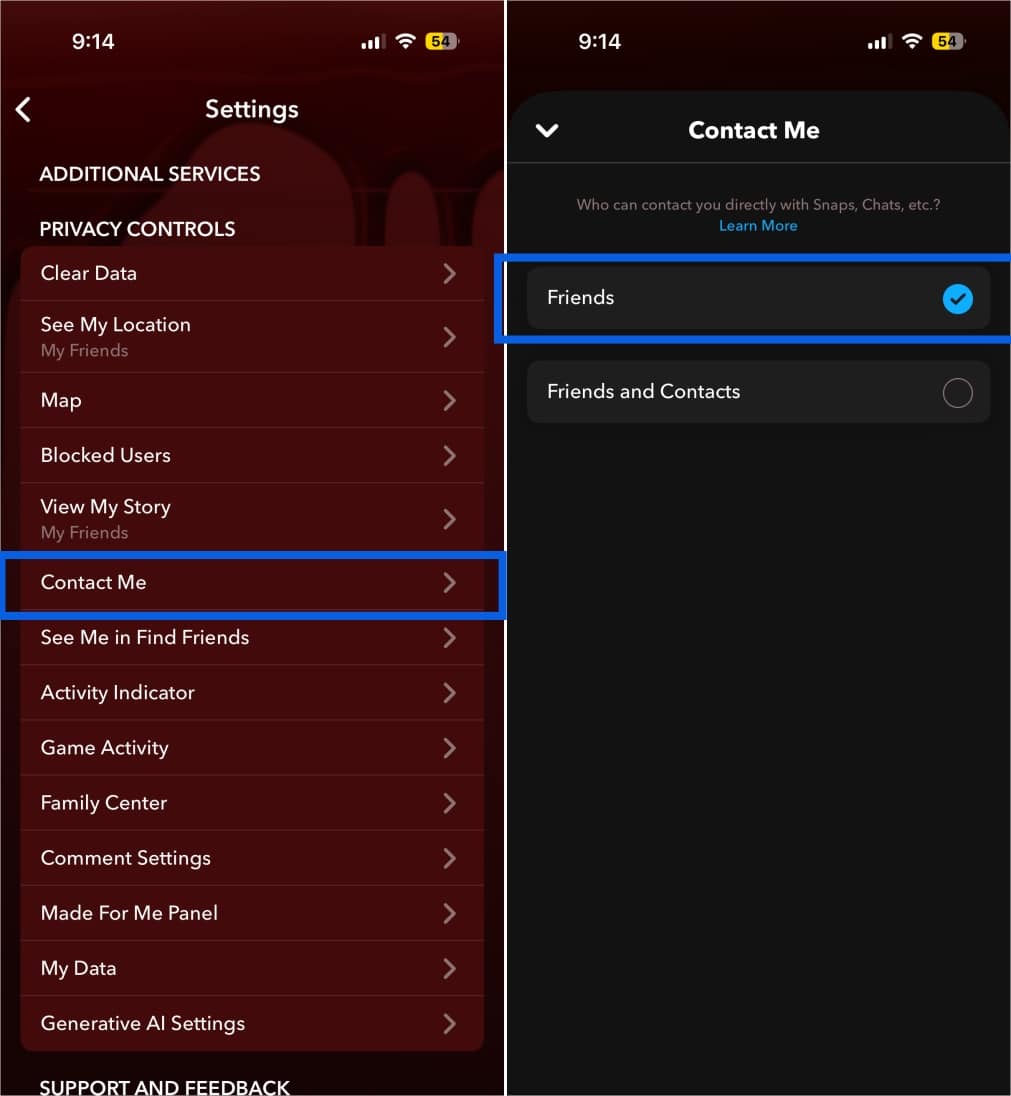
Set “Contact Me” to Friends Only
If you have a Public Profile enabled, leaving this setting open can invite unwanted DMs. Random accounts can reply to your Stories or other public content, and Snapchat will push those replies into your inbox or notifications.
- Head to your Snapchat account settings.
- Here, tap Contact Me under Privacy Controls.
- Select Friends.
Disable Friend Suggestions From Contacts
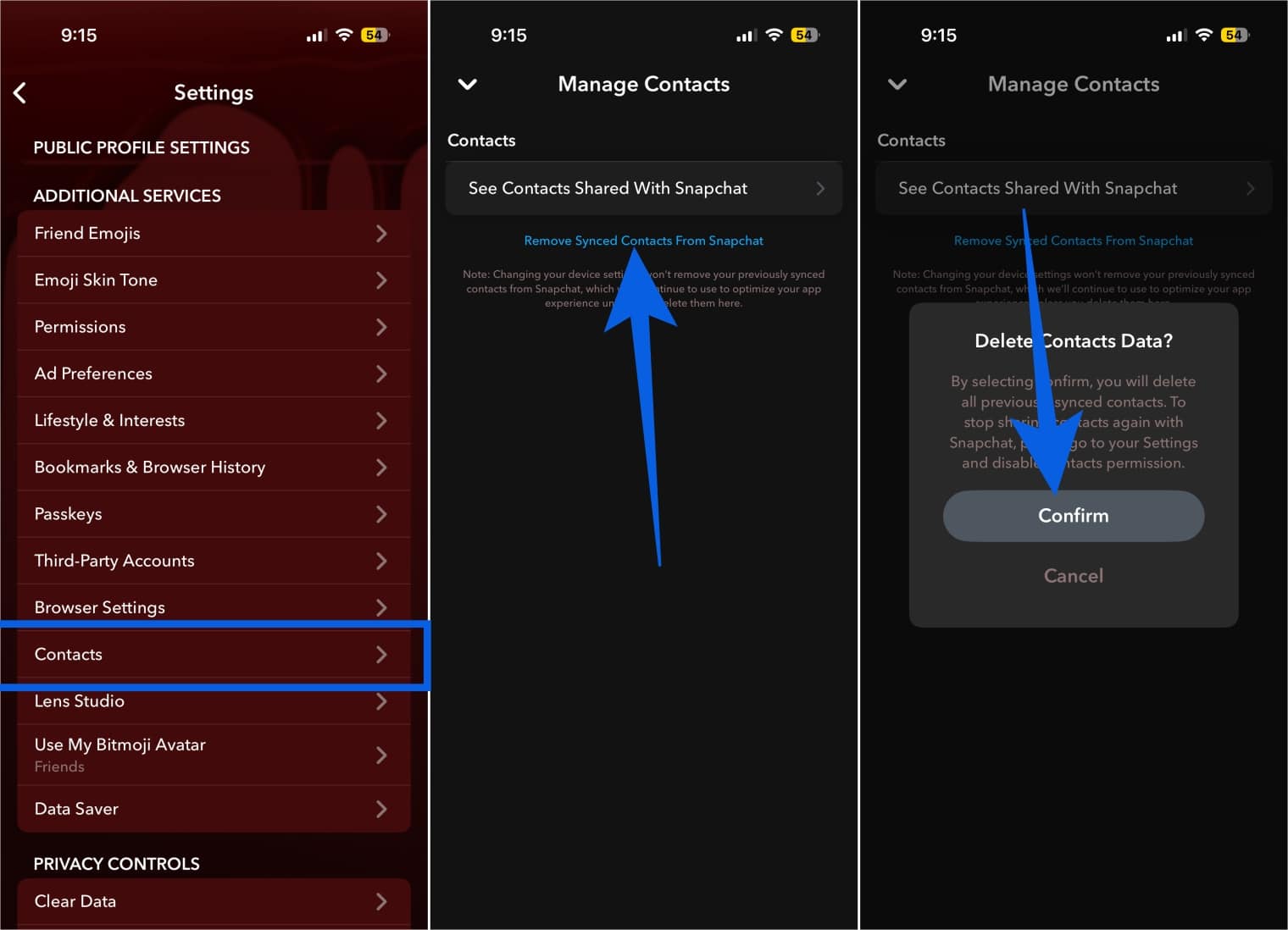
It is mainly assumed that contact syncing only helps you find your contacts on Snapchat. But it also fuels friend suggestions, meaning your profile can be recommended to people who have your number saved, as well as those who have your contacts’ numbers saved.
Here is how you can reduce random adds, avoid awkward recommendations:
- Open Snapchat account settings.
- Tap Contacts under Additional Services.
- Tap Remove Synced Contacts From Snapchat.
- Tap Confirm.
Stop Strangers From Finding Your Profile
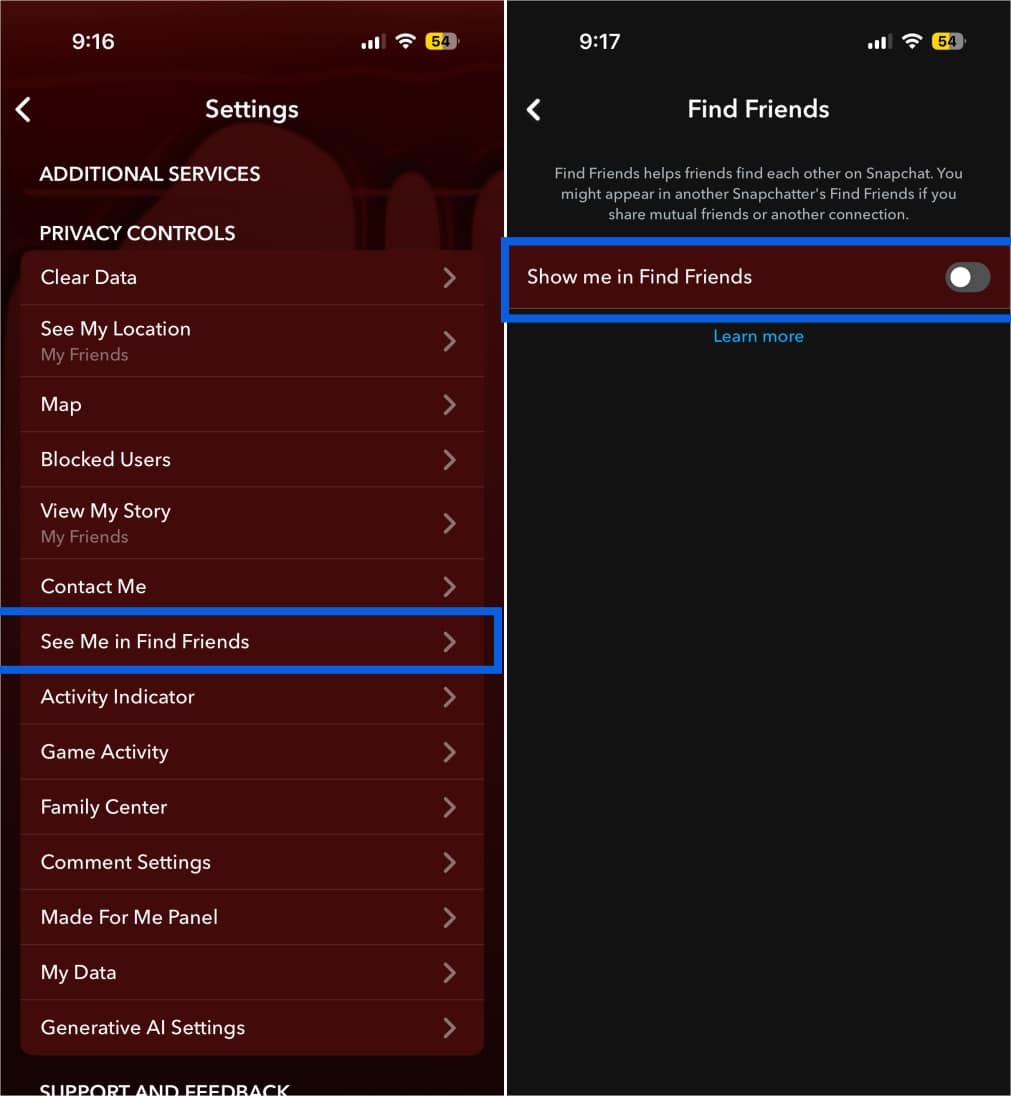
Being a social media platform, Snapchat is designed to help people discover and add each other quickly. However, this discoverability can backfire, making it easy for strangers to find your profile through the Find Friends feature.
So if you want strangers or stalkers to find and send you friend requests, turn it off immediately.
- In your Snapchat account settings, select See Me Find Friends under Privacy Control.
- Toggle off Show me in Find Friends.
Control Who Can See Your Stories
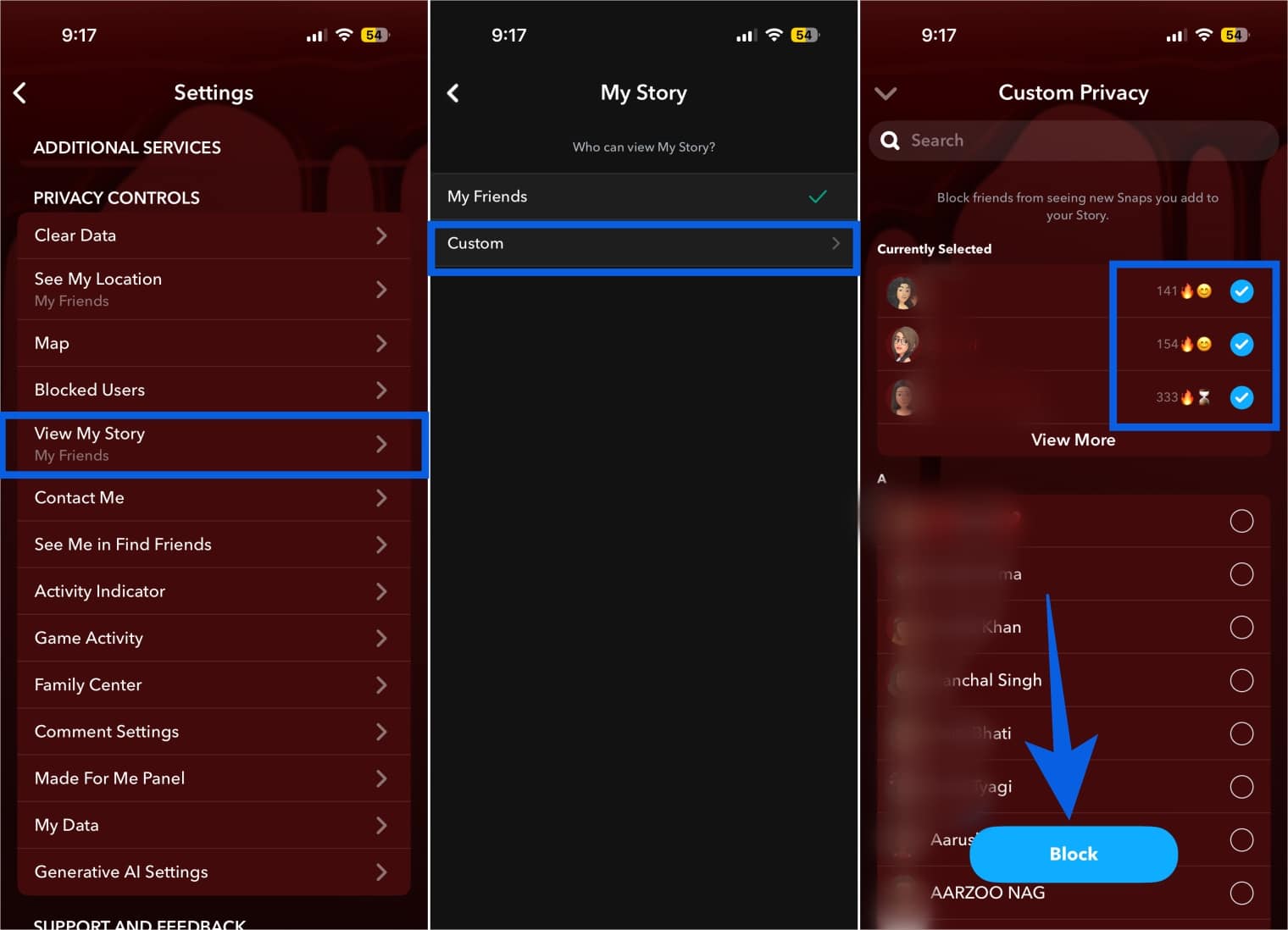
This setting helps you keep your Snapchat Stories hidden from friends you do not want to share them with. Snapchat lets you create a custom Story viewer list, allowing you to hide your Stories from specific friends without removing or blocking them. Here’s how you can do this:
- Head to your Snapchat account settings.
- Tap View My Story under Privacy Controls.
- Select Custom.
- Now, select the friends you want to block from seeing your future Snapchat Stories.
- Tap Block.
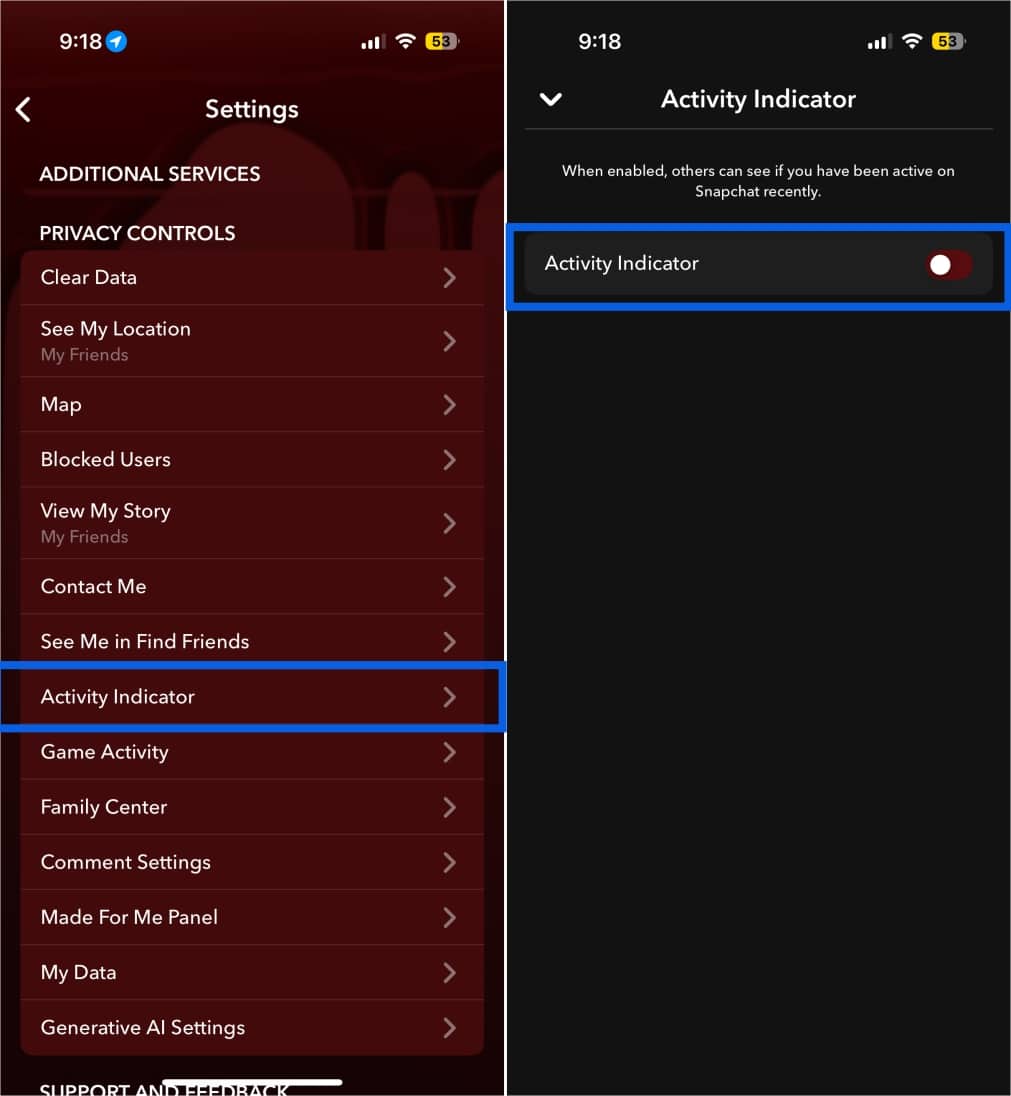
Disable Activity Indicator
Snapchat also shows subtle activity signals that can make you feel “visible” even when you are not actively chatting. The Activity Indicator can show others when you were recently active on Snapchat, which isn’t ideal if you want more privacy or simply don’t want people monitoring your online behavior. Here’s how you can do this:
- In your Snapchat account settings, scroll down to Privacy Control, then tap Activity Indicator.
- Toggle off Activity Indicator.
Fix Snap Map Privacy Settings to Hide Your Location
While Snap Map makes it easier to discover Stories and Spotlights being posted around you, it can also quietly become one of the biggest privacy risks on Snapchat. With location sharing enabled, your location can update in the background as you use the app, so certain friends may be able to track where you are without you actively posting. This is why you must consider adjusting the Snap Map settings.
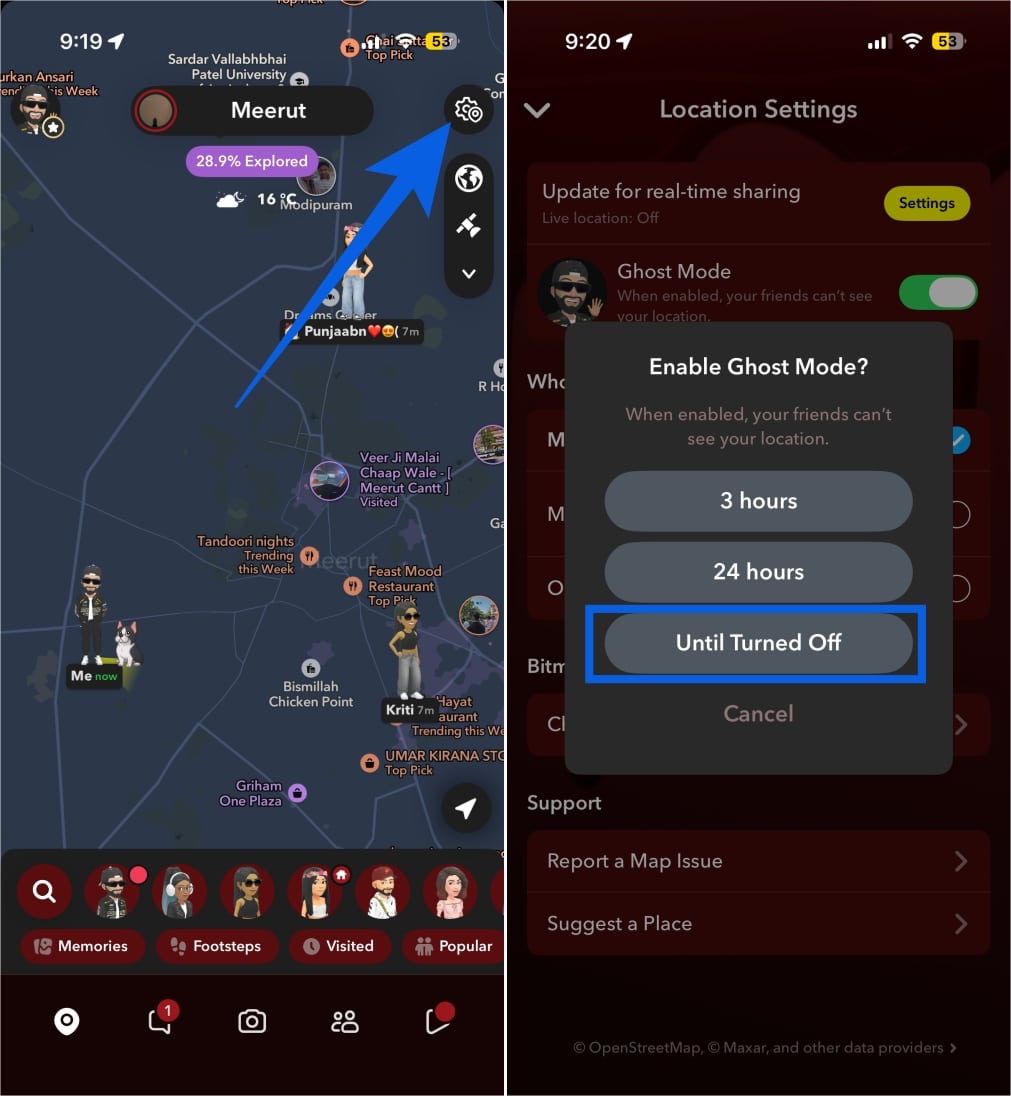
Enable Ghost Mode
If you don’t want any of your friends to be able to track your location on the Snap Map, turning on Ghost Mode is the safest option. It completely hides your live location from everyone, so even if you open Snapchat multiple times a day, your whereabouts won’t update on the Map.
- Open the Snap Map tab in the Snapchat app.
- Tap the Settings icon at the top right corner.
- Toggle on Ghost Mode.
- Select Until Turned Off.
Hide Location From Specific Friends
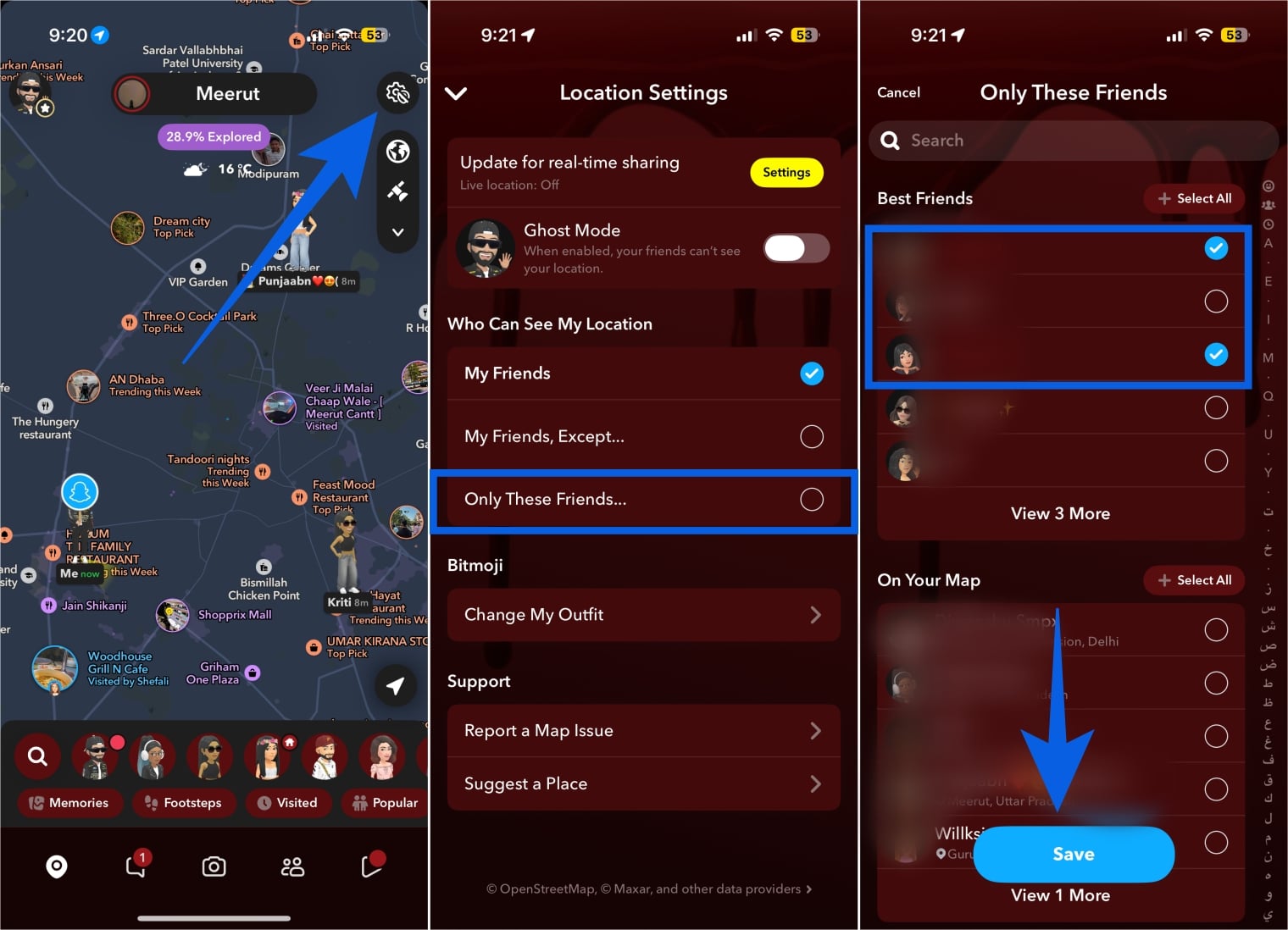
If you want to keep location sharing enabled for some friends while keeping it off for others, Snapchat lets you do so.
- Open Snapchat → Snap Map.
- Tap the Settings icon.
- Select Only These Friends under Who Can See My Location.
- Select the friends you want to share your location with, then tap Save.
Secure Private Memories With My Eyes Only
Setting up My Eyes Only is a great start, but it only protects content once you actually move it there. If your private Snaps are still sitting in regular Memories, anyone who gets access to your phone or Snapchat account can still view them.
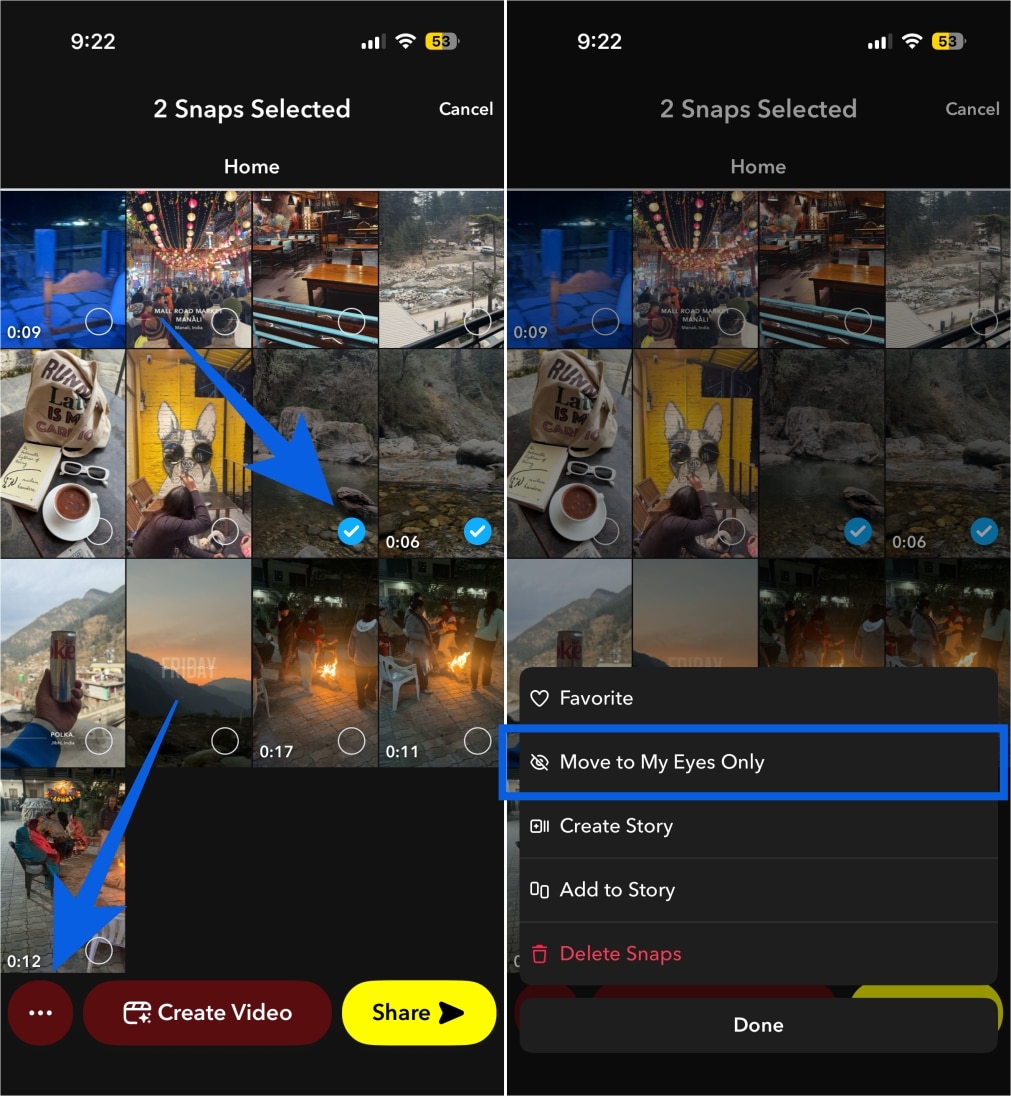
That’s why you should move sensitive memories like personal photos, documents, or private videos into My Eyes Only right away. Here’s how:
- Head to the Memories tab and select the Snaps you want to protect from prying eyes.
- Tap the three-dot button at the bottom left corner.
- Tap Move to My Eyes Only.
Strengthen Snapchat Account Security Settings
Privacy and security go hand in hand. Because if someone gets access to your Snapchat account, none of your privacy settings matter. They can read saved chats, view Memories, check who you interact with, and even change your settings from inside your account.
So before you’re done, make sure your account itself is locked down.
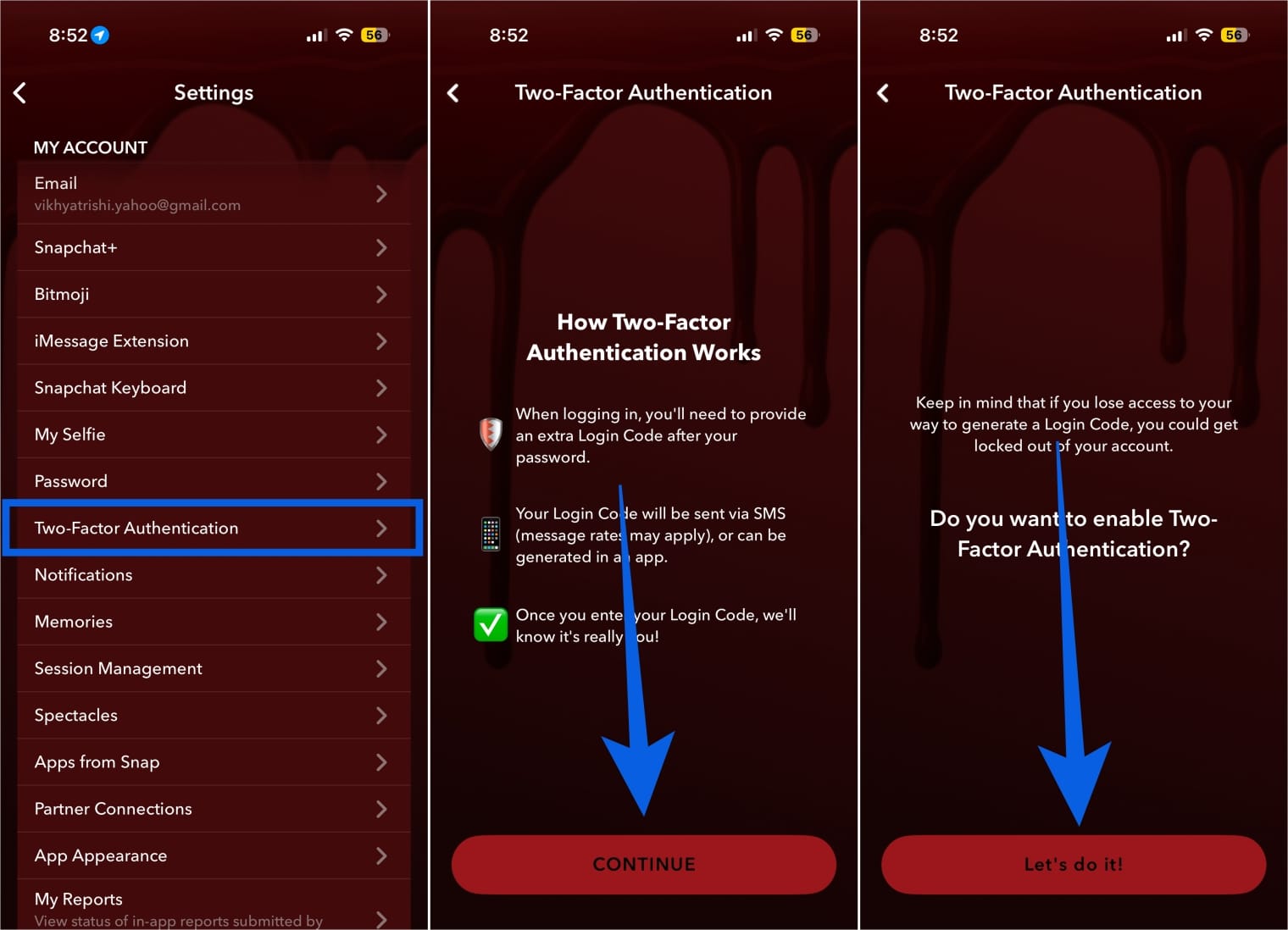
Enable Two-Factor Authentication
Two Factor Authentication (2FA) adds an extra layer of protection to your Snapchat login. So even if someone gets your password, they still can’t sign in without the verification method.
- Open your Snapchat account settings
- Tap Two-Factor Authentication.
- Tap the Continue button on the subsequent screen.
- Select the verification method and follow the on-screen instructions.
Review Active Sessions and Devices
If you ever notice unusual activity like random friend adds, messages you didn’t send, or sudden logouts, check your active sessions immediately. Snapchat can stay logged in on old devices, and many people forget to log out after using Snapchat on a secondary phone.
- Go to Snapchat account settings.
- Tap Session Management under My Account.
- Review the list and log out of anything unfamiliar.
- Change your password right away.
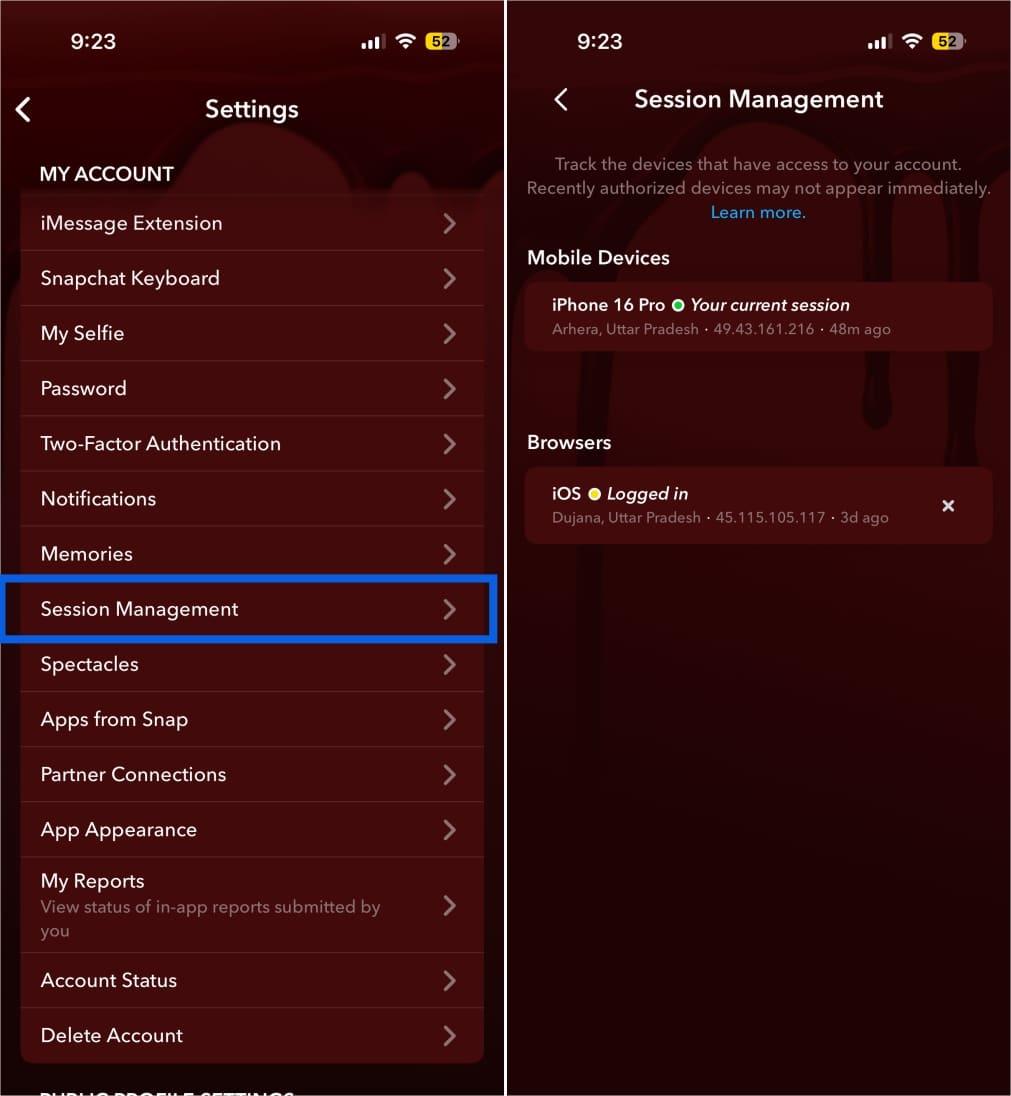
If something looks suspicious, do not delay. Logging out unknown devices and resetting your password quickly can prevent a full account takeover.
Snapchat Privacy Mistakes Most Users Still Make
These are the mistakes that create 90% of privacy issues:
- Leaving location sharing enabled on Snap Map because “I never post there.”
- Allowing public story sharing without realizing it.
- Syncing contacts forever.
- Accepting unknown requests just to “see who it is.”
- Never review logged-in devices.
Stay Private on Snapchat
Snapchat can be private, but it won’t be private by default. Most privacy issues on the app happen because people never change the basic settings after installation. Once you lock down who can contact you, restrict Stories, turn off Snap Map visibility, and disable profile discovery tools like Quick Add and Find Friends, Snapchat instantly becomes safer and far less annoying.
Make it a habit to do a quick privacy check after every major Snapchat update. The UI changes often, and settings sometimes reset, or new features get added quietly. A two-minute audit once in a while is all it takes to stay in control.
Not if you use Ghost Mode, or restrict location to friends and exclude specific users. But if location sharing is enabled, your location can update passively through usage.
Snapchat can still use stored data, previous app activity, and partner signals. Also, location does not require posting content if Snap Map sharing is enabled.
Snapchat doesn’t typically notify users that you viewed their profile. But interactions like Story views, Snap views, and some public features can create visibility signals.
They are private from the public, but not immune to screenshots, screen recordings, or someone accessing your phone. Use strong privacy controls and 2FA.