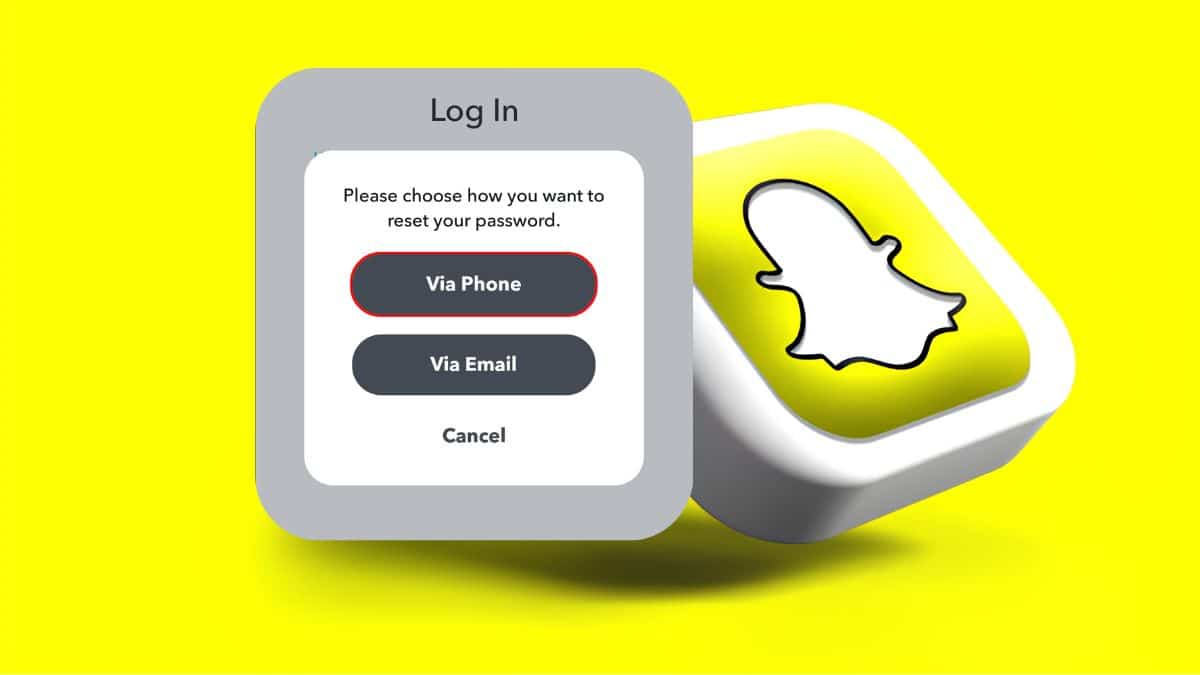
You go to open Snapchat the way you always do, type in the password your fingers know by muscle memory, and it just doesn’t work. Maybe you changed it months ago and never saved the new one, or autofill has been quietly entering an old password. Either way, you’re staring at a login screen that won’t budge, while your Streaks, Memories, and DMs feel suddenly out of reach.
The good news is that Snapchat gives you several legitimate ways back into your account. You can reset your password through Snapchat’s Accounts Portal or directly from the app using the email address or phone number linked to your account. Below, I’ll walk you through every working method, what to do if the standard reset fails, and how Passkeys can help you avoid this problem in the future.
What You Need Before Resetting Your Snapchat Password
Before starting, make sure you have access to the email address or phone number linked to your Snapchat account. Snapchat uses one of these methods to verify your identity, so the normal password-reset process won’t work if you’ve lost access to both.
It also helps to know your Snapchat username and have a stable internet connection. Verification emails and SMS codes can sometimes take a little longer to arrive, so avoid repeatedly requesting new codes if one doesn’t show up immediately.
If you genuinely don’t have access to either your linked email or phone number anymore, skip ahead to the section on resetting Snapchat without email or phone access.
How to Reset Your Snapchat Password in a Browser
If you can’t get past the Snapchat login screen, resetting your password through a browser is usually the quickest option.
- Open accounts.snapchat.com on your phone or computer.
- Enter the email address or phone number linked to your Snapchat account.
- Select Forgot Password.
- Choose where you want Snapchat to send the verification code.
- Enter the code when it arrives.
- Follow the on-screen instructions to create a new password.
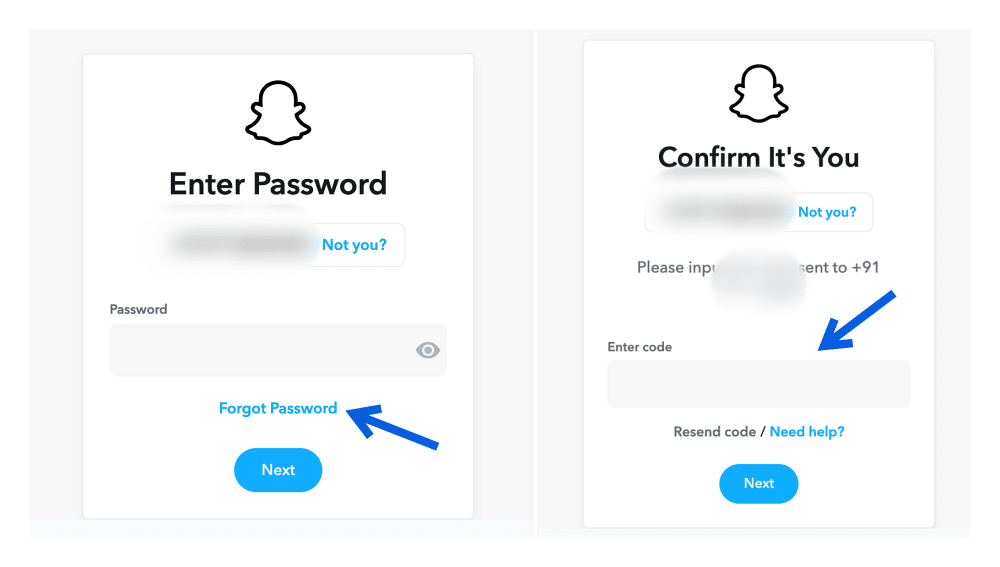
This method skips the app entirely, which is useful if Snapchat itself is glitching or the in-app reset flow isn’t working correctly.
How to Reset Your Snapchat Password via Email
If you still have access to the email address connected to your Snapchat account, you can reset the password directly from the app.
- Open Snapchat and go to the login screen.
- Tap Forgot your password?
- Choose the option to reset it via email.
- Open the reset email Snapchat sends you.
- Tap the password-reset link.
- Enter and confirm your new password.
If the email doesn’t arrive, check your Spam or Junk folder before requesting another one. If you use several email accounts and can’t remember which one is linked to Snapchat, search your inboxes for previous Snapchat emails to identify the correct address.
How to Reset Your Snapchat Password via Phone Number
You can also reset your Snapchat password using the mobile number linked to your account.
- Open Snapchat and go to the login screen.
- Tap Forgot your password?
- Select the option to reset it via SMS.
- Wait for Snapchat to send a verification code.
- Enter the code in the app.
- Tap Continue and follow the instructions to regain access.
If the code doesn’t arrive immediately, check that your phone has cellular service and that you’re using the number actually linked to the account. Avoid requesting several codes back-to-back, as the newest code may replace an earlier one.
How to Change Your Snapchat Password When You’re Logged In
If you can still access your Snapchat account and simply want to update the password, you don’t need to use the forgot-password flow.
- Open Snapchat and go to your Profile.
- Tap the gear icon to open Settings.
- Tap Password.
- Complete any verification Snapchat asks for.
- Enter and confirm your new password.
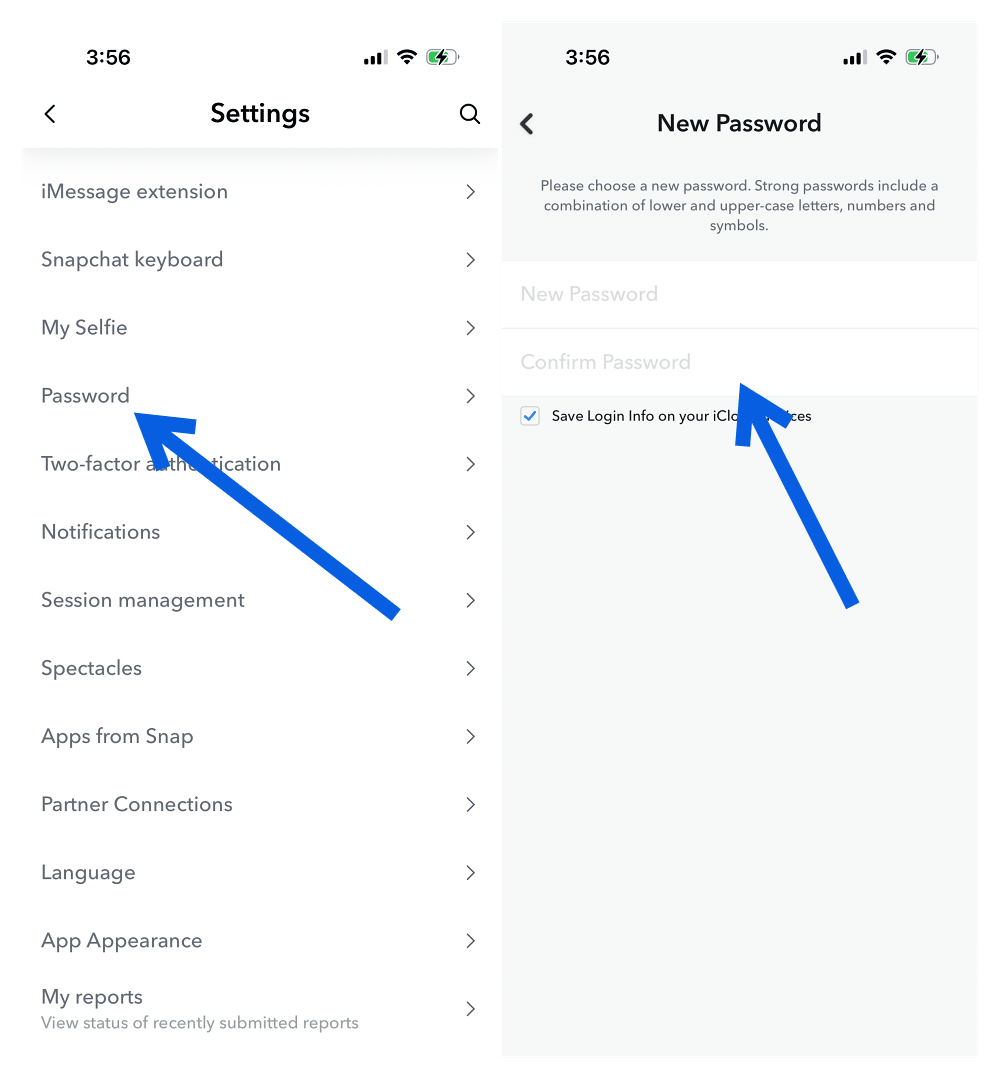
This is worth doing if you’ve reused the same password elsewhere, shared it with someone, or noticed suspicious activity on your account.
Snapchat recommends using a password with at least eight characters and avoiding personal details such as your name, username, phone number, or birthday. A password manager can also generate and securely save a stronger password so you don’t have to remember it yourself.
Can You Reset Snapchat Password Without Email or Phone Number?
This is the scenario that causes the most problems. If you’ve forgotten your Snapchat password and no longer have access to either the email address or mobile number associated with your account, Snapchat says it cannot reset the password for security reasons.
There isn’t a backup security question or secret recovery method that bypasses this requirement. Even knowing your username isn’t enough because Snapchat still needs a verified recovery method to confirm that the account belongs to you.
Your best option is to try recovering access to your old email account through your email provider or restoring your mobile number through your carrier. Once you regain access to either one, you can return to Snapchat’s normal password-reset process.
If you believe your account has been hacked or compromised rather than simply forgotten the password, use Snapchat’s official support options. Also remember that Snapchat representatives will never ask you for your password or My Eyes Only passcode.
What to Do If the Snapchat Reset Code or Email Isn’t Working
If the reset email or SMS code isn’t arriving, try these checks before requesting another reset.
- Confirm that you’re using the correct email address or phone number.
- Check Spam, Junk, Promotions, and other filtered email folders.
- Make sure your SIM is active and your phone can receive SMS messages.
- If you’ve requested multiple codes, use the most recent one.
- Avoid repeatedly trying to log in within a short period.
- Try the browser reset method if the in-app process isn’t working.
If you still can’t complete the reset, stick to Snapchat’s official support channels. Third-party “Snapchat recovery” websites or services cannot legitimately bypass Snapchat’s verification system and may put your account at greater risk.
How to Set Up a Snapchat Passkey
One feature many password-reset guides overlook is Snapchat Passkeys. A Passkey lets you sign in without manually typing your password by using your device’s existing authentication method, such as Face ID, Touch ID, fingerprint authentication, PIN, or device passcode.
To set one up:
- Open Snapchat and go to your Profile.
- Tap the gear icon to open Settings.
- Find Passkey under My Account.
- Tap Add Passkey.
- Follow the on-screen instructions to complete setup.
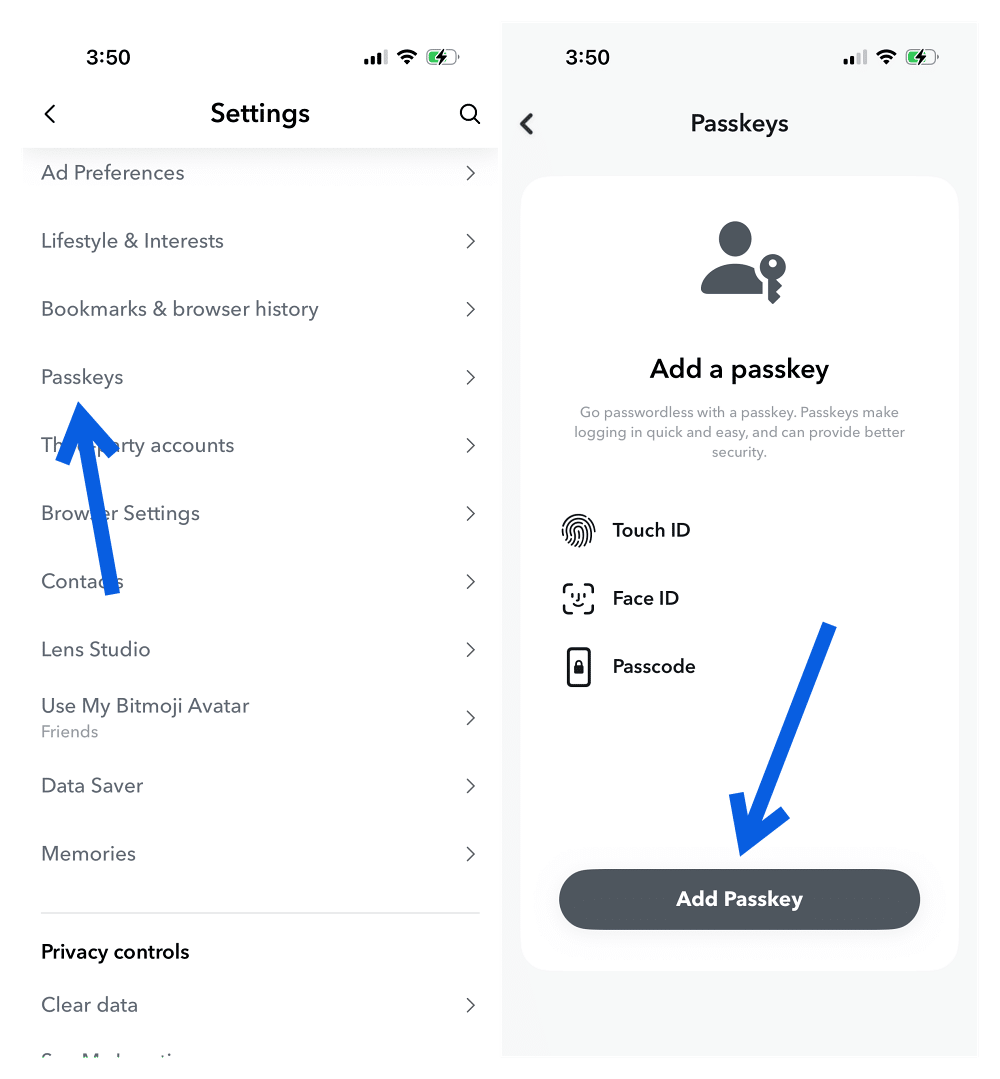
Once configured, Snapchat can show the Passkey option when you sign in again. You can also view or remove existing Passkeys from the same settings menu.
Passkeys don’t mean you should forget about your email address, phone number, and account recovery details. Keep those updated because you may still need them when signing in another way or recovering your account.
How to Protect Your Snapchat Account After a Password Reset
Once you’re back into Snapchat, take a few minutes to make future recovery easier. Check that your email address and phone number are current, especially if you’ve recently changed your number or stopped using an old email account.
You should also enable two-factor authentication, save your login information only on your personal device, and use a unique password that you don’t reuse on other accounts. If you reset the password because of suspicious activity, also check that your linked email and phone number haven’t been changed.
If your Memories or account history are important to you, consider downloading a copy of your Snapchat data after securing the account.
Final Thoughts
Resetting your Snapchat password is usually straightforward as long as you still control the email address or phone number linked to your account. You can reset it through Snapchat’s Accounts Portal, use an email reset link, verify yourself by SMS, or simply change the password from Settings if you’re already logged in.
The difficult situation is losing access to both recovery methods. Snapchat doesn’t provide a forgotten-password bypass in that case, which is why keeping your recovery details updated matters just as much as remembering your password.
Once you’re back in, setting up a Passkey, enabling two-factor authentication, and saving your password securely can make the next login problem much easier to avoid.
Don’t miss these related reads: