You’re at a coffee shop, a house party, or scrolling through someone’s Story when a song comes on that you need to know the name of right now. Normally, that means fumbling with your phone, opening Shazam or asking Siri, then switching back to whatever you were actually doing. If you’re already holding your phone with Snapchat open, you can skip most of that.
Snapchat has offered built-in song recognition since December 2016, when it originally integrated Shazam directly into its camera experience. The feature has changed quietly over the years, but song identification remains available without requiring Snapchat+ or a separate paid subscription.
Most people never find it because Snapchat doesn’t exactly put a giant “Shazam” button in front of you. Depending on the current app interface, song recognition is tied into Snapchat’s camera and scanning tools rather than sitting inside an obvious standalone music tab.
Here’s how to identify a song on Snapchat, what happens once Snapchat recognizes it, and what to try if song recognition isn’t working.
Can You Still Shazam Songs on Snapchat?
Yes, Snapchat can still identify music playing around you, although the experience isn’t quite as obvious as it was in some earlier versions of the app.
That’s partly where the confusion comes from.
Older Snapchat versions integrated Shazam directly into the camera screen and also kept a history of songs you’d previously identified. Snapchat later removed parts of that older Scan experience, including the song history users relied on to revisit previous discoveries.
That led to reports that Snapchat had removed Shazam entirely.
More recent versions and user reports, however, indicate that song identification itself remains available. What has changed is how prominently Snapchat surfaces it and what happens after a song is recognized.
So, if you’ve been looking for a dedicated Shazam button or your old song history and can’t find either, that doesn’t necessarily mean song recognition has disappeared.
Where Is Shazam on Snapchat?
There’s no dedicated Shazam icon to look for on Snapchat’s main interface.
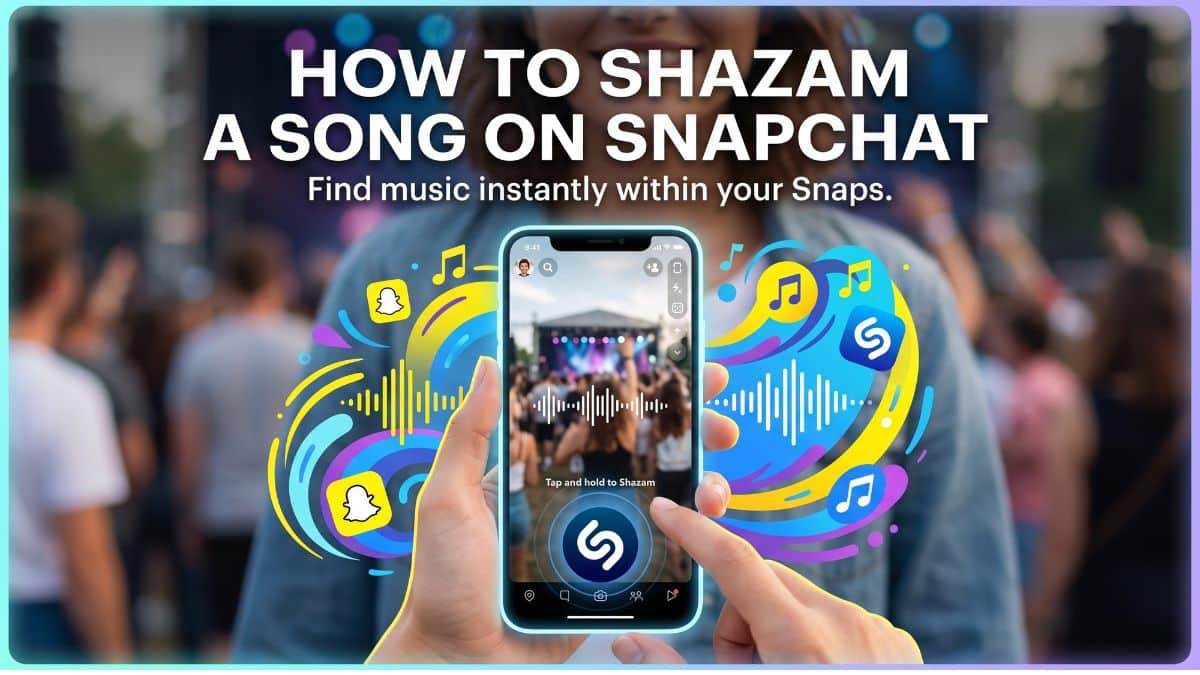
Song recognition is tied to the main camera experience. Historically, Snapchat triggered Shazam by pressing and holding the camera screen while music was playing, allowing the app to listen to the surrounding audio and identify the track.
That’s why the feature is easy to miss. Unless you already know the gesture or encounter Snapchat’s music-recognition interface naturally, there isn’t much in the app telling you it’s there.
The long-press interaction may also feel familiar if you’ve used other gesture-based Snapchat features. Snapchat relies heavily on gestures throughout the app, including tricks such as recording on Snapchat without continuously holding the button.
The important thing is to start from Snapchat’s main camera screen rather than from inside a conversation or while viewing someone else’s Story.
How to Shazam a Song on Snapchat
If music is playing nearby and you want Snapchat to identify it, here’s what to do:
- Open Snapchat. Make sure you’re on the main camera screen rather than inside a Chat or Story.
- Check Snapchat’s microphone permission. Song recognition can’t work if Snapchat isn’t allowed to hear what’s playing. On iPhone, check Settings > Apps > Snapchat > Microphone. On Android, go to Settings > Apps > Snapchat > Permissions > Microphone.
- Update Snapchat if necessary. Snapchat changes its interface frequently, and running an outdated version can cause camera and recognition features to behave differently or stop responding correctly.
- Let the song play clearly. Move your phone reasonably close to the speaker or audio source so Snapchat has a clean sample to work with.
- Press and hold on the camera screen. Keep your finger on an empty part of the camera view rather than tapping a Lens or another interface element.
- Wait a few seconds while Snapchat listens. Don’t immediately release your finger if nothing happens. Music recognition needs enough audio to create a usable fingerprint and compare it against its song database.
- Check the result. Once Snapchat recognizes the track, it should display information about the song, including its title and artist.
That’s the entire trick. You don’t need to leave Snapchat, download another app, or interrupt whatever you were about to Snap.
Also Check: Snapchat Privacy Settings You May Want to Change
What Happens After Snapchat Identifies a Song?
Once Snapchat finds a match, you’ll typically see the song title and artist appear on-screen.
Depending on your Snapchat version, device, and region, the result may also surface additional information or options related to the track. Exactly what appears has changed over time, so don’t be surprised if your result screen looks slightly different from screenshots in older tutorials.
Historically, Snapchat’s integration relied on the same Shazam recognition technology people used through the standalone Shazam app. Apple acquired Shazam in 2018 and has since integrated its song-recognition technology deeply into iPhone, Siri, and Control Center.
If you want more control over identified songs, the standalone Shazam experience remains the better option, particularly if you want to maintain a searchable history of everything you’ve identified.
Snapchat’s advantage is convenience. You’re already inside the app, you hear something you like, and you can identify it without interrupting what you’re doing.
Snapchat Scan vs. Shazam: What’s the Difference?
This is where a lot of older Snapchat tutorials become confusing.
Snapchat’s Scan feature and its Shazam-powered music recognition historically shared similar camera-screen interactions, but they weren’t doing the same thing.
Scan focused on visual recognition. Depending on the version of Snapchat you were using, it could recognize things such as Snapcodes, products, objects, plants, dog breeds, and other items through the camera.
Shazam handled audio recognition. One analyzed what the camera could see. The other analyzed what the microphone could hear.
Because Snapchat surfaced both through its camera experience, users often treated “Scan” and “Shazam” as interchangeable names for the same feature. They weren’t.
That distinction also explains some of the confusion around whether Snapchat removed Shazam. Snapchat has redesigned and removed parts of the older Scan interface over time, while music-identification functionality has continued to surface separately.
Why Is Shazam Not Working on Snapchat?
If Snapchat can’t identify a song, don’t immediately assume the feature has been removed. Several much more ordinary problems can stop recognition from working properly.
1. Snapchat doesn’t have microphone permission
This should be the first thing you check.
Snapchat needs microphone access to hear the music around you. If you’ve previously denied the permission, changed privacy settings, or had permissions reset after an OS update, song recognition won’t have an audio sample to analyze.
- On iPhone, go to Settings > Apps > Snapchat and make sure Microphone is enabled.
- On Android, open Settings > Apps > Snapchat > Permissions and allow microphone access.
Then reopen Snapchat and try again.
2. There’s too much background noise
Music-recognition systems work by creating an audio fingerprint from the song and matching that pattern against a database.
A crowded restaurant, loud conversation, traffic, or someone talking directly beside your phone can make that much harder.
Move closer to the speaker if possible and give Snapchat several seconds of relatively clean audio.
3. You’re too far away from the speaker
Obvious, but worth saying. Your phone’s microphone needs to capture enough of the actual song to recognize it. If you’re standing across a noisy room from the speaker, Snapchat may simply not have enough usable audio.
Moving closer can make the difference between an instant result and nothing happening at all.
4. Snapchat needs updating
Snapchat receives frequent updates, and older builds occasionally develop problems with camera, Lens, microphone, or recognition features.
Open the App Store or Google Play and check whether an update is available.
After updating, close Snapchat completely and reopen it before trying again.
5. Snapchat’s cache is causing problems
If Snapchat is behaving strangely across the board rather than only failing at song recognition, its cached data may be part of the problem.
Clearing the cache doesn’t delete your Memories, Snaps, or account. It simply removes temporary app files that Snapchat can rebuild the next time it runs.
Here’s how to clear Snapchat’s cache if the app has become sluggish or unreliable.
6. The song itself is difficult to recognize
Not every failed search is Snapchat’s fault. Live performances, heavily remixed tracks, sped-up TikTok versions, mashups, covers, unreleased songs, or music buried underneath dialogue can all be harder to identify than the original studio recording.
If Snapchat can’t recognize the song after several attempts, try another music-recognition method before assuming something is broken.
What to Do If Snapchat Still Can’t Identify the Song
Snapchat isn’t your only option. On an iPhone, you can ask Siri, “What song is this?” Apple also offers Music Recognition through Control Center, powered by Shazam, which is particularly useful because you don’t need to open the standalone Shazam app first.
You can add Music Recognition to Control Center and tap its Shazam icon whenever a song is playing.
Android users have several alternatives depending on their phone. Google Assistant can identify songs on supported devices, while Google’s song-search tools can recognize music and, in some cases, even identify a tune you’re humming.
And, of course, the standalone Shazam app remains available on both iPhone and Android.
Snapchat’s version is most useful when you’re already inside Snapchat. If recognition fails, there’s little reason to spend five minutes troubleshooting in the middle of a song when another recognition tool can answer the same question in seconds.
Did Snapchat Remove Shazam?
This deserves its own answer because older and newer reports don’t always agree. Snapchat originally announced its Shazam integration in December 2016, allowing users to press and hold the camera screen to identify music.
Years later, changes to Snapchat’s Scan interface created confusion around whether the entire integration had disappeared. Reports in 2024 suggested that Shazam had been removed, while later guides and user reports continued to document working song-recognition functionality.
One thing Snapchat did remove was the convenient Scan history that previously made it easier to revisit songs and other items you’d identified.
That’s an important distinction.
Losing the history meant users could no longer treat Snapchat like a running music-discovery log. But the disappearance of that history shouldn’t automatically be interpreted as proof that every form of song recognition disappeared with it.
Snapchat also changes features server-side, so availability and interface behavior can differ between app versions, accounts, devices, and regions.
Can You See Your Previous Shazam Songs on Snapchat?
This is one area where older Snapchat tutorials are genuinely outdated. Previously, Snapchat maintained a Scan history that could include songs you’d identified. That made it possible to recognize something in the moment and return to it later without remembering the artist or taking a screenshot.
That history is no longer reliably available in current Snapchat versions. So, if you identify a song you genuinely want to remember, don’t assume Snapchat will keep it waiting for you indefinitely.
Save the title somewhere, add the song to your preferred streaming service, take a screenshot, or use the standalone Shazam app if keeping a permanent recognition history matters to you.
It’s a small loss, but an annoying one if you used Snapchat as an accidental music diary.
Is Snapchat’s Song Recognition Better Than Using Shazam?
Not really, and it doesn’t need to be. The advantage isn’t that Snapchat somehow recognizes songs better than Shazam. The advantage is that you’re already using Snapchat when you hear the music.
If you’re on an iPhone and comfortable using Siri or the Shazam button in Control Center, Snapchat doesn’t add much that your phone can’t already do faster.
Where it becomes genuinely convenient is when you’re already composing a Snap, hanging out in the camera screen, or want to identify something without switching apps.
Android users may also find the feature useful because the exact system-level music-recognition experience varies considerably between Android manufacturers.
And if you identify something you immediately want to talk about or share with friends on Snapchat, staying inside the same app makes sense.
It’s a small convenience rather than a headline feature, and it’s perfectly fine to treat it that way.
How Shazam Ended Up Inside Snapchat
Small convenience or not, Snapchat’s Shazam integration has been around longer than many people assume.
Snapchat introduced built-in Shazam recognition in December 2016, allowing users to identify music directly from the camera screen.
That was nearly two years before Apple completed its acquisition of Shazam.
Apple acquired Shazam in September 2018, after which Shazam became increasingly integrated into Apple’s own ecosystem. Today, its recognition technology powers features across the Shazam app, Siri, and iPhone’s Music Recognition controls.
Snapchat, meanwhile, has changed how prominently it surfaces music recognition over the years. The lack of a permanent dedicated button, changes to Scan, and removal of the old history experience all point to a feature Snapchat maintains far more quietly than it promotes.
That’s probably why it can still catch people by surprise nearly a decade after its original introduction.
Final Thoughts
Snapchat’s built-in song recognition isn’t new or particularly flashy, but that’s also why it’s useful. If you’re already inside Snapchat when a song catches your attention, you can try identifying it directly from the camera instead of immediately jumping into another app.
The experience has changed since Snapchat first integrated Shazam in 2016, and older tutorials showing dedicated Scan history or slightly different menus may no longer match what you see today. But the basic idea remains the same: let Snapchat listen to the song, wait for a match, and grab the title before the track ends.
If Snapchat doesn’t recognize it, check microphone access, move closer to the audio source, update the app, and try again. And if that still doesn’t work, Siri, Google, or the standalone Shazam app can finish the job without turning a three-minute song into a ten-minute troubleshooting session.
Feature availability and exact recognition results can vary depending on your Snapchat version, device, account, and region.